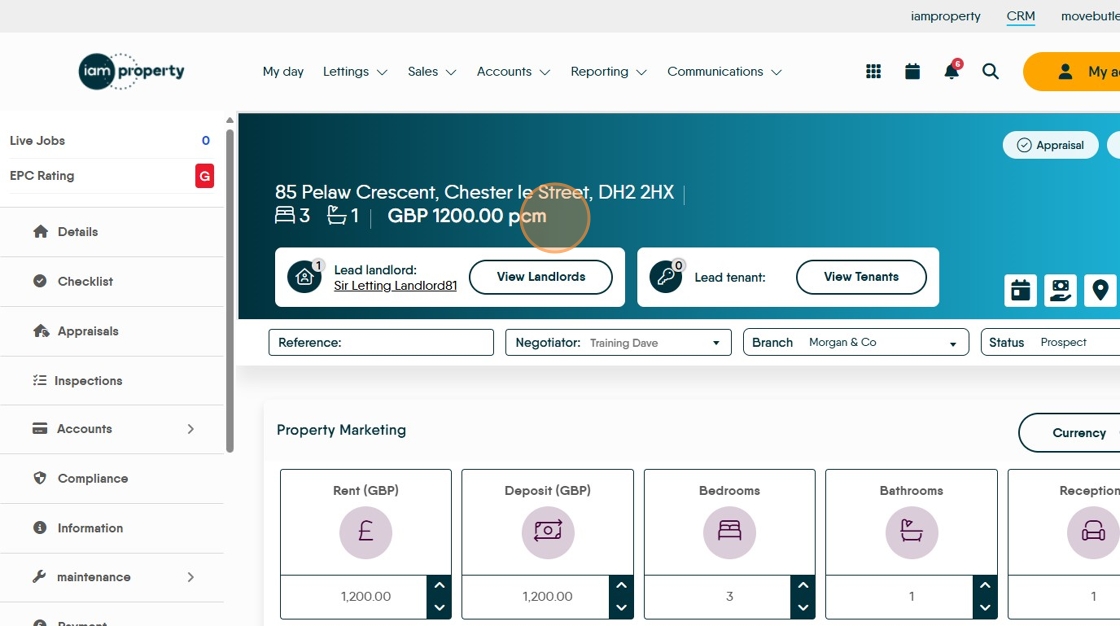
This guide offers essential instructions for efficiently updating property pricing and marketing details, ensuring that lettings properties are accurately represented. By following the steps, users can set and modify prices in multiple locations, add supporting notes, and manage rental information effectively. This resource is particularly beneficial for real estate professionals seeking to streamline their marketing efforts and maintain accurate financial records.
Adding Lettings Property Pricing
1. Click "Marketing"
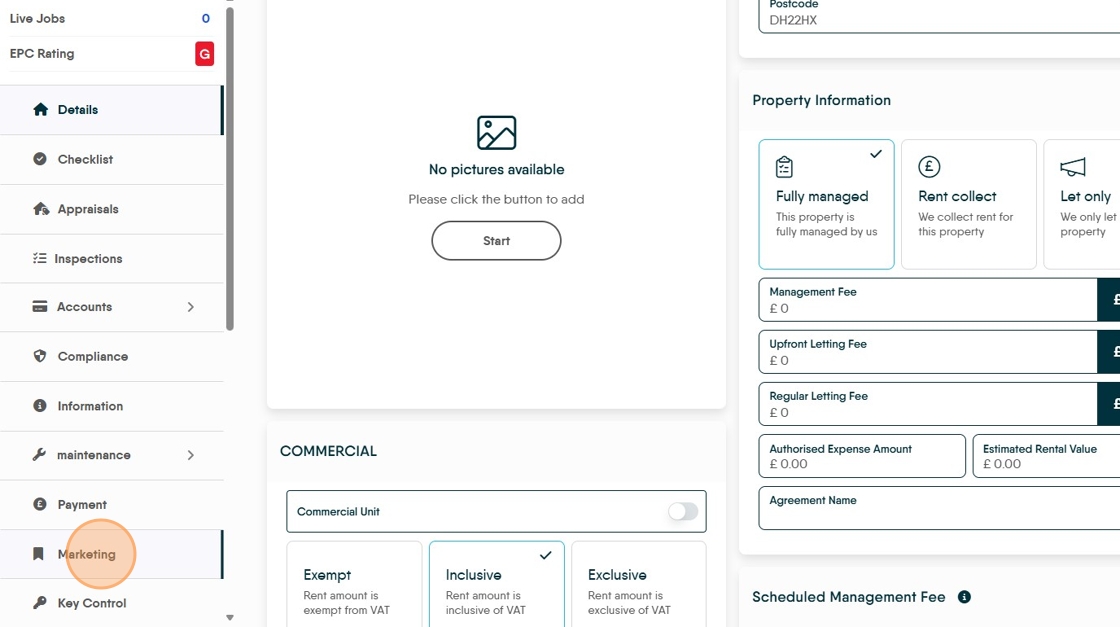
Tip: Tip! It is important to set both these prices as the CRM will pull the figures from here when creating deposit and rent invoices.
2. Click into the Rent box and add the rental amount, either using the up/down arrows or overtype.

3. Click into Deposit and set the deposit amount.

4. If not set, it is a good idea to set the Bedrooms/Bathrooms/Receptions information.

5. Click here to save.

6. If you want to show the rent period with the price, click here and select the appropriate option from the drop down menu.

7. Click here to save

8. Once the page is refreshed the pricing will look like this.