This guide provides a straightforward approach to generating a Bespoke Landlord Statement using Statement Merge in the Accounts module of the CRM. By following the concise steps outlined, users can efficiently create and customise their statements, ensuring accurate financial reporting. Accessing this guide will streamline your property management tasks, save time, and enhance your professionalism in dealing with landlords.
Tip: This guide concentrates on making sure Contractor Invoices are added to a Statement Merge, when the Invoice was added in the last statement prior ( i.e. before the Statement Merge start date) and charged in this statement period
1. Navigate to https://crm.iamproperty.com/Dashboards/Accounts?showTab=AccountsStatementMergeTab&tabType=landlord Click the icon to filter the information on screen.

2. Once options are selected click the "Apply" button or "Cancel" to move away.

Alert: Alert! to make sure the Contractor Invoices are attached correctly make sure the date the Invoice was uploaded to the CRM is within the dates set for the Statement Merge e.g. there may be a contractor invoice uploaded before the last Statement was created and charged to the Landlord in this statement period. In this case the Landlord would be charged and the Invoice not uploaded to the statement merge.
3. At the right side (scroll right) of the statement merge screen you can see when the last Statement was sent and when the last Statement Merge was run. It is important to check these dates to make sure records are accurate.
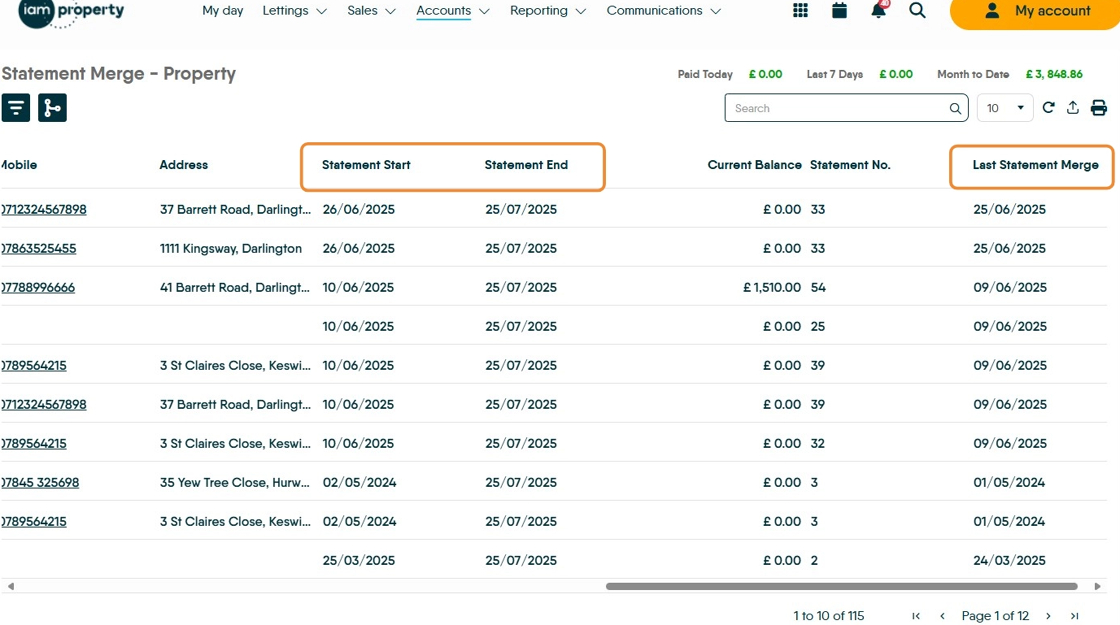
4. Select the Landlord you are sending the statement to.

5. Click here.

6. Click "Select report file" this is the type of statement you are sending to your Landlord.
Click "Standard Landlord Statement"

7. Click "Select email template"
Click "Statement"

8. Click here. If you need to edit the date of the statement, for example to include a Contractor Invoice switch this option off (it will show greyed out)

9. Click the "Statement Start Date" field and set this to the date required e.g. the date the last Contractor Invoice was uploaded. Usually you would leave the end date as the date you are creating the Statement to maintain the statement periods.

10. If this option is not selected, click here. This can be opted in via Accounts Configuration menu.

11. Click "Merge" this will create and send out your statement to the selected Landlords.
