This guide provides step-by-step instructions for accessing Sales Compliance within the CRM system, ensuring users can efficiently navigate the platform. By following these clear directions, users can quickly locate and verify necessary sales compliance documents, improving their workflow and ensuring regulatory adherence. It is essential for anyone involved in sales or compliance to understand these processes to maintain accuracy and efficiency in their operations.
1. Navigate to https://crm.iamproperty.com/MyDay

2. Click "Sales"

3. Click "Sales Compliances"

4. This will take you to the Compliance screen. This screen will show all properties and Vendors in your CRM and their progress through the movebutler process.
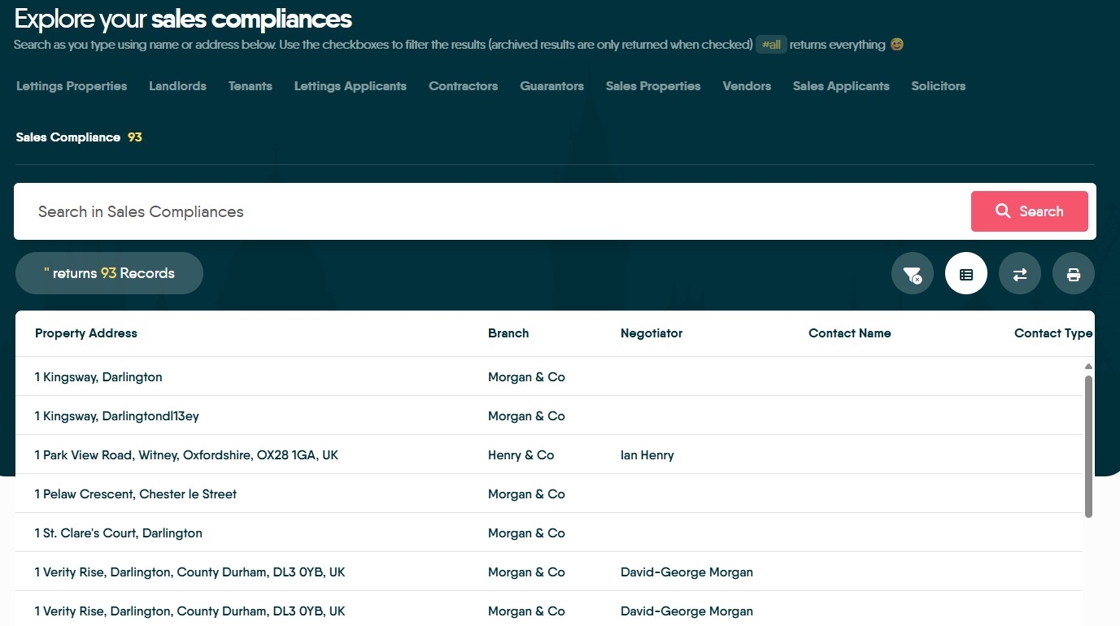
Tip: Tip! if there are multiple Vendors for a Property there will be a line for each vendor.
5. If there are multiple Vendors for a Property there will be a line for each vendor.

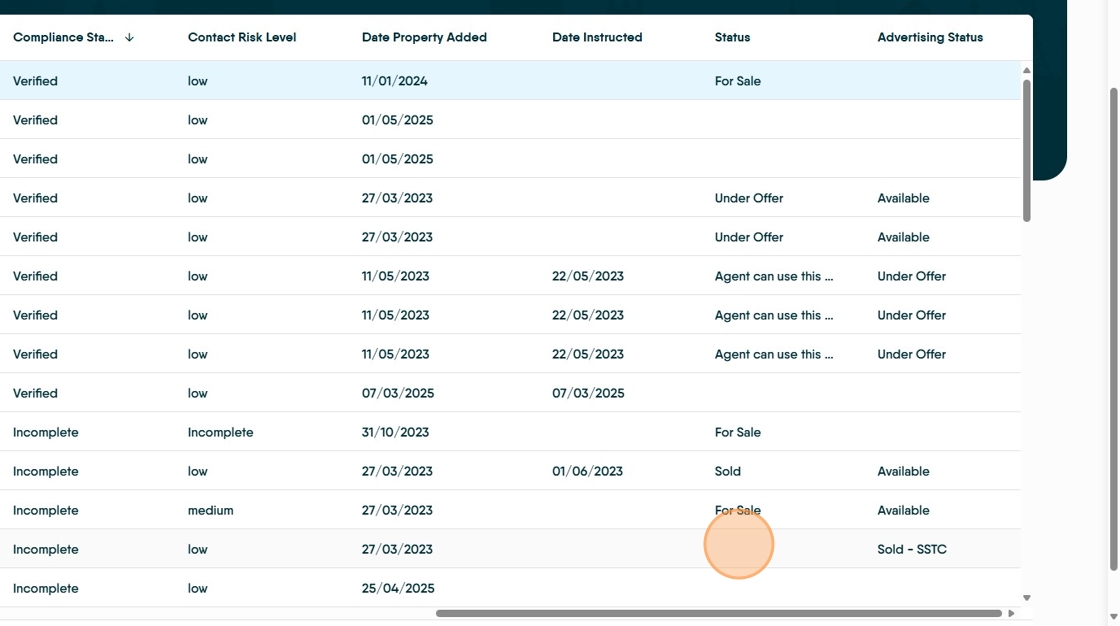
6. Columns ca be sorted by clicking the header for the column, in this case Compliance Status, and the whole list will be sorted by the header subject.

7. the additional information that can be viewed.
Property Record
8. The compliance status can also be seen in the Property Record. In the compliance screen and Contacts Click "Compliance"

9. You can see the documents created in movebutler and view these.

10. Click "Contacts"

11. The contact card will show the current status of the Vendor and applicant.
