This guide is essential for efficiently managing landlord payment details within the iamproperty CRM. The Landlord payment information is added in each property record. It offers step-by-step instructions to streamline the payment process, including tips for automating payments via BACS and handling multiple landlords. By following these instructions, users can ensure accurate payment distribution and save time on future transactions.
1. Navigate to https://crm.iamproperty.com/myday from here navigate to a property record.
2. In the left menu scroll down to Payment. Click here.

3. Click "Edit". If a Landlord has already been added to the CRM and has properties, the payment details are copied from the previous property. They can be edited if required.

4. Click this text field and add the name of the bank and then complete all of the fields in this screen.
IBAN and SWIFT details are not required for standard UK payments.

5. Click "BACS" and set the payment type for the Landlord.

Tip: Tip! BACS allows you to automate the payments to the landlord by creating a BACS file and uploading this file to your bank, your payments will be automatically created and made for you.
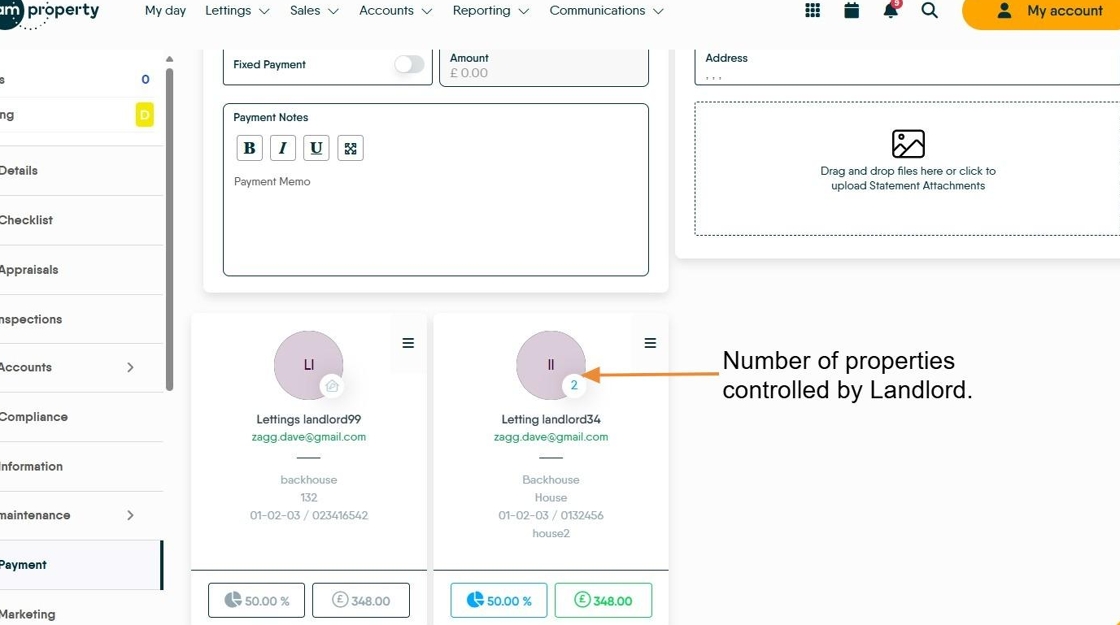
6. If you have multiple Landlords, Click "Percentages" this will allow you to set the payments to each Landlord
N.B. these payments must add up to 100%, if there are 3 Landlords one must get 33.34% otherwise the total is not 100%

7. Click this text field and add the percentage payment this landlord receives.

8. Then set the percentage for the second Landlord. As shown the system will show an error unless the 2 percentages add up to 100%. The split can be anything to total 100%.

9. If there are 3 landlords the split must have 1 Landlord receive 33.34%

10. Click "Save"

11. The screen will show details for both Landlords, including what their payment will be before deductions.