This guide will show the Landlord Portals. Giving a comprehensive walkthrough of the client portals within the iamproperty CRM, making it an essential resource for users looking to enhance their Clients property management experience. By following the detailed steps, users can efficiently access vendor functionalities, manage properties, view feedback, and handle compliance documents.
Landlord Portal
1. Type your Username and Password Click "Sign In"

2. The first screen is the News Feed, this is set from the Configuration screen and is created by you.

3. Click "Landlord Portal"

4. Click "Properties"

5. You will then see a screen showing all properties controlled by the landlord.
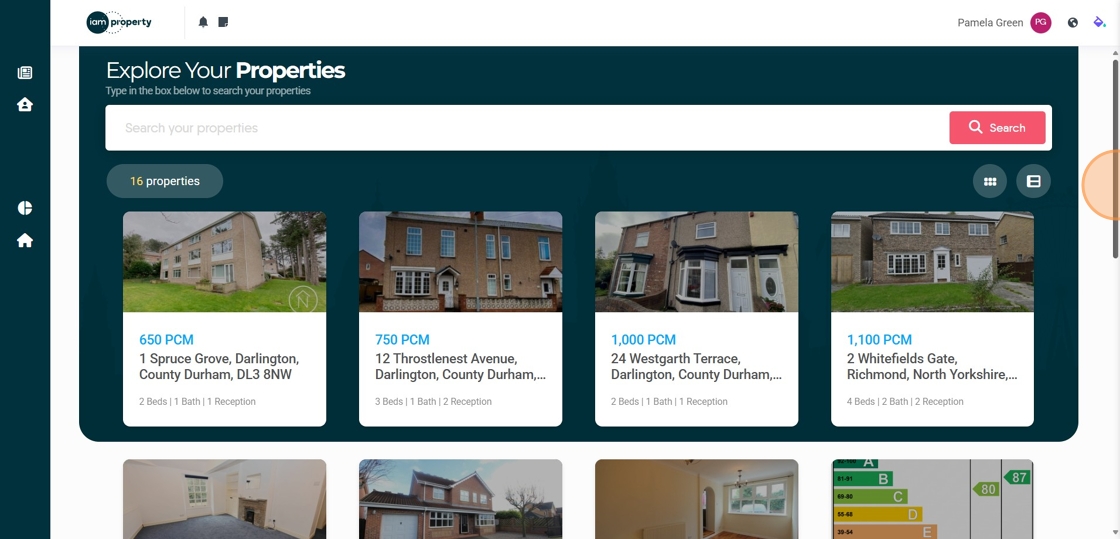
6. This screen can be displayed 2 ways. As tiles or click here

7. Or as a list of properties

8. Click here to swap back to the tile view.

9. Click onto a tile.


10. This will take you to a screen showing all the property details.
11. Click "Tenancies"
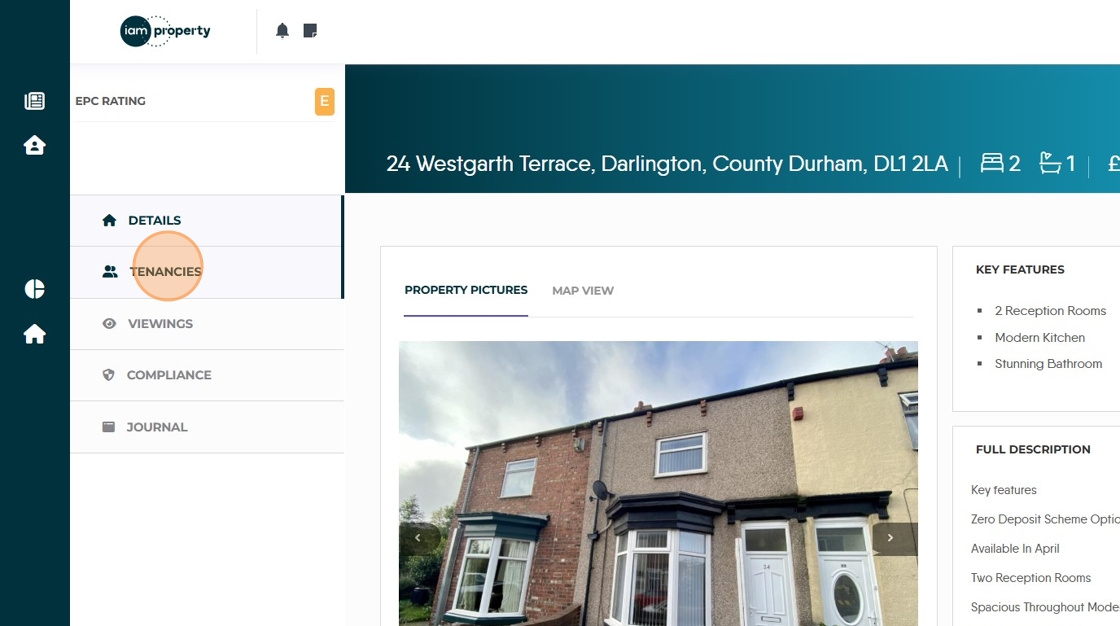
12. To see all the tenancies on the property, current, future and archived. These can be sorted using the drop down boxes or the filter options

13. Click "Viewings". This screen will show all viewings for a property. Feedback on viewings can be seen from here

14. Click "Compliance" the Landlord can see the Safety Checks set against the property and the EPC.

15. Click "Journal". This will show any Journal entries added to the property record that relate to Property Maintenance and any that are made public in the journal.
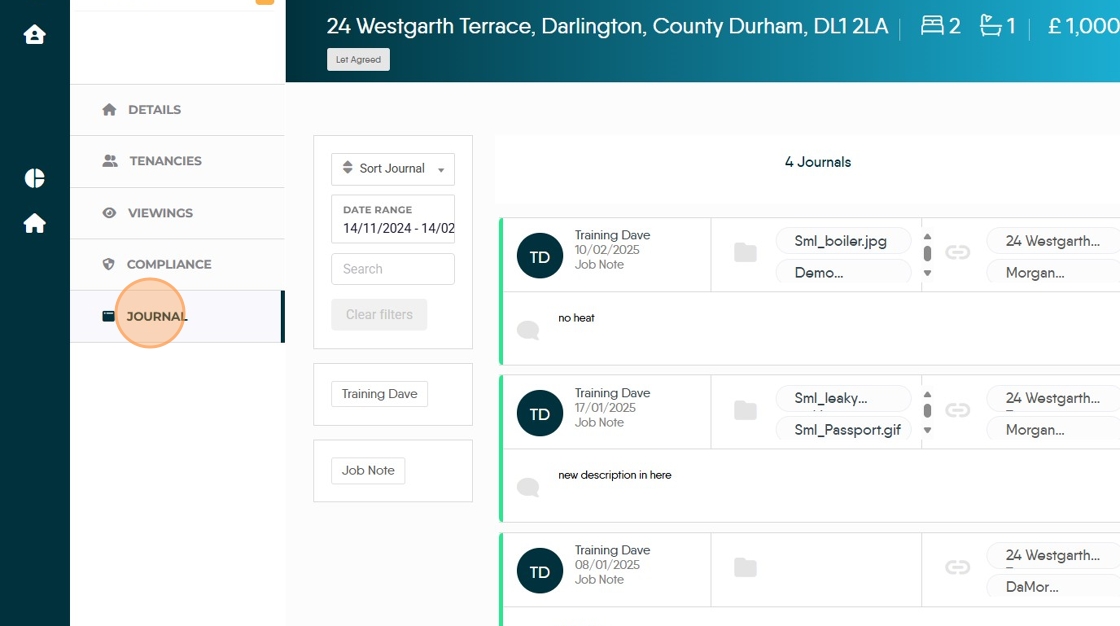
16. Journal entries can be searched and sorted by date range. Click the "Select date range" field or use the options.

17. Click "Documents" this will show all the documents that have been uploaded to the property record and made available to the client portals.

18. They can also be sorted by type using the options towards the top of the screen . Click "Compliance Certificate" to sort and show only Compliance Certificates.

19. You can also Click into Document Types and select for the list to display only a specific type of document e.g. "My Landlord Documents"

20. Click "My Property Documents" will show all documents or those for a particular property


21. Click "My Tenancy Documents" to see the tenancy related documents. These can be sorted by property and tenancy.
Click "All properties"
Click a property name
Click "All tenancies"
Click on a Tenancy
Statements
22. Landlords have the option to create a Statement for themselves, this is usually a standard property statement. Click "Statements"

23. Click "Lettings"

24. Click here to select the report to produce.

25. Click "All Properties" and select the property you want to run the report for.

26. Click "Run Report"

27. To change password or log out, click in the top right corner

28. To log out, click "Log out"
