This guide provides a step-by-step for effectively running reports and managing appointments within a CRM system. Users will gain insights into navigating dashboards, creating reports, making it easier to track tasks and manage properties. With clear instructions, this resource is essential for anyone looking to enhance their efficiency and productivity in real estate management. Engaging with this guide will streamline your workflow and improve your overall CRM experience.
1. Navigate to https://crm.iamproperty.com/MyDay
Creating a Report
2. Click "Reporting"

3. Click "Reports"

Alert: Alert! The process for creating a report in CRM is the same whichever option you select.
We are using the 'General' option for this guide.
4. Click "General" or any other category

5. Click here to select the report, type the name of the report you are searching for into the field and the options will show.
If the report doesn't not show please check with your onboarding specialist or our support team at crm.support@iamproperty.com
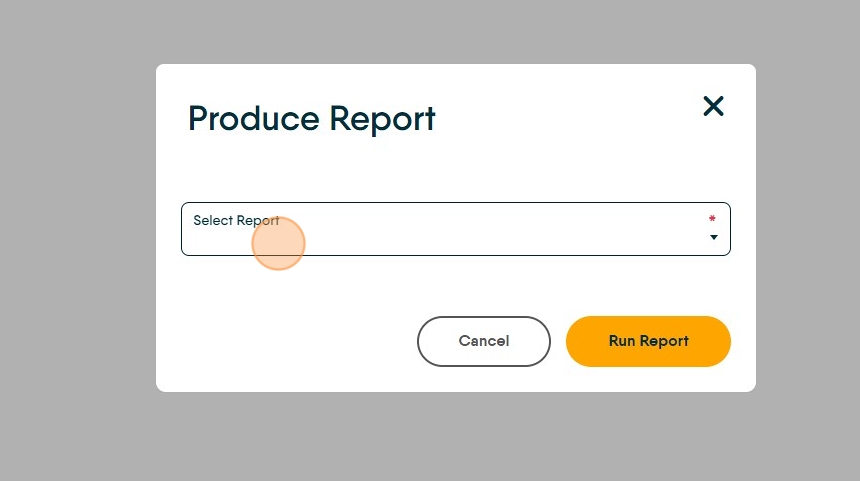
6. in this example we are using "Calendar Day View" the process is very similar regardless of what report you are creating.

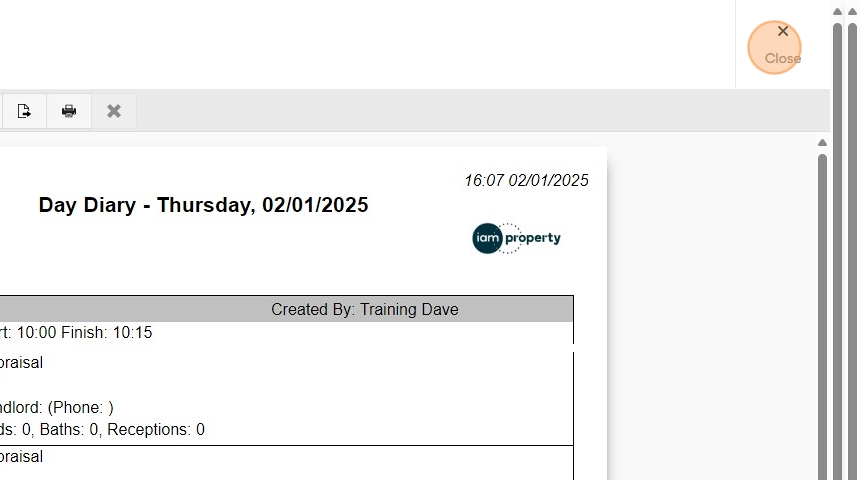
7. there maybe a screen that requests some additional information, complete this. Click "Run Report".

8. Click here to specify what you want to see in the report (not all reports support this feature).
Click here.

9. Click "Run Report"

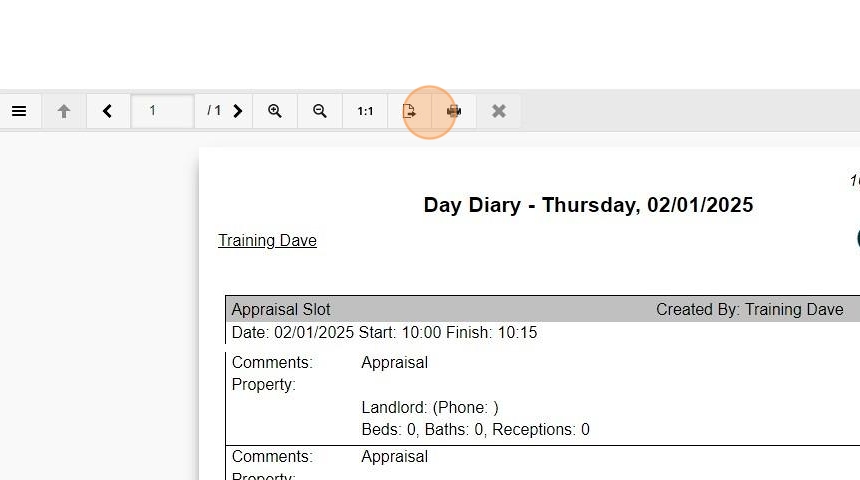
10. The report will then be produced. The report does need to be exported/saved before you close it. Click the print icon to print or the icon to the left of the print icon to export.
11. Click "Close" to close the report and return to the main screen.