This guide provides a straightforward step-by-step process for creating a rent invoice for a tenant. By following the instructions, users can efficiently generate invoices without confusion, ensuring accurate billing.
Alert: Alert! Rent Invoices are created AUTOMATICALLY in the CRM from the Tenant record, based on the rent amount, rent due date and rent period.
A monthly rent invoice DOES NOT have to be created, this process would only be for ad hoc rent invoices.
1. Navigate to https://crm.iamproperty.com/Dashboards/Accounts
2. On the Invoices tile. Click here.


3. Click "Select tenant" type tenants name and select from the list
4. Click "Select transaction type"
Click "Rent Invoice"

5. This will pre fill the screen with the Rent details for that tenant and property.

6. If required the Invoice amount can be edited. To edit the timescale of the invoice, either change the end date or change the number of days.
The CRM will update the description, the management fee can be included or excluded from the transaction by selecting the on screen option.

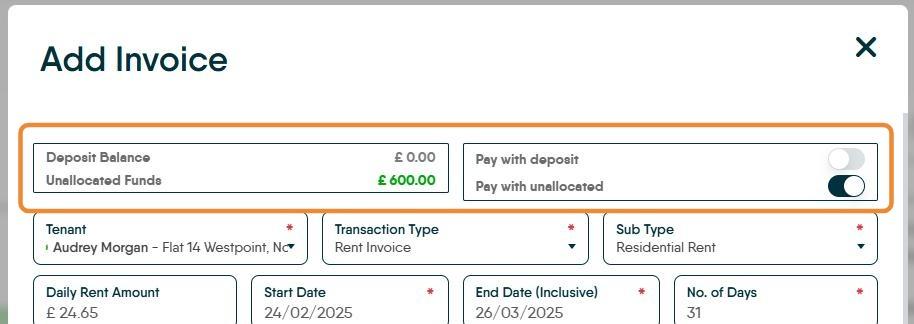
7. If there is any held deposit or Unallocated funds on the account there will be the option to pay the invoice (all or part) using these funds.
8. Once the information is correct, click here to create the Invoice.

9. Click "OK"

10. There will be an option to create a Tenant Invoice, select Yes/No as required.
