This guide provides a straightforward process for updating landlord information in the CRM system, ensuring that property records are accurate and current. By following the steps outlined, users can efficiently change ownership details, which is essential for maintaining effective property management. Viewing this guide will save time and reduce errors in the CRM, making it a valuable resource for property management professionals.
1. Navigate to https://crm.iamproperty.com/myday then navigate to the property where you are changing the landlord details.
To Change Landlord/Ownership
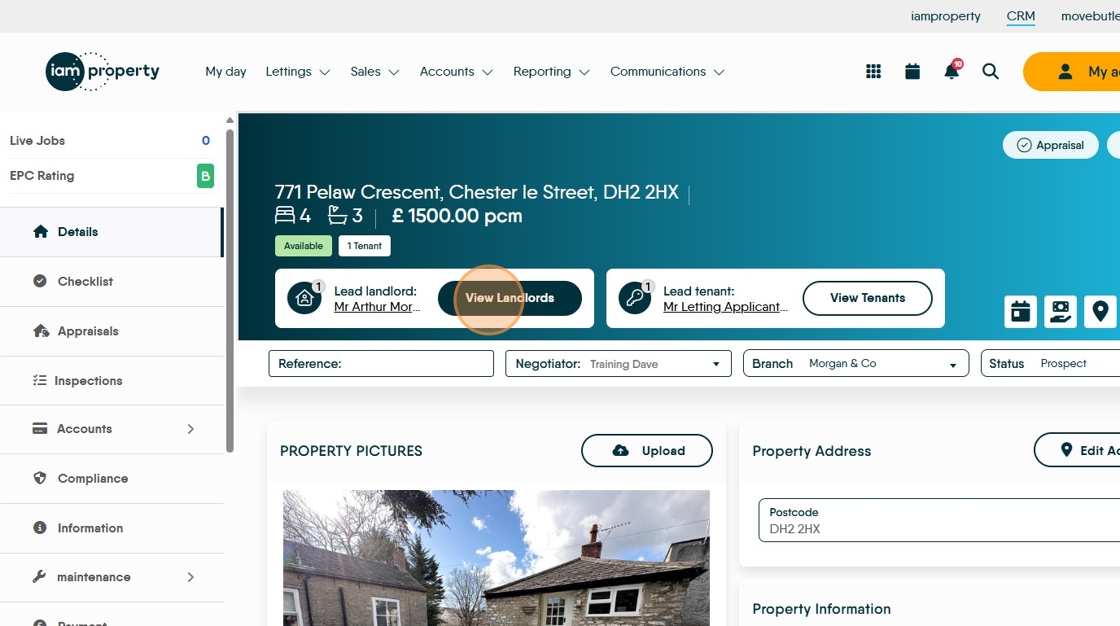
2. Click "View landlords"

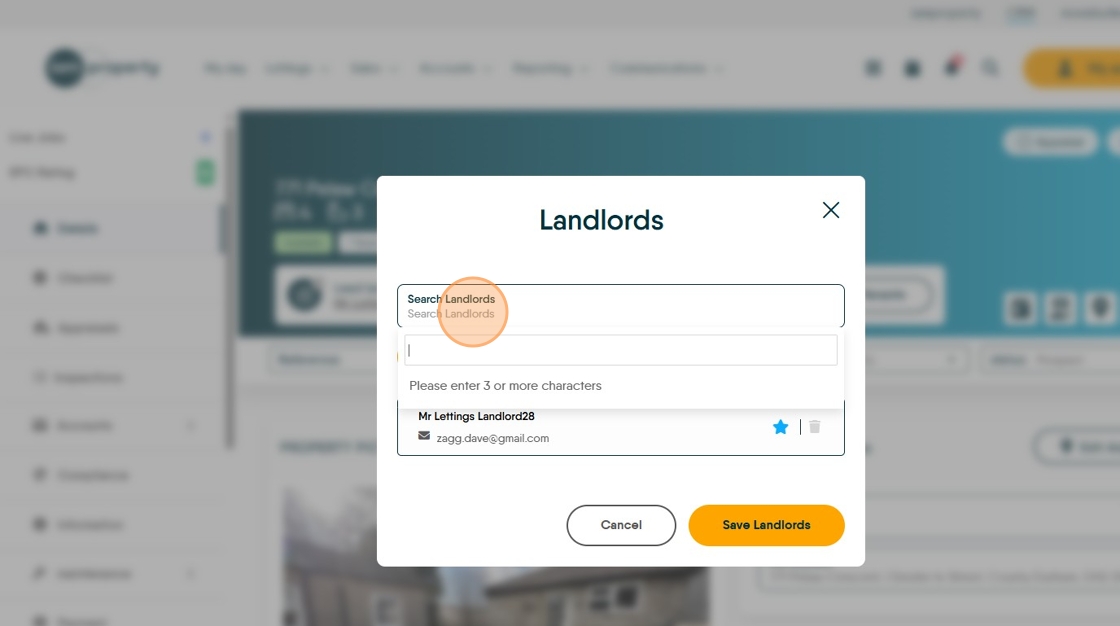
3. Click "Search Landlords" to find the new landlord information, or select the option to create the new landlord record.
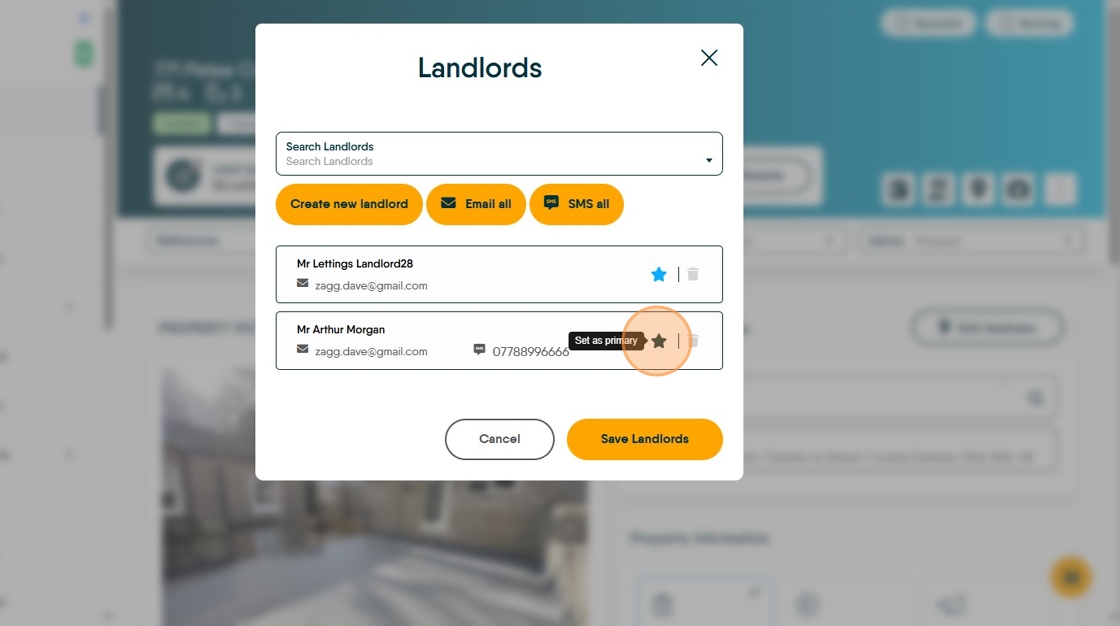
4. You need to make the new landlord the Primary Landord, by clicking on the black star and turning it blue. Click here. You can then delete the old landlord (if required)
5. Click "Save Landlords"

Adding an Additional Landlord
6. Click "View landlords"
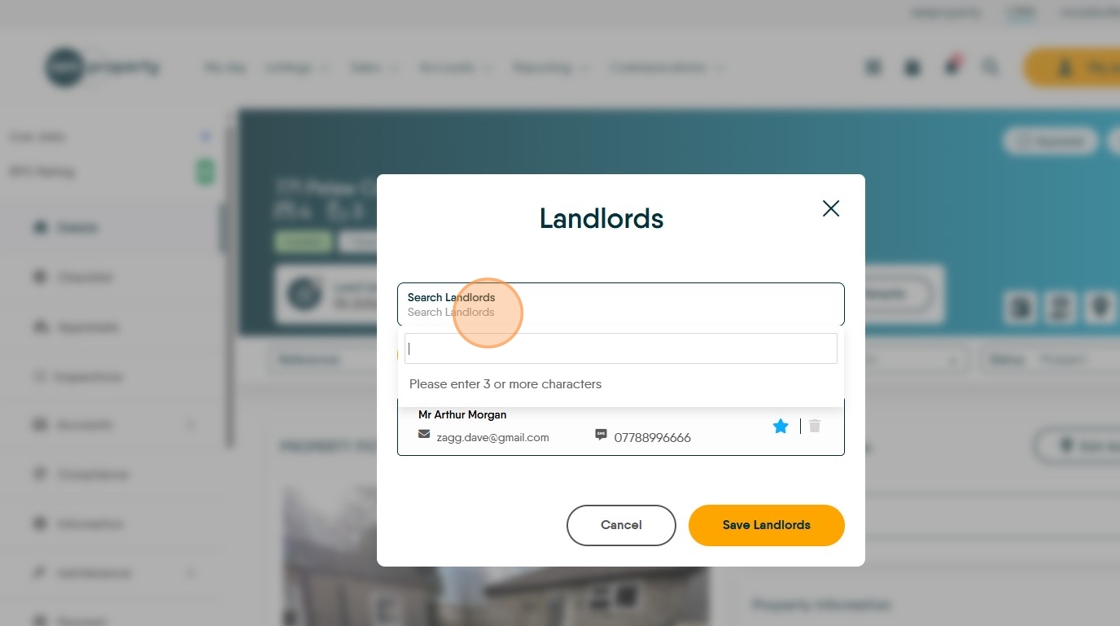
7. Click "Search Landlords"
9. Click Landlords name

10. Click "Save Landlords"

11. You will now see the name of the Lead Landlord and a number (in this case 2) to show how many additional landlords there are. Remember to also update the financial details for both landlords in the 'Payment' tab
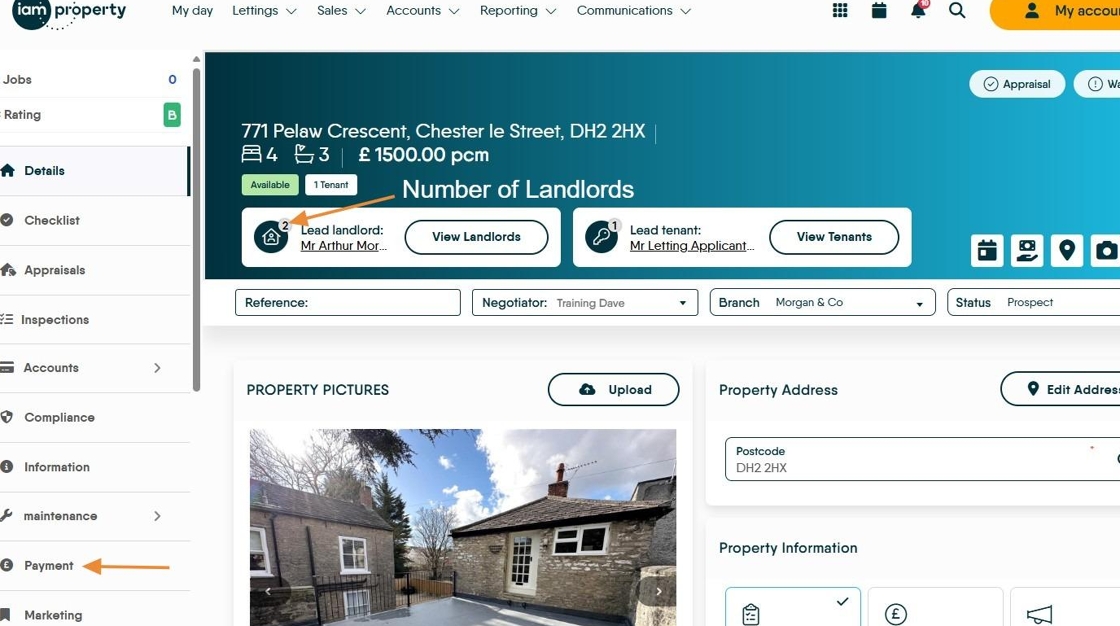
Alert: Alert! you need to inform your tenant of the new Landlord details as soon as possible after the change. " S3 (1)[[the new landlord shall give notice in writing of the assignment, and of his name and address, to the tenant]]not later than the next day on which rent is payable under the tenancy or, if that is within two months of the assignment, the end of that period of two months."
There are two potential consequences of not complying:
- Being fined (up to £2500)
- Both the former (“the old landlord”) and new landlord can be held jointly and severally liable for any breaches of the tenancy agreement. However, the legislation does state that the old landlord can protect themselves by providing their own notice in writing of the assignment, and providing the new landlord’s name and last-known address.
Sending the Notification Letter
12. You will need to send your tenant a letter notifying them of the change of landlord, this can be done from within CRM. Click here (if your letter is saved against the property).

Alert: Alert! The letter will have been added to CRM at your request and added to the area of CRM you requested e.g. Property or Tenant etc.
13. Click "Letters"

14. Click "Please select a letter"

15. Click (in this case) "New Landlord Sec3" or the name of your letter.

16. Click "Generate"

17. Check the details of the Landlords. Click "Generate"

18. Complete the document as required, if you have merge tags then the data will be automatically added, otherwise edit the document and Save. To send the letter, Click "Send Email" the letter will be converted to PDF and added to the email as an attachment. Save to Documents saves the letter to the documents folder of the (in this case) Property.

19. Type your covering email, or use a template and then send the email.
Click "Send Email"

20. Click here to close the screen and return to the Property Record.


21. A copy of the email and documents will be in the Journal
Click "Journal"
Click here.
Alert: Alert! Don't forget to update the Landlords Payment details in the Payment menu of the Property Record.
22. To update Landlord payment details, click "Payment"
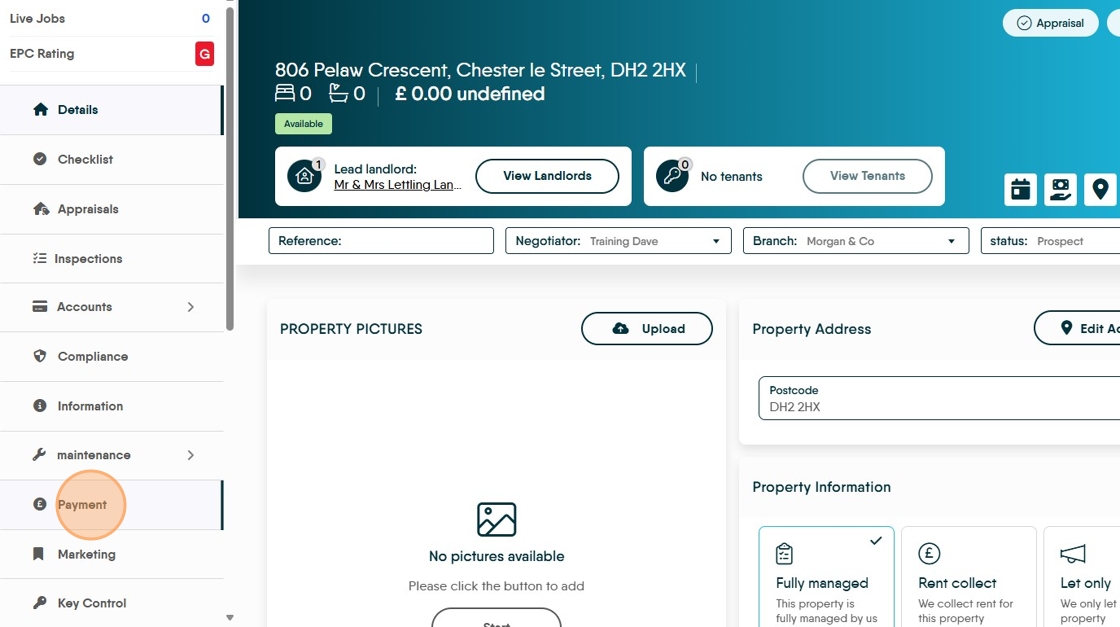
23. Click here.
Click "Edit"

24. Complete all the fields in here. n.b. IBAN and SWITBIC are not needed for UK based payments. If this isn't completed you will only be able to pay your landlord via Cheque, or bank transfer if you have another record of their banking details.
You WILL NOT be able to pay via BACS

25. Click "Save"

26. Click here.
