1. Log in to your TextAnywhere account
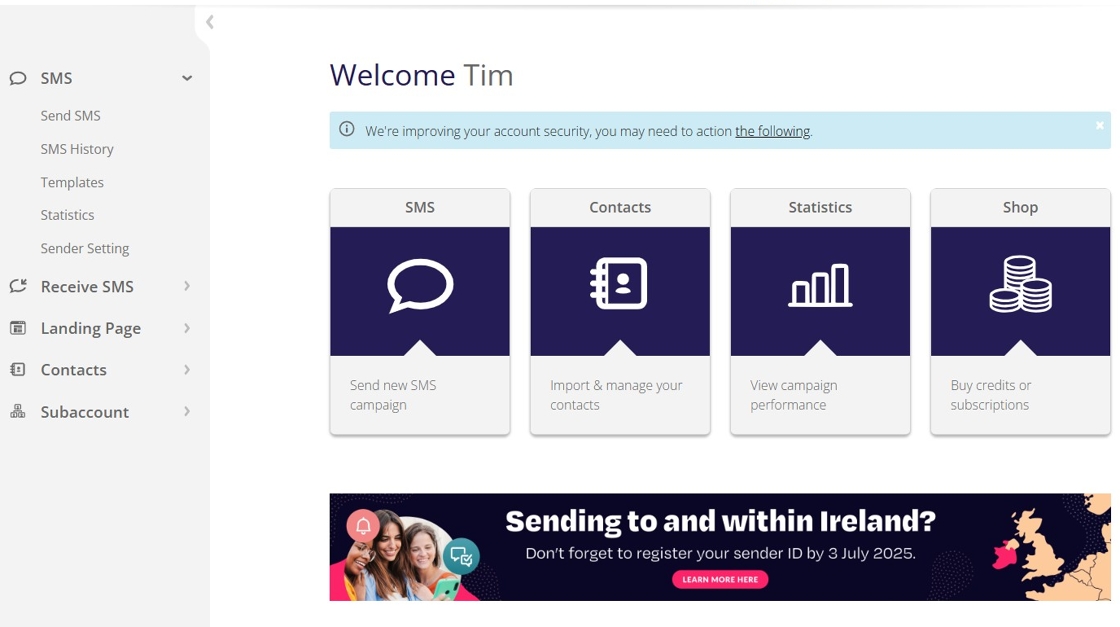
2. Click "Account"

3. Click "Account settings"

4. Click the "API & IPs" tab

5. Your TextAnywhere username will be displayed

6. Your TextAnywhere API Password can be changed by clicking 'Change Password'

7. Your TextAnywhere Username/API Password are used to link your TextAnywhere account with your CRM account.
Instructions to do this can be found here.
Made with Scribe