This guide provides a step-by-step process for refunding overpaid commission charged to contractors, ensuring clarity and accuracy in financial transactions. It is essential for anyone managing contractor payments or accounting in property management, as it helps streamline the refund process and maintain proper financial records. By following the outlined steps, users can effectively resolve overpayment issues, thereby enhancing trust and transparency in contractor relationships. View this guide to simplify your financial operations and avoid potential discrepancies.
1. Navigate to https://crm.iamproperty.com/Dashboards/Accounts

2. Click "Accounts"

3. Click "General"

4. Click "Ledger Transfer"

5. Click "Select ledger"

6. Click Ledger Type and select "Agent Ledger" as the commission received has been paid into here.

7. Search for the property you are refunding from.
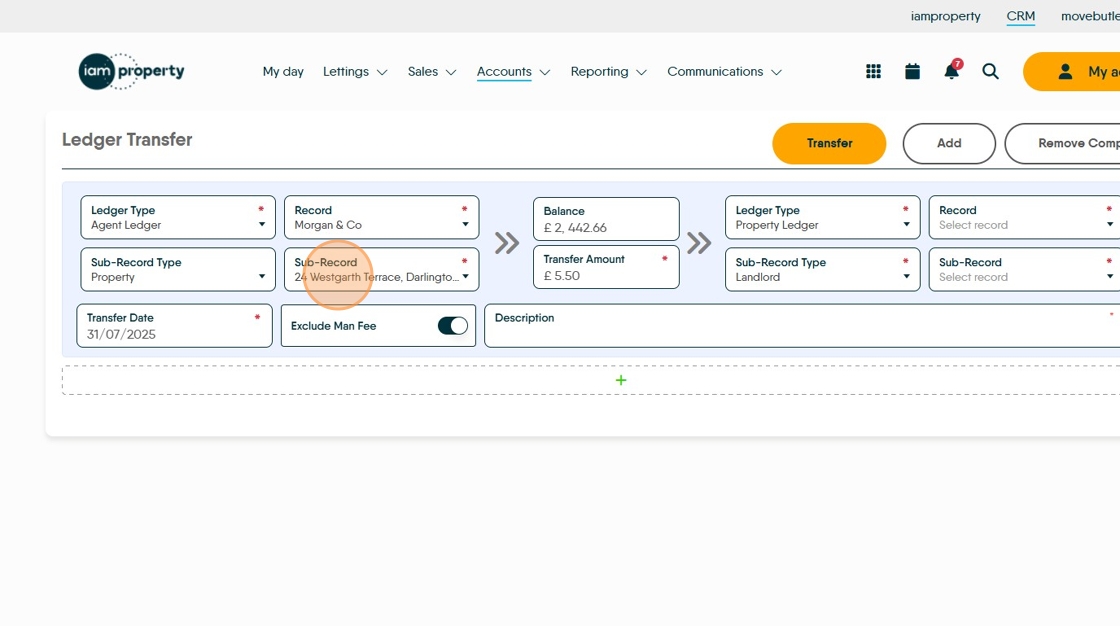
8. Click the "Transfer Amount" field. Enter the amount to be refunded.

9. Click Ledger Type and select "Property Ledger"
Click "Property Ledger"

10. Search for and select your Suspense property.

11. Click here to create a description
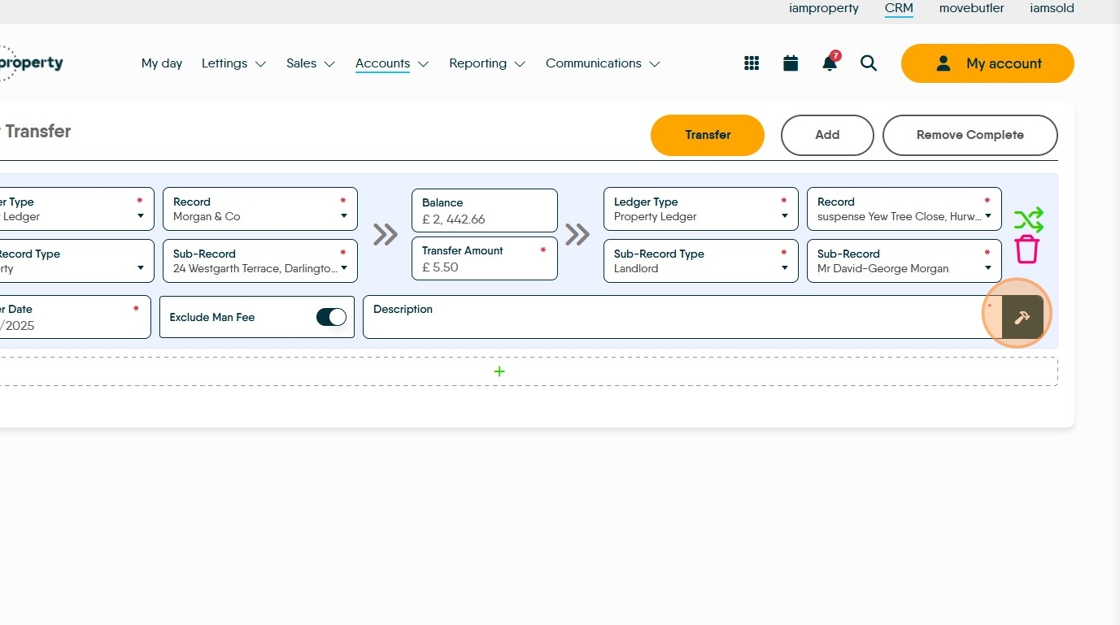
12. Click the "Description" field and edit to make it clear what this transaction is.

13. Click "Transfer"

14. Click this icon to return to the Accounts Dashboard
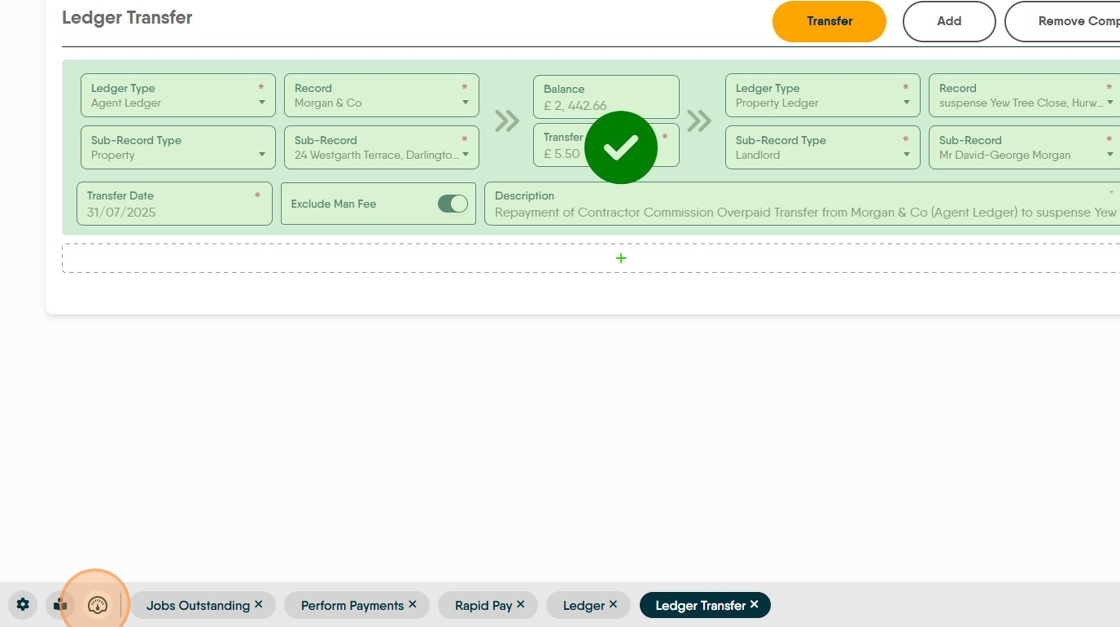
15. Click here and create an expense charge for the amount being refunded.

16. Click "Select property" this is your suspense property
Click "suspense property"

17. Click the "Description" field. Add your detailed description explaining what the transaction is for and why

18. Complete all the other fields with a red star.
Click the "Title" field.

19. Click "Payment"

20. Click here to create the invoice.

21. Click the "Invoice Amount" field and add the amount to be refunded to the Contractor. Then complete all the other mandatory fields.
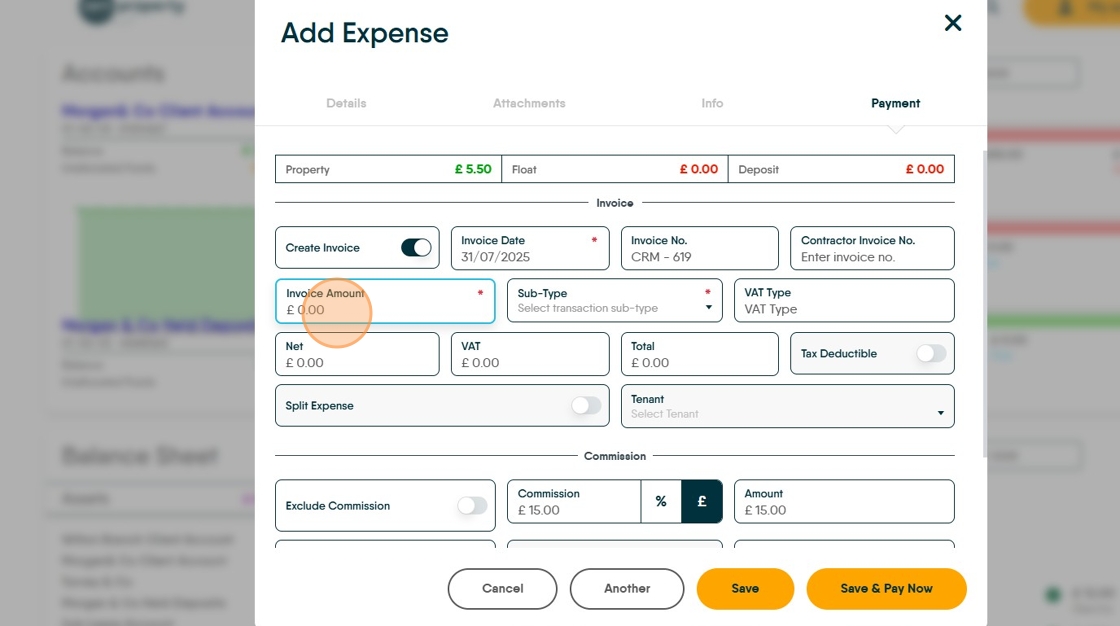
22. Click "Select transaction sub-type" select the appropriate option from the drop down menu.

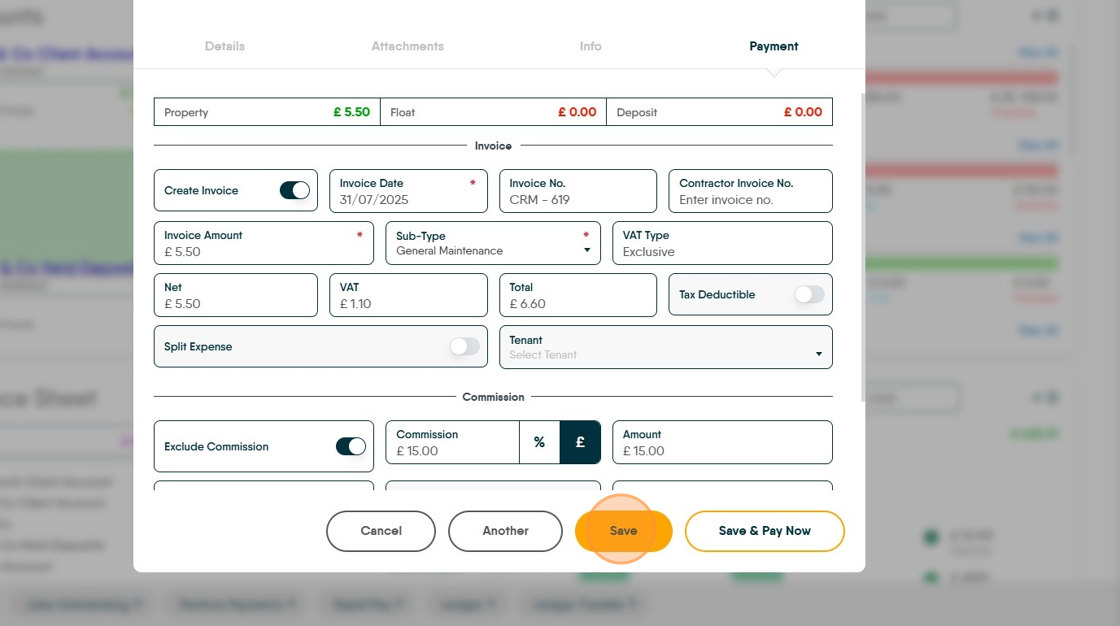
23. Click here to exclude contractor commission on this refund payment

24. Click "Save"
25. Click "Accounts"

26. Click "General"

27. Click "Unallocated"
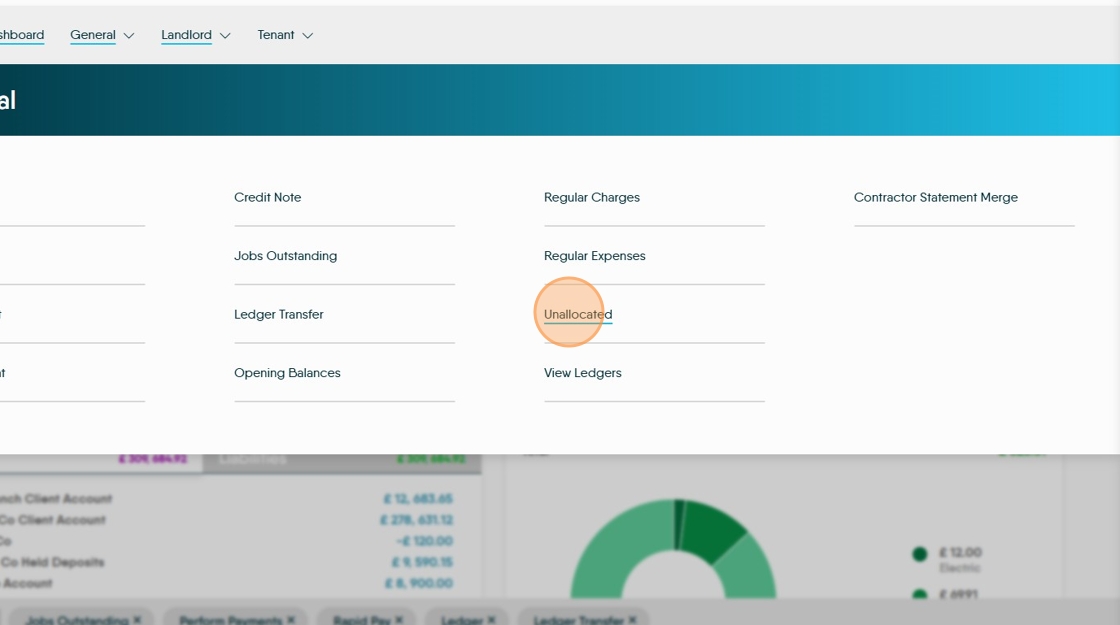
Tip: Tip! There are 2 ways to Allocate the funds to the outstanding expense invoice. This guide will show both.
28. Click this checkbox.

29. Click here.

30. Click "Allocate"

31. Click this checkbox.
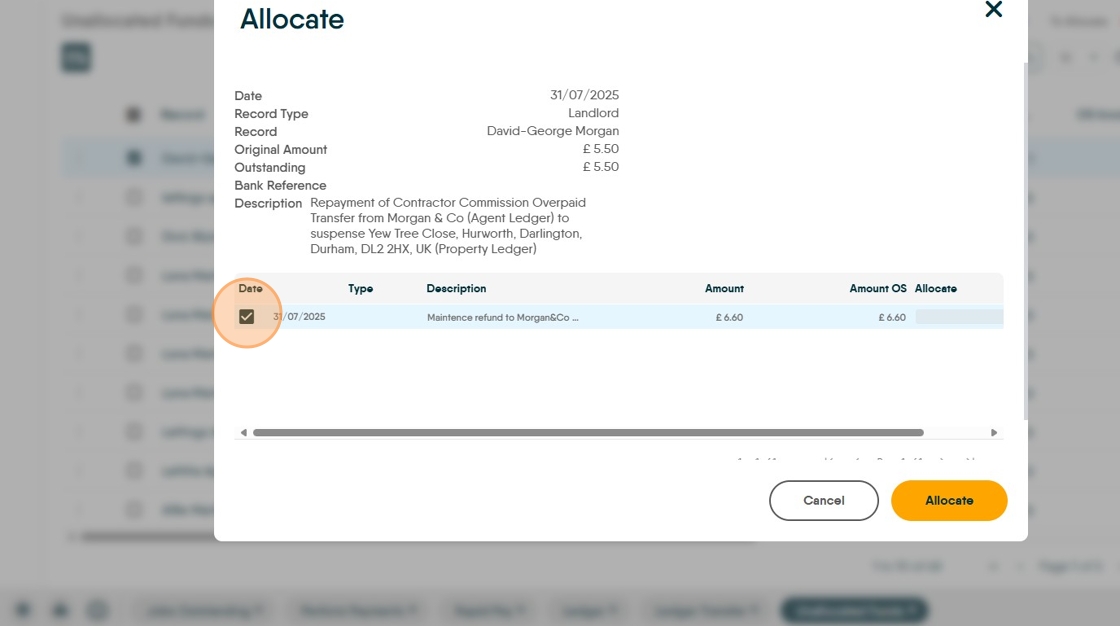
32. Click "£ 0.00" and type the amount to be refunded. In this case £5.50

33. Click "Allocate"

34. Click this checkbox.
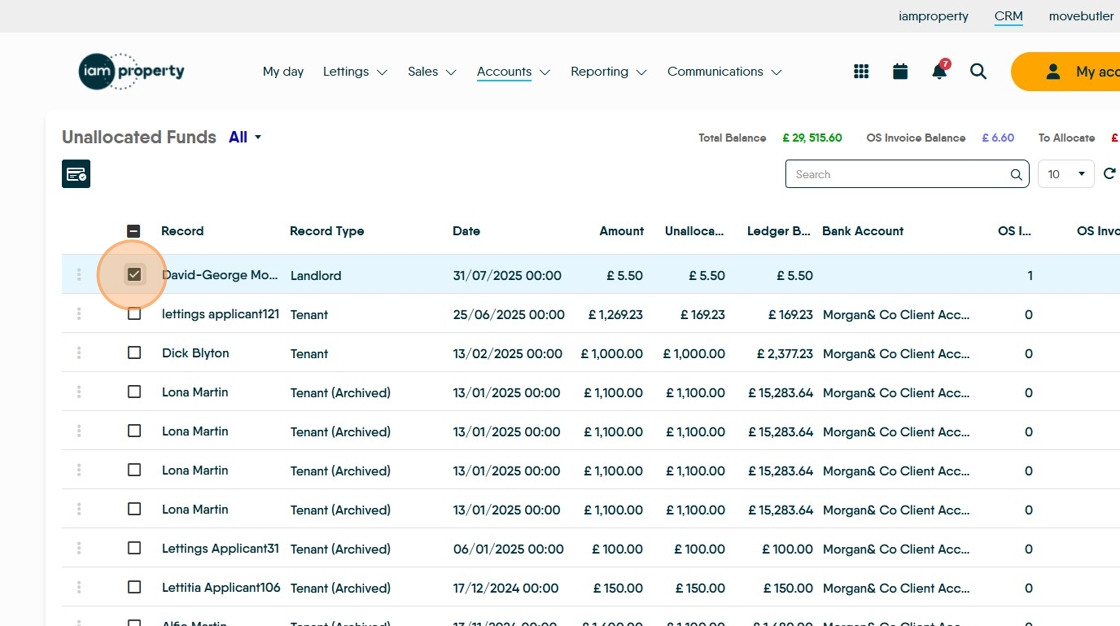
35. Click this icon and the system will automatically allocate the funds to the invoice..

To Pay the Contractor
Alert: Alert! here we assume we are paying the Contractor via BACS. However, if the contractor is paid any other way the transaction will show in the Client Account on CRM, the transaction needs to be mirrored in your real bank account.
36. Click "Accounts"

37. Click "General"

38. Click "BACS List"

Tip: Tip! In this example we have edited the screen using the filter (highlighted below) to only show Contractors.
39. Select the payment or payments to make

40. Click here to pay the selected transactions.

41. This will create your BACS list to be exported to your bank for payment. Once exported the BACS payments will show in your CRM Client Account.