This guide provides a straightforward approach to cancelling an Expenses Invoice that has been charged to a Landlord and updating its description within the CRM system so the job can be re invoiced to the Landlord correctly.
1. Navigate to https://crm.iamproperty.com/Dashboards/Accounts
Alert: Alert! We are deleting and re invoicing an invoice raised in error. This should be a rare occurrence not a regular transaction.
2. Go to the Expenses tile, click the 3 line menu and select the Jobs Awaiting P
ayment option or if already open, pick from the tabs at the bottom of the screen.

3. Click the 3 dot menu

4. Click "Cancel Invoice"

5. Click "Confirm" this will cancel the charge to the Landlord and add the job to 'Jobs Outstanding' to be re charged to the Landlord.

6. Click "Jobs Outstanding"

7. Find and select the expense to be re invoiced to the Landlord.

8. Click "Edit"

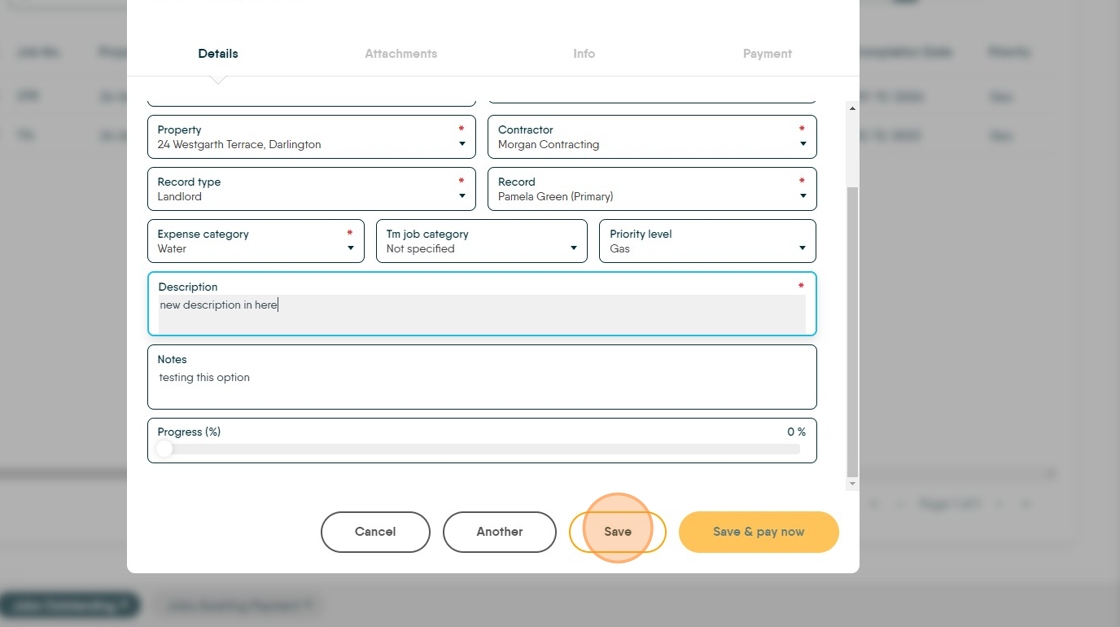
9. If needed we can edit the description of the job. Other options can be edited in this screen as well.
Click the "Description" field. Add the new description.
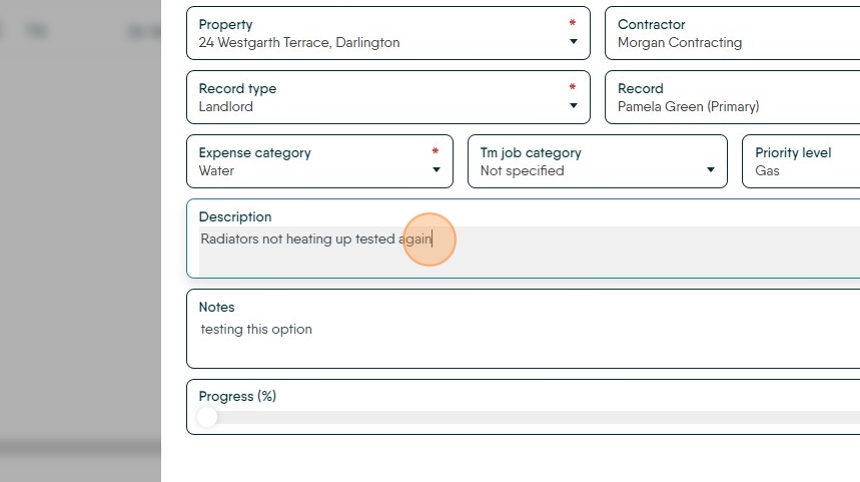
10. Navigate to the Payment tab and Invoice the job as usual
11. Click "Save" to add the job to Jobs Awaiting Payment.