This guide provides a straightforward approach to generating a Financial Statement using the Reports feature of the CRM. By following the concise steps outlined, users can efficiently create and customise their statements, ensuring accurate financial reporting. Accessing this guide will streamline your property management tasks, save time, and enhance your professionalism in dealing with landlords.
Alert: The Reports you see in the the menu shown in this menu (and this guide) are the reports you have requested be added to CRM when on-boarding. You may have the same or different reports to any visible in this guide. If you cannot find a report, or require a new or edited report please speak to Customer Support on [[crm.support@iamproperty.com]][[ Phone; 01865 860 871]]
1. Click "Reporting"

2. Click "Reports"

3. Click "Accounts"

4. Click here, search for and select the report to run.
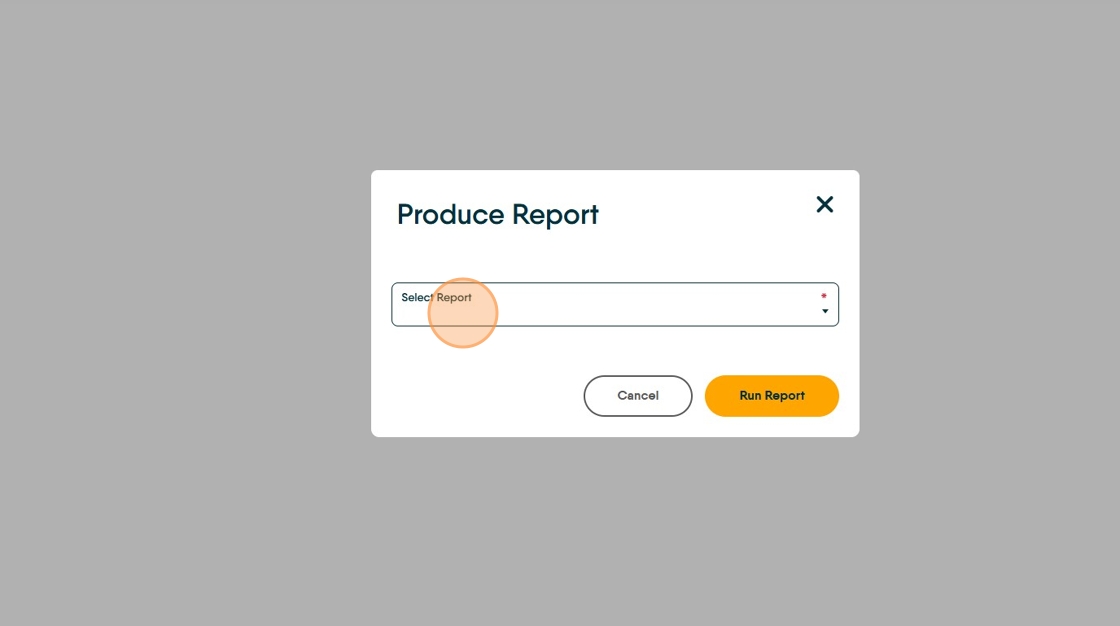
5. In this case, click "Standard Contractor Statement"

Select the Report you want to create, then answer/complete any further steps required. This may be start/end dates, specific Landlords/Contractors/tenants etc.
7. Once all the additional information is added, click "Run Report"

8. Your report will show on the screen, you can now print the report or export it.
To print click here.

9. To export the report to a different file format e.g. PDF or Excel. Click "Export"

10. For example. Click "Adobe PDF Format" and the file will be exported to PDF and saved in your Downloads folder.
You could export the file to any of the file formats shown in the list, our example shows PDF as this would be the usual type used.

11. Click here to complete creating your report.

Sending the Statement via CRM email.
12. The report can be sent via the email function in CRM and a record made automatically in the Journal.
13. Click "Search" and search for the record you want to send the report to.

Alert: Alert! You cannot send an email (or letter/SMS) to, or from, a property. The email has to be sent to, or from, the Vendor or Landlord. However this can be done from the Property Record by clicking on the Vendor or Landlord details in the top left of the screen.
14. In this example we are using a Contractor, the process is the same for any other record type.
Click "View Contractor"

15. To email the statement, click here.
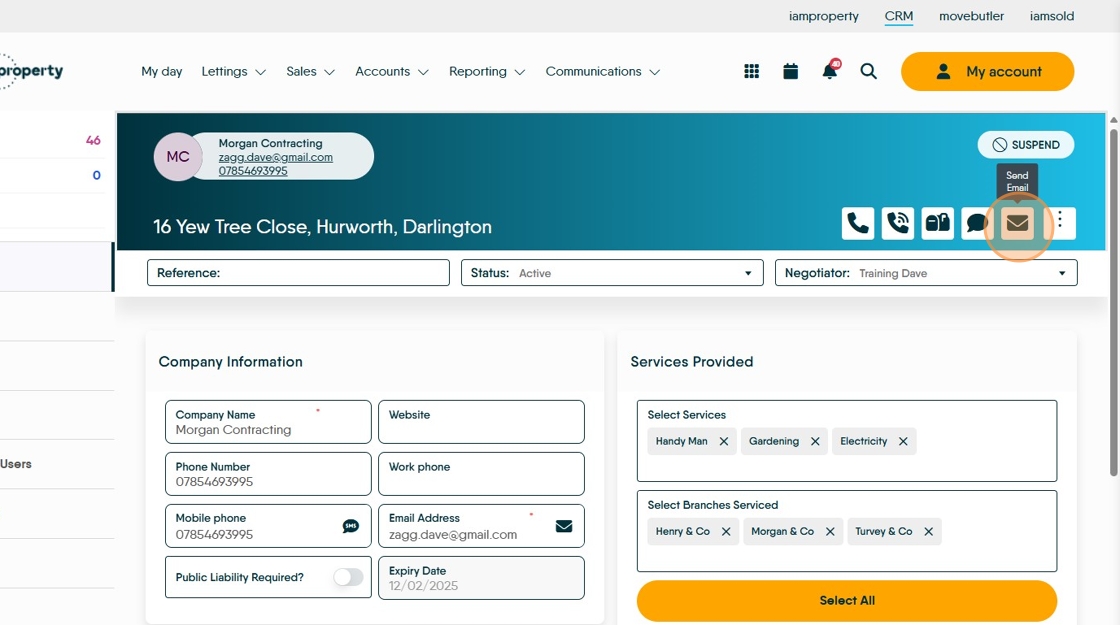
16. On this screen click here to attach a file. You can also select additional recipients from the right side of the screen and select a message template if you have one created.

17. Click "Drag and drop files here or click to upload media" to search for the report, if not moved prior the file will show in the 'Downloads' folder of your PC. You will also see any files uploaded to the Contractor record.

18. Once selected the file detail will show in the box, you can repeat this to add further files.

19. Click the "Subject:" field and add the email subject.

20. If you have selected a previously created message template it will show here, otherwise type your message.

Tip: Tip! The Template Tags will automatically show the information shown on the tag e.g. Company Name will show the Contractor Company Name, User Forename will show the forename of the branch user sending the message.
21. Once complete click "Send Email"

22. The message sent will show in the Journal. Click "Journal" to view

23. Click the report detail, in the middle field.

24. You will then see the report file uploaded. Click ".PDF report (9)" to open the file
