This guide provides a step-by-step process for adding a new tenant to an existing tenancy, making it essential for property managers or landlords looking to streamline tenant management.
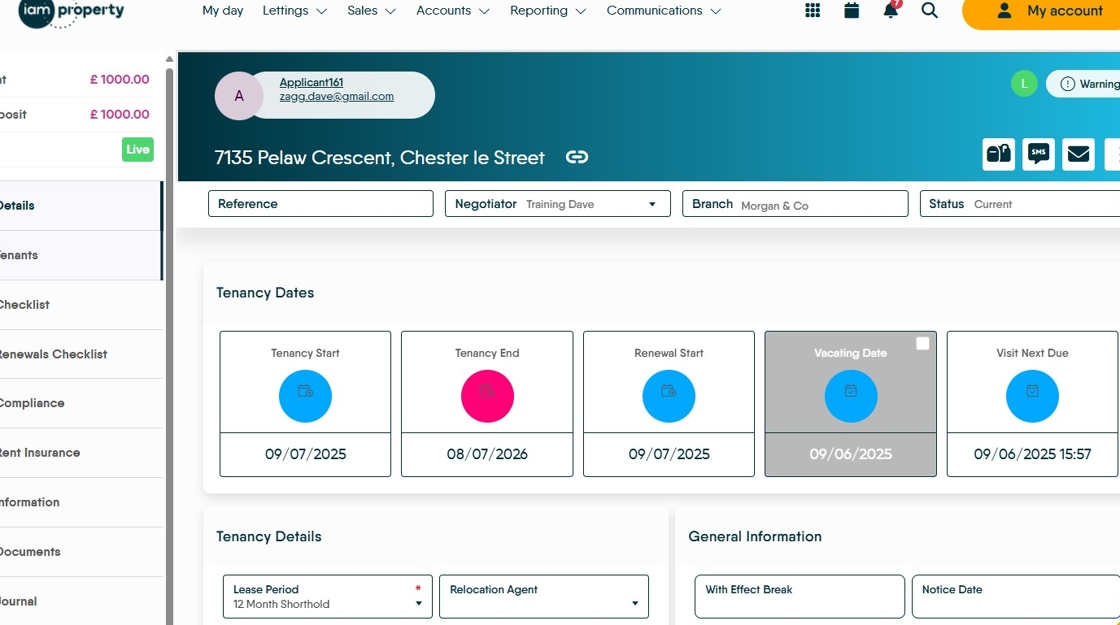
2. Click "Tenants"

3. Click "Manage Tenants"

4. Click "Select Applicant"

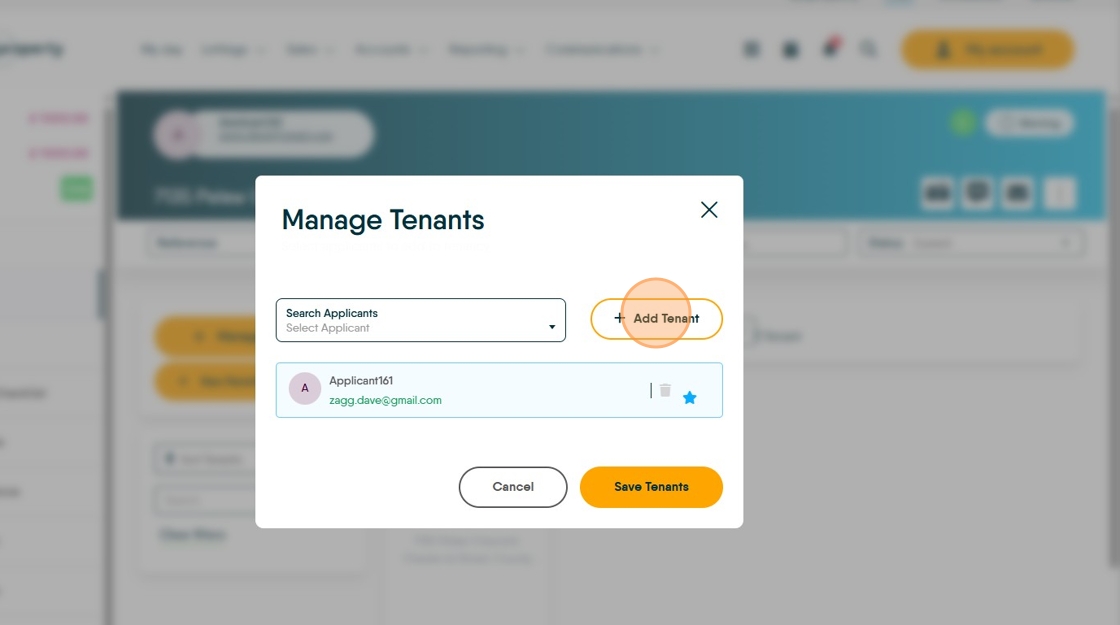
5. Click if the applicant is already in your CRM then in the "Search Applicants" fields type the name and select it. If not click "+Add Tenant"
Once the new applicant has been selected from the list, click the "Save Tenants" button to add the new tenant to your Tenancy.

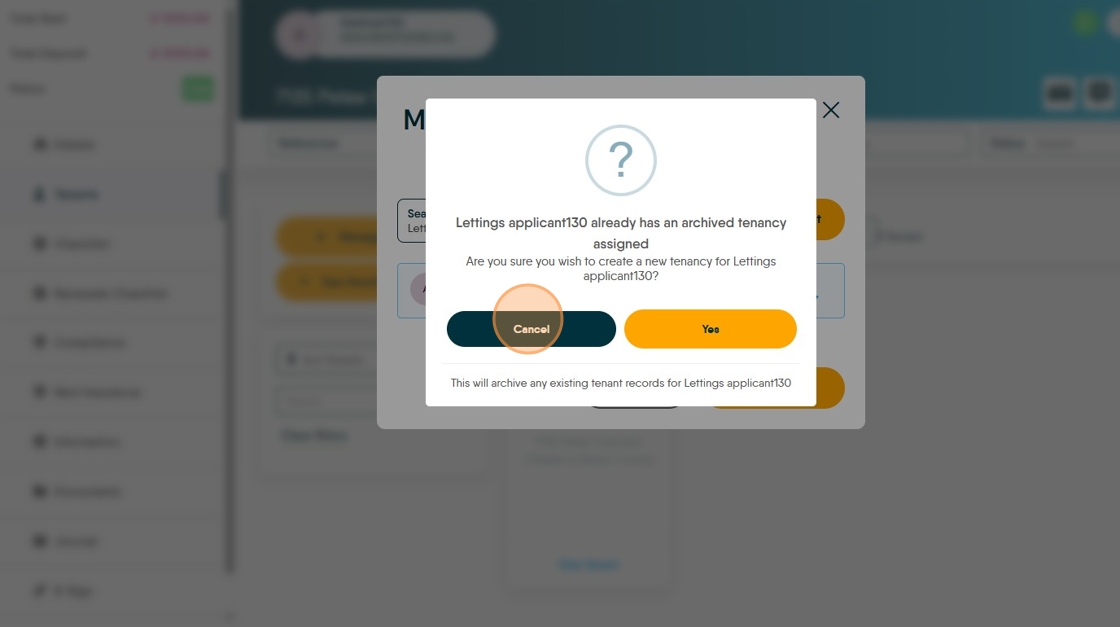
6. If the tenant you have selected already has a current tenancy, the CRM will warn you and ask if you wish to create the new tenant. Click "Are you sure you wish to create a new tenancy for.......?"
This will archive the current tenant records.

7. Click "Cancel" to not create the new tenancy.
8. To add a new tenant to the CRM. Click "Add Tenant"
9. Scroll down the screen you are taken to and in the 'Personal Information' fields complete as much information as you can. As a minimum complete the fields with a red star. Click the "Surname" field.

10. Click the "Email Address" field.

11. Click here to save the details added. Return to the original Tenancy record, it will be open as a tab on your screen.

12. Click "View Tenant"


13. Make sure that the rent, deposit and Holding Deposit screens are correct. If the figures are £0 then no rent invoice will be uploaded, if the tenants are splitting the rent, make sure that each tenant has their split set. If the rents etc are not set correctly then the rent invoices will be incorrect.
Click this number field.
Alert! Remember to Save the data you add.