This guide provides a straightforward process for registering client portal users in the iamproperty CRM, ensuring agents can seamlessly add landlords, tenants, and vendors. By following the clear step-by-step instructions, users can efficiently add clients to the CRM Client Portals and improve overall service delivery. It is essential for those looking to maximise the functionalities of the CRM and streamline their workflow in property management.
1. In this guide we look at adding each individual user type to Client Portals separately. However, the process is identical for each user type.
2. Navigate to https://crm.iamproperty.com/MyDay
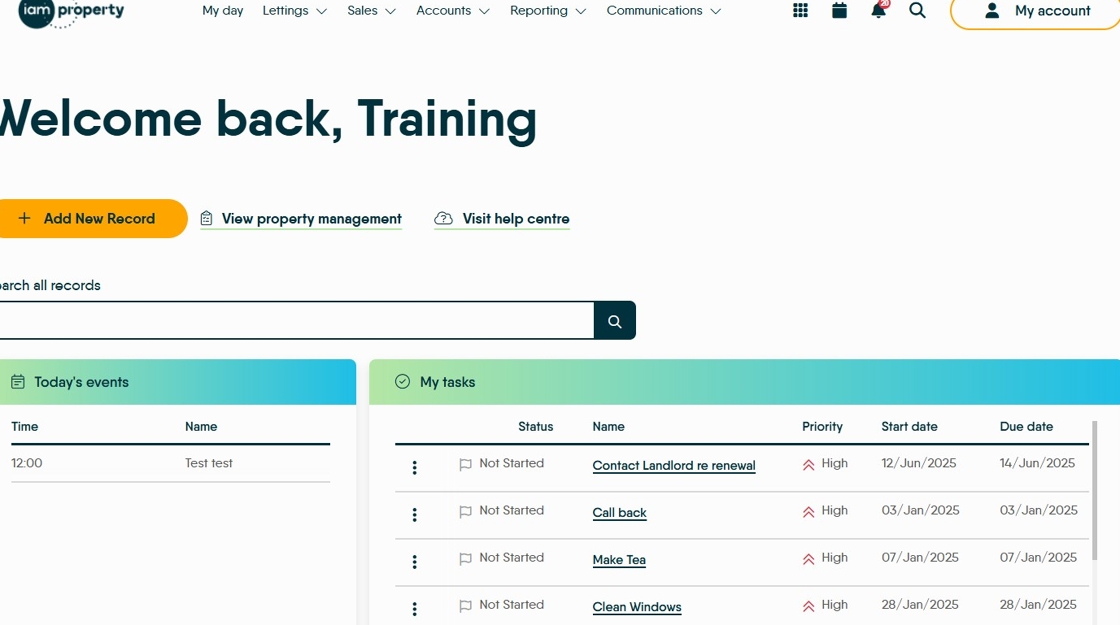
3. Click "My account"

4. Click "Control centre"

5. Click "Users"

6. Click "Register Portal Users"


Tip: Tip! You can register ALL Tenant, Landlord and Vendors to the Client Portals in one go, by (in 'Record Type') leaving 'All Records' selected and clicking in the top checkbox to select all the records and then click the 'Register' button
Adding Landlord Users
7. Click "All record types" you could also use the search field to find a specific Landlord
Click "Landlord"

8. Click this checkbox to select ALL Landlords that are not registered on the Client Portals.

9. Click this checkbox to select an individual recipient.

10. Click "Register" this will send all selected Landlords an email to invite them to CRM Client Portals. The invite has a Username and a password, the password can be changed.

Adding Tenant Users
11. Click "Register Portal Users"

12. Click "All record types" you could also use the search field to find a specific Tenant
Click "Tenant"

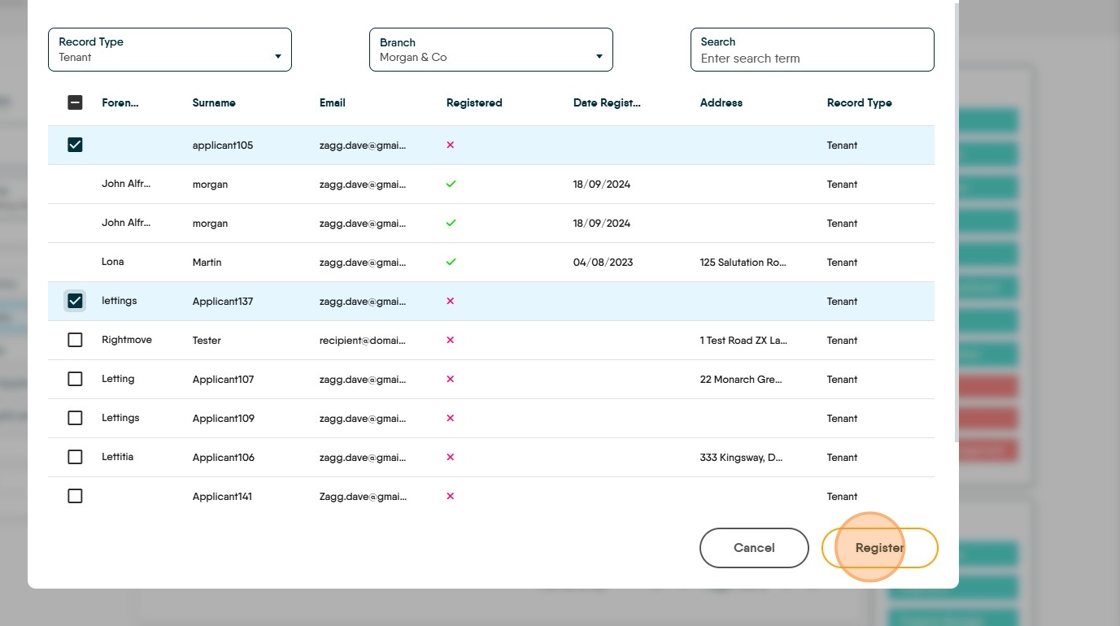
13. Click this checkbox to select all unregistered Tenants

14. Click this checkbox to select an individual Tenant.

15. Click "Register" this will send all selected Tenants an email to invite them to CRM Client Portals. The invite has a Username and a password, the password can be changed.
Adding Vendor Users
16. Click "Register Portal Users"

17. Click "All record types" and click Vendor you could also use the search field to find a specific Vendor.
Click "Vendor"

18. Click this checkbox to select ALL unregistered Vendors.

19. Click this checkbox to register an individual Vendor.

20. Click "Register" this will send all selected Vendors an email to invite them to CRM Client Portals. The invite has a Username and a password, the password can be changed.

To Register All Users to Client Portals
21. Click "Registered" to sort the list in to Registered (green tick) and un-registered (red X ) Users. Then click 'Register' to register all unregistered users (Landlord/Tenant/Vendor) in the CRM in one go.