This guide provides a straightforward process for linking applicants in the CRM system, ensuring efficient management of applicant data. It is important to create separate records for Applicants as this will aid with any referencing and AML checks that are performed from with the CRM/iamproperty suite of products. View this guide to simplify the linking process and improve your overall productivity in CRM management.
1. Navigate to the Applicant you are linking

2. Click "Linked Applicants"

3. Click "Link Applicant"
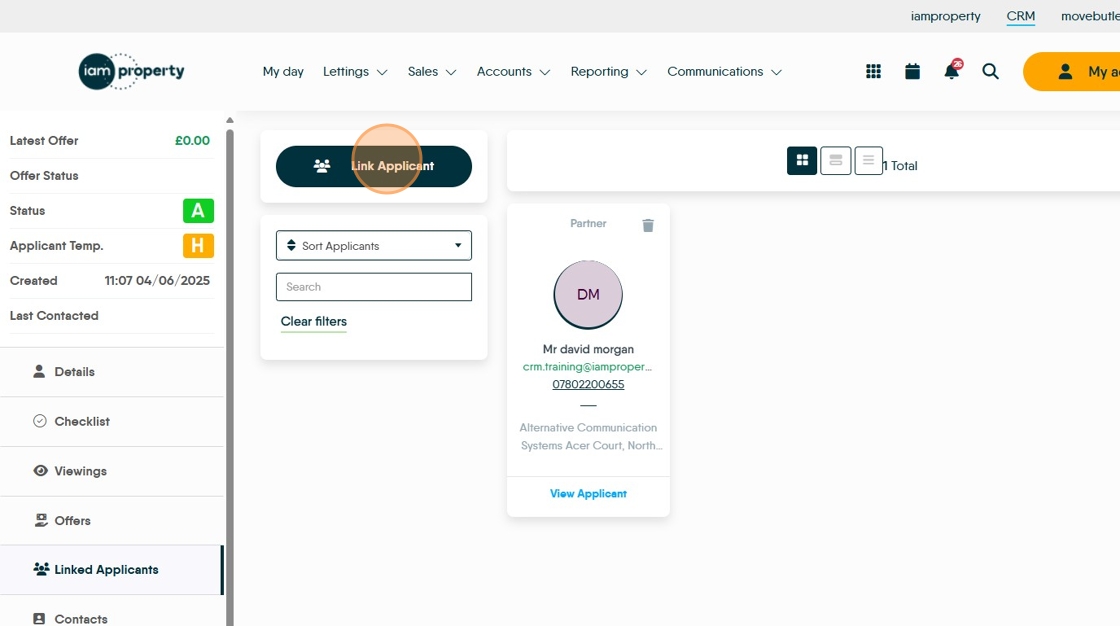
4. Click here and set the contact type.

5. Click the contact type e.g. Partner

6. Then select whether you are adding an exisiting or new contact.


7. Click "Use Existing Applicant"

8. Click "Select Applicant" and search for the person you are linking and select from the list.

9. Click to select the type of contact you are linking e.g. "Son"
Click "Son"
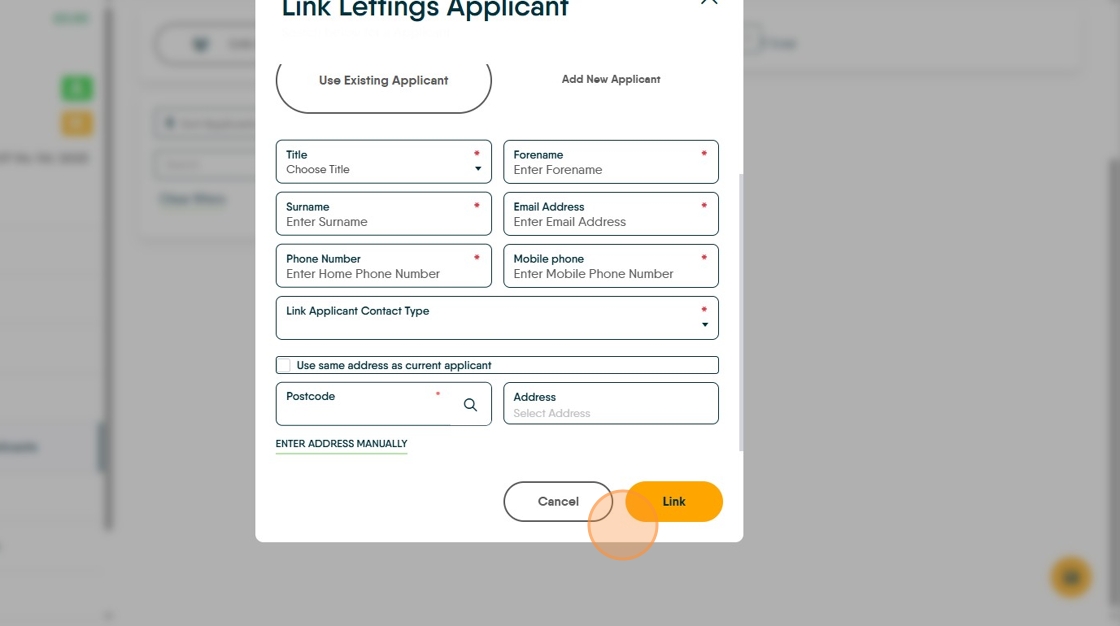
10. If you are adding a new applicant, click "Add New Applicant"

11. Click and complete all the required fields. If the current address of the new contact is the same as the contact you are linking them to, select the "Use same address..." option, otherwise add their postcode to the postcode checker.

12. Click "Link"