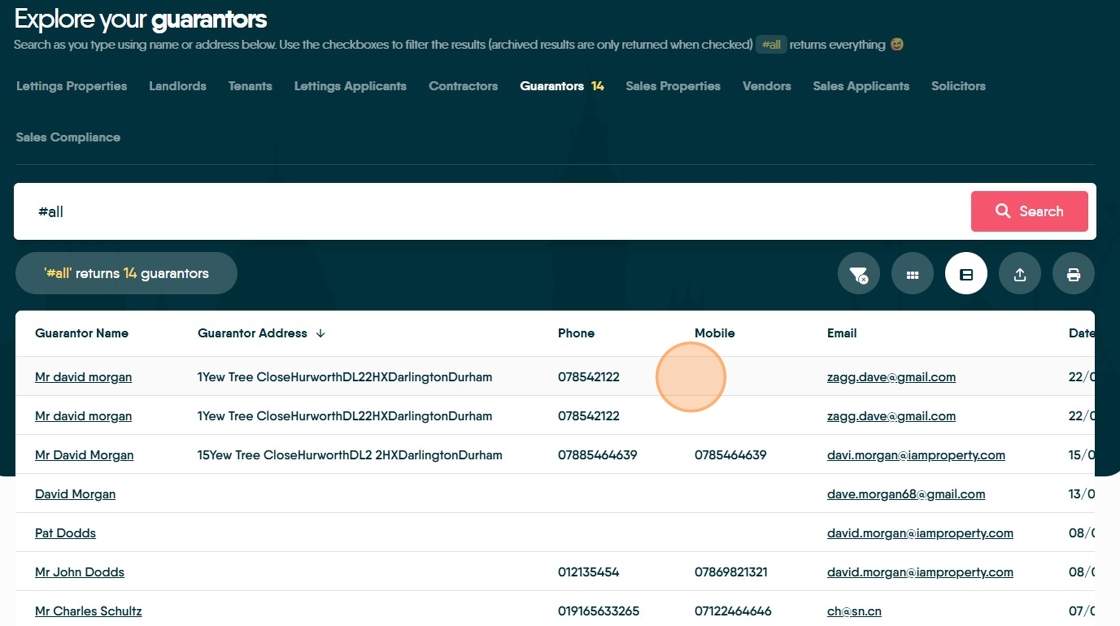
This guide will show how to add a Guarantor record to a CRM Lettings Applicant record and how to view the details of all your Guarantors easily and quickly.
1. Navigate to the Applicant record

2. Click "Contacts"

3. Click "New Contact"

4. Click here.

5. Click "Guarantor"

6. Click and complete all the fields in the new contact screen.

7. Click "Save Contact"

Viewing Guarantors Details
8. Click "Lettings"

9. Click "General"

10. Click "Guarantors"

11. Click "#all" this will show all the Guarantor records.

12. The records can be viewed in 2 different views, a tile view as shown or by clicking the icon highlighted...

13. a list view.
Clicking the guarantor name will take you to the record. Click on the email to email the guarantor