Once a Lettings property instruction has been won, the various CRM screens need to be completed to make a property record complete and able to upload to the online portals. We will start off with the first screen the details screen.
1. Navigate to the property record for the property you have won the Lettings instruction for.
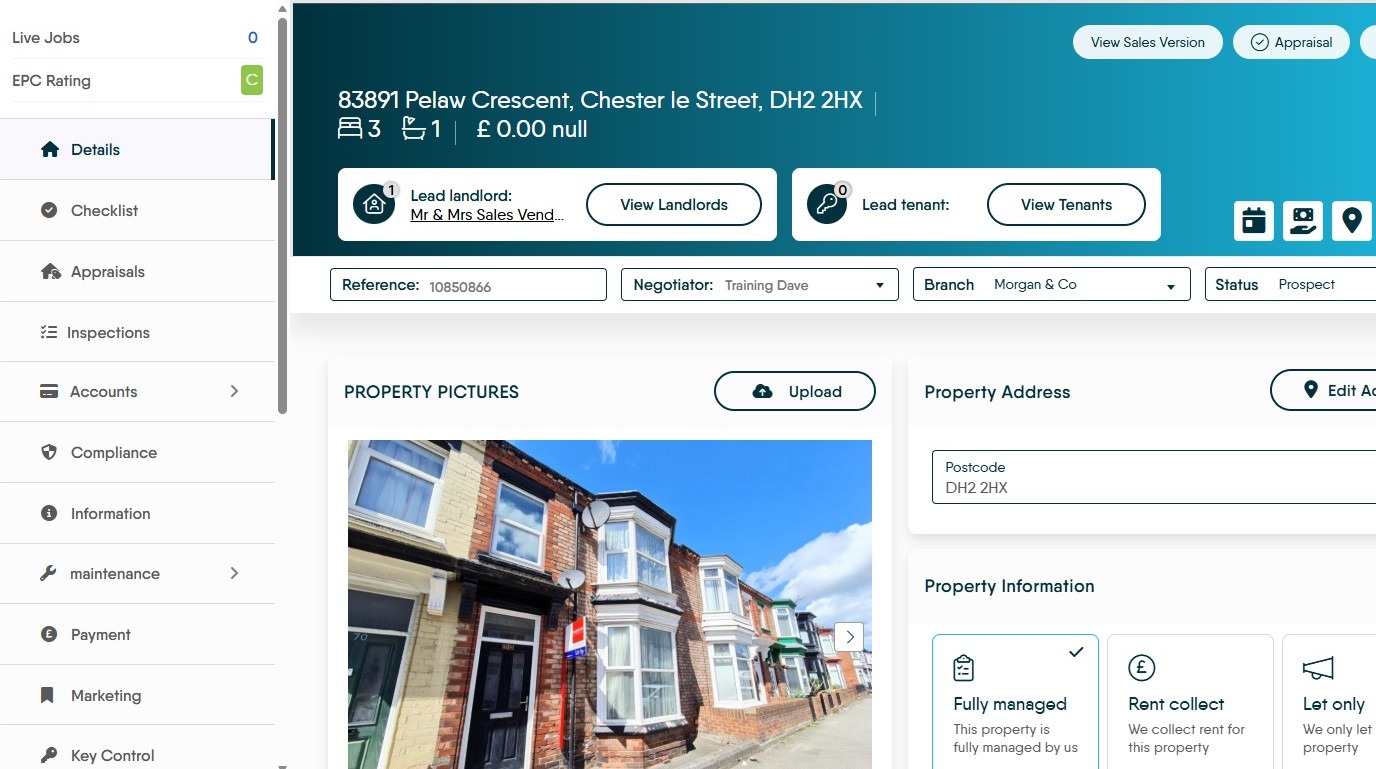
Appraisal Outcome
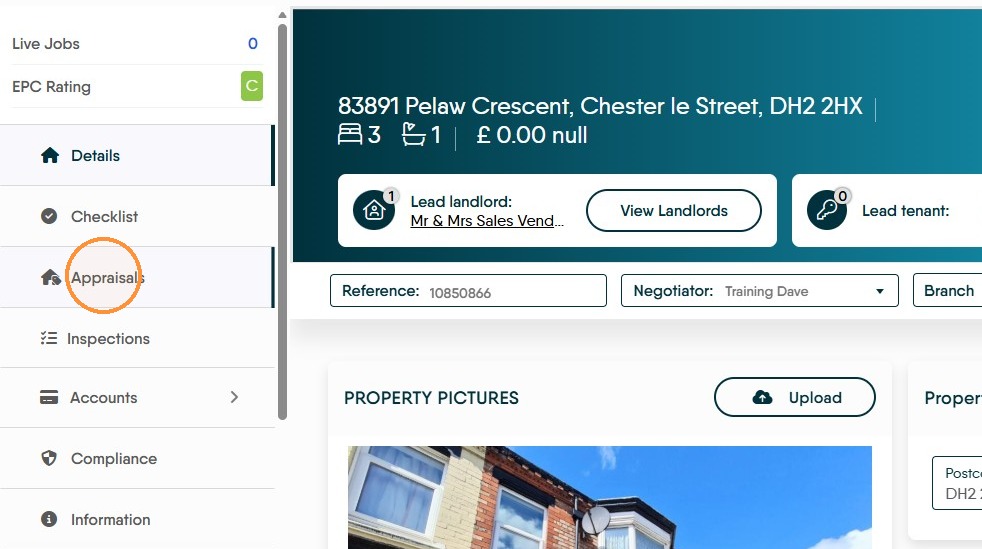
2. The first screen to complete is the Appraisals screen, this screen should contain all the information gained in the appraisal visit as well as pricing and fee amounts.
3. To update this screen and mark the appraisal as 'Won' or 'Lost'. Click "Appraisals"
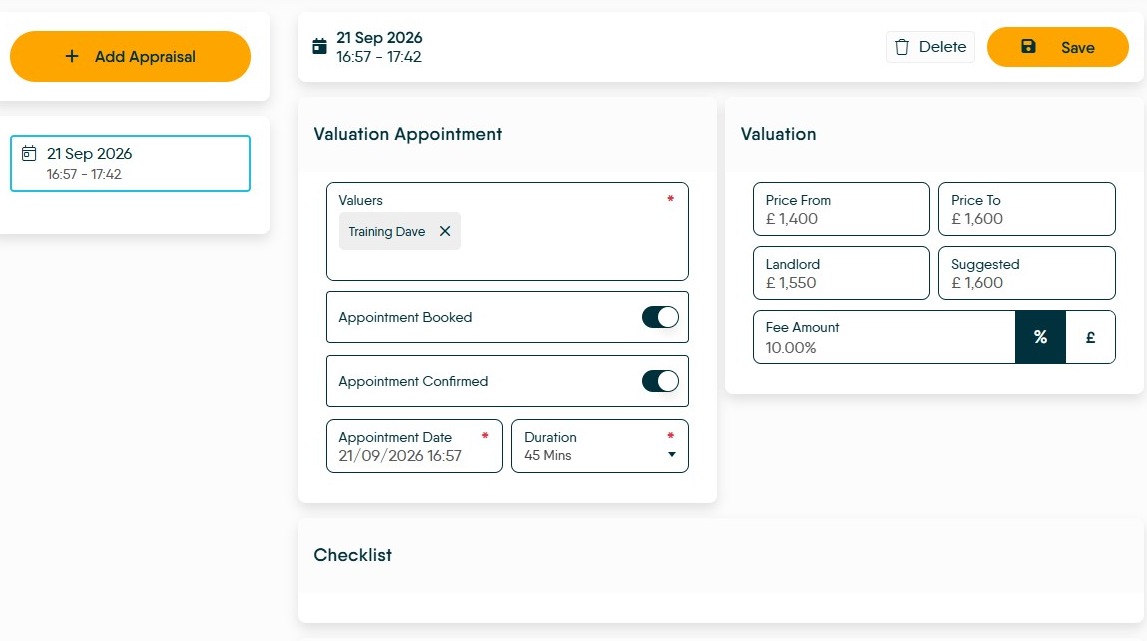
4. Check that the Valuation details have been completed, as well as any checklist you may have set.
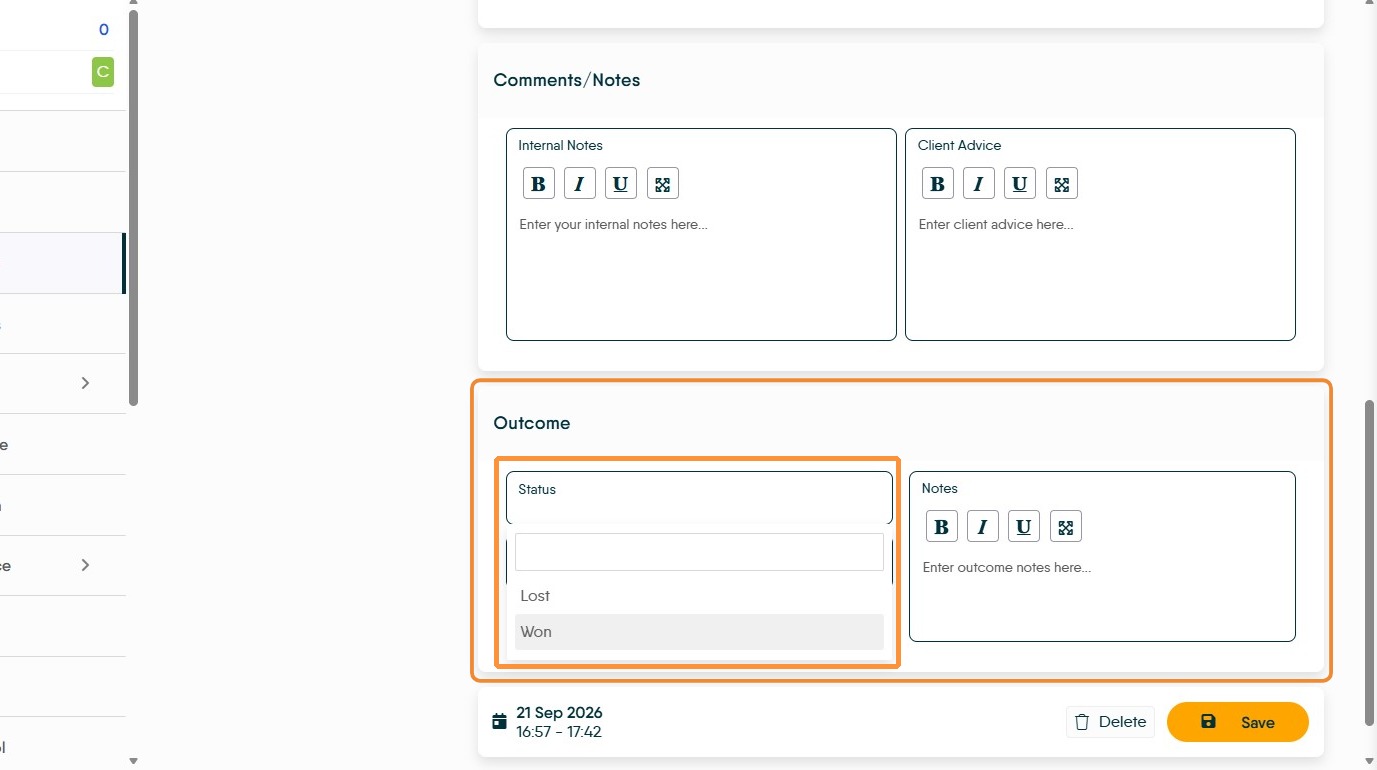
5. If you have "Won" the instruction scroll down and set this as the appraisal outcome status in the 'Outcome' field. Add any notes.
If you have lost the instruction, mark the Appraisal as Lost and note the Agent the business was lost to, in the provided field and reason given by the Landlord.
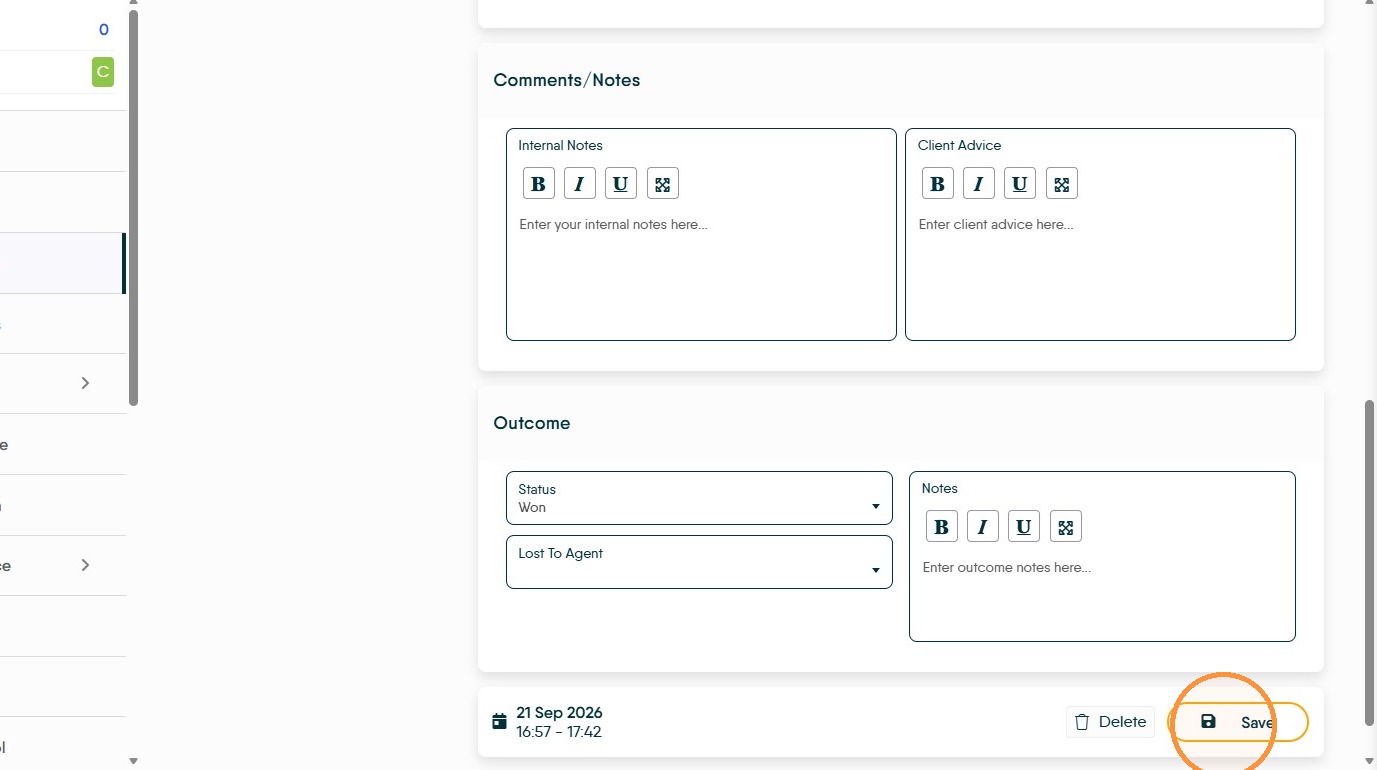
6. Click "Save"
Property Details
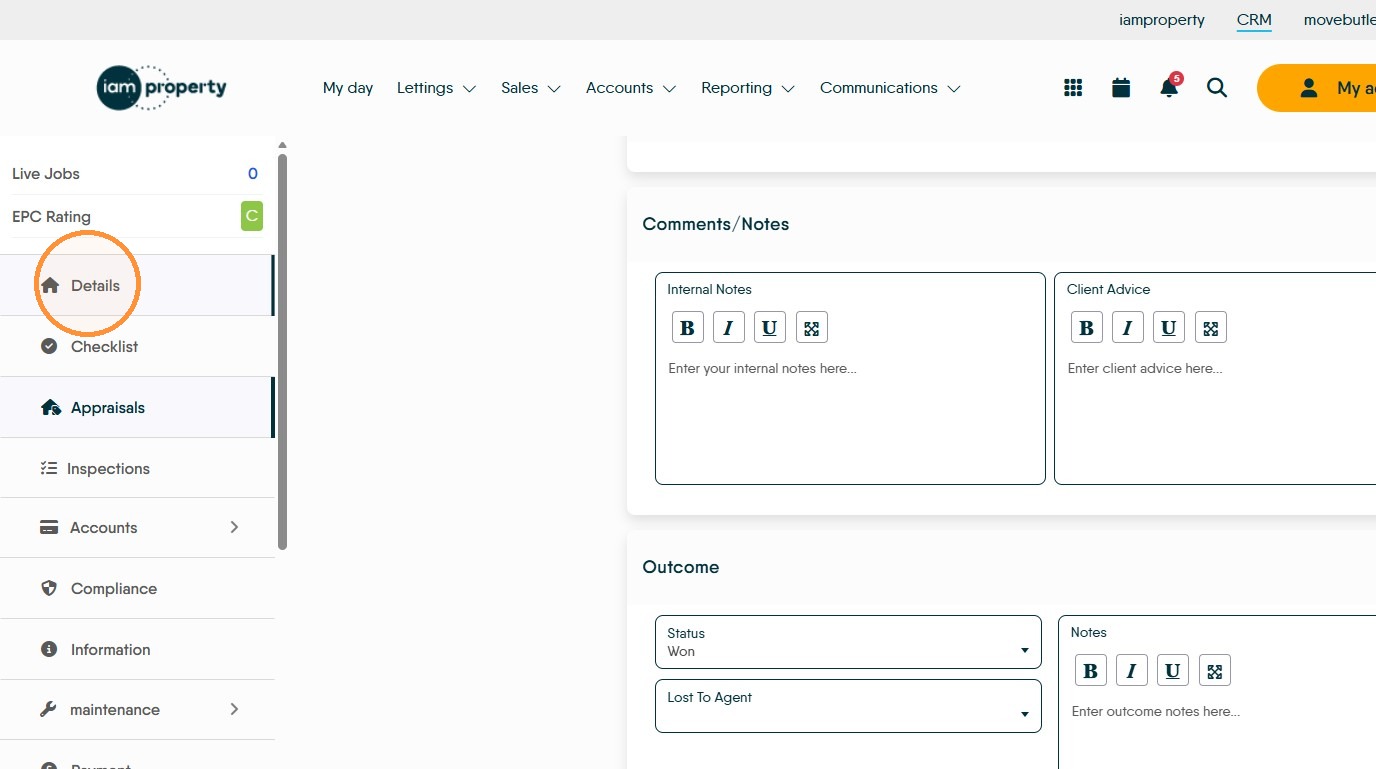
7. Click "Details" and complete this screen. The details screen is primarily the screen that shows the fees charged and the let type.
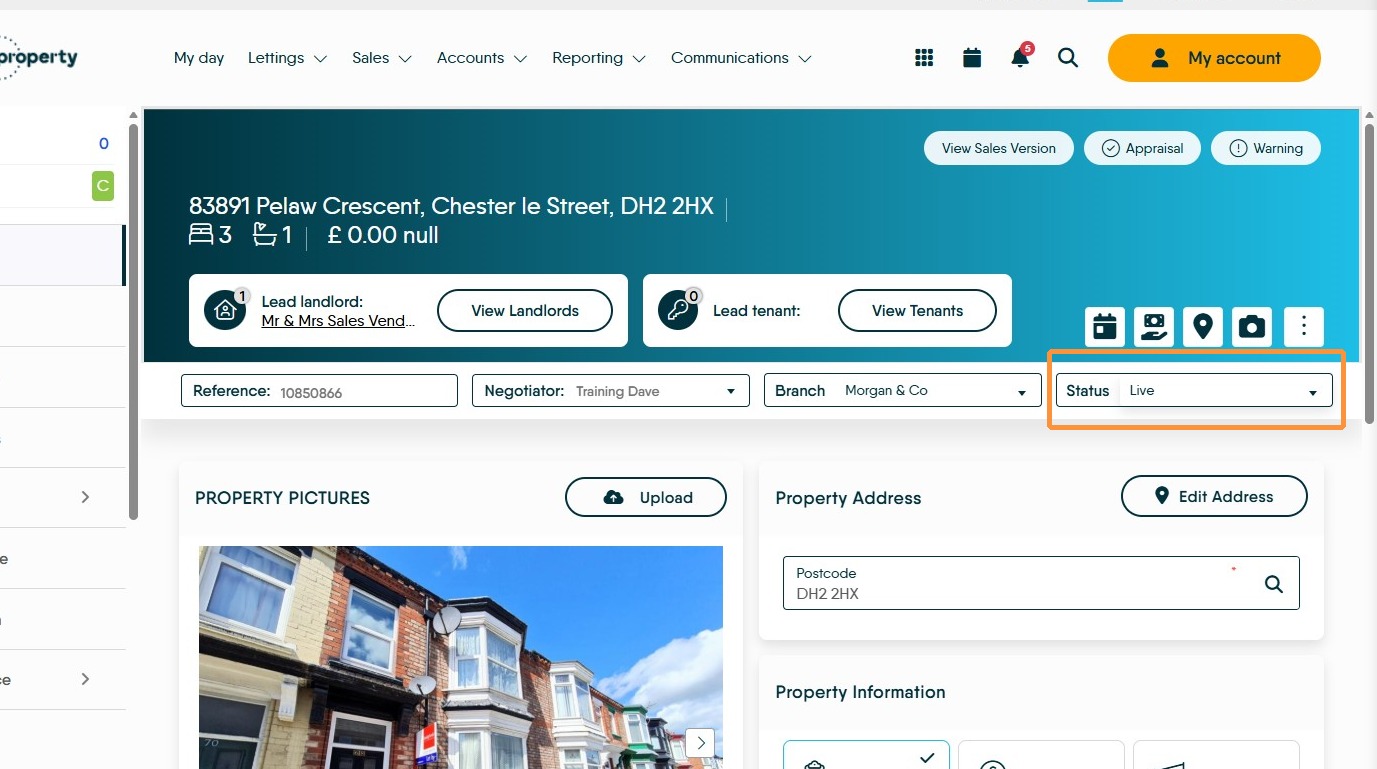
8. In the Status field select the "Live" option, or other option used by your agency e.g. pre let.
N.B. If Inactive or Archived options are selected then the property WILL NOT match against any applicant records.
Property Information
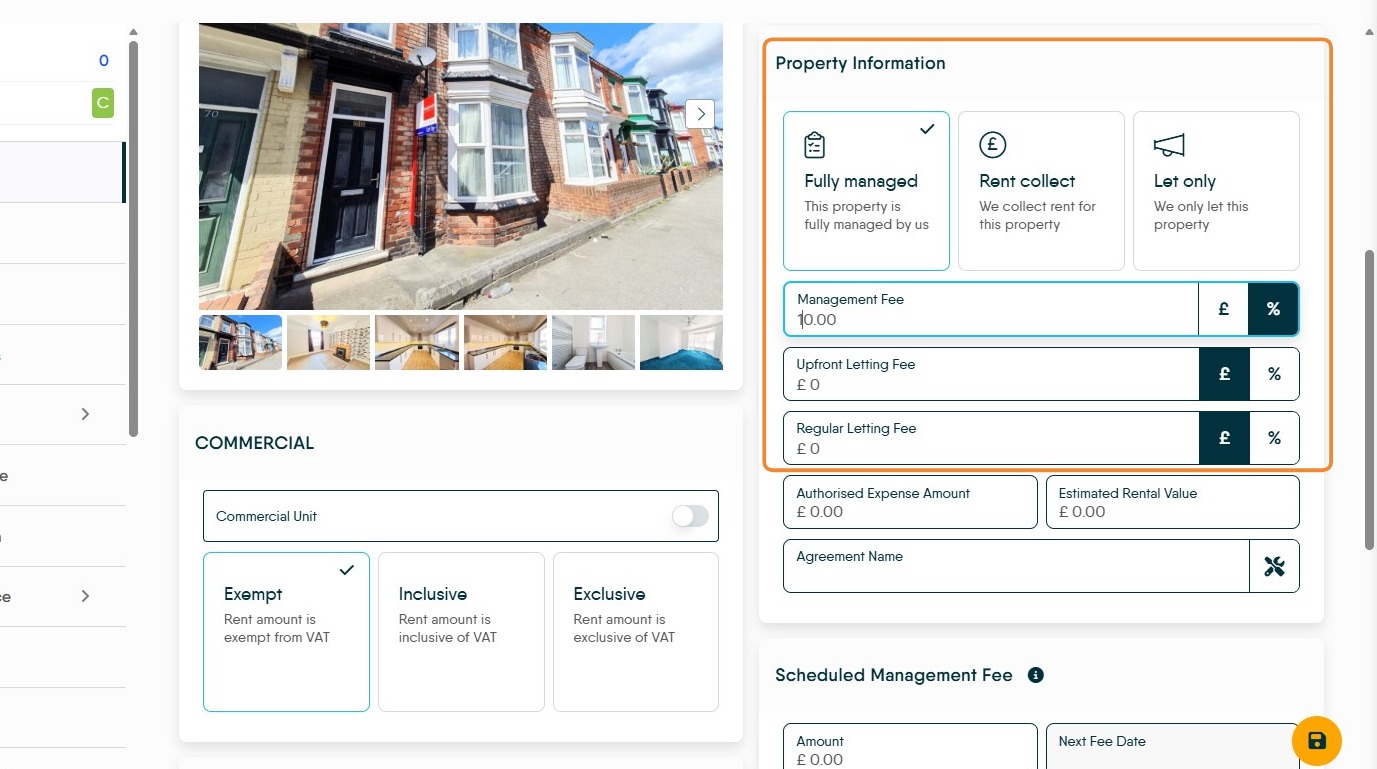
9. In the Property Information field select the Let Type by clicking onto the icons. Fully Managed and Rent Collect will create monthly rent invoice into the CRM Accounts module, Let Only will not create any rent charge.
Then set the Management Fee and Upfront Letting Fee. Select the type of charge, either £ value or percentage of the charged rent, by selecting the icon £ or % and typing the value into the appropriate field.
The Regular Letting Fee if set, is charged monthly alongside the Management Fee.
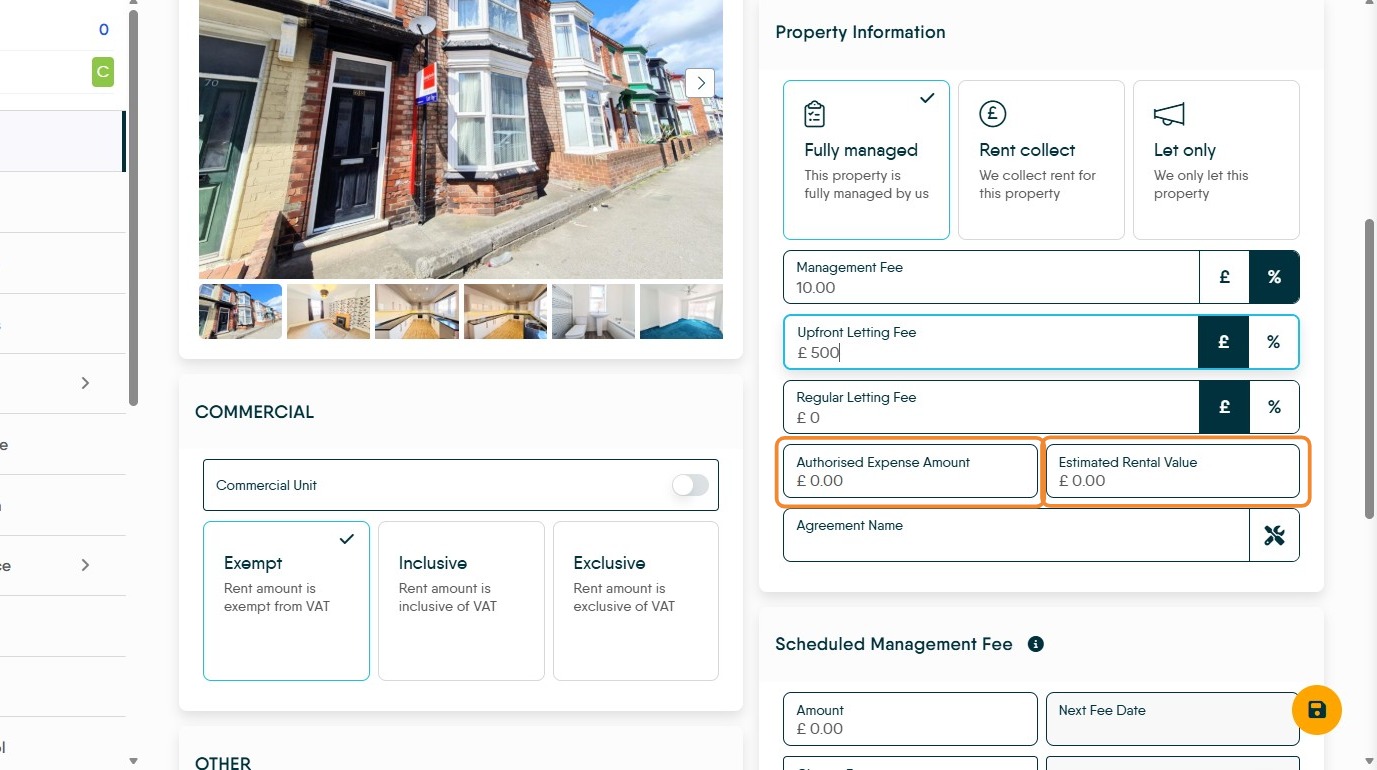
10. The "Authorised Expense Amount" field is an information field showing how much can be spent on expenses before the Landlord is informed.
Estimated Rental Value allows a pre-appraisal estimate to be made if their are enquiries on the property before it is appraised and the instruction won.
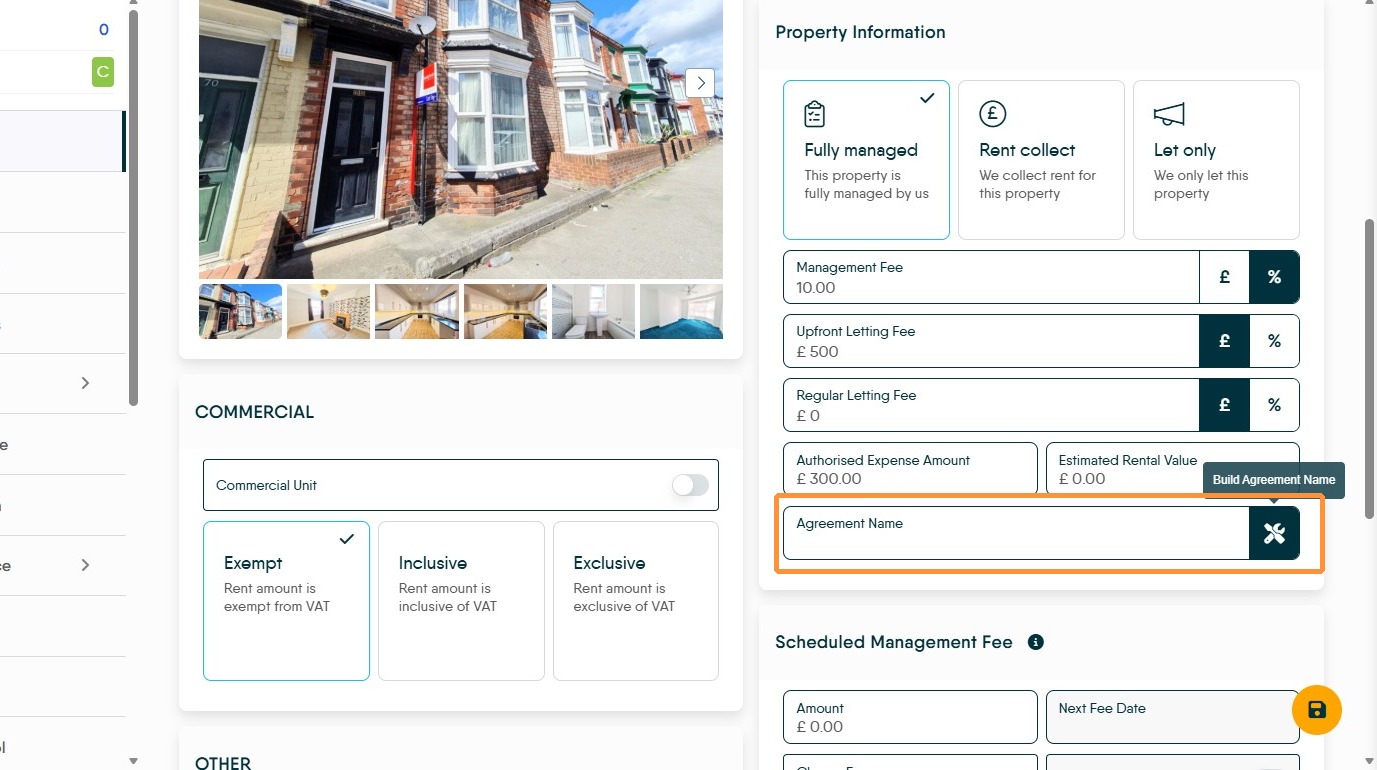
11. Click the Build Agreement Name button to automatically create an agreement name for the property, this can be edited or a name typed in, if required.
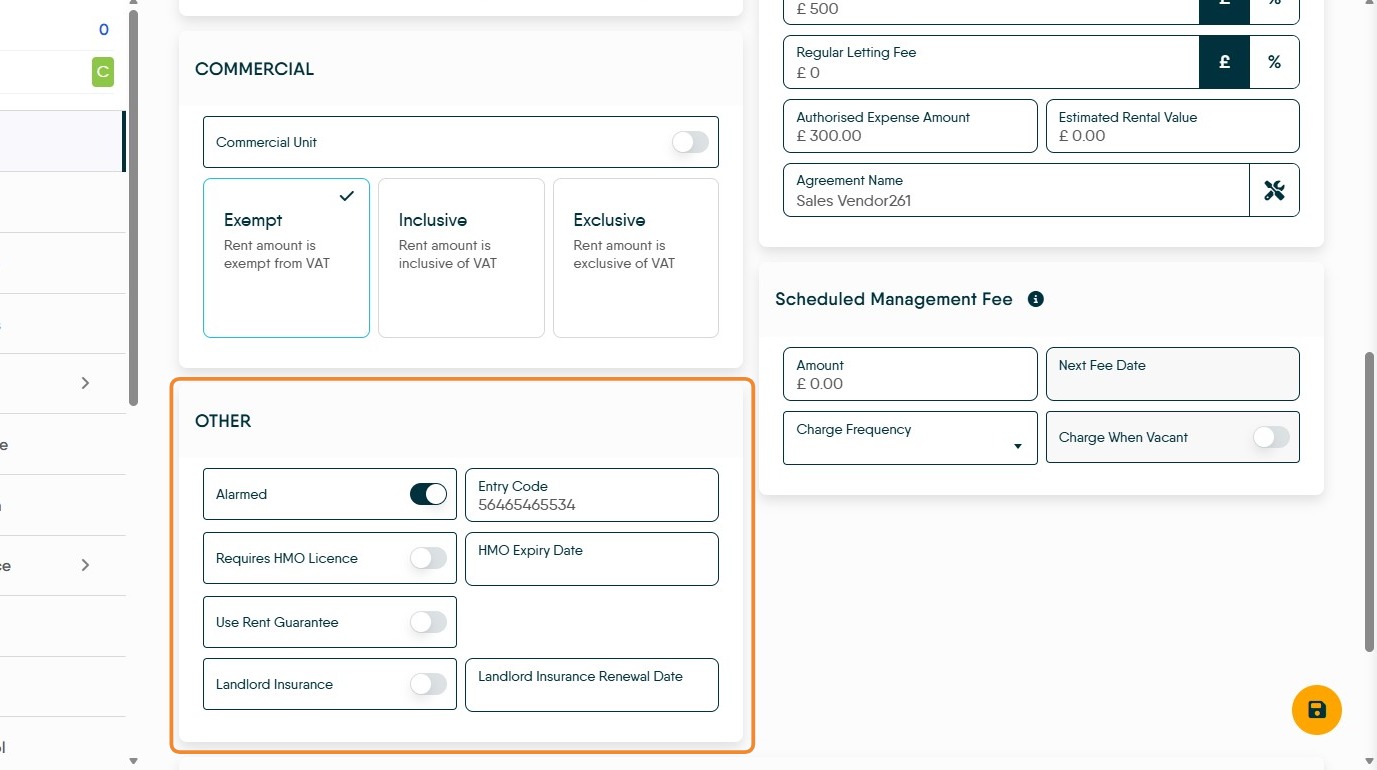
12. "Scheduled Management Fee" allows a fee to be charged at a set period of time e.g. weekly or quarterly etc, instead of or in addition to, a normal management fee.
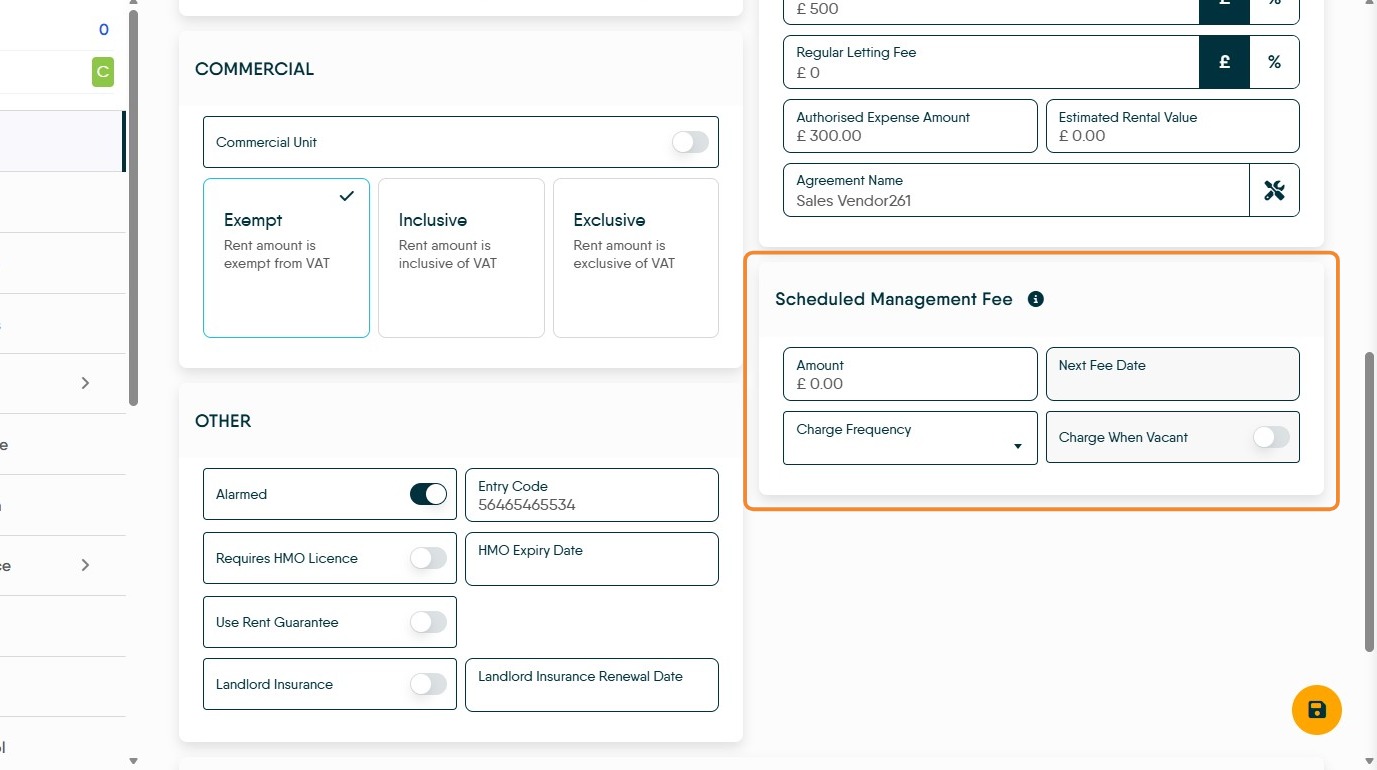
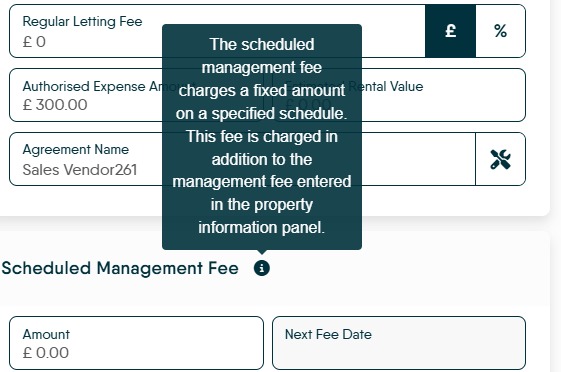
Alert: If this fee is charged as well as a management fee a warning will show on screen.
13. In the "Other" there are options for;
"Alarmed" where an alarm code can be added (this is shown in a viewing appointment)
"HMO" If a property is an HMO this can be noted and Licence Expiry dates recorded
"Rent Guarantee" if available and taken this can be enabled in CRM accounts and the expiry date set.
"Landlord Insurance" if taken and its expiry date.