This guide demonstrates how to send a Mail Merge, using a specific email template. Shows, how to create an email template (for a specific recipient type) and save it. Then how to pick up and use this template in Mail Merge.
Mail Merge Navigation
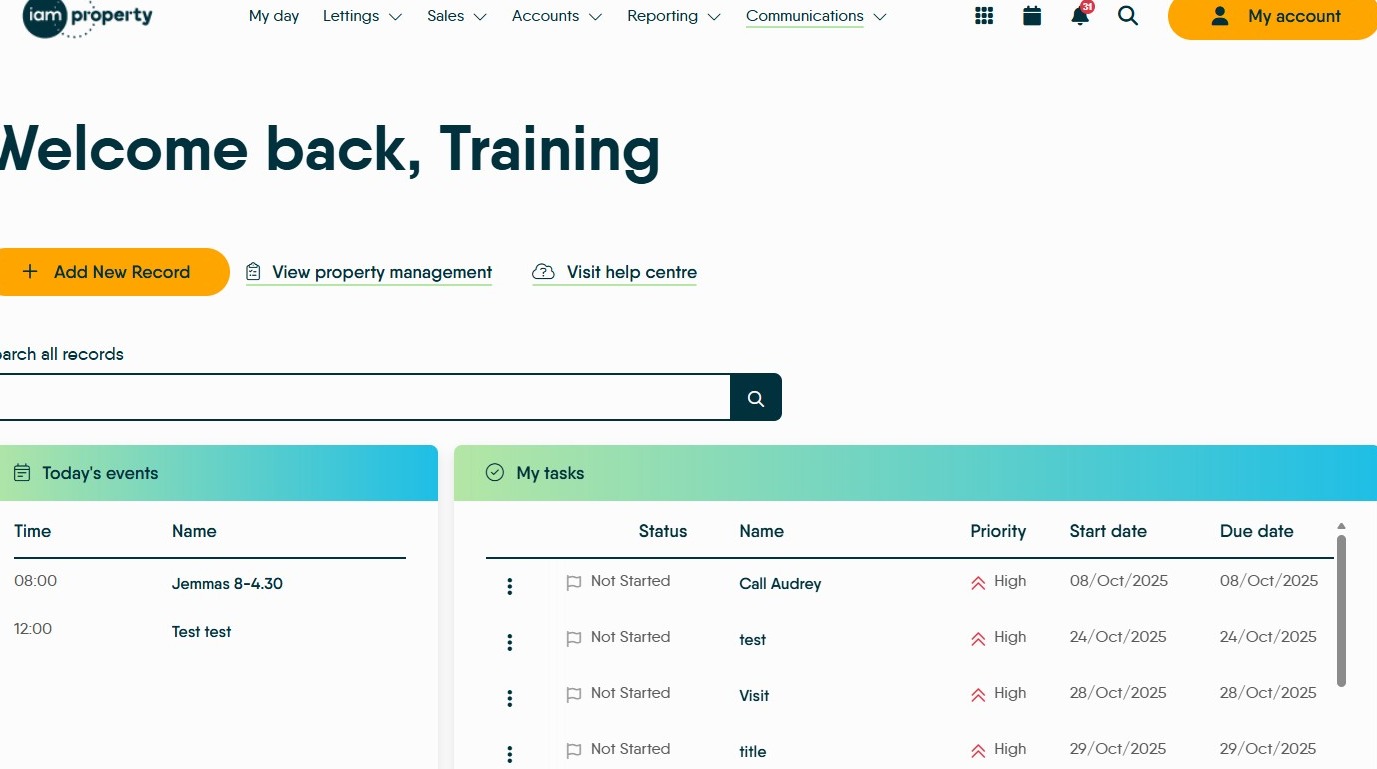
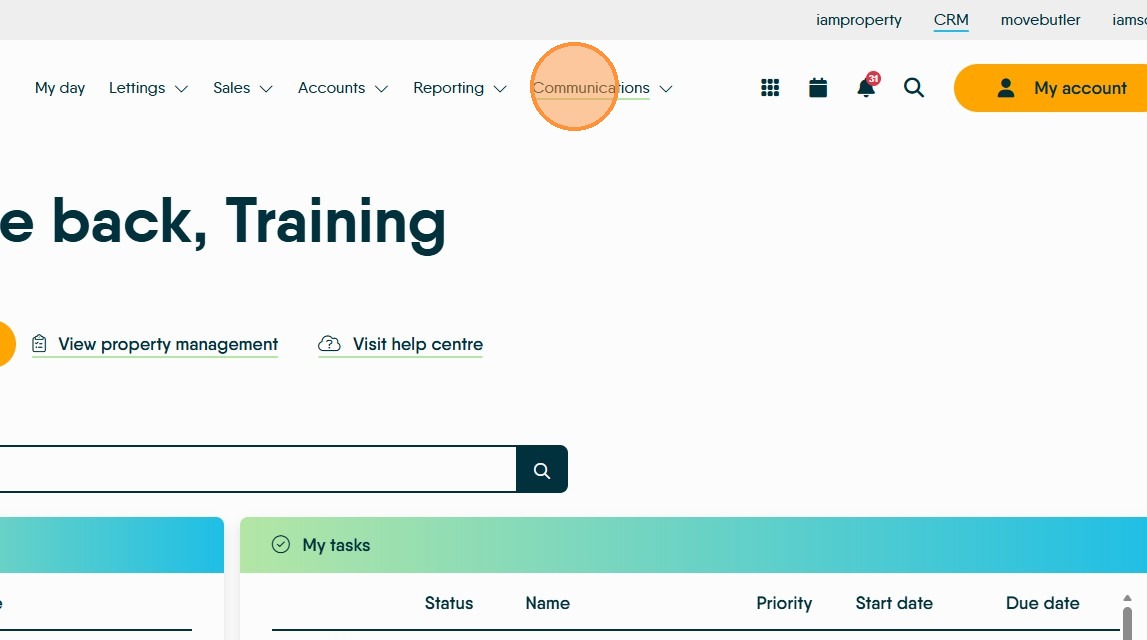
1. Navigate to https://crm.iamproperty.com/MyDay
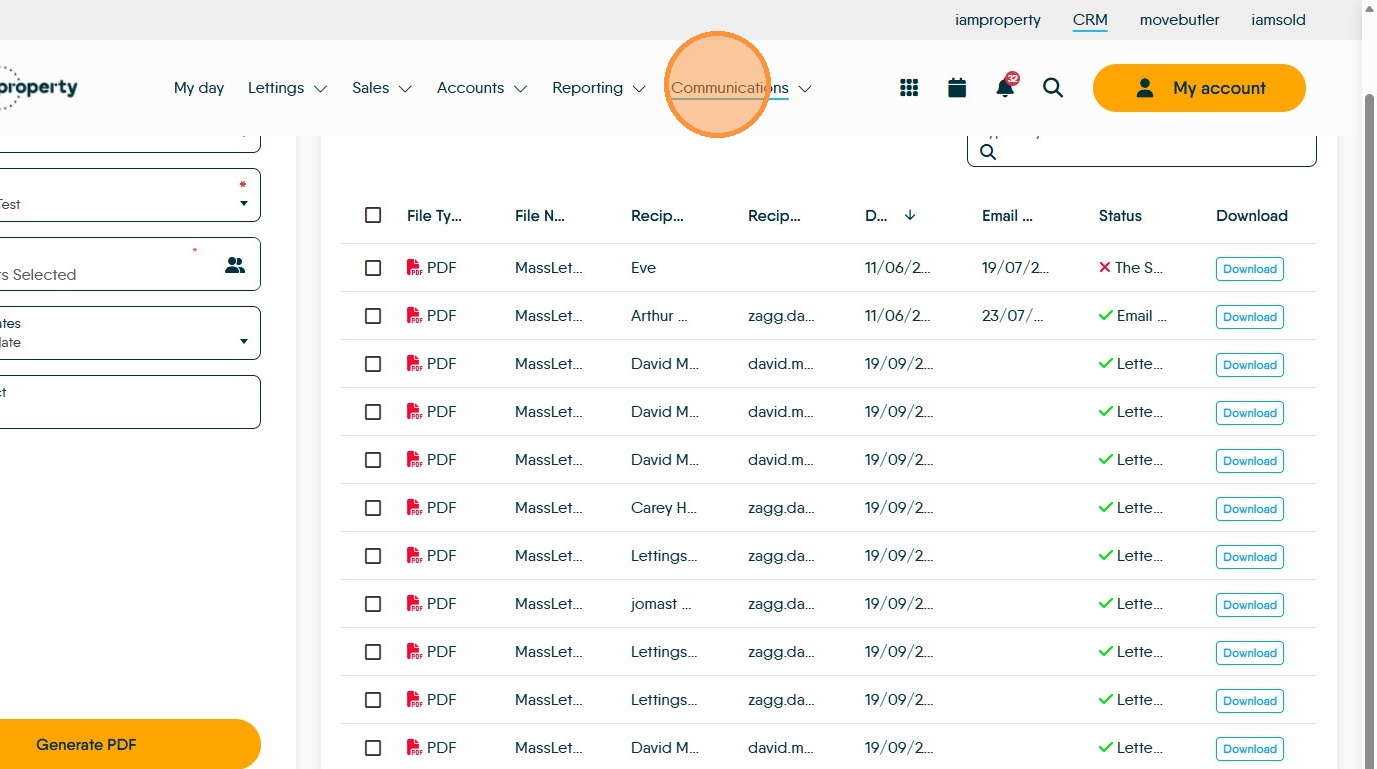
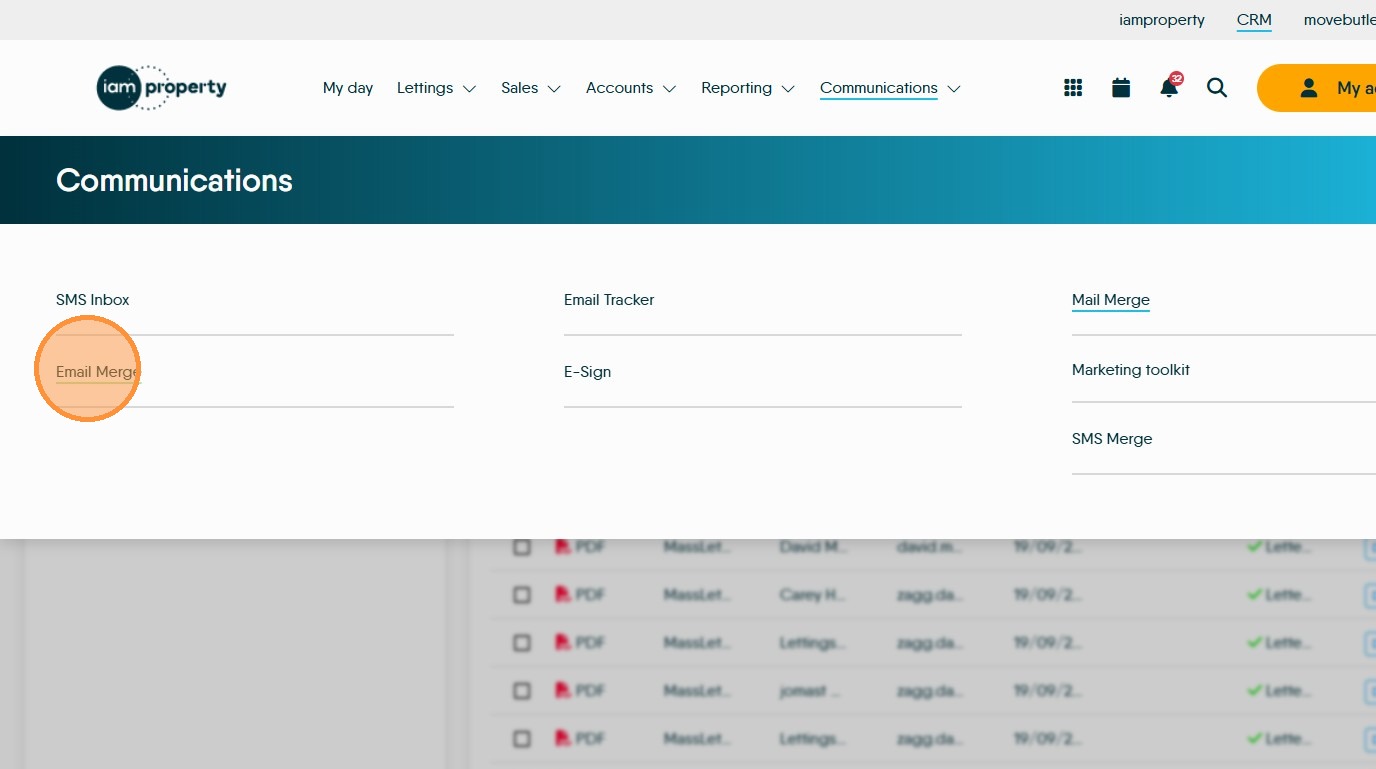
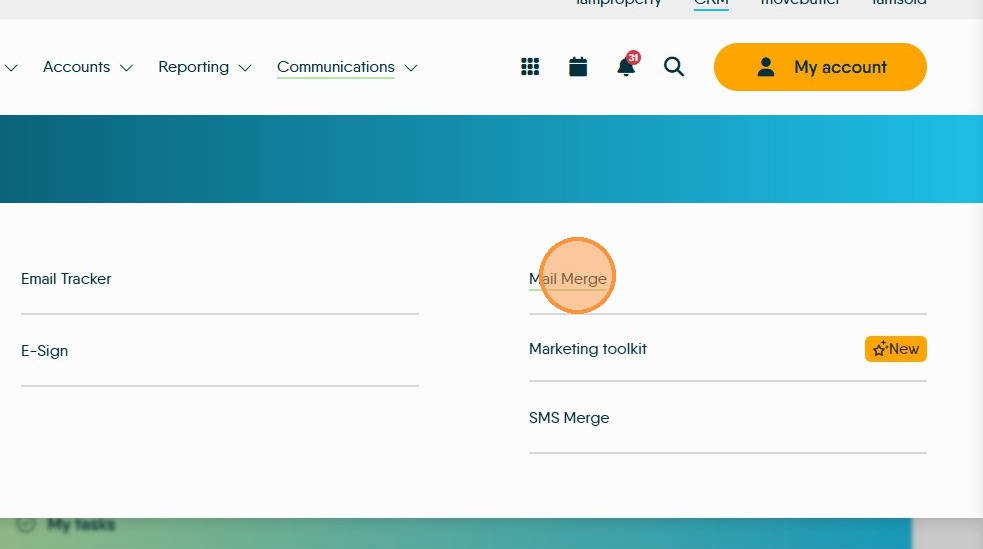
2. Click "Communications" then to "Email Merge" section
Email Template Creation
3. Select the record type you are creating the Template for e.g. "Landlord" This will be the same as the record type you are sending the mail merge to.
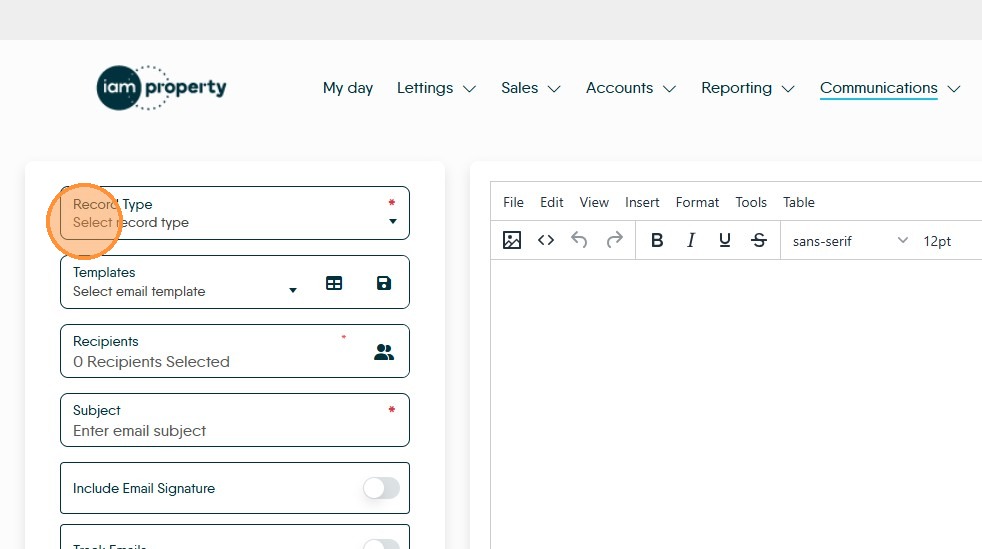
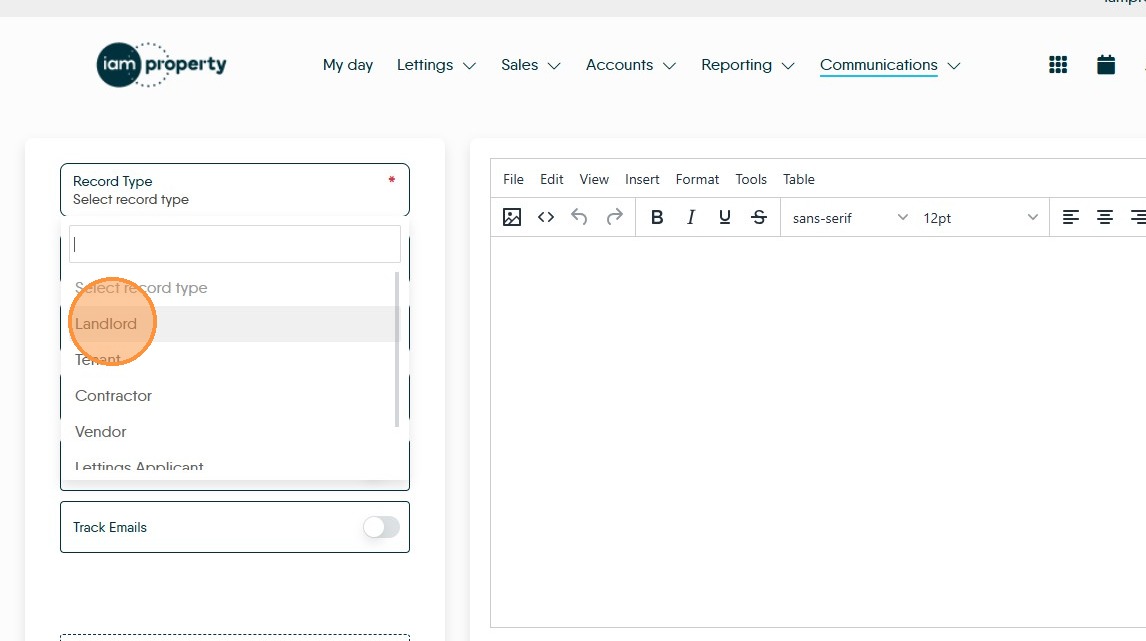
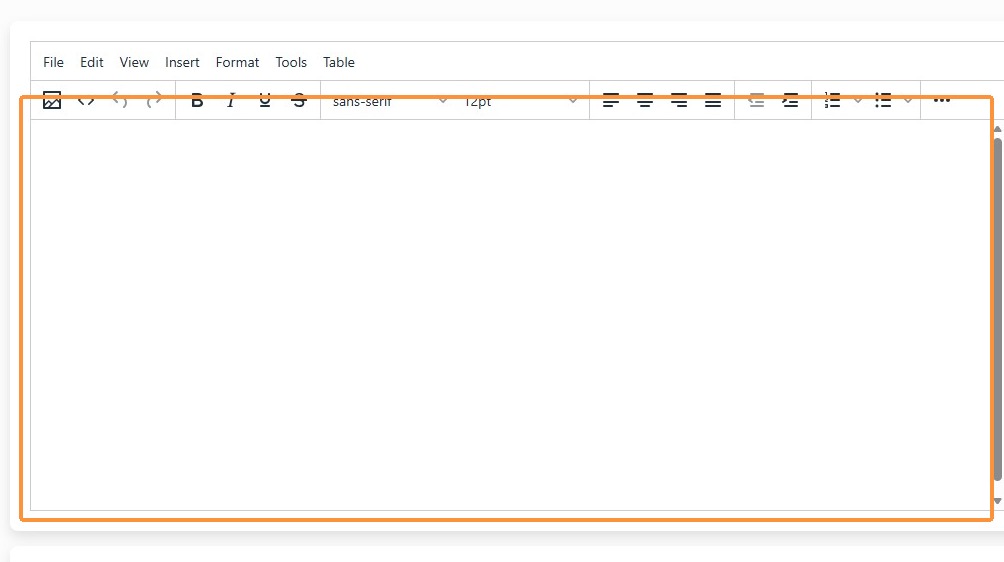
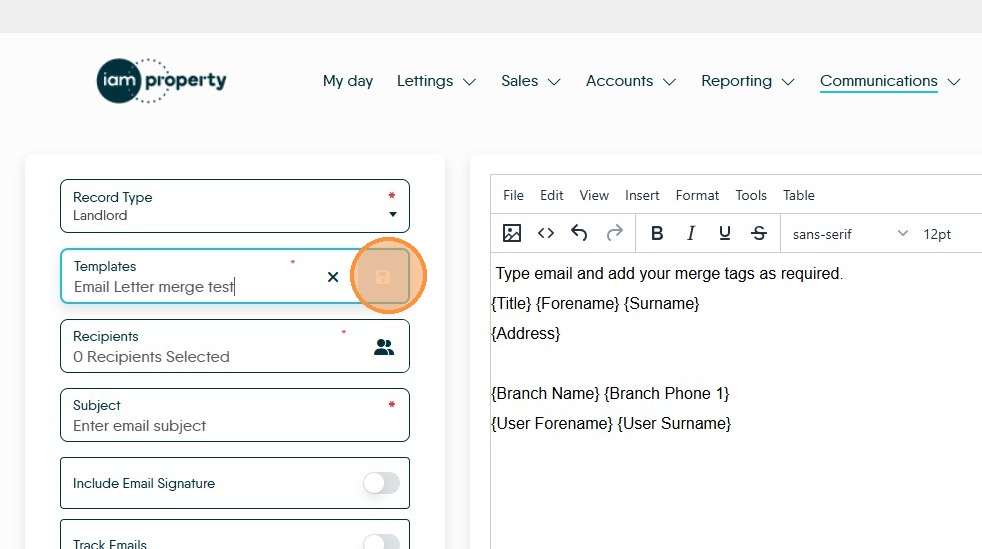
4. Type your email into the text box.
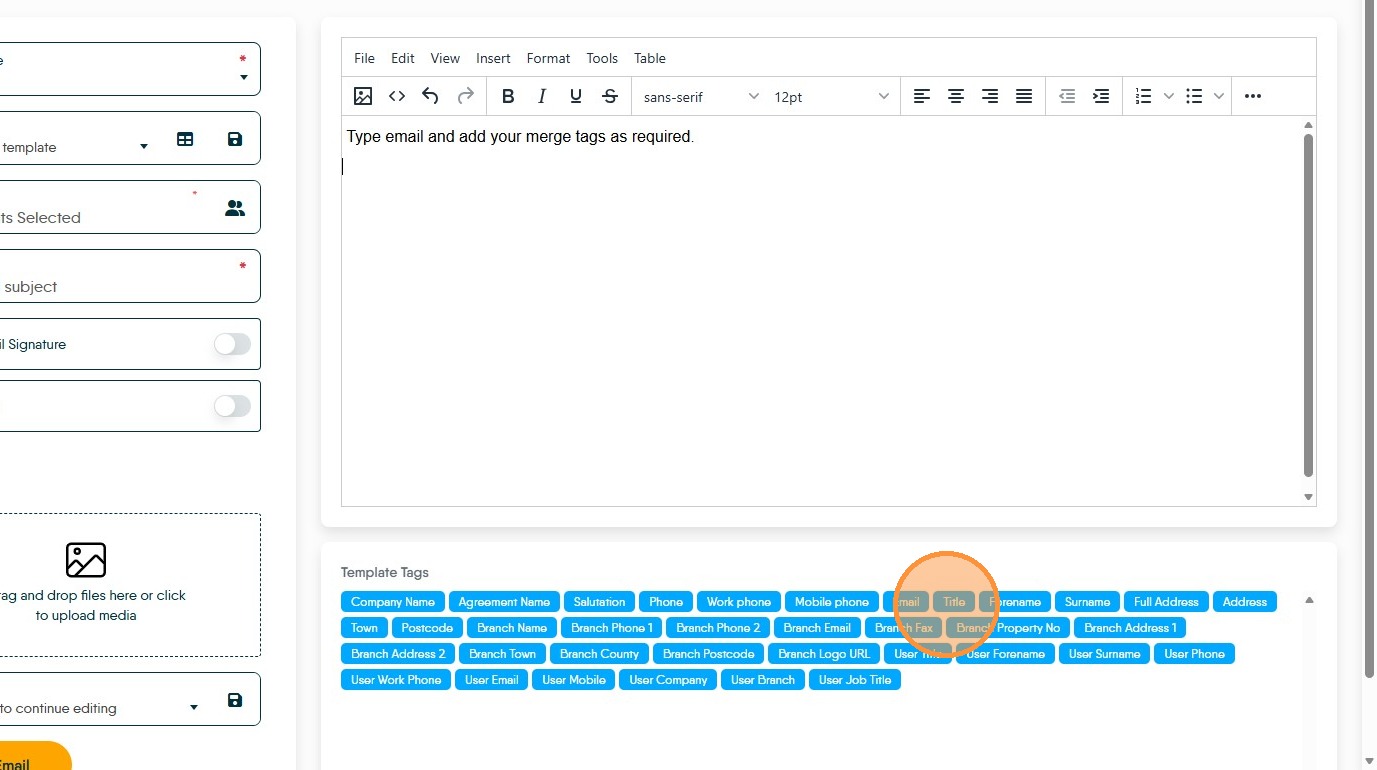
5. Insert desired merge tags into email body
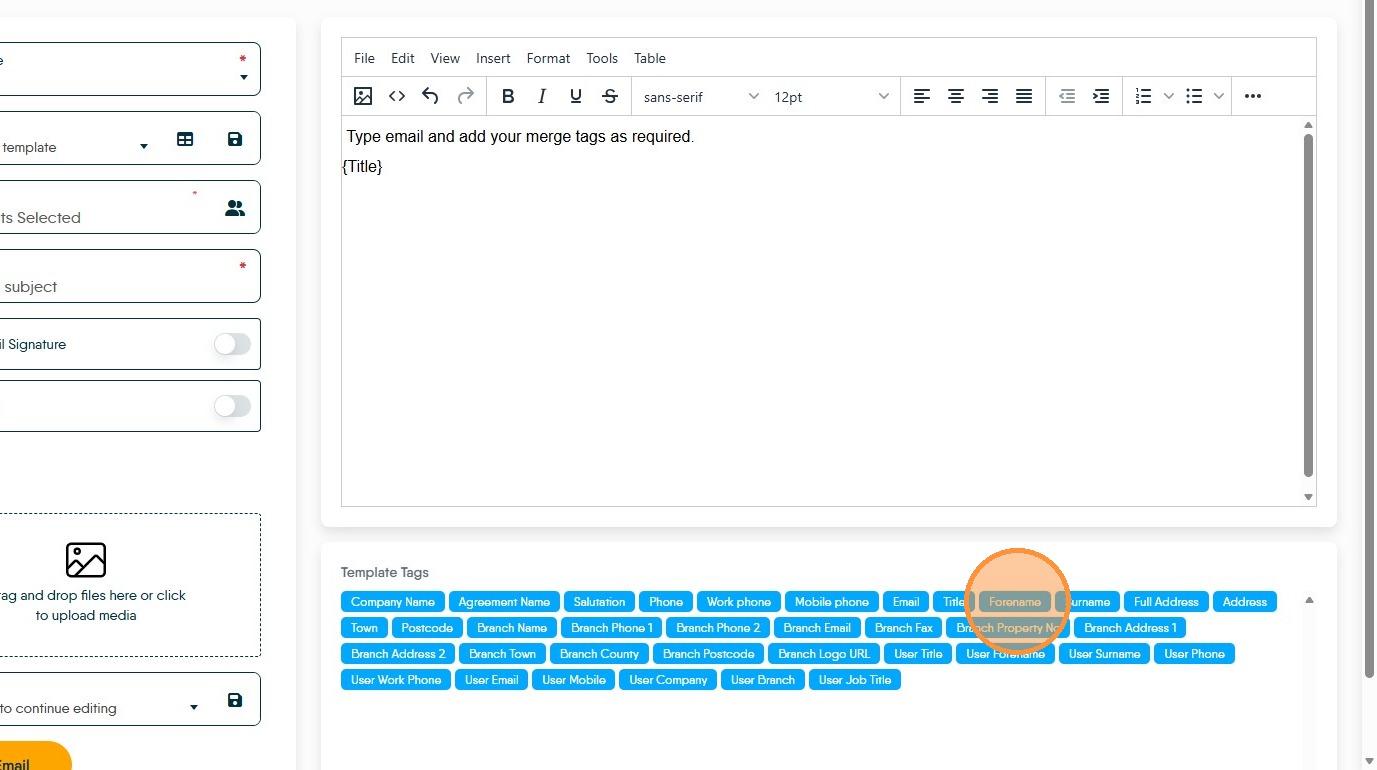
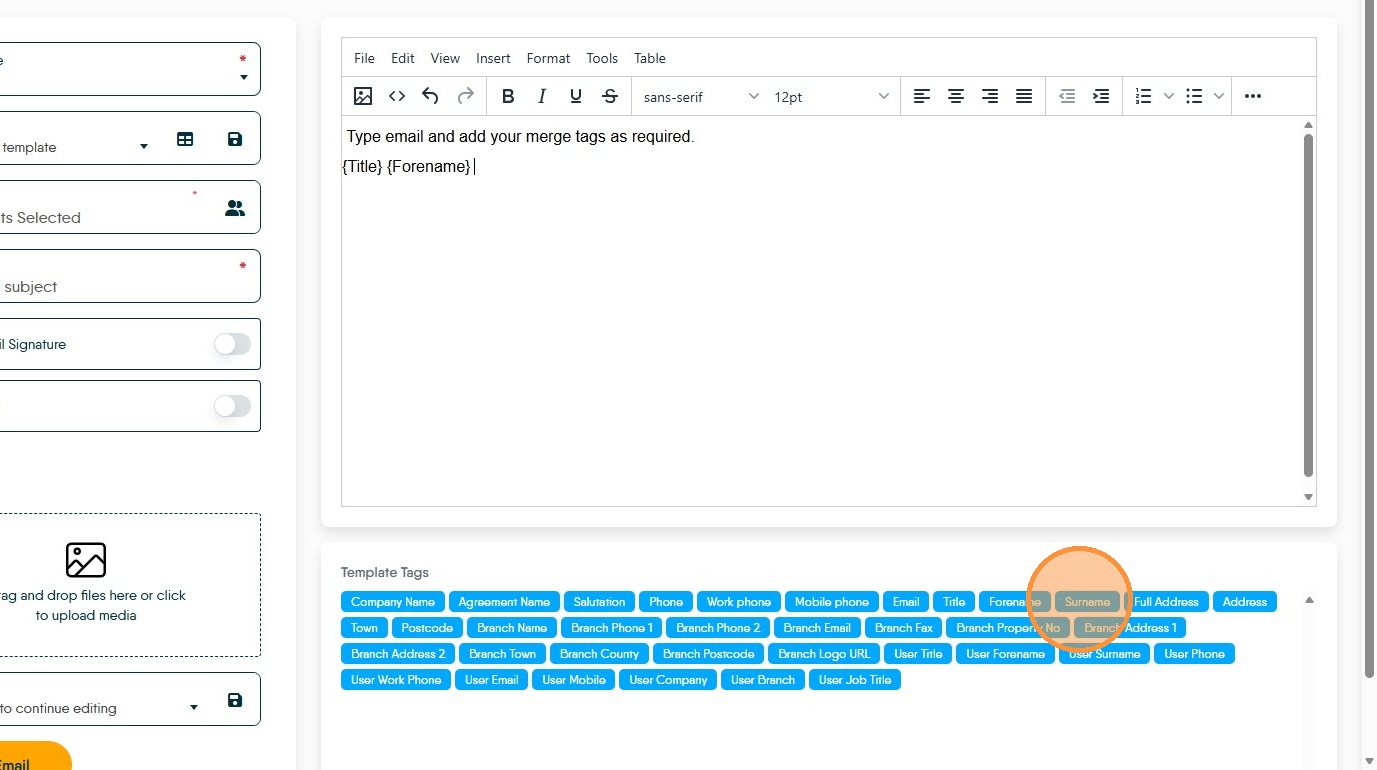
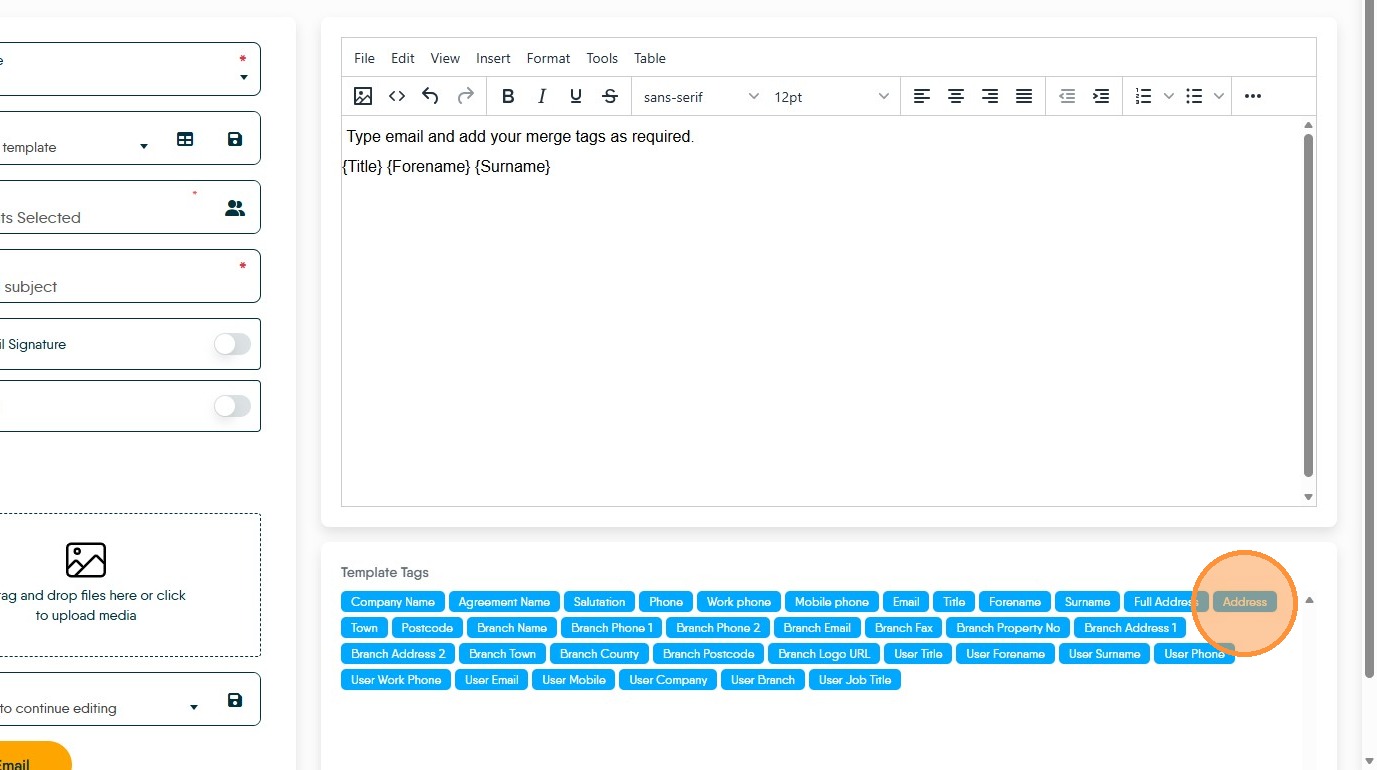
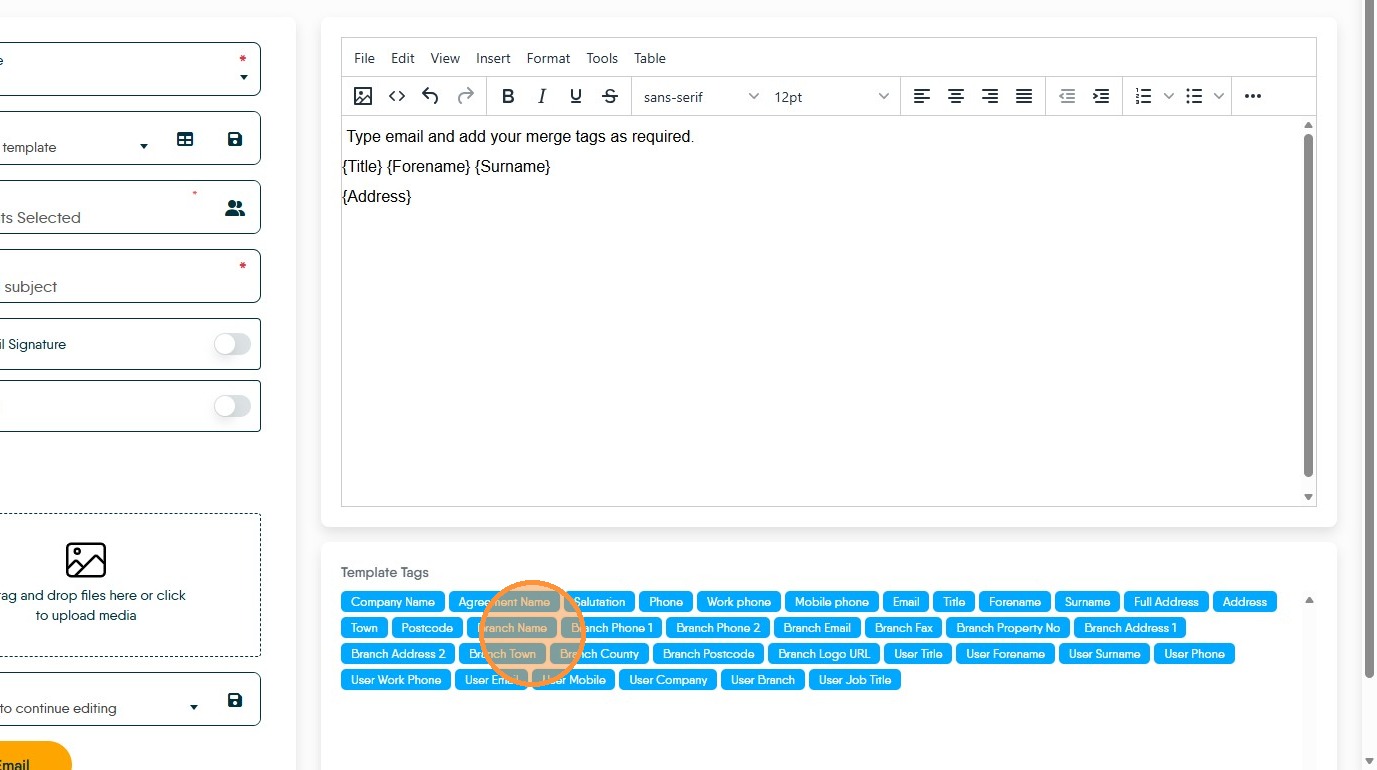
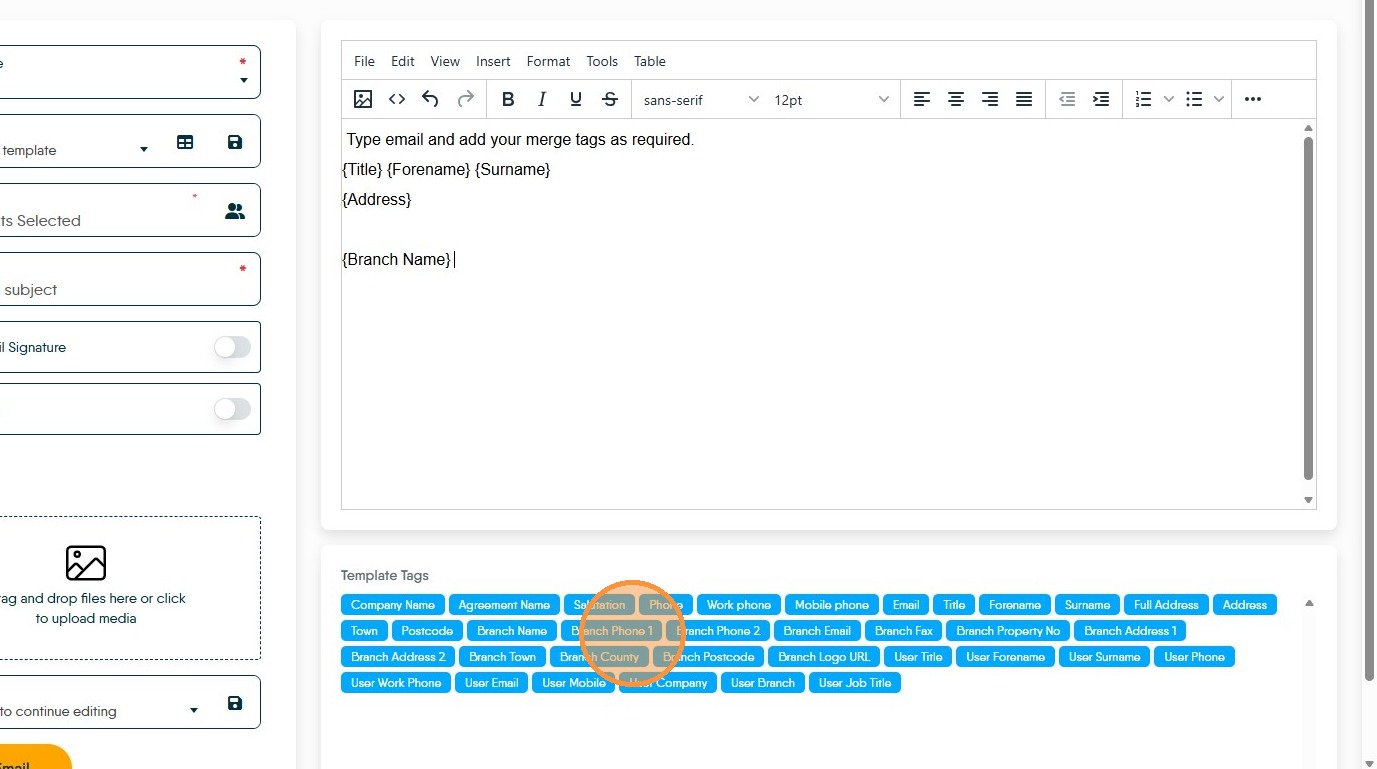
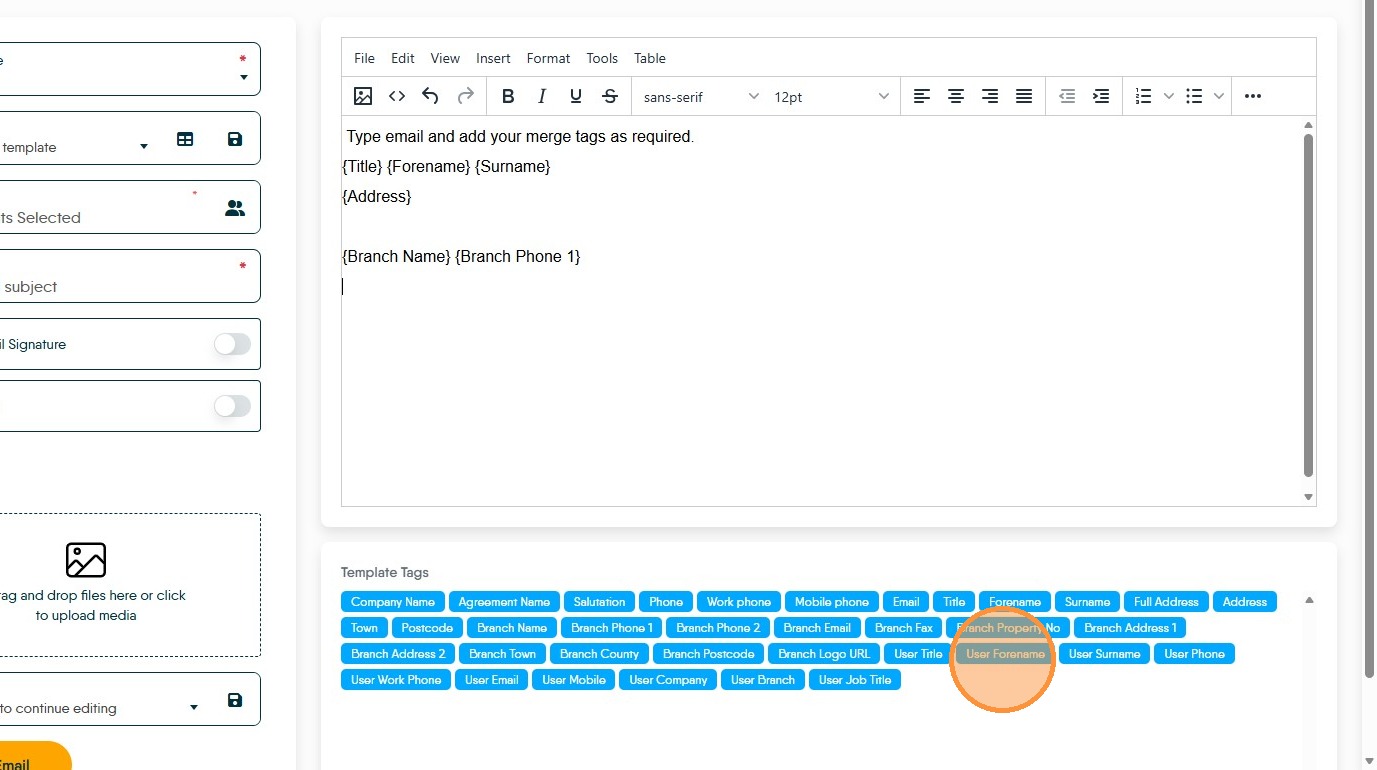
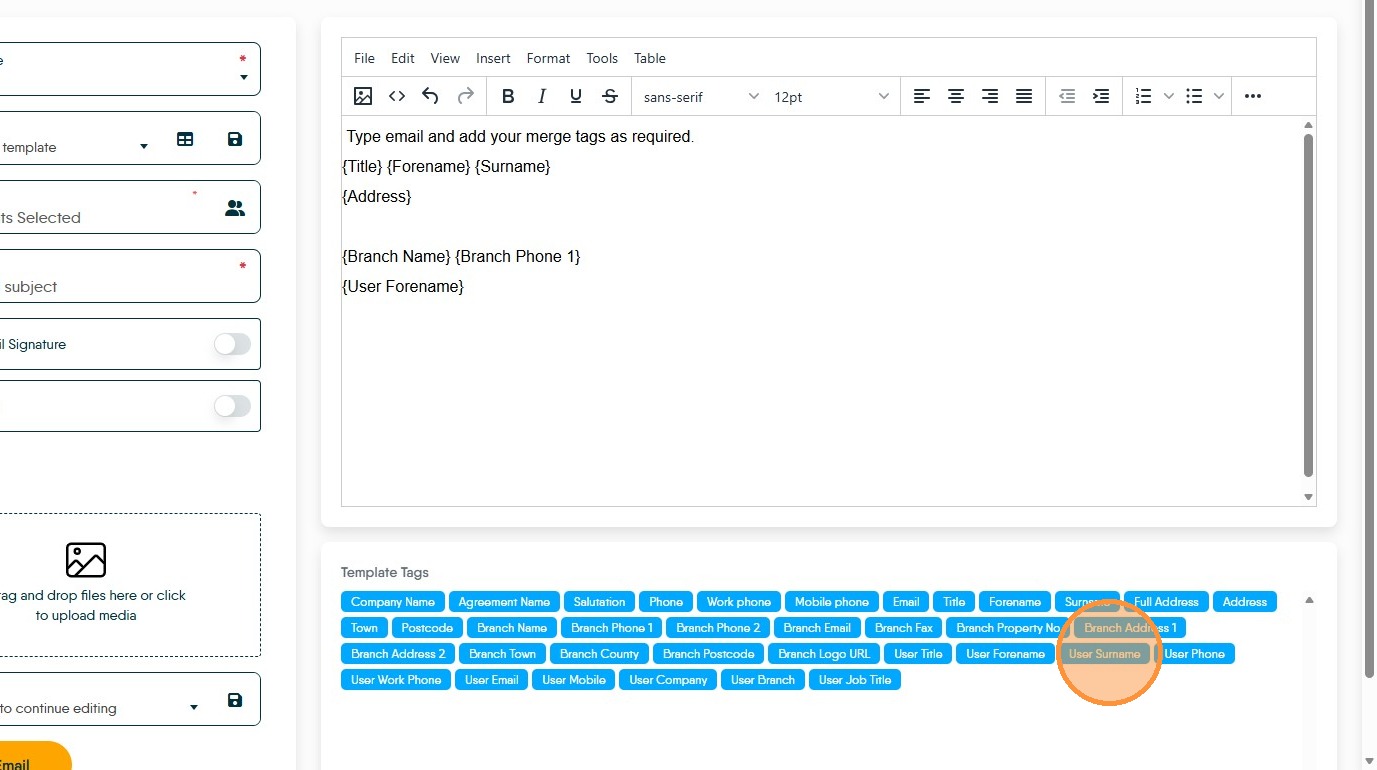
6. Name new email template e.g. "Email Letter merge test"
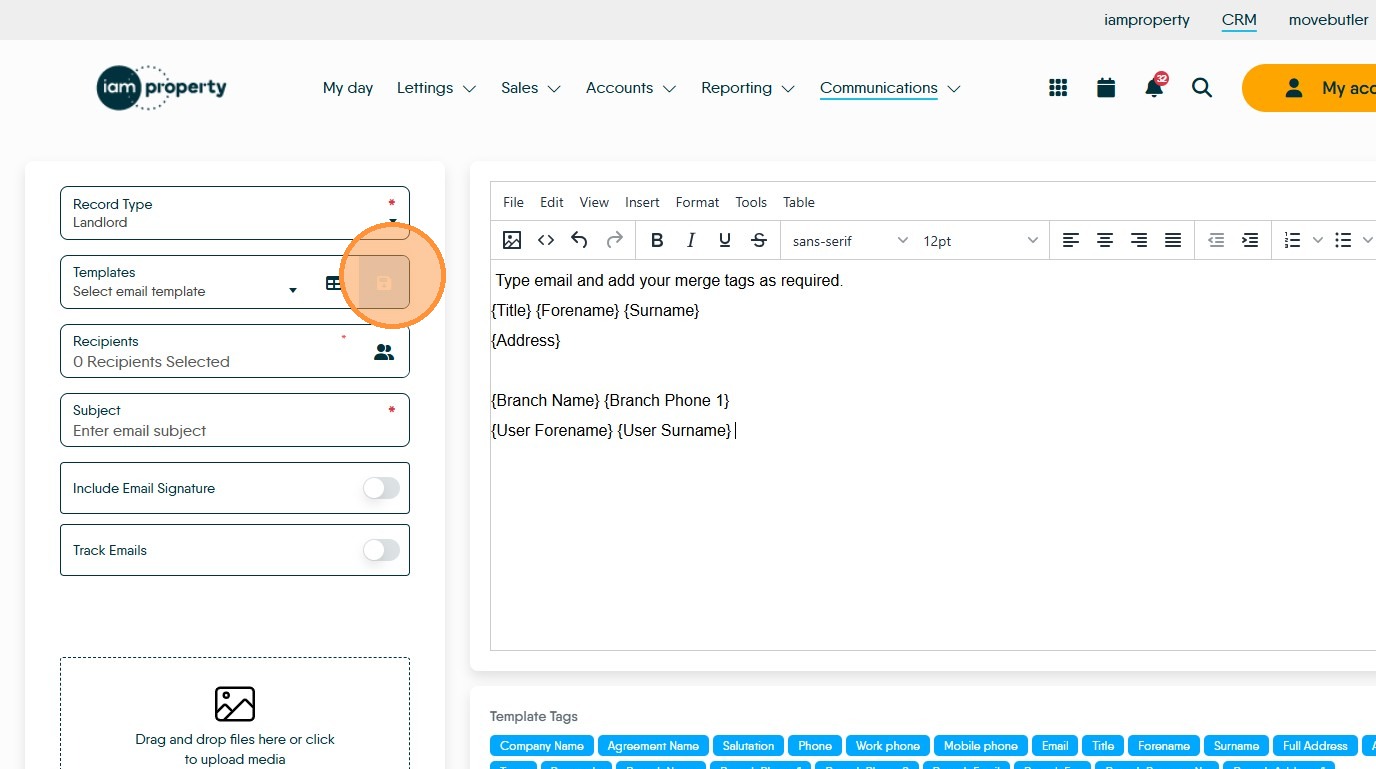
7. Click Save icon to create new email template
Letter Configuration
8. Navigate to Mail Merge section
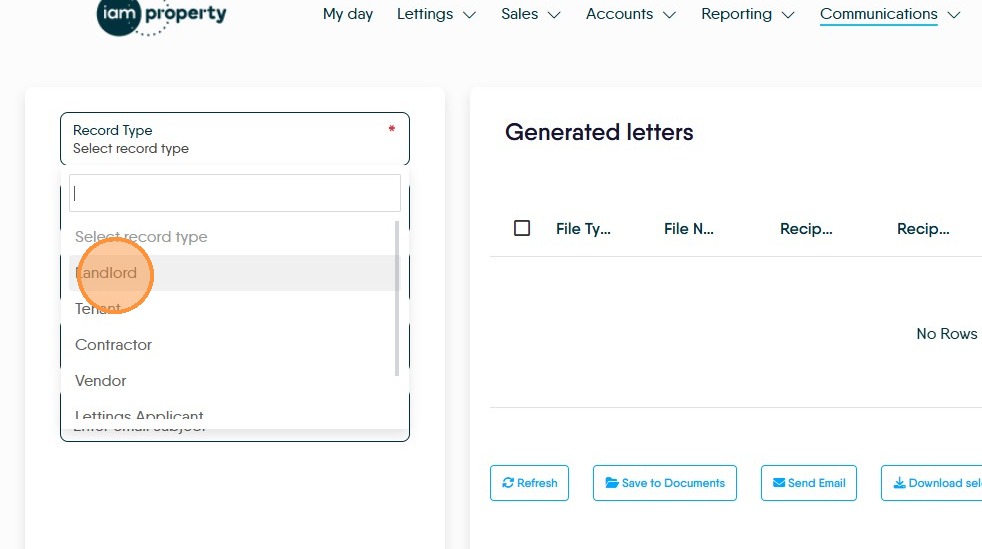
9. Select the record type you are sending the Mail Merge to, this will be the same as the record type you created the email template for. eg "Landlord" as Record Type
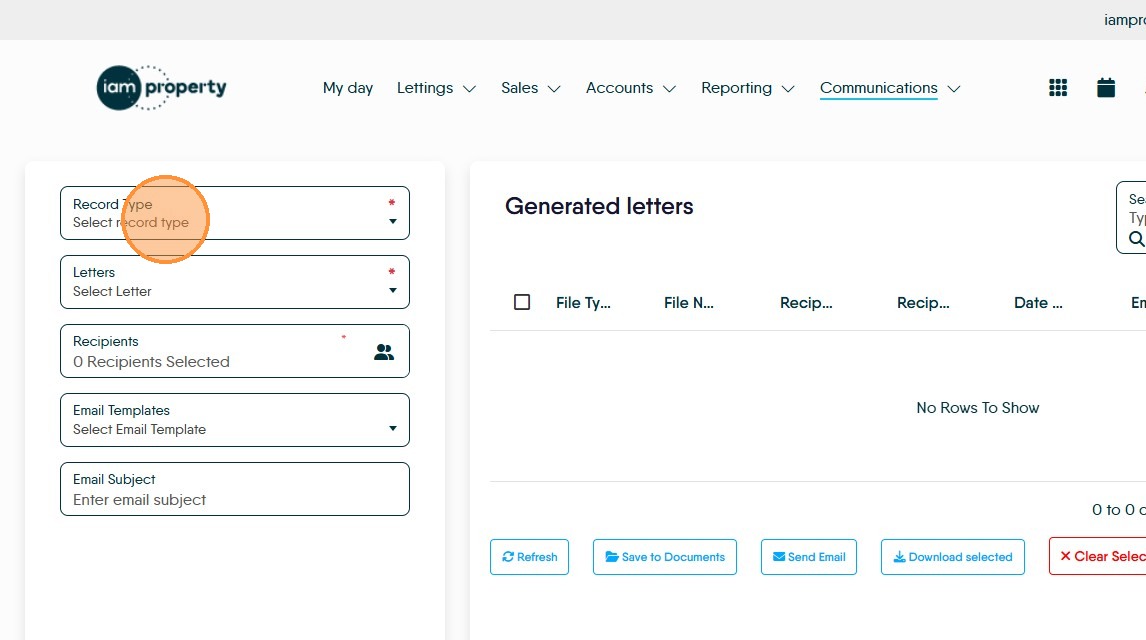
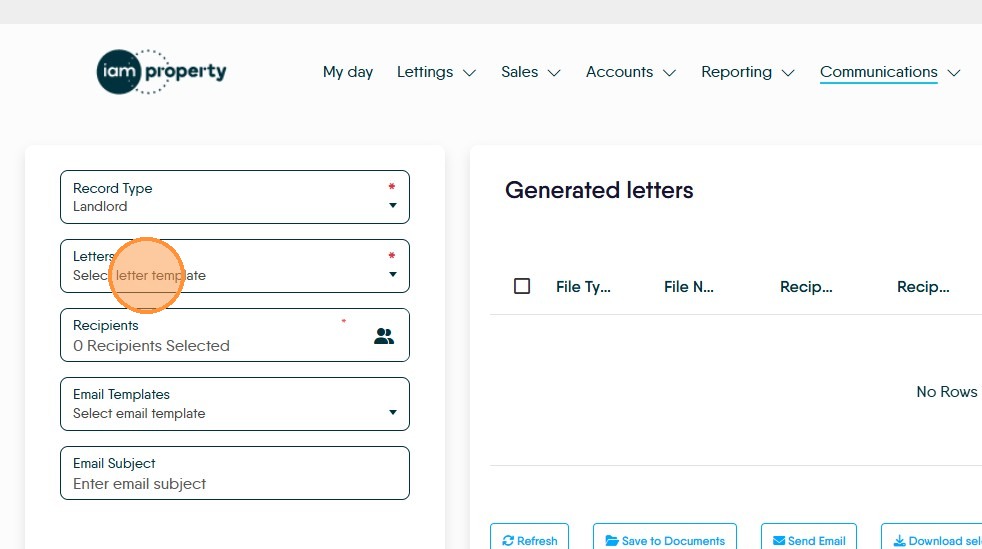
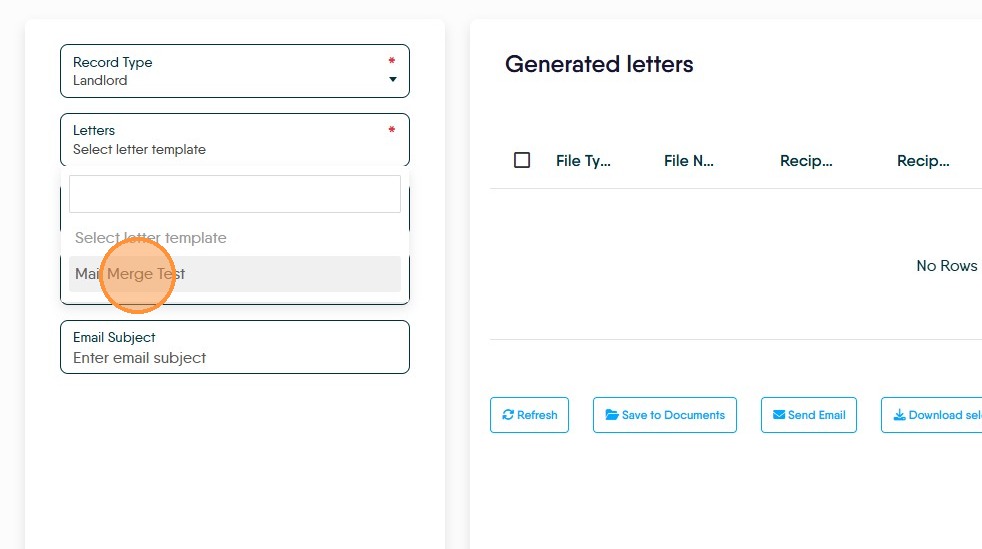
10. From "Letters" select the mail merge letter template you created and uploaded previously from the menu e.g. "Mail Merge Test"
Mail Merge letters are added in the Configuration section of "My Account" in the specific 'Letters' menu.
Recipient Selection
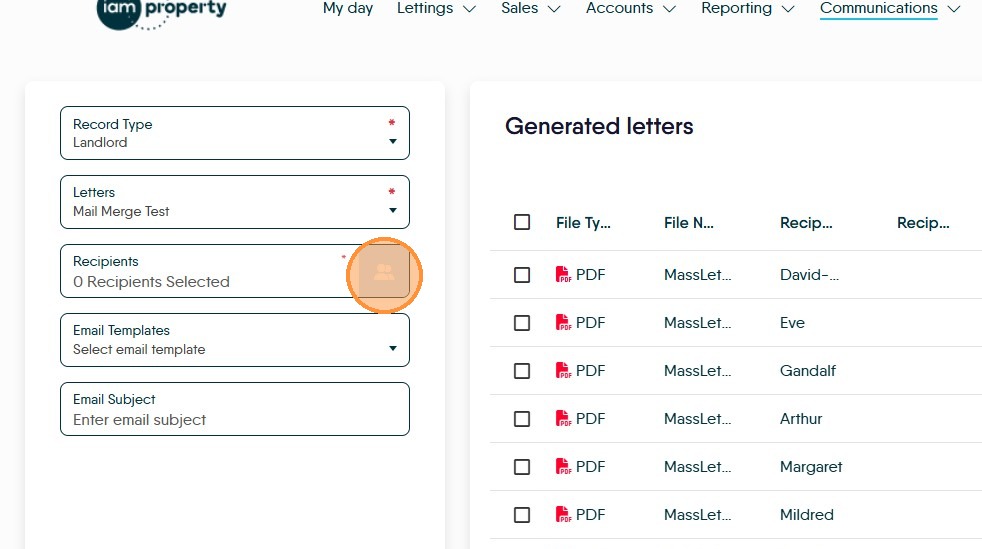
11. Click Recipients icon to open selection list.
N.B. The recipient for the letter will be the same as the one used when the email template was created e.g. Landlord
12. Select desired recipient checkbox
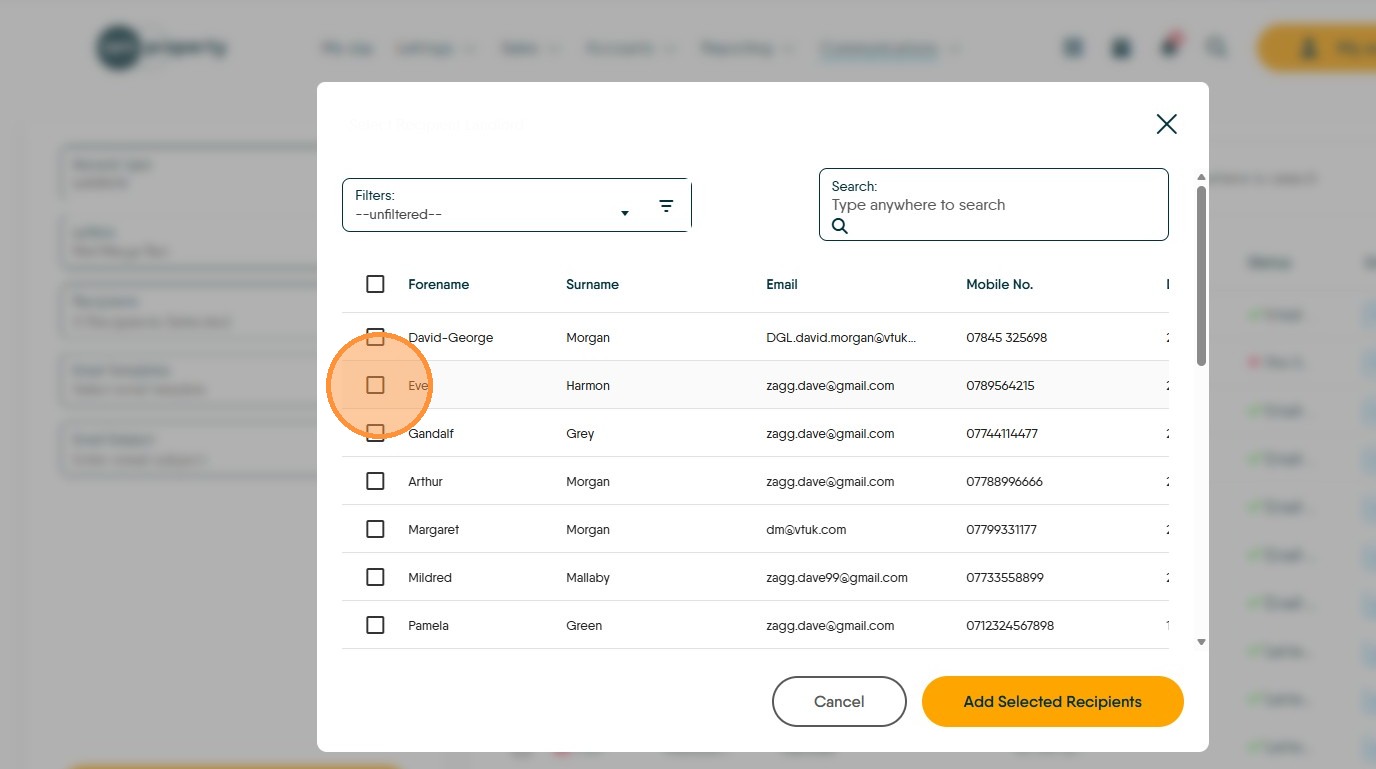
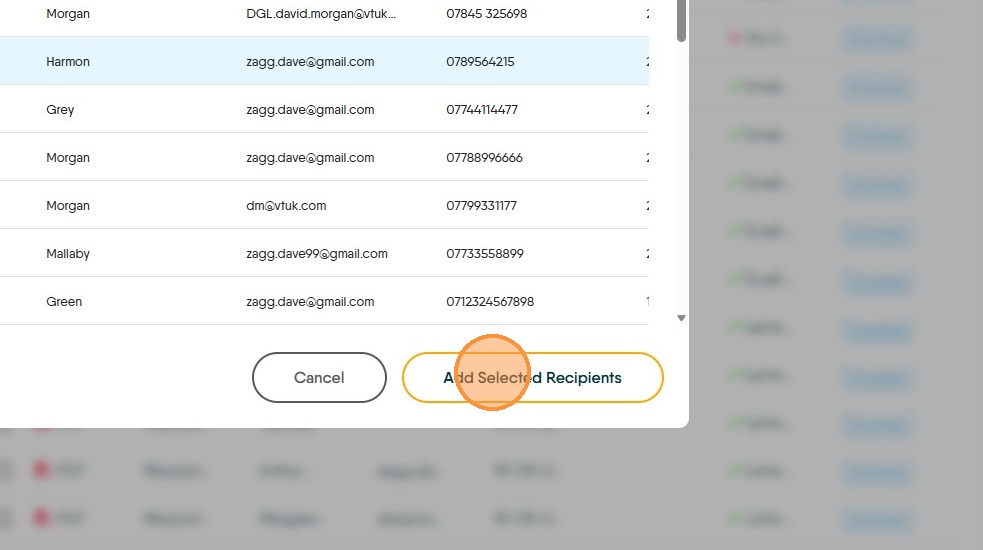
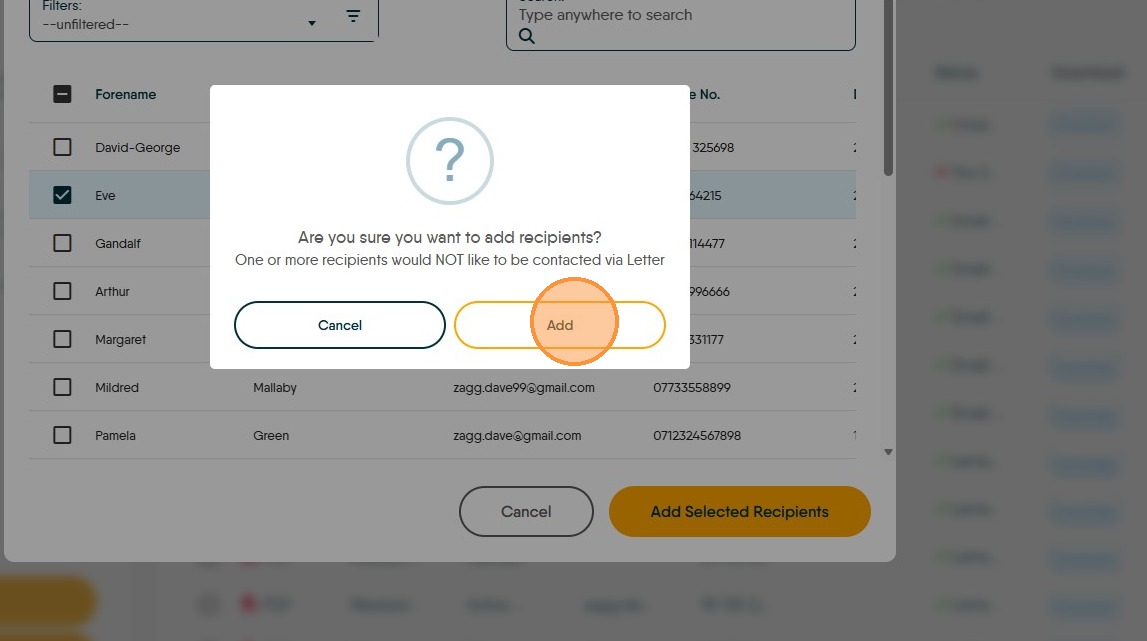
13. Click "Add Selected Recipients". If the GDPR settings for any of the recipients shows they have declined contact by email you will need to either Confirm or remove those recipients.
14. Select the Email Template (the one created previously)
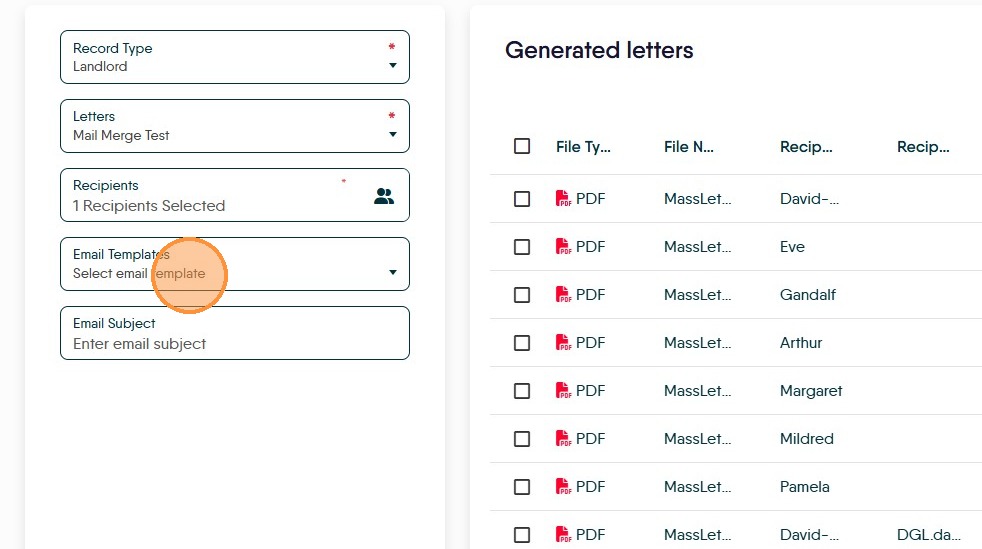
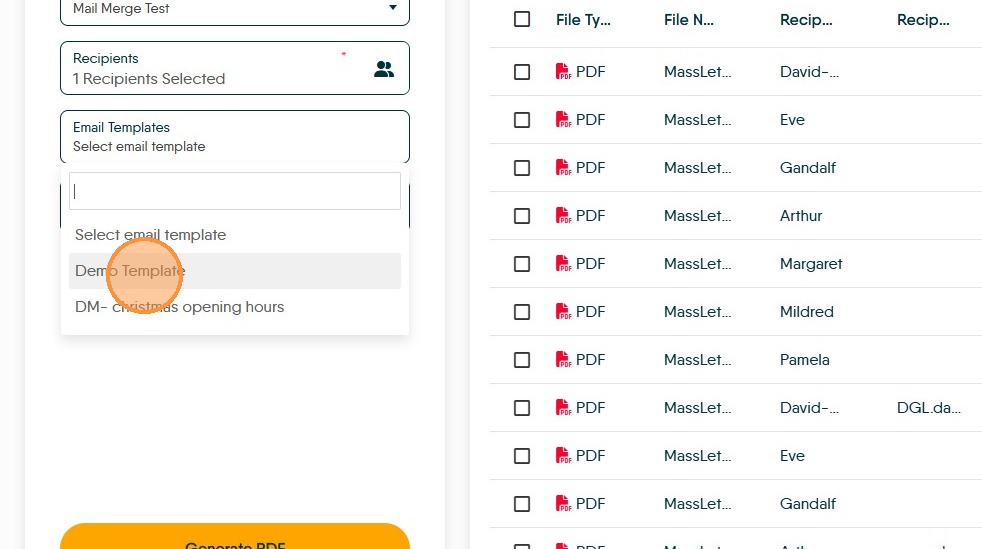
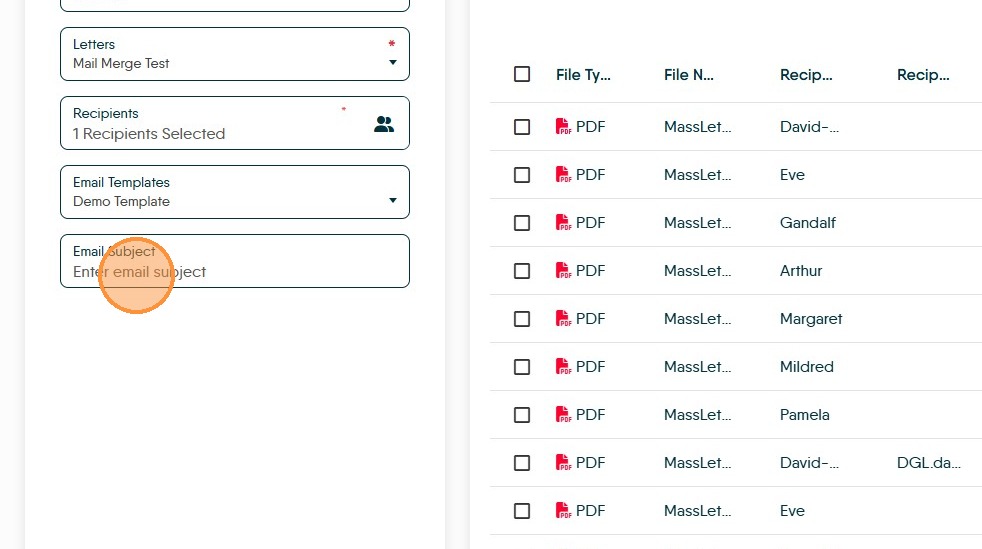
15. Enter the email subject in Email Subject field
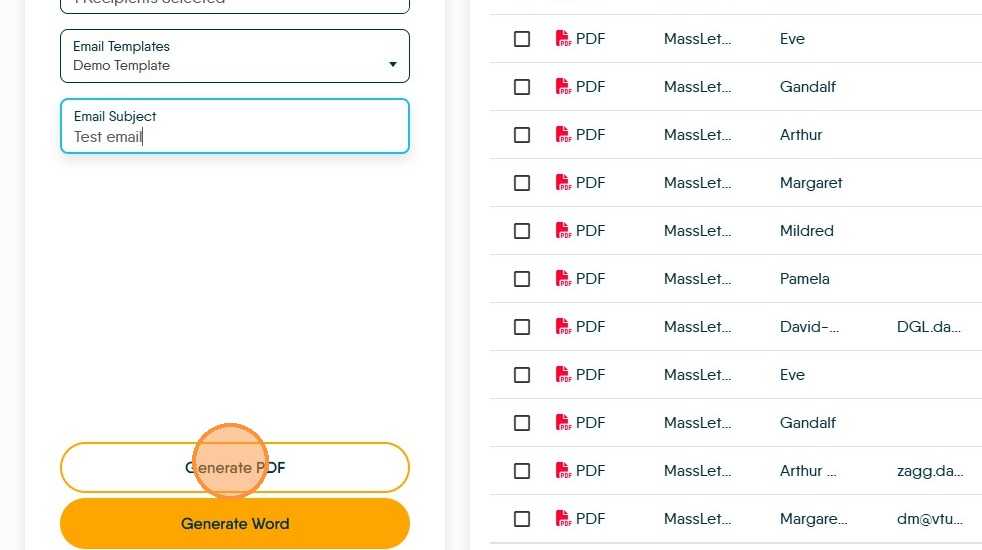
16. Click "Generate PDF" or Generate Word as required.
17. Select generated letter from list
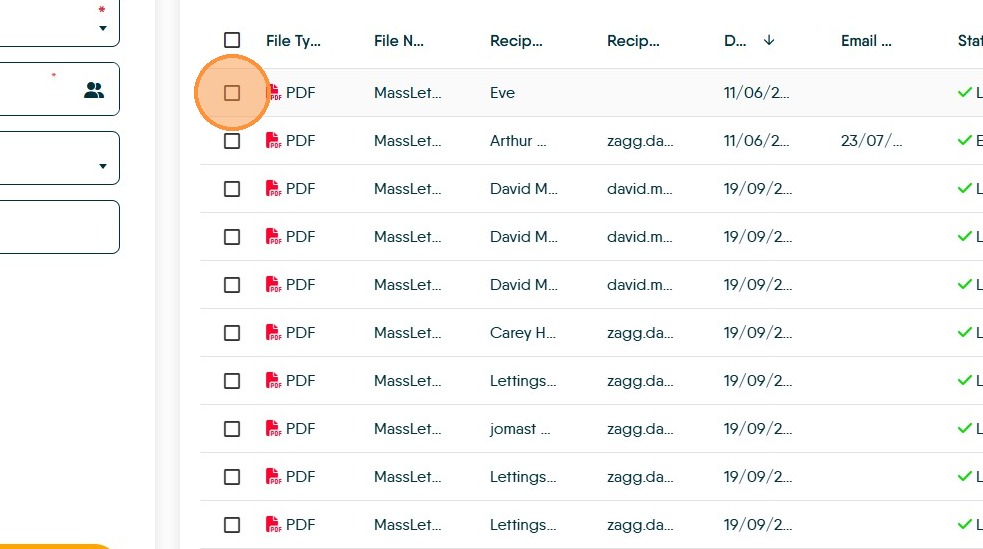
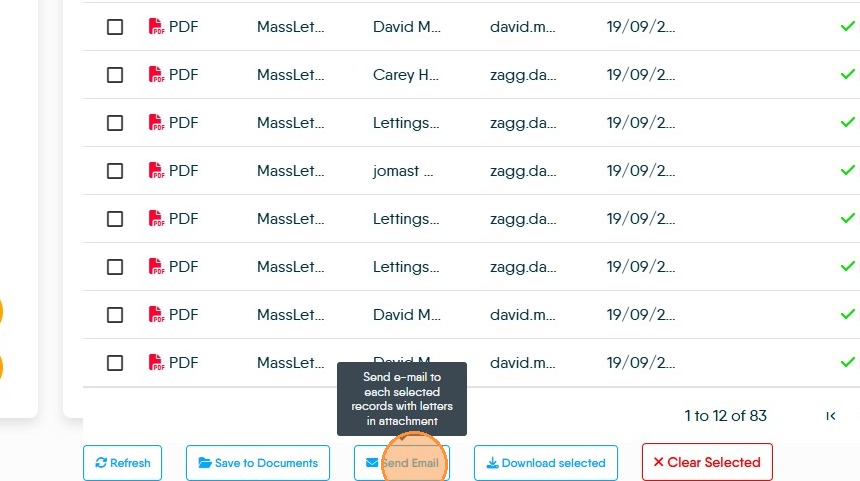
18. Click Send Email to process selected records