This guide is essential for anyone looking to efficiently communicate with multiple recipients using email merge (or any other option offered) in Communications. It provides a step-by-step walk through that simplifies the process, ensuring that users can easily send personalised mass emails. By following the instructions, users can save time and enhance their outreach efforts, particularly during busy periods like the holidays.
1. Navigate to https://crm.iamproperty.com/MyDay
2. Click "Communications"

3. Click "Email Merge".
There are also 'Mail' (letters to post) and SMS Merge options. The process to use these is the same. N.B. to use SMS merge you must have an SMS service enabled, iamporerty support 2 providers Textanywhere and Clockwork.https://www.textanywhere.com/resellers/free-trial/?ls=Partner&sc=108891&sd=IAmProperty

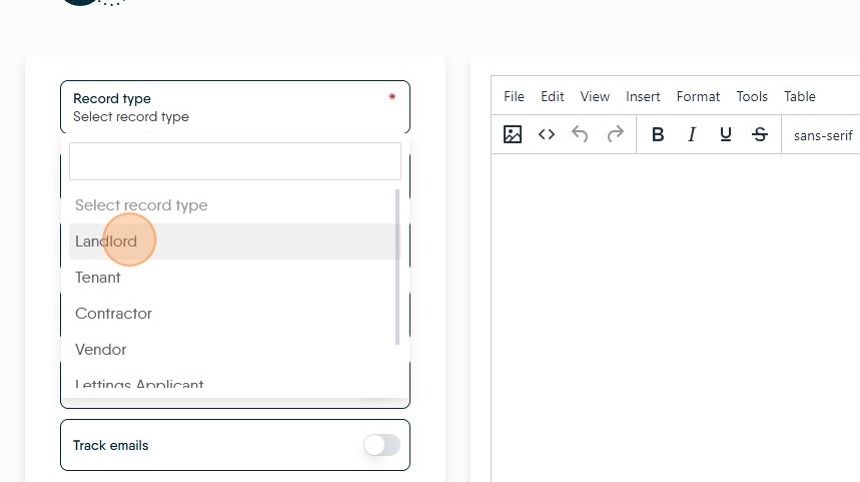
4. Click "Select record type"

5. Click the record type you are messaging. In this case we are using "Landlord"

6. Click here and select an email template (if you have any created). Templates set the body text and/or style of your email.
Click here.

7. There are pre-set email templates that can be used, select the one to use and click "Select Template"
8. Using an example. Click here.

9. Click "DM- Christmas opening hours" this sets the body text of our email.

10. To select the recipients of the email click here.

11. Click here to filter the recipients, if required. If you are sending to everyone in the database ignore this option.

12. There are many options to use and filter by.


13. Click the "Filter Name" field and give your filter a name so it can be easily reused.
14. Click this checkbox to select your recipients.

15. Click "Add Selected Recipients"

Alert: Alert! If any of your recipients have opted out of contact via a specific way (e.g. email) then a warning message will show. This can be overridden and message still sent.
16. Click the "Subject" field.

17. Click here to include your email signature.

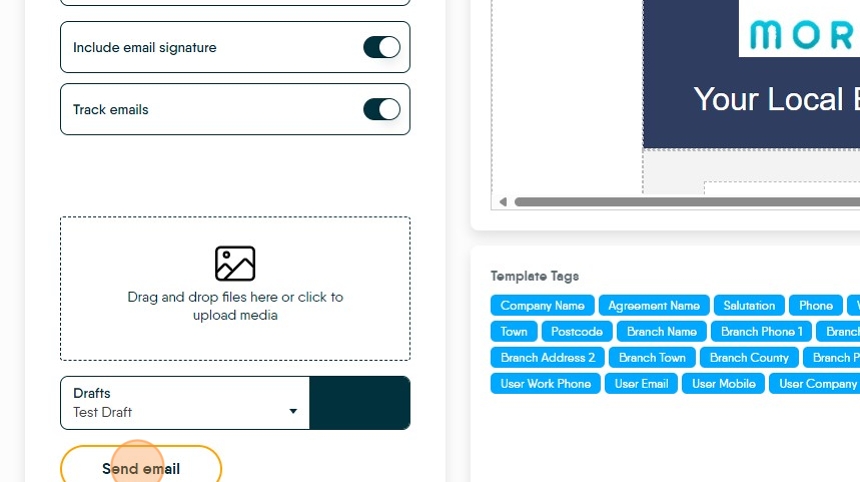
18. Click here to track emails e.g. read, deleted etc.

19. Click "Drag and drop files here or click to upload media" if you want to add attachments to the message.


20. Click here if you have a previous draft you want to use or if you want to save this draft option.
Click here.
21. Click "Send Email" to send your message.