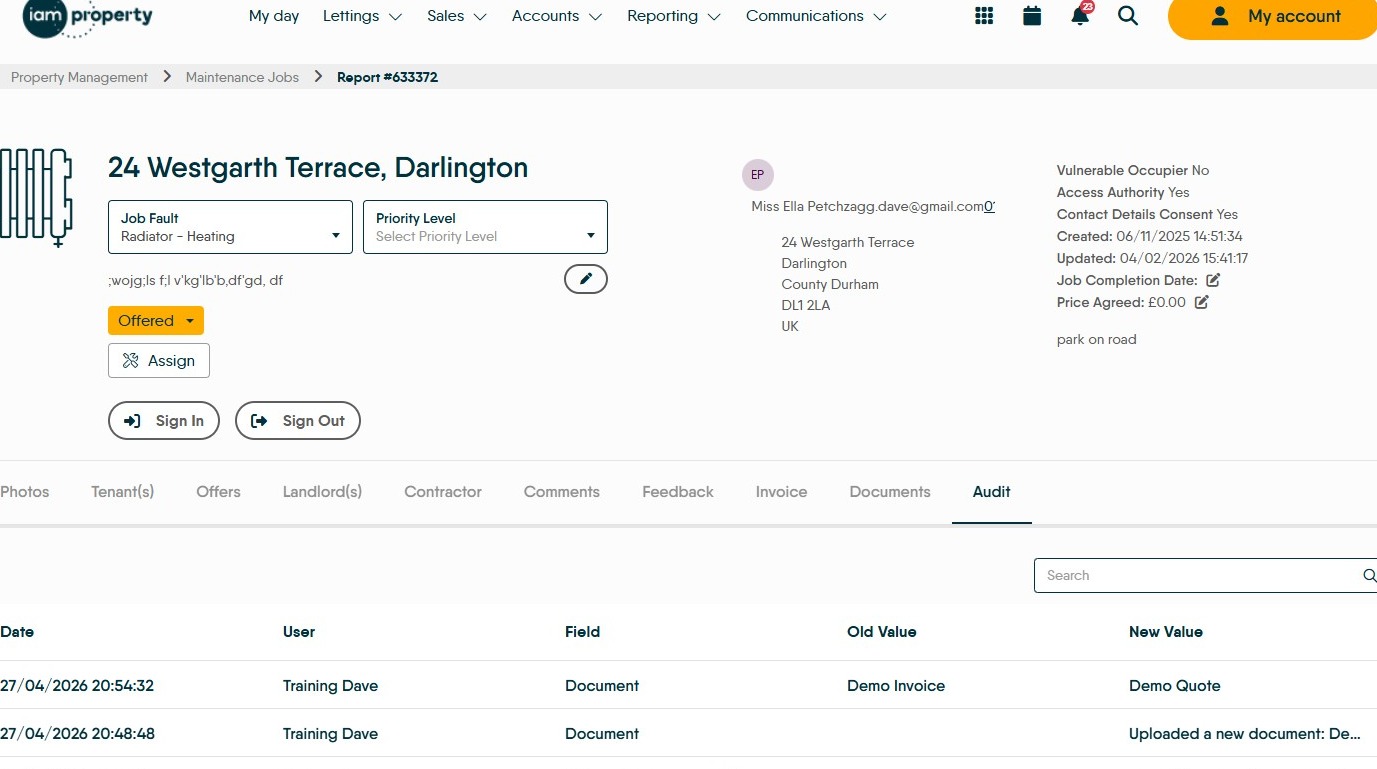
Learn how to efficiently send emails directly to landlords/contractors or tenants via the CRM Property Management portal. This guide simplifies the process of attaching files and managing communications for maintenance and billing tasks.
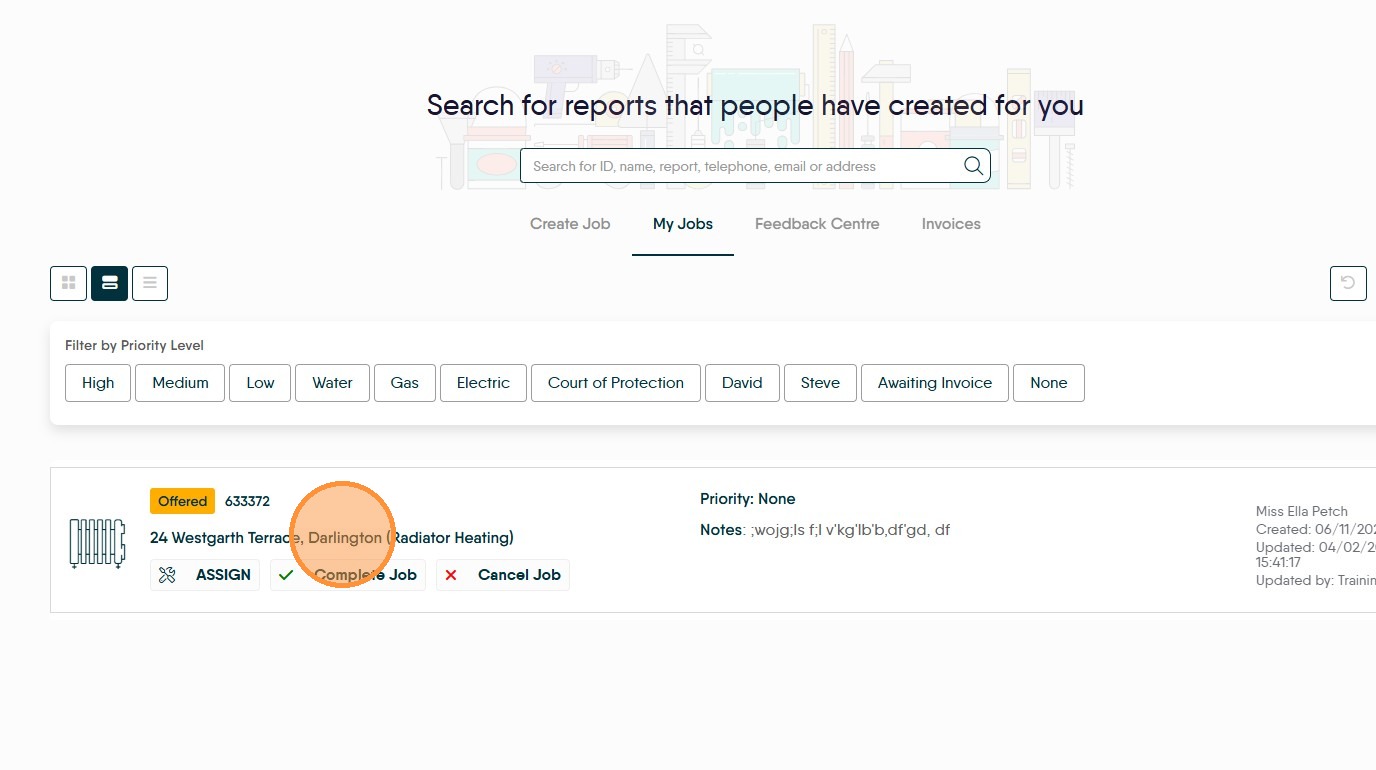
Job Selection
1. From the Task List in Property Management click property name to select property task.
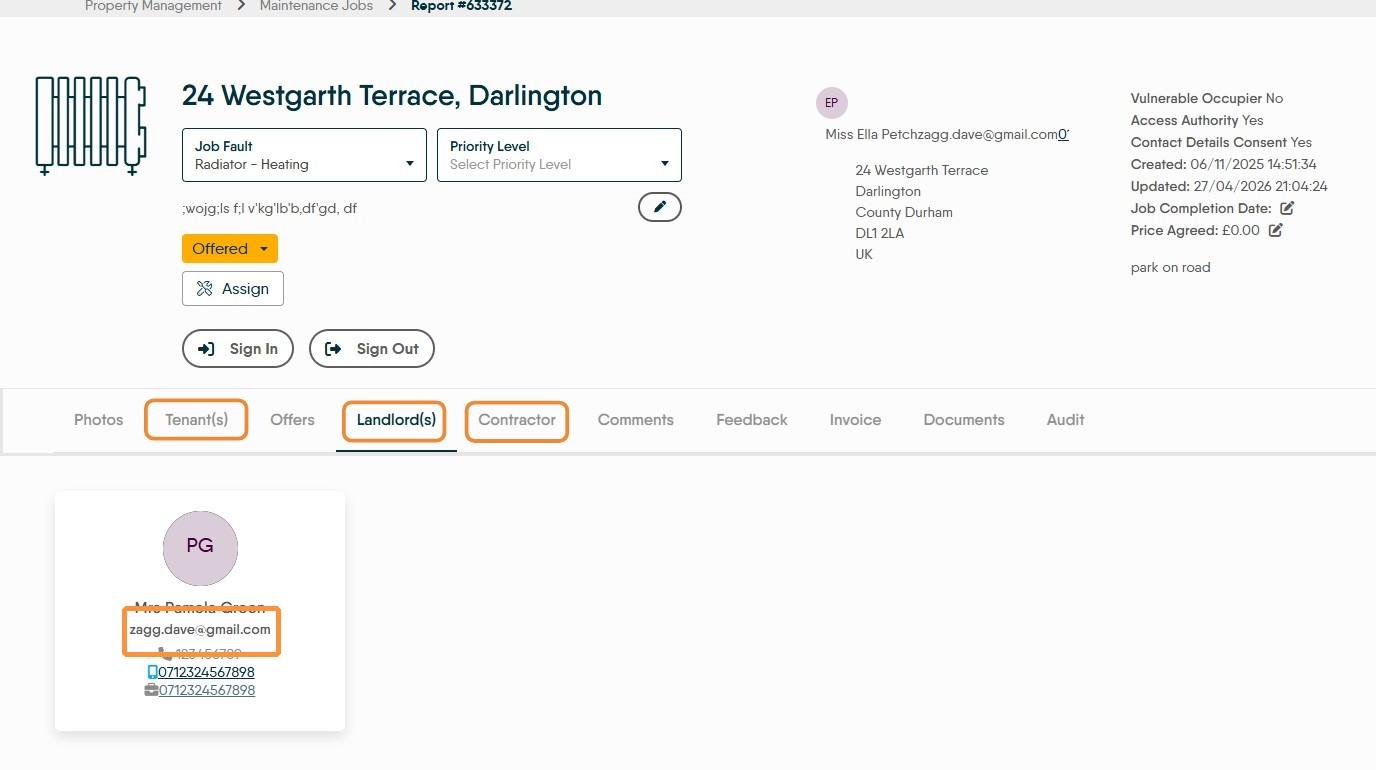
Email Correspondence
2. Select either Tenant, Landlord or Contractor to view the contact details. For theis example we will use Landlord. Click the landlord's email address to open email composer.


3. Once in the email composer, if available select a template from the 'Template' menu. E.G. Select 'Quote to Landlord' from the Template drop down. Or create one for future use.
4. Click the attachment icon and select the document to upload. If the document is saved in the property record it will show in the list.
In this case the document is saved in a folder on the computer and needs to be either 'drag and dropped' from a folder or the email it was sent on, or searched for in your computers folders.
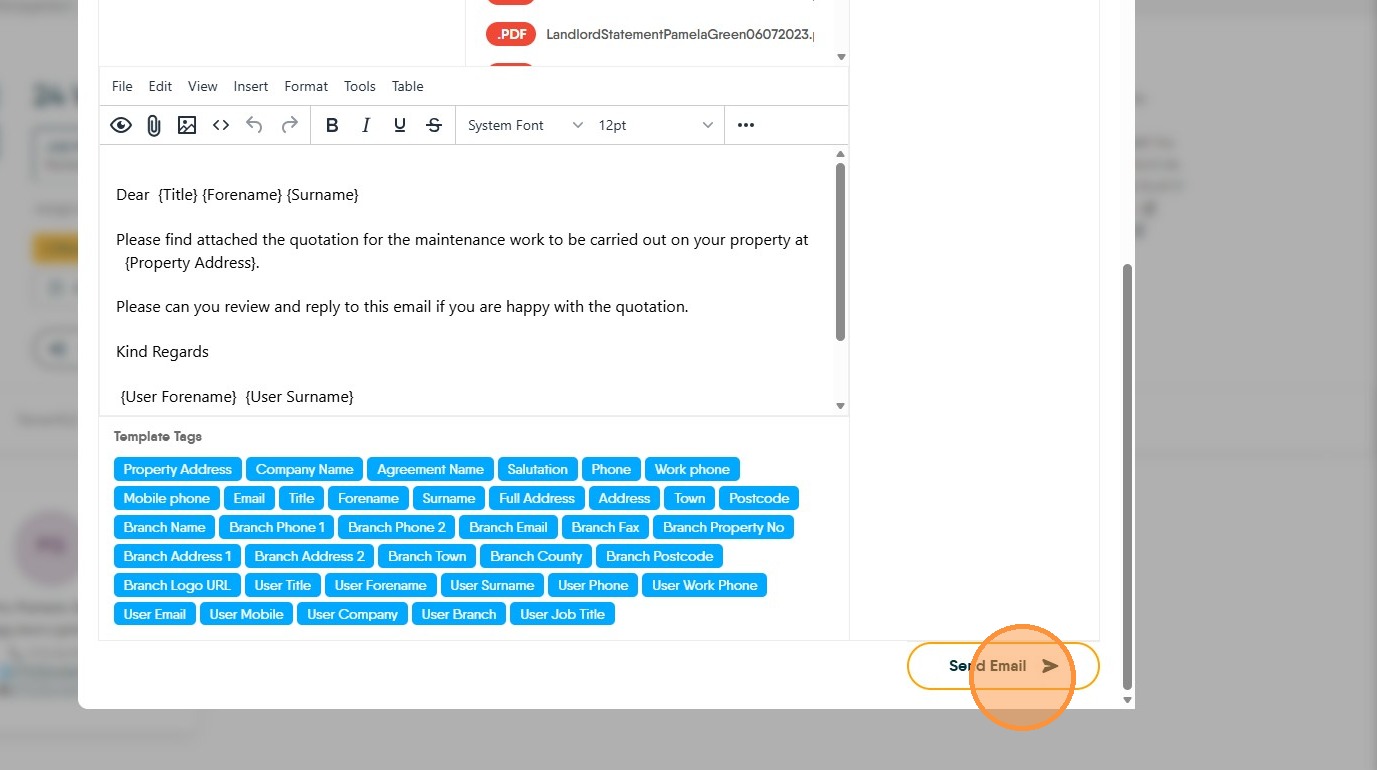
5. Click "Send Email" this will send the email to the landlord and a record kept in the journal.
Verification and History
6. Click Audit tab to verify action history.