This guide walks you through the process of creating and saving a new landlord record within the property management CRM. It is useful for property managers who need to efficiently add landlord details and link them to a property for streamlined management and communication.
1. Navigate to the property you are adding the new landlord to.
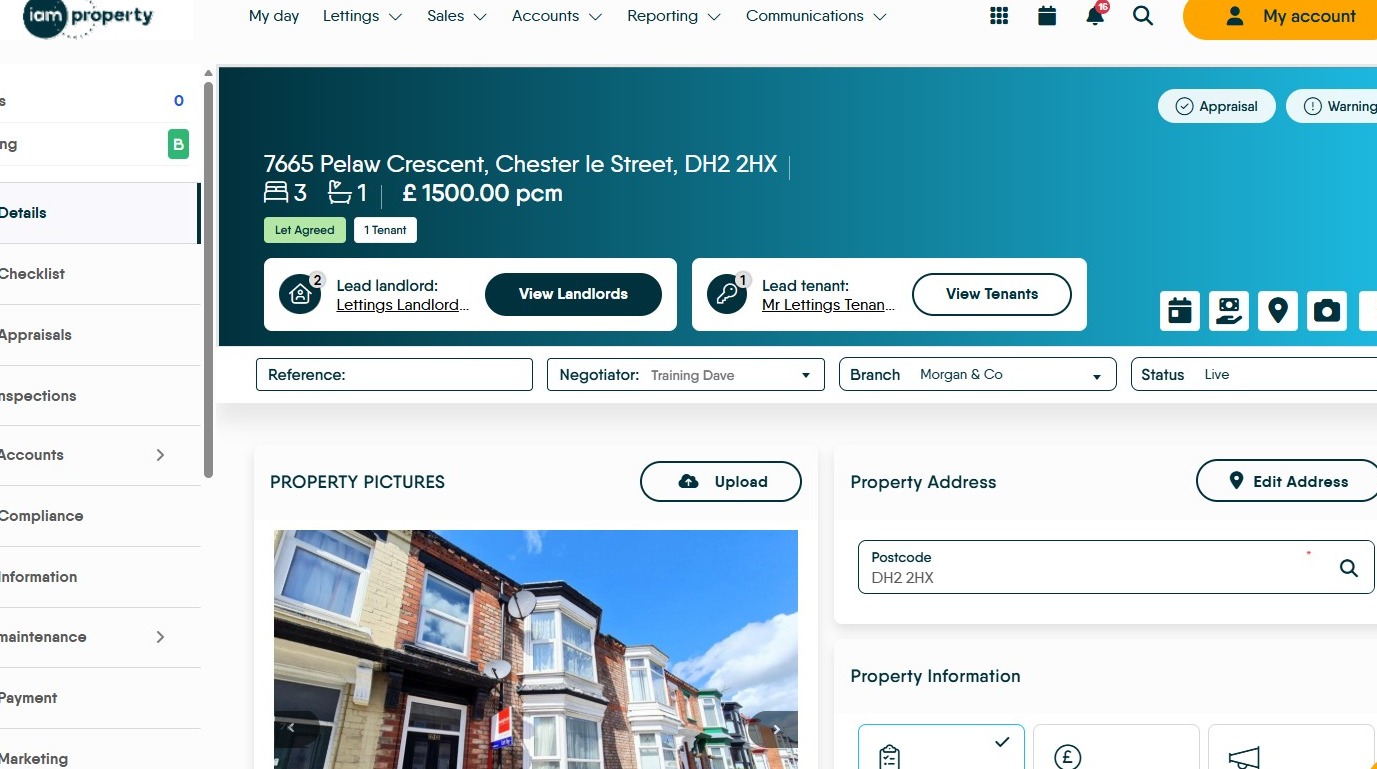
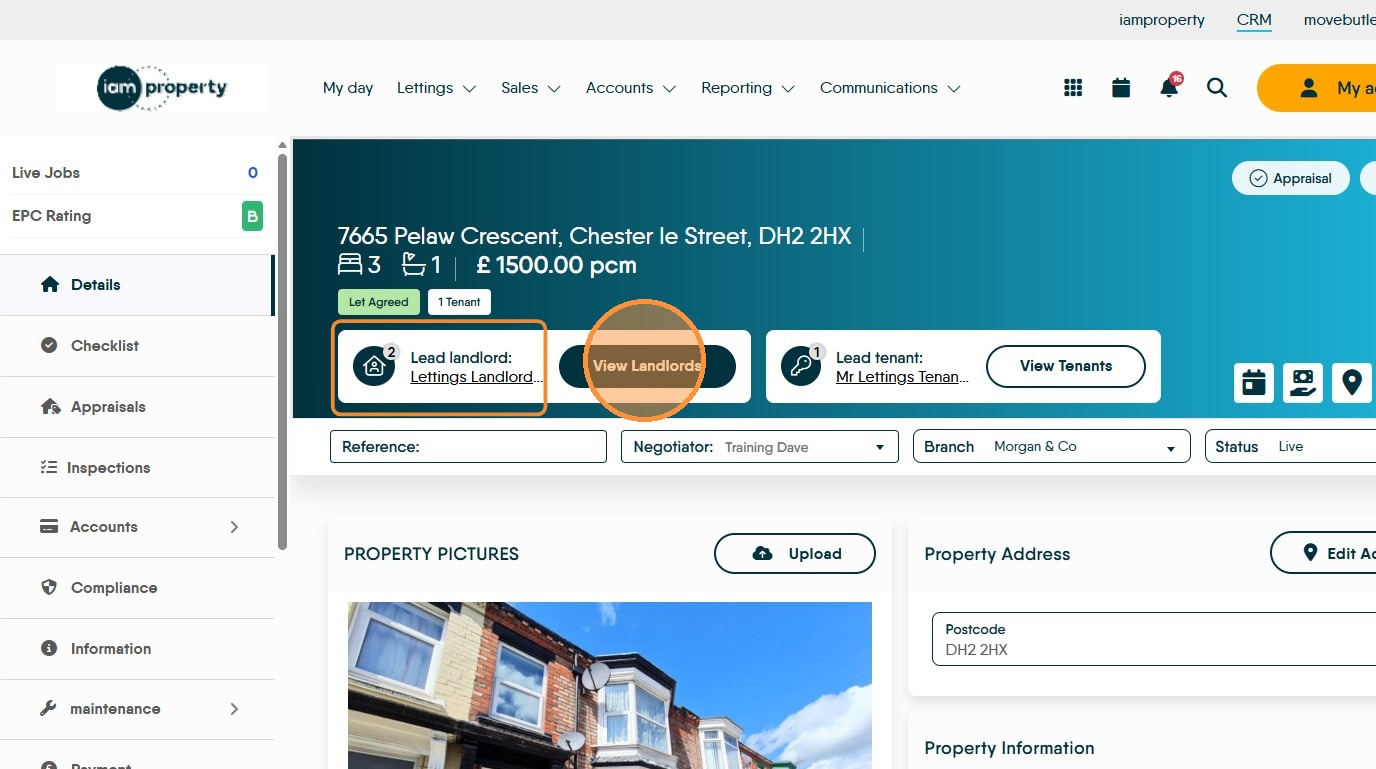
2. Click "View landlords" in the area highlighted by the box, you can see the Lead Landlord name and the number of current landlords.
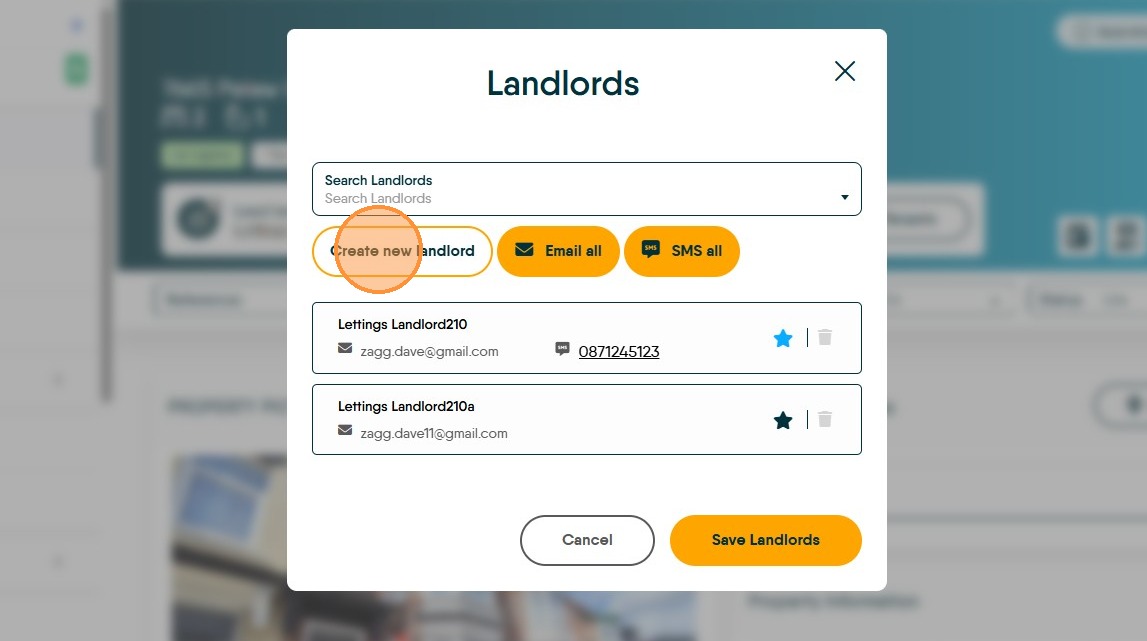
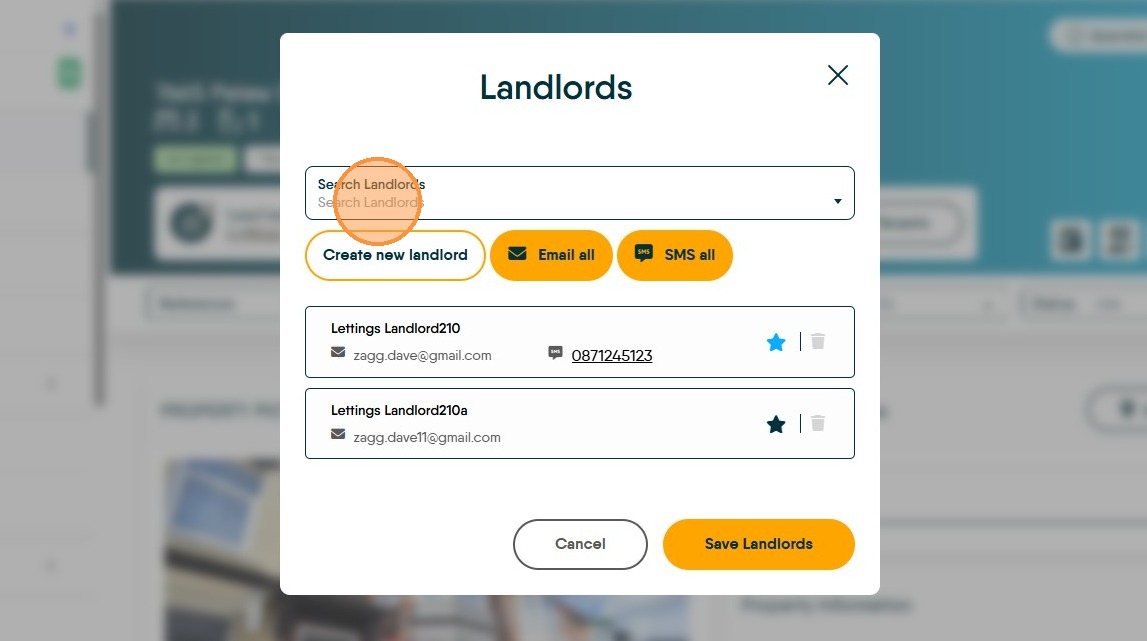
3. Click "Create new landlord" or click into the "Search Landlords" field and search for an existing Landlord.
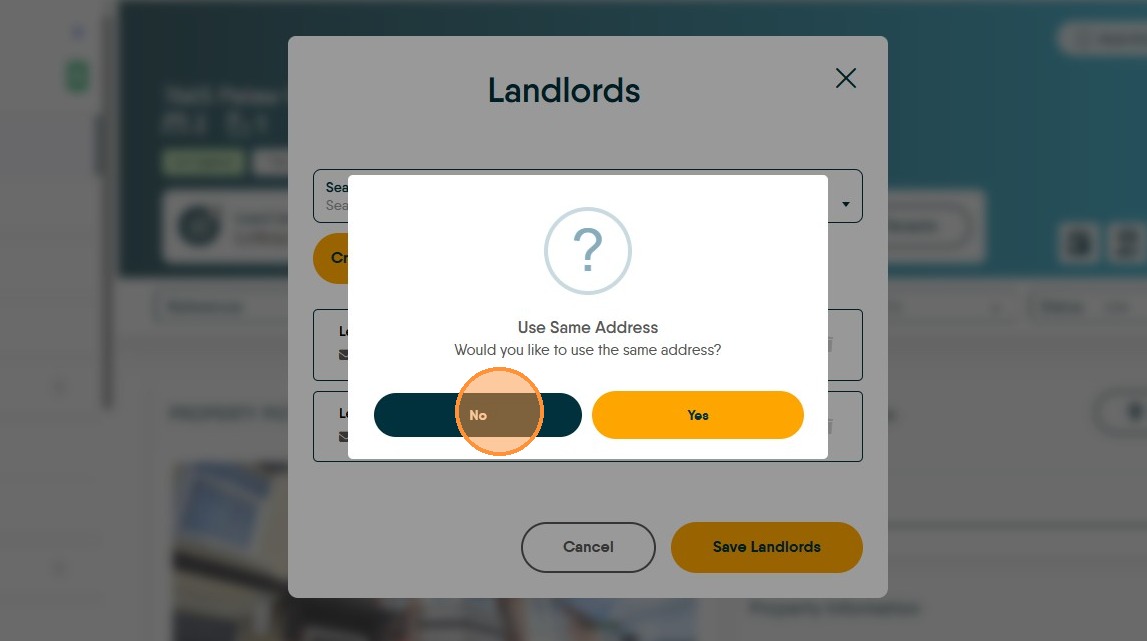
4. Unless the Landlord lives at the same address as the property being rented. Click "No"
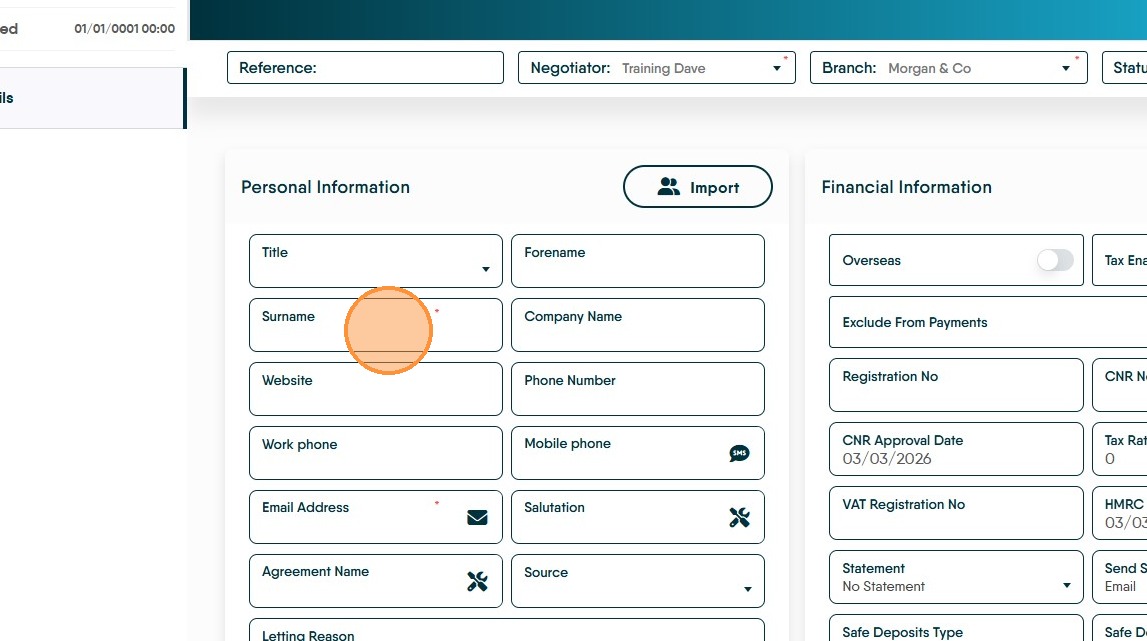
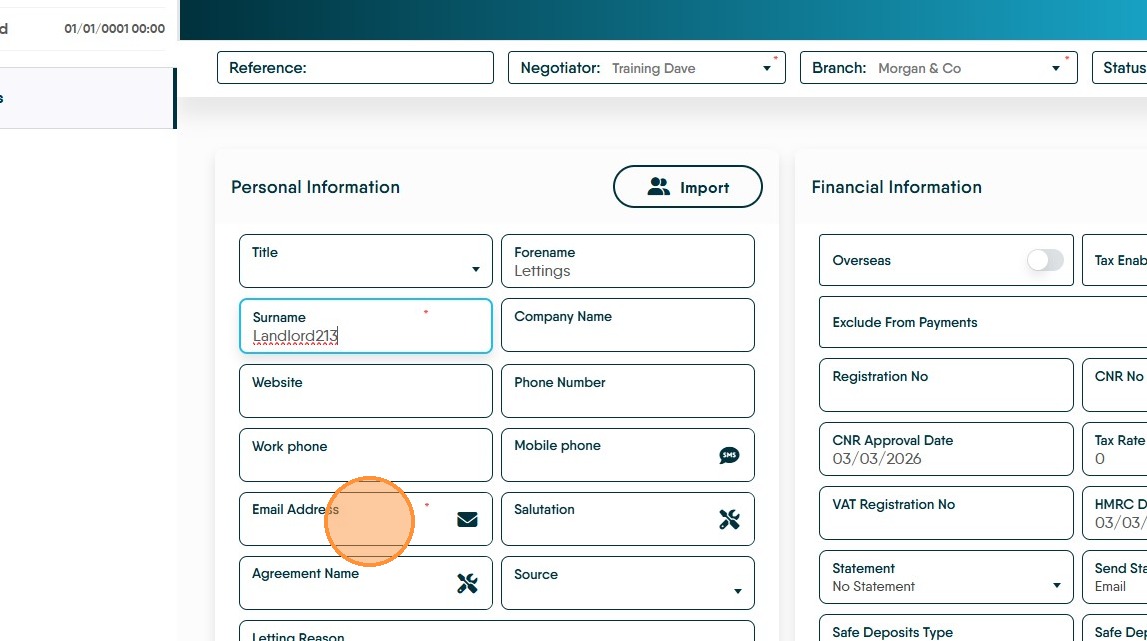
The minimum data that is required to be added to the record is Surname and Email Address, the more information you add the better.
6. Click the "Surname" field.
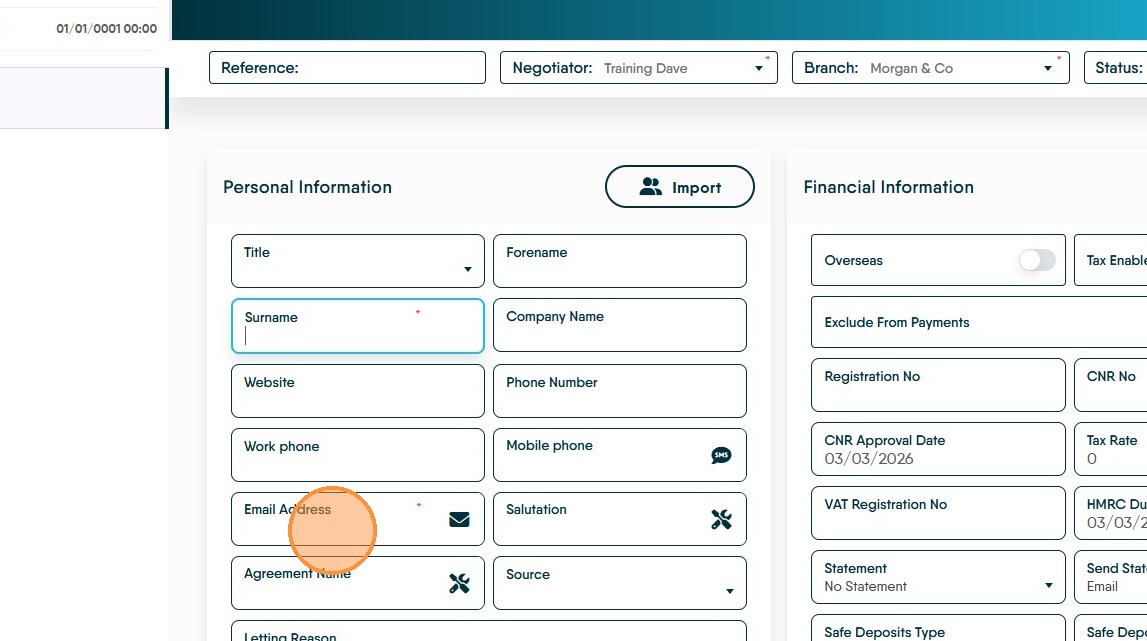
7. Click the "Email Address" field.
It is good practice to add as much data as you have to any record that is being created.
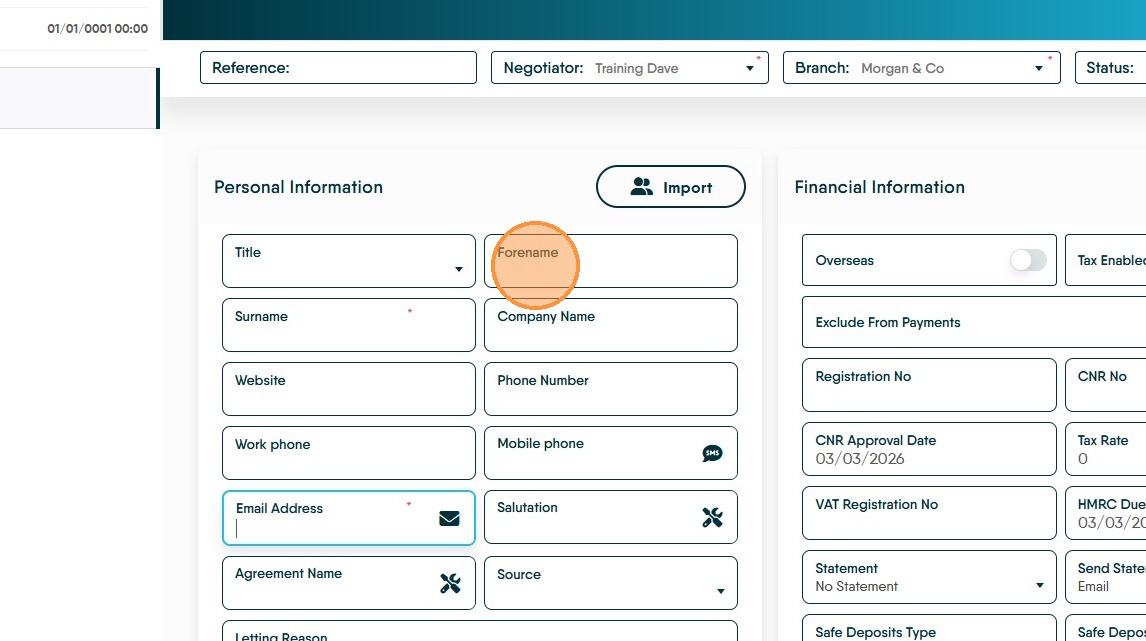
9. Click the "Forename" field.
10. Click the "Email Address" field.
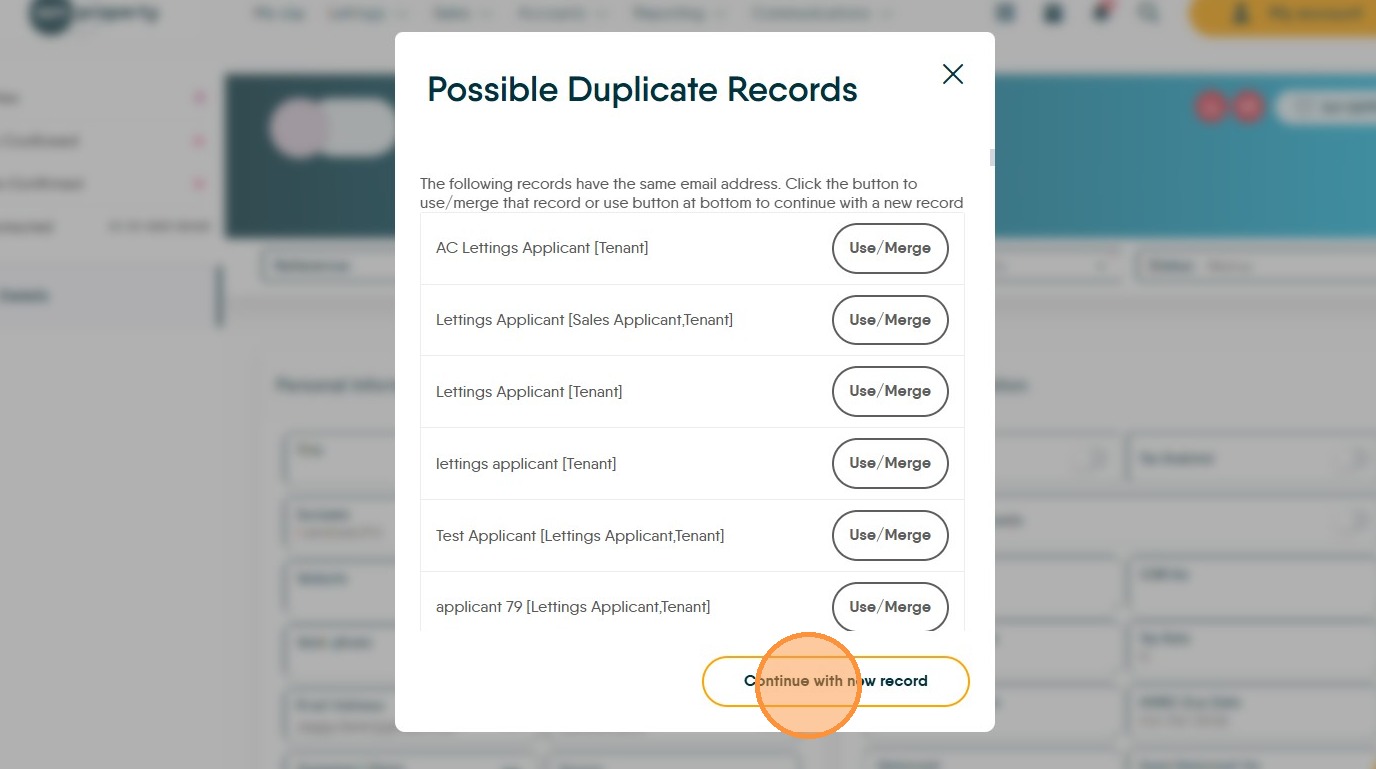
11. If the email address has been used before, either select the existing user from the list or if you are using the same email for both Landlords click 'Continue with New Record'
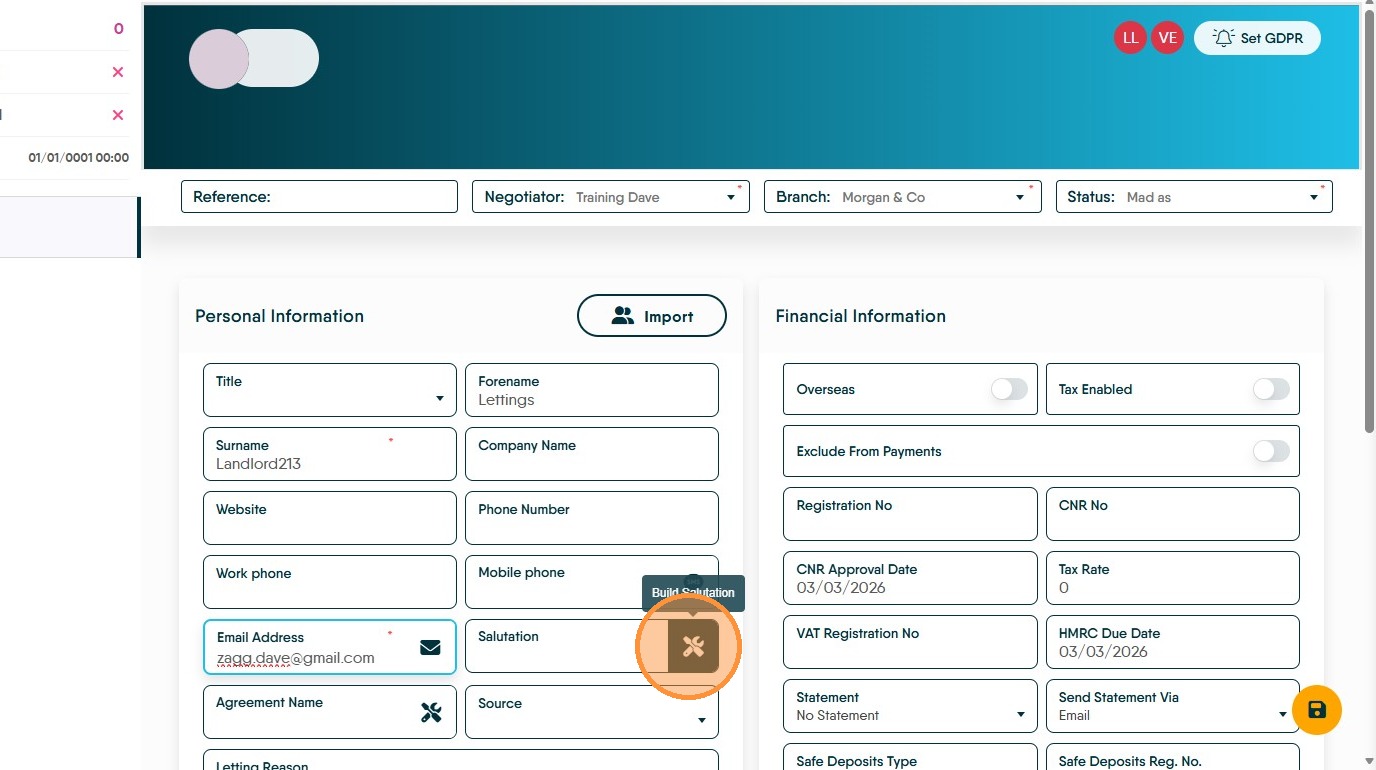
12. Click here to create a 'Salutation' this is the last name and the title combined. If you have a Mr & Mrs record, you could use Mr & Mrs in the title for the lead Landlord to create the correct Salutation. n.b. you should still add 2 landlord records one for Mr and the other for Mrs.
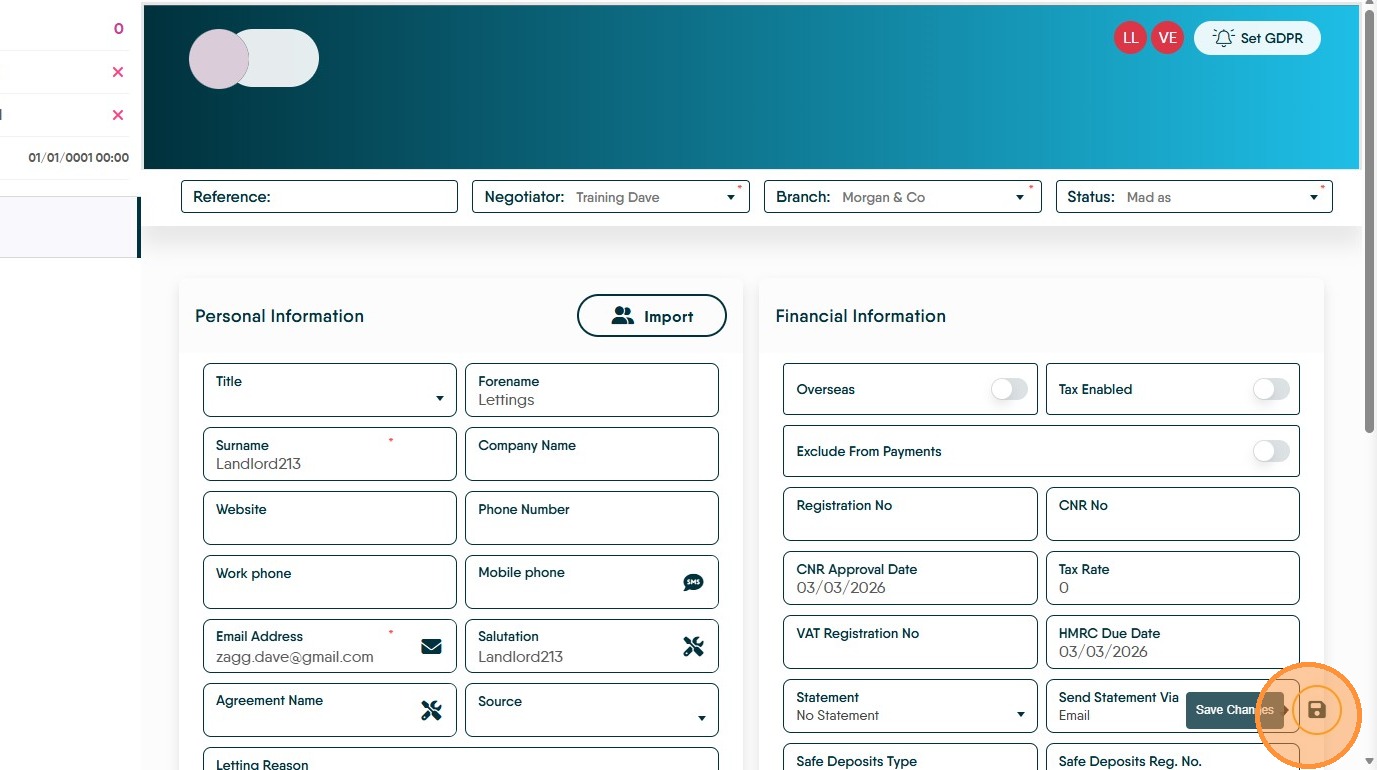
13. Click here to "Save"
14. Navigate back to the original property record and click "Search Landlords"
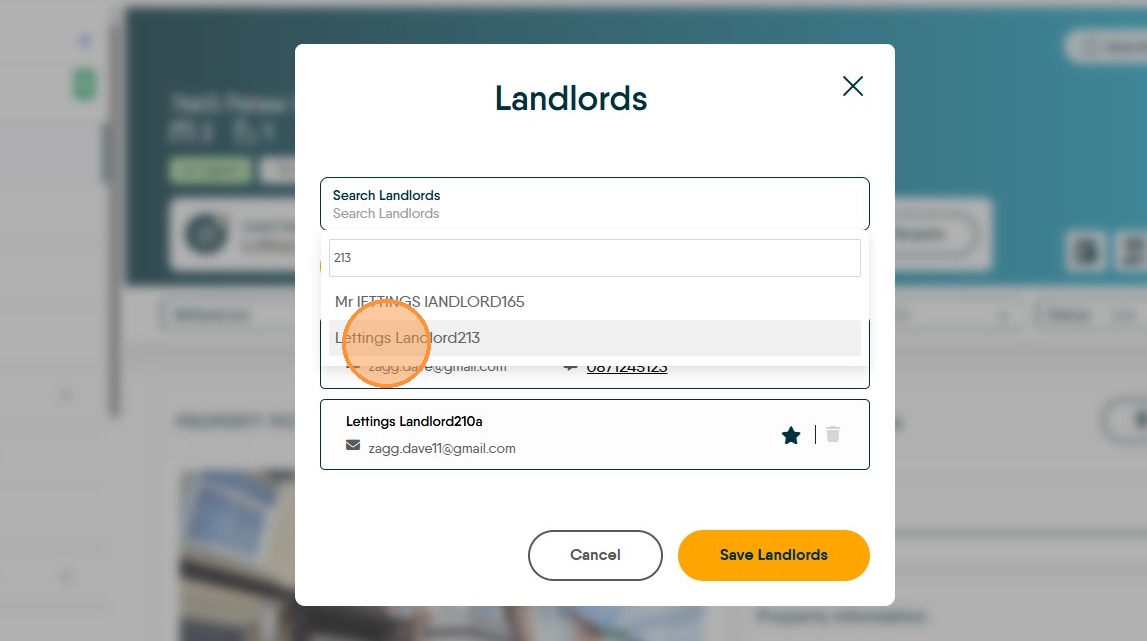
15. Search for and select your new landlord, in this case click "Lettings Landlord213"
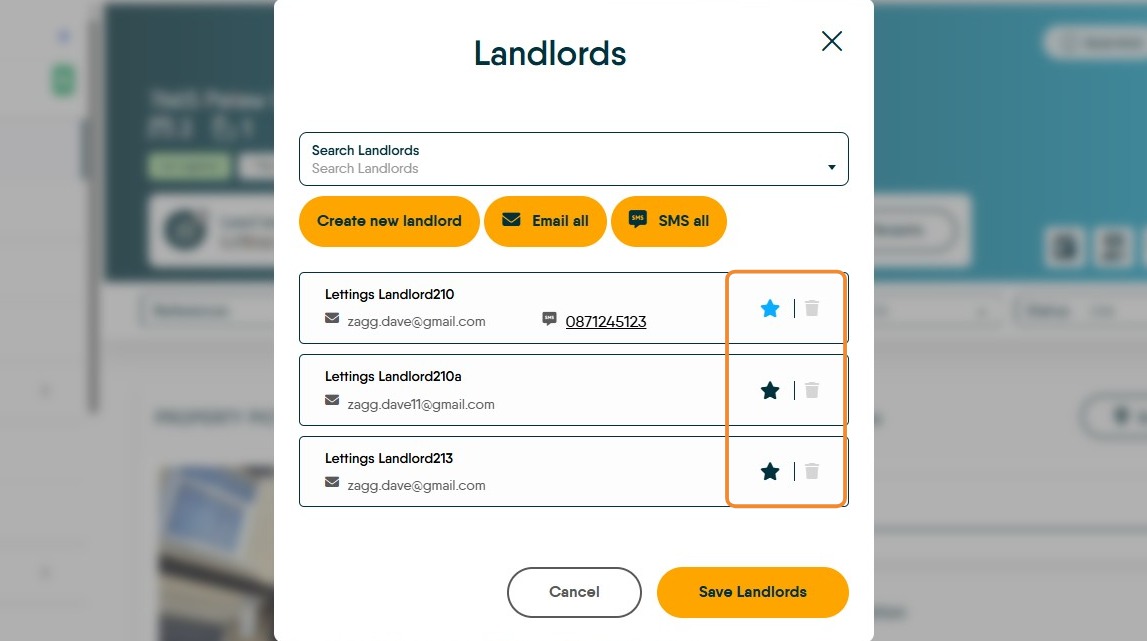
16. The new landlord will show in the list. The lead landlord is the one with the blue star, the change the lead landlord, just click on the star next to the person to be lead.
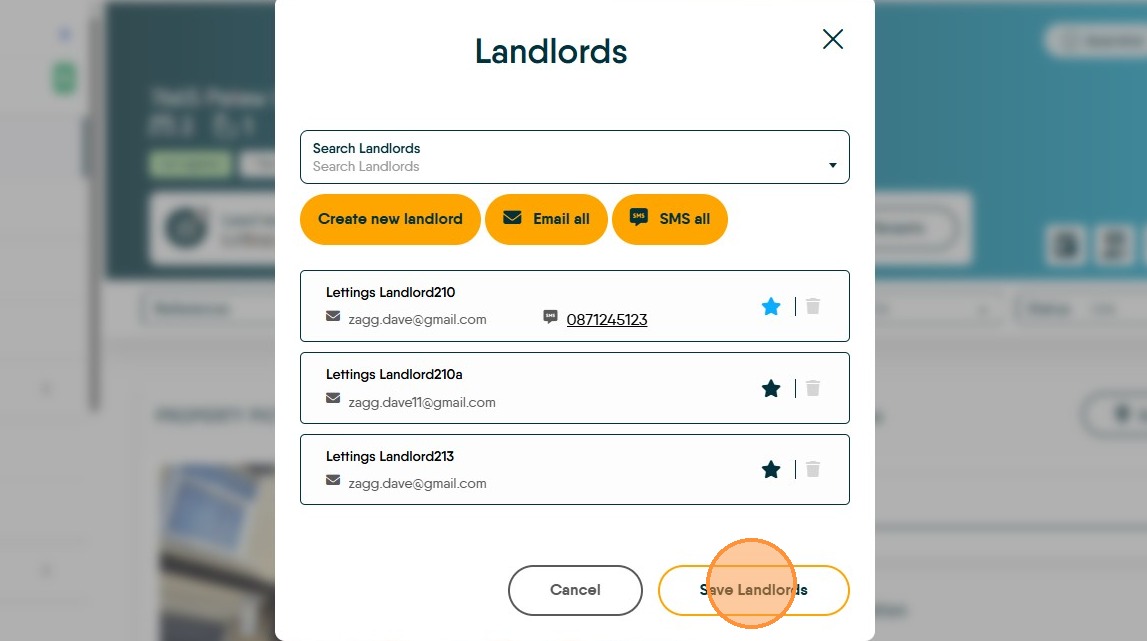
17. Click "Save Landlords"
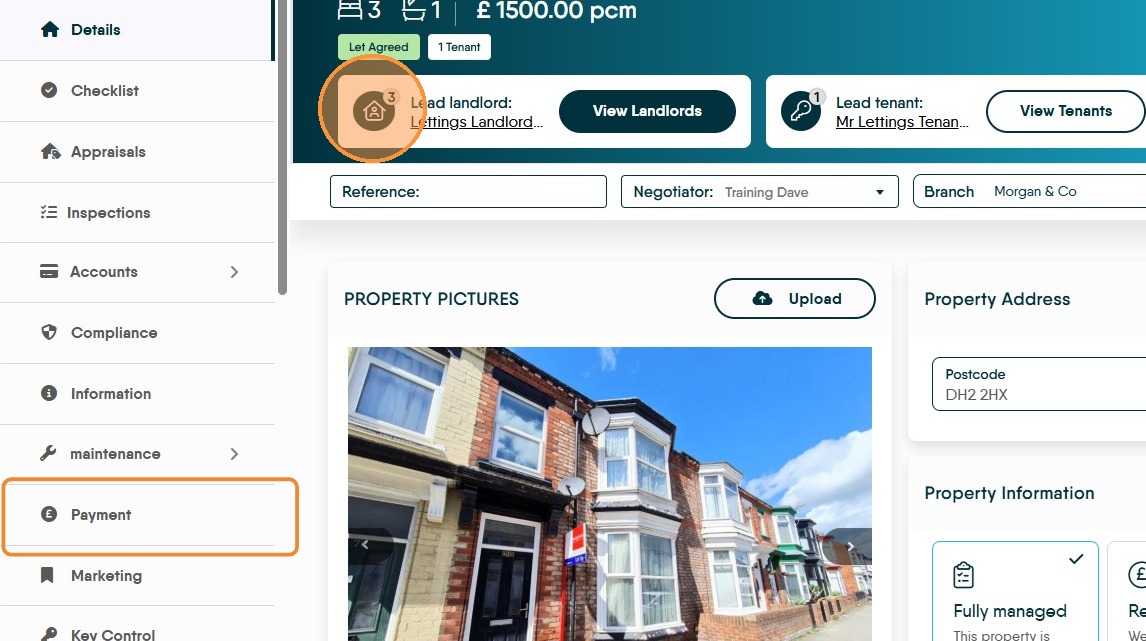

18. Once the new landlord is added, click here to update the 'Agreement Name' to be shown on any AST that are sent out or wherever the Agreement Name is shown..
19. In the Landlord field it will now show the increased number of Landlords in this case "3". Also make sure that you go into the 'Payments' tab and update the Landlord banks details and the payment split between the Landlords. To see how to do this click here