This guide provides a step-by-step process for correctly assigning a job that was initially offered in error, showing how to remove the offer and assign the job instead.
1. When assigning a task to a Contractor, you would click Assign Job and Email/Don't Email, then type the Contractor name underneath.
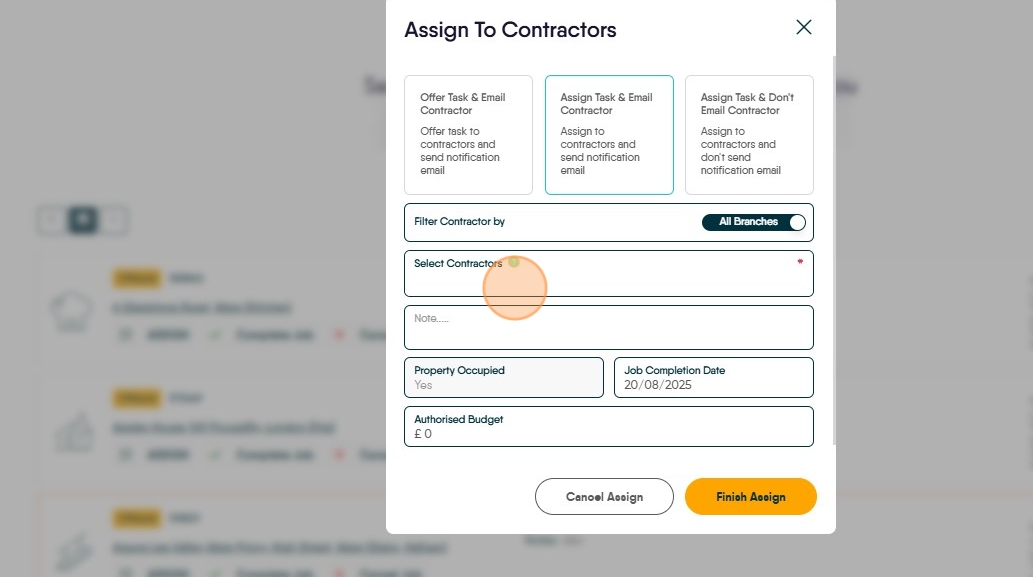
2. If no results are found, and you are sure the contractor is Live and should appear, it is likely the job was previously offered to them in error.

3. Offering the task instead of assigning it will email the Contractor a link to view the job and decide if they'd like to take it, as opposed to the full job details they receive when assigned.

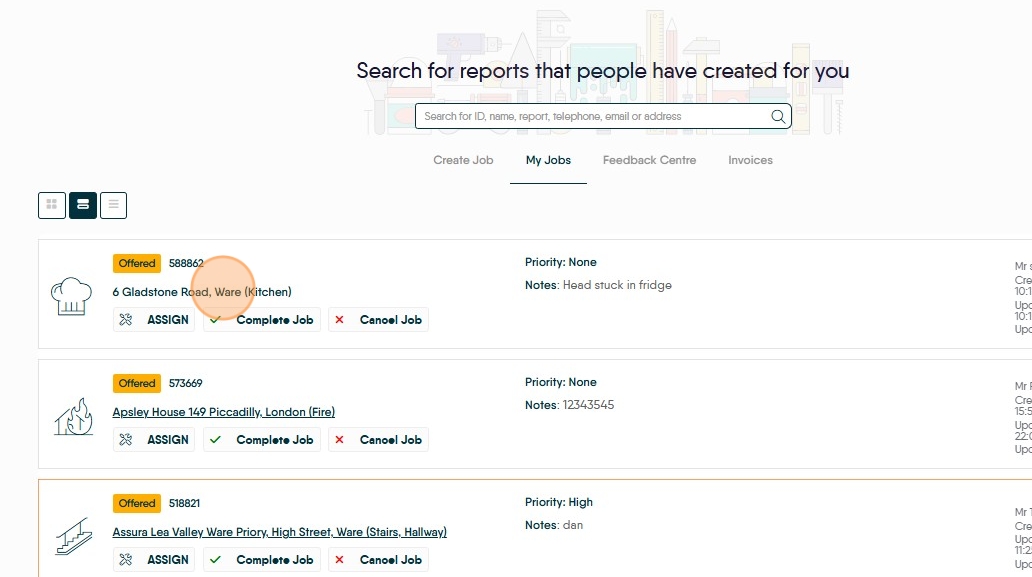
4. To remove the offer, first go to your list of Jobs, and click the Property Address to open the Job details.
5. On the information bar, click Offers.

6. Find the Offer and click the red Cancel button.

Alert: Make sure you are clicking cancel on the OFFER, not the Job itself, or you will then need to rebuild the job from scratch.
7. With the Offer gone, click Assign again.

8. The Contractor should now appear in the search again, allowing you to Assign them and send them the Job.
