This guide provides a step-by-step process for deleting transactions in a ledger, specifically focusing on their associated transaction chains. It highlights the importance of understanding dependent transactions and offers clear instructions to ensure accurate deletion without errors.
1. To delete a transaction in a ledger, click the three-dot menu. In this case, we are trying to delete a tenant bank receipt.

2. Click "Delete".

3. You may see a warning regarding dependent transactions. These will need deleting first.

4. Click the three-dot menu again.

5. Click "Transaction Chain"
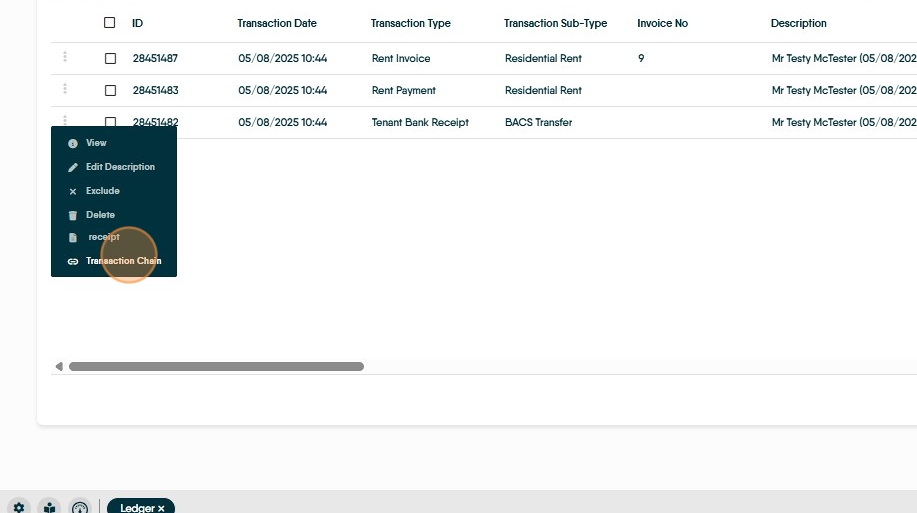
6. You will see the transaction you want to delete, followed by any transactions that occurred afterwards using that transaction's funds. In this case the bank receipt is followed by a rent payment, which is then followed by a landlord payment. Only the final transaction on a chain can be deleted.

7. Click the 'i' info button on the final transaction.

8. Click to open the ledger containing the final transaction.

9. Close down the two windows and the ledger will have opened in the background.

10. Find the transaction, in this case the Landlord Payment.

11. Click "Delete"

12. Confirm the deletion.

13. Delete the other transactions in the chain in reverse order.

14. Return to the Tenant Ledger

15. Refresh the ledger to account for recently deleted transactions.

16. View Transaction Chain again

17. You can now see the bank receipt is alone with no attached transactions.
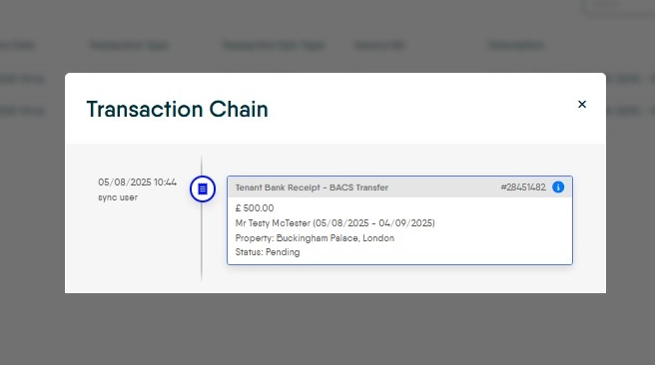
18. It can now be deleted successfully.

19. If when trying to delete a transaction you get an error that something is Reconciled, it unfortunately cannot be deleted, and will instead need to be refunded.
