This guide shows how to create individual rooms in a property enabling the CRM to help with renting rooms in the same property a room at a time rather than as a whole property. Creating a HMO property. This helps with renting rooms in properties where tenants may be joining at different times.
Enabling the HMO feature in CRM
Alert: This feature is not a default part of CRM and needs to be enabled by iamproperty CRM Support. Please contact us crm.support@iamproperty.com
1. Once enabled on your CRM. Click "My account"
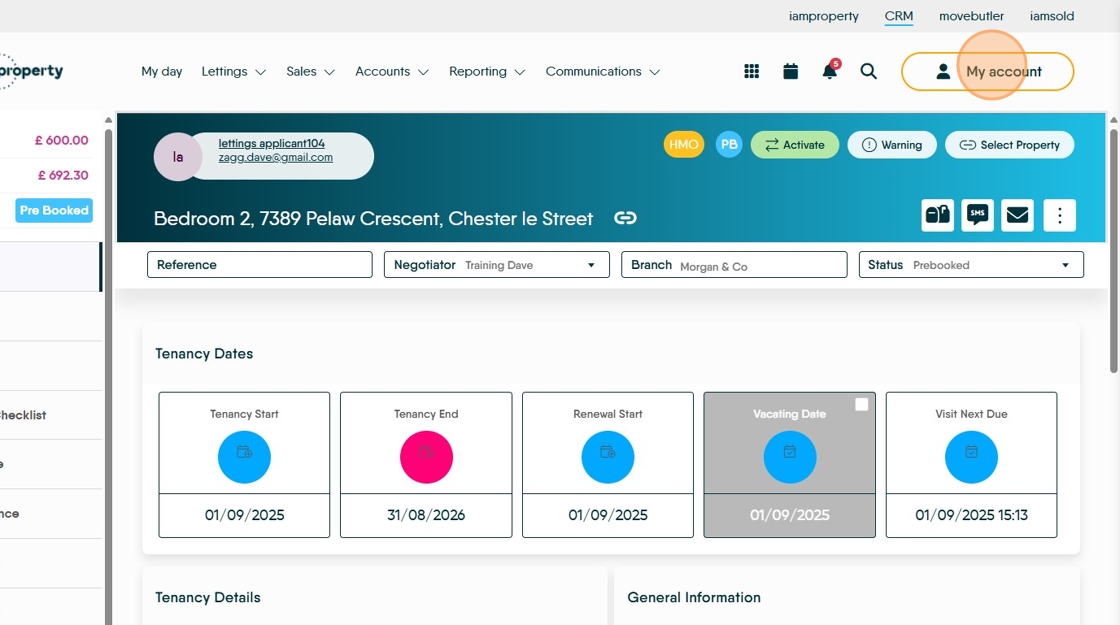
2. Click "Control centre"

3. Click "Configuration"

4. Scroll down the left side menu and select Click "Lettings"
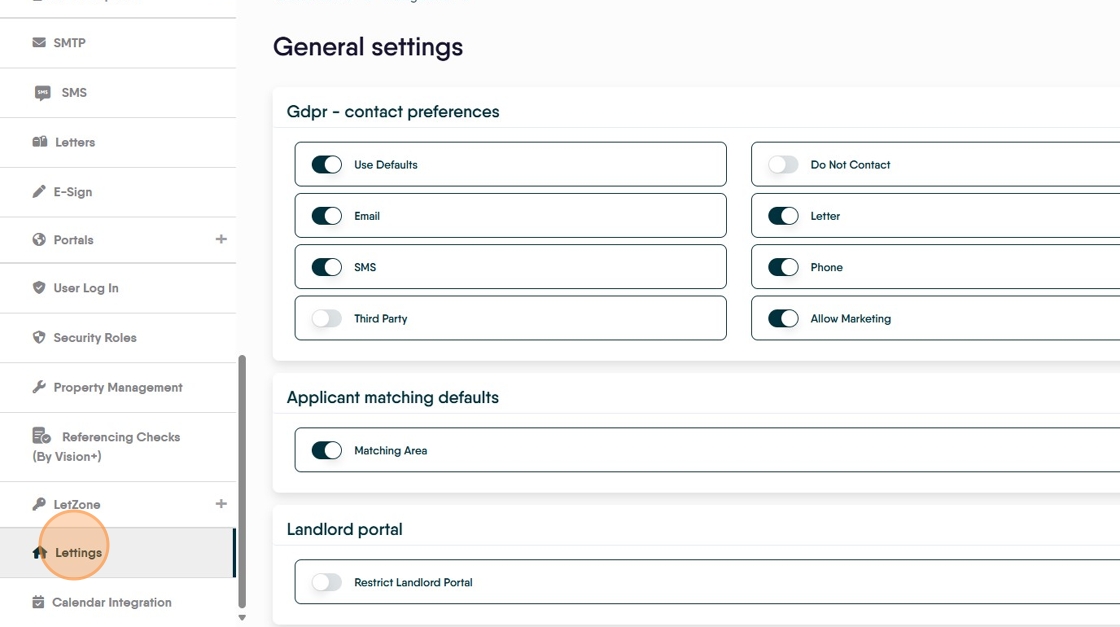
5. Click here to enable the "HMO Tenancies" option.

6. Once this is enabled return back to the CRM screens e.g. Click "Lettings"

Creating the HMO Tenancy
7. Navigate to the property you are renting the rooms in.

8. Scroll down the left menu and click "Rooms"

9. Click "Add Room"
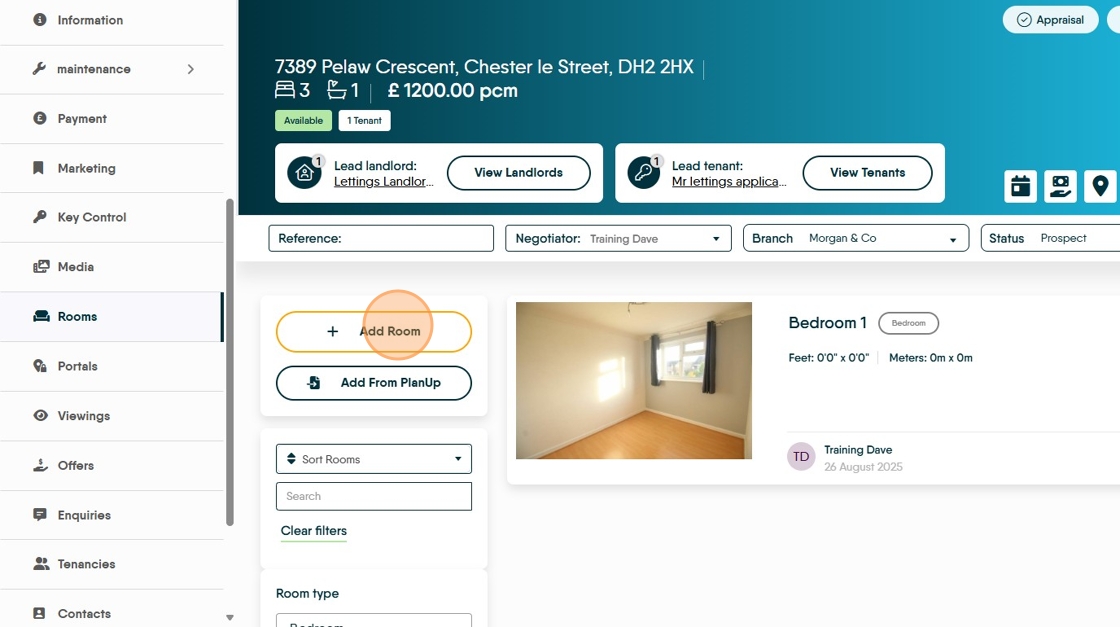
10. Click here.


11. Click "Bedroom" or the appropriate room type.

12. Click this text field and name the room

13. Click "Length (Metres)" and add the room size.
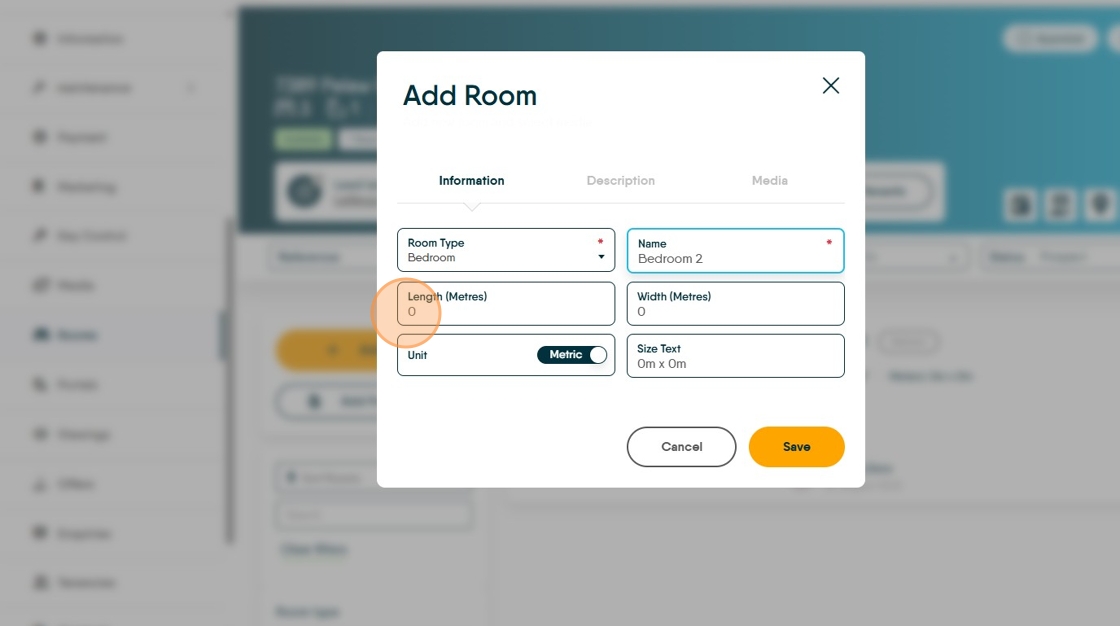
14. Click "Description" add the description in the screen.
15. Click "Media" from the next screen select the media you want to attach to this room, you can add multiple images. Images cannot be shared between rooms.
Click "Save"

16. Click to save the changes to the property record..

Creating the 'Room' Tenancy
17. This guide shows creating the tenancy from the Property record, the process is similar if created from the Applicant screen.
18. Click "Tenancies"

19. Click "Add New"

20. From the next screen. Click "Room"

21. From the list of rooms select the room you are renting. The rooms will show with their current status - Pre Booked or 'Occupied' i.e. has a live tenancy.
Click "Bedroom 9"

22. Scroll down the screen and check the details are correct for the rent, tenancy start date etc.

23. Click "Continue"

24. Click here and search for, or add the new tenant.

25. Check all the details are correct

26. Check the "Rent" and the "Holding Deposit" field. Edit as required.
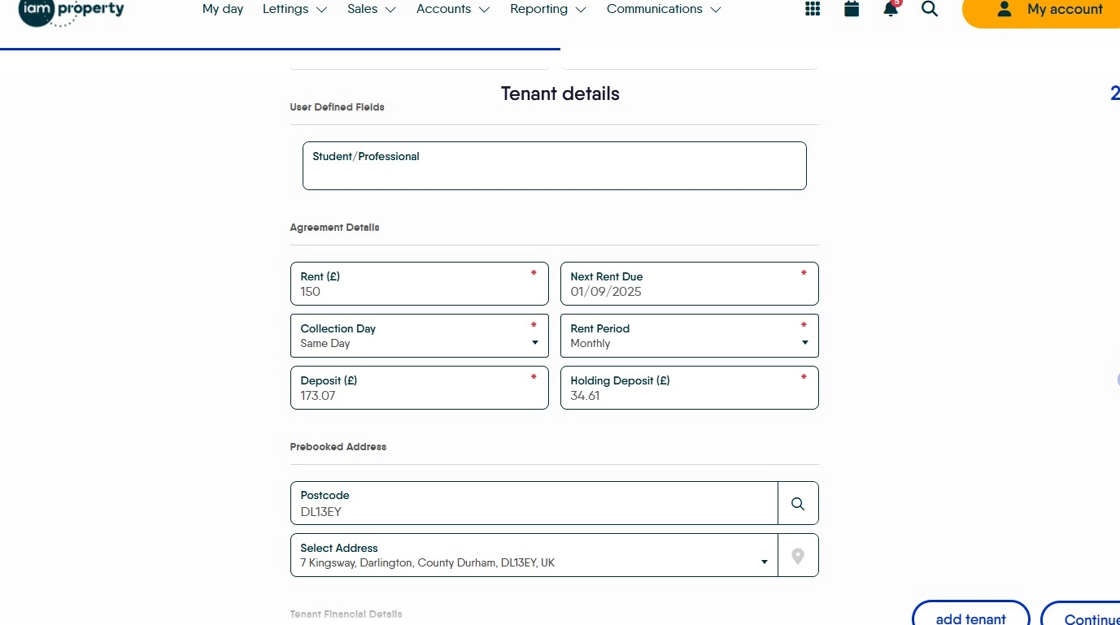
27. Click "Continue"
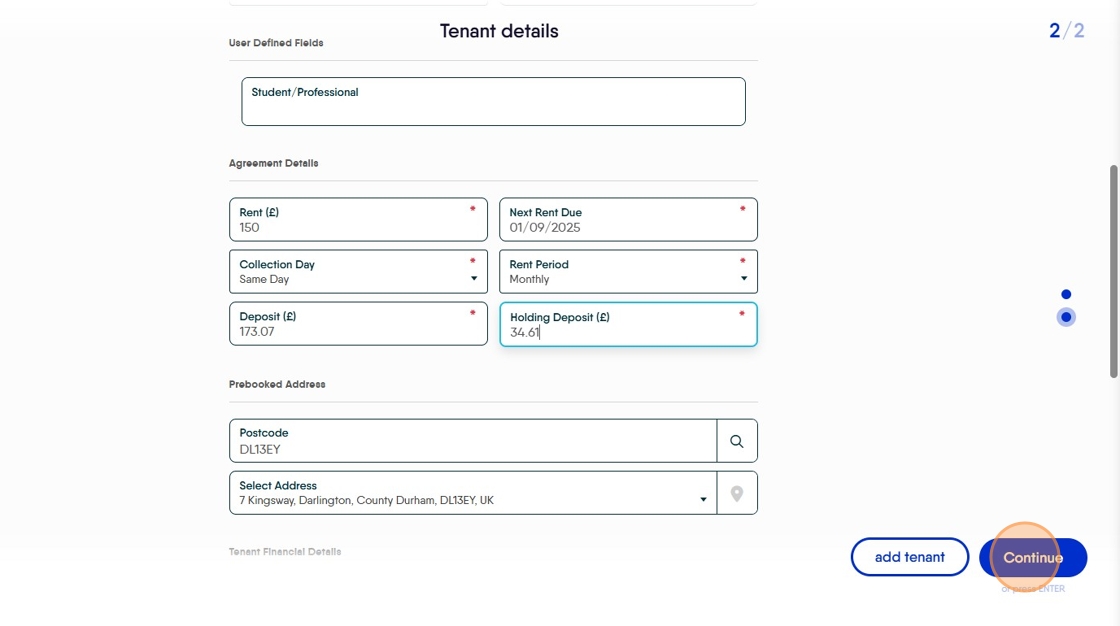
28. Click "Create Tenancy"

29. In the Tenancy Record you will see the Room details, as well as the property address. The icons to the top right show that this is a HMO tenancy and that it is PB - Pre Booked. The option to Activate the tenancy is also on this screen.
