This guide provides a straightforward process for an Admin user to set a new password for a user in the CRM system, ensuring security and access management. By following the clear steps outlined, users can efficiently update passwords, enhancing their account protection.
Alert: Alert! To use this process you will need access to Control Centre.
1. Navigate to https://crm.iamproperty.com/MyDay

2. Click "My account"
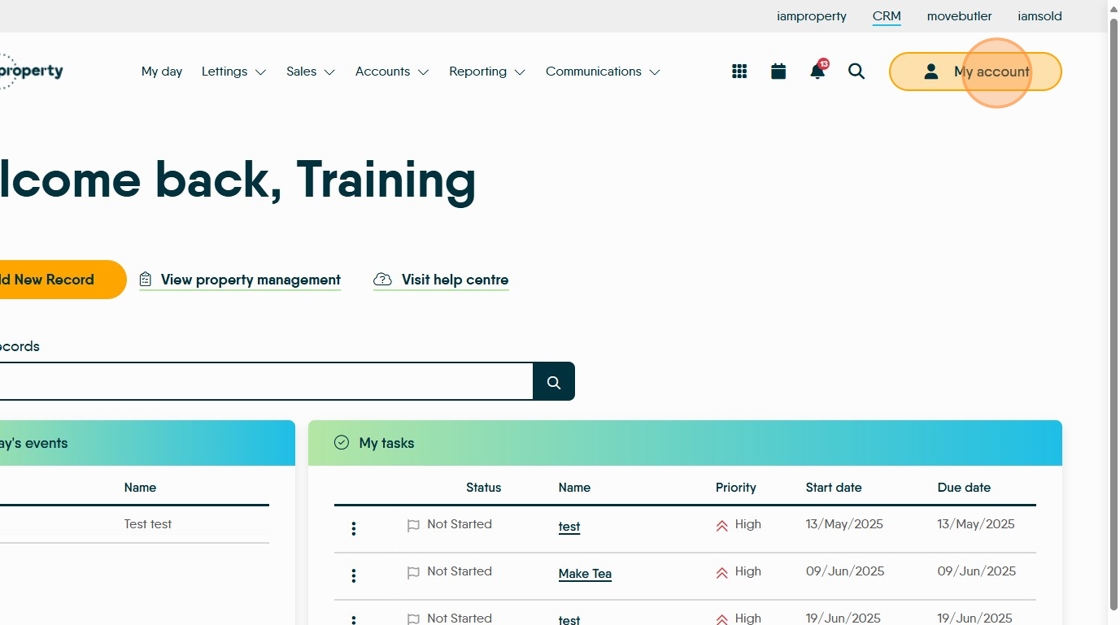
3. Click "Control centre"
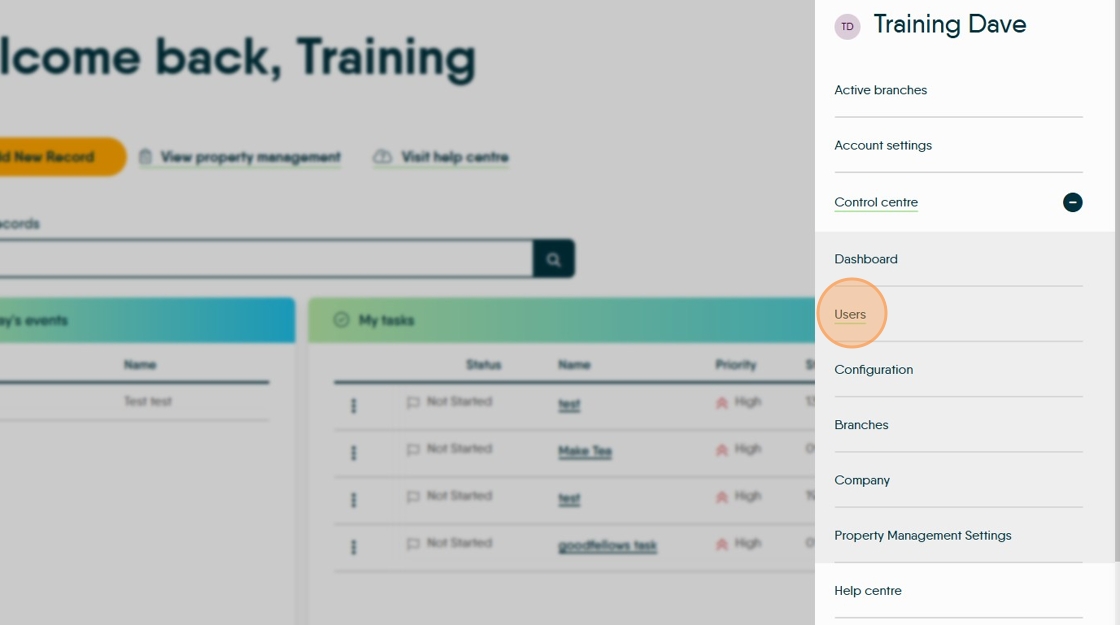
If you cannot see Control Centre, or once accessed you do not see the Users menu, speak to your companies CRM administrator to have this feature enabled.

4. Click "Control centre"

5. Click "Users"
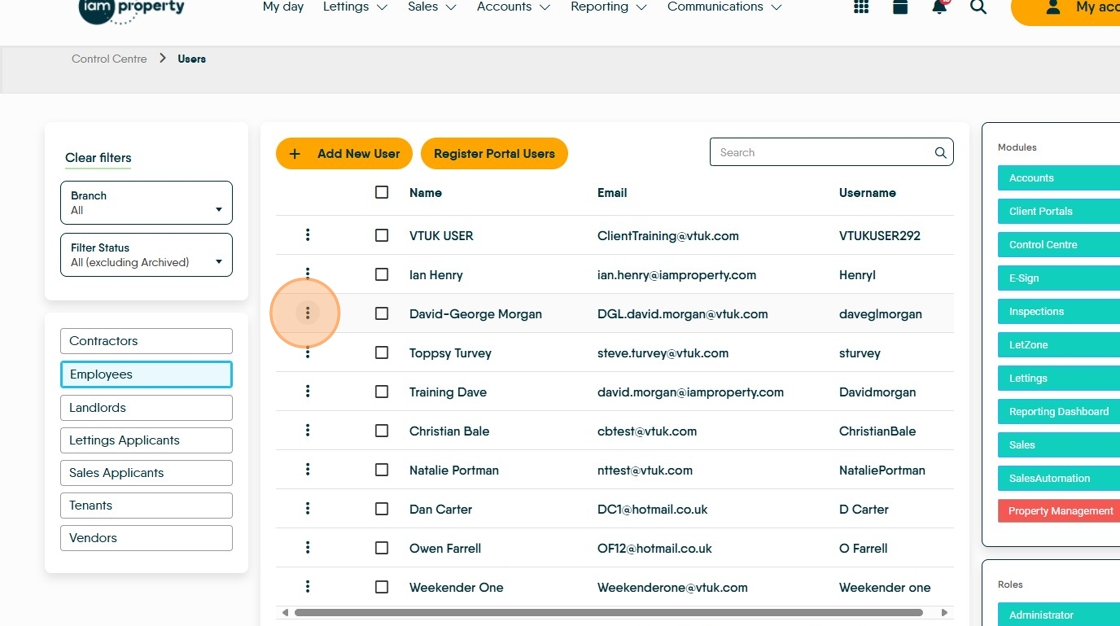
6. Click "Employees"

7. Click here to see the menu.
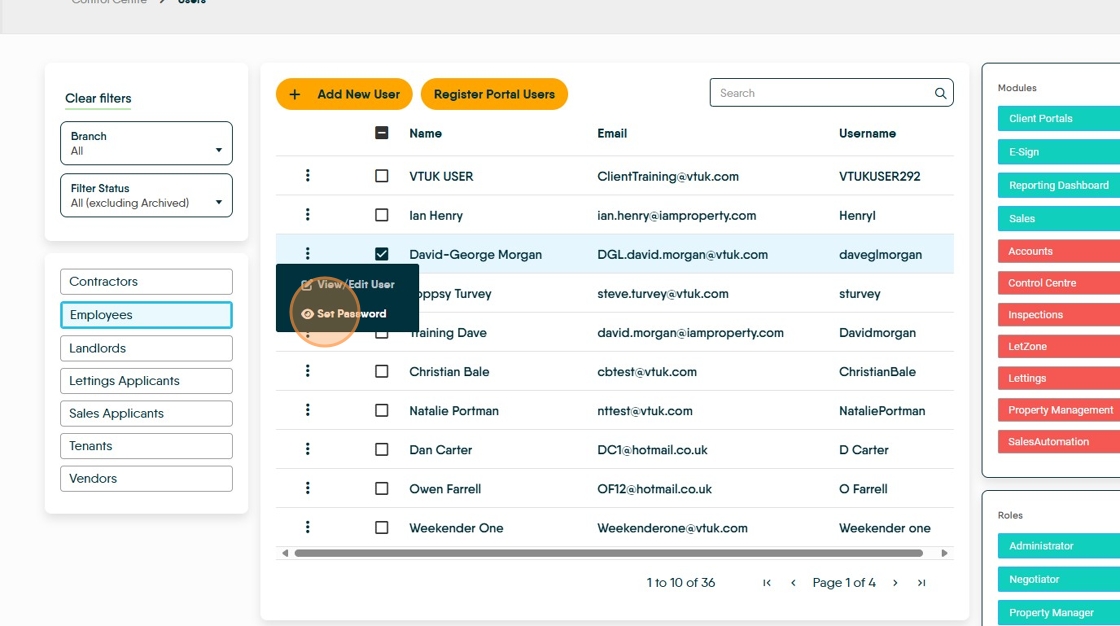
8. Click "Set Password"
9. Click the "Password" field. Enter the new password.

10. Click the "Confirm Password" field. Confirm the new password

11. Click there to view the password as typed.
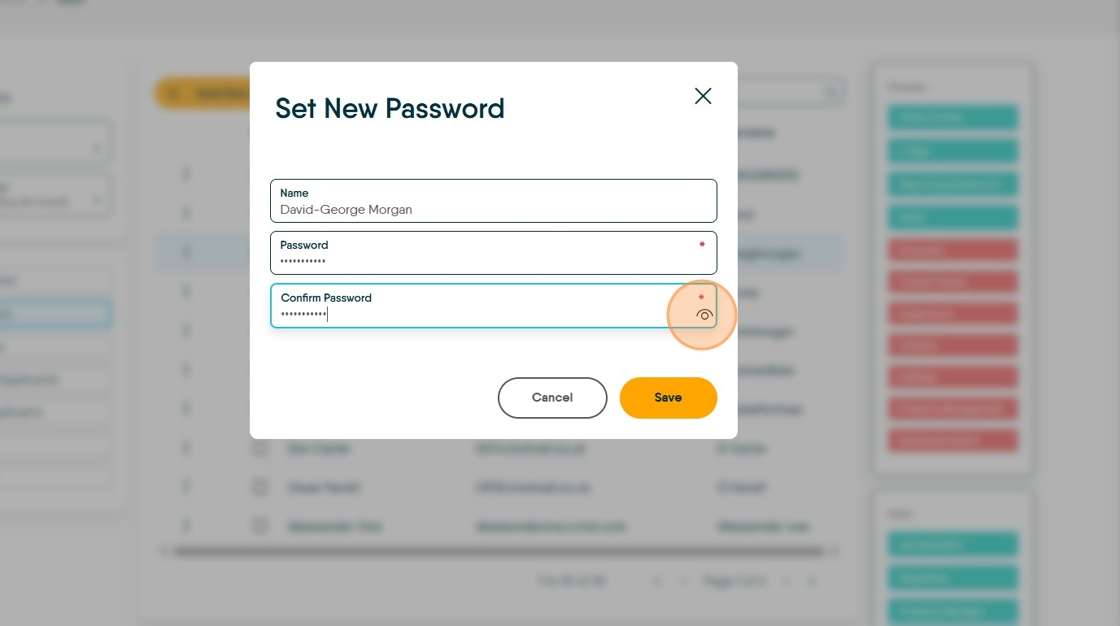
12. Click "Save"

13. This will change the user password, however it will not notify the user the password has been changed or what the new password is.