This guide provides a straightforward process for logging into CRM and also how to reset your CRM password, ensuring that you can quickly regain access to your account if you forget your credentials. Whether you're a new user or someone who has forgotten their password, this guide is designed to help you navigate the reset process with ease.
1. Navigate to https://crm.iamproperty.com/User/Login
Login to CRM
2. Click the "Username" field. Type your Username

3. Click the "Password". Type your password in the same format as given, click on the 'eye' icon to view what you have typed.

4. Click "Sign In"

Changing Password
Tip: Tip! You can change your password in 2 places, the login screen if you have forgotten your password and My Account, then Account Settings if the password needs to be changed for security purposes.
Forgot Password
5. If you can't remember your Password.
In the Login screen. Click "Forgot your password?"

6. Click the "Email" field.
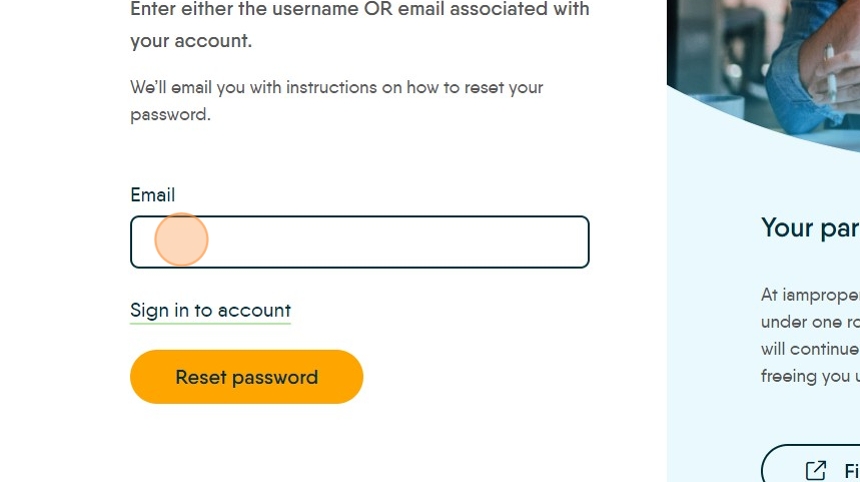
7. Click "Reset password"
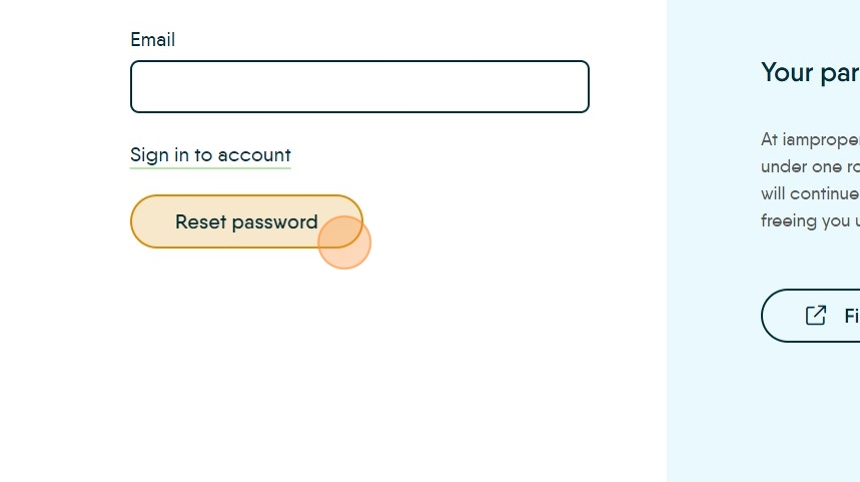
Tip: The CRM will email you a link for you to change your password. Change your password and retry to login.
Change Password
8. It is good practice to periodically change your password. To change your password do this.
Click My Account" button.

9. Click "Account settings"

10. Scroll down this screen till you get to Security. Click "Change Password"

11. Click the "Current Password" and type your current password

12. Click the "New Password" type in your new password clicking the "Show password" icon helps you to see the password and confirm what you have typed.

13. Click the "Confirm new Password and type your new password for confirmation. Click "Change Password" to set the new password.
