This guide provides a straightforward process for adding Floorplan Media to a property listing, ensuring that your listings are visually appealing and informative. It simplifies the task of uploading and categorising floorplans, ultimately helping you stand out in a competitive market.
1. Navigate to the property record.

2. Click "Media"

3. Click "Add Media"

4. Click "Drag and drop files here or click to upload media" navigate to where your media is stored, select the images to import and either drag and drop into the field or click 'Open'
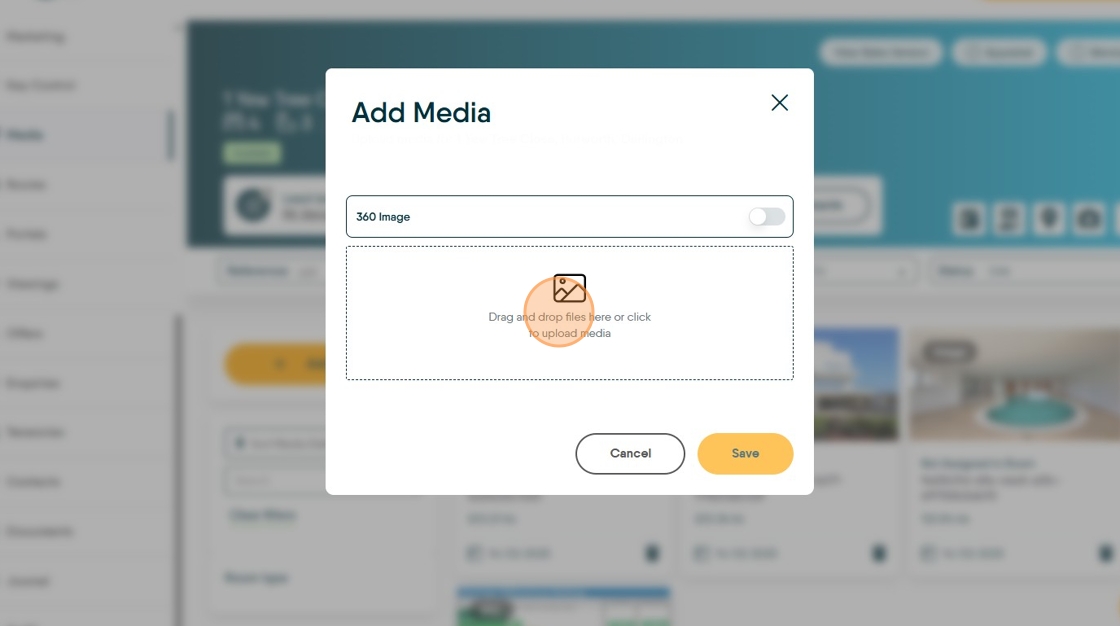
5. Click "Save" to add the media to your media folder.

6. The file type needs to be edited to "Floorplan". To do this click here.

7. Click "Media Type"

8. Click "Floorplan"

9. Click "Save"

10. The file will now show in Media marked as 'Floorplan' rather than 'Image'. If you have brochures that include a dedicated space for floorplans then this image will show there, otherwise it will show in the media list as (in this case) the last image.
