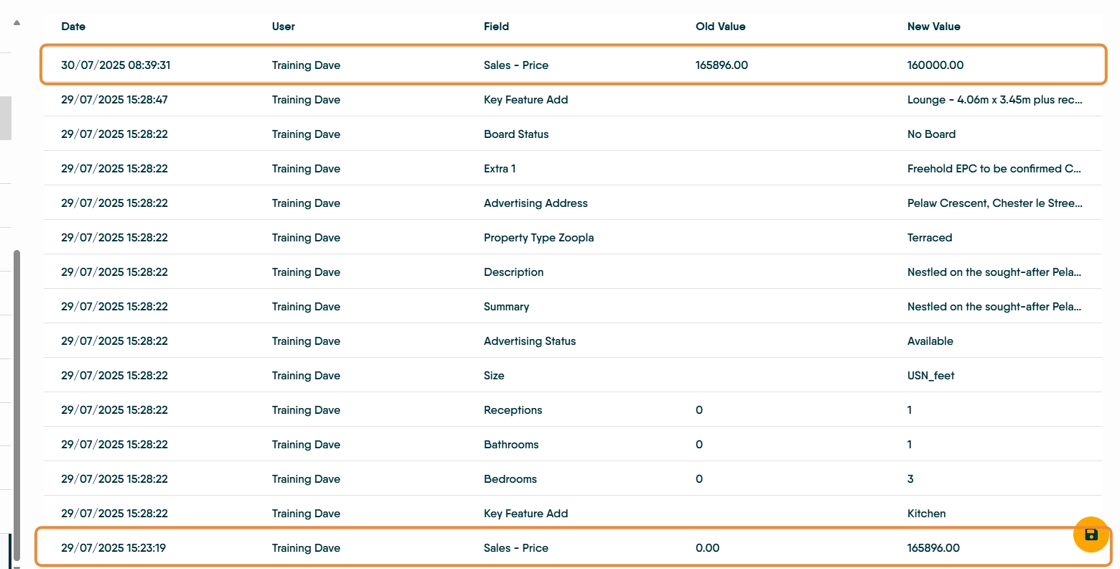
This guide provides essential steps for efficiently adding property pricing to Sales properties within a CRM system, making it invaluable for real estate professionals. By following these instructions, users can ensure accurate pricing for both sales and letting properties, while also producing polished marketing materials.
1. Navigate to the property record.

Adding Price For a Sales Property
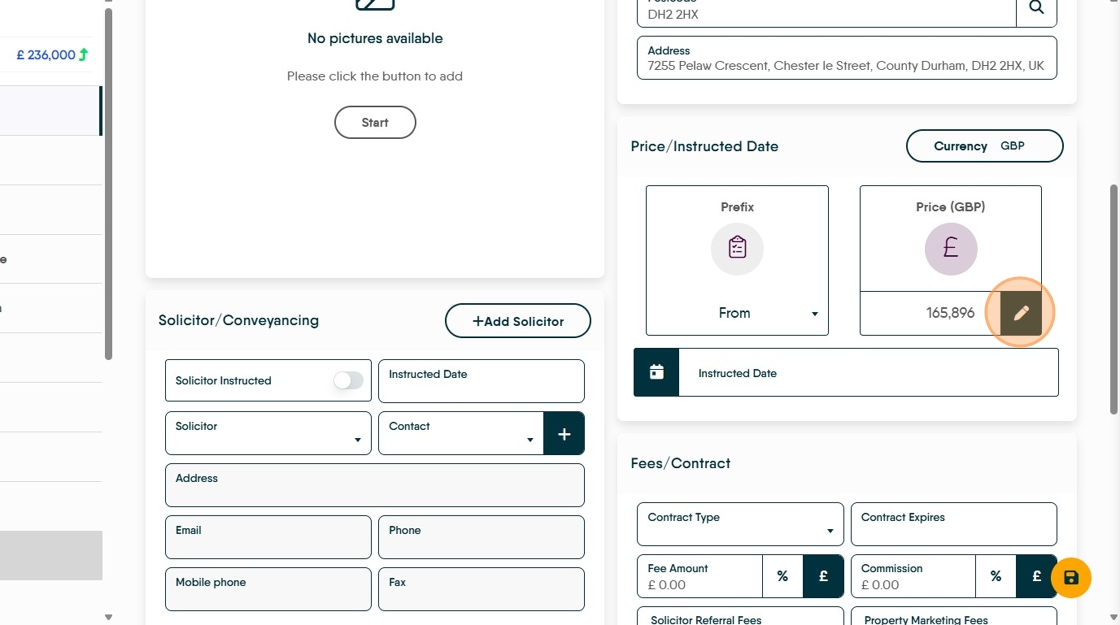
2. For Sales Properties, you can add the price on the 'Detail' screen click here to edit and add the Property Price. The price can be edited from here or the Marketing screen.
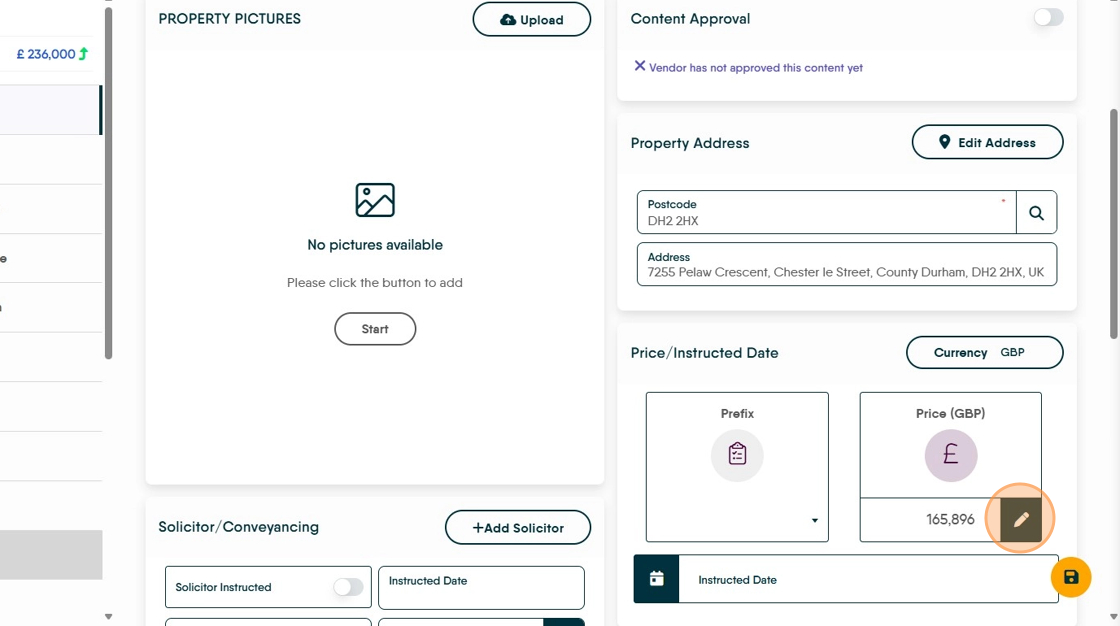
3. Click here to add the price prefix. Select the option required from the drop down menu.

To Edit the Price.
4. Click here.
5. Click the "Enter new price" field.

6. Click the "Enter new price" field. The screen will show you the price difference in £value and the percentage change.

7. Click the "Type notes here......." and add any supporting notes on the price change e.g. who requested and when, which negotiator changed the price (this will be recorded in the Audit screen) etc.

8. Click "Save New Price"

9. To edit the price in the Marketing screen, navigate to Marketing and click here. If the price prefix needs to be updated, click into the price prefix box and select from the drop down menu.

10. Click "New Price" and add the new price.

11. Click this drop-down to note who changed the price.

12. Click the "Type notes here......." field and add any notes

13. Click "Save New Price"

Alert: Alert! All price changes will be recorded in the Audit screen for the property record, this allows the price change to be tracked regardless of any notes left.