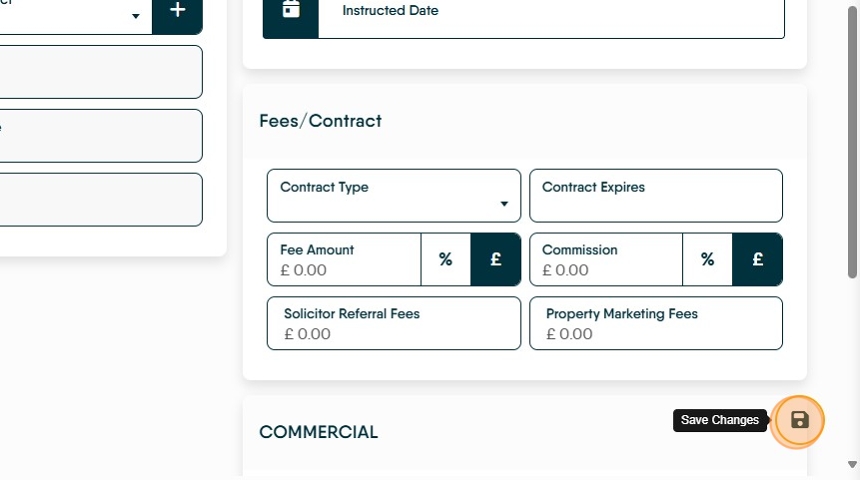
This guide provides a step-by-step process for updating property coordinates in CRM, ensuring accurate location data for listings. Part of the address creation for a property adds the Latitude and Longitude Co-ordinates for the address, sometimes this is slightly incorrect. This guide shows how to update this.
1. Navigate to the property record you want to edit.

2. Click "Edit Address"

3. The Latitude and Longitude are shown on the screen.

4. Click here to view the Map location.

5. Click "View larger map"


6. On the larger map screen you will see a pushpin where the location is currently set. Click on the map where you want the location to be.

7. The latitude and Longitude may show in the top left of the screen. Otherwise right click on the area that the property is located and the co-ordinates will show in the menu screen.

8. Right-click here. Make a note of the numbers.
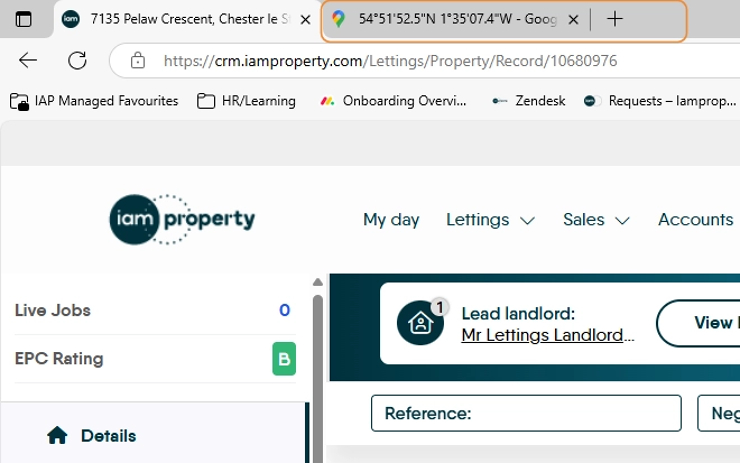
9. Navigate back to the CRM screen (this should be a tab at the top of your web browser) and close the map view.

10. Click the Latitude and Longitude boxes and update the numbers.

11. The Large map (Google maps) tab may show the co-ordinates in the tab for reference. (tab 54°51'52.5"N 1°35'07.4"W - Google Maps") otherwise refer to your notes.
12. Once complete click 'Save'