This guide provides a straightforward method for generating a Job Sheet report in the CRM system, essential for effective property management. It outlines easy-to-follow steps that streamline the reporting process, allowing users to efficiently create and export job sheets in various formats. By utilising this guide, property managers can enhance their workflow and maintain organised records, ultimately improving their operational efficiency.
1. Navigate to https://crm.iamproperty.com/
Alert: Alert! To use this guide you will need to have access to 'Reporting' in iamproperty CRM. If you cannot see the reporting options, please speak with your CRM administrator.
2. Click "Reporting"

3. Click "Reports"

4. This will display all the reporting options that are enabled for your login.
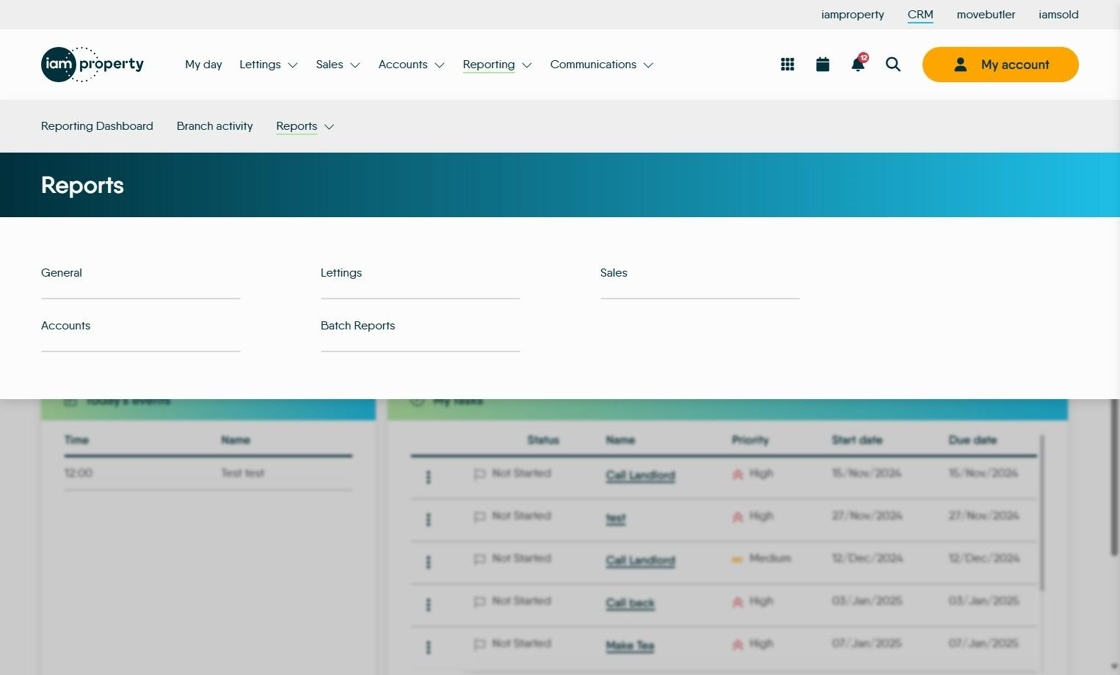
5. For this example we will use Lettings Reports. Click "Lettings"

6. Click here to see the list of reports or search.

7. Start typing the name of the report or scroll the list. For example, Type "job" this will filter for just the job sheet report.
8. Click "... Job Sheet"

9. From the select task list. Click the job you want to create the Job Sheet for.

10. Click "Run Report"

11. Job Sheet is created.
The job sheet can be exported to Word or PDF, or printed from here by selecting the Export or Print icons
