Made by David Morgan with Scribe
Tip: Tip! there are multiple ways to create a maintenance task.
1. First option is from the Property Management menu. Click "Create maintenance Job"

2. The second way is to Click "Bento Menu"

3. Click "Add new record"

4. Click "Maintenance job"

5. Or from the Property Management Dashboard. Click here.

6. Click here to select the type of task you are creating.

7. Click the "Notes" field. Add the description of the maintenance required.

8. Click "Next Step"

9. Click here to add any images.


10. Click "Details"
then Click "Search for Properties" to find and add the property the maintenance is for.
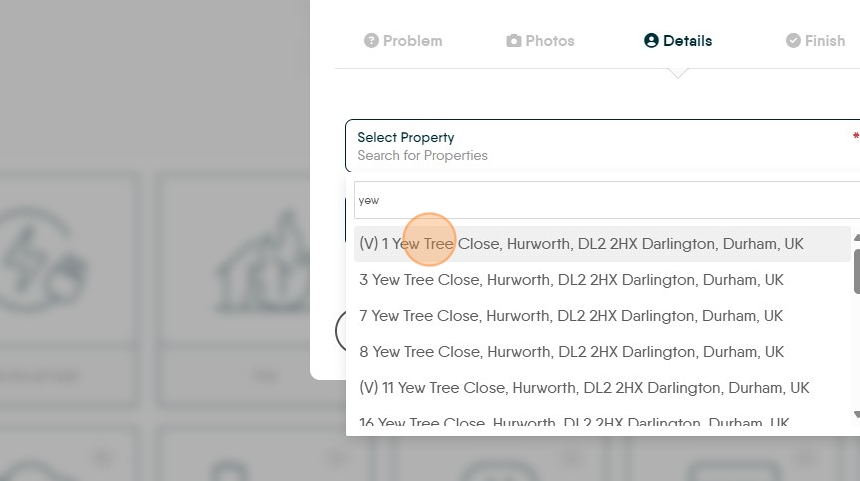
11. Click "(V) 1 Yew Tree Close, Hurworth, DL2 2HX Darlington, Durham, UK" n.b. the 'V' indicates the property is vacant.

12. Click "Select Priority Level" if required.
Click "High"
13. Select the name of the tenant reporting the task

14. Click "Next Step"
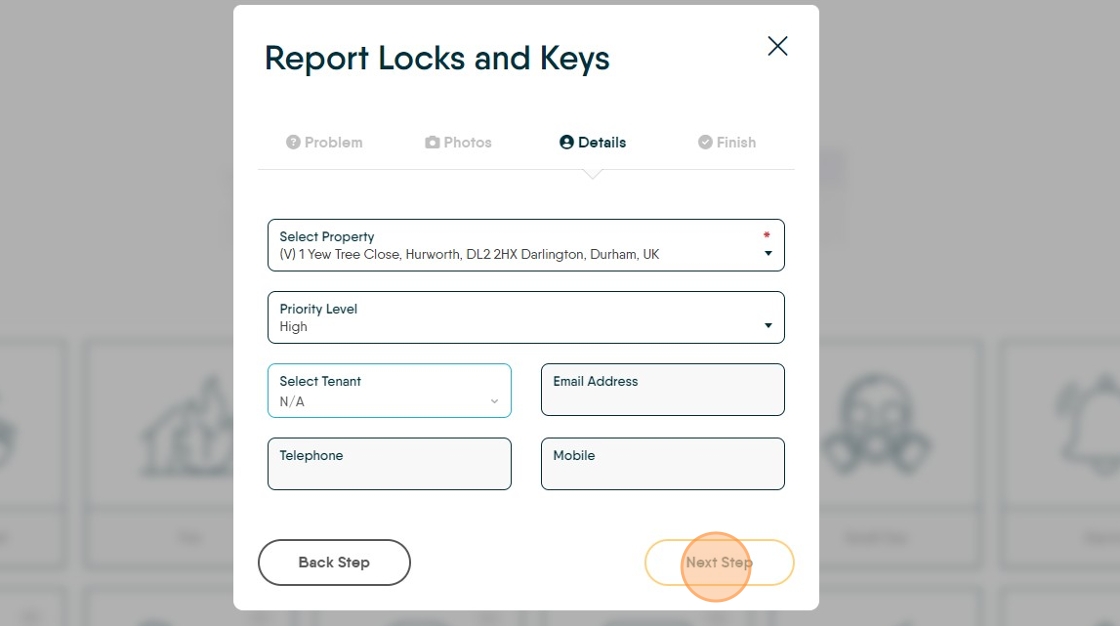
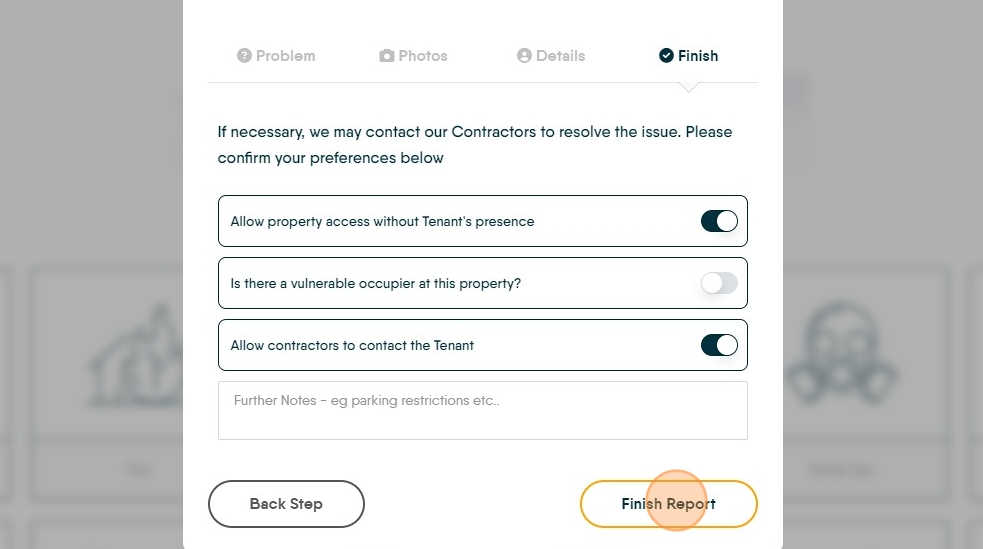
15. Set any access restrictions and notes. Click "Finish Report"
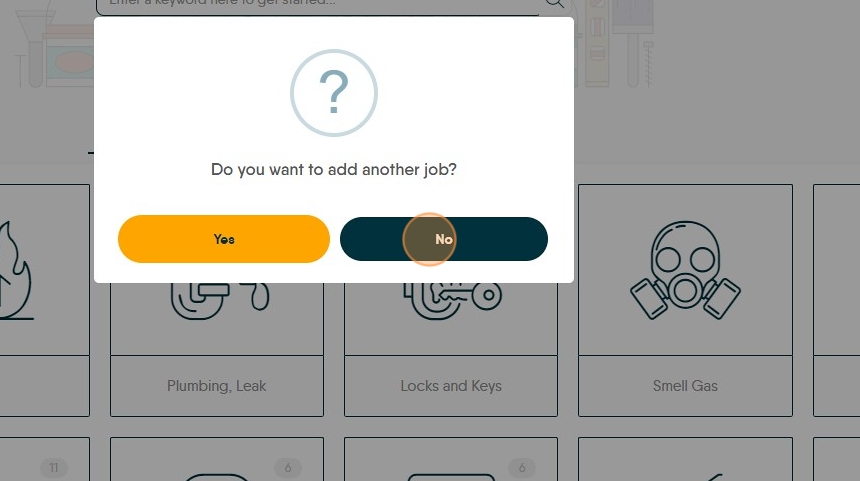
16. If you have finished adding jobs Click "No"
Assign to a Contractor
17. Click here to select the job.
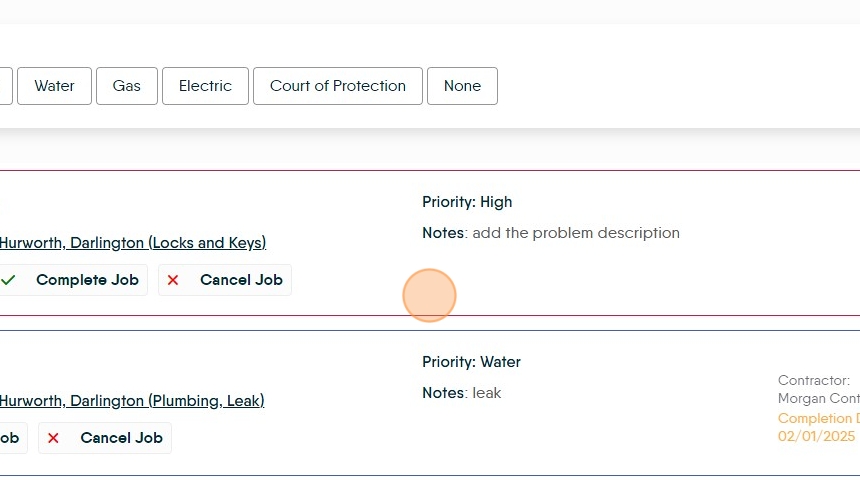
18. Click "ASSIGN"

19. or Click "the property details"

20. from the record Click "Assign"

Alert: Alert! There are 3 options, to allocate the job to 1 contractor to get the work completed use either 'assign task and email...' or 'assign task and don't email...'. To give multiple Contractors the option to quote for the task before allocating, use the 'Offer task and email Contractor' option.
21. Click "Assign to contractors and don't send notification email"

22. Click this search field. Search for and select the contractor.
Click "contractor name"

23. Click the "Note....." field. Add the job description for the Contractor, usually more detailed that the first job description

24. Click the "Select the Date" field add a completion date.

25. Click "Finish Assign" to send the job to the contractor.
