This guide offers a straightforward process for transforming a lettings property into a sales version, ensuring that all relevant information is seamlessly updated. It highlights how to maintain access to previous records while making necessary adjustments like pricing and compliance information.
1. Navigate to the Lettings property you are looking to change to a Sales Property

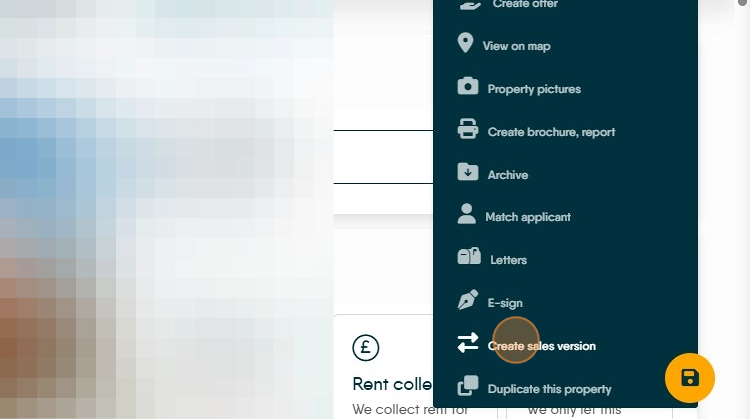
2. Click on the 3-dot menu

3. Click "Create Sales version"
4. Click "Yes" to confirm.

5. This will then create a Sales version of your property with the property information added as well as the Landlord record updated to be a Vendor record.
The Landlord and the Lettings Record for the property still exists in the CRM and neither are archived or deleted.
You will also see a button at the top of the screen 'View Lettings Version' (highlighted) clicking this will take you to the Lettings version of this property, there is a 'View Sales...' option on the Lettings property.

6. Click here to update the property price prefix and price.
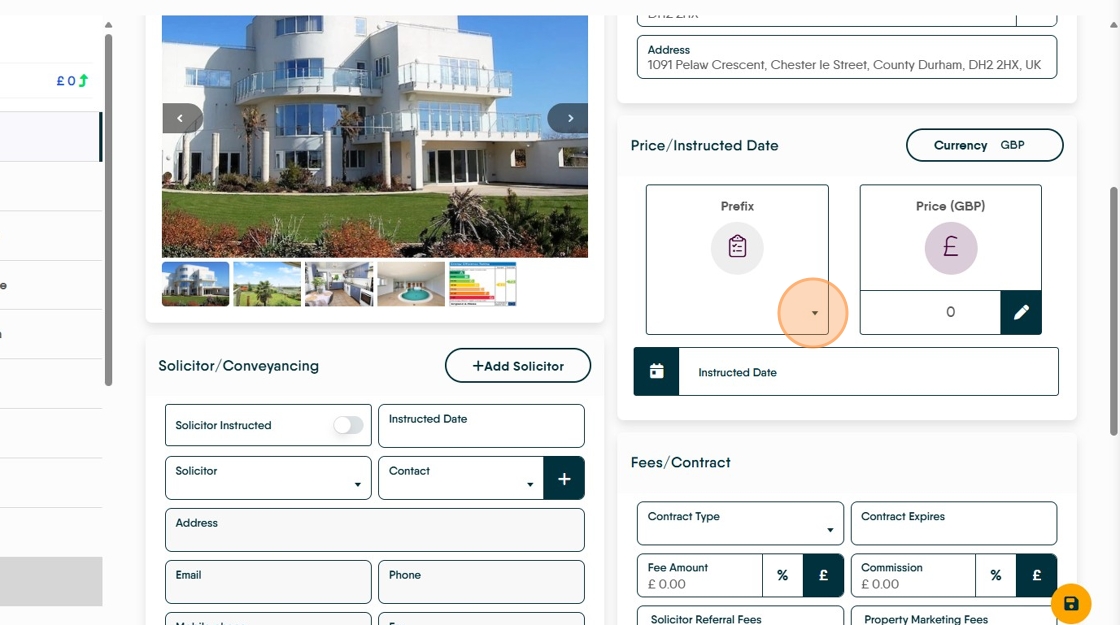
7. Click in the Prefix field and select the option you are using.

8. Click here and update the property price

9. Click the "Enter price" field and add any notes if required.

10. Click "Save New Price"

11. Click here and update the fees sections


12. Click "Compliance" to view the compliance that has been imported from the Lettings record

13. Click "View Vendors" to view the vendor records for the property. This will show all the records that have been brought over and allow quick access to those records.
Click the Vendor name to jump to the Vendor Records
14. In the Landlord and Vendor records you will see 2 icons 'LL' and 'VE'
Click "LL"in the Vendor record to jump to the Landlord record and 'VE' to move to the Vendor record from the Landlord.
