This guide provides a step-by-step approach to enabling and configuring Sales Progression Actions, which streamlines the process of managing contract exchanges and completions in CRM. By automating actions based on specific triggers, users can improve efficiency and ensure timely updates, ultimately enhancing workflow and productivity. Additionally, the option to apply the same configurations across multiple branches simplifies management for larger organisations.
1. Navigate to https://crm.iamproperty.com/Dashboards/ControlCentre

2. Click into "Configuration"
Click "Sales Progression Actions" from the left side menu
Tip: To configure actions to trigger when a date is entered in 'Date Done' on Contract Exchange in Sales Progression, see steps 5 - 7.
To configure actions to trigger when a date is entered in 'Date Done' on Completion in Sales Progression, see steps 8 - 10.
3. Click to enable the 'Contracts Exchanged Actions' toggle

4. Select all the actions you would like to happen on Contract Exchange.
You can use 'Select all' if you would like all actions to occur.

5. Select which status options you would like the automation to use.
For example, if you have selected 'Update Advertising Status', select which Advertising Status you would like it to be updated to.

Sales Completions
6. Click to enable the 'Sales Completion Actions' toggle

7. Select all the actions you would like to happen on Completion.
You can use 'Select all' if you would like all actions to occur.
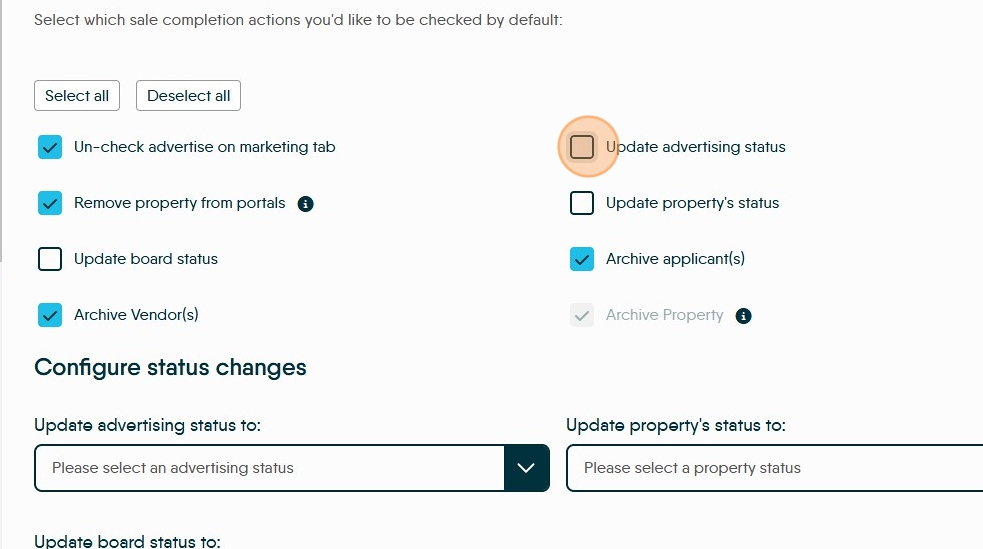
8. Select which status options you would like the automation to use.
For example, if you have selected 'Update Advertising Status', select which Advertising Status you would like it to be updated to.

9. Click "Save changes"

10. If you would like all your branches to have the same Actions set, click "Copy to all branches"

11. Click "Yes, copy to all" to confirm.
