Made by David Morgan with Scribe
This guide provides a step-by-step approach to setting up scheduled management fees in iamproperty CRM. The scheduled management fee charges a fixed amount on a specified schedule. This fee is charged in ADDITION to the the management fee entered in the property information panel. From this guide Users will learn how to set the amount, frequency, and next charge date.
Alert! This fee is charged in ADDITION to the the management fee entered in the property information panel.
1. Navigate to the property you want to create the Scheduled Management fee for.

2. Scroll down the screen, on the left side under the 'Property Information' panel, you will see the Scheduled Management Fee.
Click the "Amount" field and set the amount of the charge.

3. If you already have a Management Fee set there will be a warning message to confirm this, edit as required. Click "OK"

4. Click the "Next Fee Date" field. This will set the next (first) date the fee is charged.
N.B. If the Next Fee Date is set to a date in the past, the fee will be charged from that date at the frequency set. For example if the date is set 3mths in the past the CRM will create 3 monthly invoices to catch up to the current billing date.

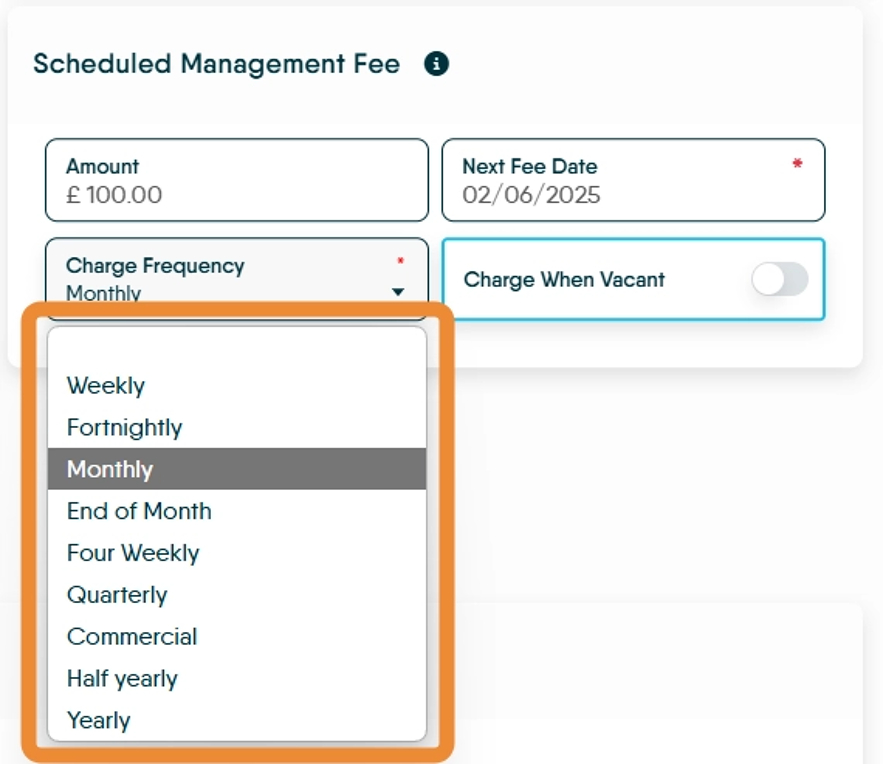
5. Click the 'Charge Frequency' field and select the frequency you wish to charge the fee from the drop down menu.

6. There are a variety of 'Charge Frequency' options to select from
Alert! If the Charge is created in the past, e.g. the charge was created for yesterday or earlier in a month, then the CRM will ;
-
Create an invoice on the property ledger:
- Transaction Type: Agent Fee Invoice
- Transaction Sub-type: Management Fee
- Description: Management Fee - [property name]
- Advance the Next Fee Date by the amount specified in Charge Frequency
- The Agent Fee Invoice will show in the Property Ledger for the date that the charge was created e.g. if charge was created for the 27th May and we are now at the 29th May the charge will show as being raised on the 27th May. The next charge will be raised on the 27th of June
7. Click here and set whether the charge is to be made when the property is vacant. N.B. Pre booked would not count as 'Live'.

8. Click here to save the charge.

9. Once saved, if the charge was created in the 'past' it will automatically charge the fee