This guide showcases the features of the new CRM Overview screens.
The Overview screens consist of 2 parts;
A new details screen and milestones indication
A new 'Overview' screen. Giving quick and easy access to key items that are used during a property sale.
Through this guide we will look at each section individually and explain its use and benefits.
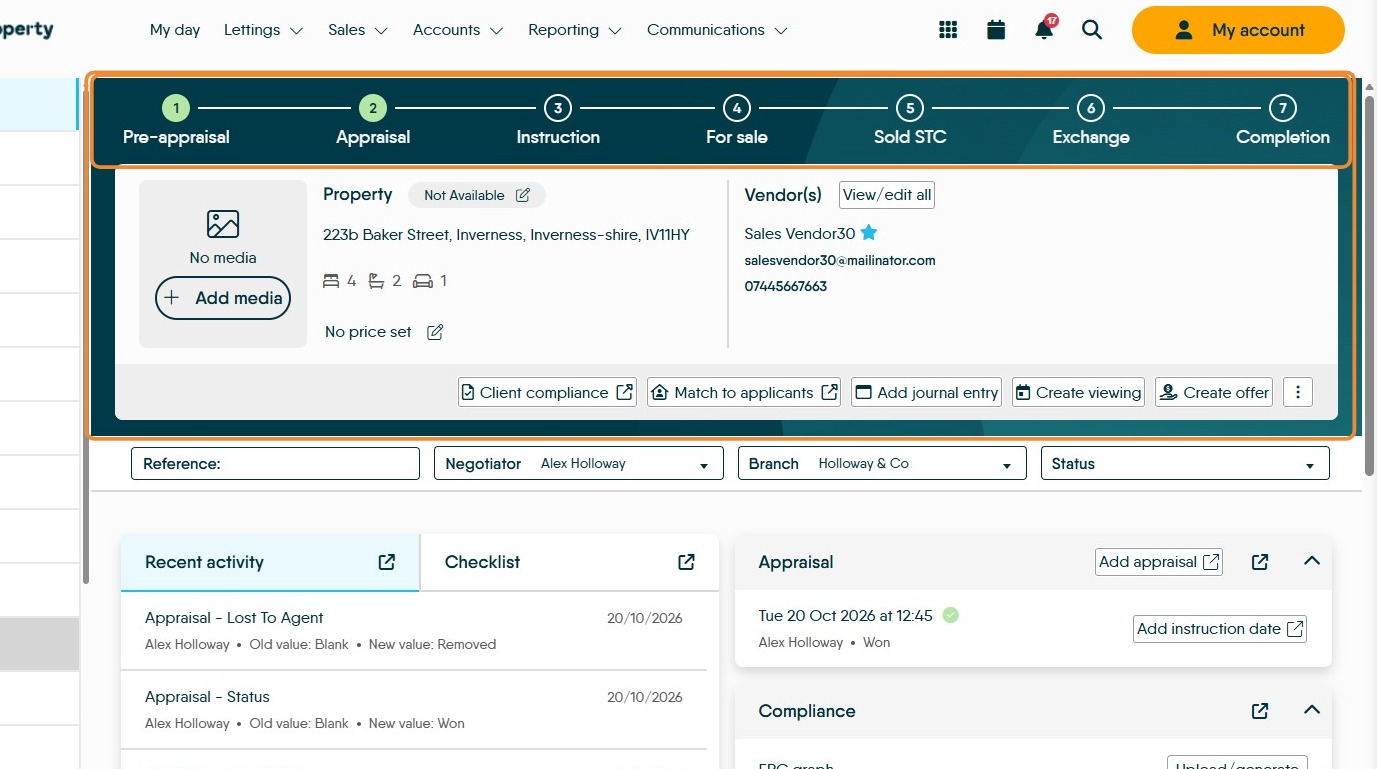
Milestones
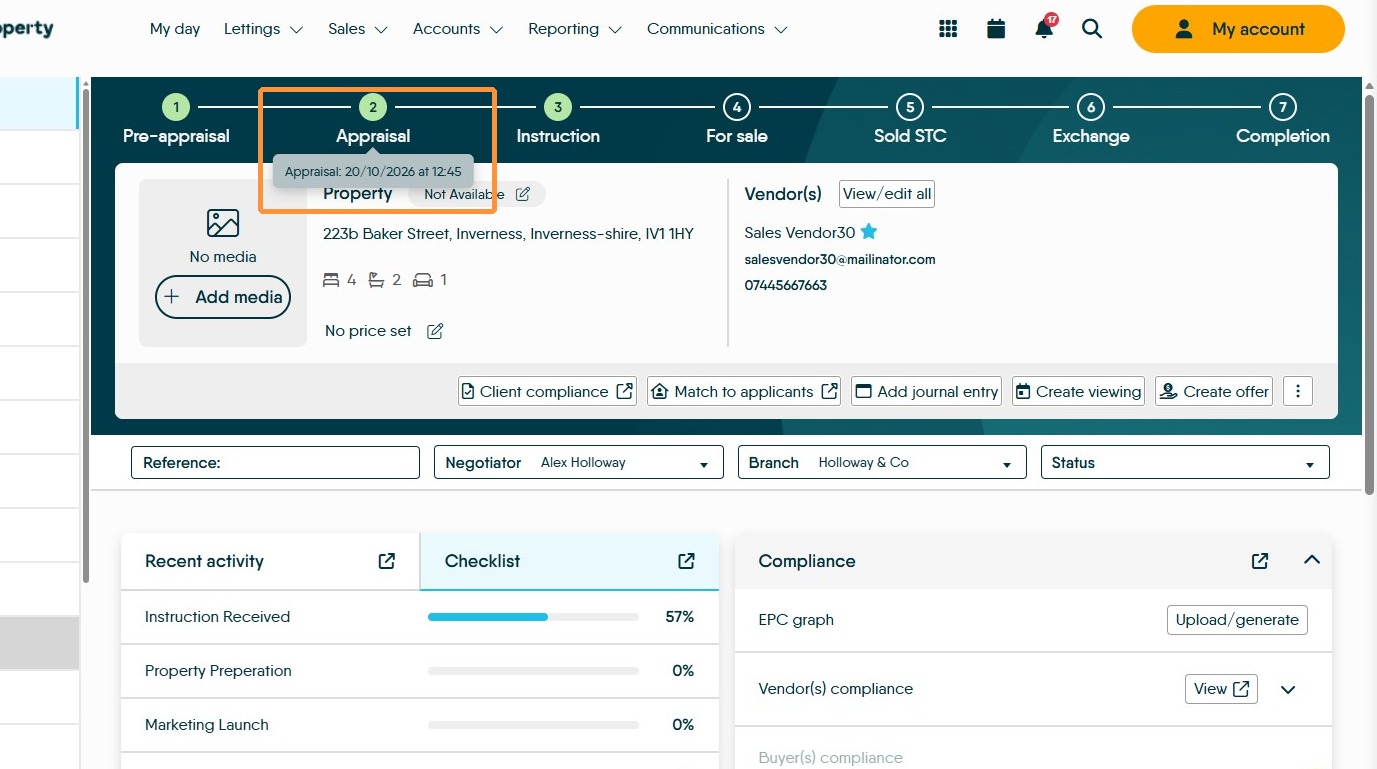
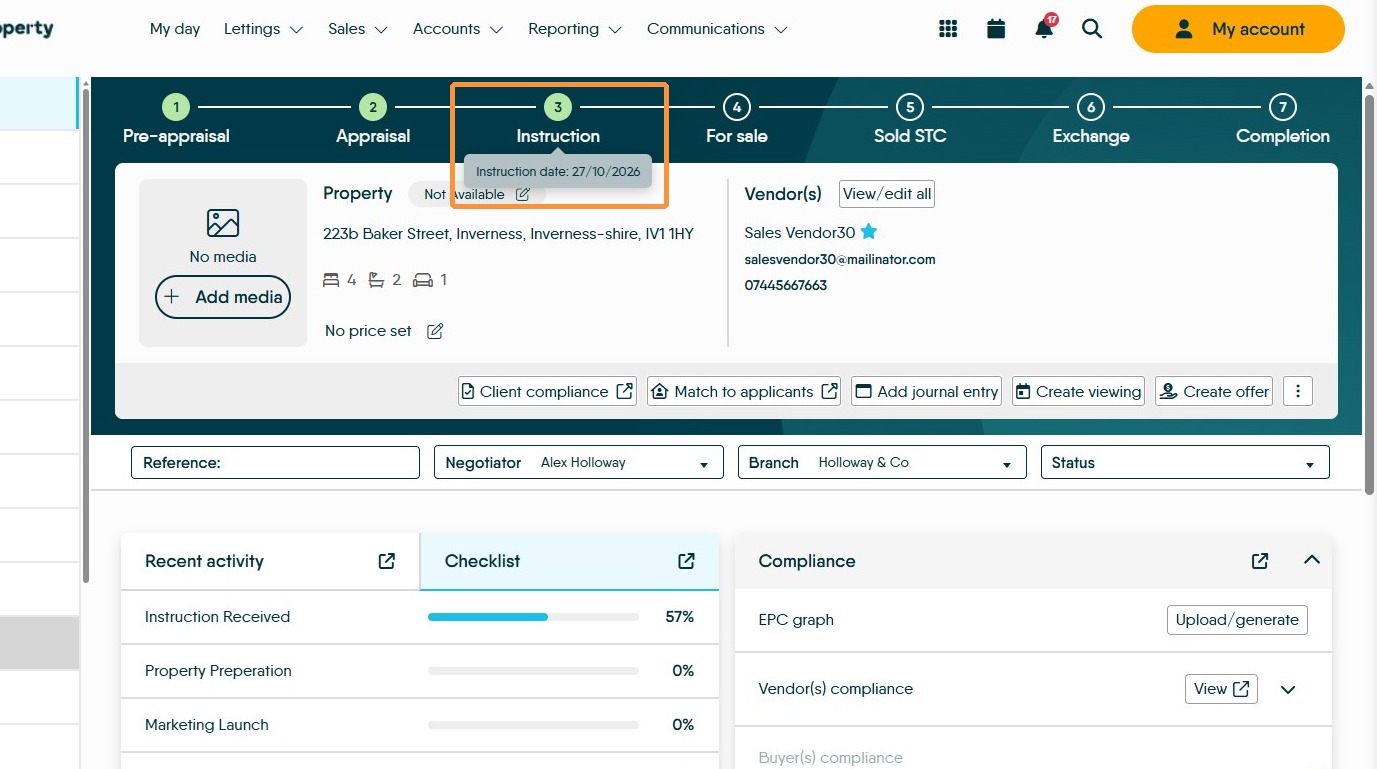
1. The Milestones are the numbered dots at the top of the page header, these will update as the property progresses through the sale process, illuminating either amber or green. Certain icons will show as amber e.g. Appraisal, once an Appraisal is booked and until the booked date is passed will show amber, once the date is passed the marker turns green.
Hovering the mouse over a milestone will show the date related to that milestone.
Page Header
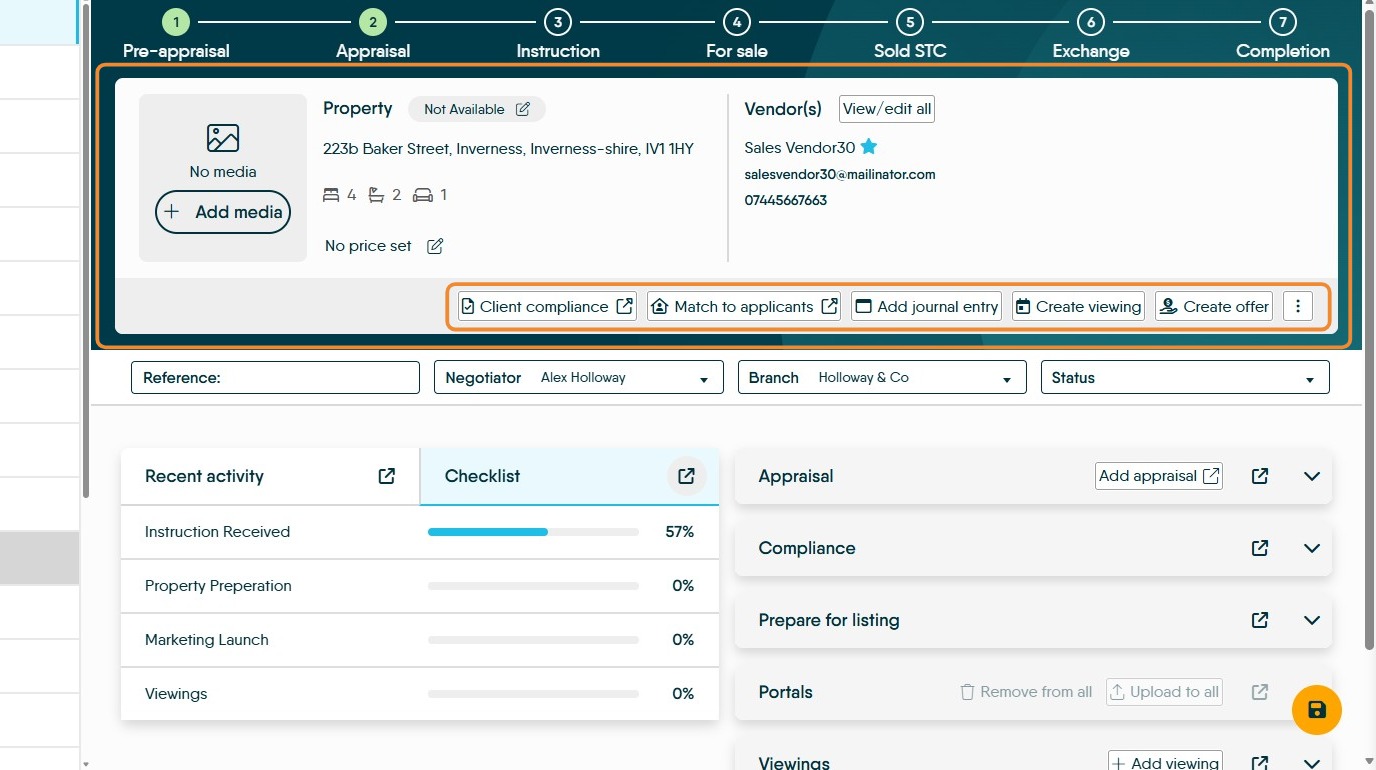
2. The main part of the header shows the property detail and the Vendor details.
From the property side of the screen media can be added, the property price and prefix set. You can also set the property advertising type.
There are also options to start the Client compliance (via movebutler) Match to applicants, Add journal entry, Create a viewing and Create an Offer
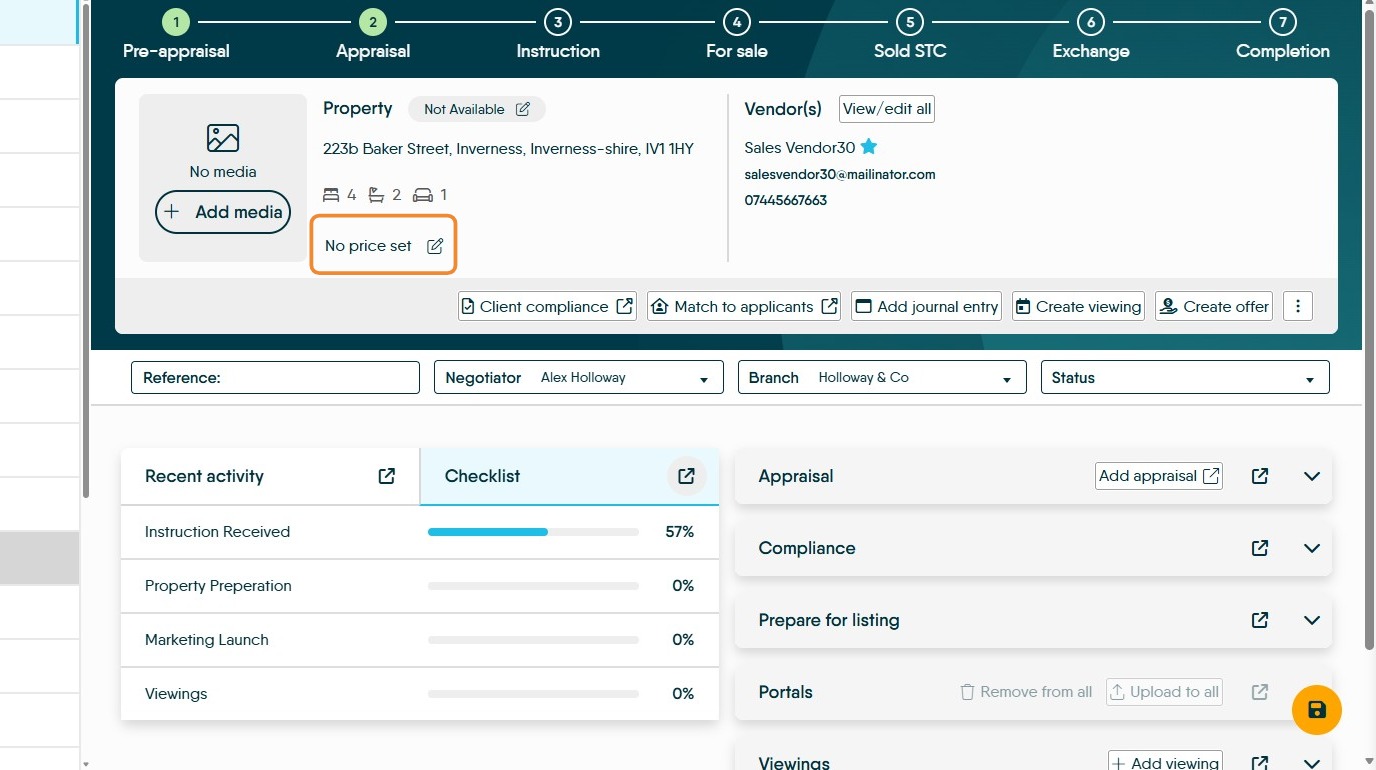
3. The property price can be set from the header screen, click onto the 'No price set' icon.
If required property images can be added here, using the +Add media option.
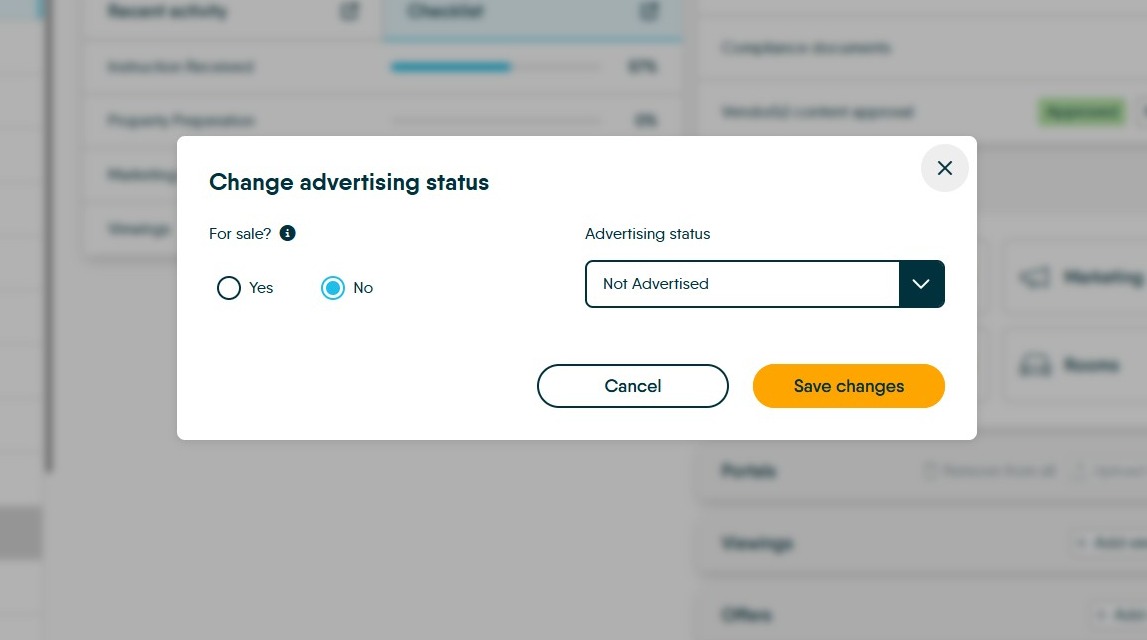
4. To set the advertising status click the (in this case) Not Advertised option.
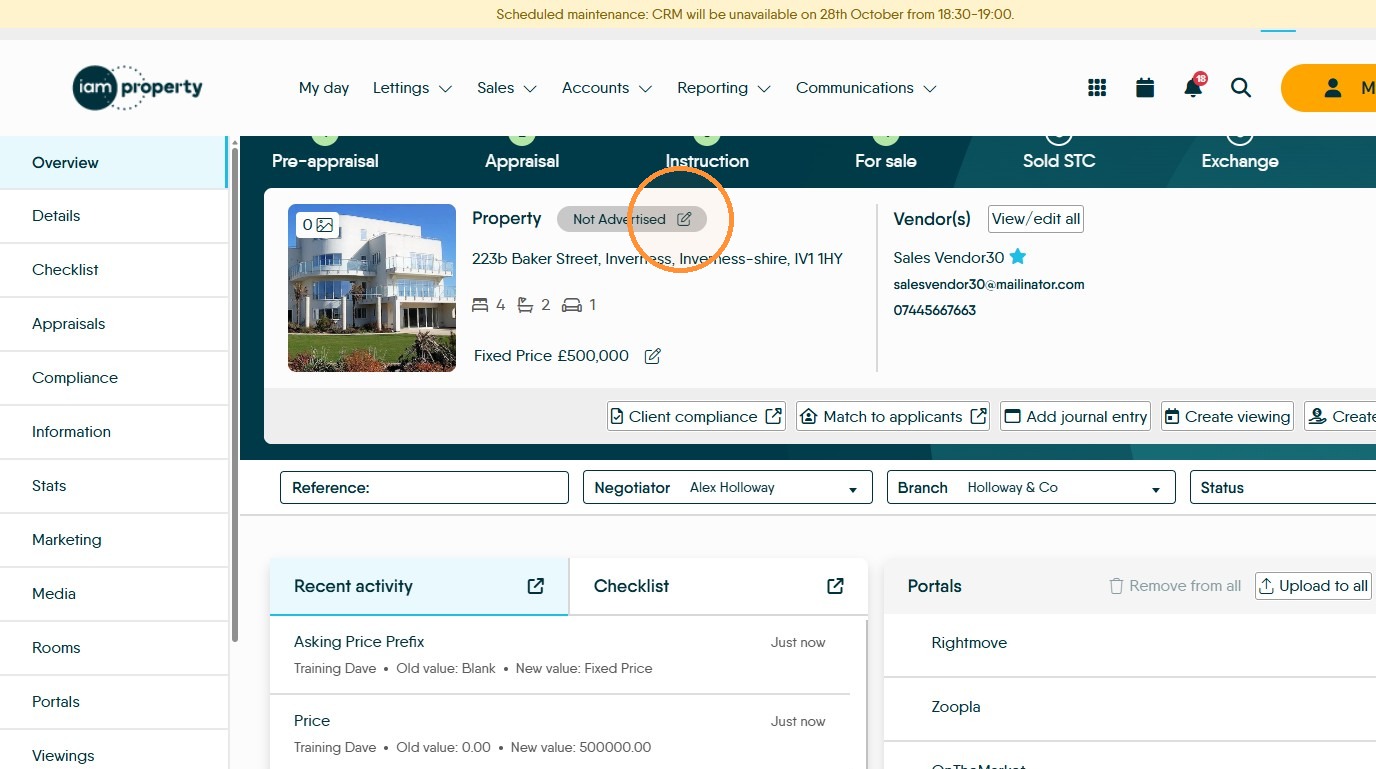
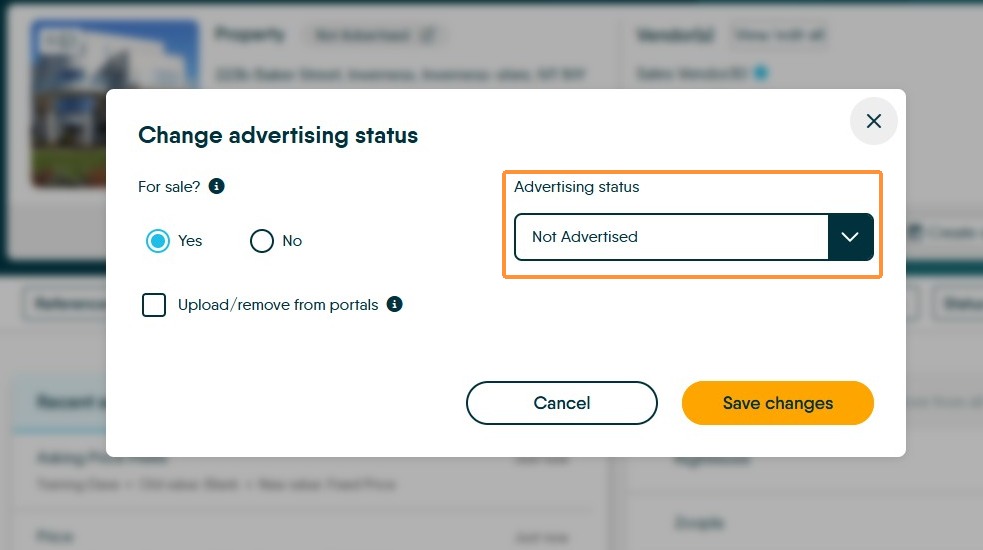
5. This will open the 'Change advertising status' screen. From the drop down menu choose your option e.g. Advertised
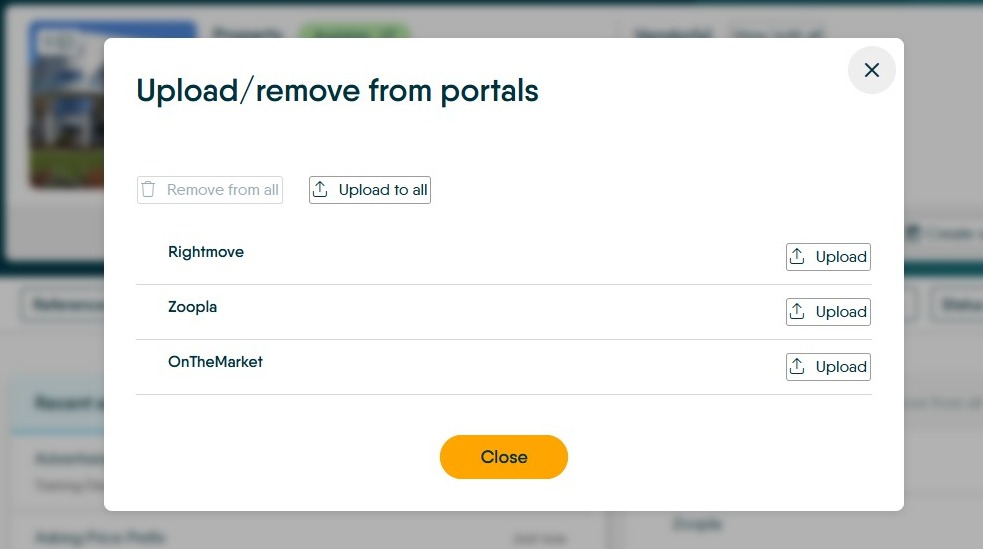
Select Available as the advertising status.
If, in this screen you set the 'For sale?' option to yes, the option to upload the property to the online portals will become available.
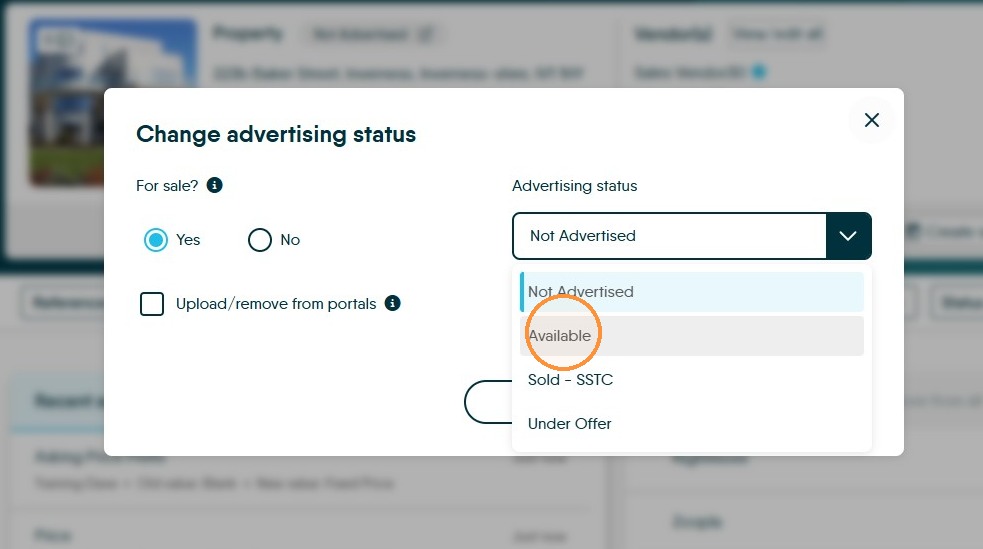
If the upload to portals option has been selected the next screen you will see is the 'Upload/remove from portals' screen where you can upload the property to some or all portals you have enabled on your login.
Select either Upload to all or the individual options as required. Then 'Close' the screen. This screen can be ignored and the up-load performed later.
6. The updated information will show on the screen.
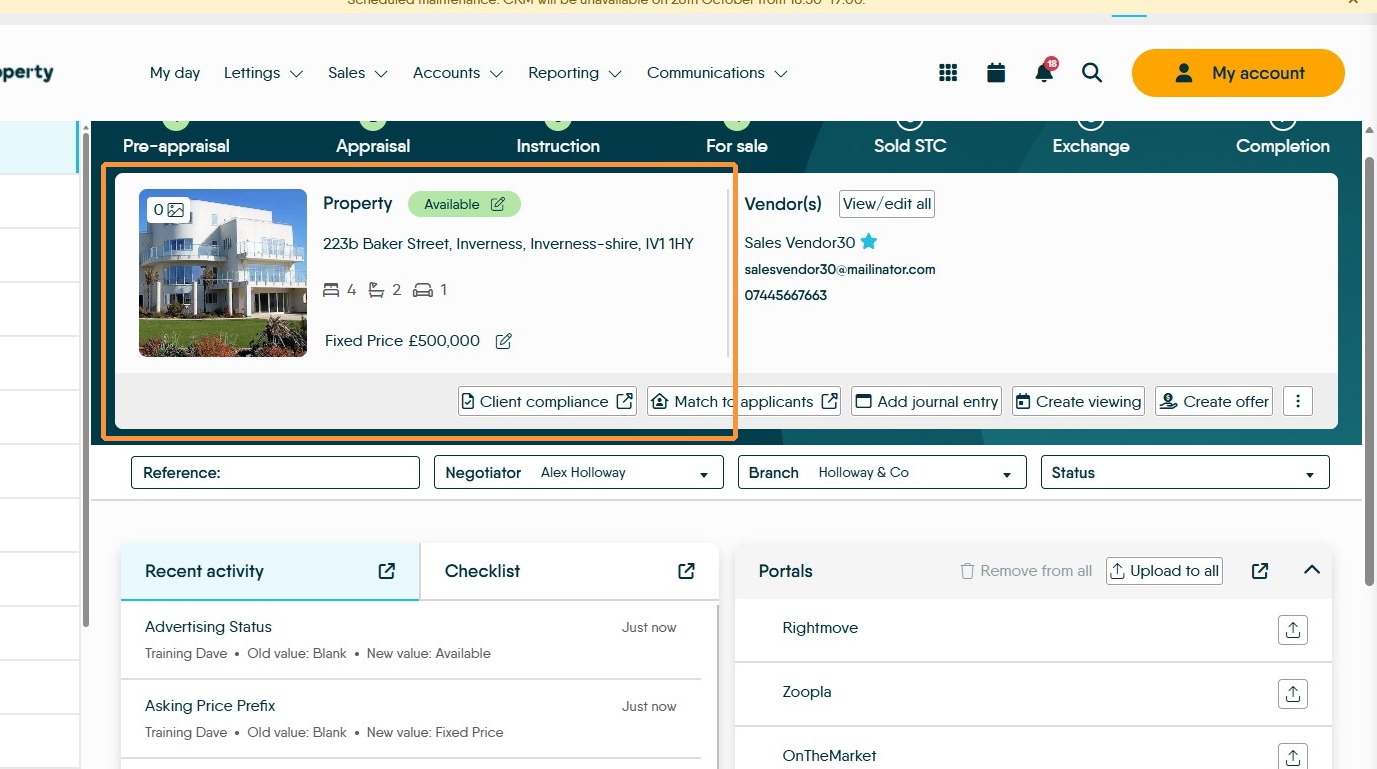
7. The 'Vendor(s)' side of the screen will show the details for the first 2 Vendors with an indicator to show there are more than 2 e.g. '+1 more'
To add additional Vendors, click 'View/edit all'
There are other options available on this screen, there is the option to start the 'Client compliance' from here there are also the options 'match to applicants', 'add journal entries', 'create viewings' and 'offers'.
Overview Screen
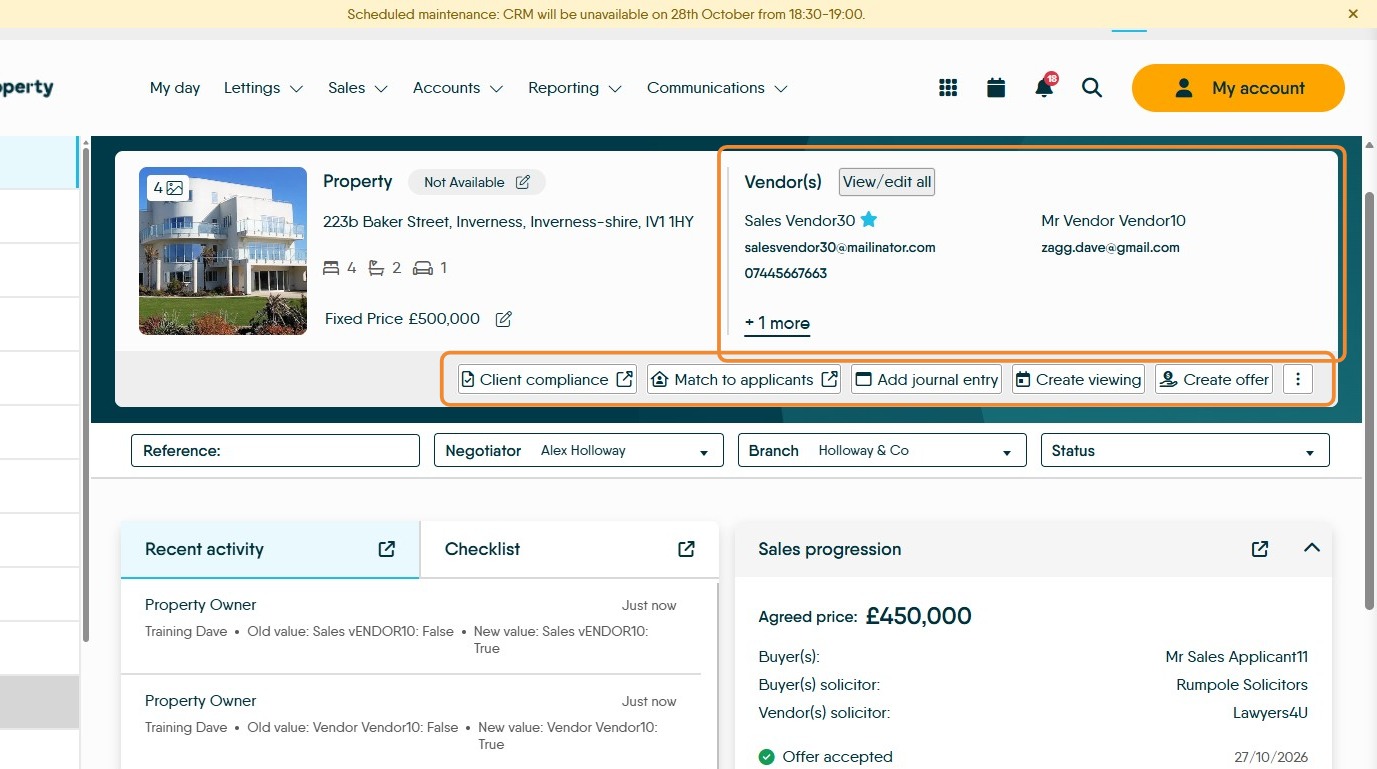
8. This is the first screen you will see when accessing a property record, it can be accessed using the the 'Overview' menu option in the left menu.
The Overview screen is dynamic, the order of the screen will change as items are updated and increase in priority.
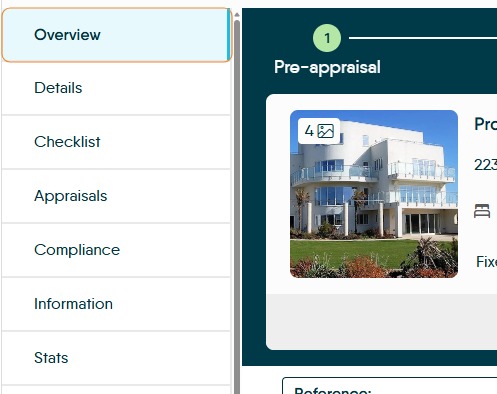
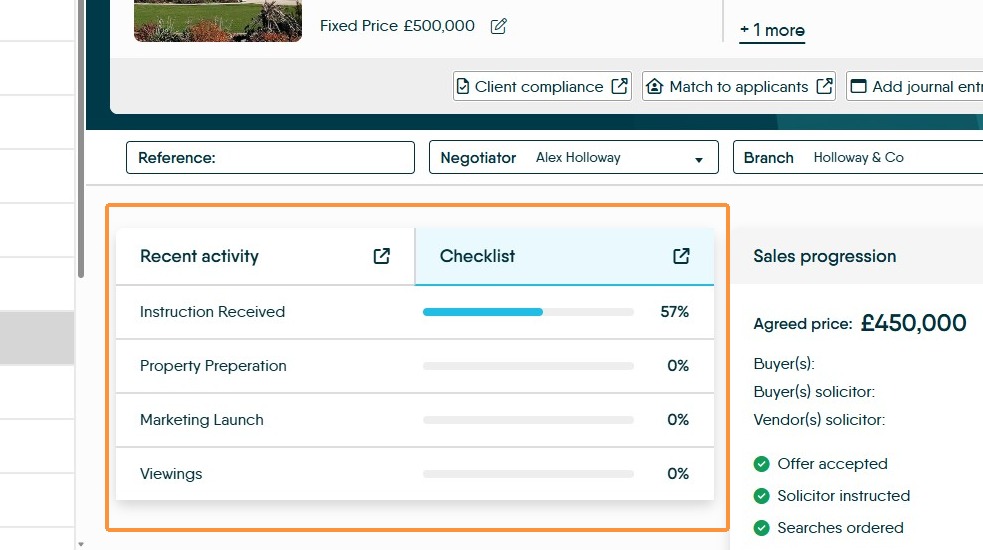
9. On the left side there are 2 options, Recent activity and Checklist
Recent Activity shows all the changes and updates that have happened to this record in CRM. Showing the change, who made the change and what the change was. (This is the current CRM Audit screen.)
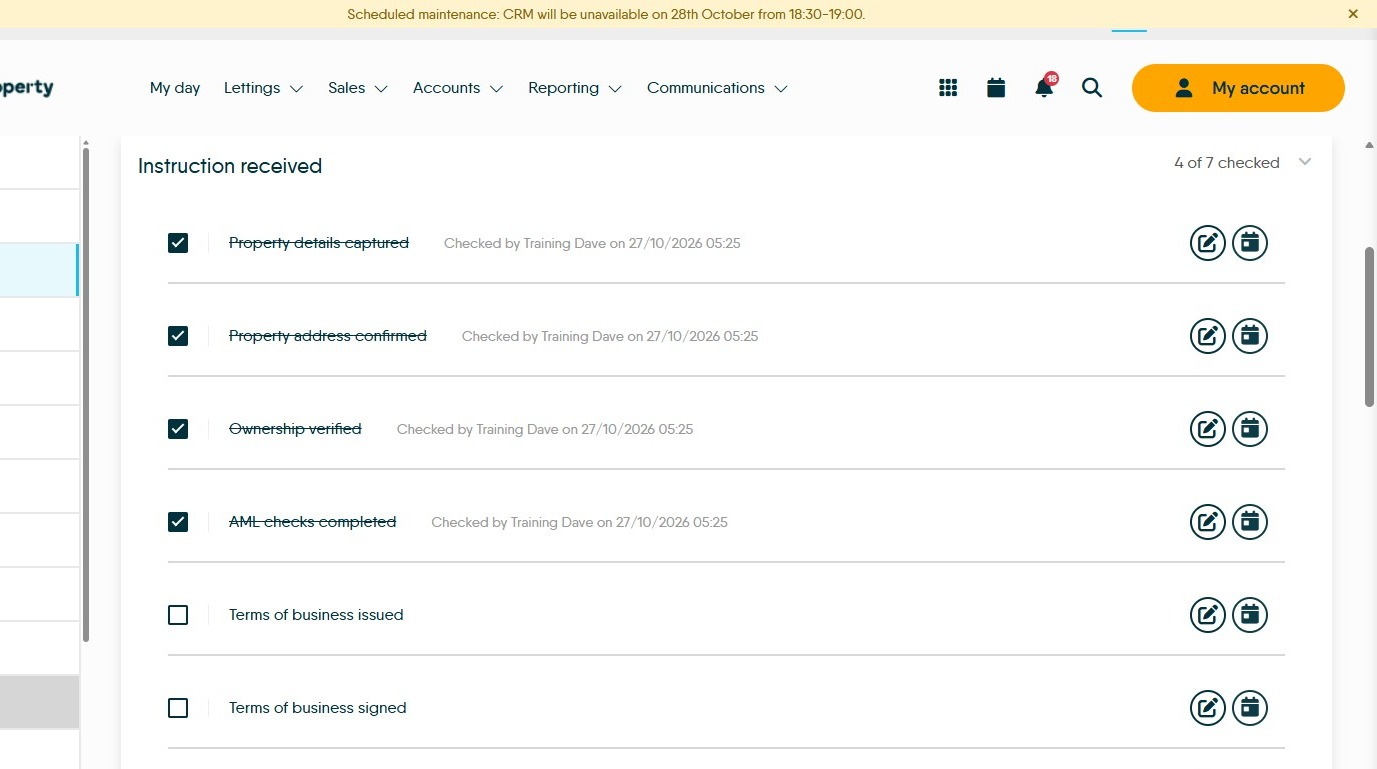
The 'Checklist' screen will show any Property checklists that you have created and the process through those checklists.
Clicking the down arrow will show you the current Checklists and the completion status, clicking onto the checklist name will open the checklist for review and updating
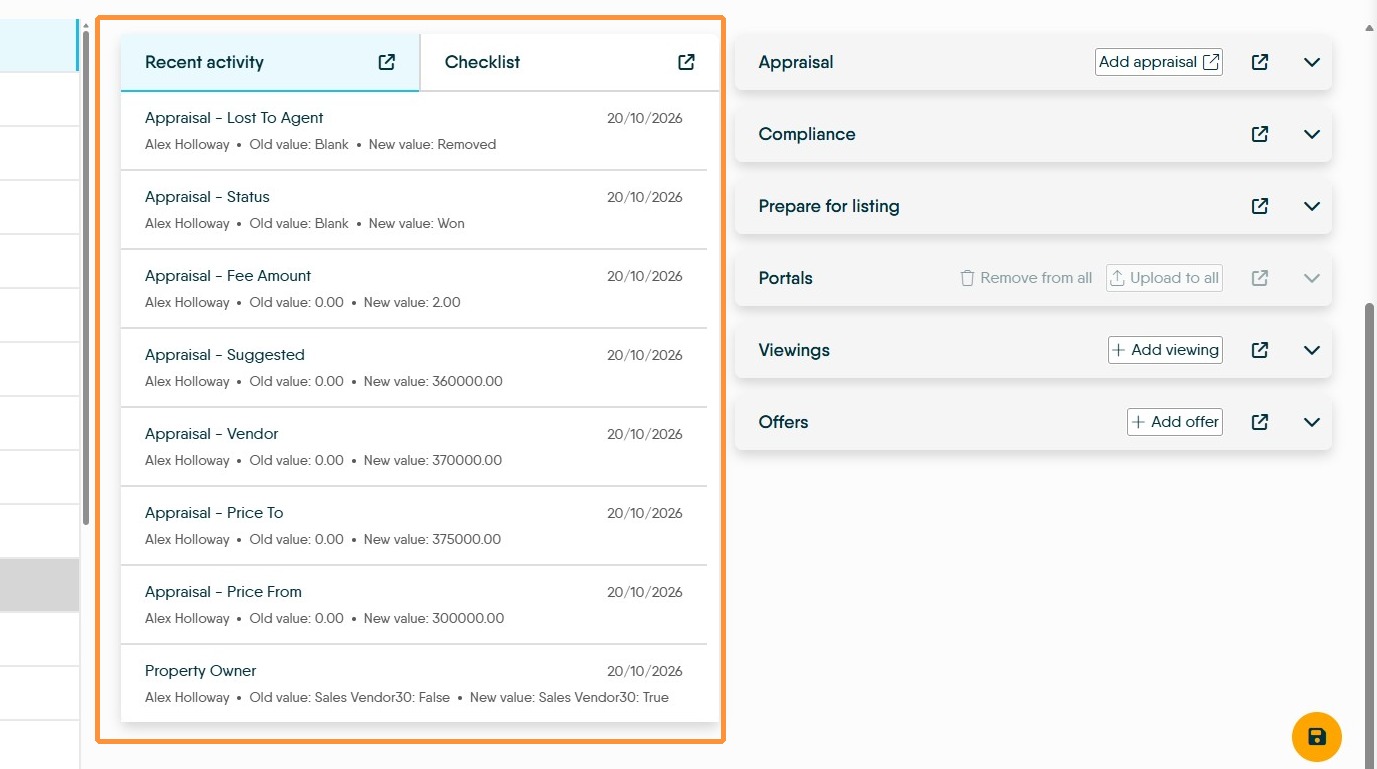
10. To the right side of the overview screen are a set of steps
These steps are dynamic and will move up/down the list as they become a priority, new options may appear e.g. Progression as you move through the sale process. Some items may disappear e.g. once an offer is accepted all other offers will no longer show in the offers section.
11. Appraisal, this will allow you to add an appraisal if one isn't already set via the 'Add appraisal' option.
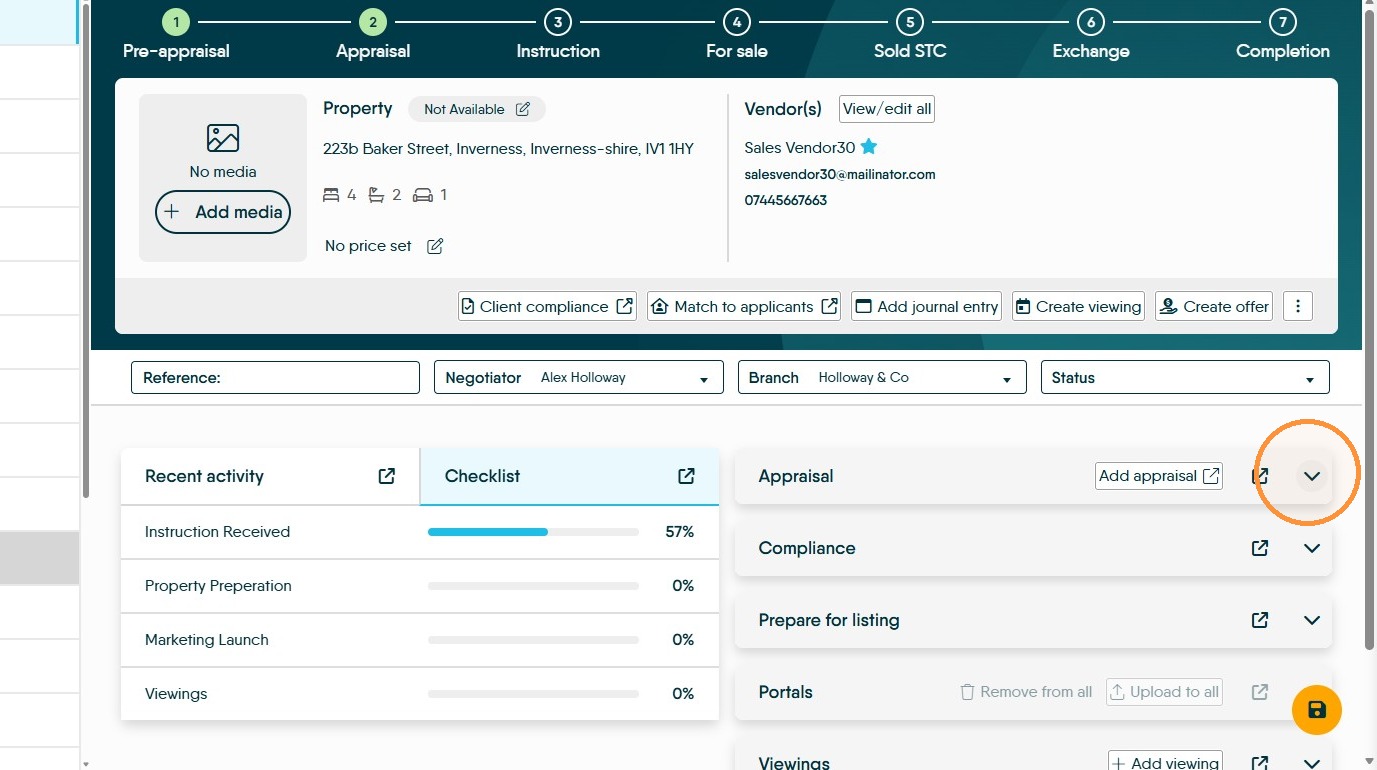
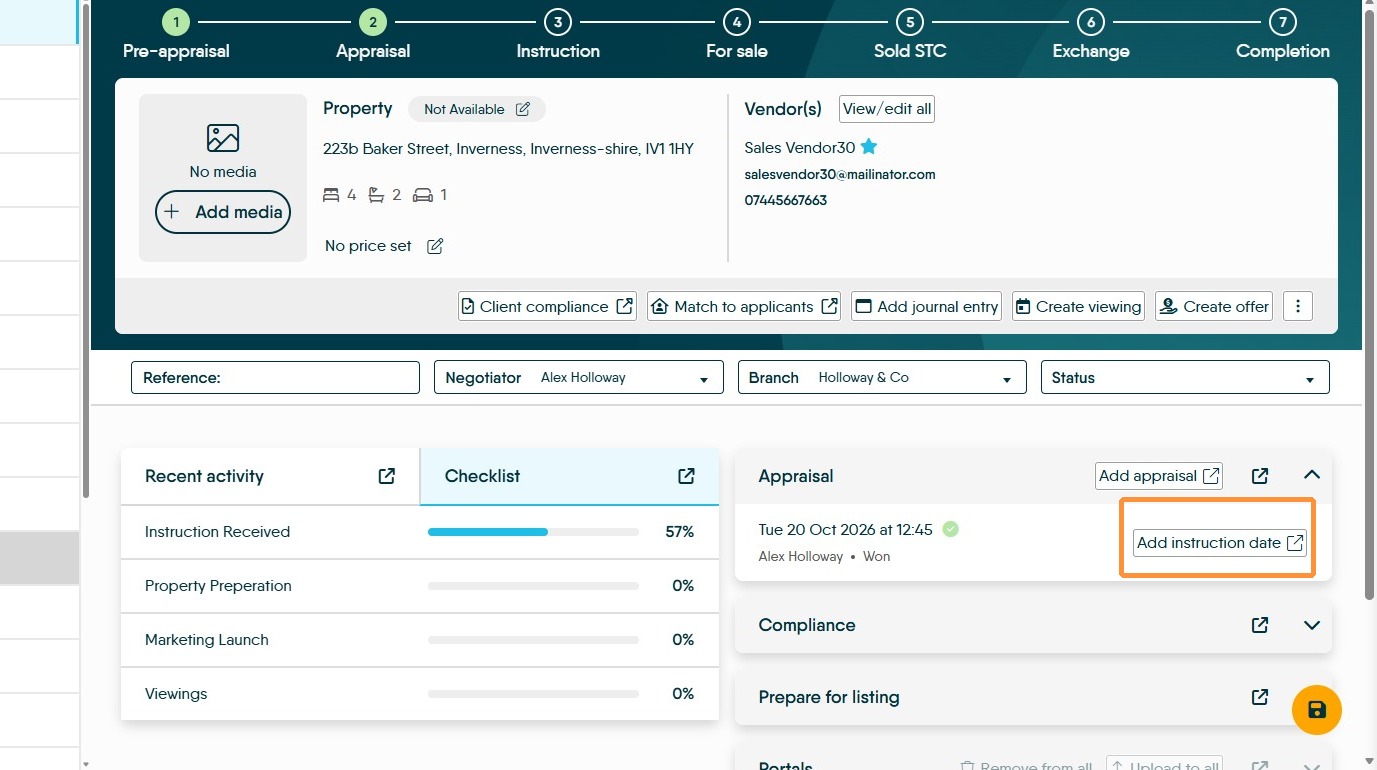
12. Click the down arrow and the Appraisal status (won or lost) will show with the valuers name. Once an appraisal has been won you can add the instruction date using the button. The instruction notification in the milestones will turn green and will show the date.
13. The next step is Compliance.
Expanding the Compliance section allows the EPC graph to be generated easily. Click 'Upload/generate' to access the screen to add the EPC.
Vendors Compliance allows review of the access to the movebutler section of iamproperty CRM to start the customers AML checking n.b. the CRM might not allow the property record to be updated until this is started.
If our Vendor has confirmed the property details are as they would like, Mark vendor content approval as approved.
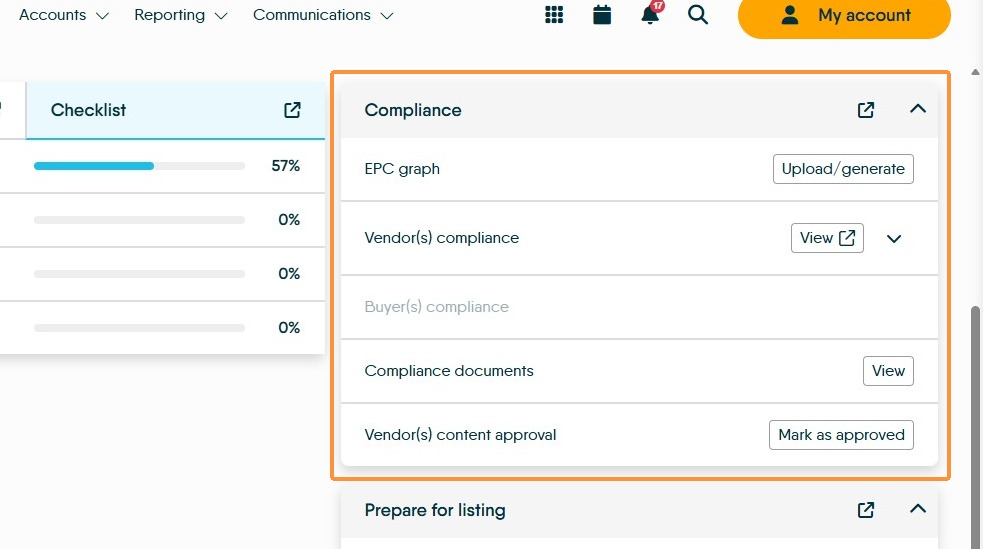
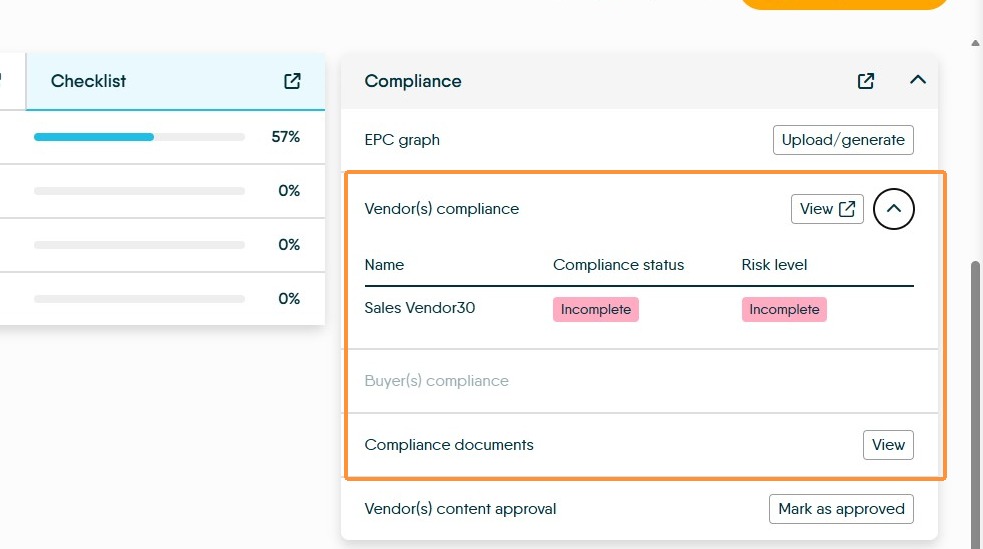
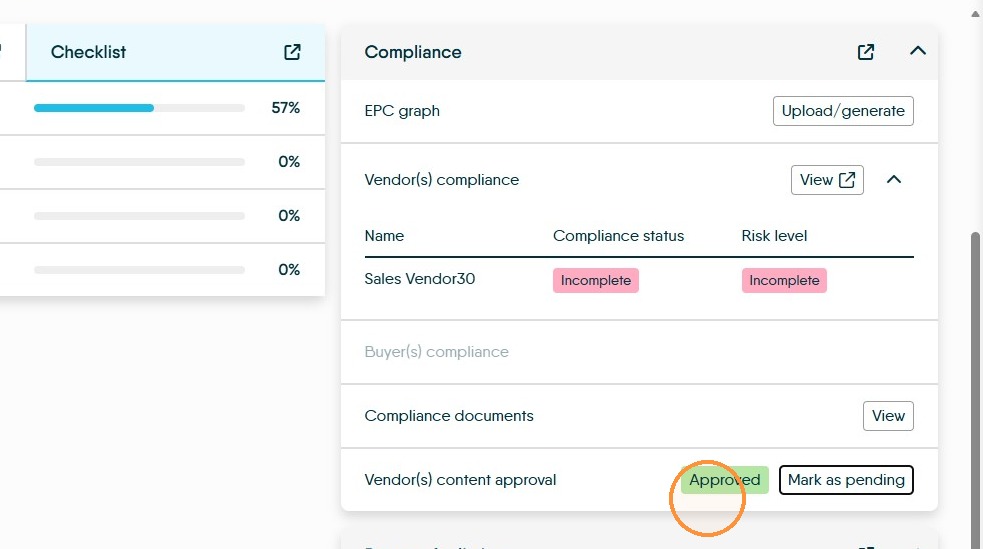
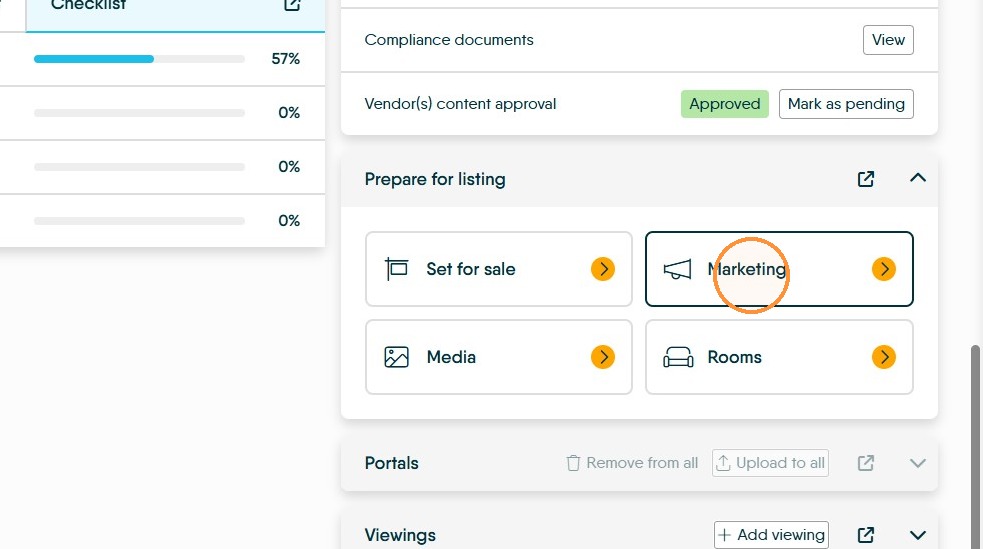
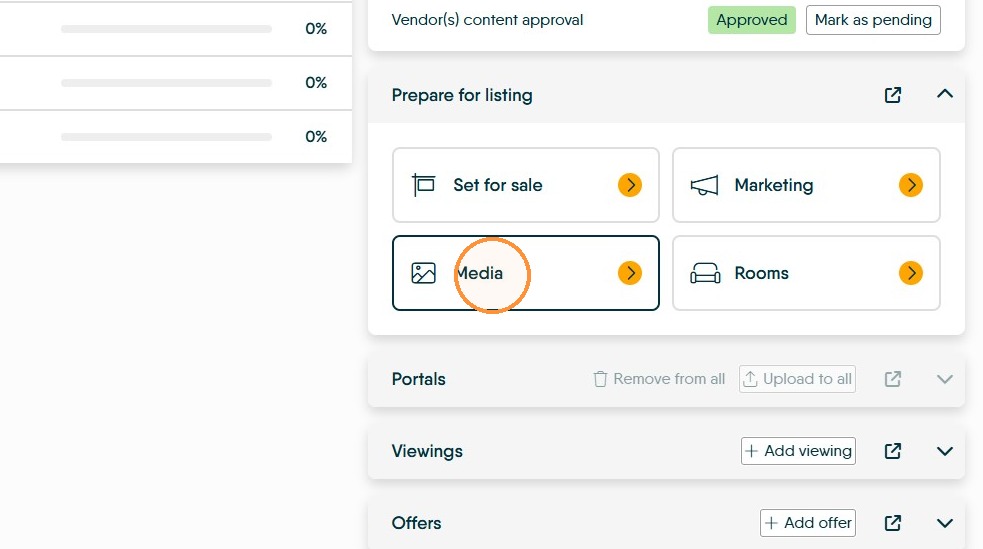
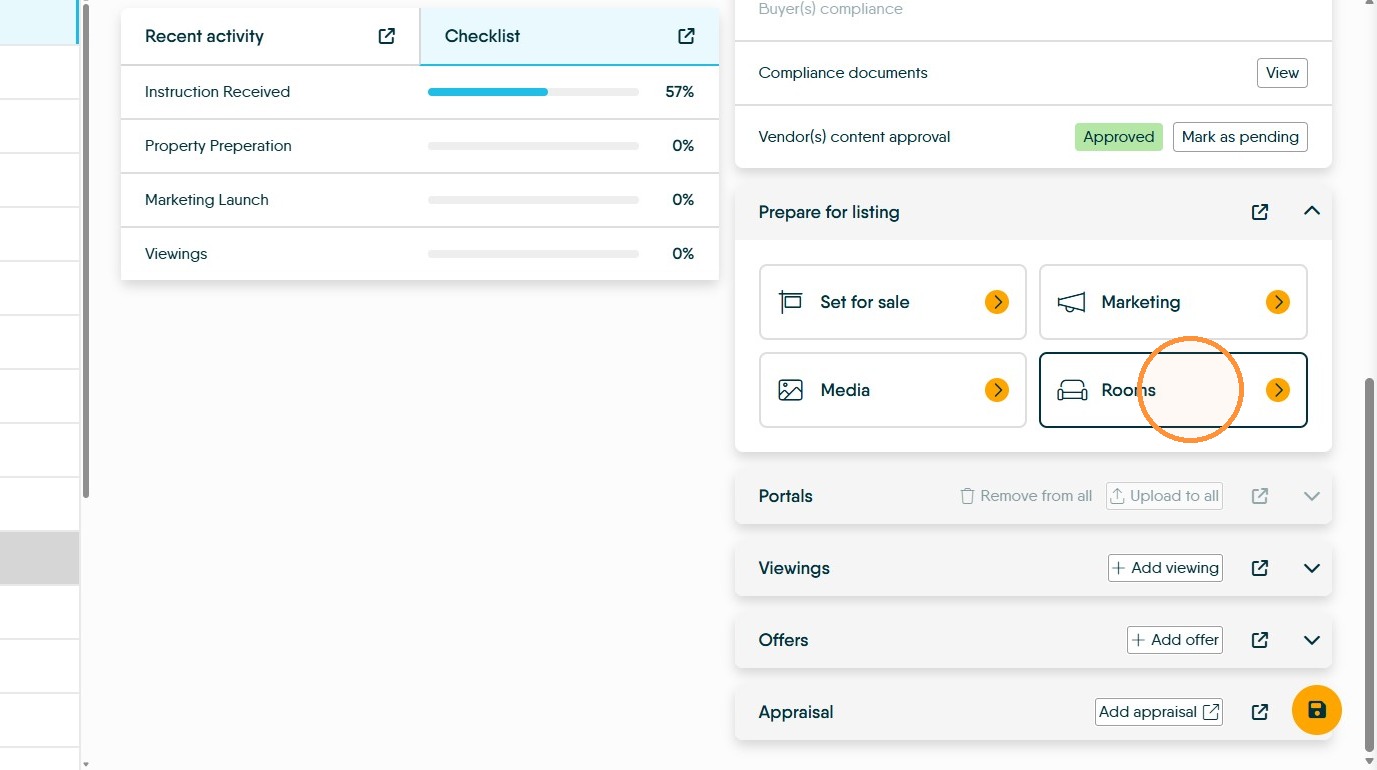
14. The Prepare for listing step has 4 sections and allows all of the key data to be added to be able to make a property live on the portals. The 4 sections are; Set for sale, Marketing, Media and Rooms.
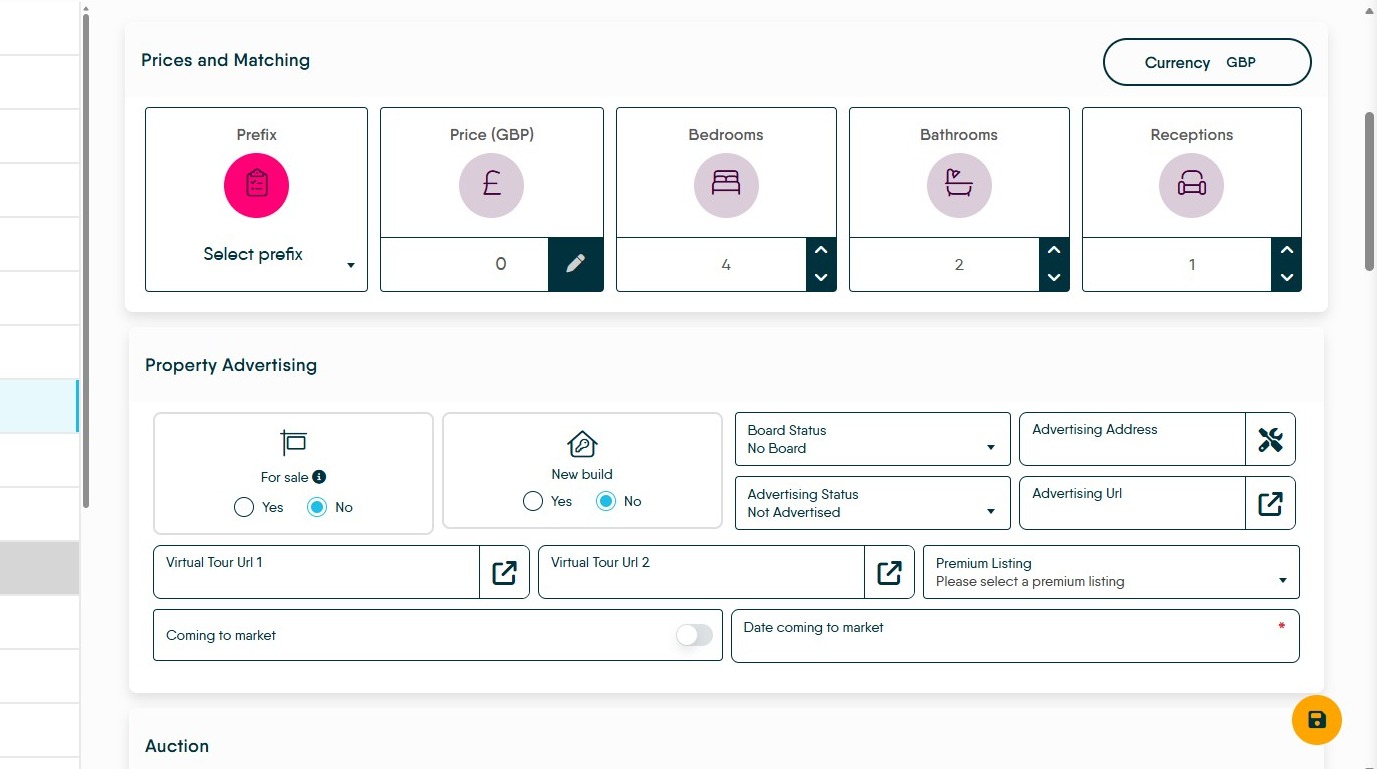
15. Set for sale. This option acts the same way as the option you get in the main screen. You can set the Advertising status for the property, Mark it 'For Sale' and if you have enabled for sale, enable the upload to Portals.
This might be one of the last options you would update, after all the property details and images are added and the details accepted by the Vendor.
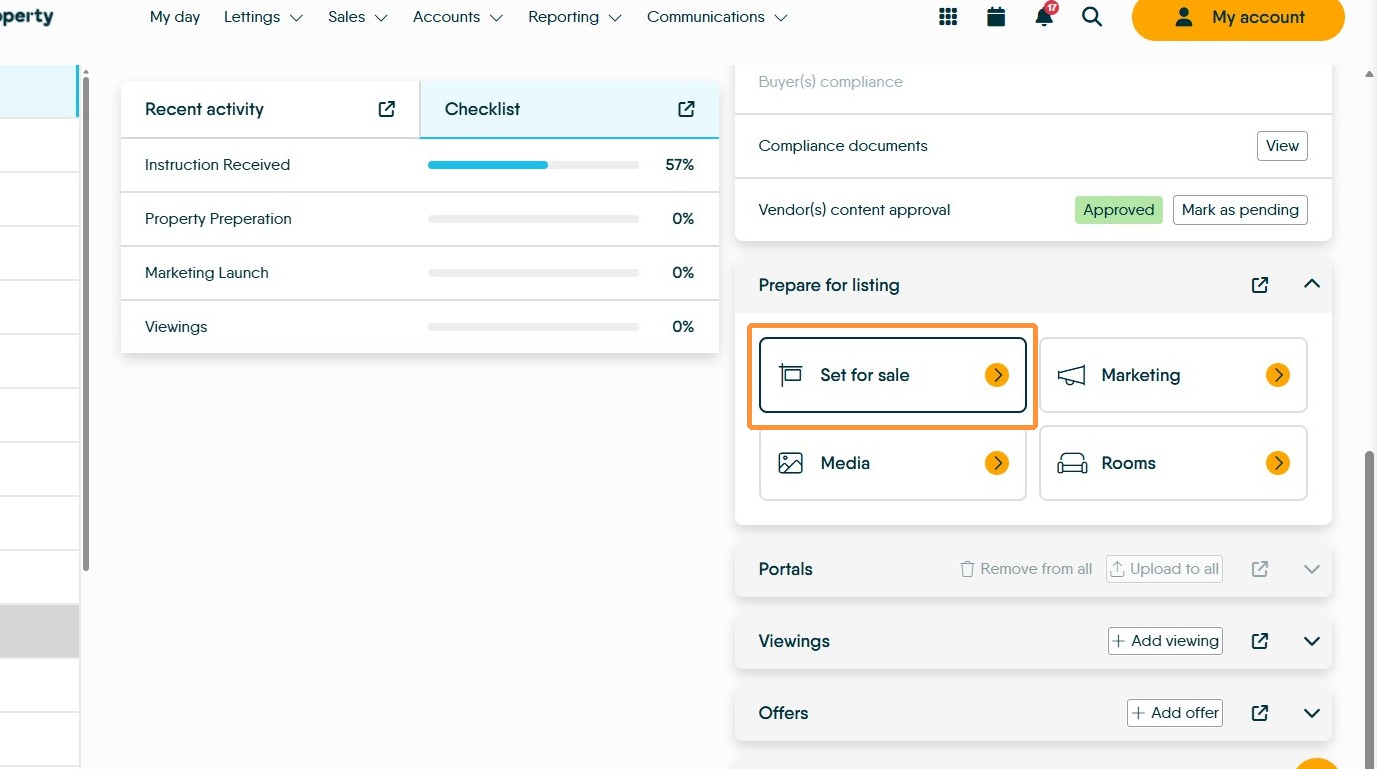
16. Marketing. This takes you to the marketing screen in the property record, allowing you to add and update all the details you would need for a property record.
The Marketing screen also gives you the opportunity to set the property for sale and make it available to upload to portals.
Once the property is marked as For sale the appropriate icon on the milestone (at the top of the screen) will illuminate green.
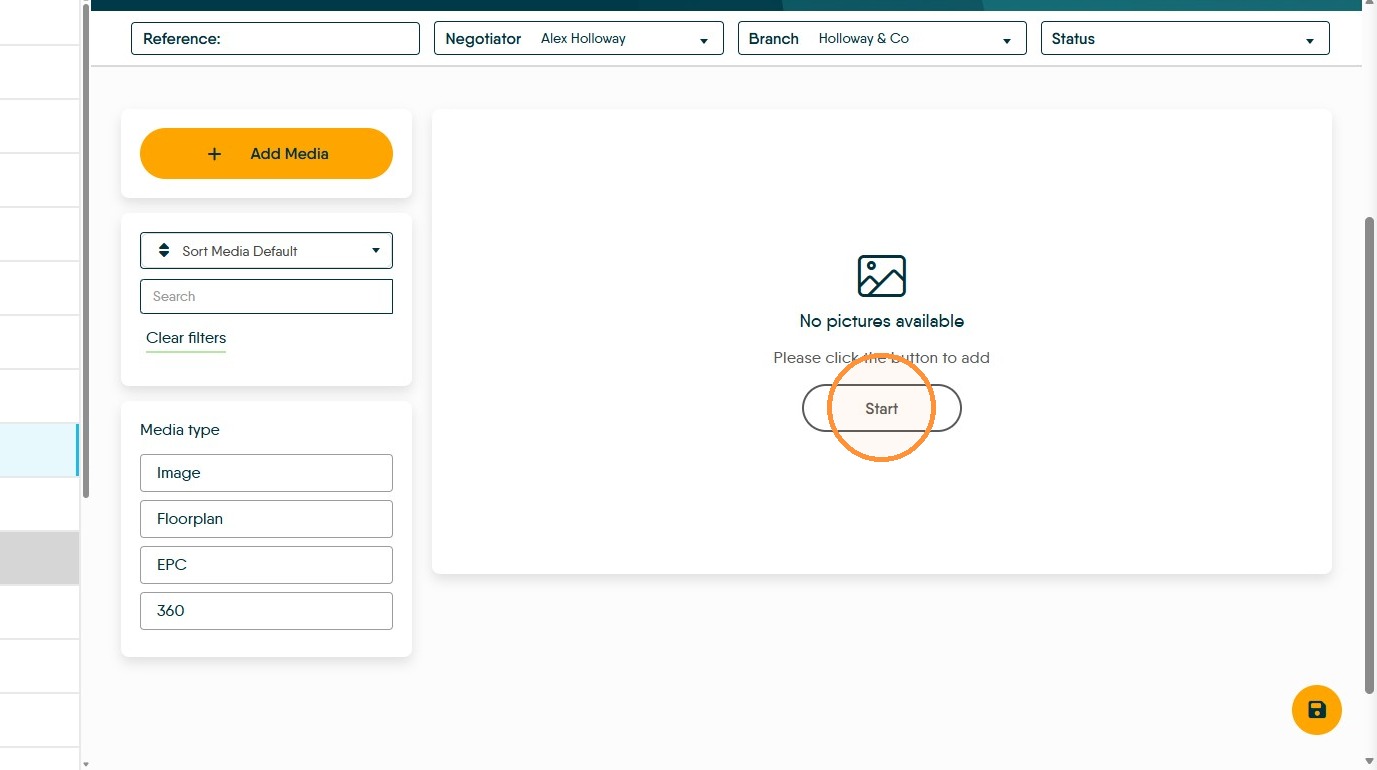
17. Media section to add any property images that you will want to add.
18. Open the Rooms section.
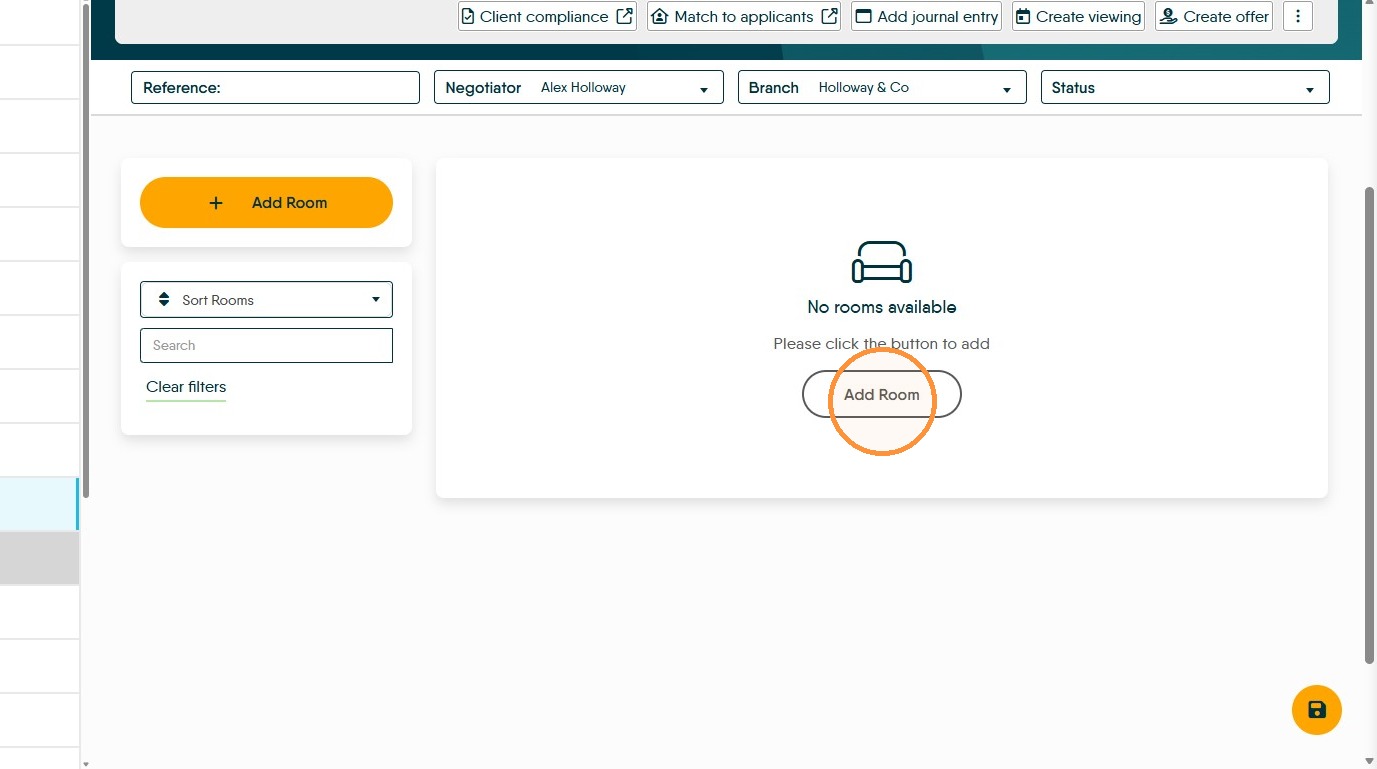
Click Add Room, this will allow you to add individual rooms detail - sizes and descriptions and if required, images.
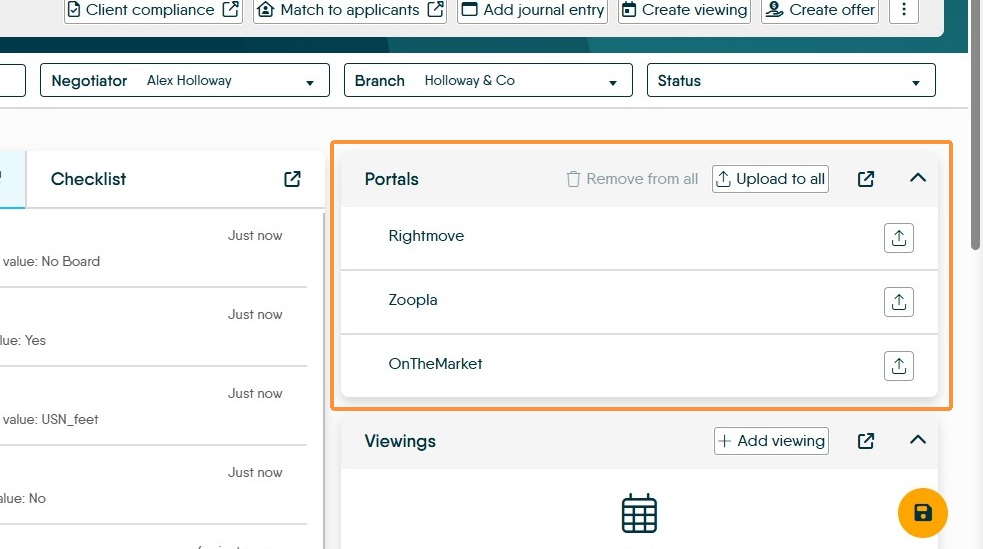
19. The Portals option will be available once the property is marked as available for sale.
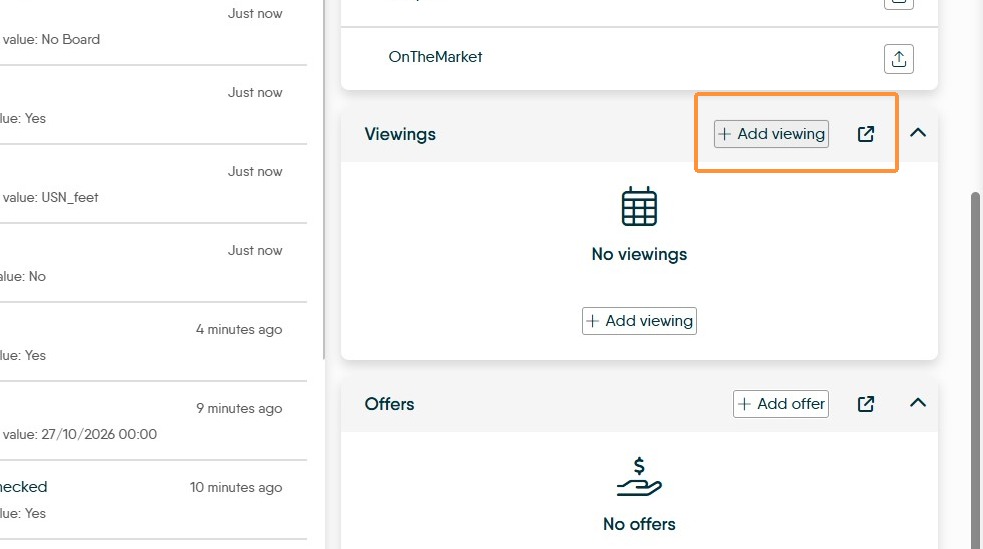
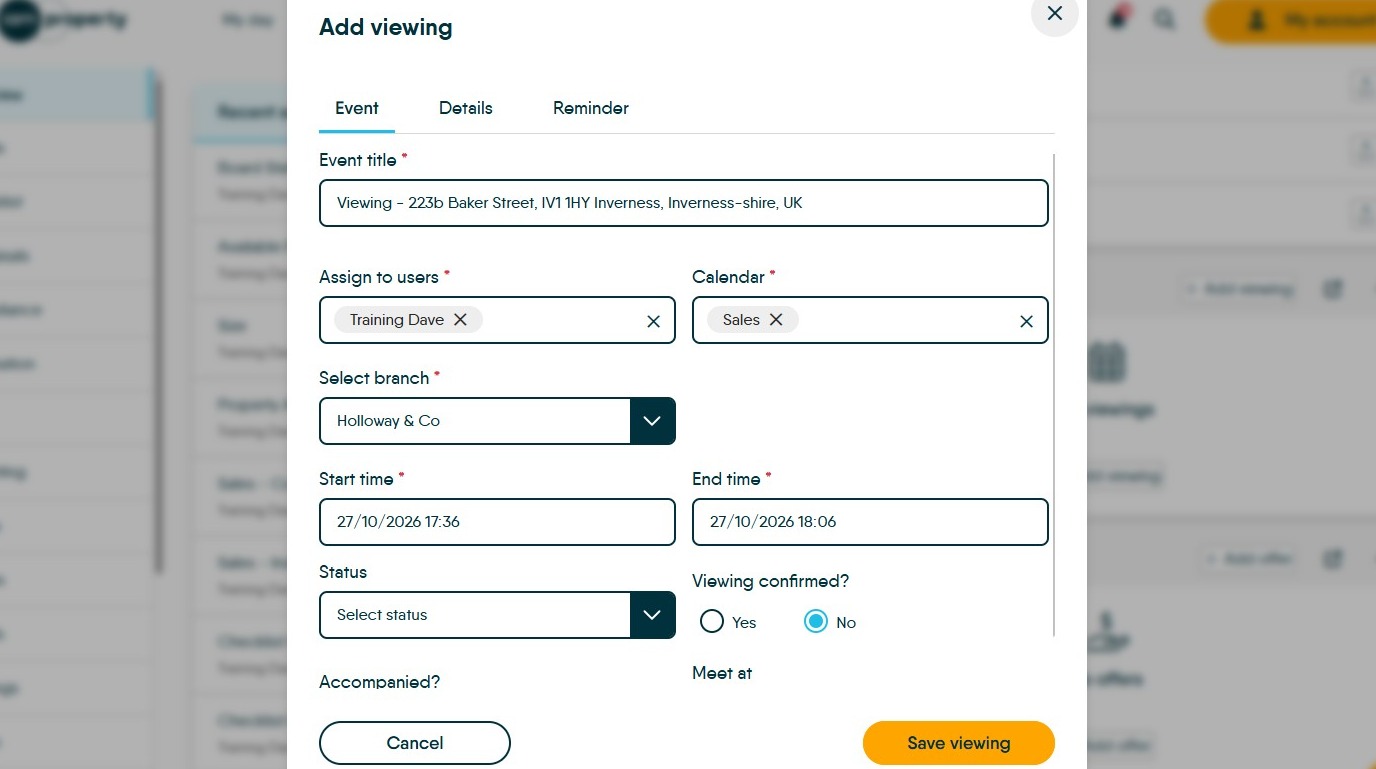
20. Viewings Any Viewings added to CRM either by the best practice route linked below or from this screen will show here for easy quick visibility. Core Process Simplification - Adding a New Lettings Viewing Appointment – iamproperty
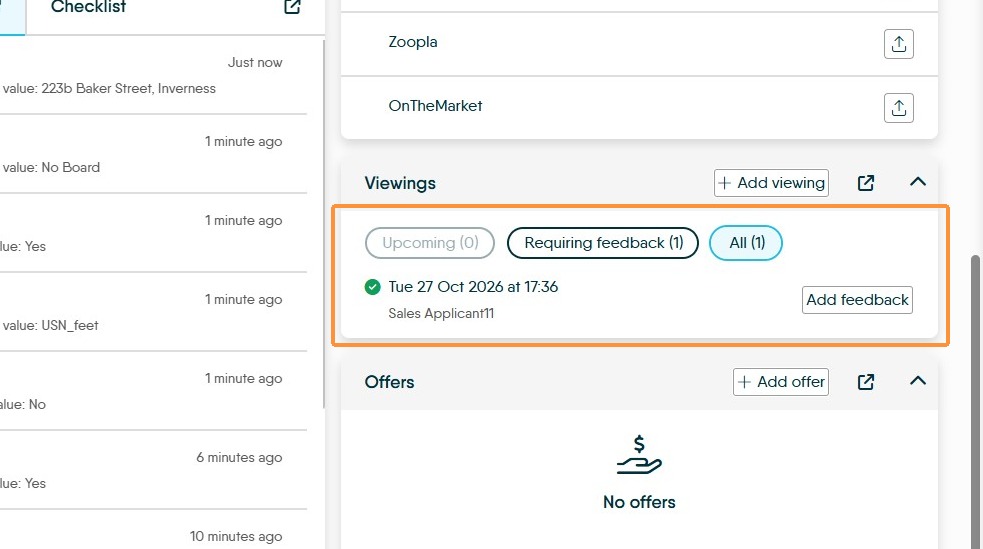
Once a viewing is added it is tracked in this screen, the screen will show how many upcoming appointments there are and how many require feedback, there is also an add feedback option next to the appropriate viewings.
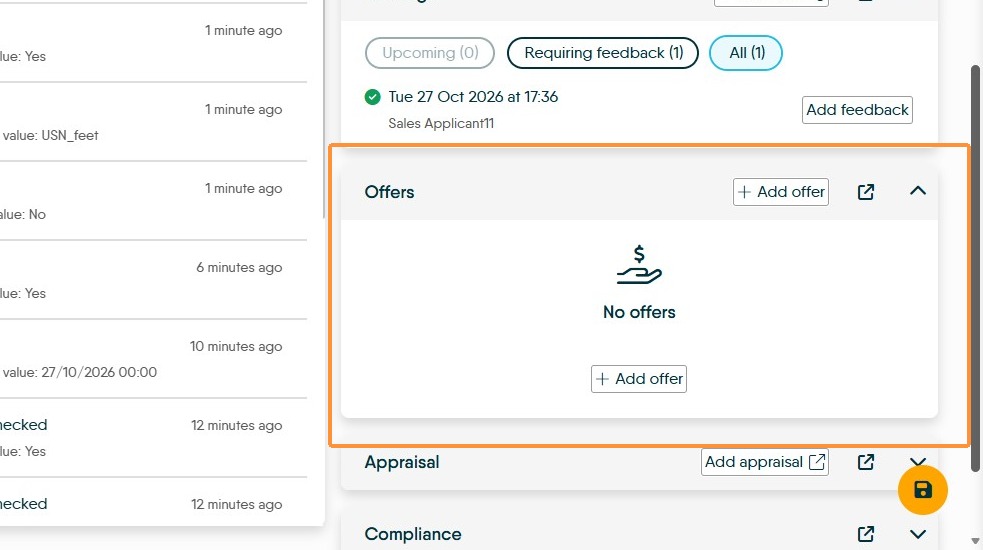
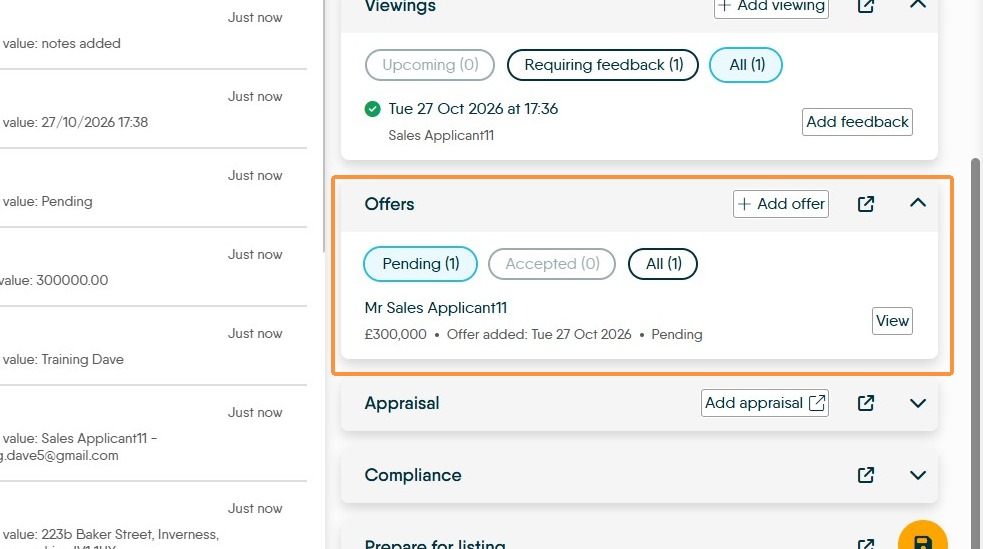
21. Offers can be added here and also tracked from this menu.
Once an offer is added it will show on the screen alongside any other offer that is not marked as Accepted. Once an offer is marked as Accepted, the only visible offer will be the accepted one and a progression screen will show.
Once the offer is accepted it will show and a progression screen will show in the list.
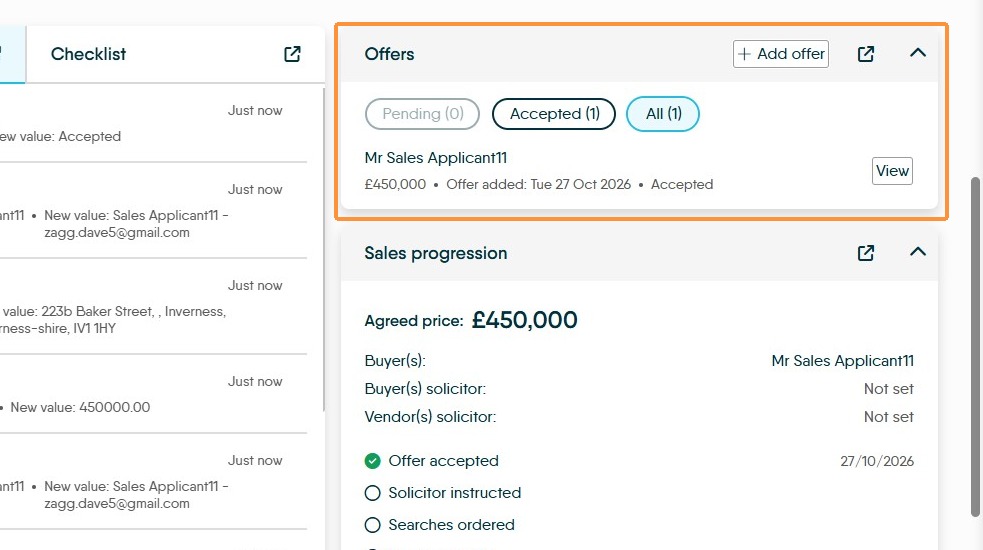
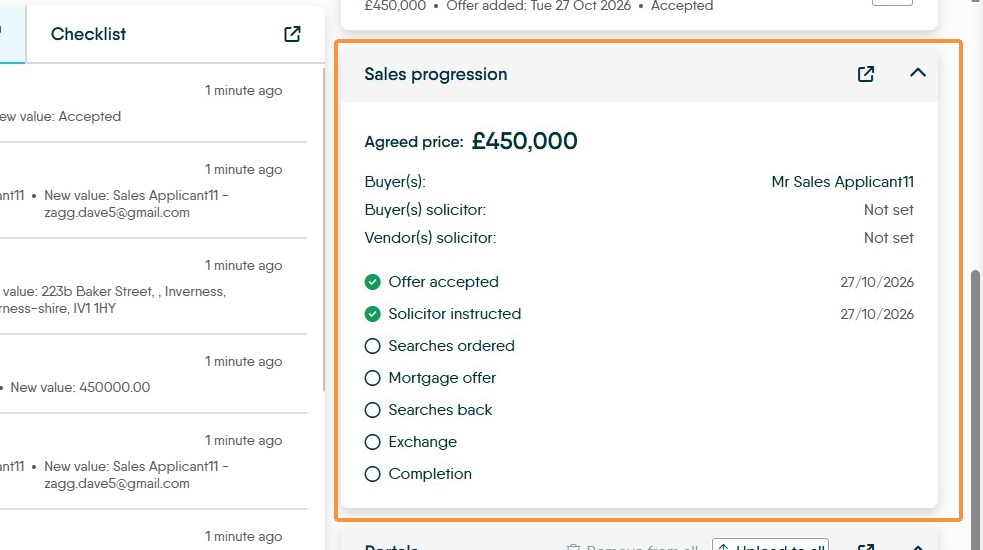
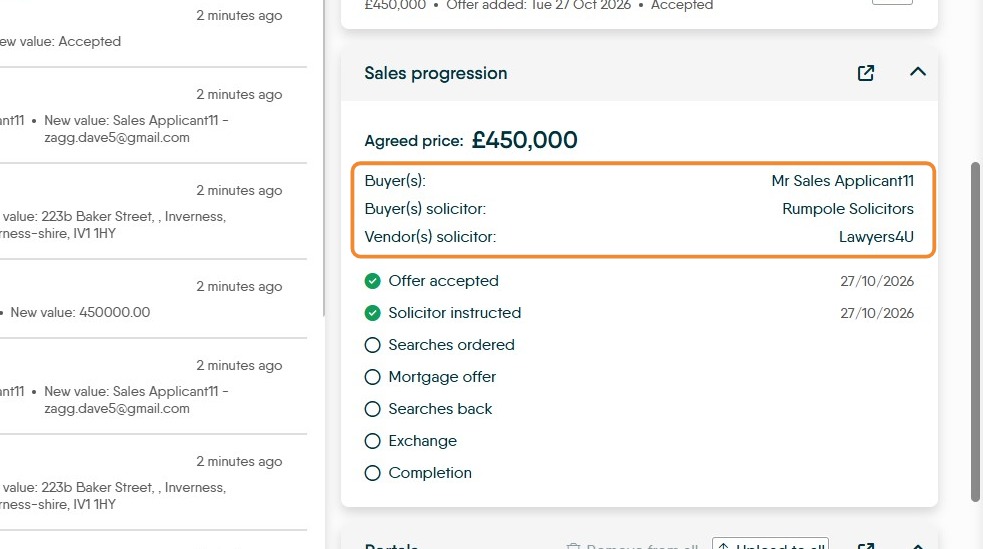
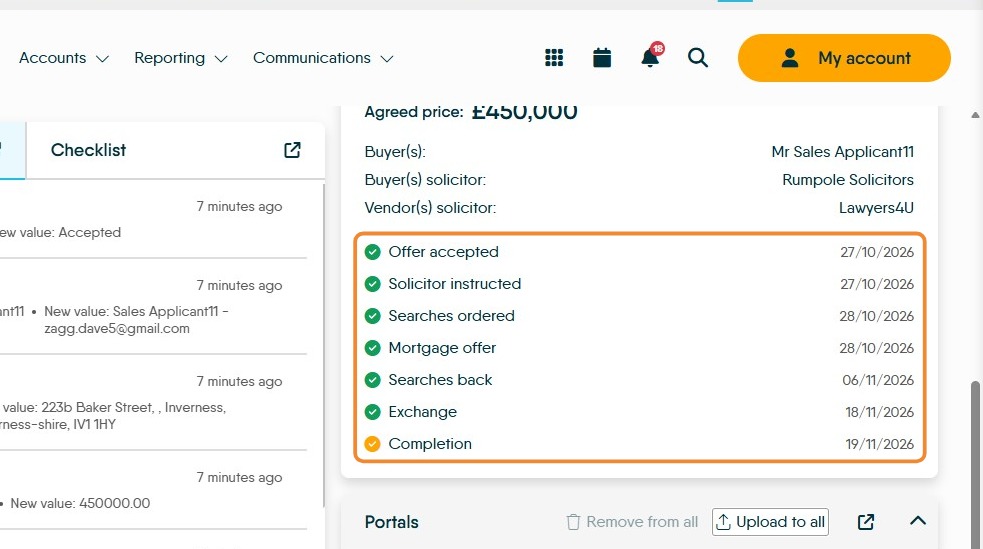
22. The Sales progression section follows the entries in the the progression and chain. As items are added or marked as completed the appropriate icon turns green.
The Buyers and Sellers Solicitor details are added in the 'chain' menu of the property progression.
As the Sale moves through progression the icons will turn green.