In this guide we follow what is best practice when adding a CRM Applicant record (Sales or Lettings). Once the basic applicant record has been created and while you have the applicant on the phone, it is best practice to carry on and add in the other details for the customer and try to match them. This guide walks you through the steps to configure search parameters and link the applicant to matching properties effectively.
1. Once you have created your applicant, there are 2 options at the bottom of the screen. The default is the 'Create & View' option which is the option we will use, the other option is 'Create & Close' (click the down arrow option for this).
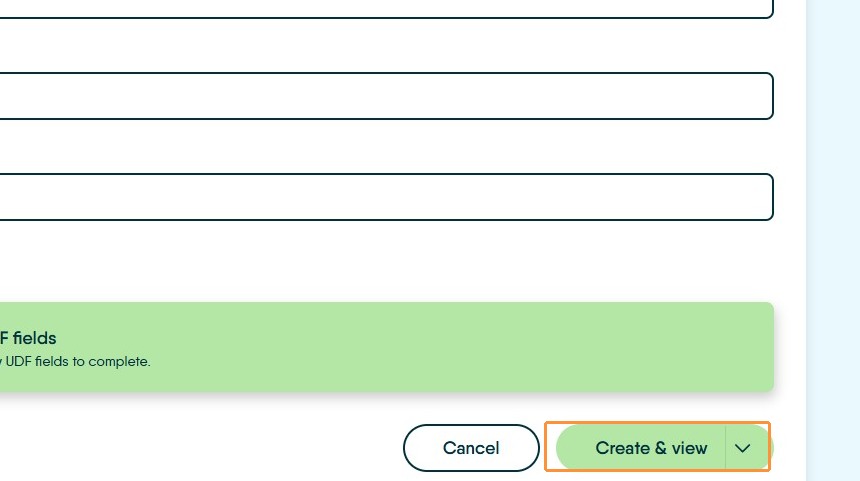
Create Applicant
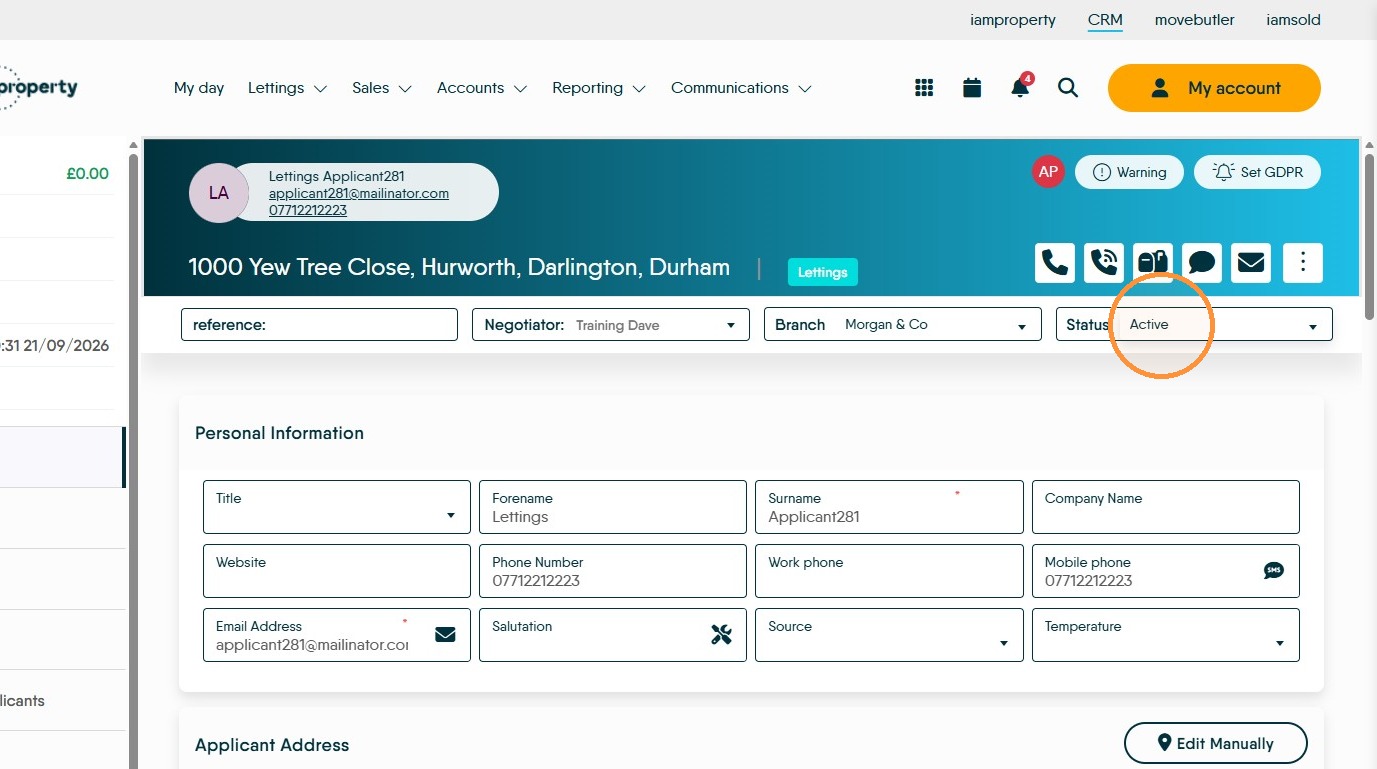
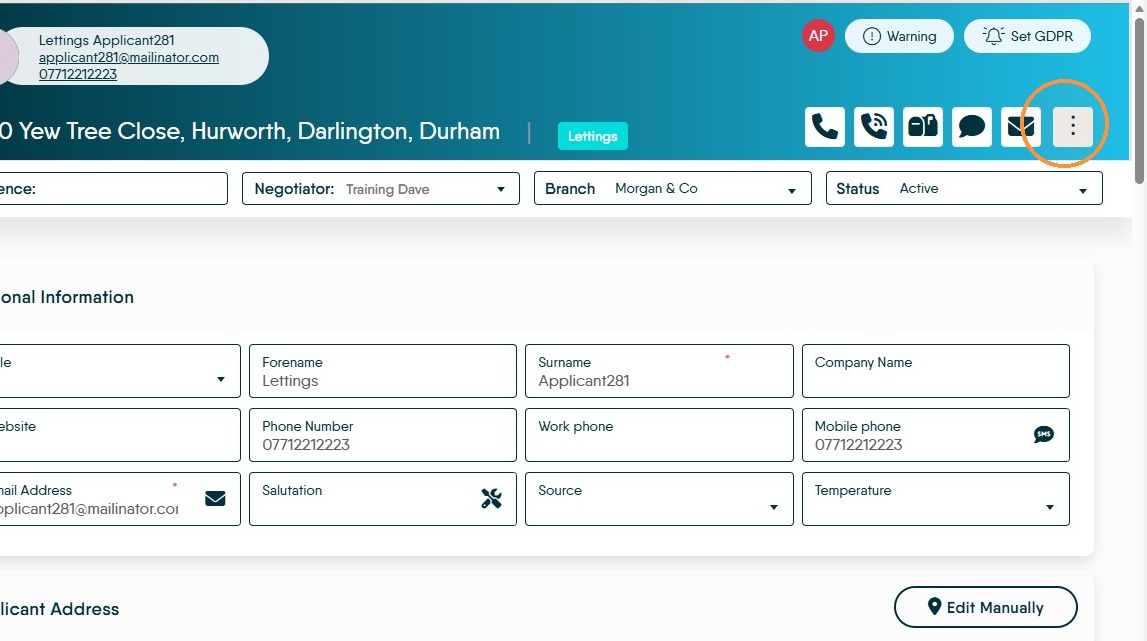
2. Once you are in the Applicant Record. Update the "Status" field, select the (default) "Active" option, or use one that your company has added themselves. N.B. at this point you should not be selecting InActive or Archived.
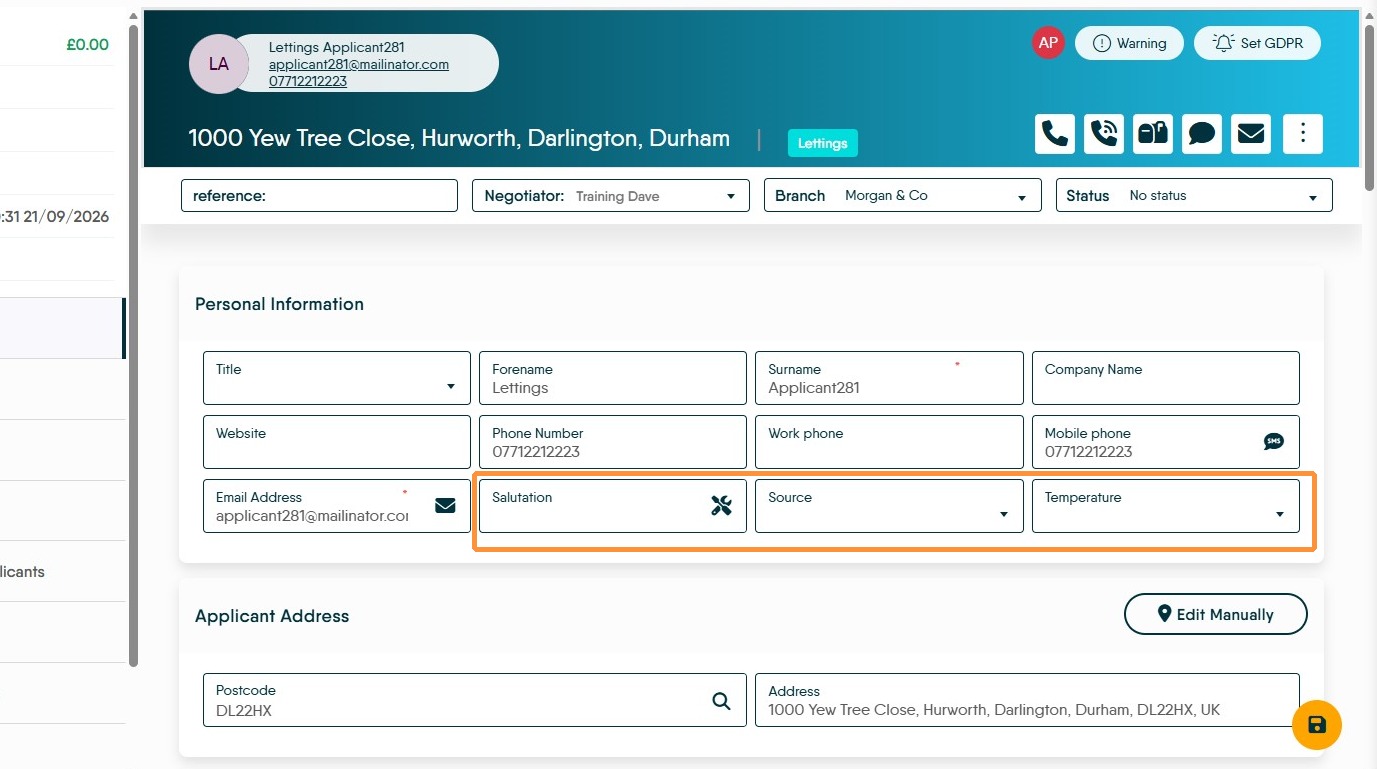
In the Personal Information field you can add any additional information you might want to add.
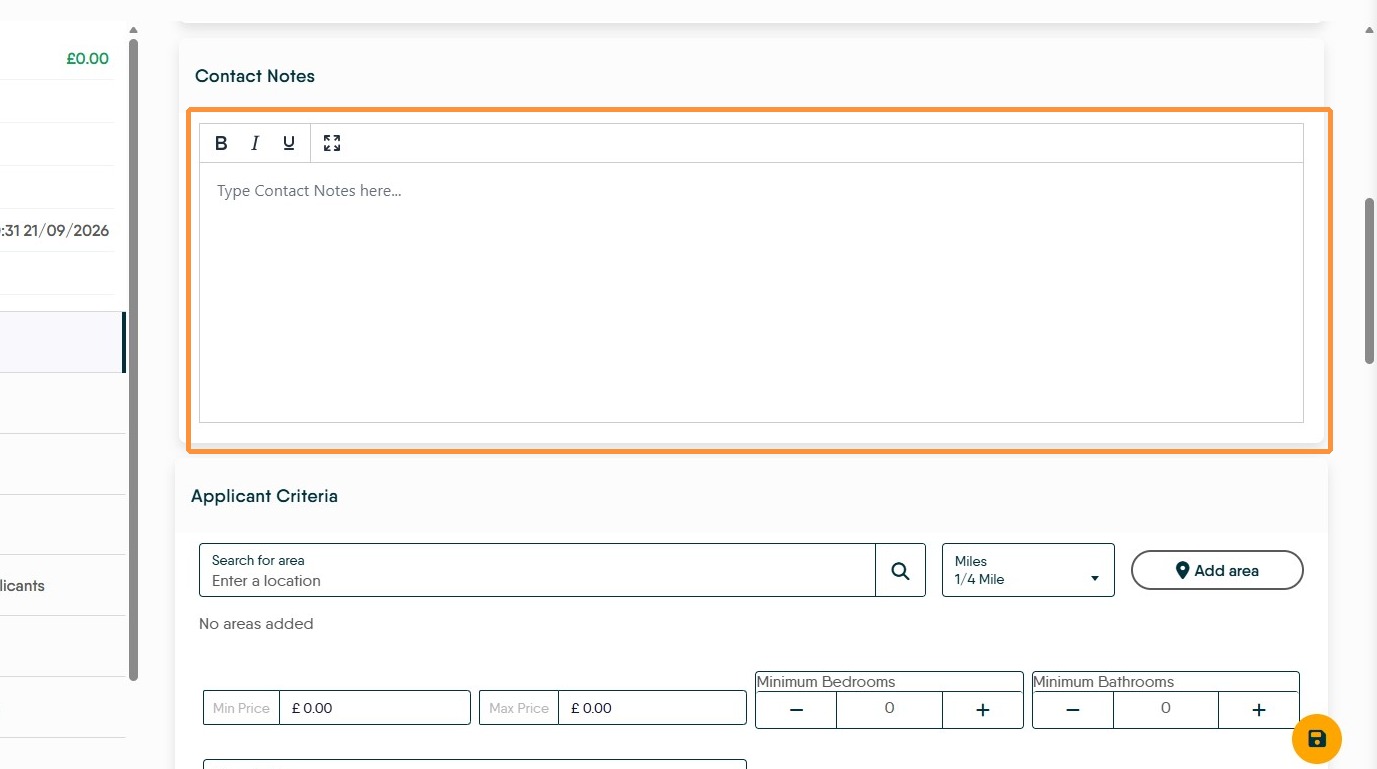
3. Add any 'Contact Notes' you would like to add, for example that the applicant works shifts and is only available after a certain time.
Set ApplicantCriteria
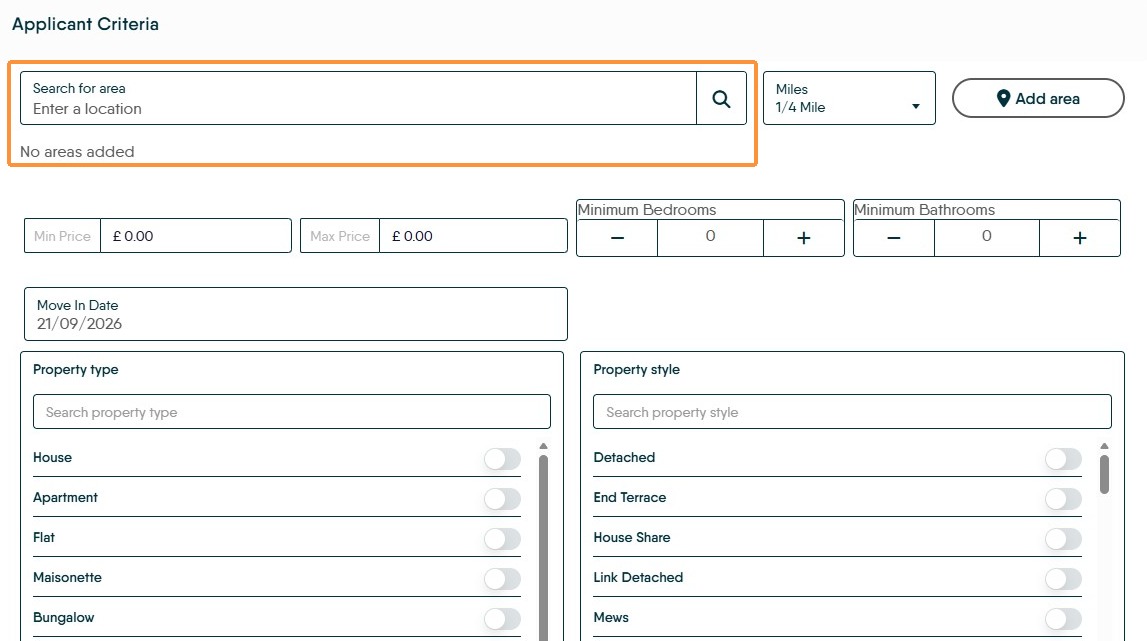
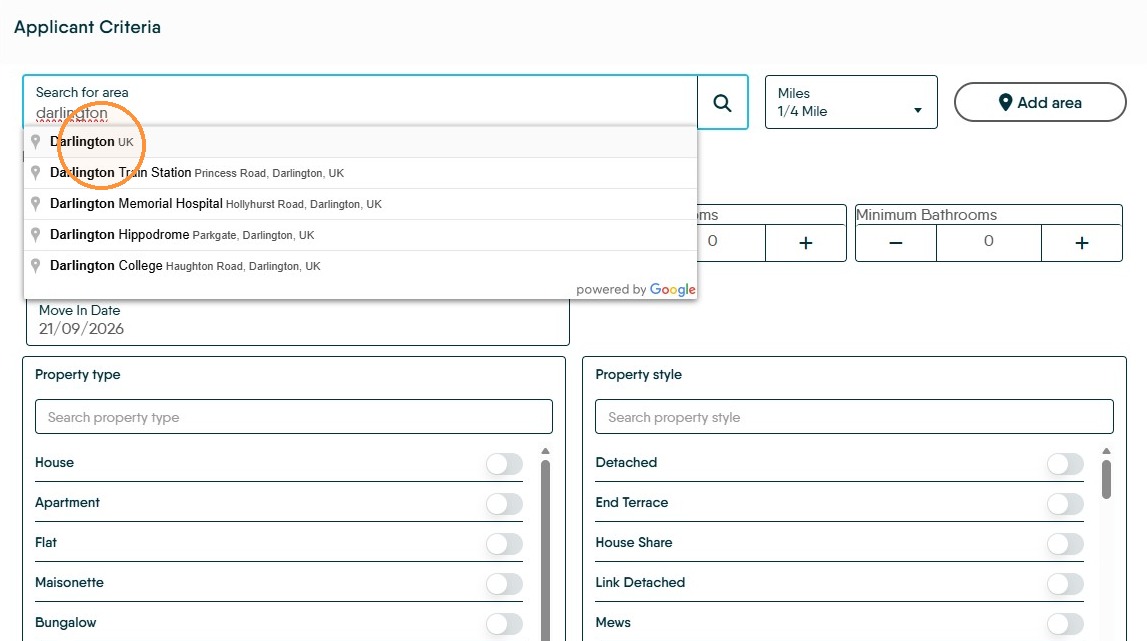
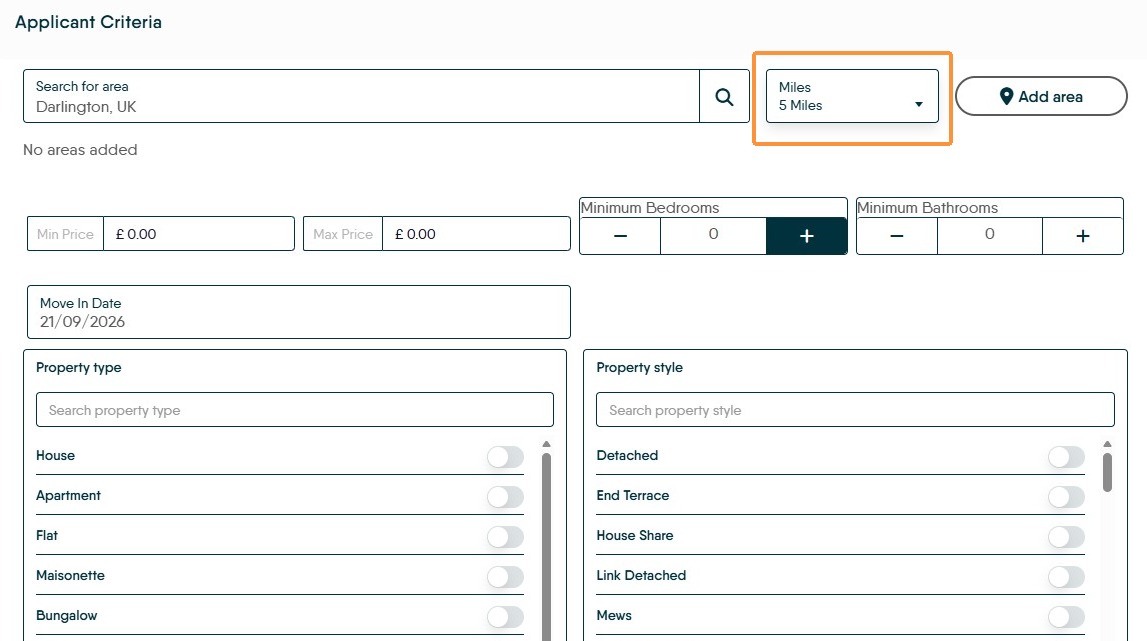
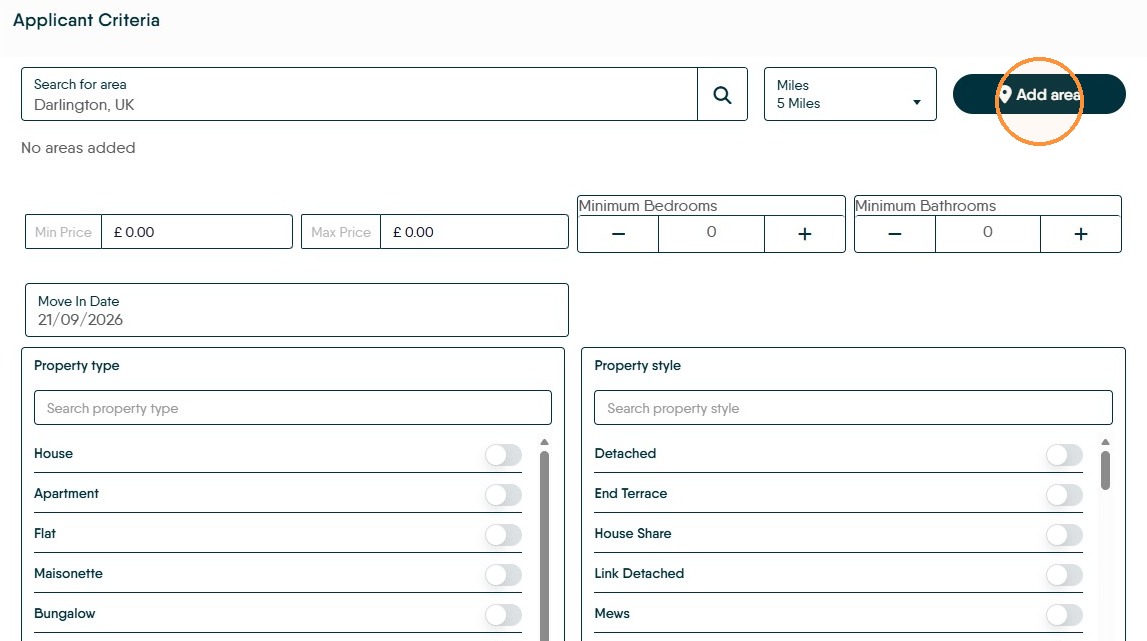
4. Click the Search for area field. Type the search area (Street, Postcode Town etc) e.g. "Darlington" Select the Miles files to select the search radius e.g. "5 Miles" option.
Click "Add area" to save the area choice. The selected areas , there can be more than one selected, will show under the 'Search for area' field.
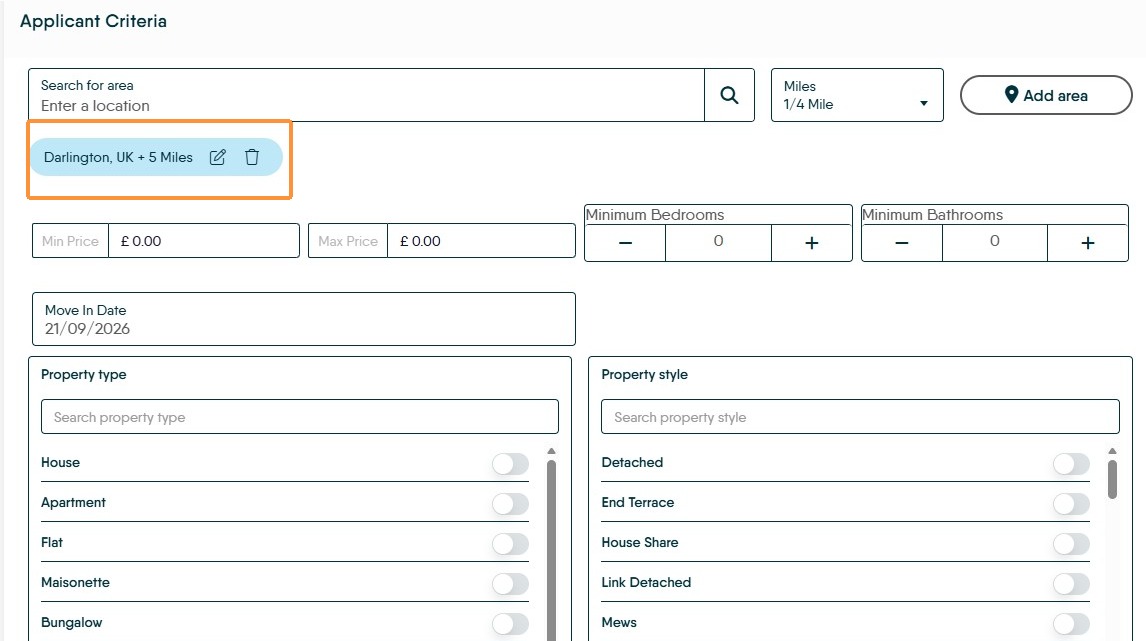
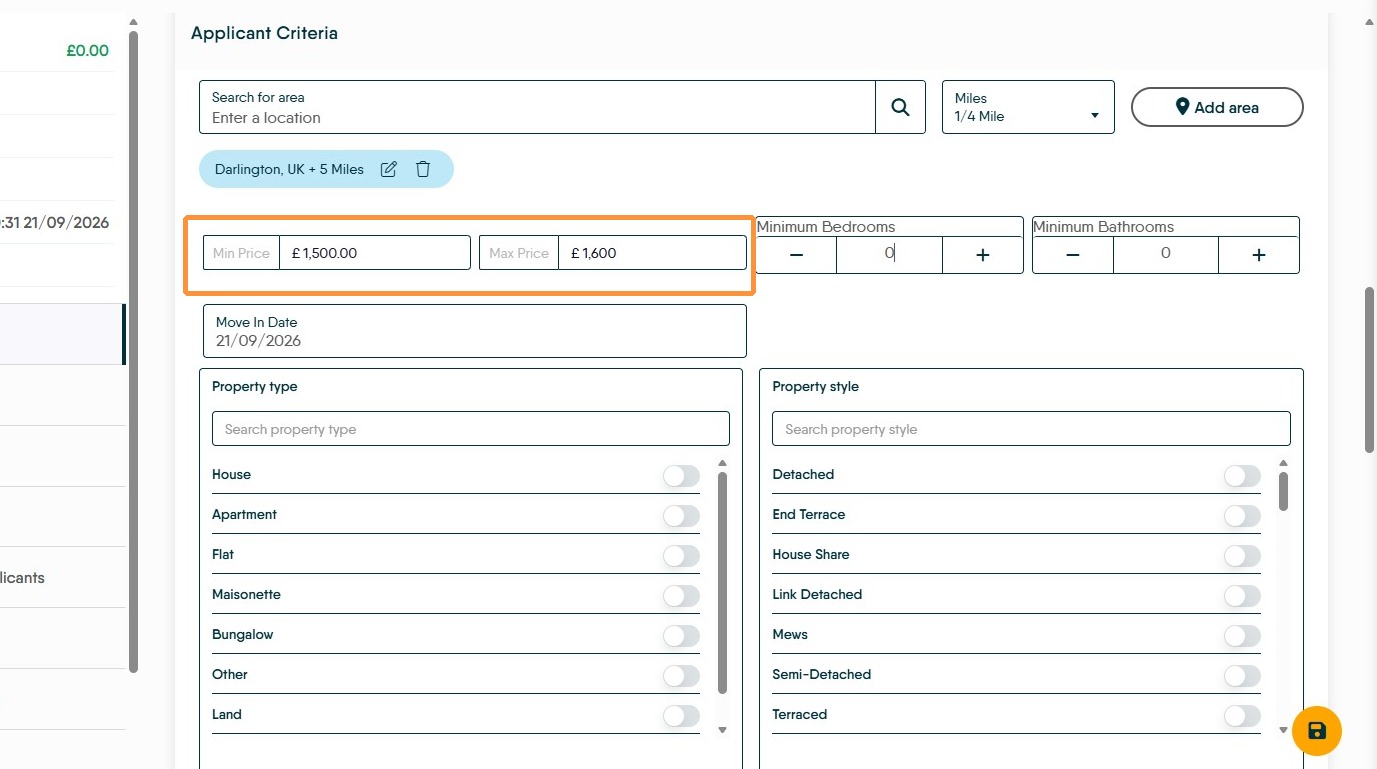
5. Add the Minimum and Maximum prices the applicant is looking for. It is important that a value is added to these boxes, no applicant has a £0 budget!
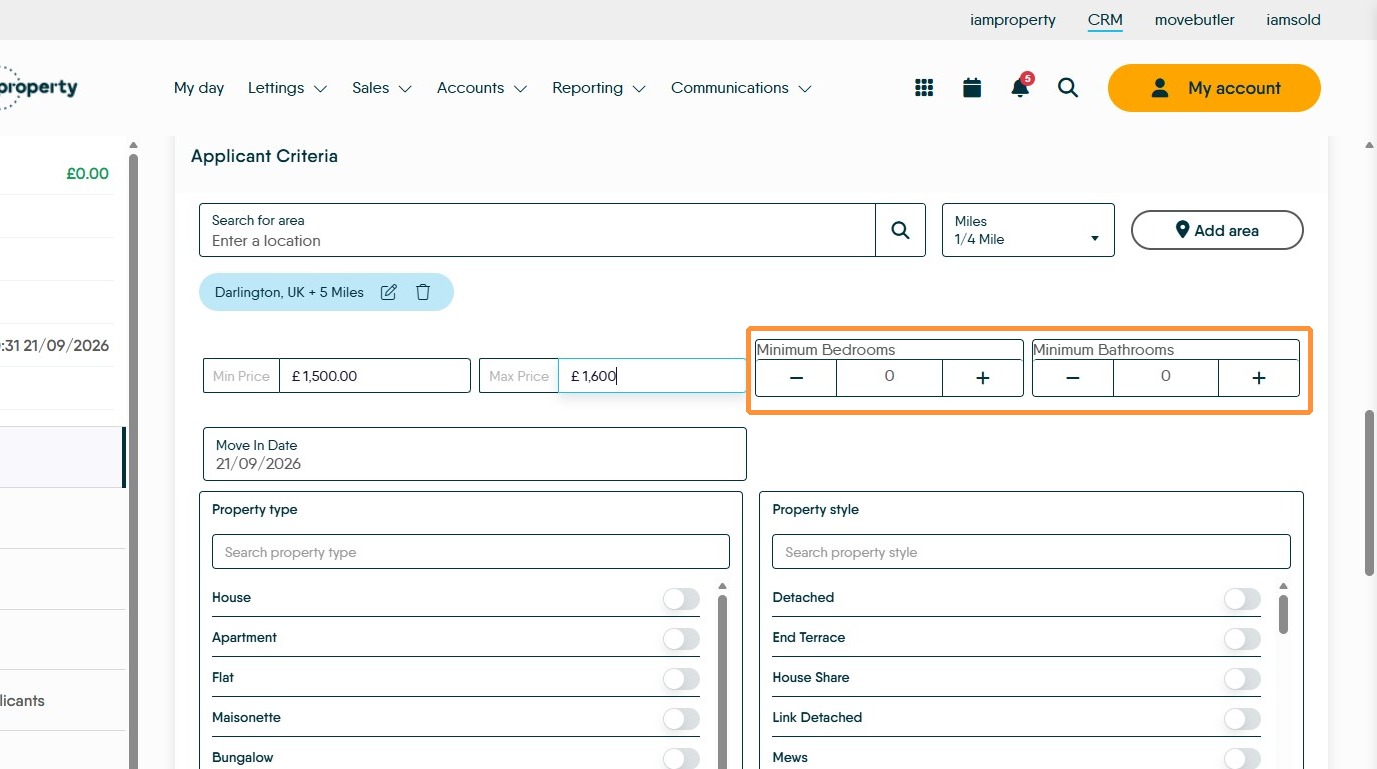
6. Set the "Minimum Bedrooms" and "Minimum Bathrooms" the applicant wants. The search will look at this number upwards, so it is possible to put 0, this would look for houses with 0 or more rooms.
7. If the Applicant has specific requirements for a property these can be recorded in the Property Type, Property Style fields. These will affect the initial property search results and return property types the applicant wants.
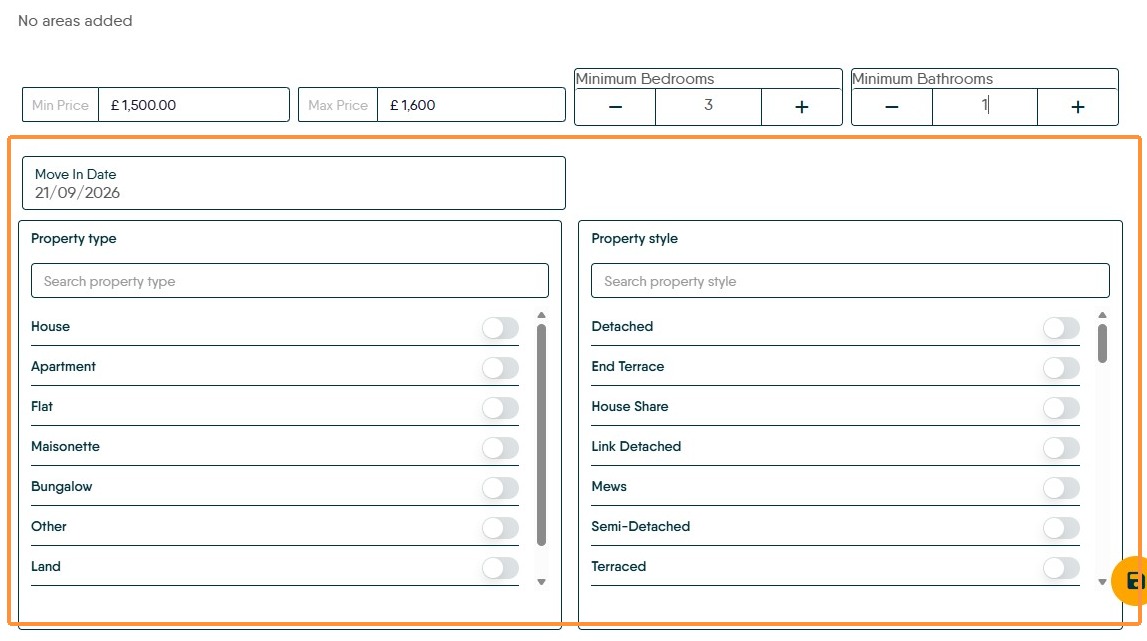
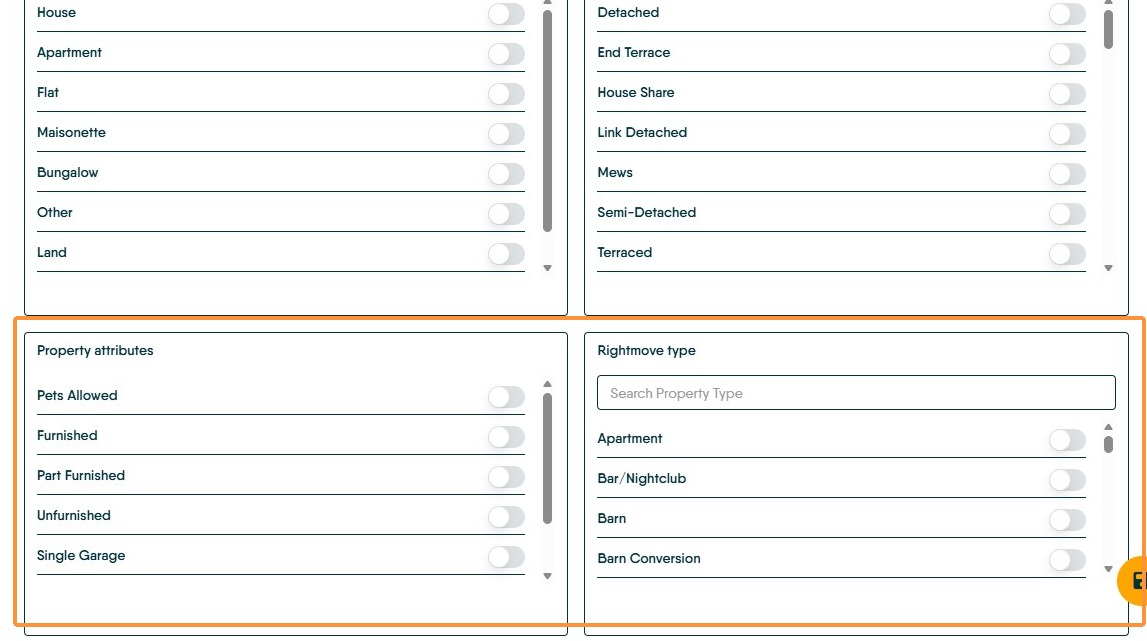
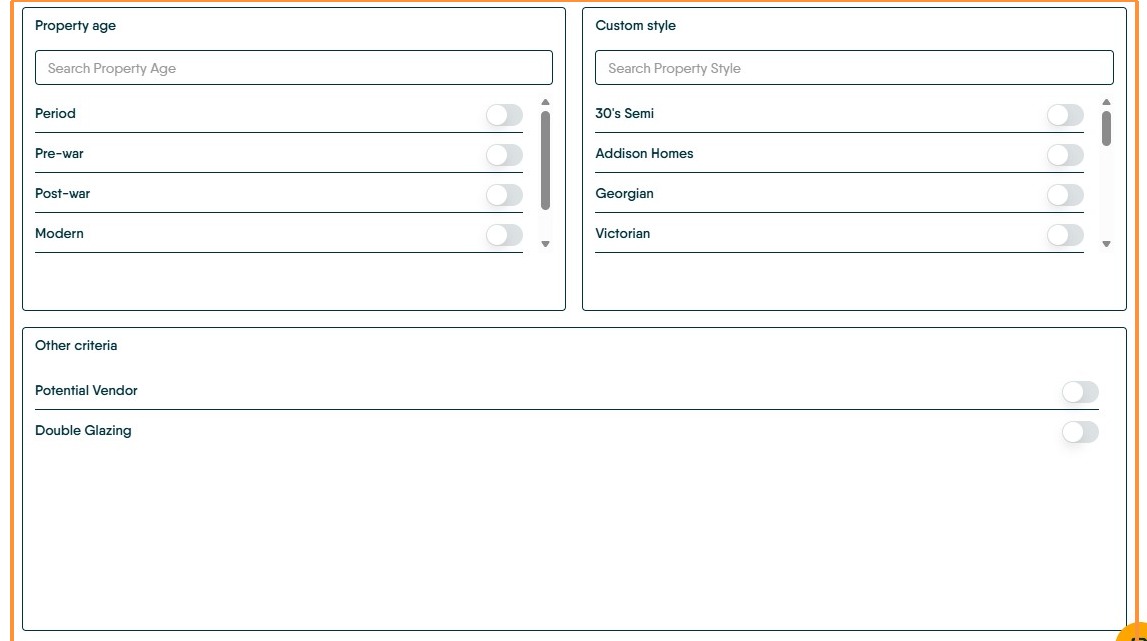
8. The "Property attributes", "Rightmove type", "Property age", "Custom style" and "Other criteria" fields are primarily for information and are set by yourselves. They only change the match if the option to use additional filters is used.
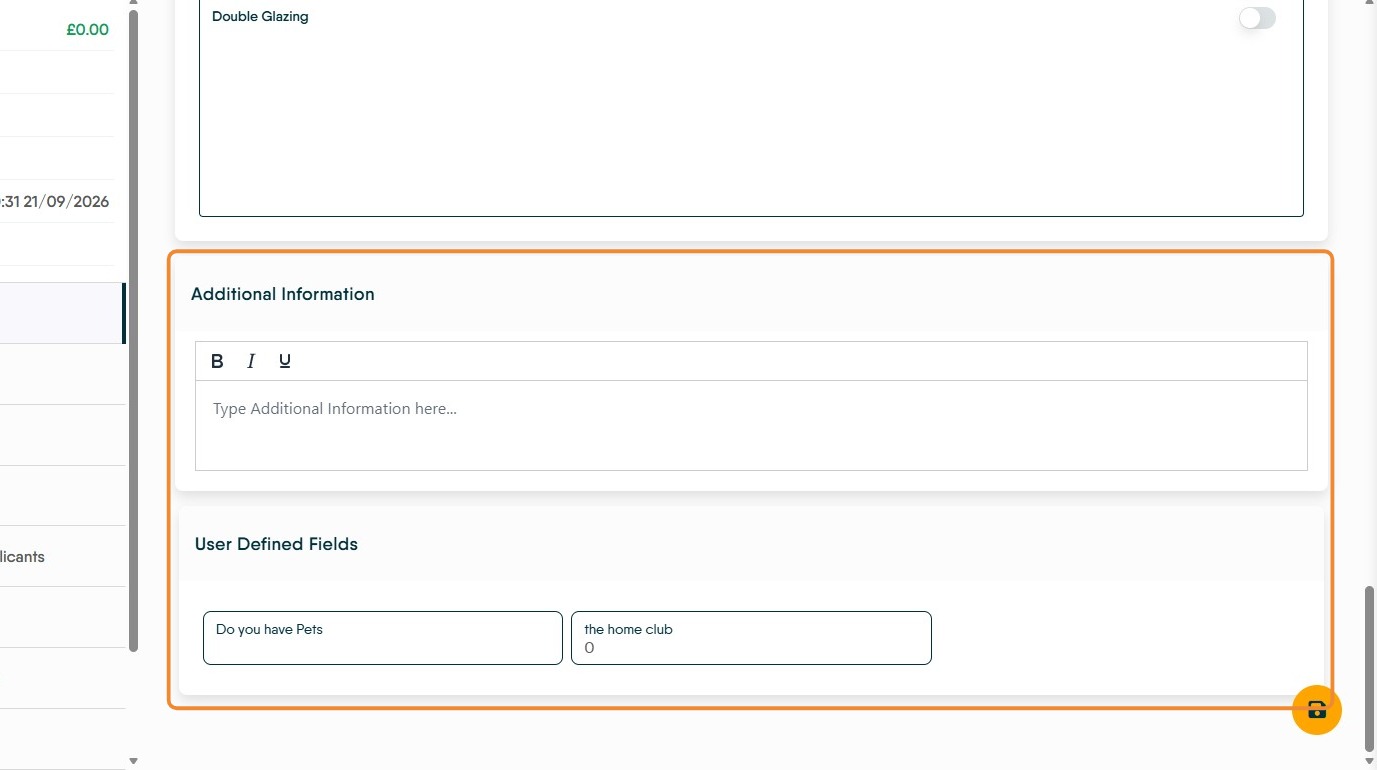
9. "Additional information" can be used for anything else you wish to capture.
The "User Defined Fields" are set by yourselves and are information required by yourselves.
Quick Applicant Match
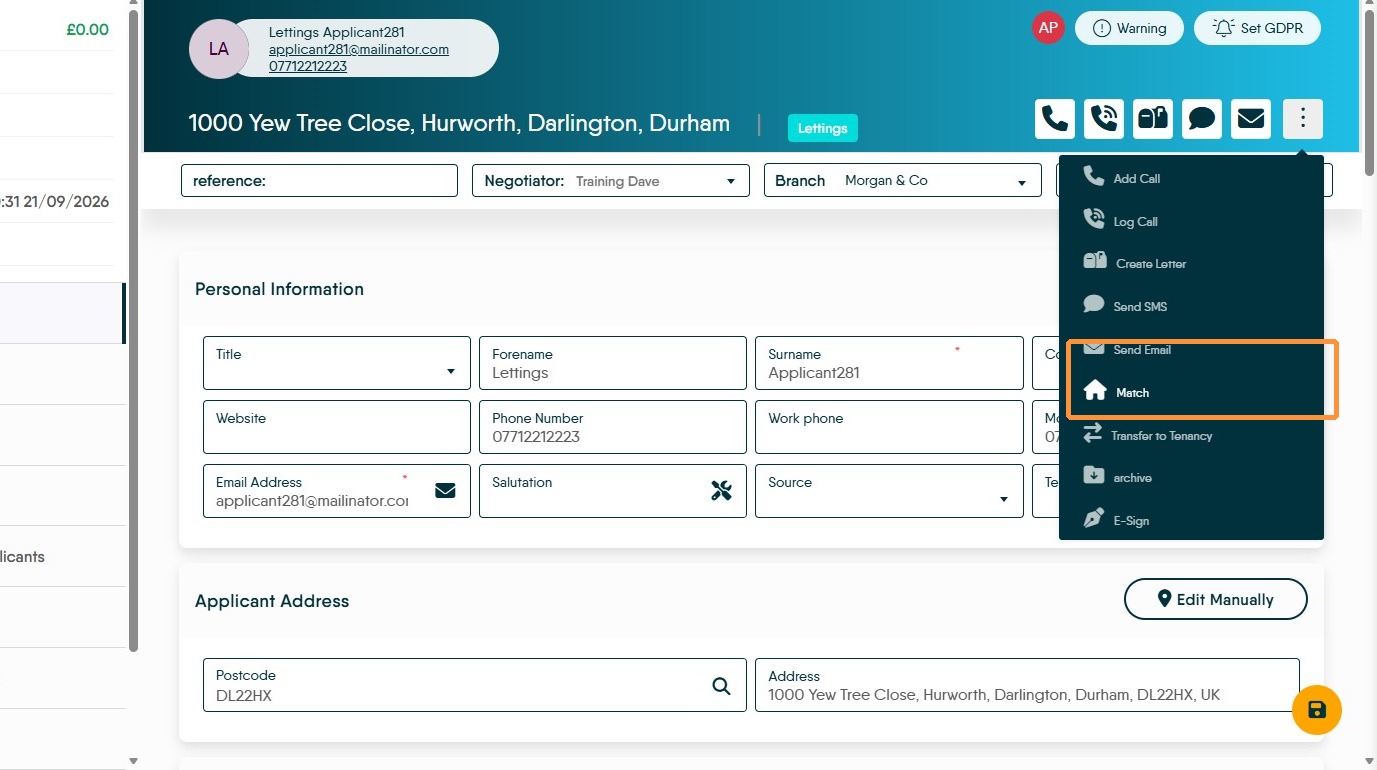
10. To match the applicant to your database click here.
11. Click the "Match" option to open the match screen. This will match your new applicant against your current available stock.