This guide walks you through the process of using the Portal Enquiries feature in the Activity List. In this guide we look creating a new sales applicant record within the CRM Lettings and Sales dashboards. Following these steps will help you to efficiently manage your portal enquiries and streamline your lead tracking. In this guide we show a Sales enquiry, however the process is the same for Lettings.
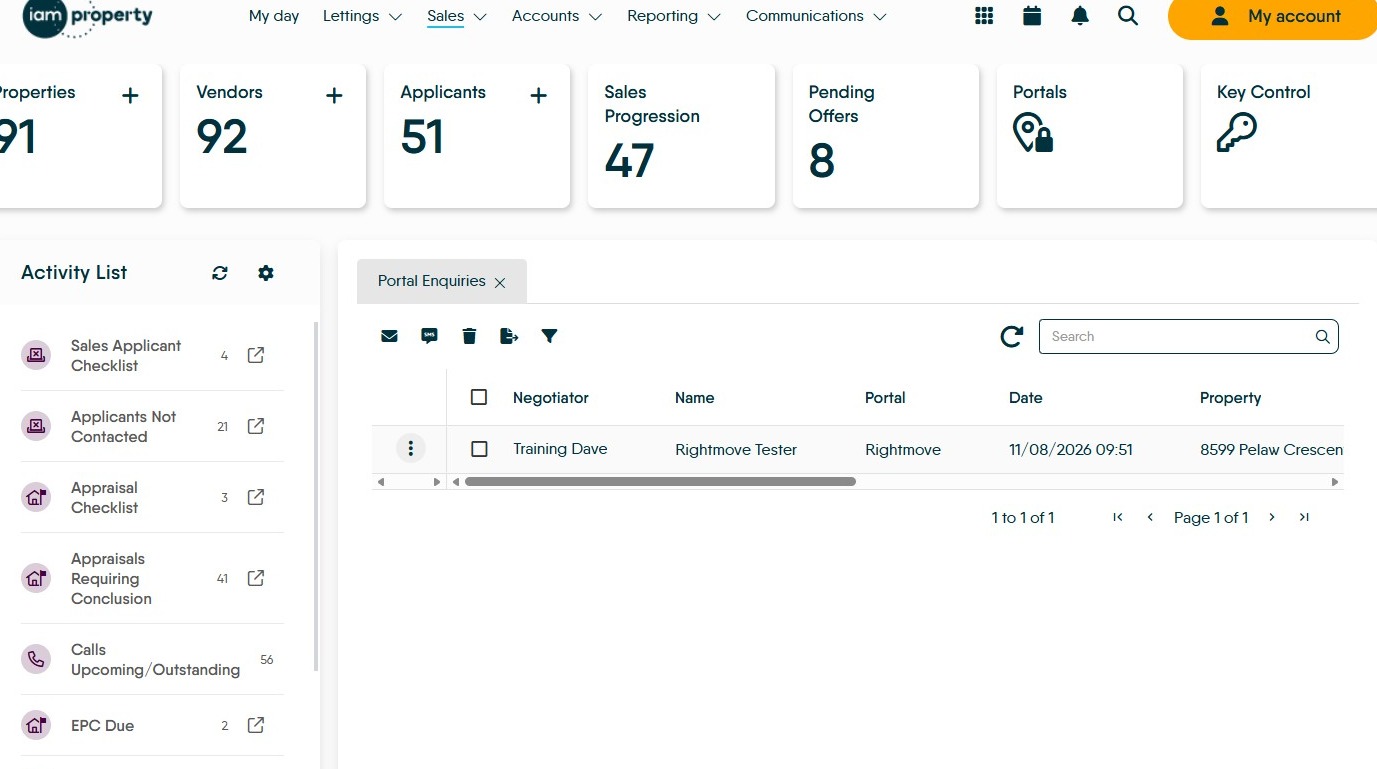
1. Navigate to either the Sales or Lettings Dashboard. Portal Enquiries will show on the 'Activity List'.
If there are no Portal Enquiries showing in the Activity List, there are none available to show in the timeframe you have set in the config or any at all.
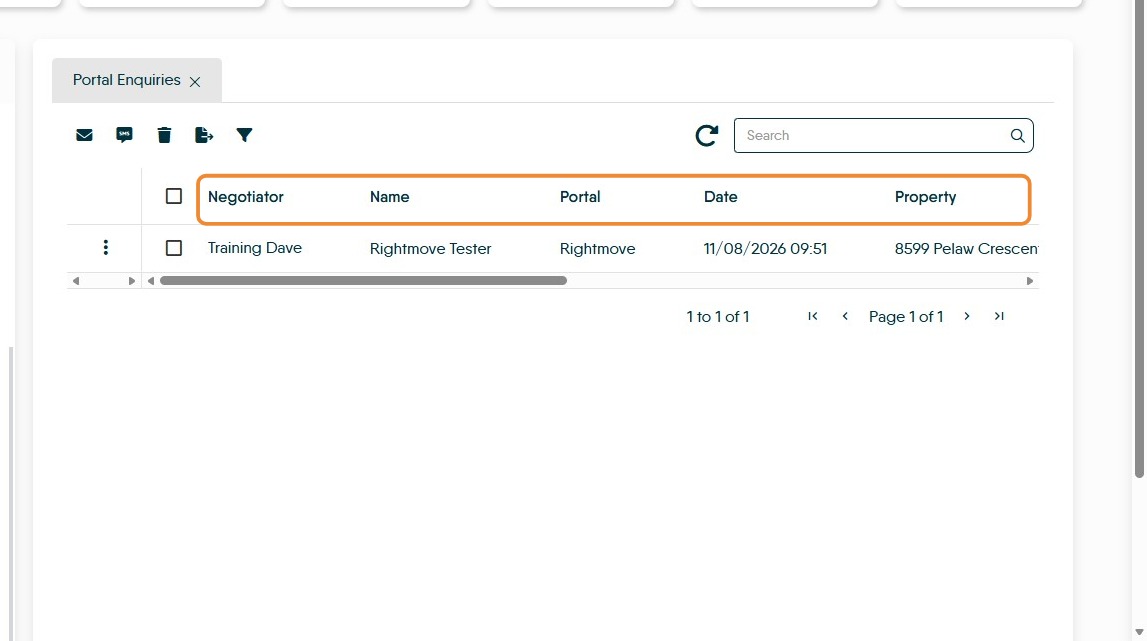
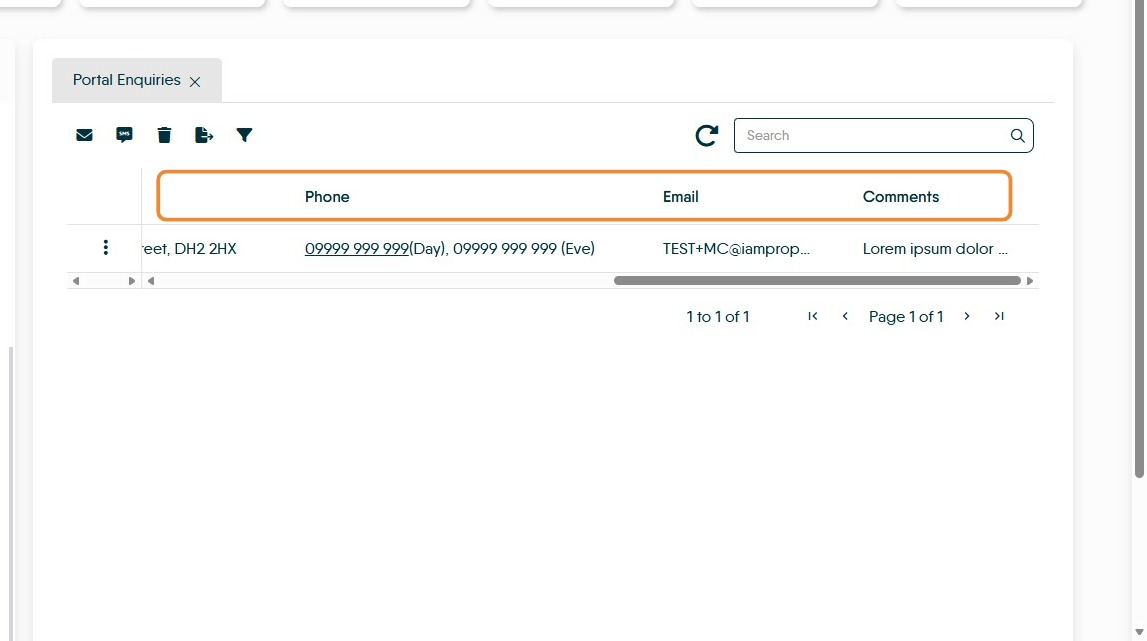
2. The information that is shown on a Portal Enquiry screen is;
- Negotiator; the person who is shown as the Negotiator on the Property Record
- Name; name of the enquirer
- Portals; the portal the enquiry is from
- Date; date and time of the enquiry
- Property; address of the property enquired about.
- Phone; contact number of enquirer.
- Email; email address of enquirer
- Comments; the comments that the enquirer has made on their enquiry.
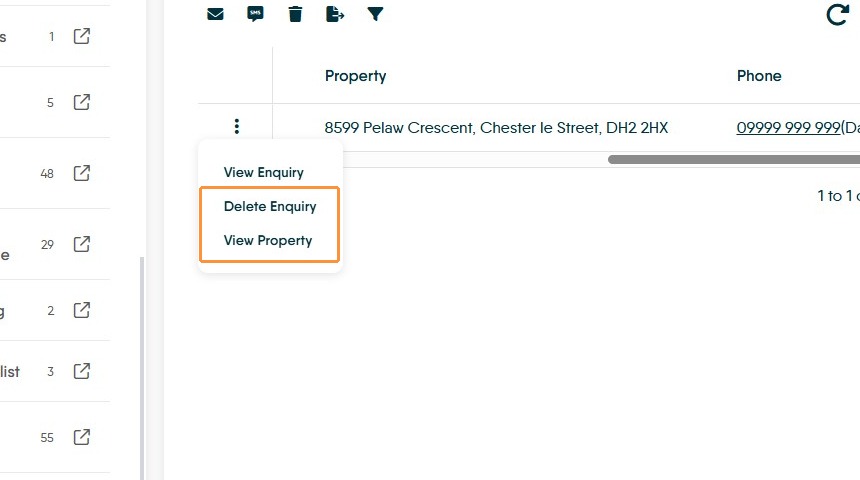
3. Behind the 3-dot menu are the following options;
- View Enquiry
- Delete Enquiry
- View Property
We will look at each of these options in the following screens.
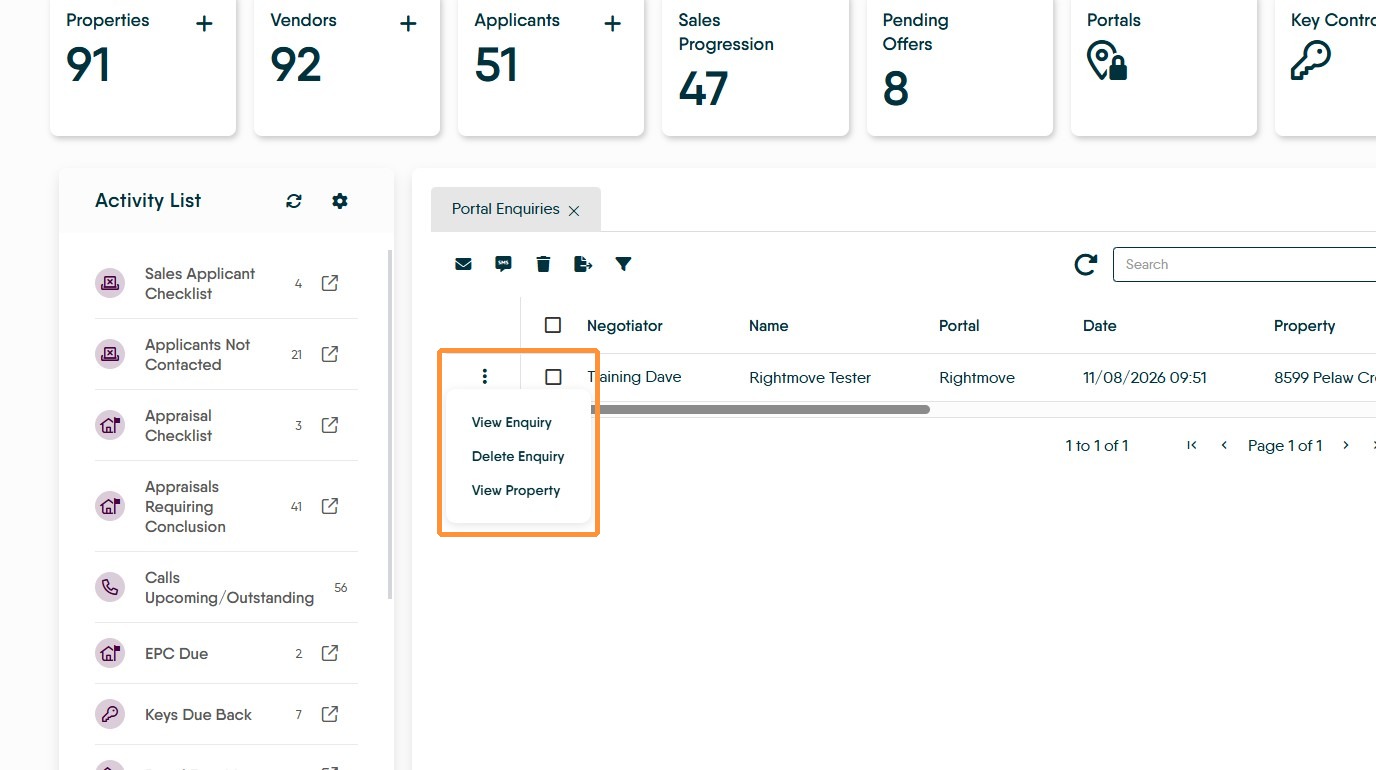
View Enquiry
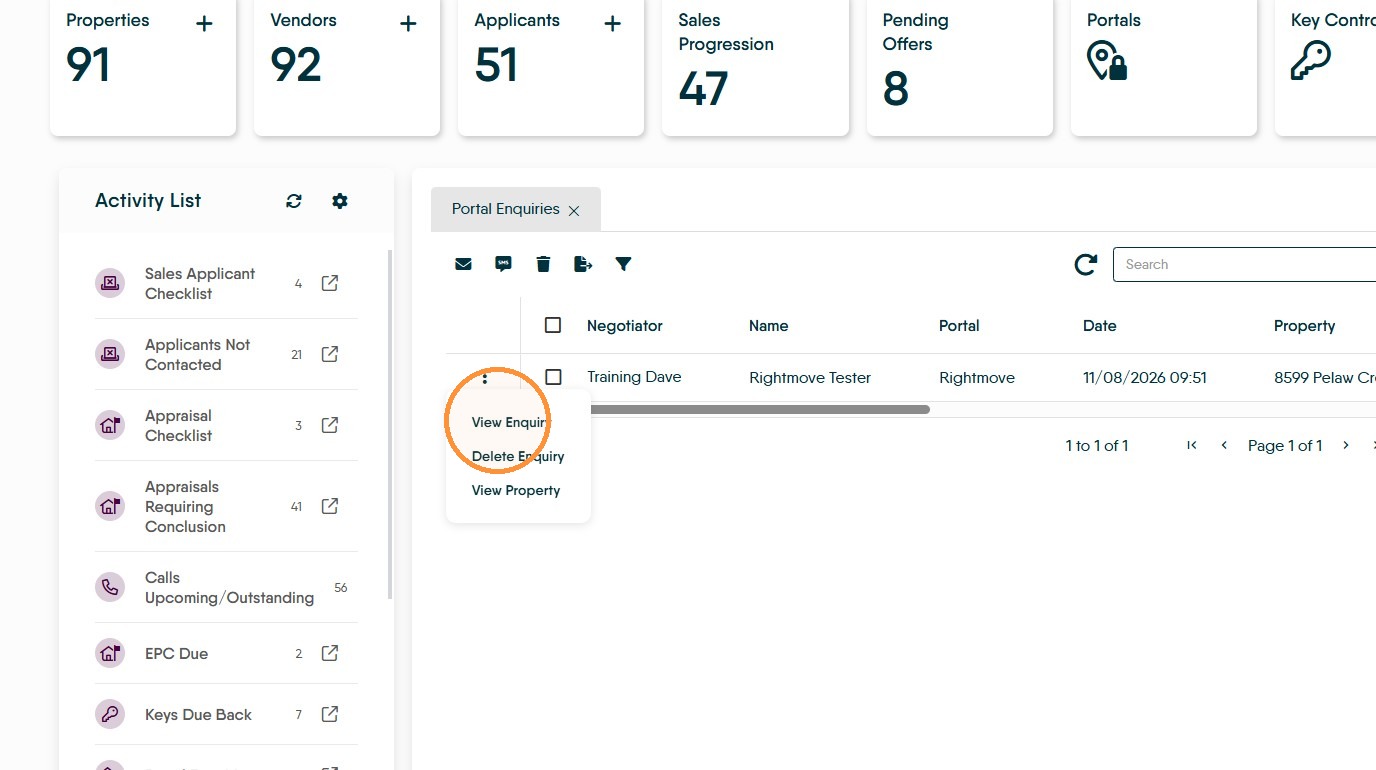
4. Click "View Enquiry"
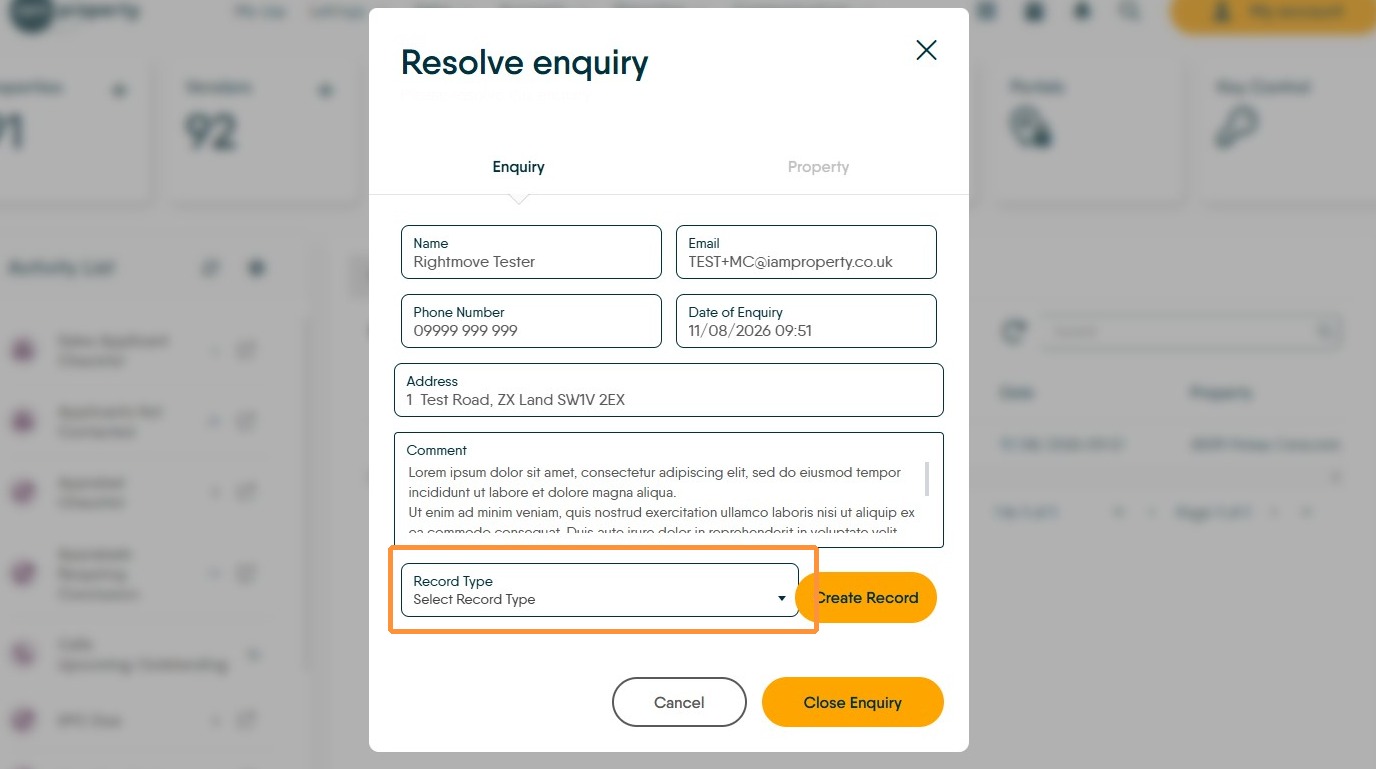
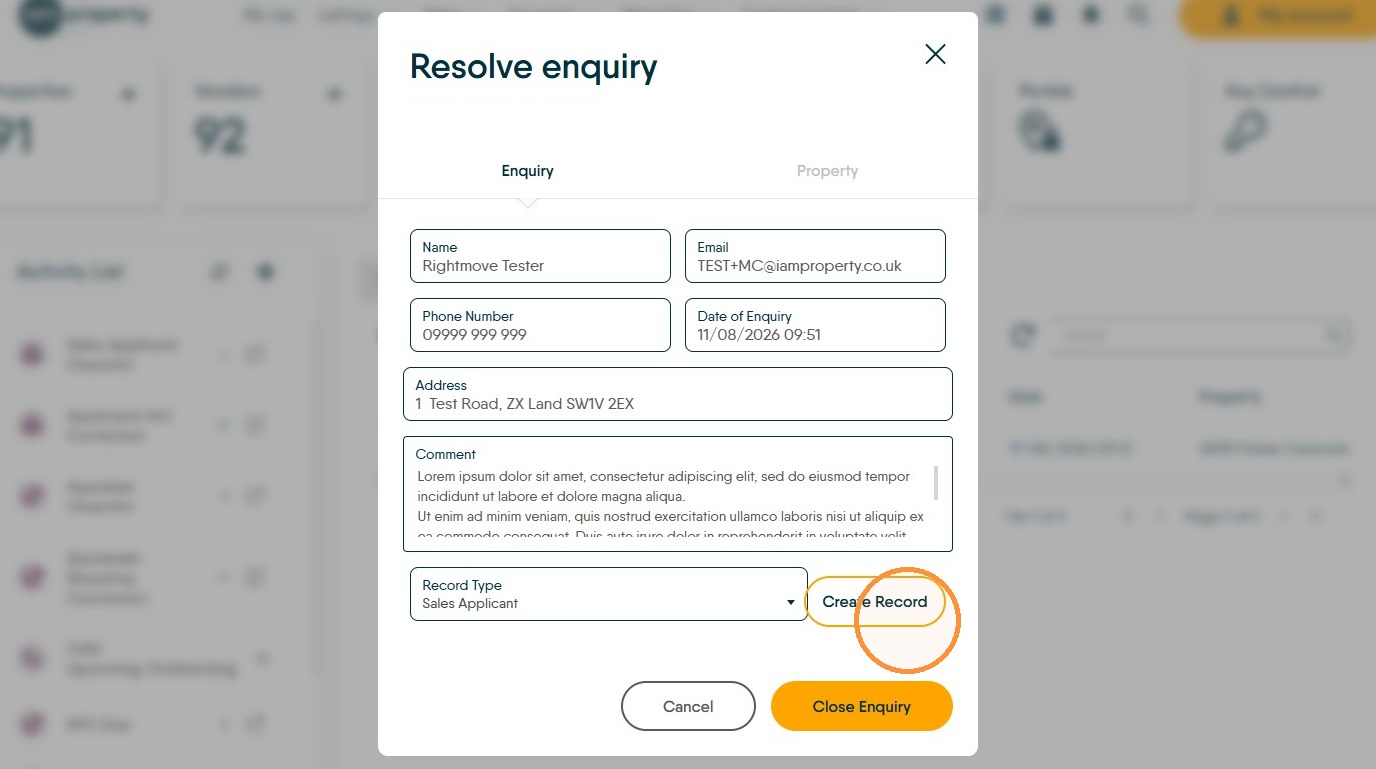
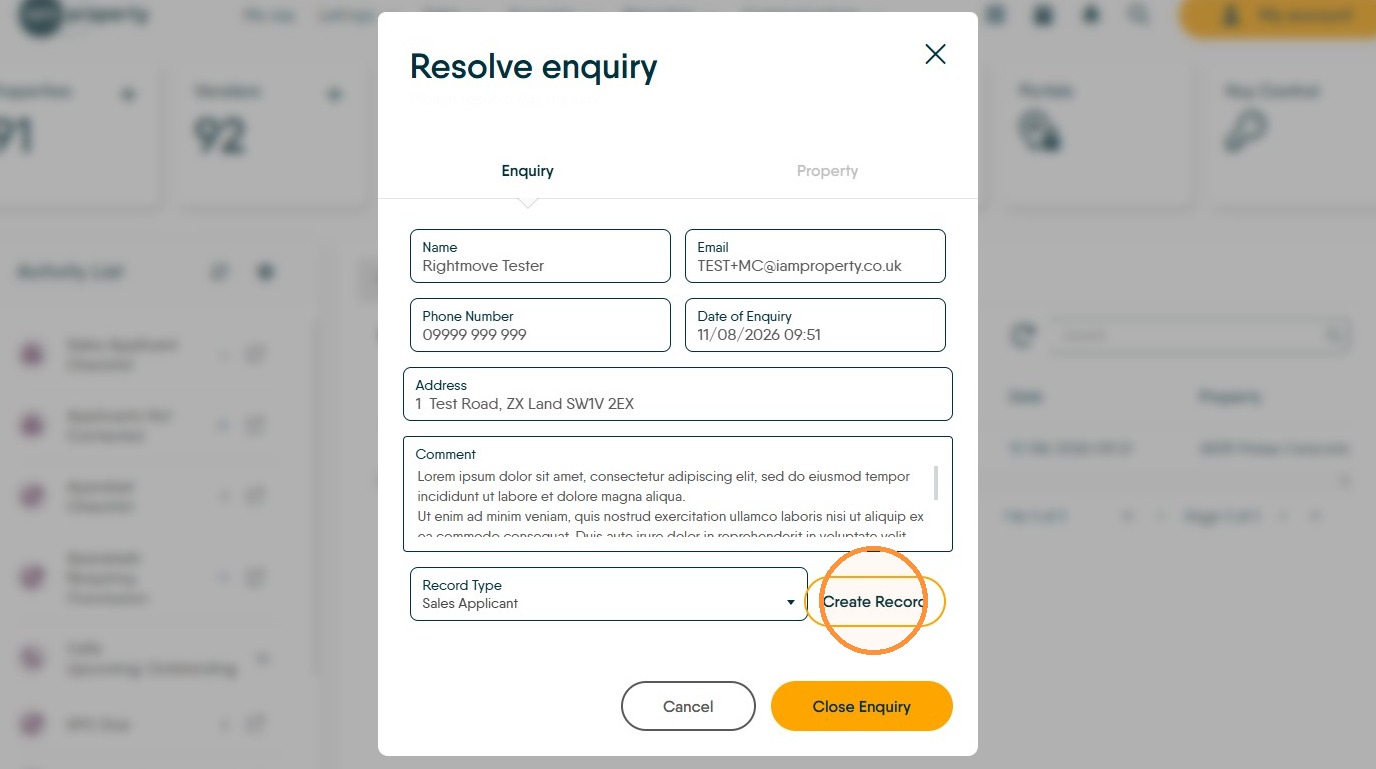
5. This will show you the full details of the enquiry.
Clicking the Record Type dropdown will show the options to Add (Sale/Lettings) Applicant and Add Landlord/Vendor.
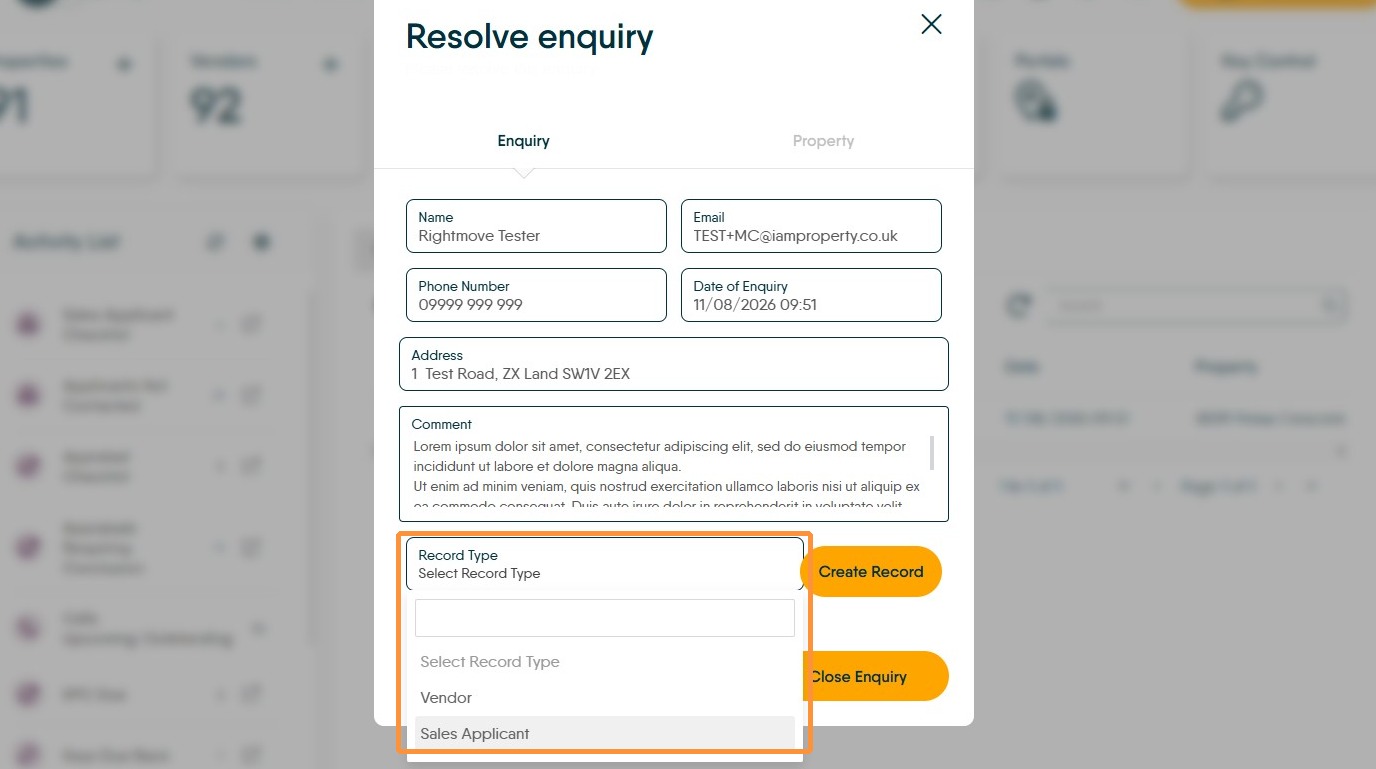
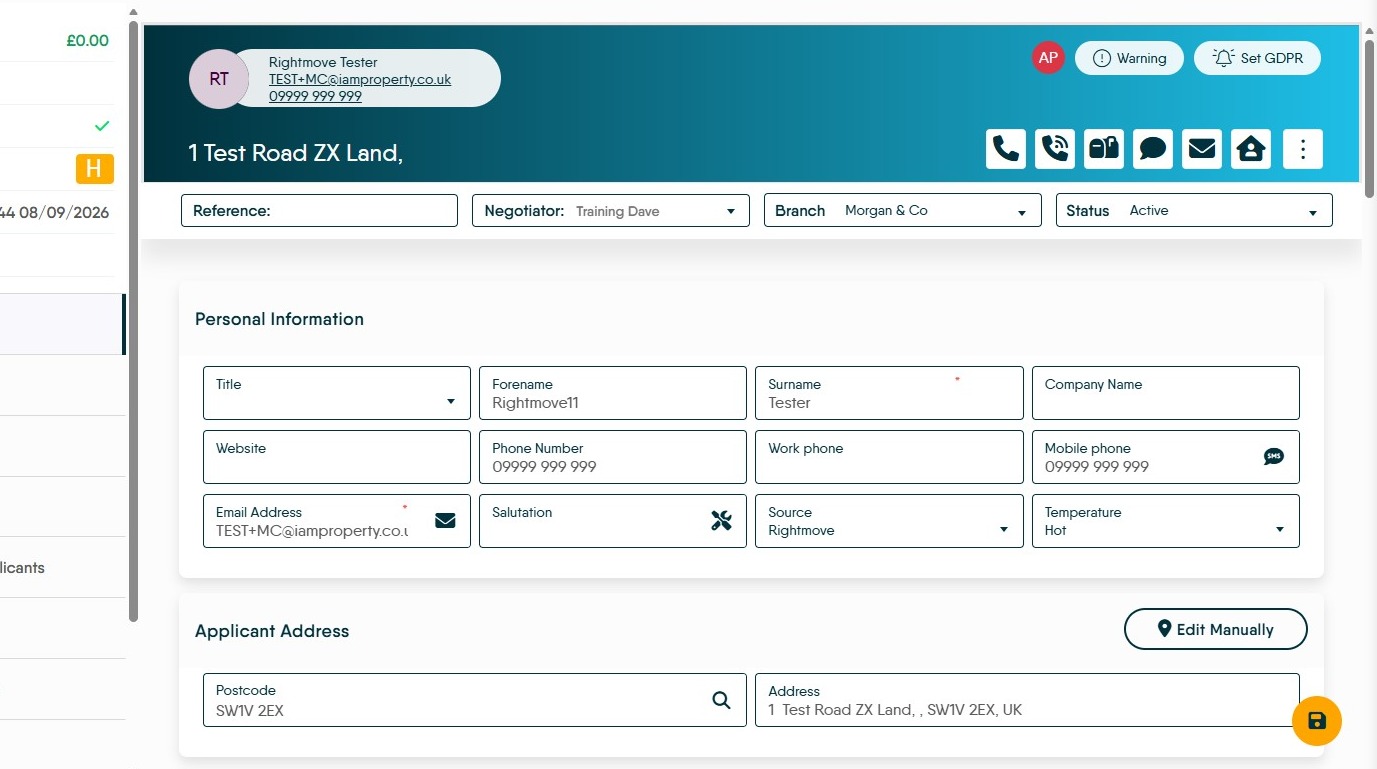
6. Click "Sales Applicant" and then "Create Record" to open a partially completed Sales Applicant Record. If you are speaking to the applicant, continue and complete the record.
Clicking the Vendor option in 'Record Type' will create a Vendor record.
The same will happen if you are in a Lettings Portal Enquiry although creating a Lettings Applicant or Landlord.
Applicant Record
7. Click "Sales Applicant" then 'Create Record' to create the applicant record. Click 'Save' to save the record.
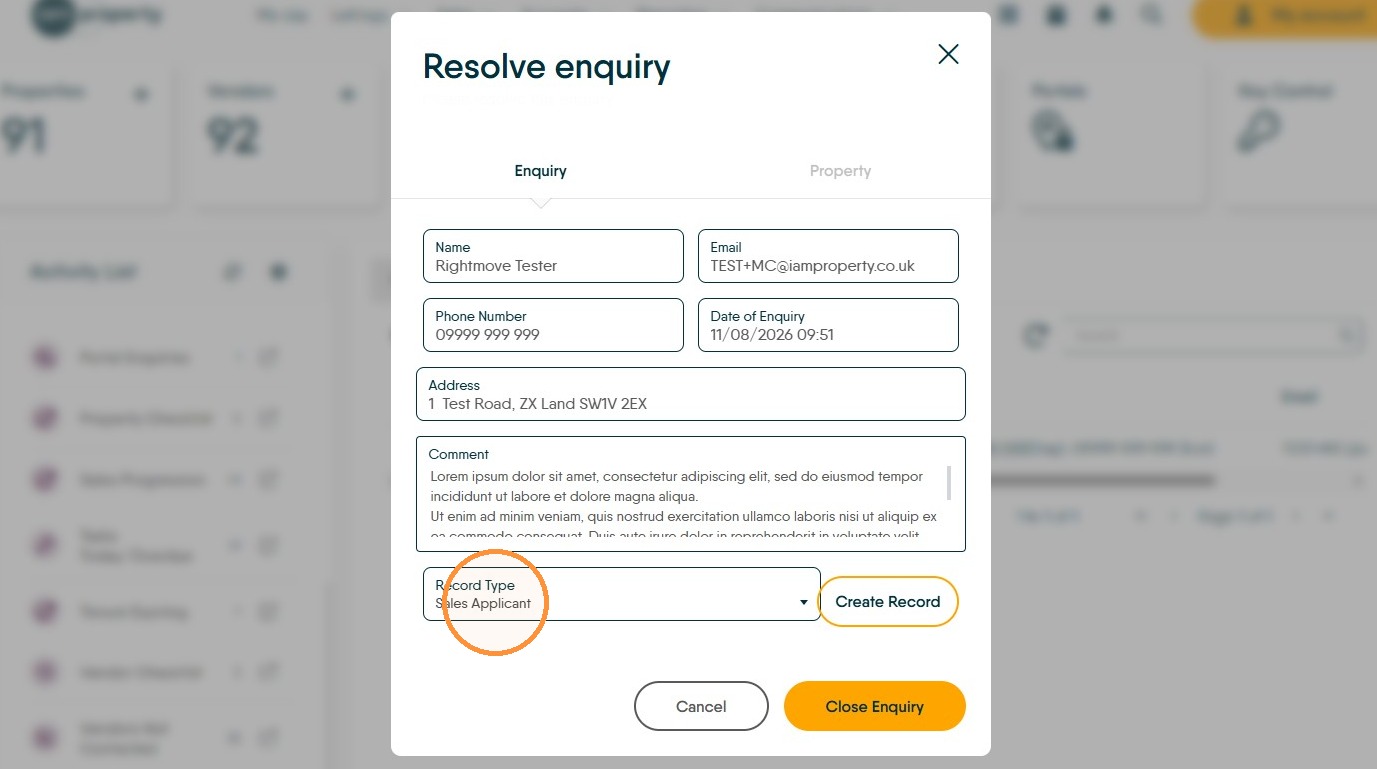
Vendor Record
8. Click "Vendor" then 'Create Record' to create the Vendor (or Landlord) record
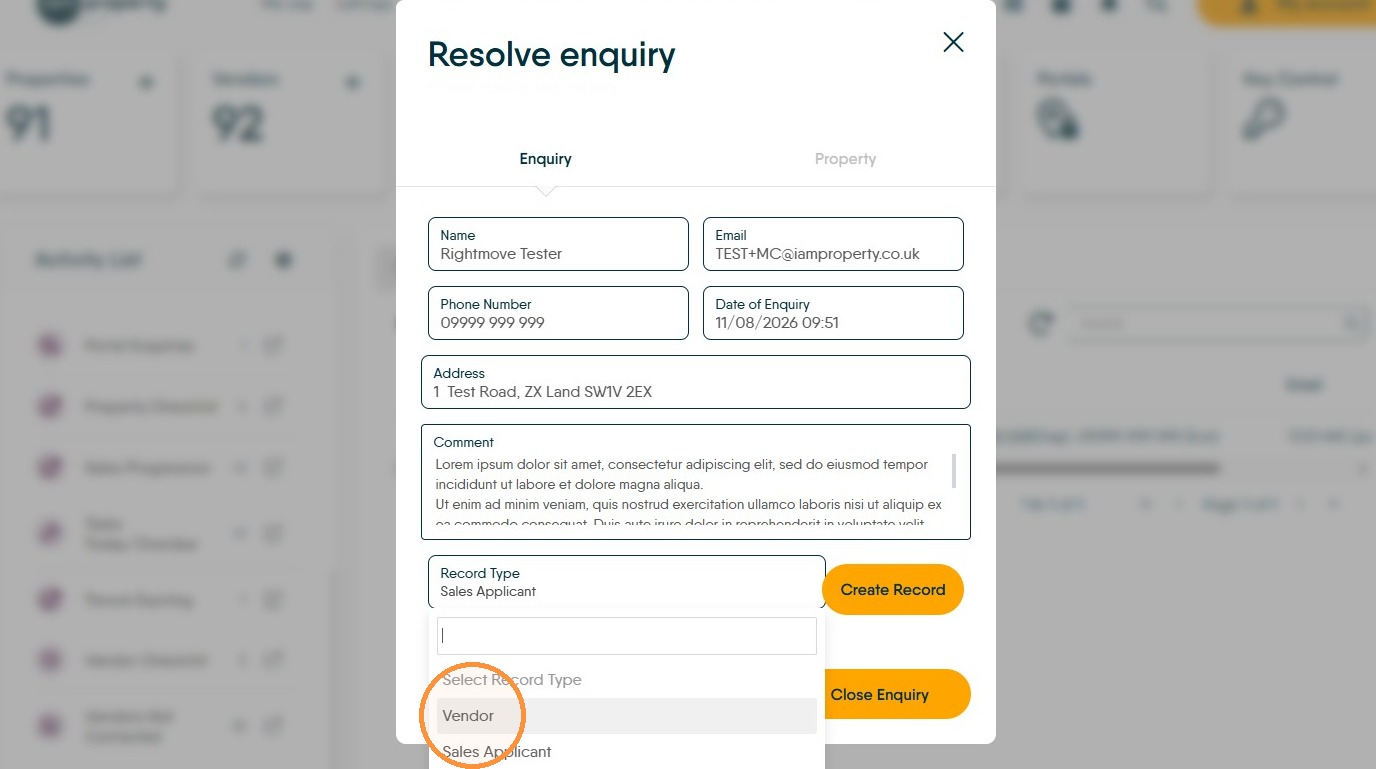
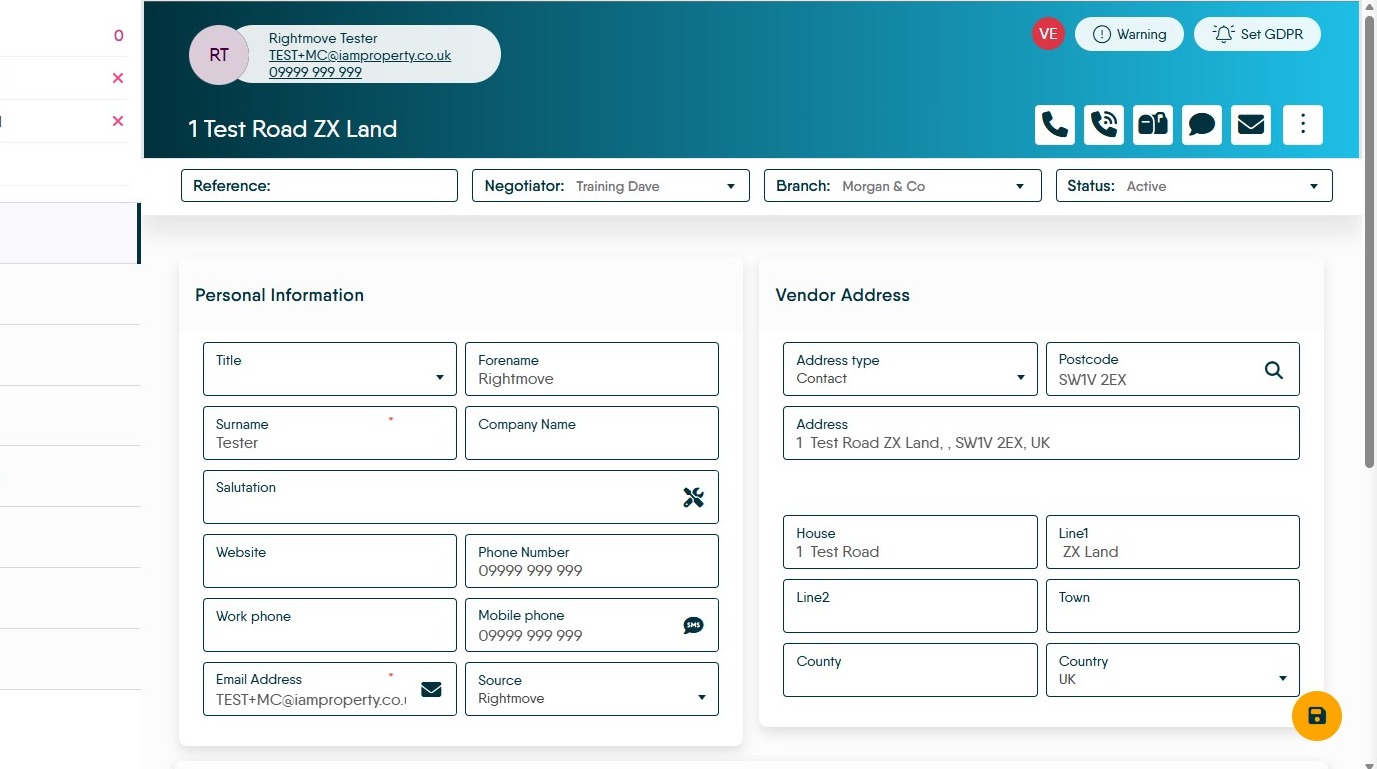
9. Click "Sales Applicant" and then "Create Record" to open a partially completed Sales Applicant Record.
Clicking the Vendor option in 'Record Type' will create a Vendor record.
The same will happen if you are in a Lettings Portal Enquiry although creating a Lettings Applicant or Landlord.
Property
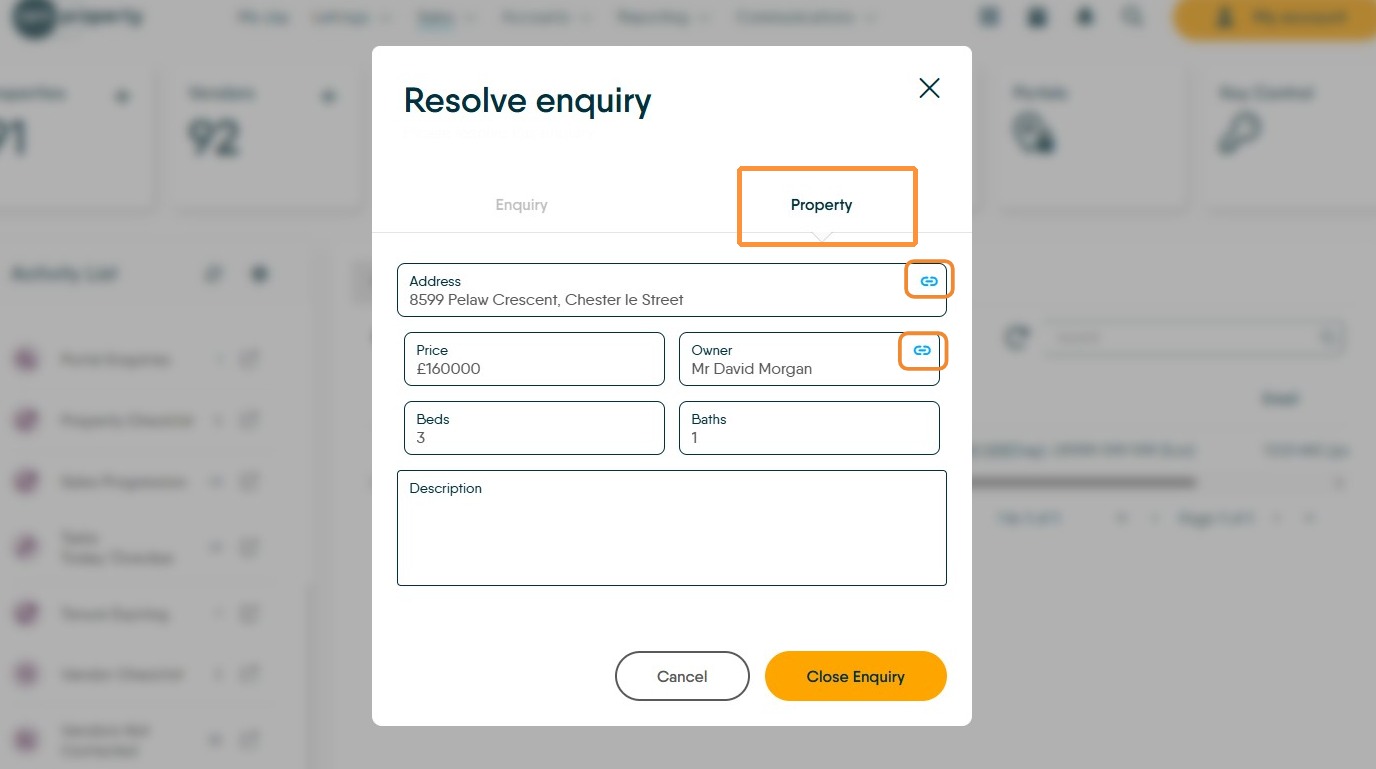
10. Clicking the "Property" tab will show the details of the property the enquiry is related to.
Clicking on the blue icons will take you to the related property and owner records.
Other Options
11. The other 2 options in the 3-dot menu are "Delete Enquiry" which will remove the enquiry from the 'Portals Enquiry' list and "View Property" which will open the property record.