Learn how to access your user management dashboard to review and modify account settings. This guide provides simple instructions for navigating to your user list and managing account status effectively.
Alert: Alert! In this guide we are assuming that we are removing Employees, however the process is very similar for other records in this list.
1. Navigate to https://crm.iamproperty.com/MyDay
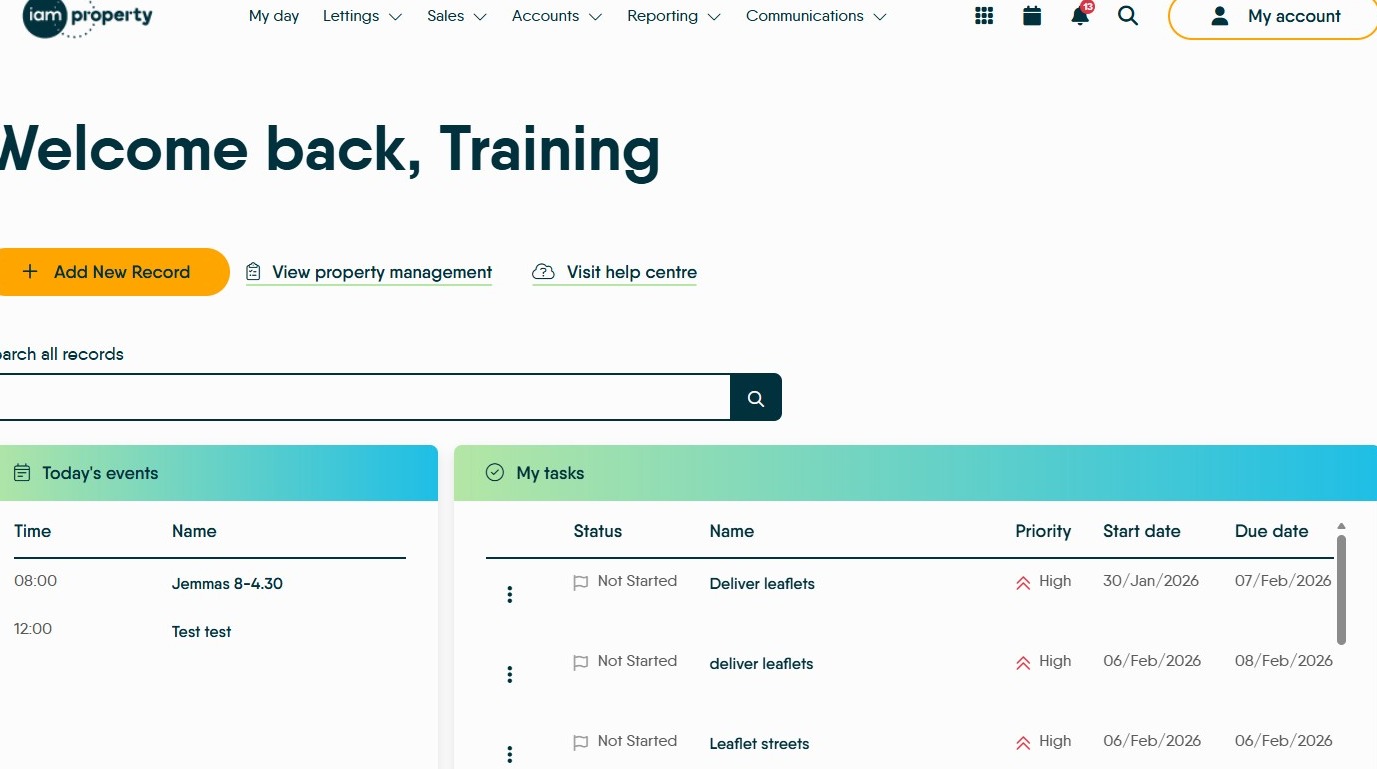
Account Navigation
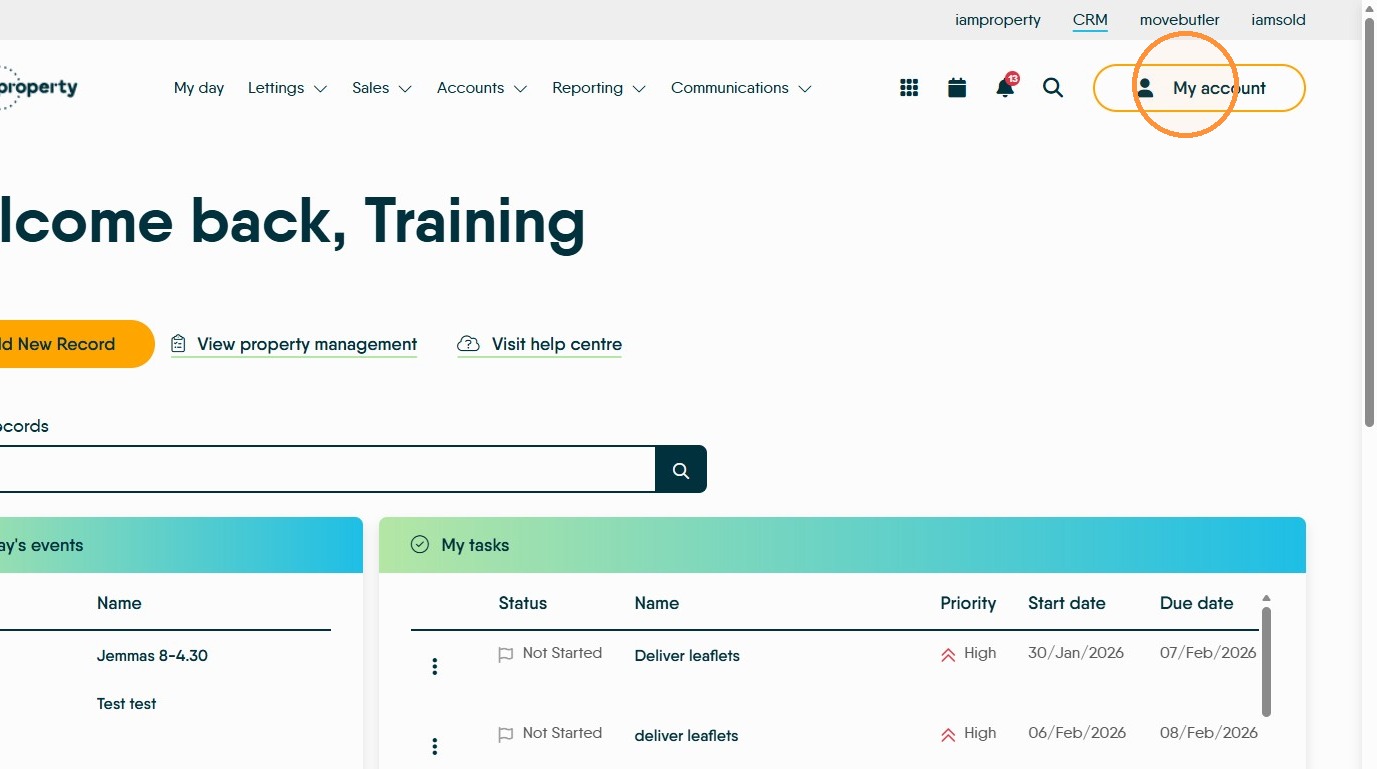
2. Click "My account"
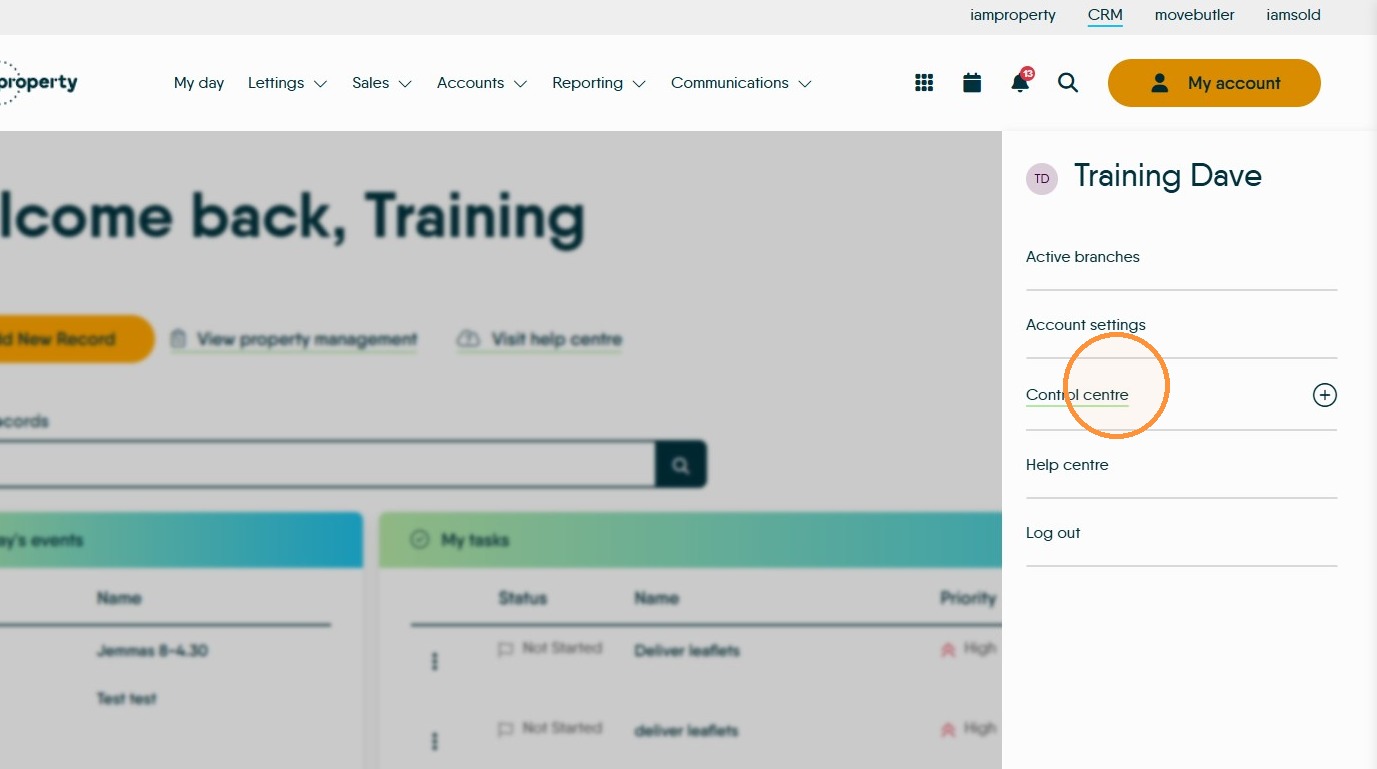
3. Click "Control centre"
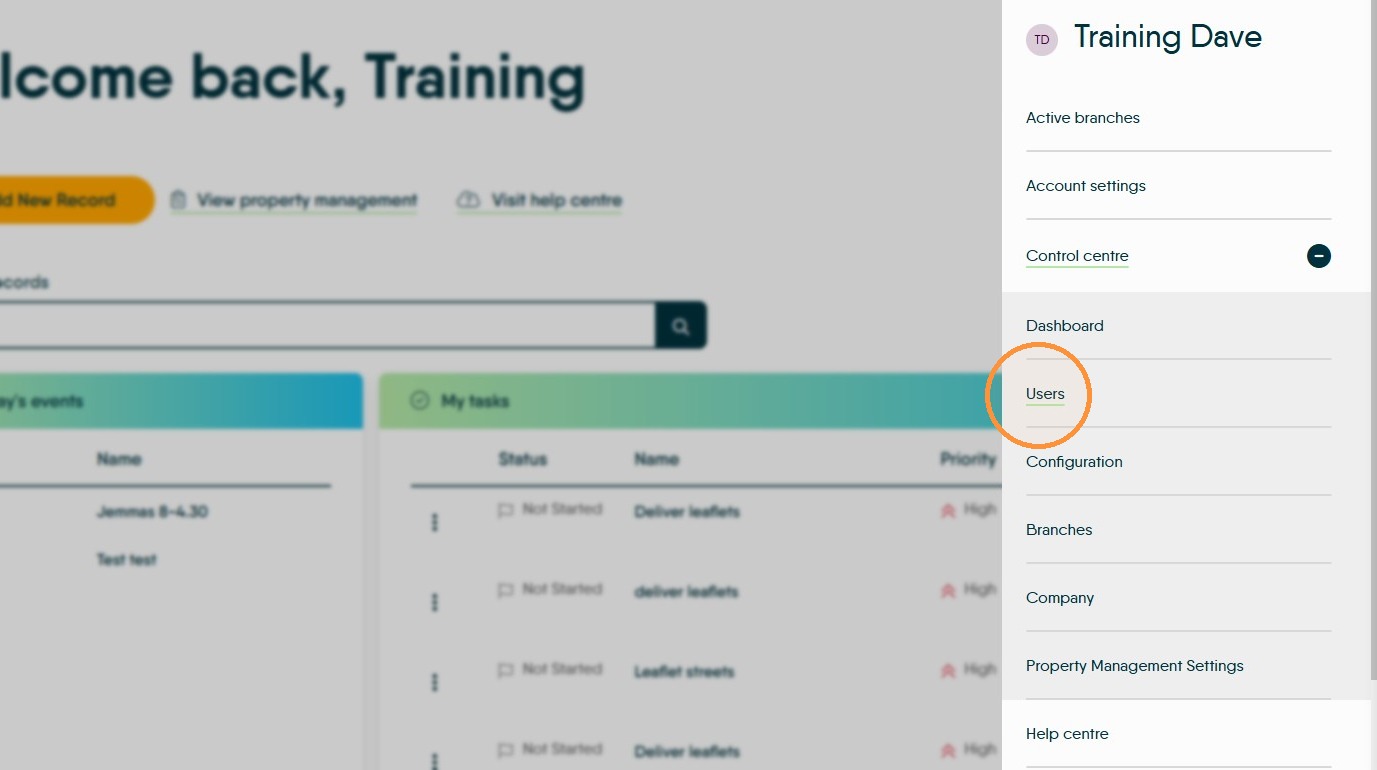
4. Click "Users"
User Management
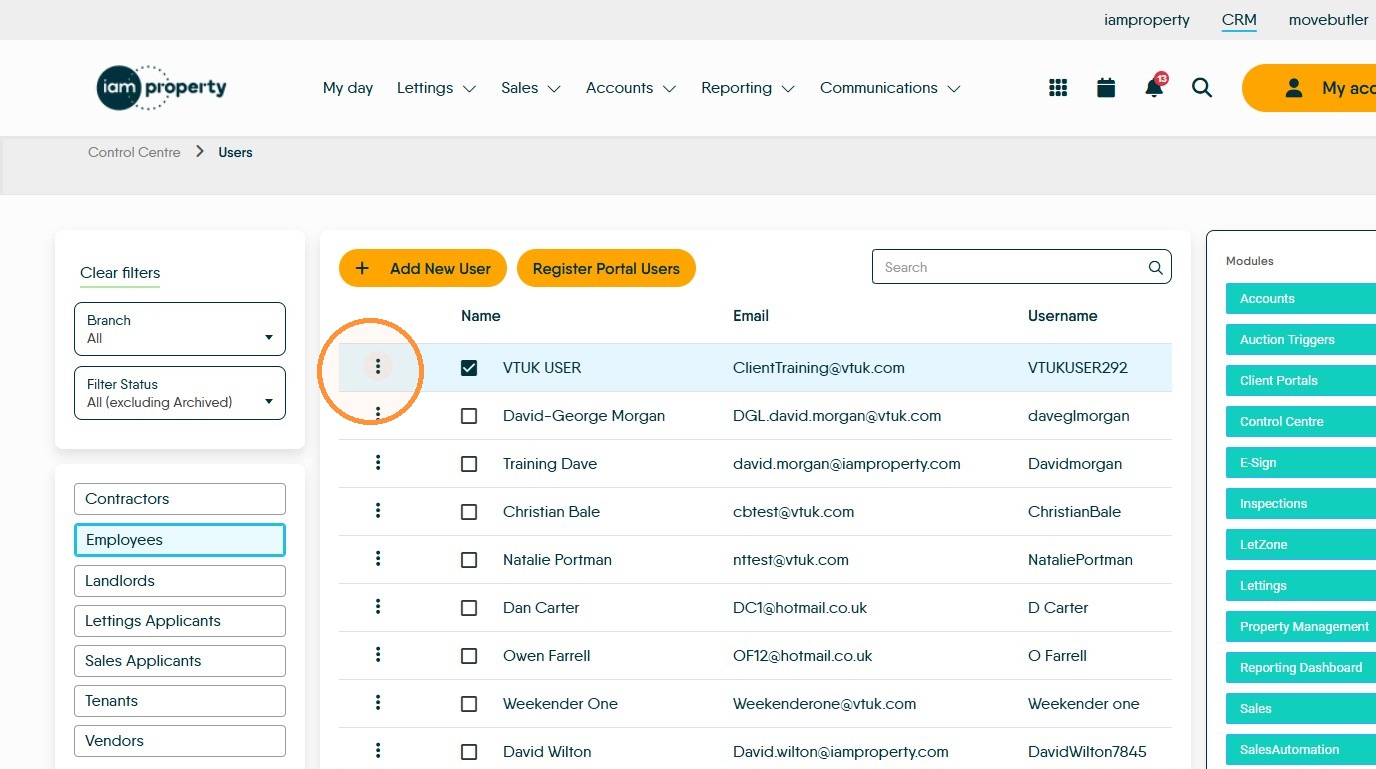
5. Open the actions (3 dot) menu for the selected user.
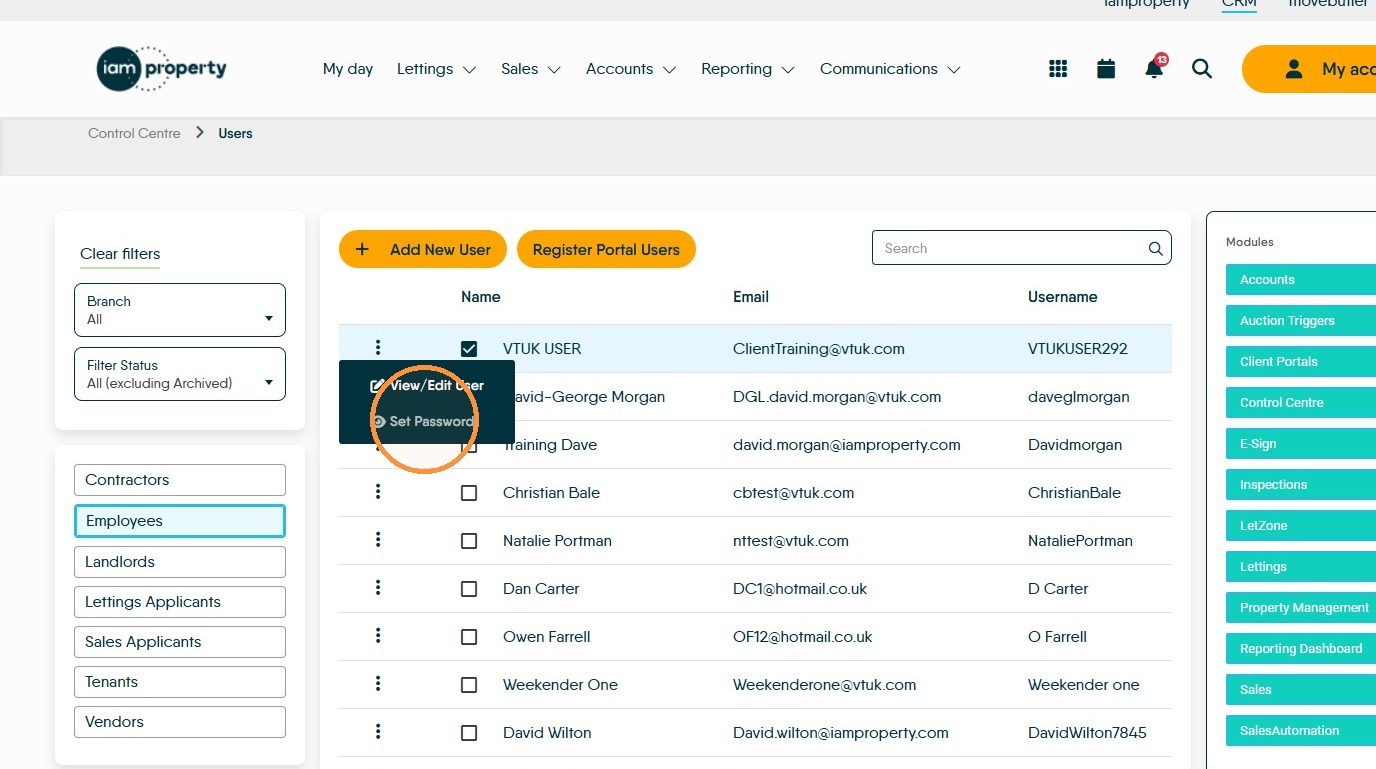
6. Click "Set Password" and change the Users password to restrict access to CRM.
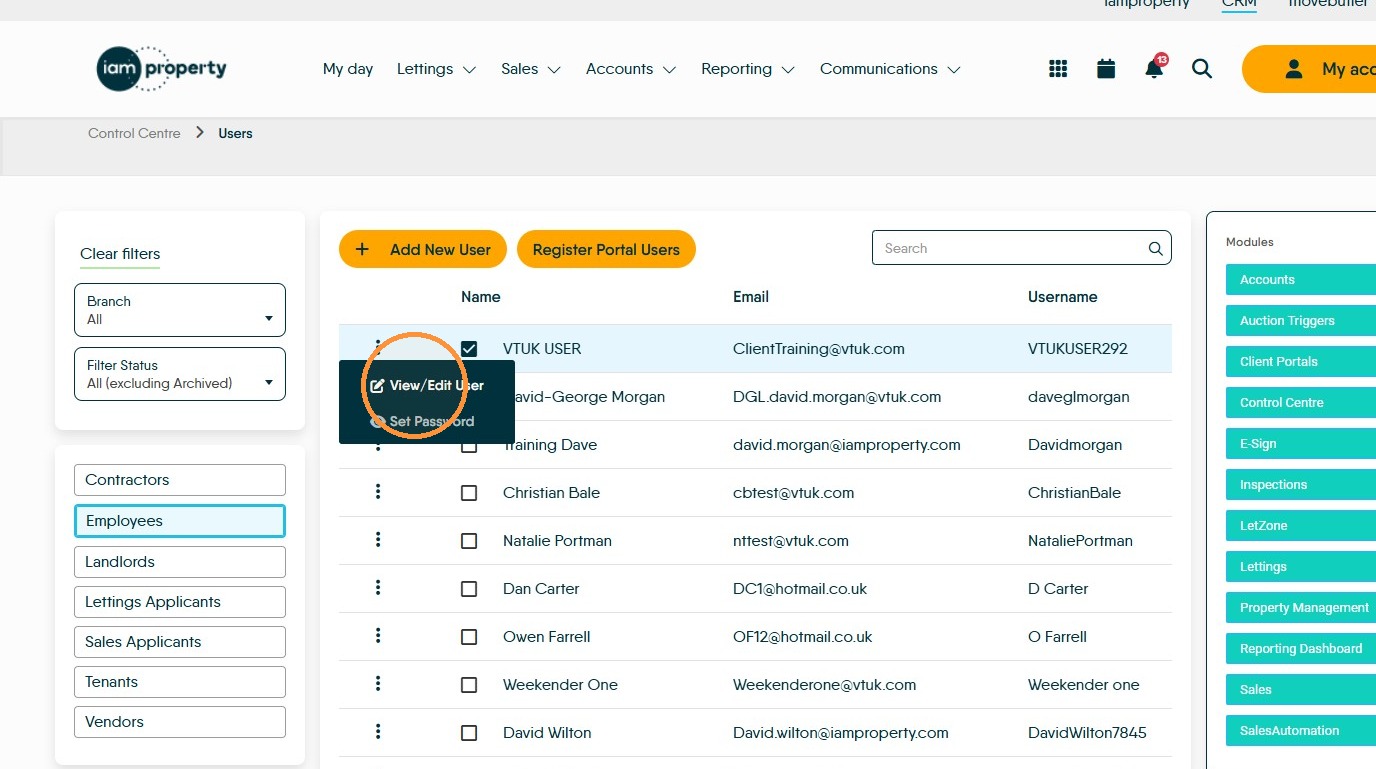
7. Then click "View/Edit User"
User Status
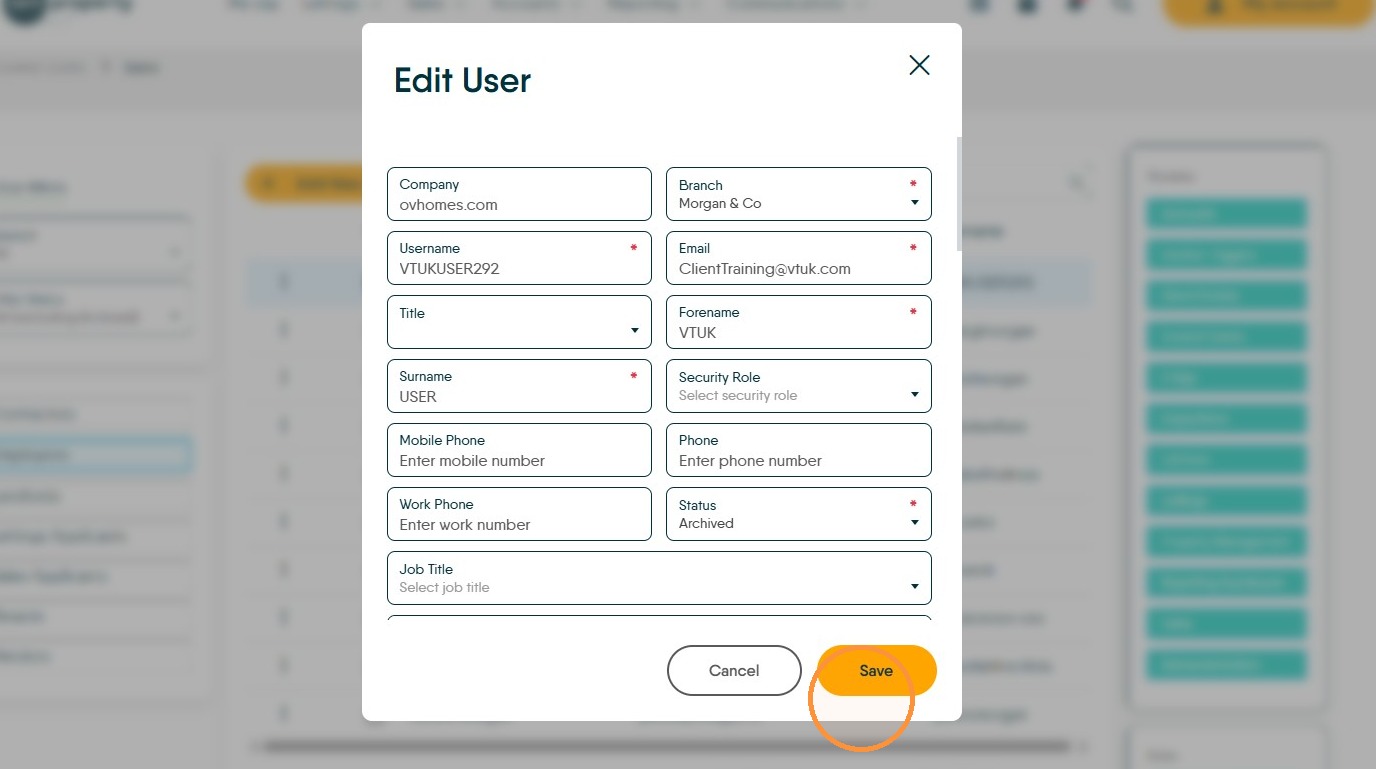
8. Set the user status to Archived
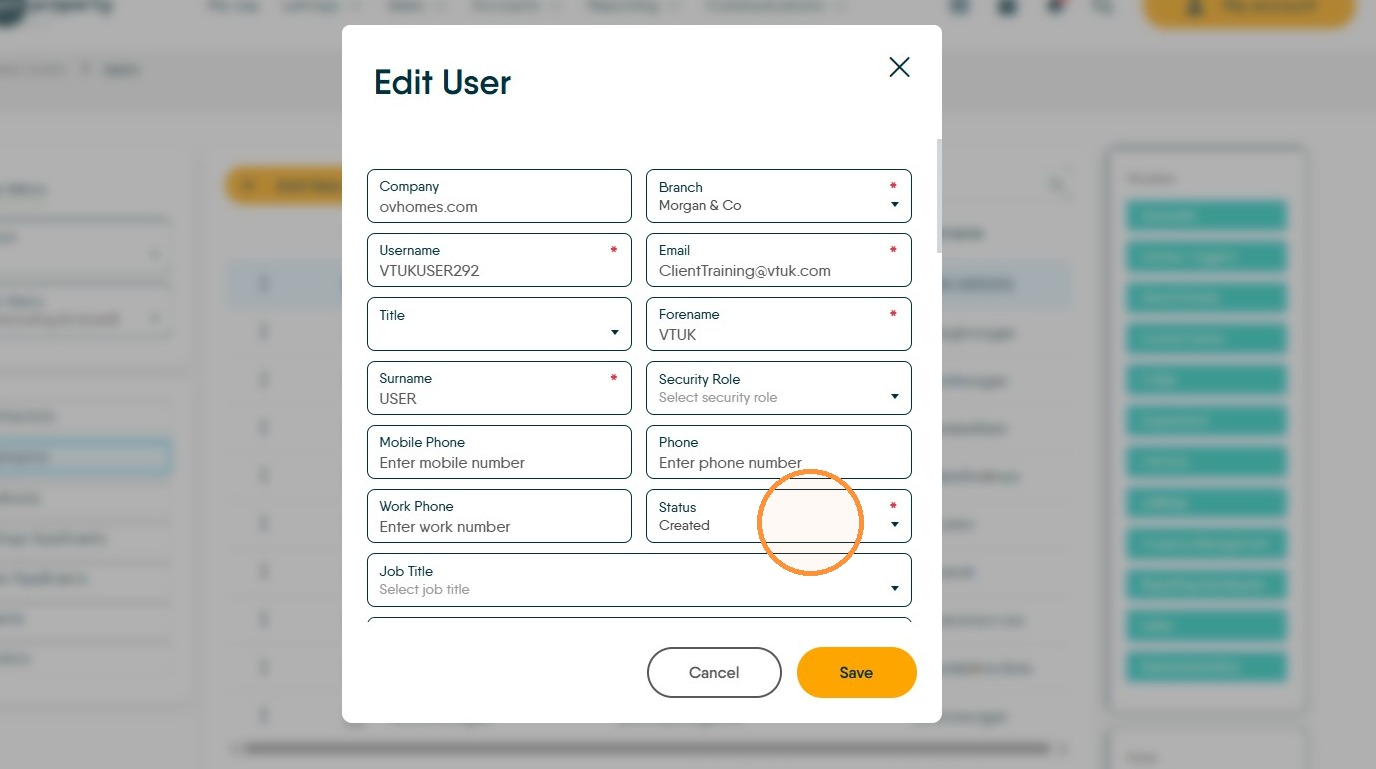
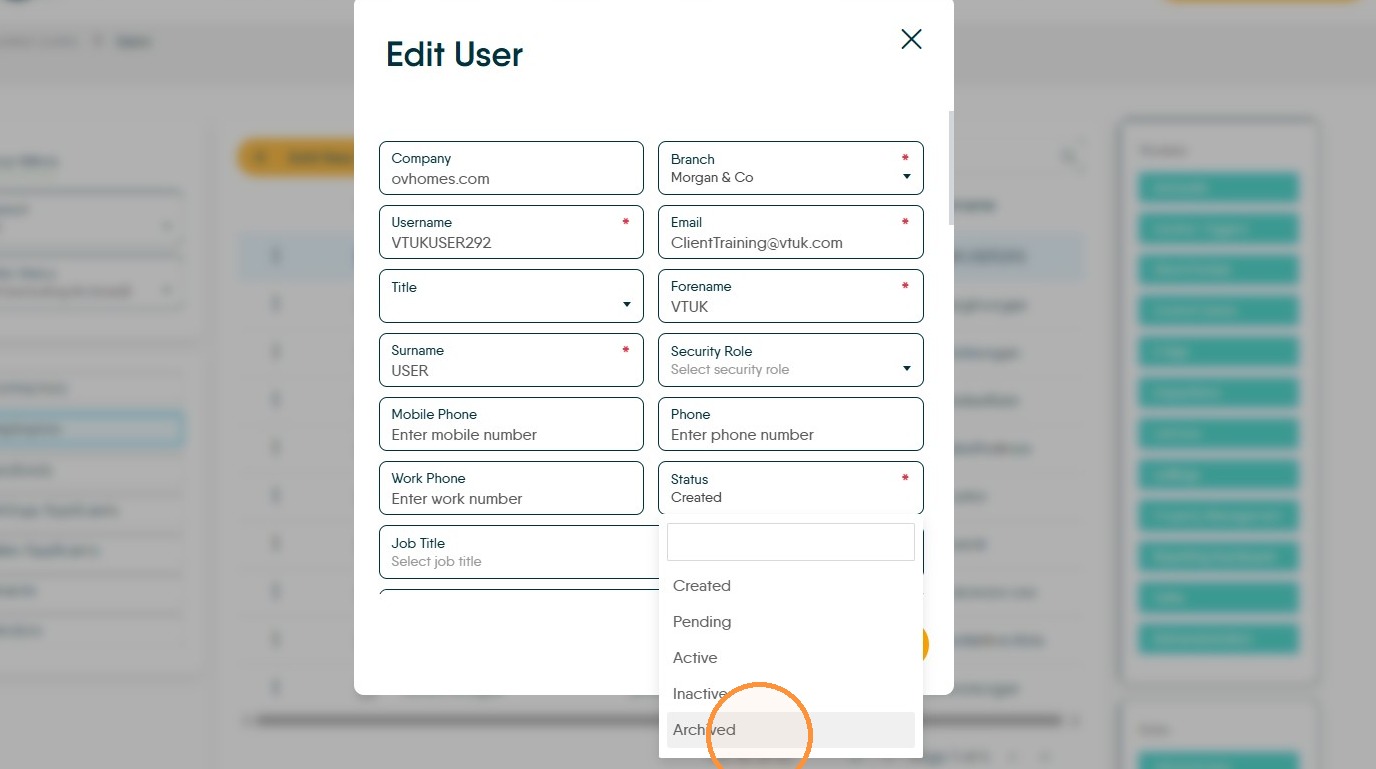
9. Click Save
The user will now be removed from the 'Employees' list in the Users menu.