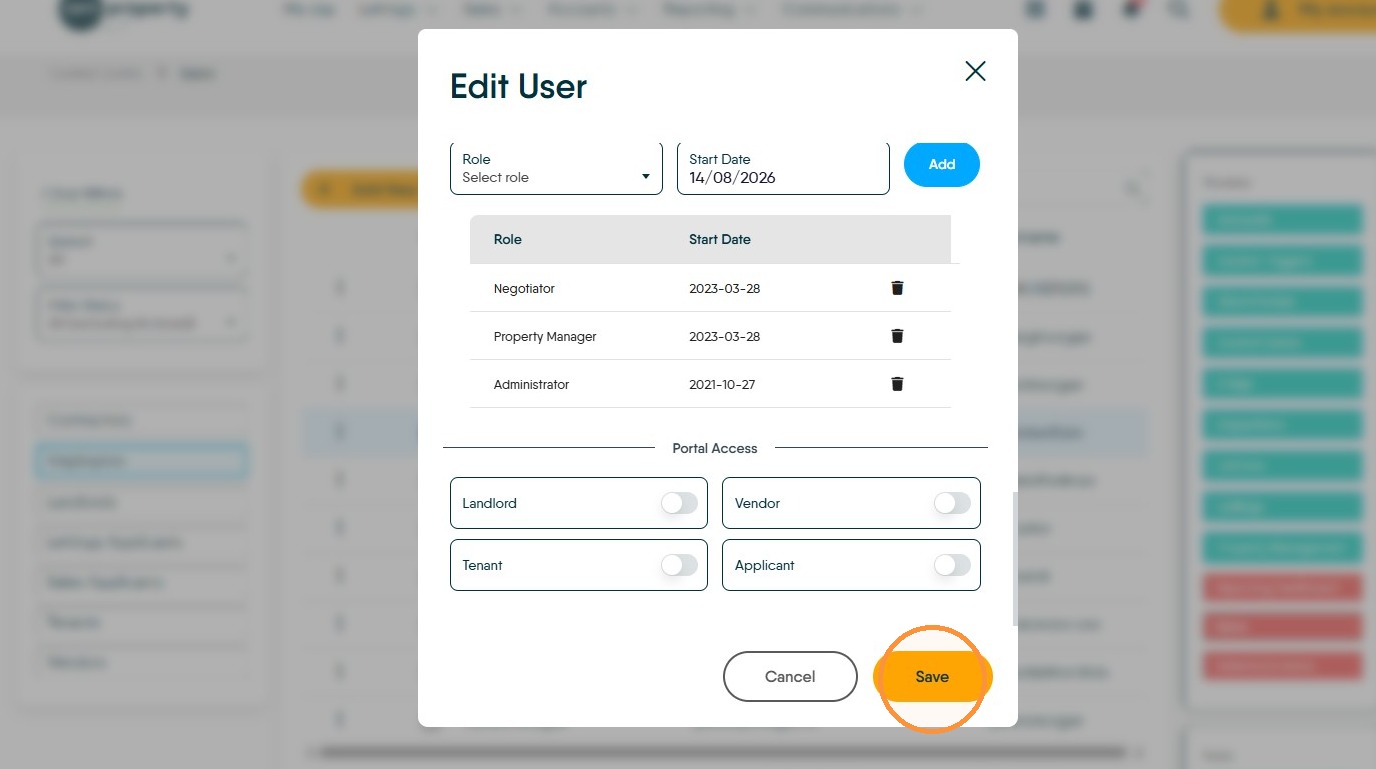
Learn how to navigate the Control Centre to update user details, modify security roles, and reset passwords for your team. This guide simplifies the process of managing system access and user permissions effectively.
1. Navigate to https://crm.iamproperty.com/MyDay
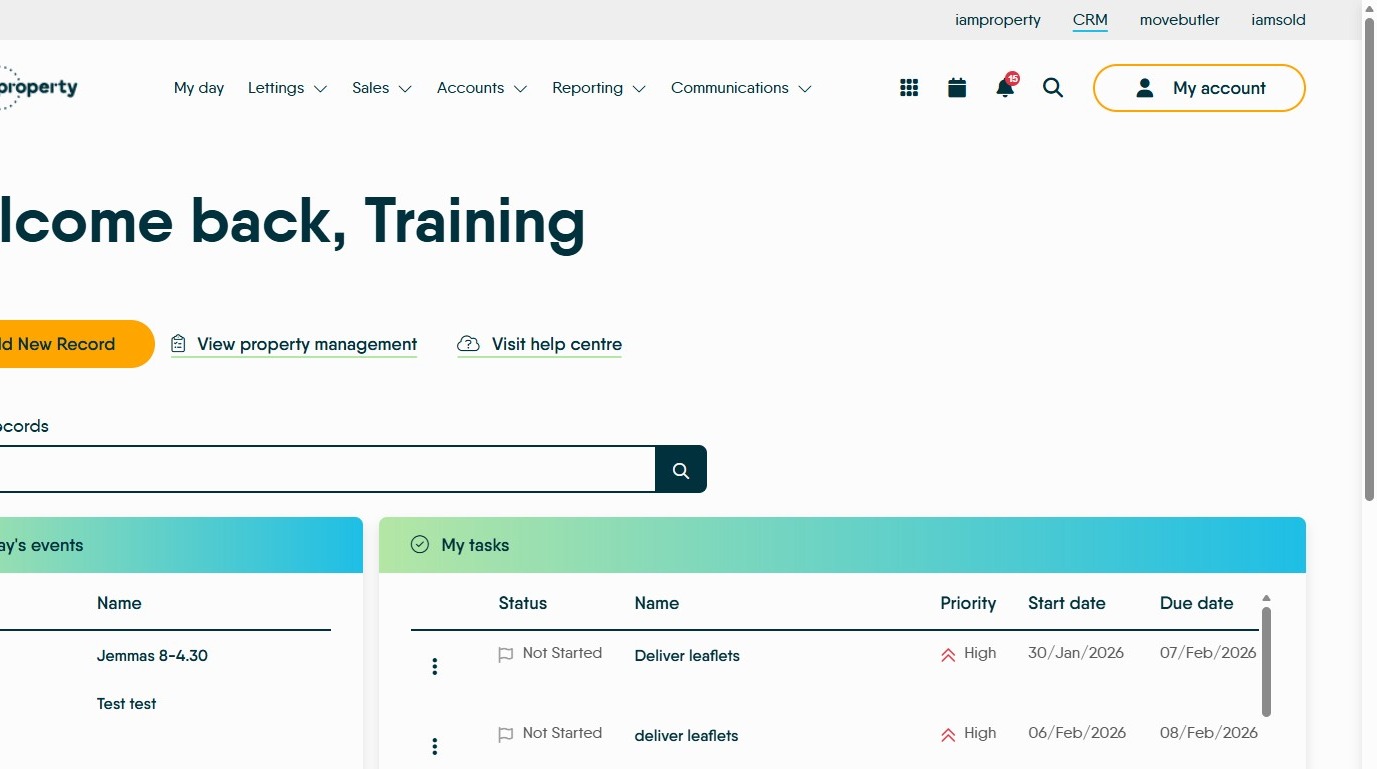
Open User Management
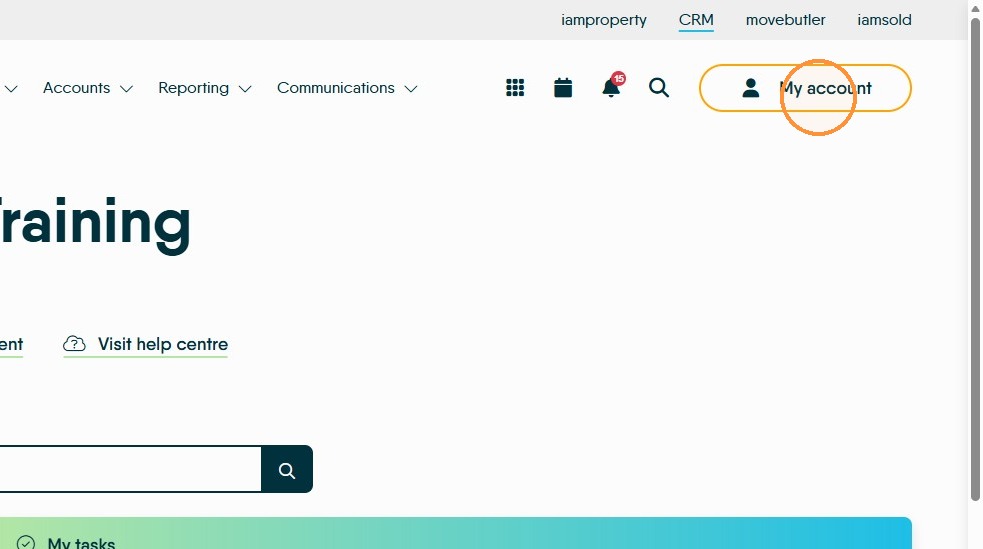
2. Click "My account"
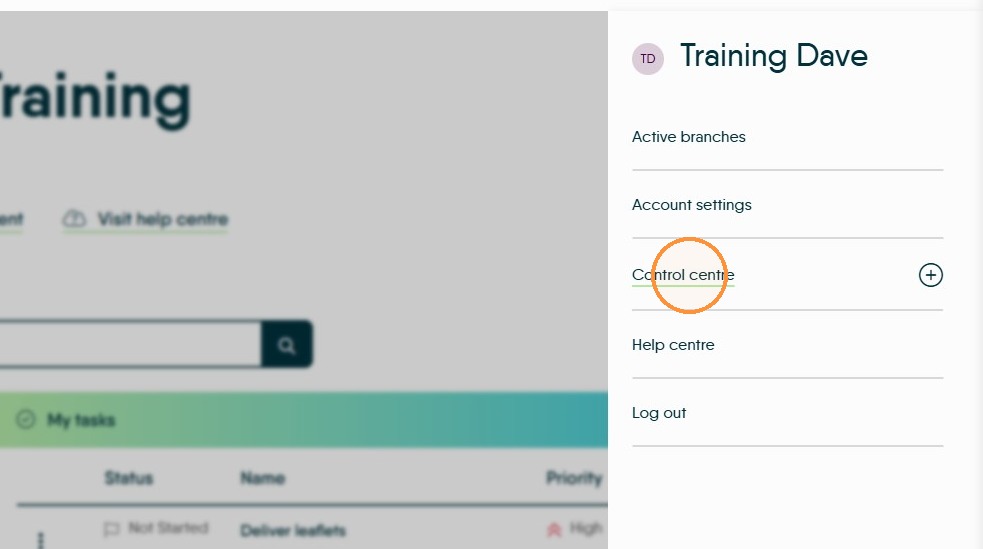
3. Click "Control centre"
4. Click "Users"
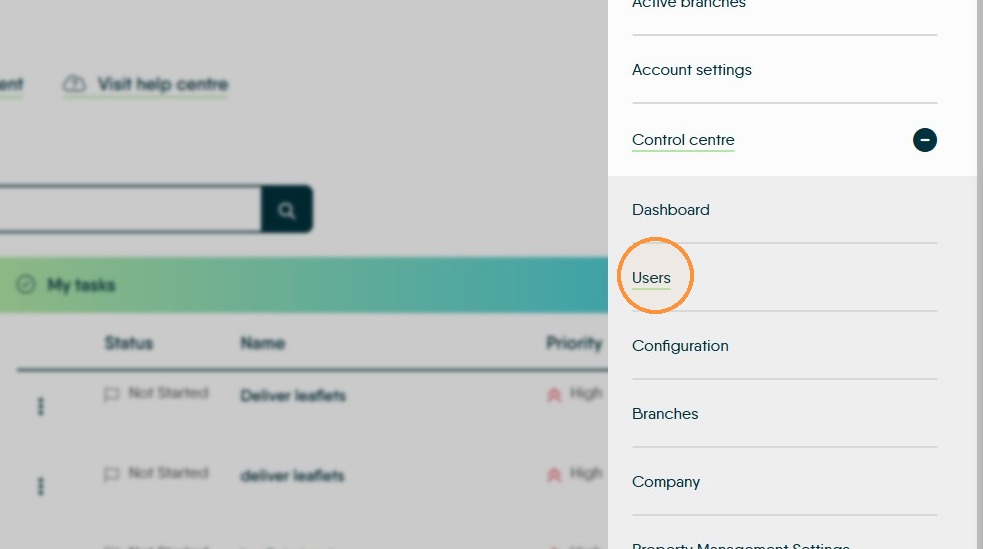
Select Users
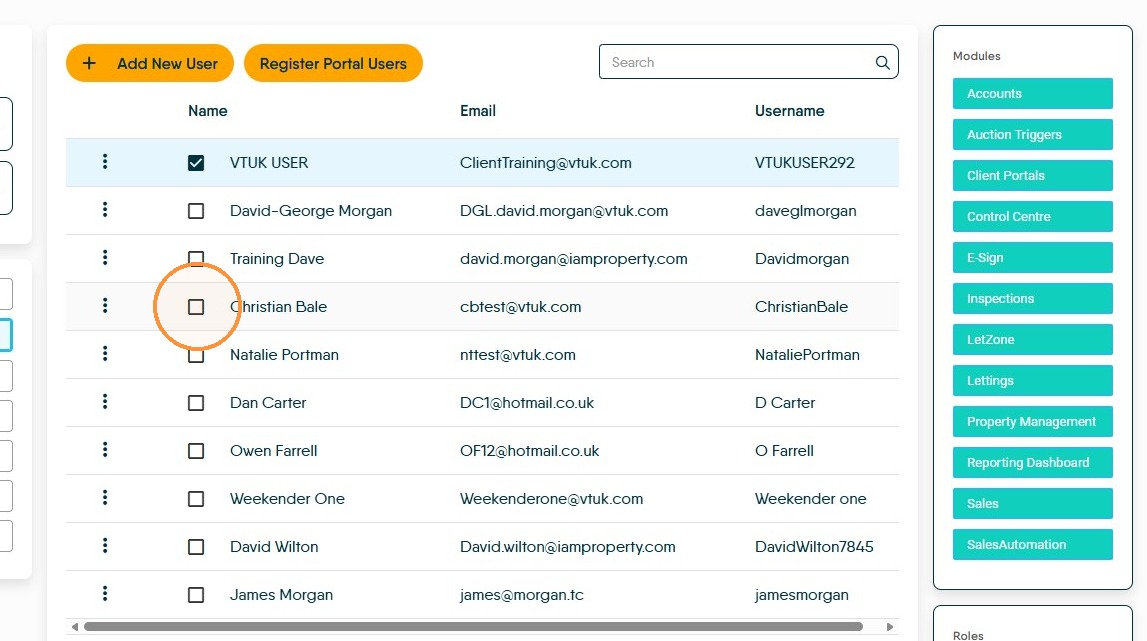
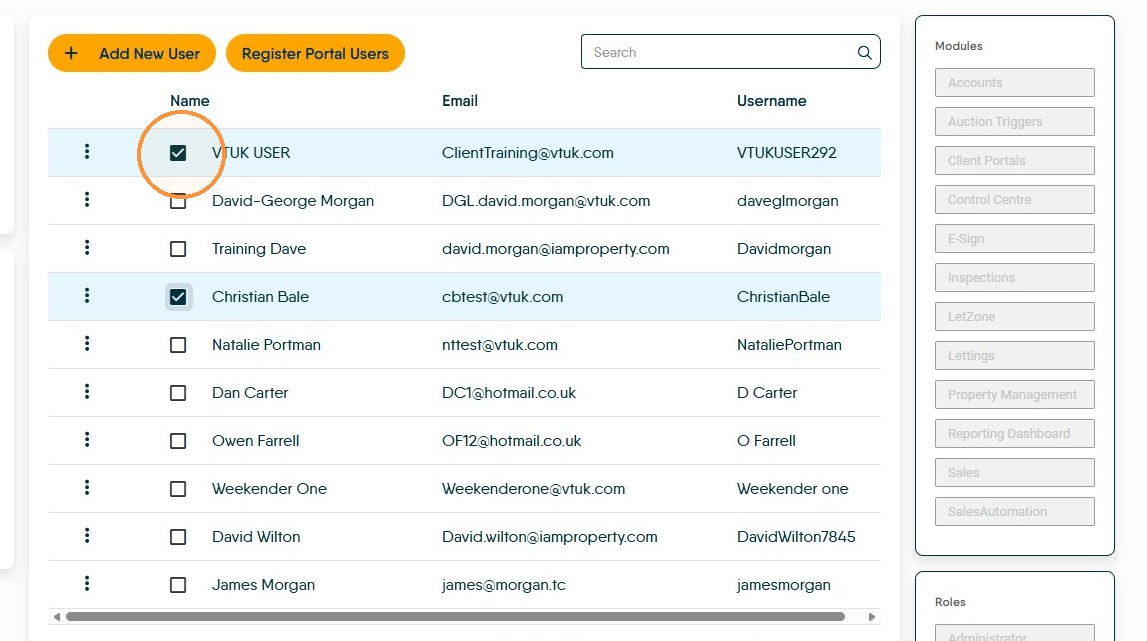
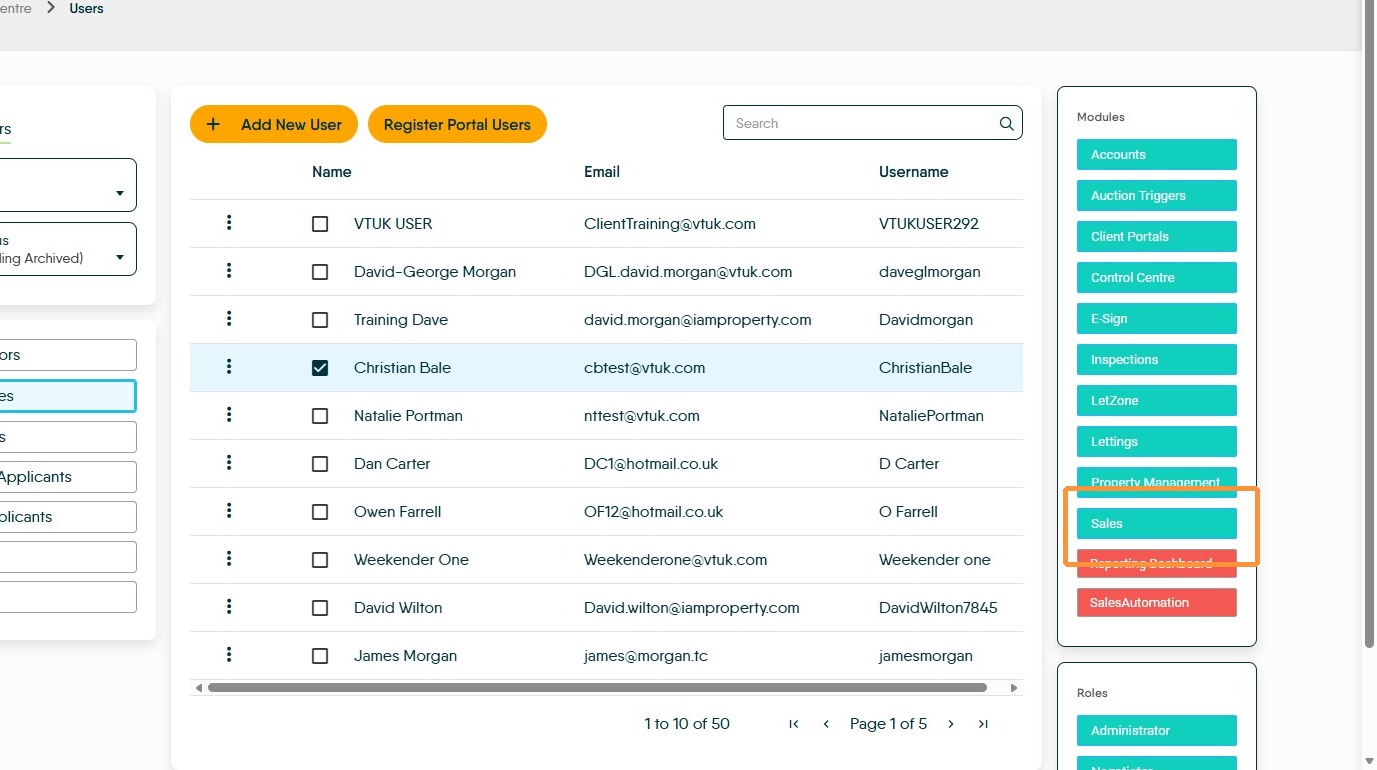
5. Select the checkbox for the user you wish to edit, make sure only one user is selected.
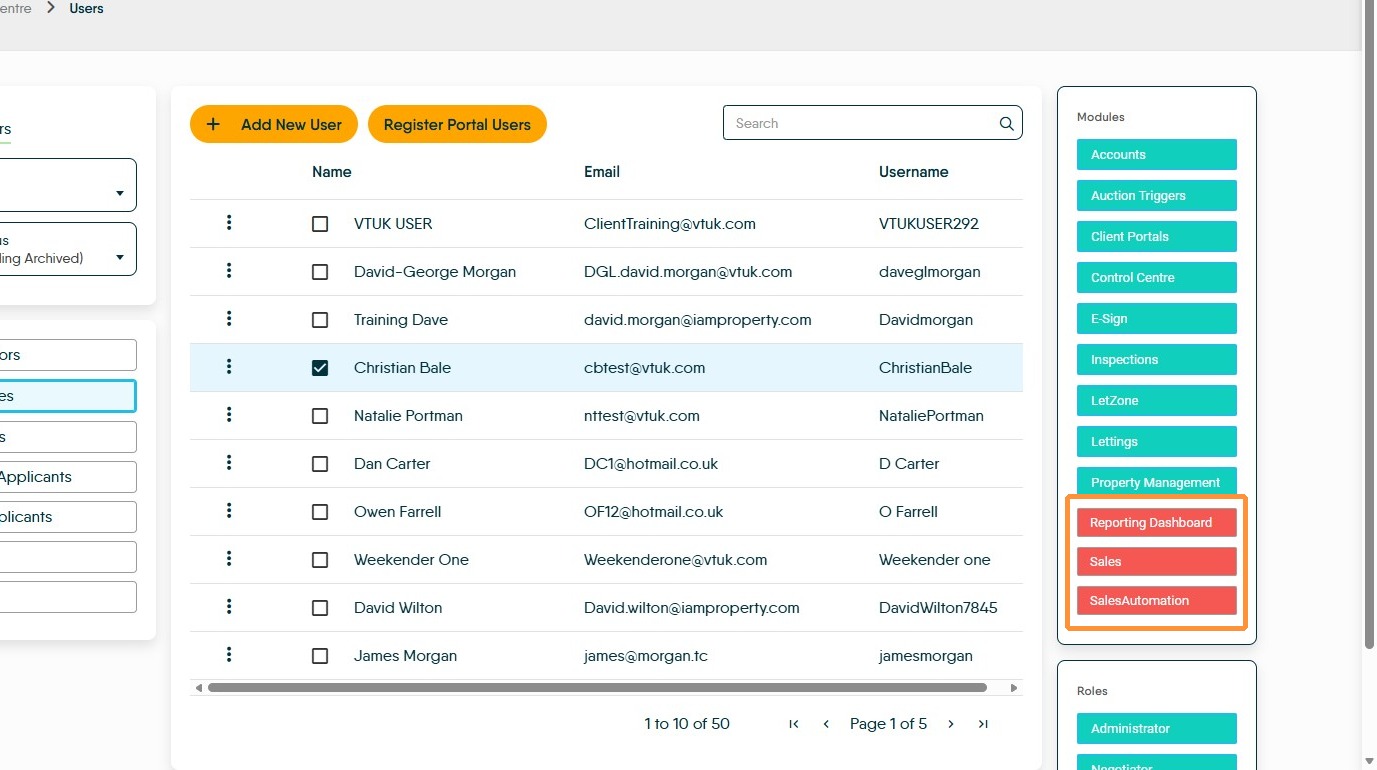
The modules in the right side of the screen will be those enabled for that user, green is active, red is inactive.
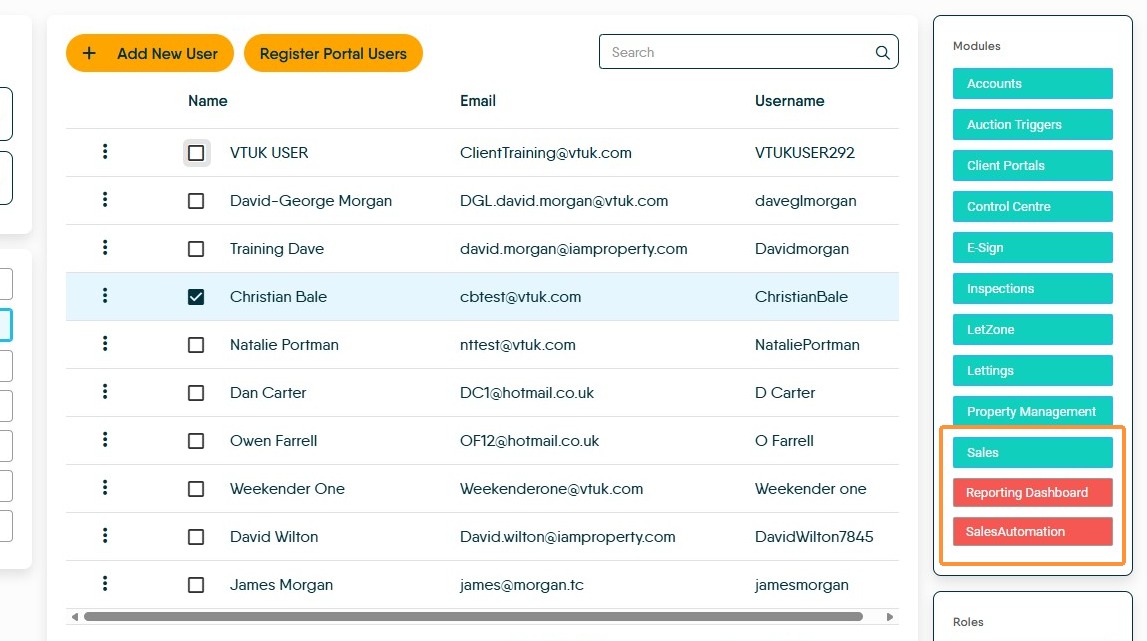
6. For example. Click "Sales"
and the sales option will show red in the list and that user will not have access to that feature.
Manage User Access
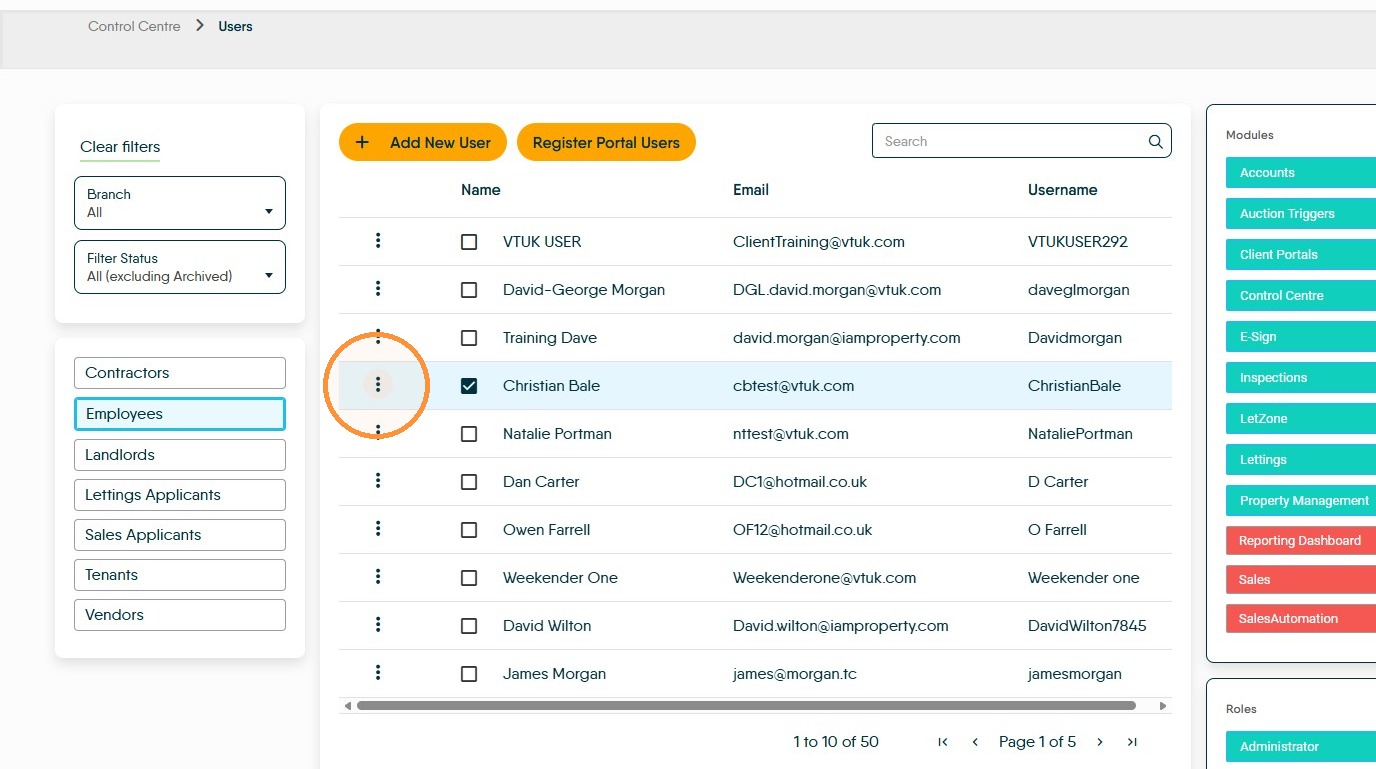
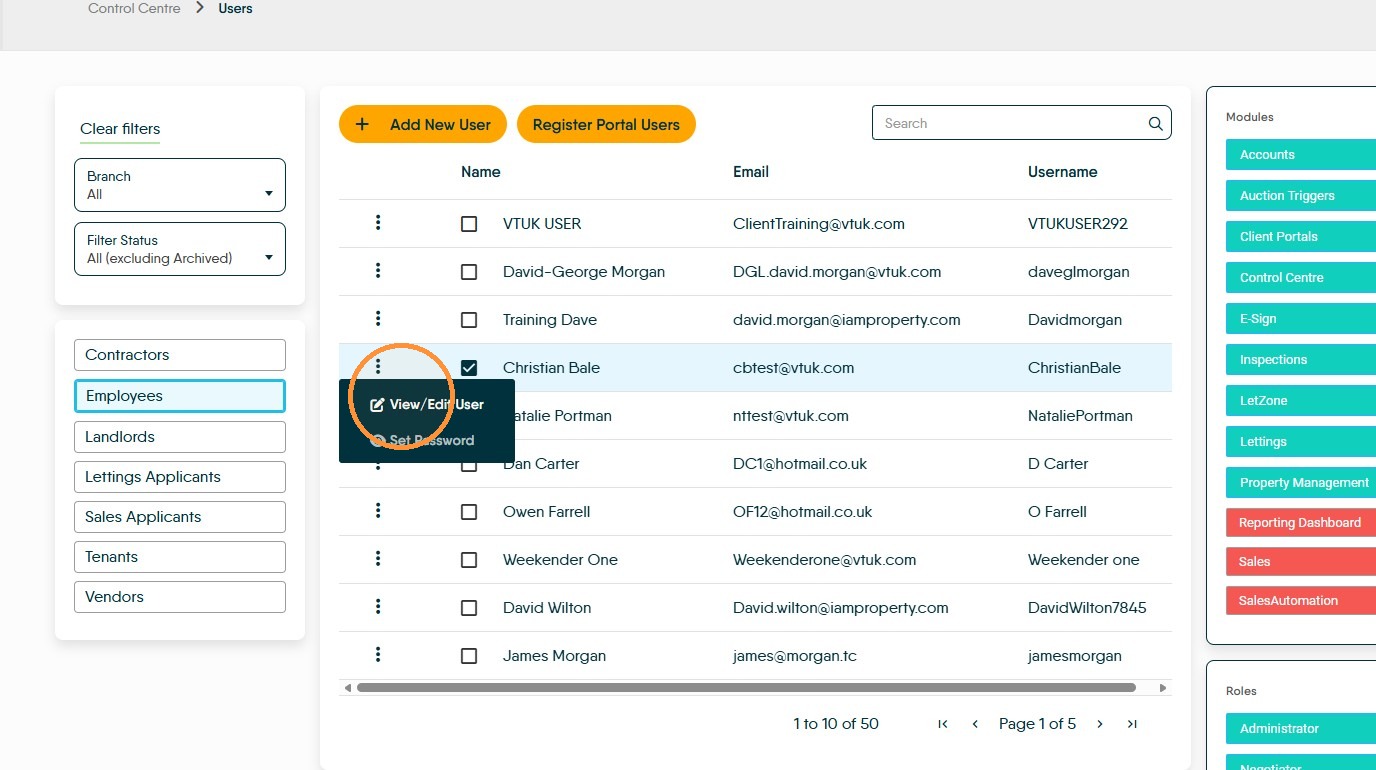
7. Click the 3-dot menu to open the actions menu for the user you are editing.
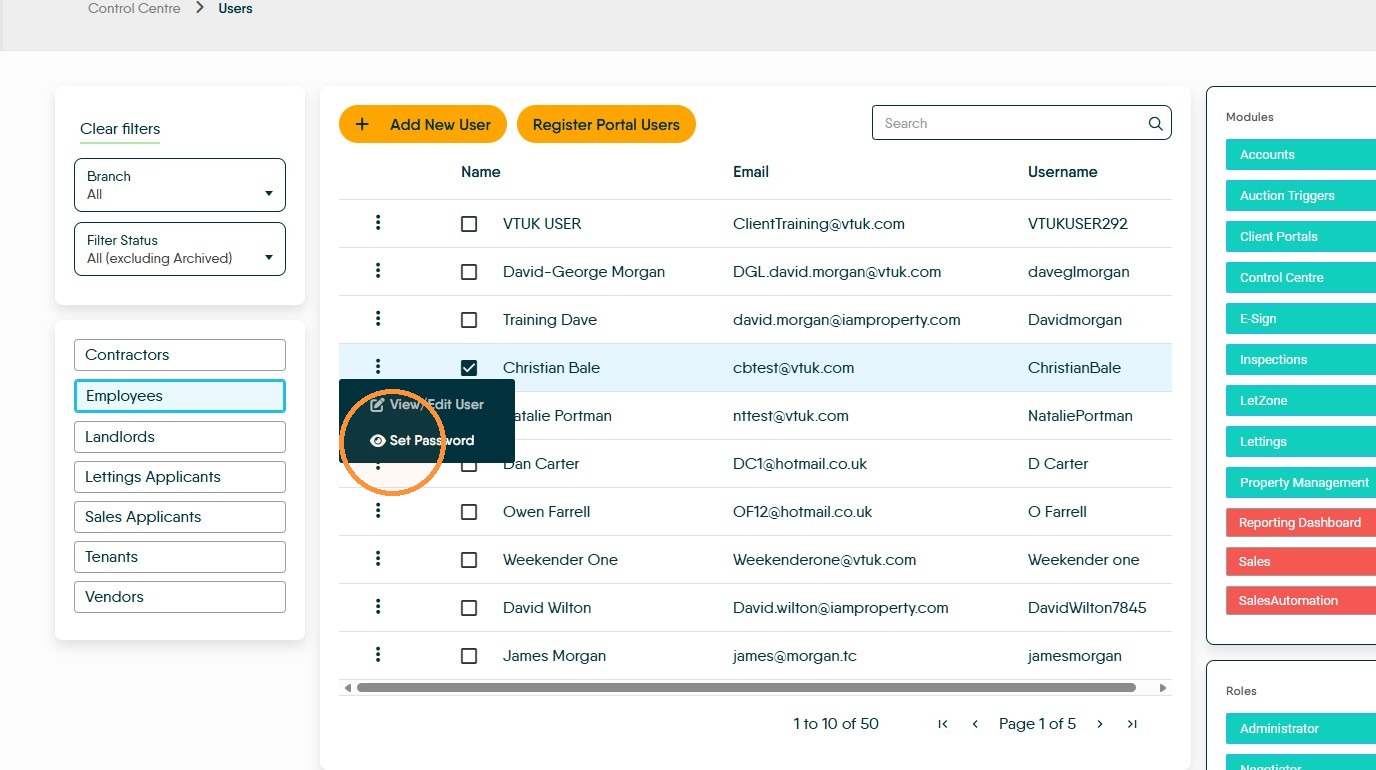
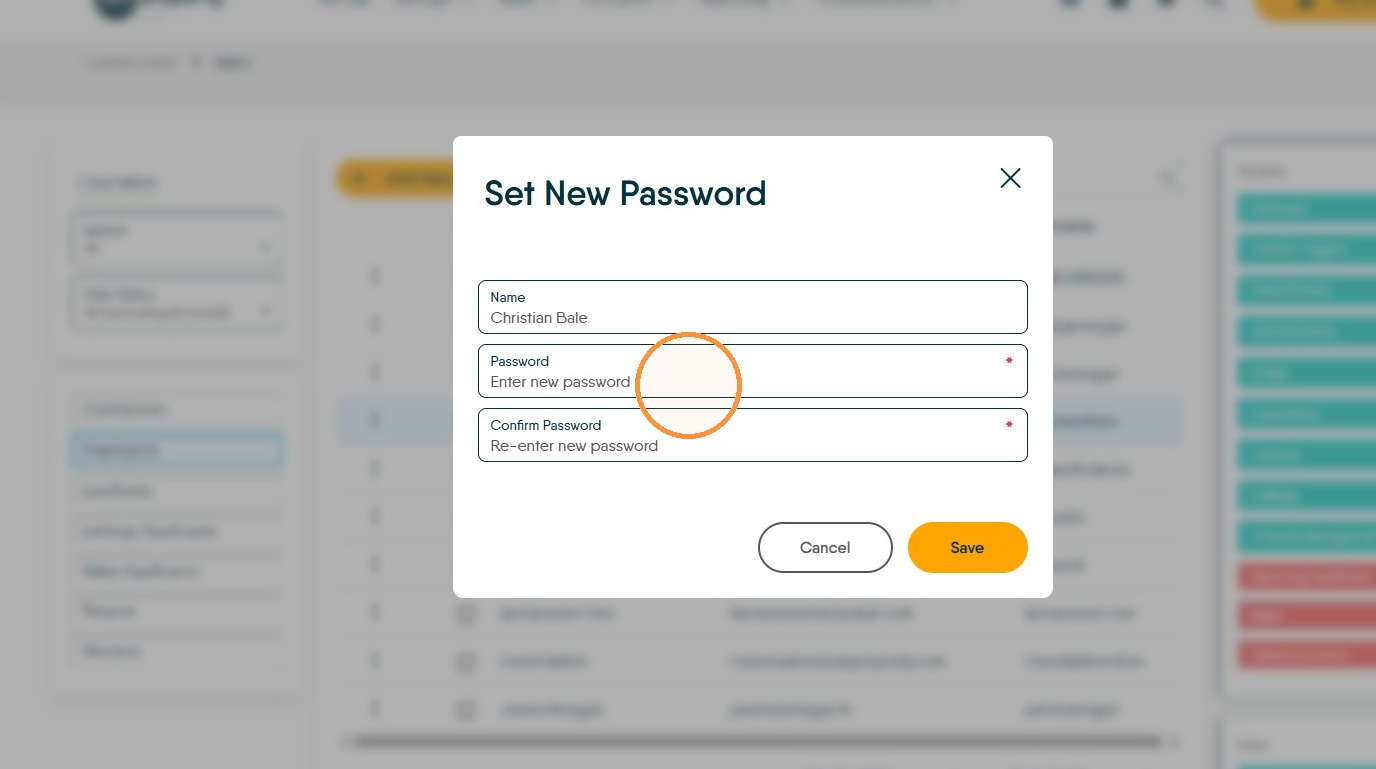
8. Click "Set Password" to update their password.
Click the "Password" field.
Edit User Details
9. Click "View/Edit User"
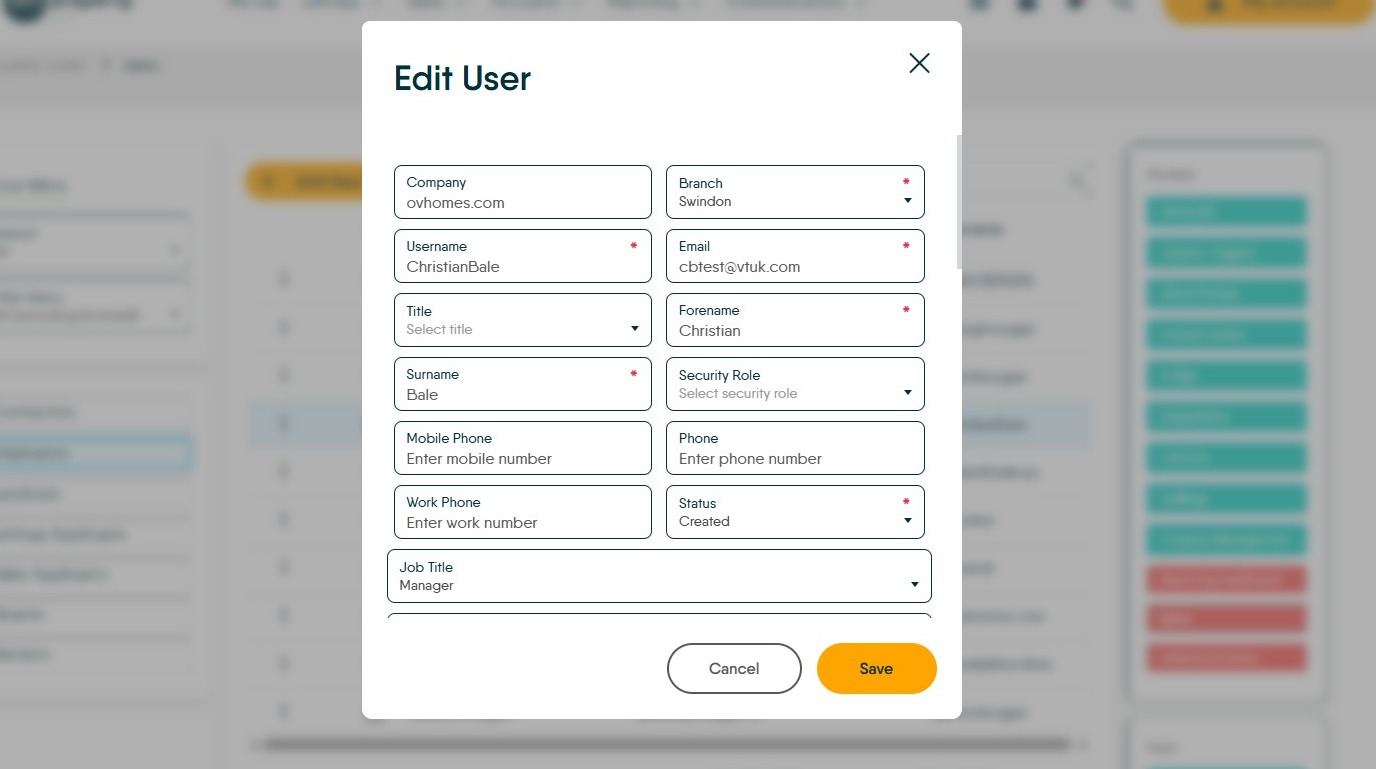
10. There are a number of options. 'Status' will allow you to remove a user, by selecting 'Archived' from the list.
To give users default access to certain branches, in the 'Filter branches' screen select the branches from your company list.
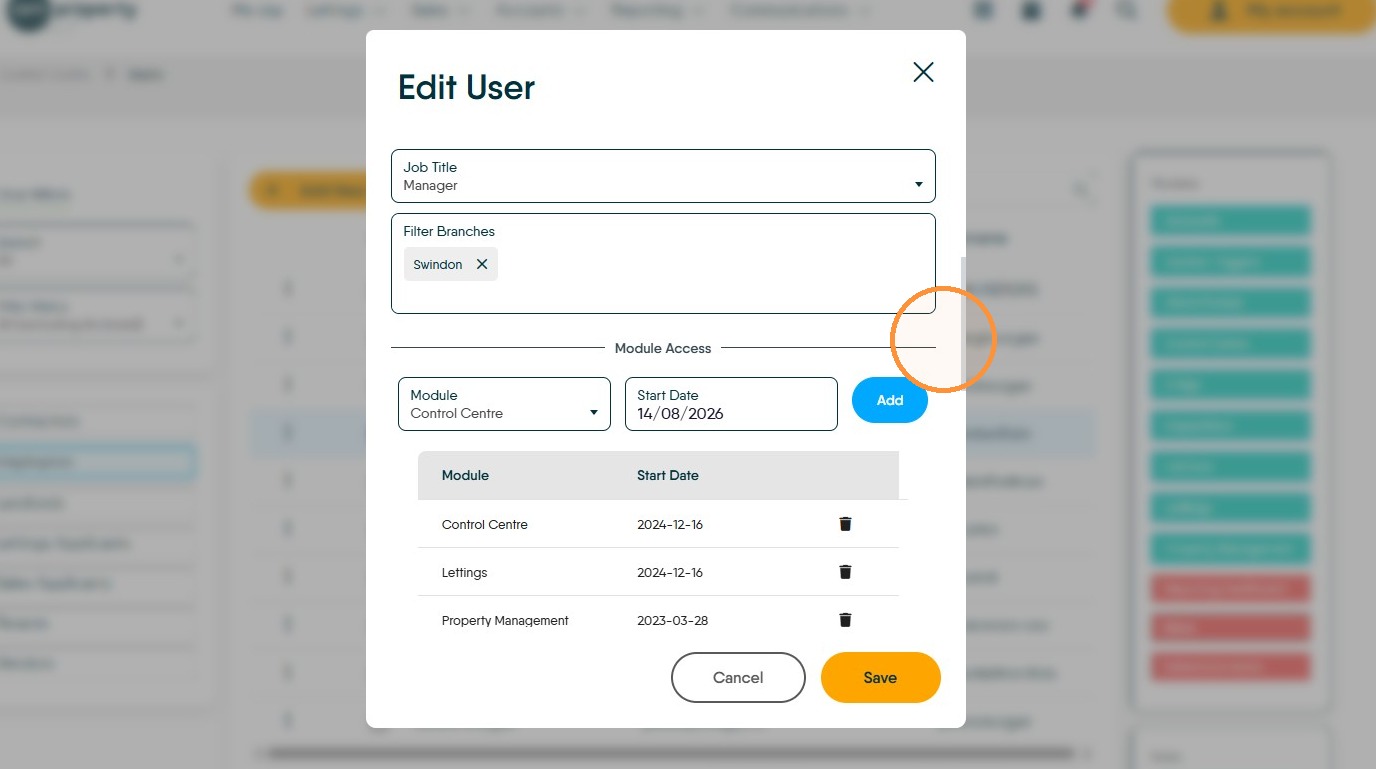
11. Click "Cancel Save"