This guide provides a step-by-step approach to updating Internal company user details in the iamproperty CRM, ensuring that Administrators can easily manage and maintain accurate information. To centrally update the details for a users requires access to Control Centre. Users can update their own details in the 'Account Settings' menu.
Tip: Tip! Why is this important?
This information is important as the email and SMS templates created in CRM use this information to complete the tags that show as {user...}, for example {userforename} if the information is incomplete or wrong then these fields don't perform correctly.
1. Navigate to https://crm.iamproperty.com/MyDay

2. Click "My account"

3. Click "Control centre"

4. Click "Users"

5. This will take you to the 'Users' section of the CRM and specifically the Employees section. Click here to open the menu..

6. Click "View/Edit User"

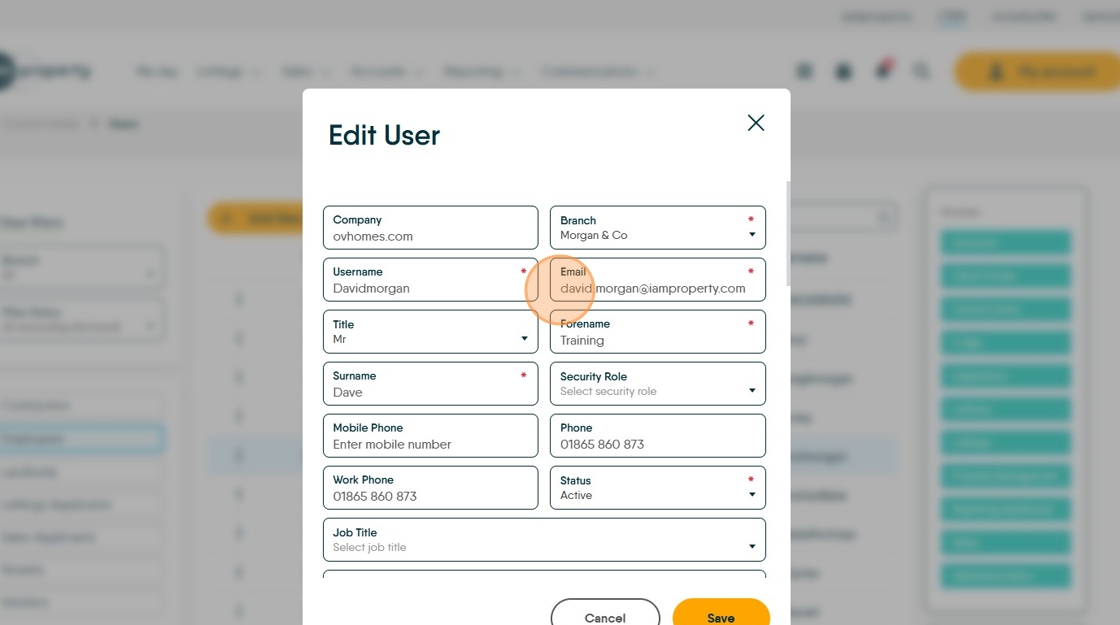
7. From the 'Edit User' field you can update most of the screen options, with the exception of Username (this can be updated in the Users Account Settings) E.G. Click the "Email" field to update the email address .
8. Update all the empty fields
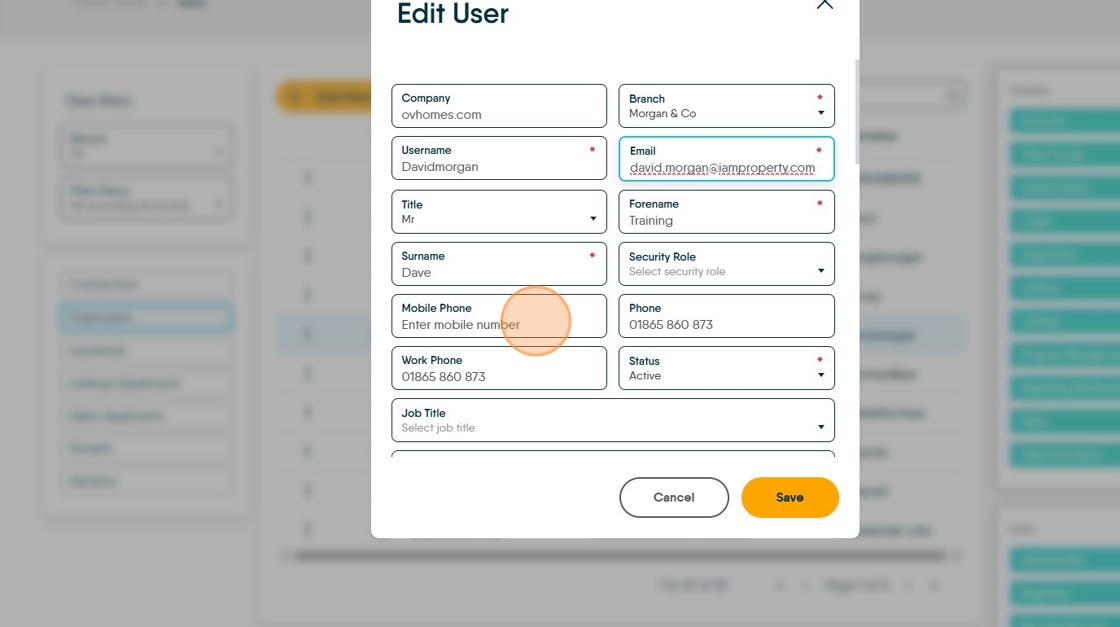
9. Click "Select job title"

10. If new job types are required they can be added in Configuration using the Lookups option.

11. Once complete, scroll down the screen and click "Save"

Account Settings
An individual User, without access to Control Centre, can update their own personal information from the 'Account Settings' menu.
13. To update the 'Username'. Click "My account"

14. Click "Account settings"

15. Click the "User name" field and enter the new user name. Then click 'Save'.
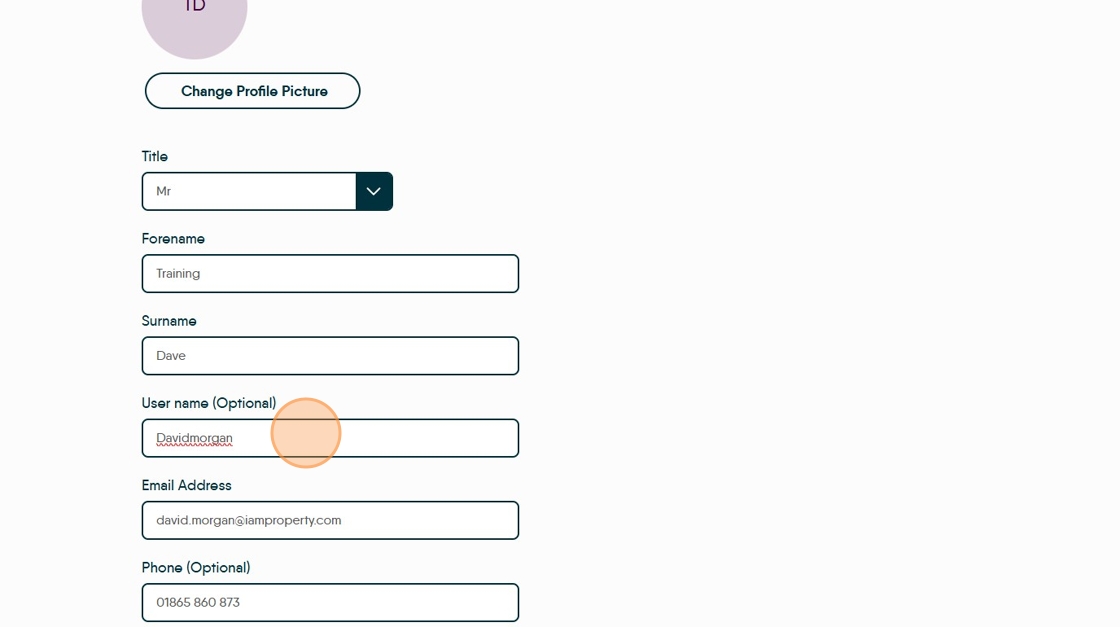
16. The User can continue to update their personal business contact details in the other fields in the screen. Scroll to the bottom of the screen for a User to reset their password.