This guide provides a straightforward process for assigning a property manager to a property record, ensuring efficient management of property-related tasks. This allows more accurate use of the CRM Property Management messaging filters and notifications. This allows Property Managers to filter jobs in the Property Management 'My Jobs' list to only show properties allocated to them as a user (Negotiator).
Alert: This process requires the Property Managers to have access to CRM, as a minimum access to the Property Management module. If you have any questions please speak to CRM Support. crm.support@iamproperty.com 01865 860870
1. Navigate to the property record. Click here on the 'Negotiator' field
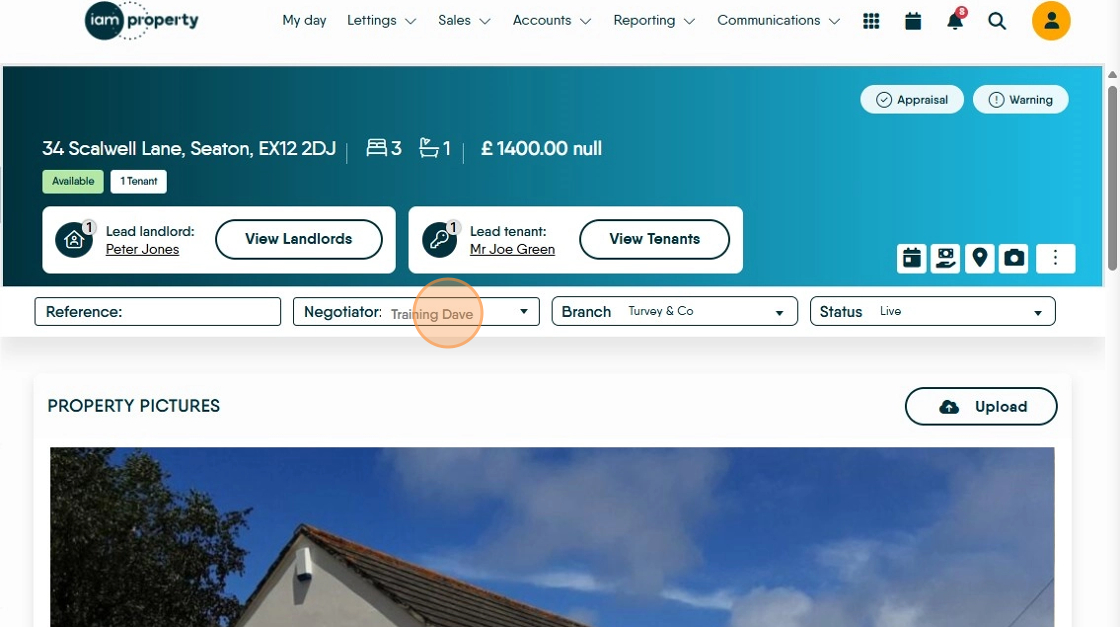
2. From the drop down menu select the CRM User who will be the Property Manager

3. This assigns the property to this user, it does not affect anything that other CRM users can do on the CRM regarding this property.
Filtering the Property Manager view in Property Management
4. In the Property Management module. Click the filter icon at the bottom of the screen.

5. Click the "Select negotiators" field.

6. From the drop down menu select the name of the user you wish to filter by.

7. Click "Filter"

8. The 'My Jobs' screen will now only show the filtered results.
