This guide provides a step-by-step approach to creating effective email and SMS viewing feedback templates . These templates allow an automated message to be sent to a property viewer requesting feedback on their experience. This response is then shown in the viewing record.
1. Navigate to https://crm.iamproperty.com/MyDay

2. Click "My account"

3. Click "Control centre"

4. Click "Configuration"

5. Click "Viewing templates"

There are 2 options for requesting feedback, email and SMS. This guide will show how to create both options.
7. Click "Email"
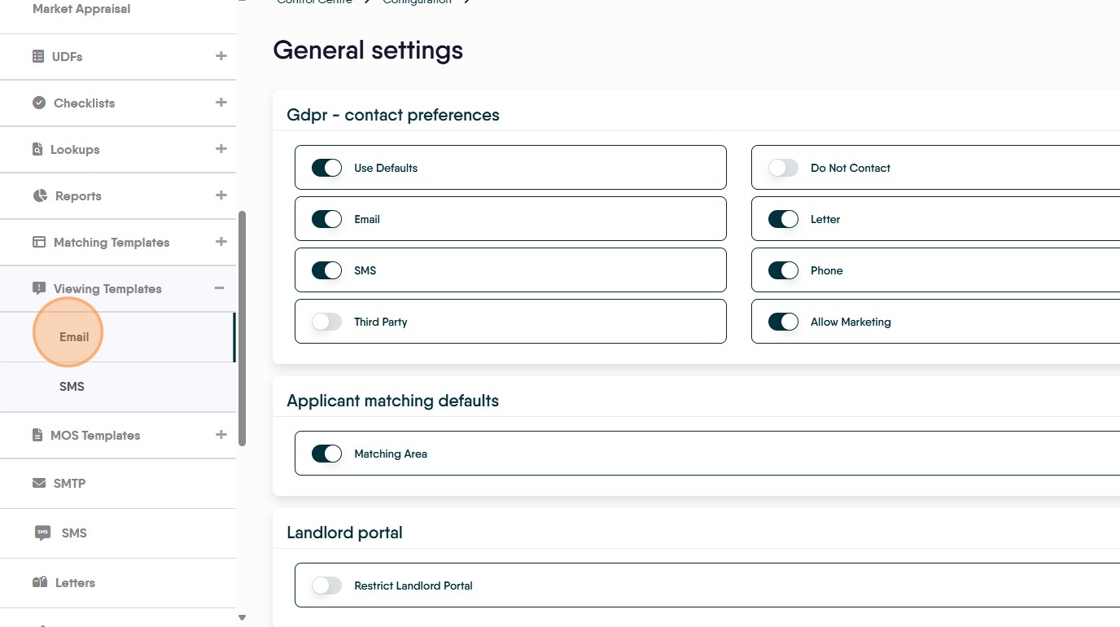
8. To create a new Template click here.

9. Click the "Template Name" field and name your template.
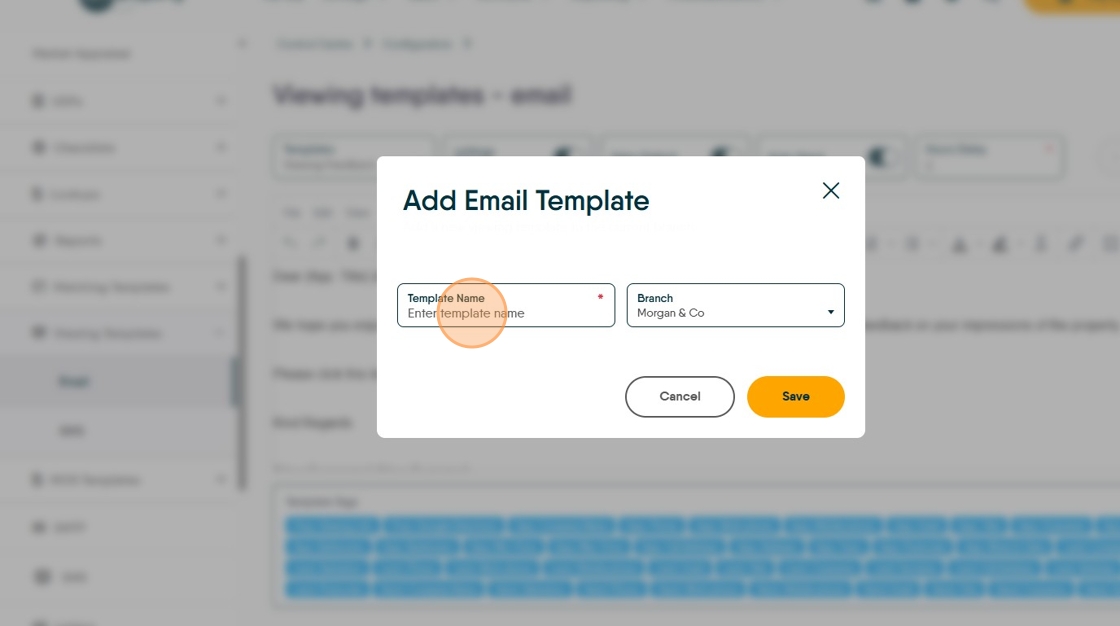
10. Click "Save"

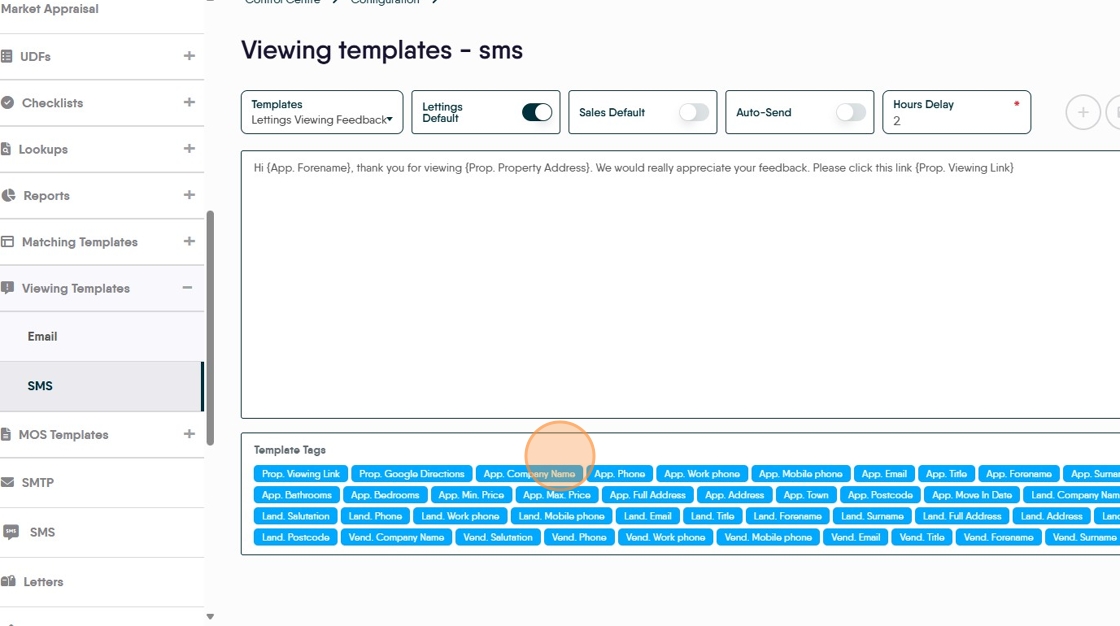
11. Click into the text screen and add your text. There are template tags that will automatically add information to your message, allowing a personalised message to be sent to your applicant.

12. For example click "App. Phone" to add the applicants phone number to the email, or 'Prop Google Directions' to add the google directions to the property etc

13. When complete your message will look like this.

14. There are a number of options available once the template is created. A separate template can be created for Sales and Lettings templates, templates can be set to Auto Send after a set period. The next slides show where to click to set these options.
15. Click "Lettings Default" to set this template as the default for lettings feedback requests

16. Click "Sales Default" to set this template as the default for Sales feedback requests.

17. Click "Auto-Send" to enable the templates to be sent automatically.

18. Click the "Hours Delay" field. This can be set for any time delay from 1 hour upwards.

19. Click here to save.

SMS Message templates
20. Click "SMS"

21. Click here to add the new template.

22. Click the "Template Name" field name the template.

23. Click "Save"

24. Click the "Edit template here..." field. Add the text and use the template tags to personalise the message.
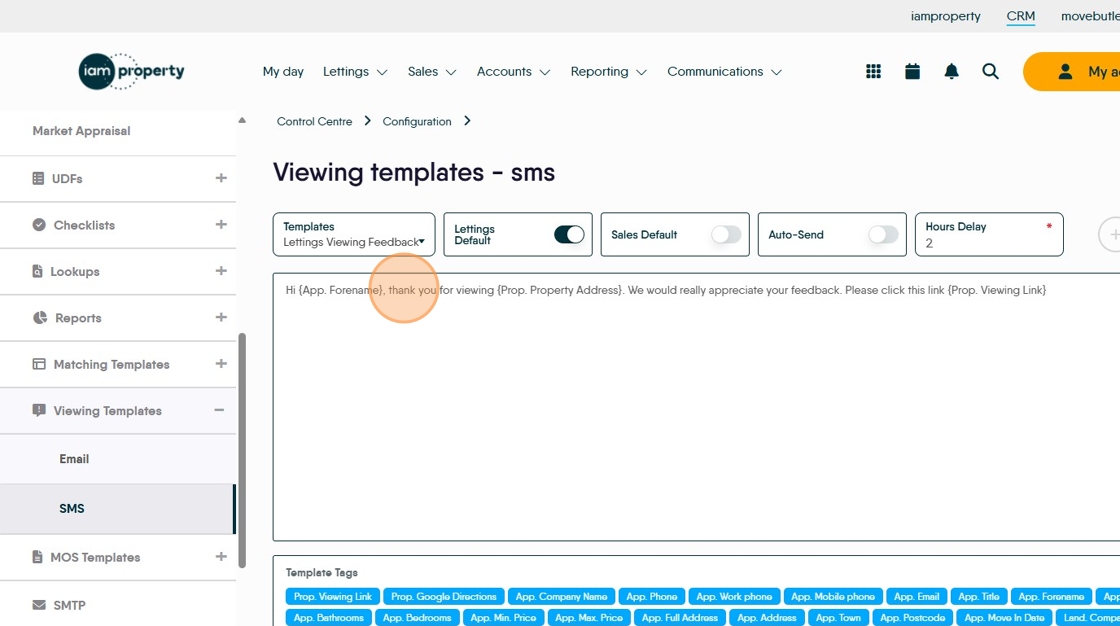
Alert: Alert! Be aware SMS messages are limited to 160 characters, so be brief. Over 160 characters a second message will be sent etc.
25. Click "Template Tags" to use the template tags.
26. Click here to set as 'Lettings Default' message

27. Click "Sales Default" to set as the default sales message.

28. Click "Auto-Send" to send the message automatically.

29. Click the "Hours Delay" field to set the time delay, from 1 hour upwards.

30. Click here to save the template.
