This guide provides a step-by-step process for adding a logo to a letter template in iamproperty CRM, enhancing your branding and professionalism in communications. Also this guide shows how to add merge tags to automatically add client data. By following these clear instructions, you can easily customise letters for your lettings applicants. This guide will save you time and help you maintain consistency across your correspondence, ultimately improving your business's image.
1. When creating a letter to be uploaded to CRM the letter must be created and saved in .RTF format. This can easily be done in MS Word or other similar software.
2. Navigate to https://crm.iamproperty.com/MyDay

3. Click "My account"

4. Click "Control centre"

5. Click "Configuration"

6. Scroll down and Click "Letters"

7. If you are adding a new letter click "Add Letter" otherwise follow this guide from step 13.

8. Click "Letter Type" and select the recipient you are creating the letter for.

Alert: Alert! When creating a letter in CRM it is important you create the correct letter type in the Add New Letter section. If you select Lettings Applicant as the letter type, this letter will only be available in the Lettings Applicant area of CRM and NOT in another section e.g. Landlord. If you want a letter in multiple places it needs to be created into those areas.
9. Click and select the letter type from the drop down menu.

10. Click the "Letter Name" field, name your letter as you would like it to be seen in CRM

11. Click "Drag and drop files here or click to upload letters templates" this will take you to a documents screen where you can search for and find your letter.

12. Once your document is added click "Save"

Adding the Logo/Editing the Letter
13. In the letters menu of CRM scroll to find the letter you have just added, it will most likely be at the end of the list. Click here to open the editor.

14. Double-click at the top of the screen to open the 'Header' of your document.

15. Click "Insert"

16. Click "Inline Picture"
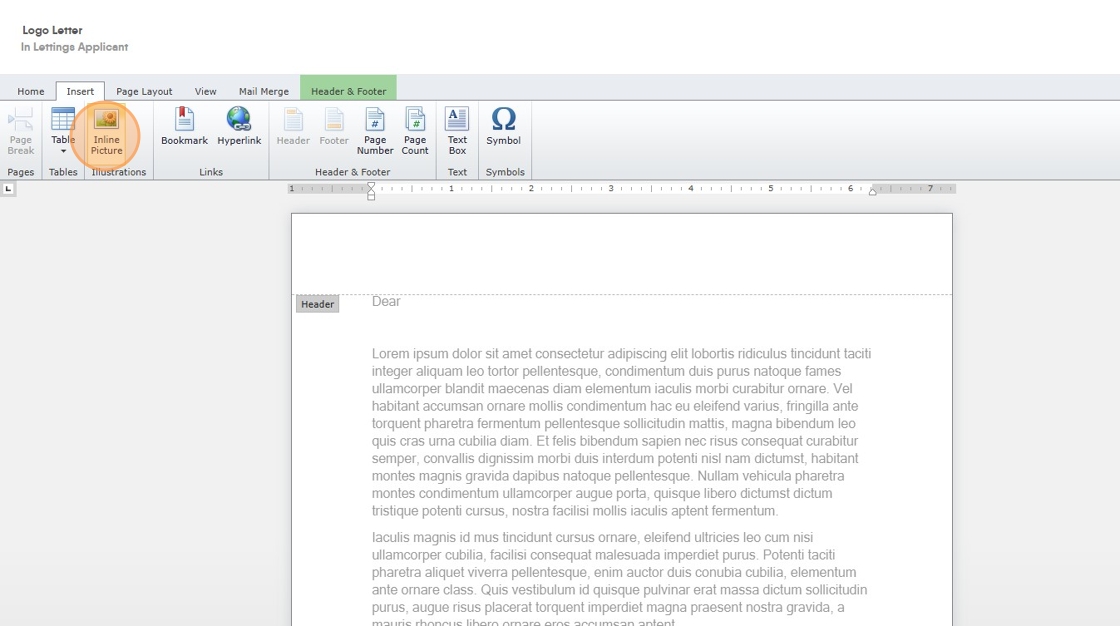
17. In the 'Insert Picture' section you can link to an image on the internet or (most likely) find an image on your computer and link to that.

18. Click the "Browse your computer for the image file to upload:" field.

19. Once the image is found. Click "OK"

20. Your image will load, click onto it and use the options to re-size the image to fit your document. Click here.

21. Click onto the main field of your letter to close the Header and set the image.

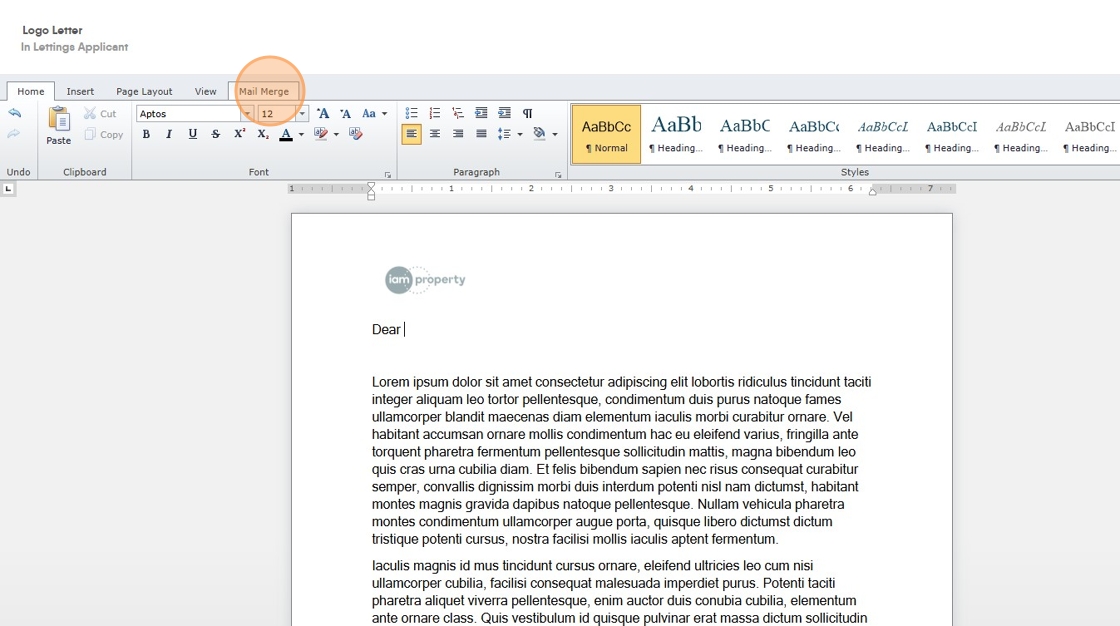
22. Your image is then set as part of your letter.

Updating Merge Tags
Merge Tags allow data - names, addresses, property details etc. - to be added automatically to a letter to produce a personalised document.
24. Click "Mail Merge"
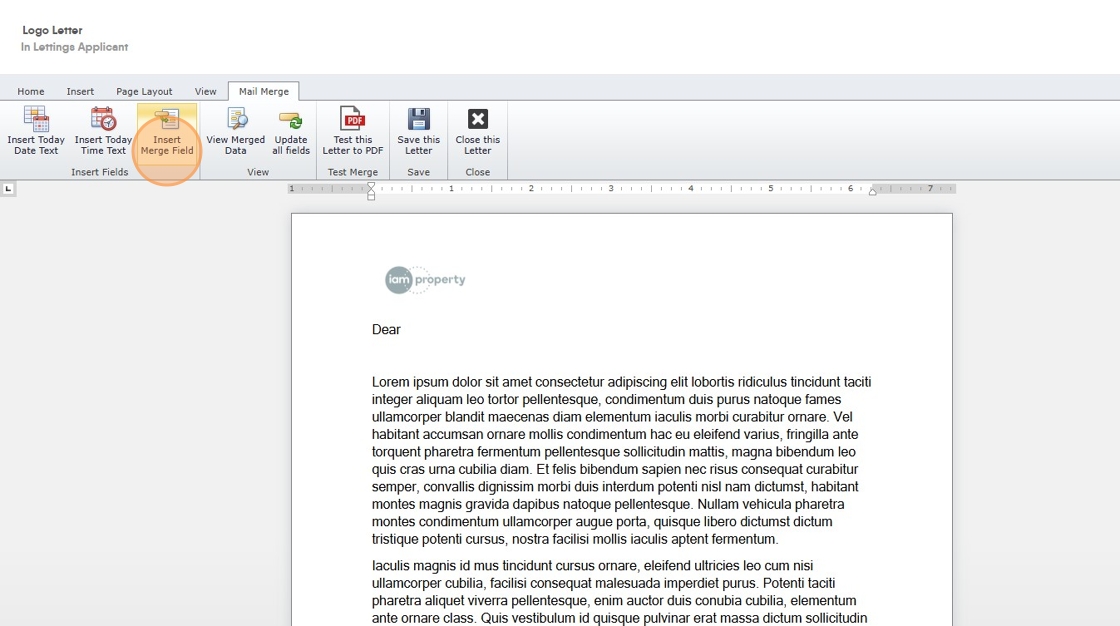
25. Click "Insert Merge Field"
Tip: Tip! When adding merge fields it is best practice to search for the field you require rather than scroll the list, there are so many merge fields available that scrolling is NOT advised,
26. The 'Insert Merge Field' box will show on the screen, this can be moved to a different part of the screen if required. Click the "Fields:" field.

27. If we wanted to add the Applicant details, we would place the cursor on the screen where we want the tags to be added e.g. next to 'Dear'. Then in the search field search for the the option required e.g. Applicant Title, Click "Applicant Title"
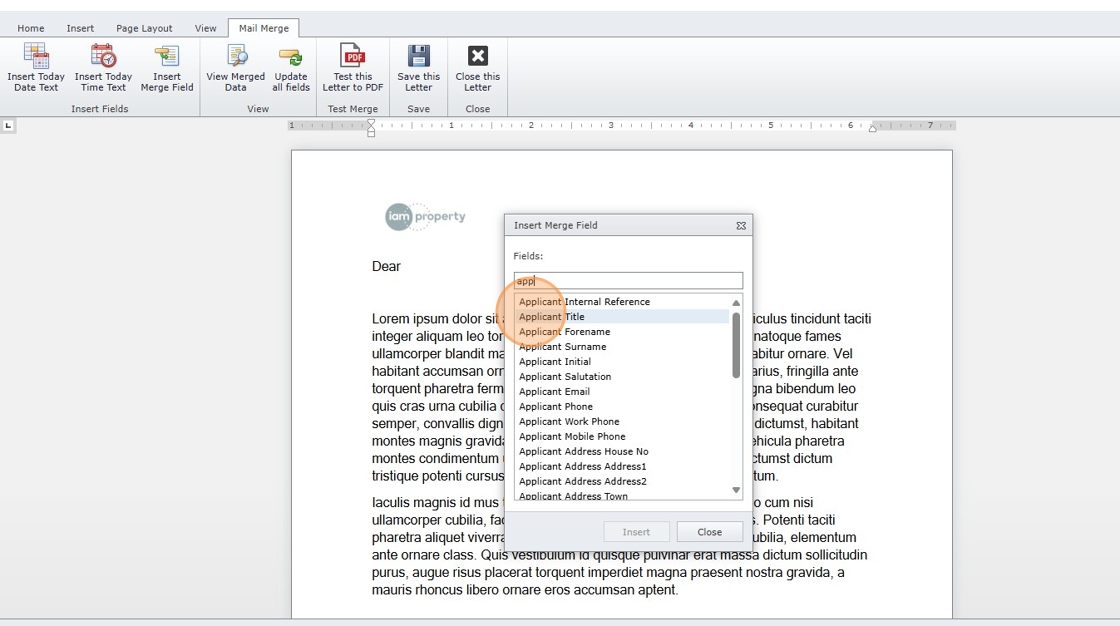
28. Click "Insert" to add the tag to the place where the cursor is set. You can continue to select merge fields and adding them from the list and they will be added next to the first tag.
Click "Applicant Forename"
Click "Insert"
Click "Applicant Surname"
Click "Insert"
Click "Insert Merge Field"
29. You will see the tags added like this. Keep moving the cursor and adding merge fields as you require.

30. Once completed and all merge fields are added. Click "Save this Letter".
