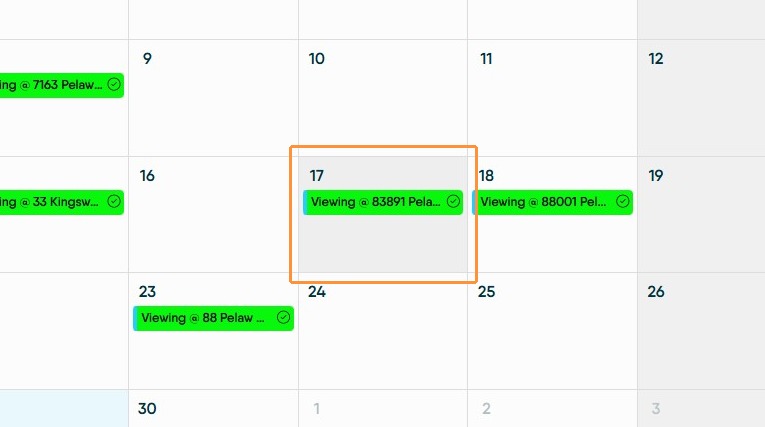
Follow this guide to easily confirm property viewings with your clients using the CRM calendar. You will learn how to select the correct viewing appointment and send a professional confirmation email using pre-built templates.
Tip: Tip! This is the same process for both sales and lettings viewings. It is also the same process if you are setting a confirmation for an Appraisal.
Calendar Access
1. Navigate to your CRM calendar
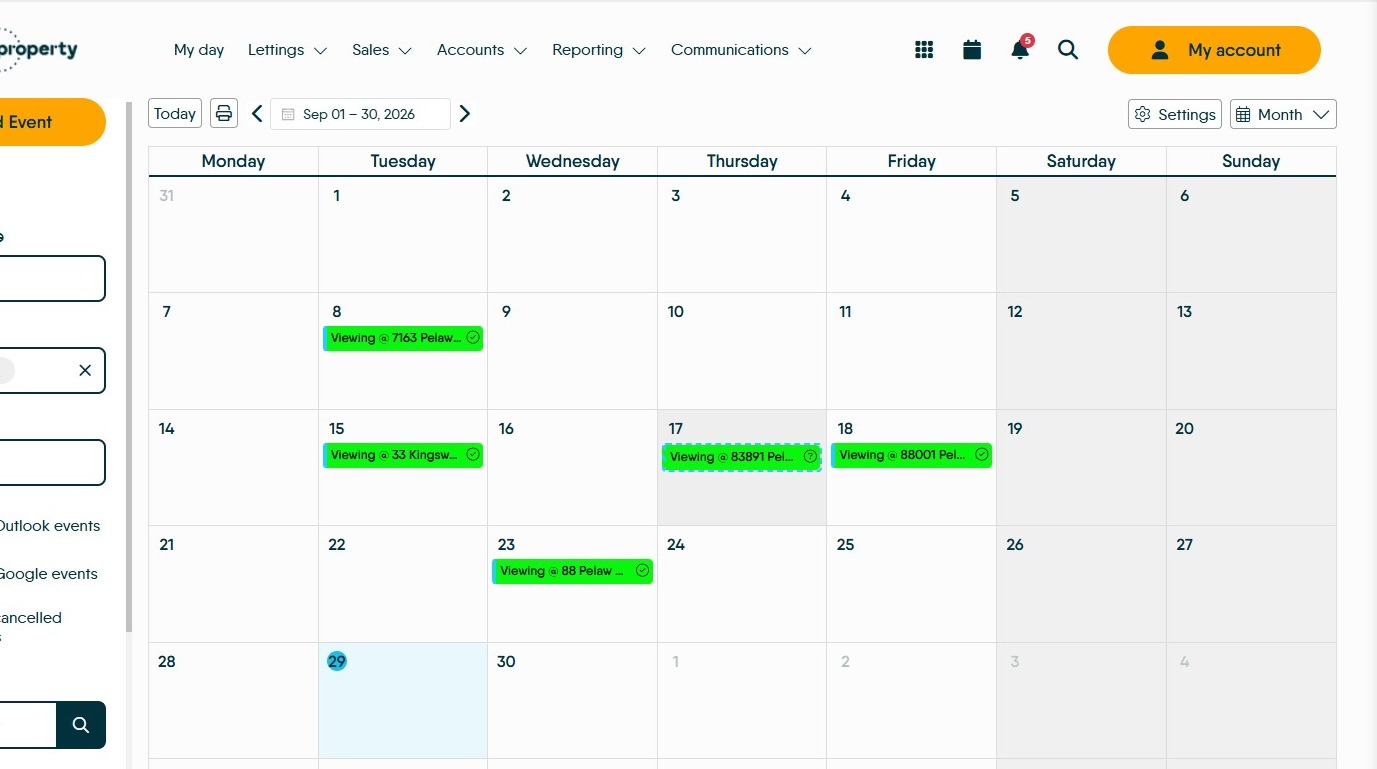
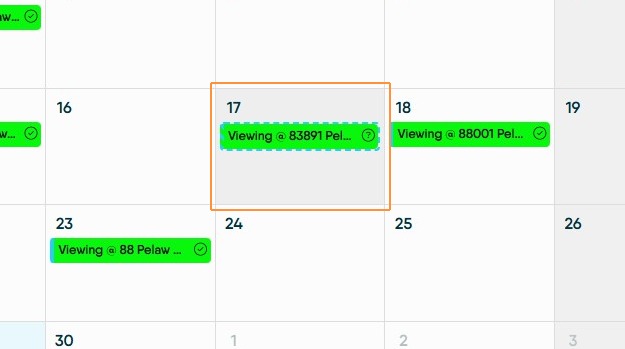
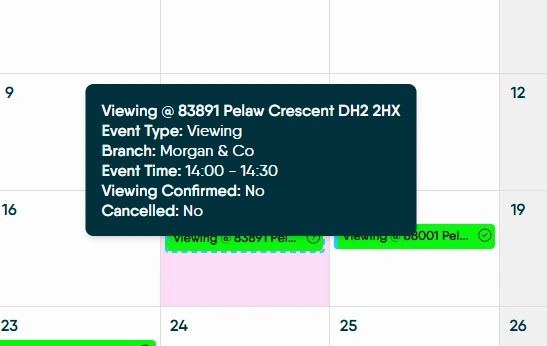
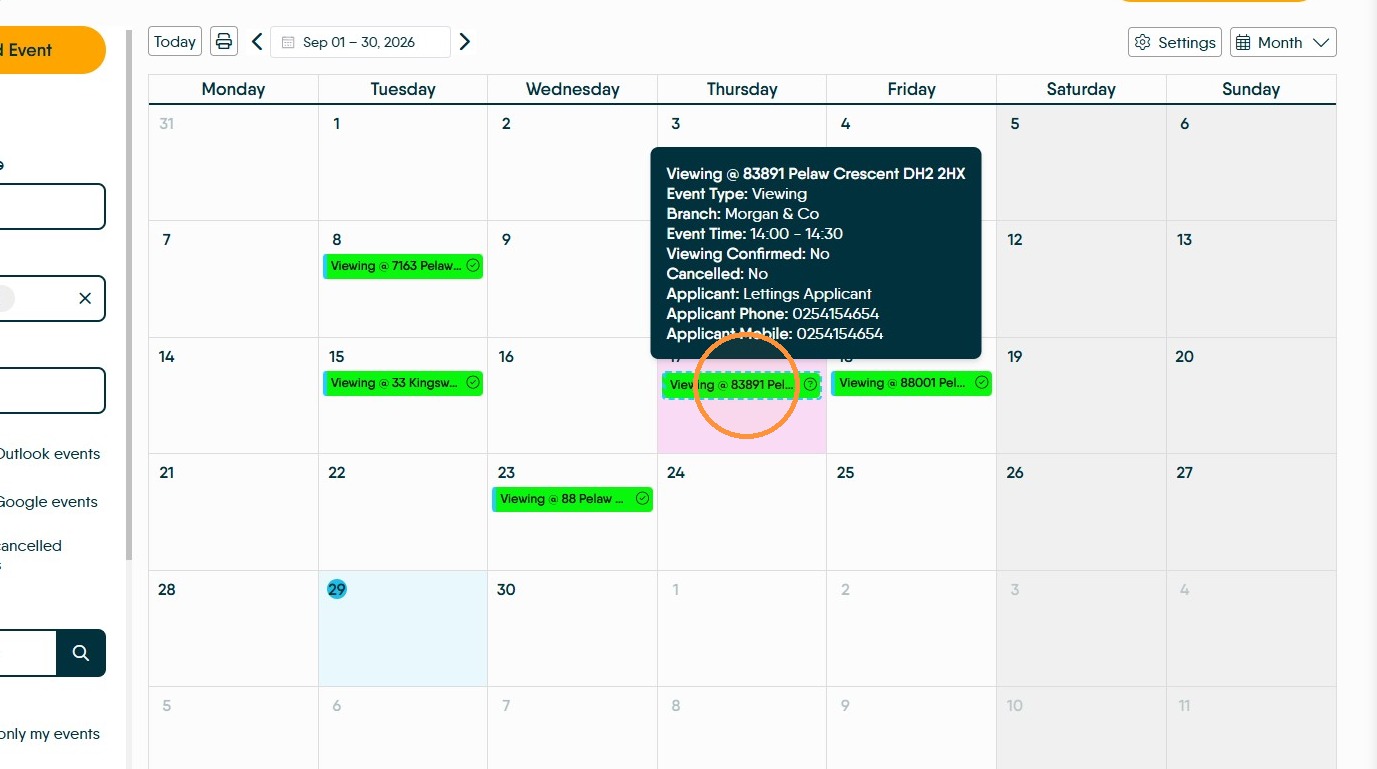
2. A calendar entry that has a dashed outline is an un confirmed appointment. Hovering your mouse over the appointment entry will also show the details of the appointment.
Event Details
3. Click into the viewing record e.g. "Viewing @ 83891 Pelaw Crescent DH2 2HX:"
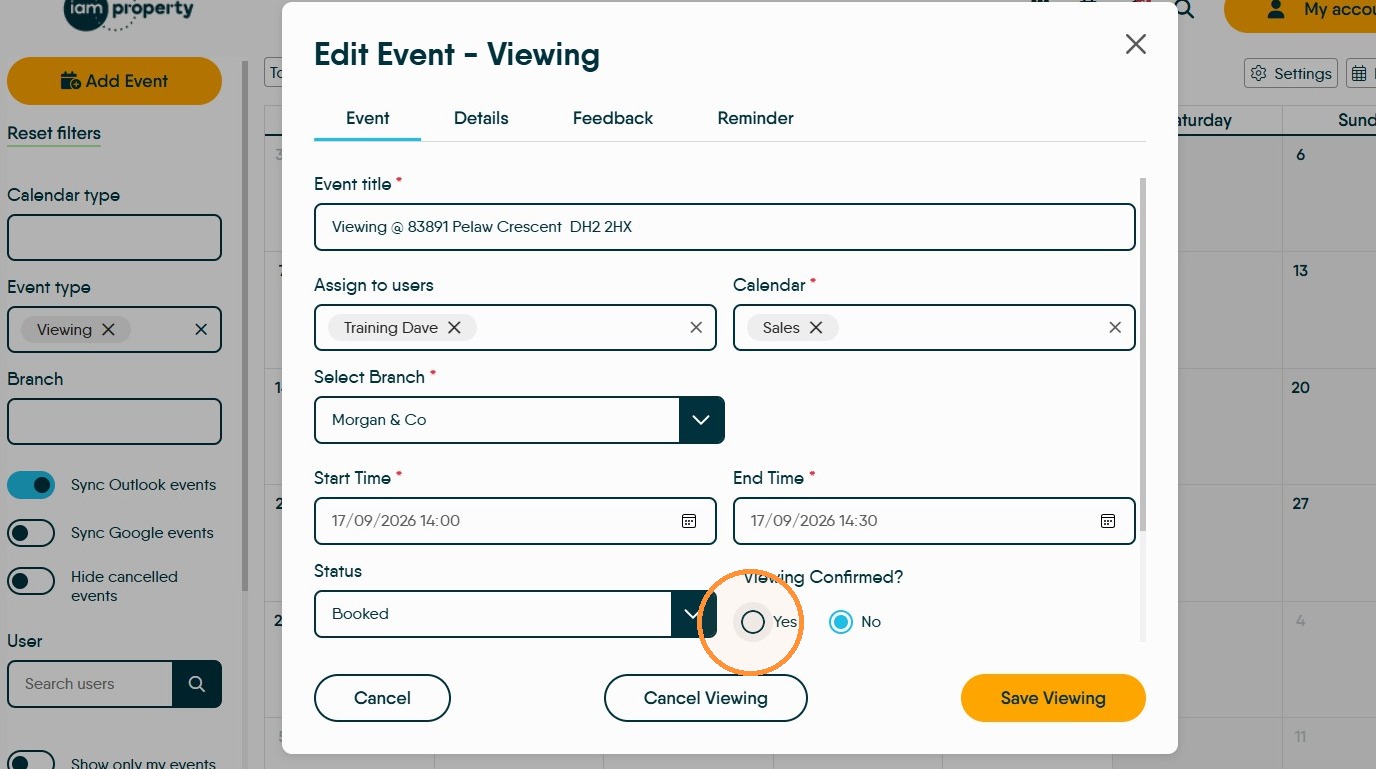
4. Select Yes for "Viewing Confirmed?"
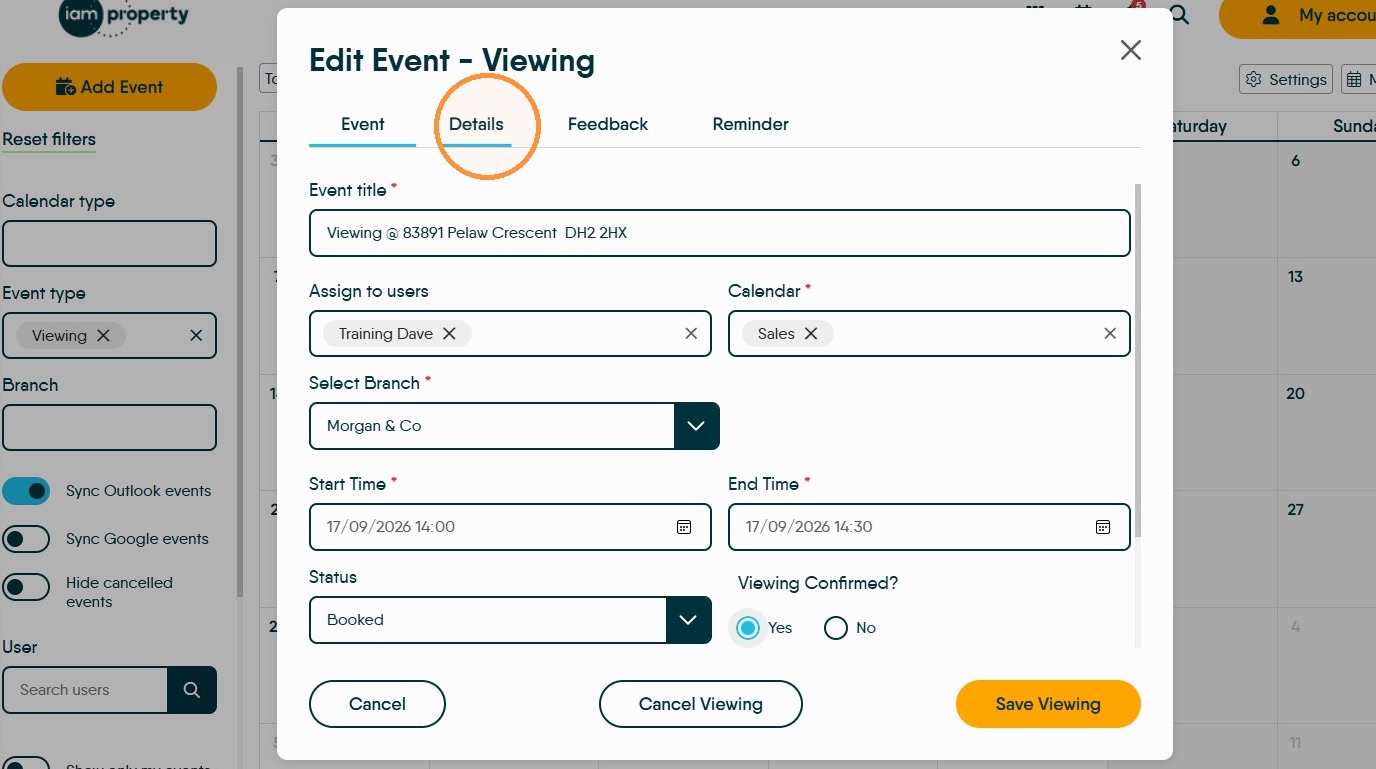
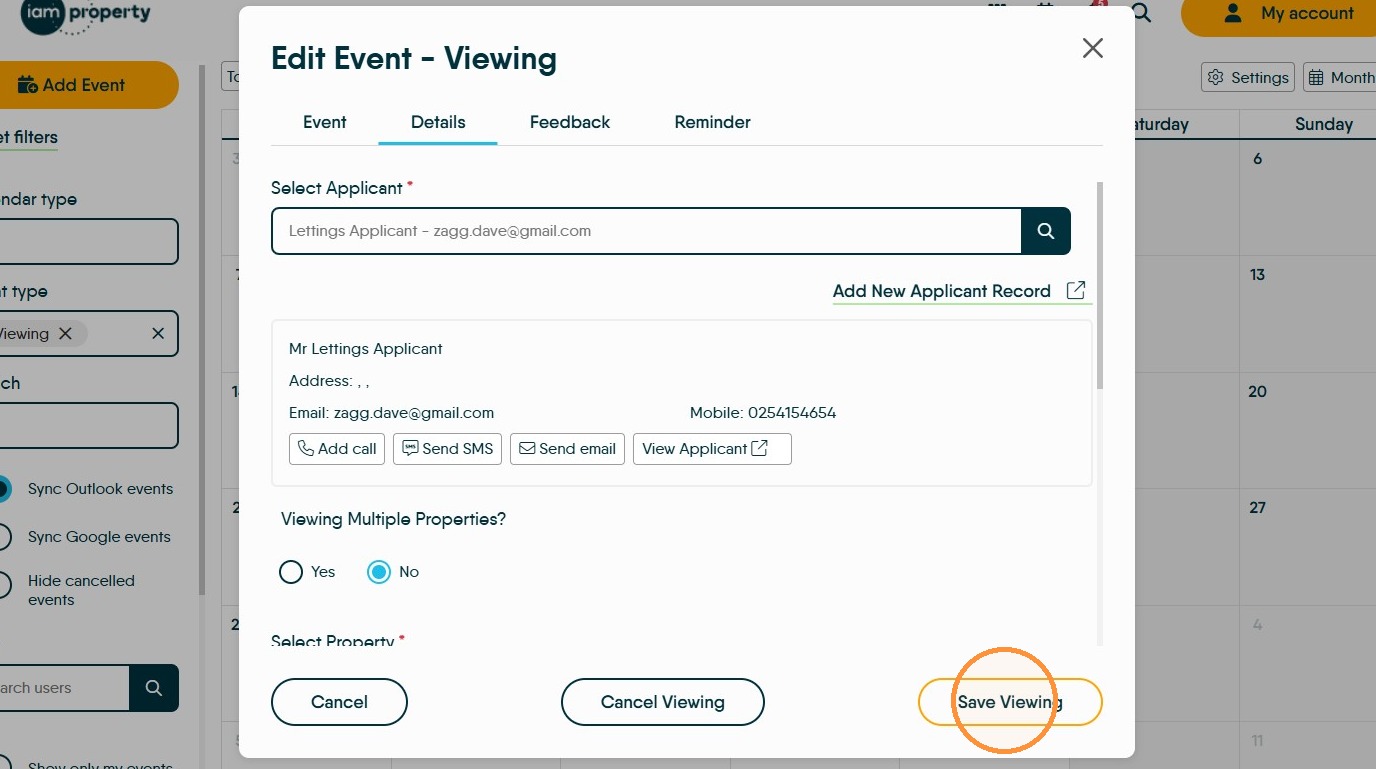
5. If you do not have the auomation to send a confirmation for you. To send a confirmation email, click "Details"
Email Notification
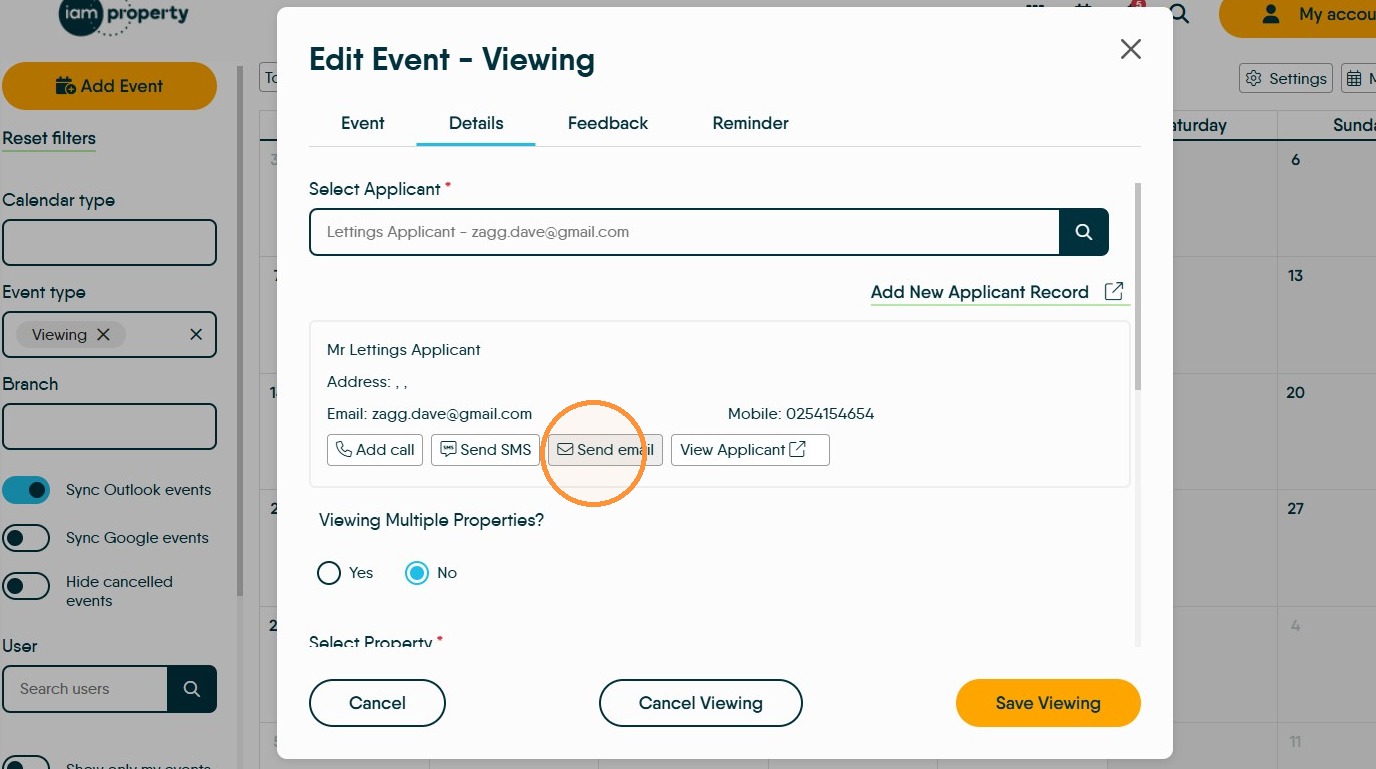
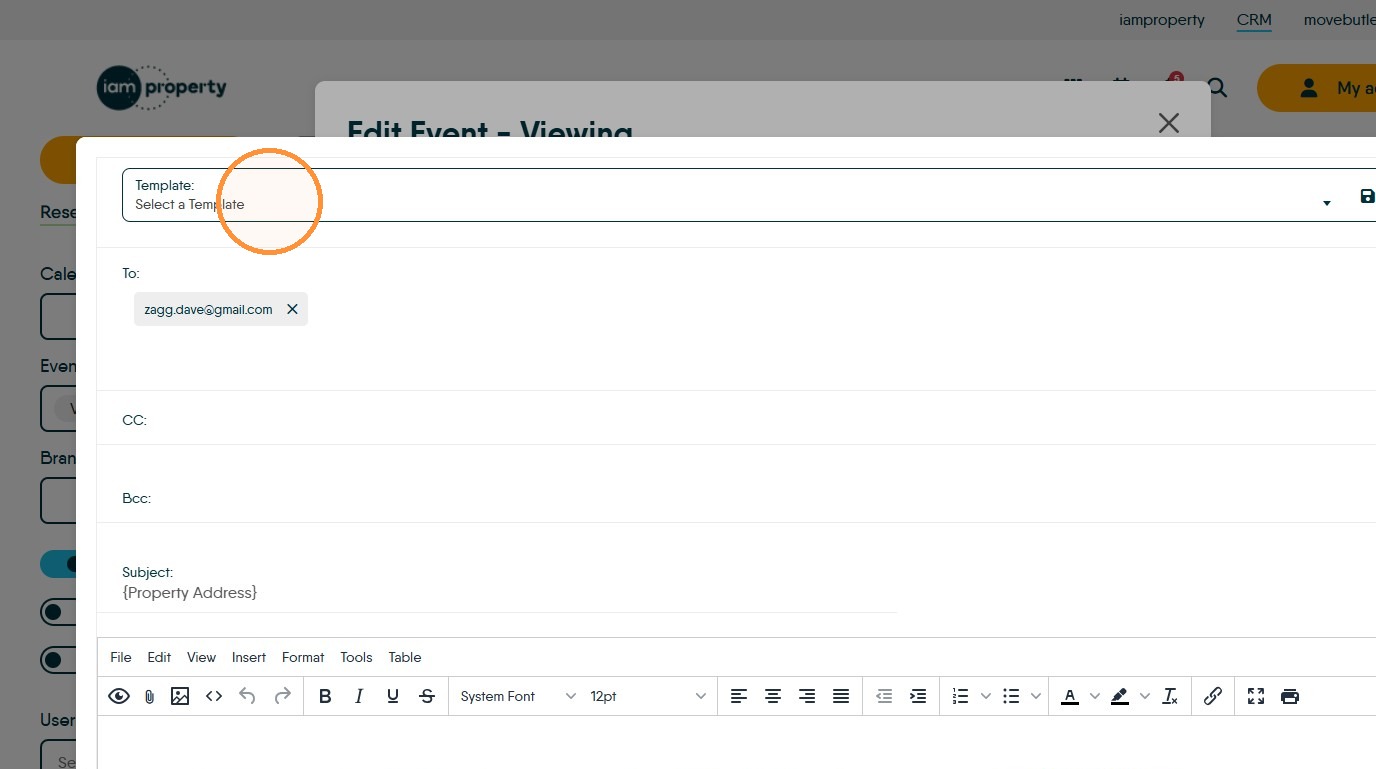
6. Click Send email in the applicant section
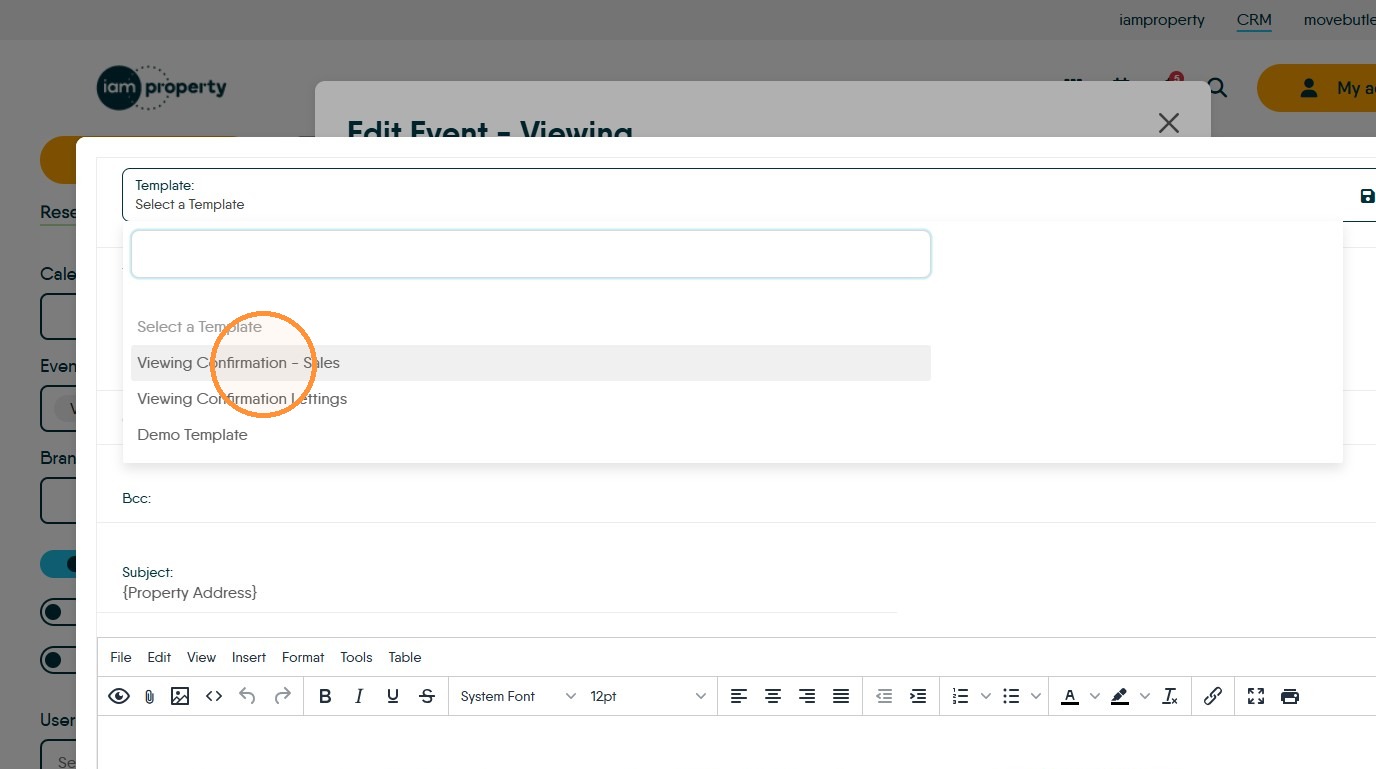
7. If you have a template created then select your 'Viewing Confirmation - Sales' email template
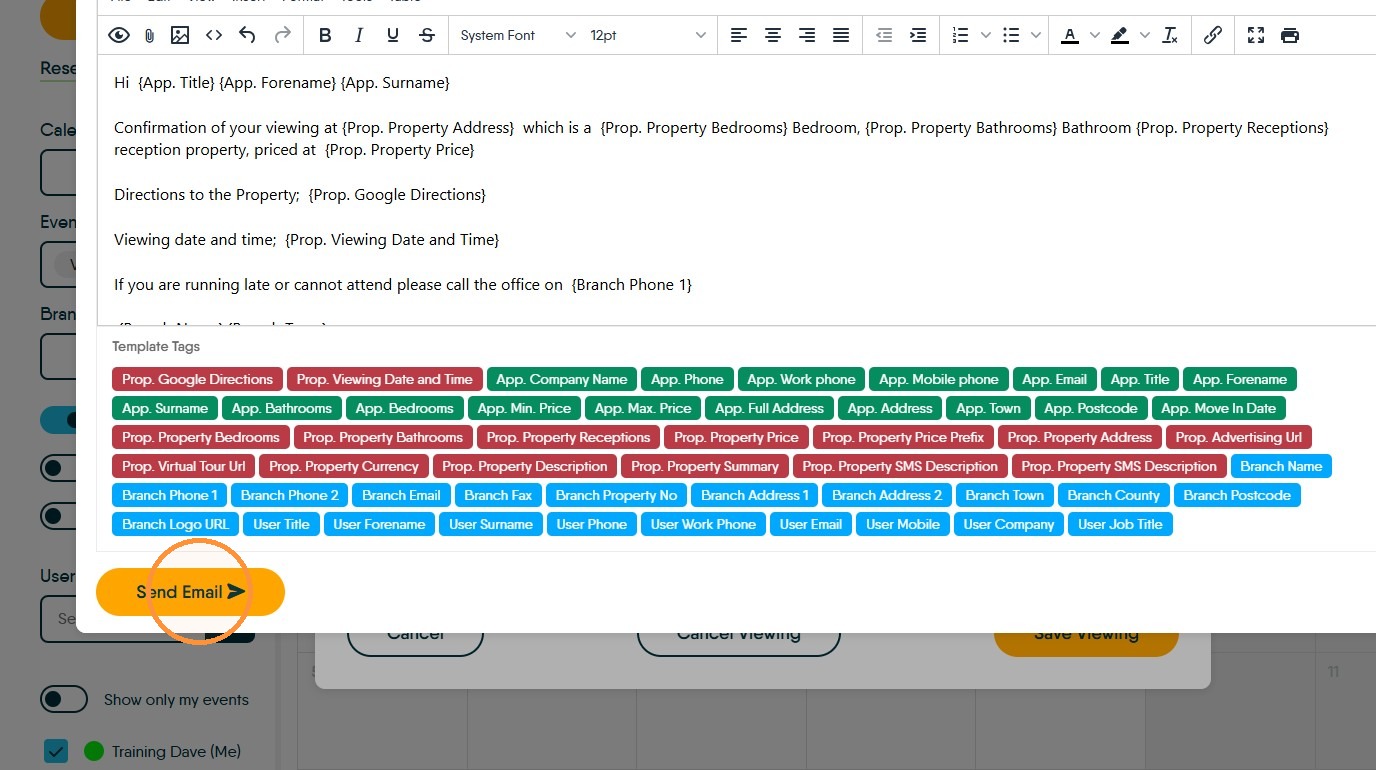
Click Send Email
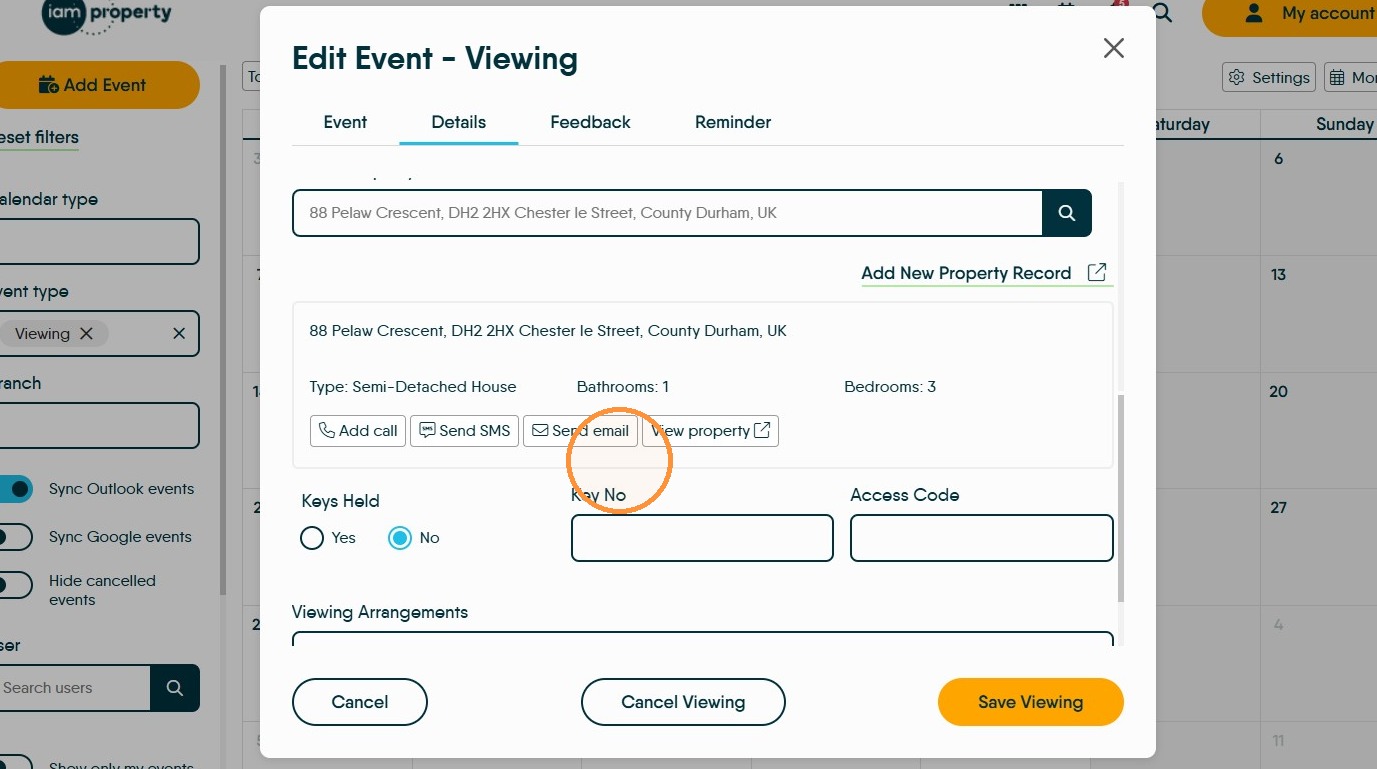
8. To send a notificaton to the Vendor/Landlord, scroll down the screen to the property section and click send email, the process is as above.
Save Changes
9. Click "Save Viewing"
10. The viewing record will now have a solid outline in the calendar.