This guide provides a comprehensive walk-through for creating matching templates in the CRM system, which is essential for optimising property listings and enhancing communication with clients. By following these steps, you will be able to create a template to assist in sending property details to clients.
Matching Templates are used when sending property matches to applicants from the property matching tool.
There are 2 Matching templates to create, Sales and Lettings. Both have the same process to set up, however the merge tags work differently.
There are 2 parts to a matching template, Single Property match used where only one property matched to an applicant. Multi Property and Property Repeater that are used when sending multiple property matches to 1 applicant.
2. Navigate to https://crm.iamproperty.com/MyDay

3. Click "My account"

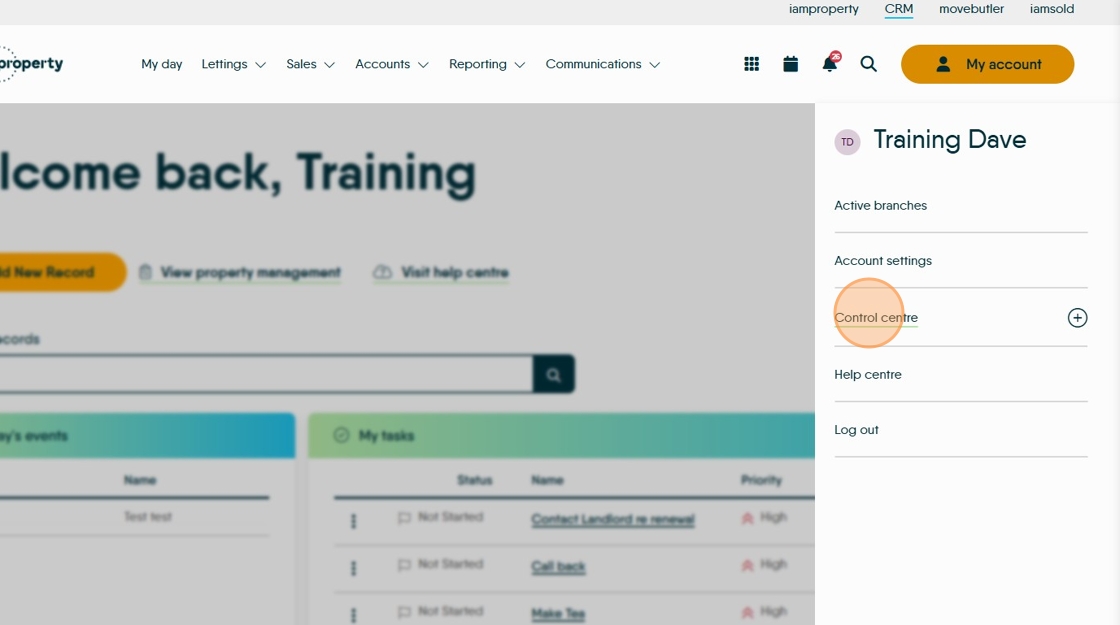
4. Click "Control centre"
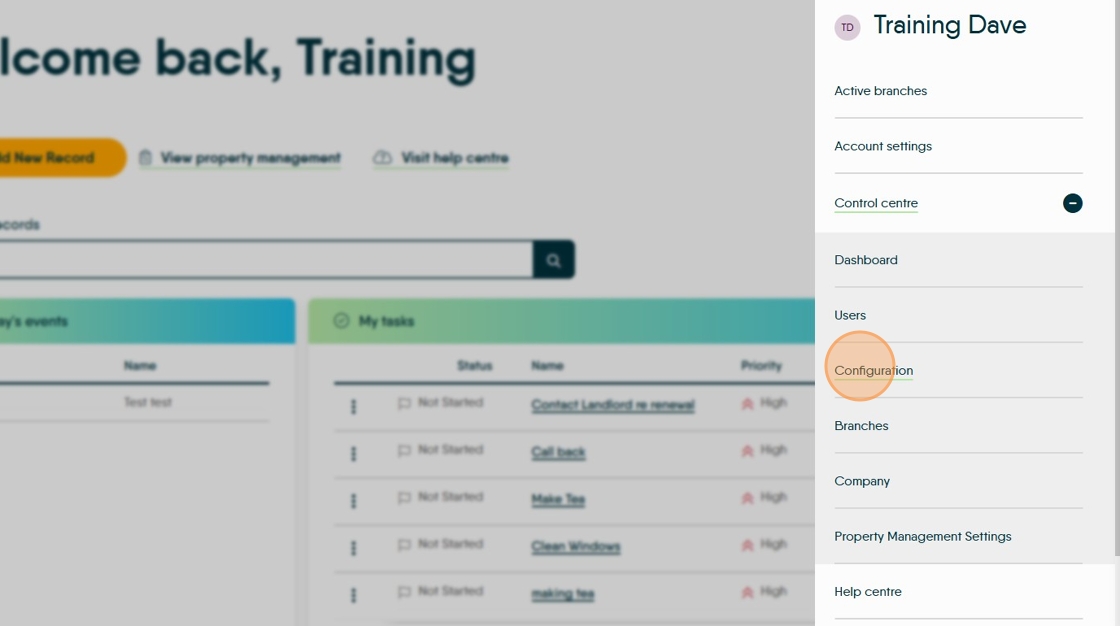
5. Click "Configuration"
6. Click "Matching templates"

7. There are 2 types Lettings and Sales, both are the same and we will look at Lettings.
Click "Lettings"

8. To create the single property option. Click "Single Property"

9. Click here to create a new template.

10. Click the "Template Name" field and give your new template a name.

11. The template is created in the highlighted field below. There are various options, the easiest and most straightforward is to type your messages in the screen and use the Template tags to add in personalised data and property information.

12. Click "Template Tags" and click the tag you want to use, this will place it where your cursor was last set.

13. You can add images e.g. your company logo or icons etc change font types and add colours etc.

14. Once complete click on the 'Save' icon.

15. Click here to copy the template to other branches in your company.

16. Click the "Template Name" field and name the template.

17. Click the branch menu and select the branch to copy the template to.
Click "Morgan&Co MB"

18. Click "Save"

19. That is you single property template created.
If you have multiple template options for sharing the data, you can set one template as the default, this will be used unless the user selects a different option. Click here to set this template as default.

Multiple Property Template
20. This is for when the applicant has matched to multiple properties.
21. Click 'Multiple Properties'.

22. The multiple properties template is a header for the 'Property Repeater' which is what collects and adds the multiple property details.
The process from here is the same as that for creating a single property matching template, however you need to remember to add the 'Property Repeater' tag.

Property Repeater
23. This is the template that brings in all the data for the multiple properties and is linked to the Multiple Properties template via the 'Property Repeater' tag. Again the process for creating this is the same as other templates.

24. As with the other templates this can be a simple text message, or include images.

25. The templates can be created using tables and HTML as shown above, this allows a more visually appealing template if required and the ability to set the layout to suit your company style. There are some templates within CRM that can be used and edited or you can build your own.