Within CRM there are occasion when the ability to use another screen is useful, for example a person rings up to book a viewing but you are in the middle of receipting in rents and cant move from the page you are on. Or, you need to reference between multiple pages. This guide will show how to open another screen easily and quickly allowing you to continue with your work.
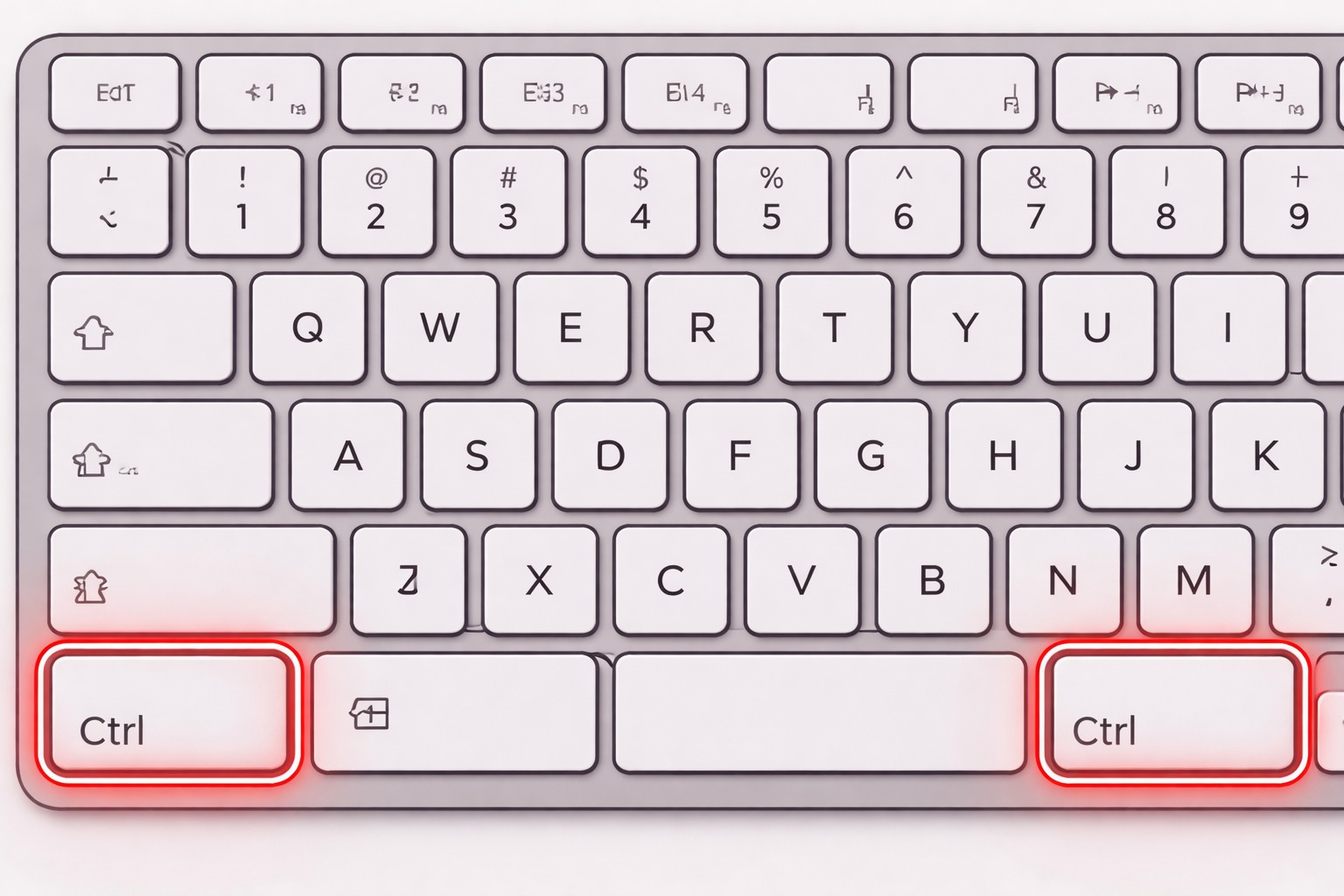
Where is the CTRL Key?
1. Position of CTRL/Control keys on a standard keyboard?
The CTRL or control key is bottom left and right of a standard UK keyboard layout. On an Apple MAC keyboard the key is in the same place, just called the CMD key.
You need to press and hold the Ctrl key and click the left mouse button at the same time.

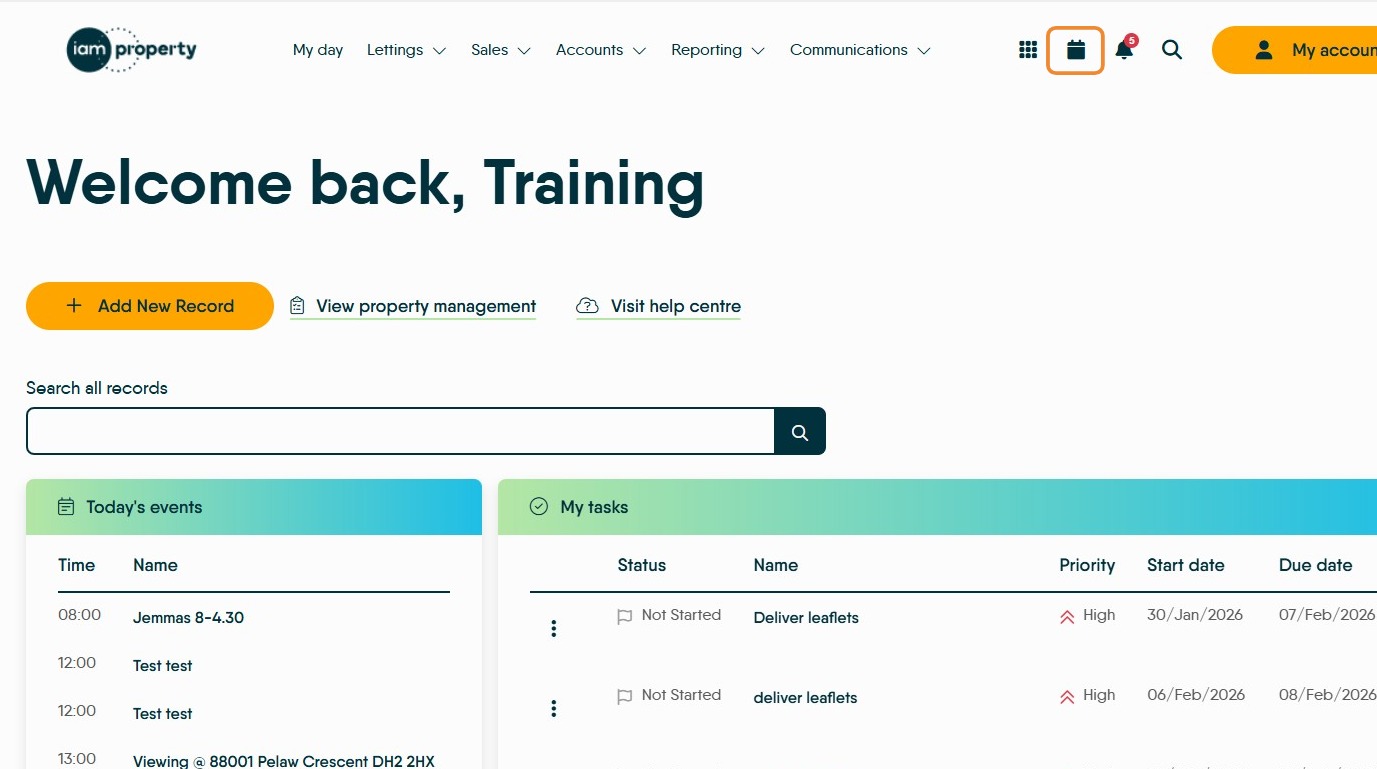
2. You can do this action from any screen in CRM and from most clickable links, we are using the My Day screen as an example.
On the My Day screen there are a few places where you might want to open a new screen. For example to view the Calendar, if you click on the calendar icon it will open over the screen you are in. However, if you press the CTRL keys on a your (windows) pc keyboard the calendar screen will open in a new screen so you can flip between screens and check calendars.
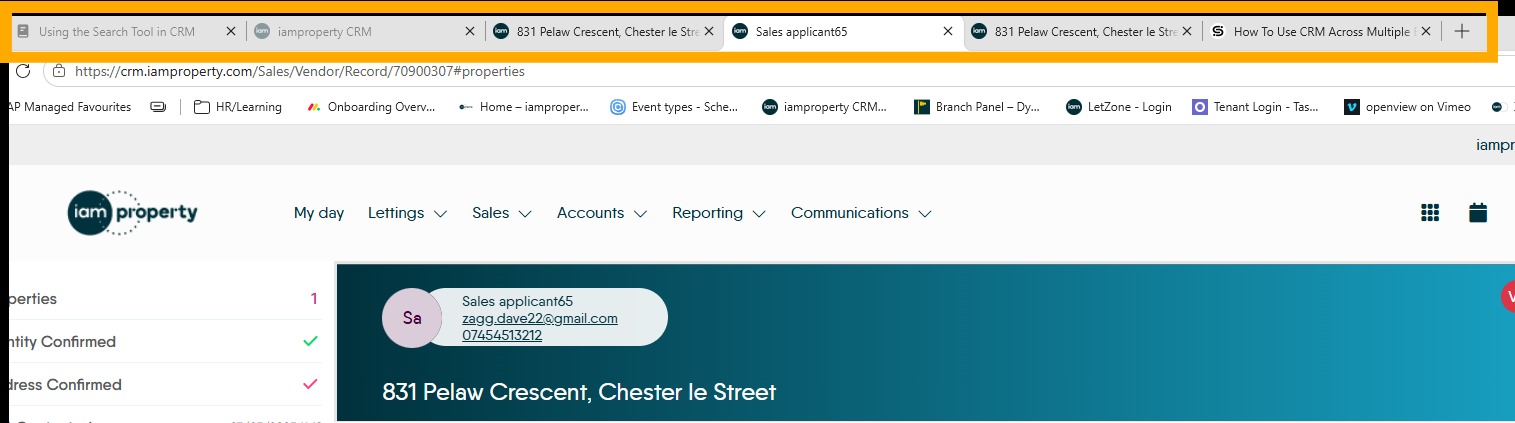
Tip: Tip! These new new browser screens will open in the background, you wont automatically jump to the new screen the tab will show at the top of your CRM browser screen.
Examples of Supported Areas
3. Virtually every screen link supports this feature, where a clicked link doesn't open in a new screen and the link opens over the current screen you can use the browsers back arrow to move back to the original screen.
None of the menu options at the top of the CRM screen will open in a new screen if you 'ctrl+click'.
Some of the areas that support Ctrl+click
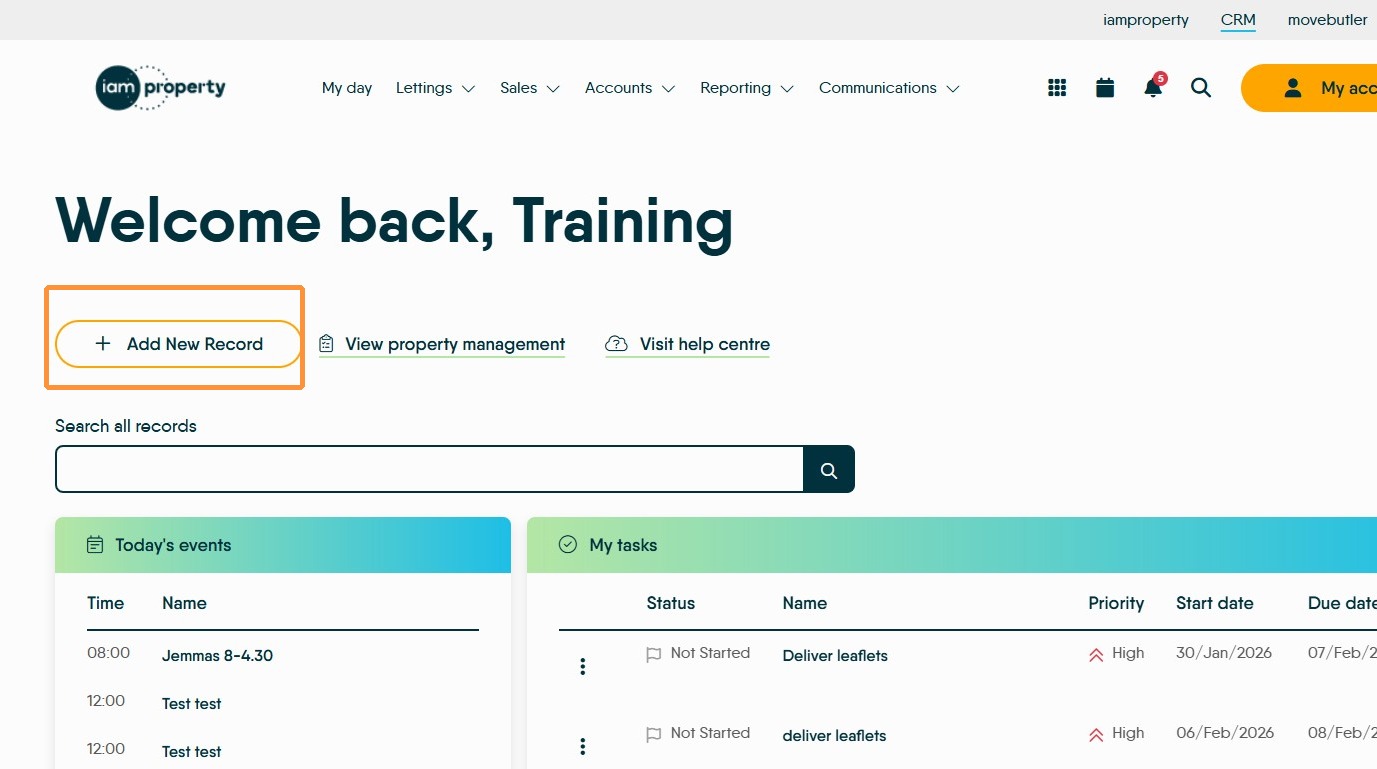
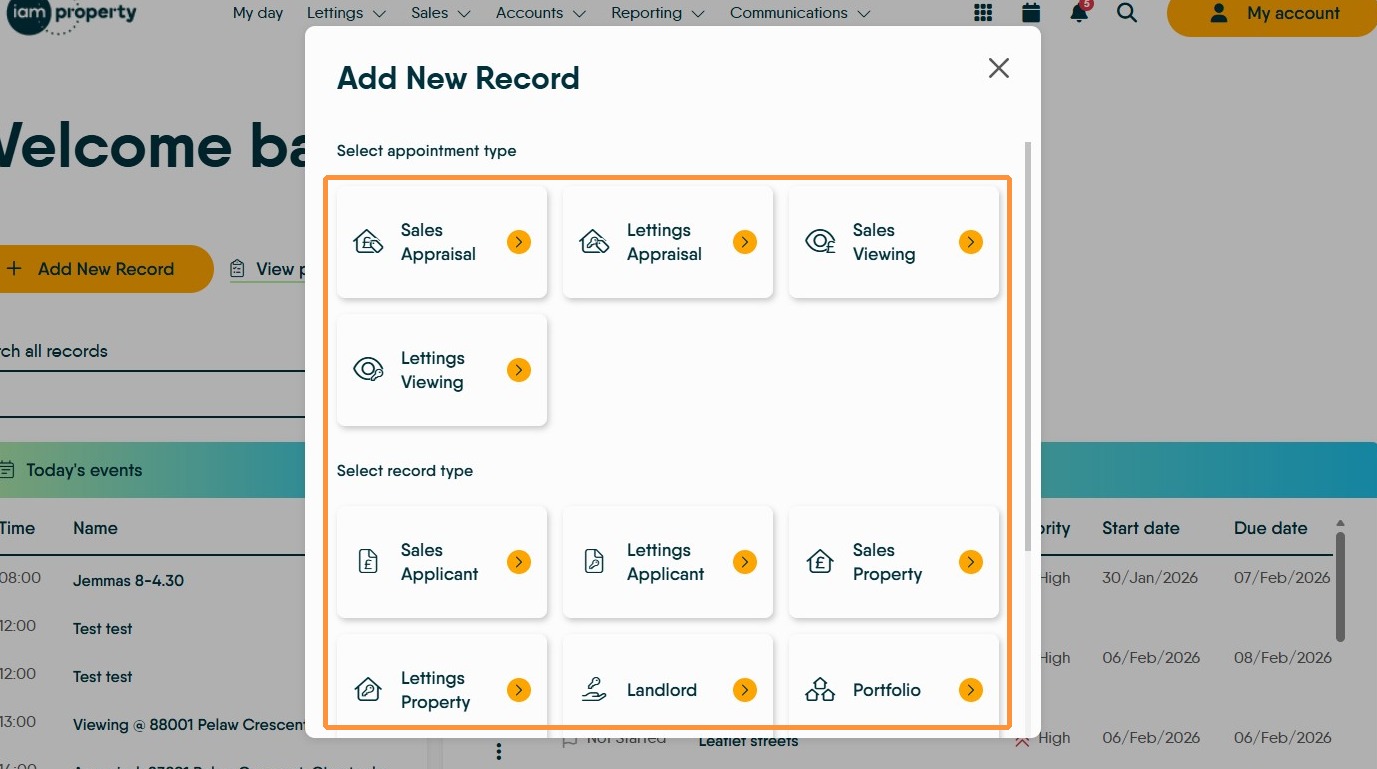
5. Click "Add New Record"
Ctrl + Click on any of the option on this screen and they will open in a new browser window/tab.
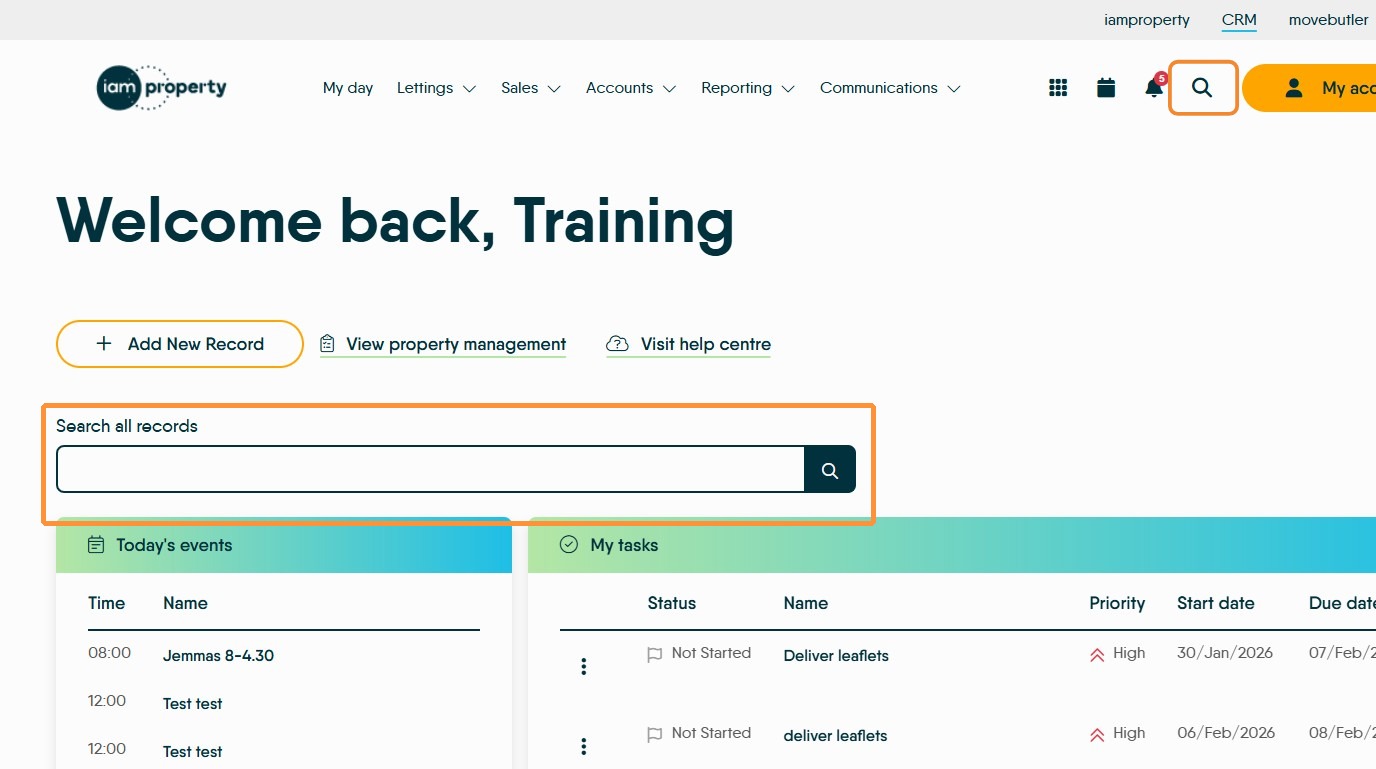
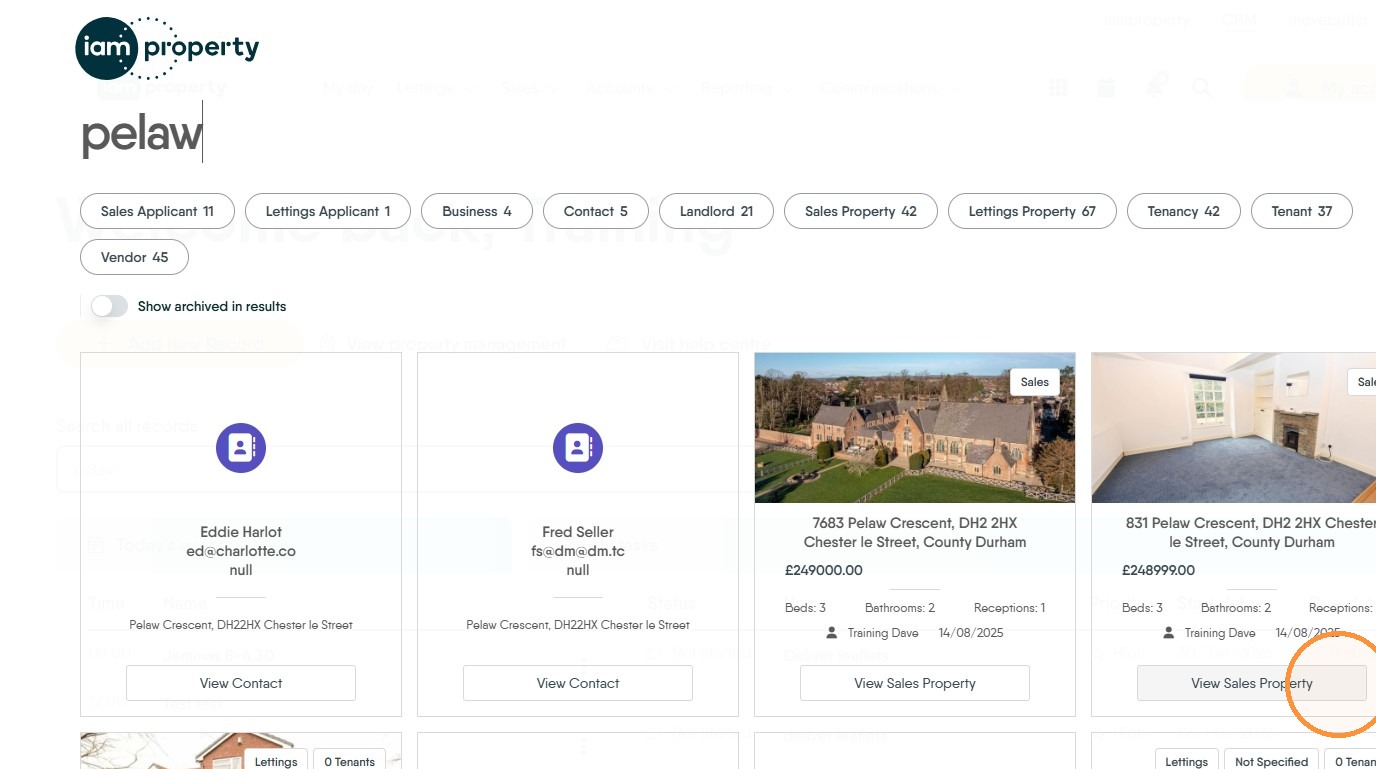
6. "Search" for a record using either the My Day screen or the 'magnifying glass icon' top right. Any of the results and be Ctrl+clicked to open in a new browser screen. E.G. Click "View Sales Property"
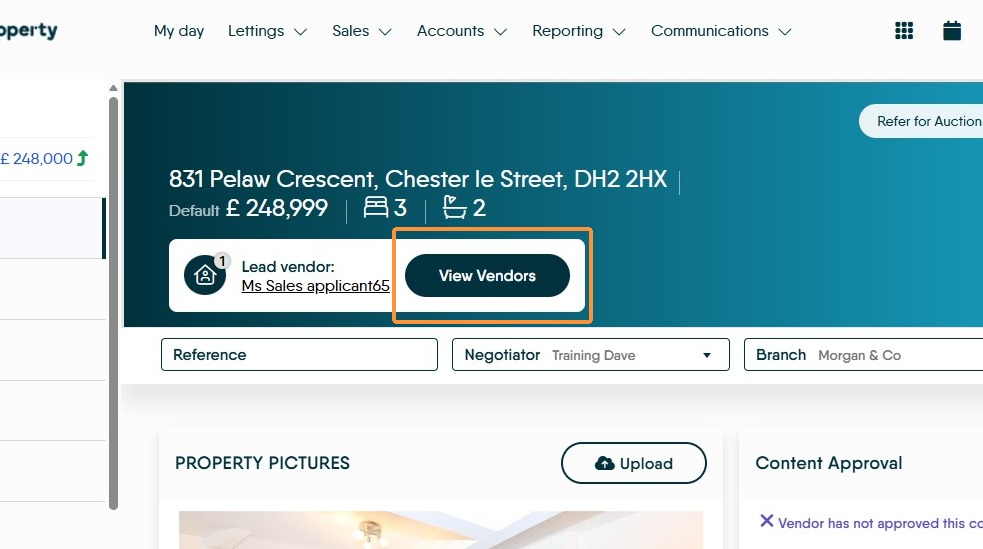
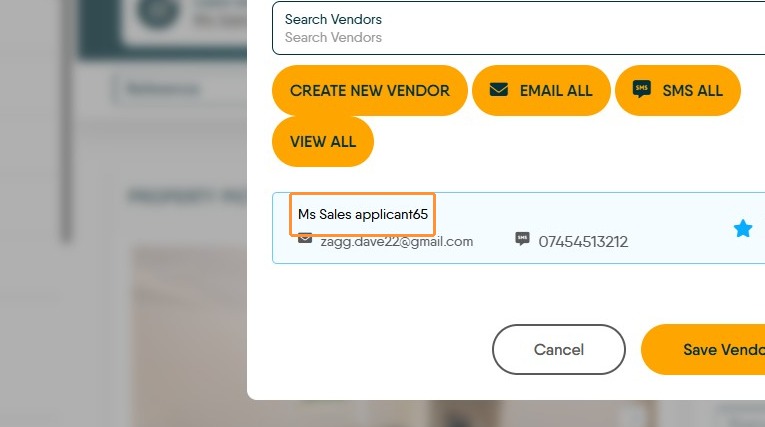
7. From the Property record. Click "View Vendors"
Ctrl + click on the Vendor name e.g. "Ms Sales applicant65"
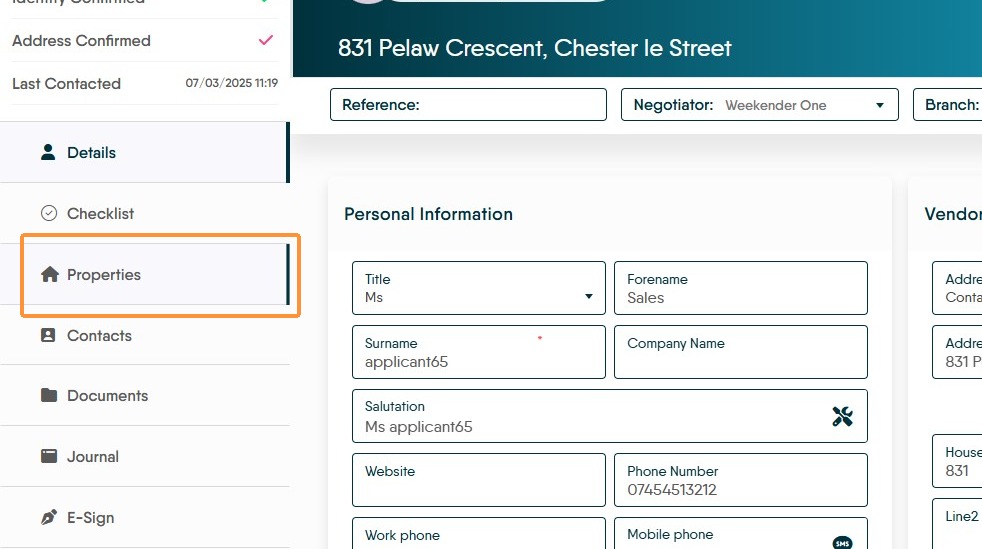
8. From the Vendor record, you can click the "Properties" menu.
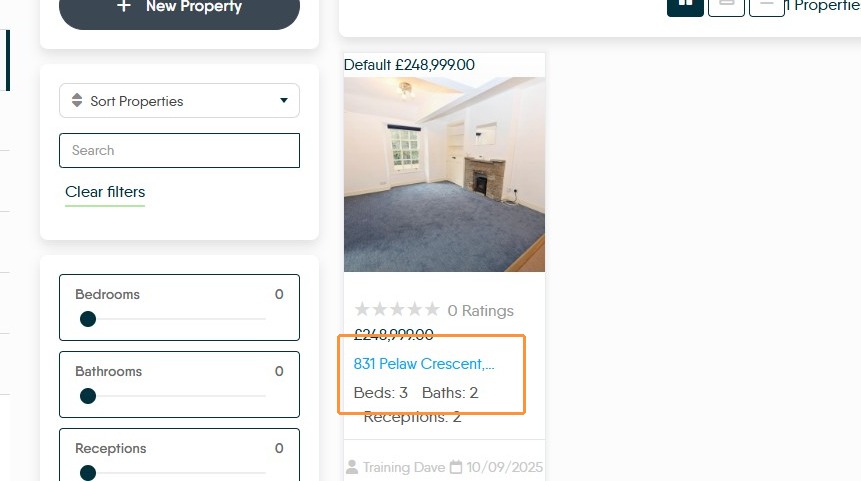
Then Ctrl + click on the blue highlighted part of the property tile to open the property record "831 Pelaw Crescent, Chester le Street"
9. There are lots of other areas that support the Ctrl+click function try to use the feature and see where it works.