Learn how to effectively filter and monitor your real estate sales activity within the Dynamic Agent dashboard. This guide walks you through accessing specific branch data, reviewing performance metrics, and managing listing details.
Alert: Alert! The data that is visible in the Dynamic Agent screen is dependent on the access permissions that you, as a user, have been granted. If you believe you have the incorrect settings, please refer to your Manager/internal Dynamic Agent support.
Activity Panel
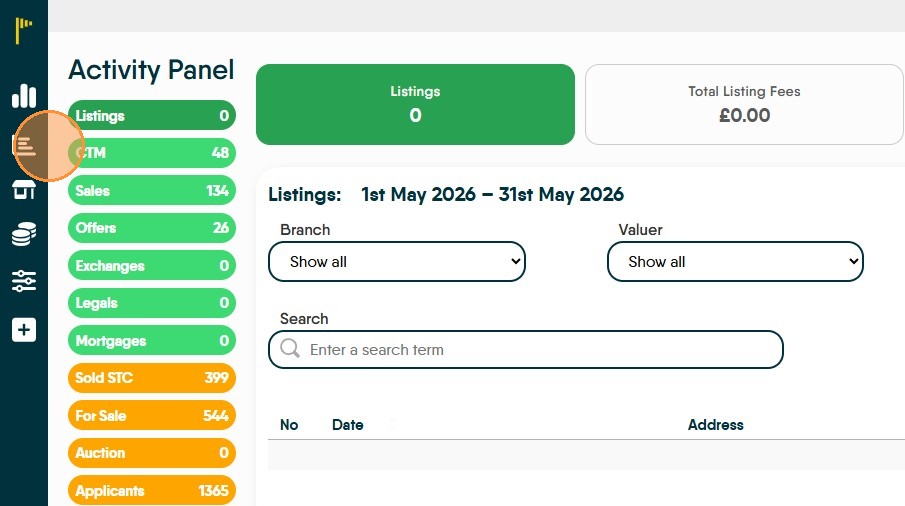
1. Navigate to https://dynamic-agent.co.uk/activity-panel/
Click here to access the 'Activity Panel' screen. This screen gives the ability to look at 19 data points or 'Activities', each of those activities can be further filtered to show data in different ways.
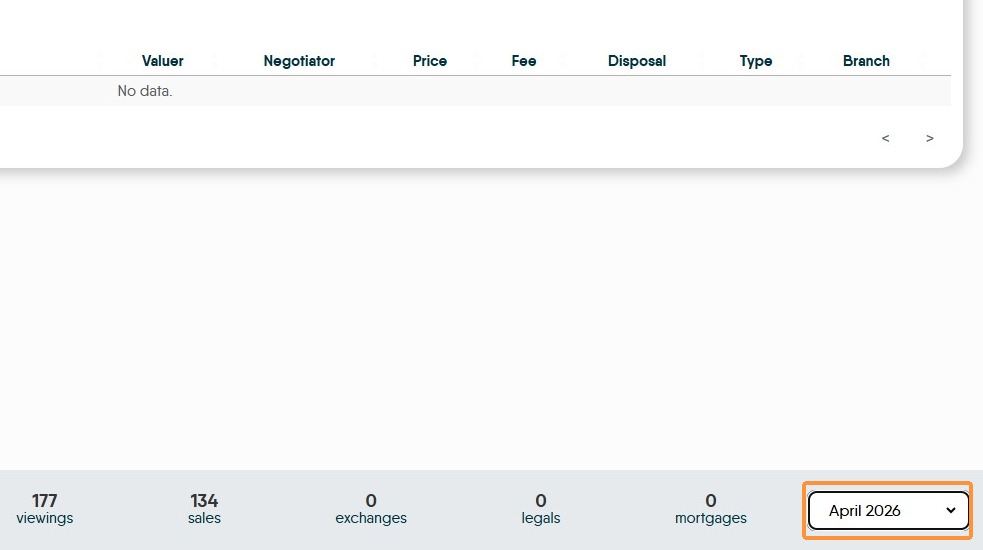
2. At the bottom right corner is an option to change the month. For example, at the start of a month there may be no data available and you may want to review the previous month. Select the month required e.g. "April 2026" from the date range selector.
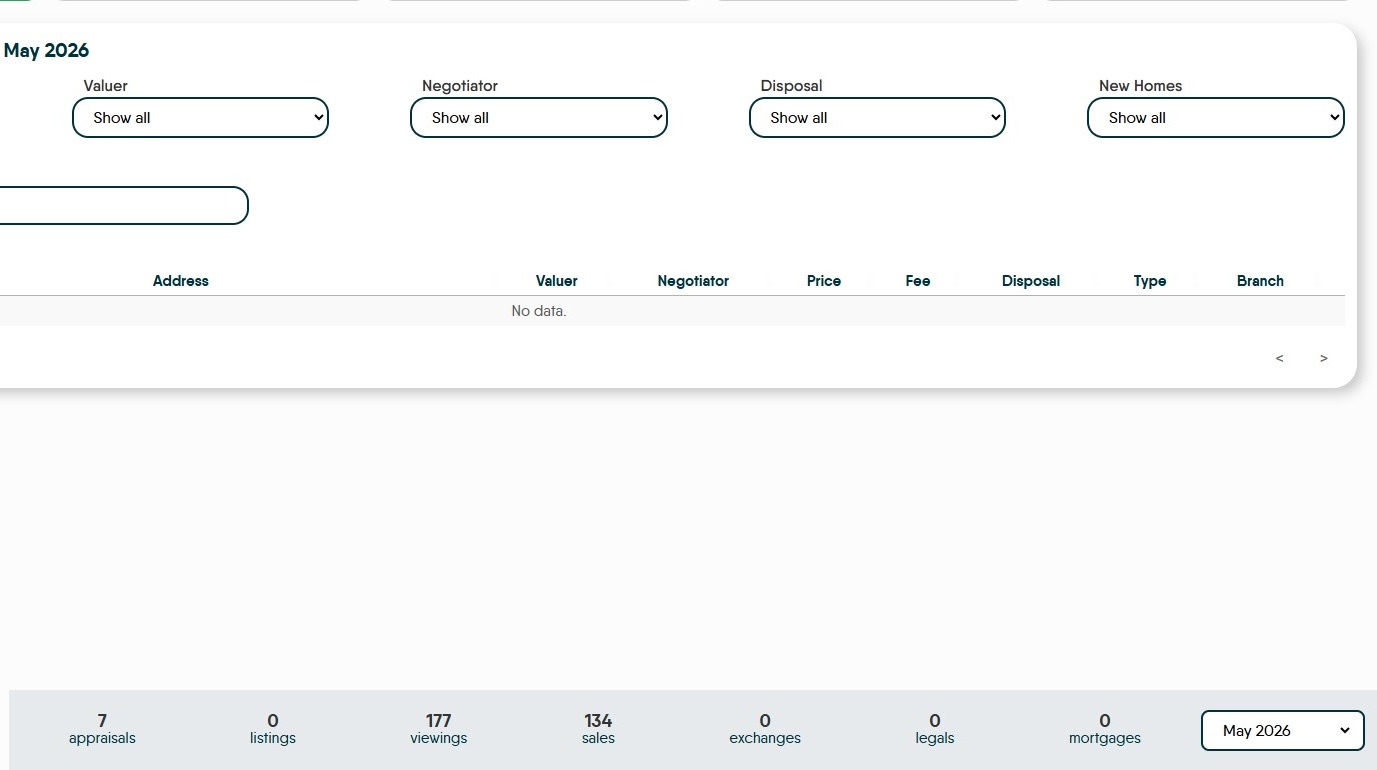
There are 19 options on this screen, all work in a very similar way so we have only looked at 1 option. More detail is shown in the Branch.. section
4. The first screen shown is Listings. This screen will show the total listings for the month selected. The on screen data can filtered be using the on screen filters to give a wide range of possible data outputs.
Across the top of the screen are the totals for the 'Listings' data you have access to.
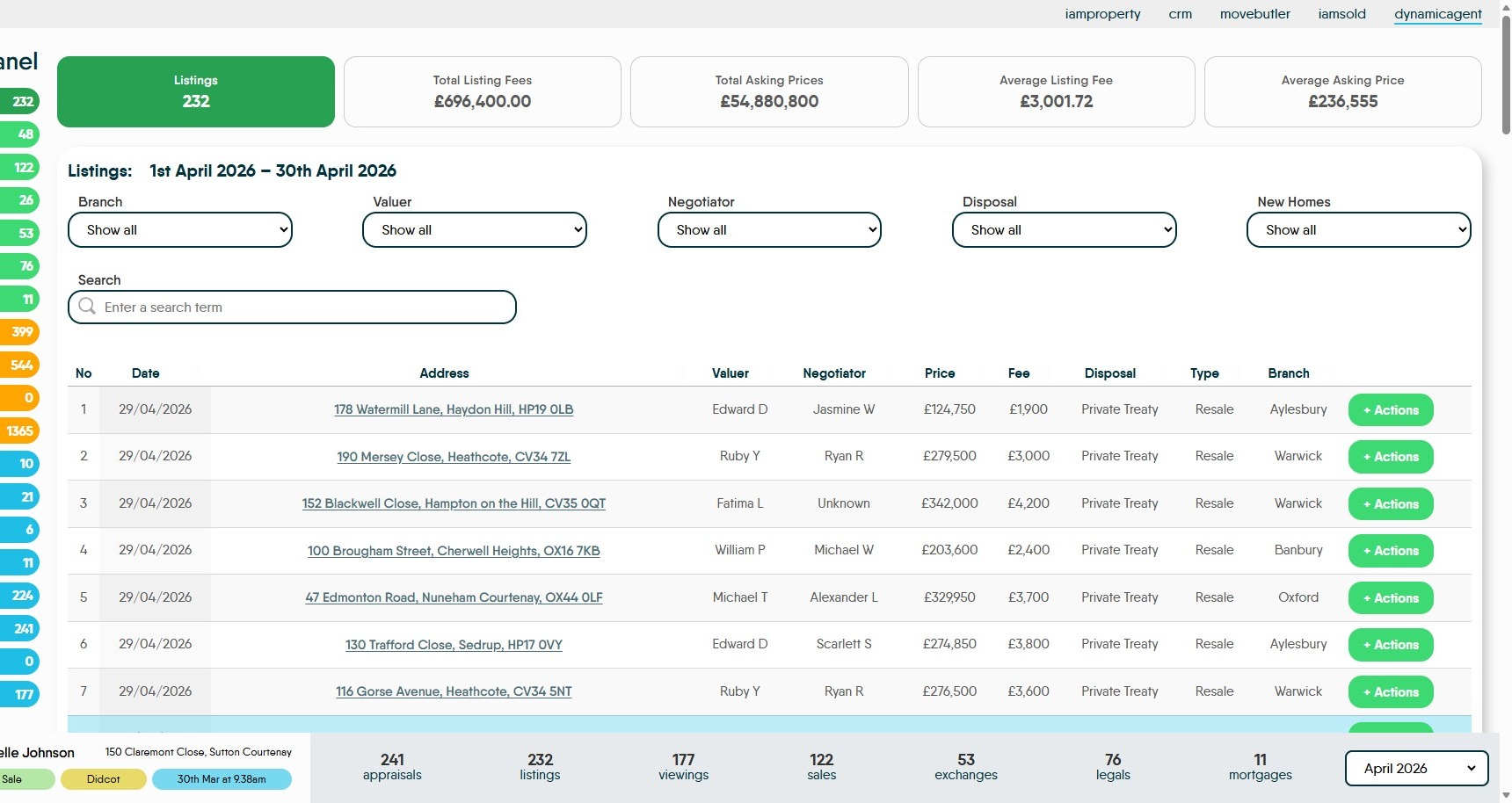
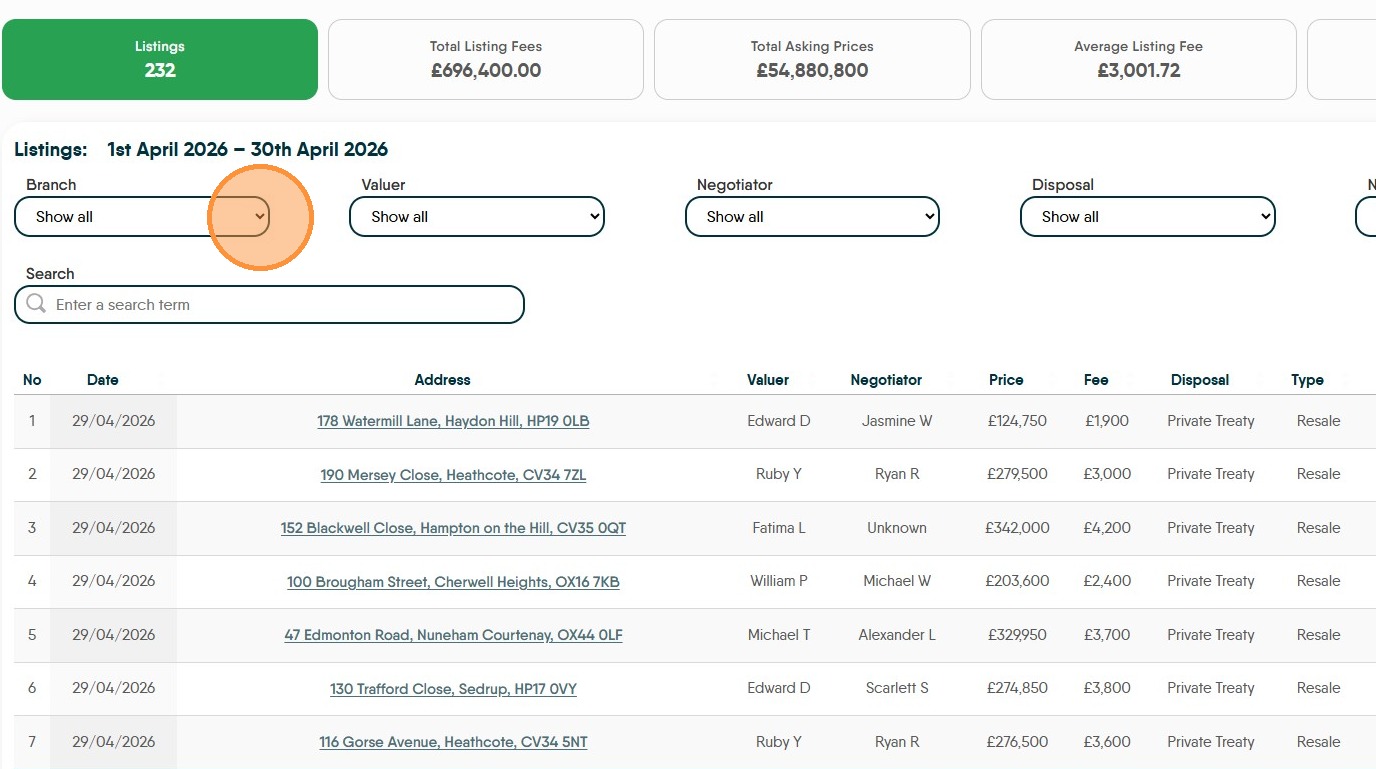
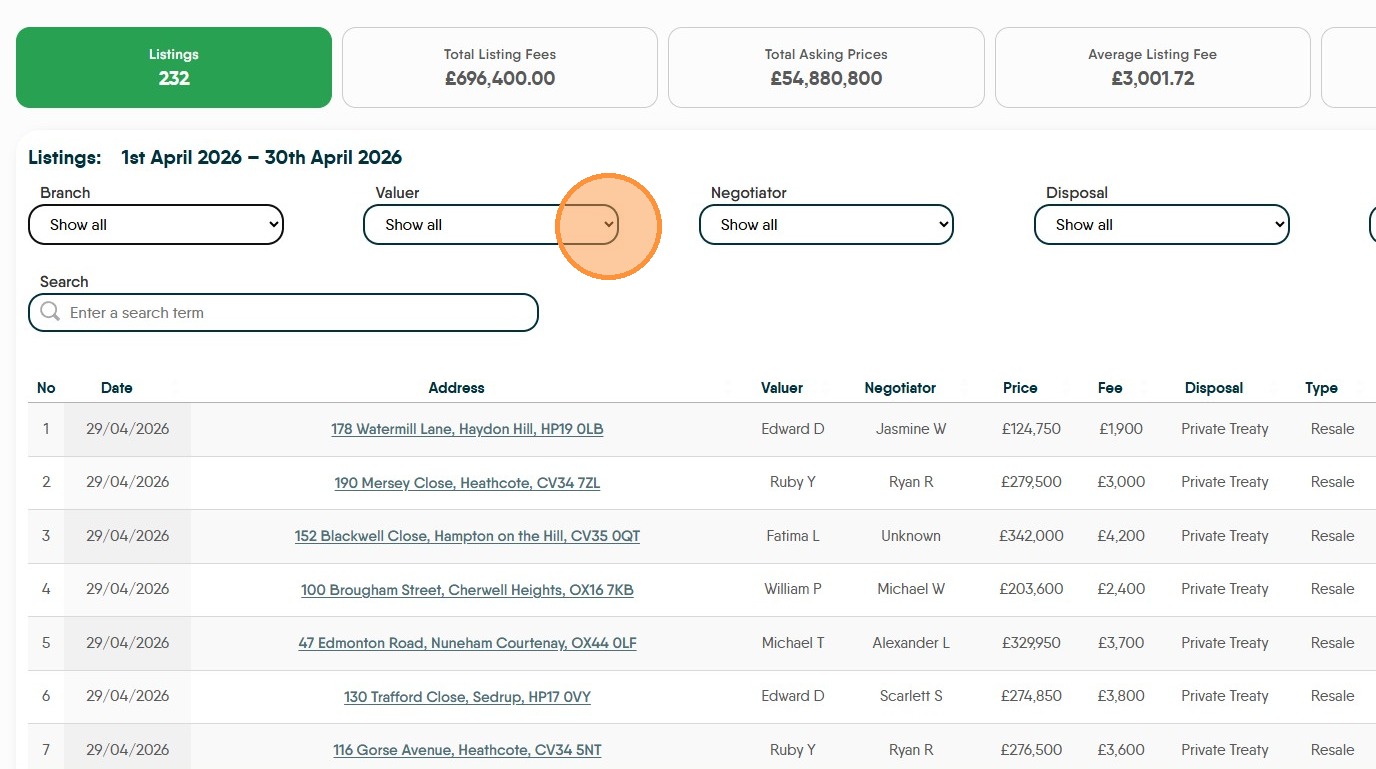
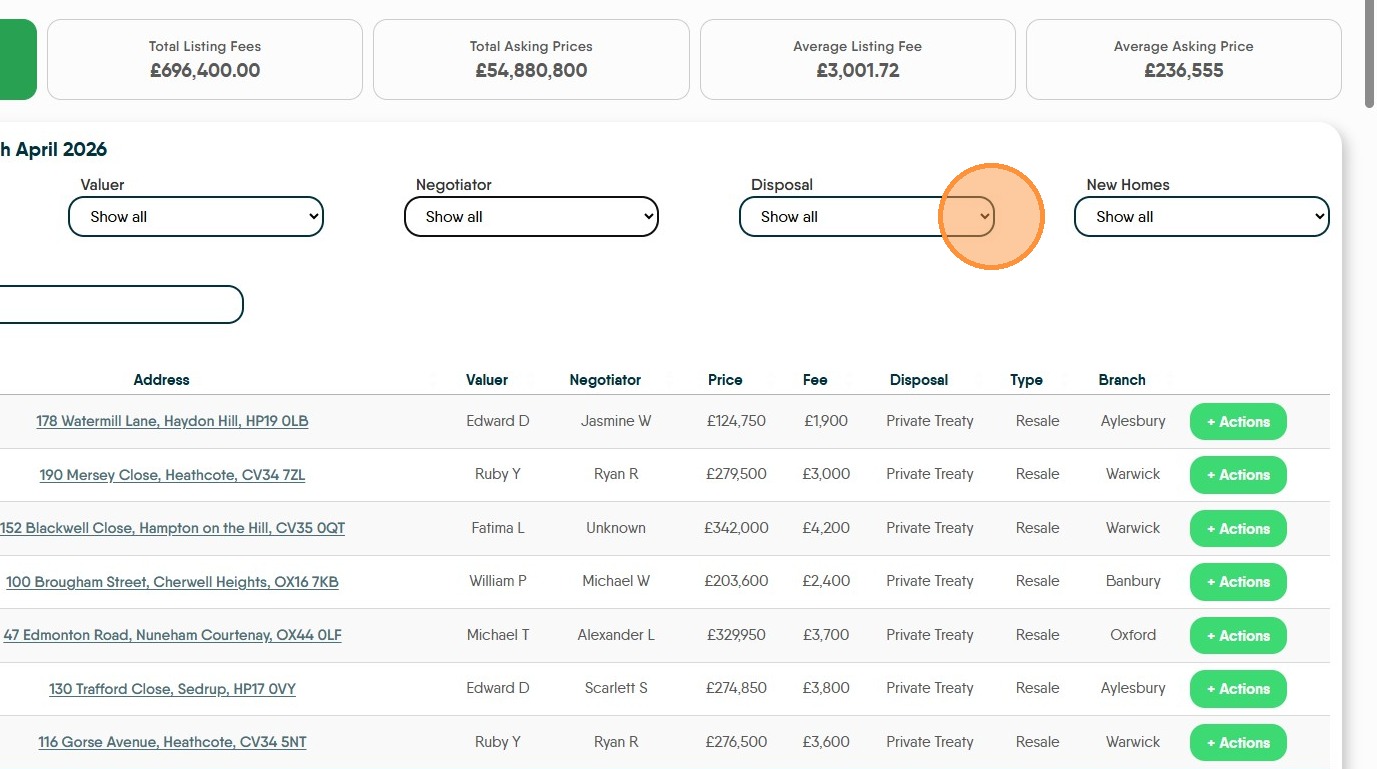
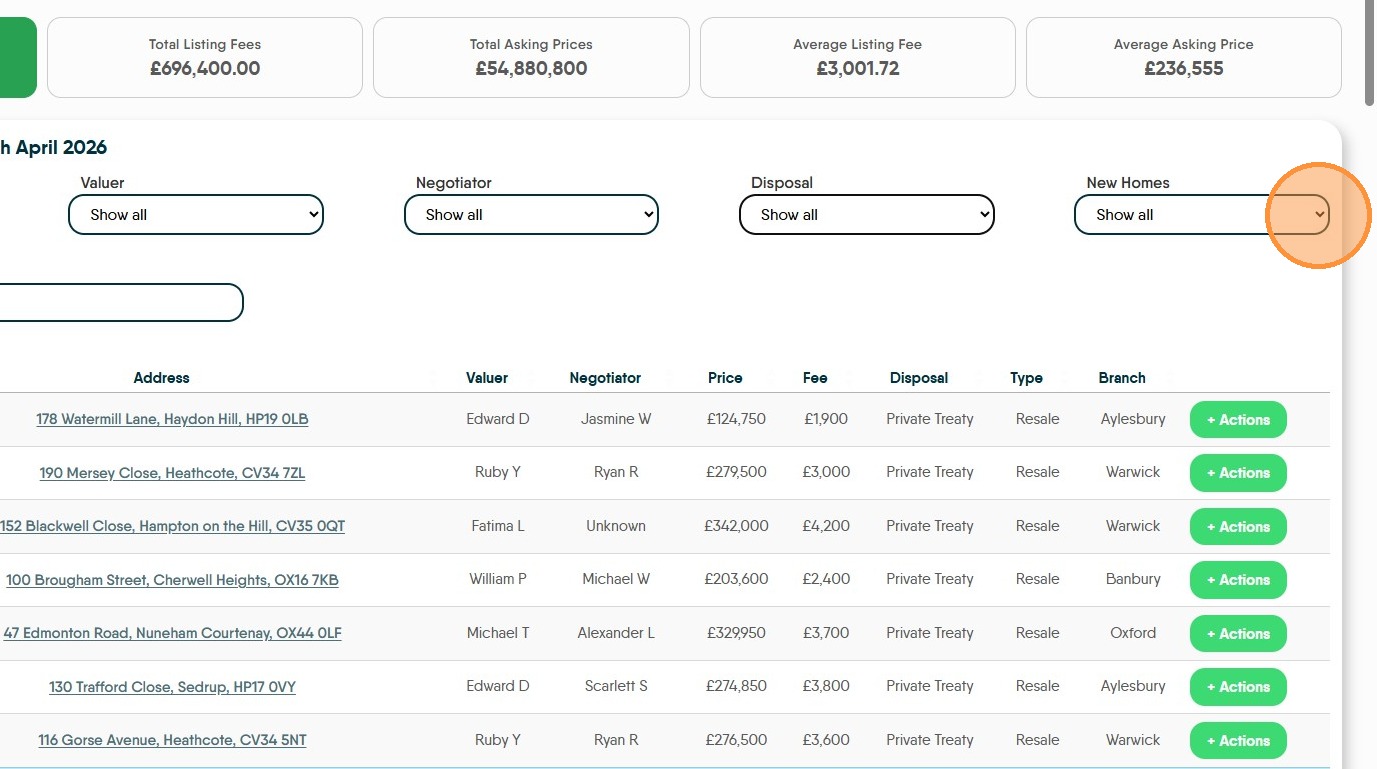
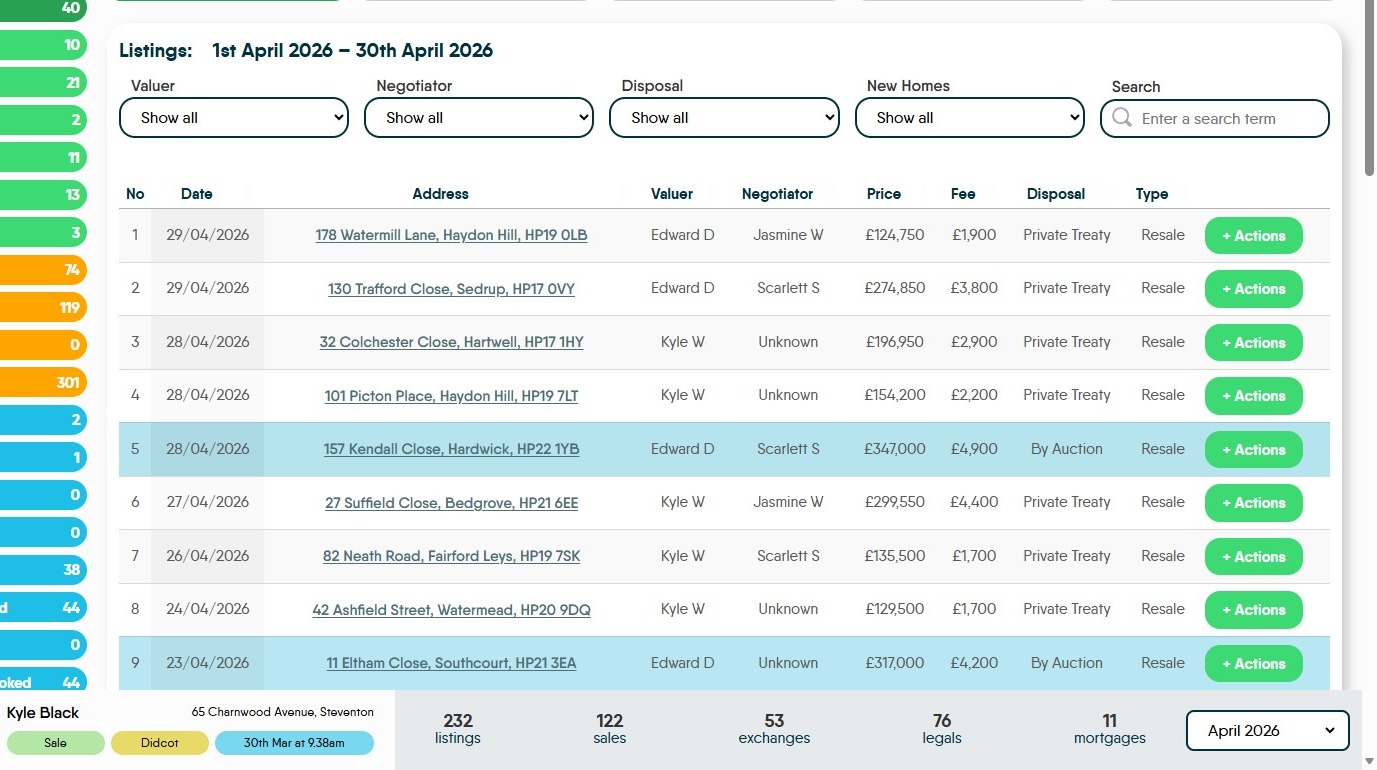
5. Using the drop down menus different options can be selected filtering the data by Branch, Valuer, Negotiator, Disposal, New Homes. There is also a 'Search' option
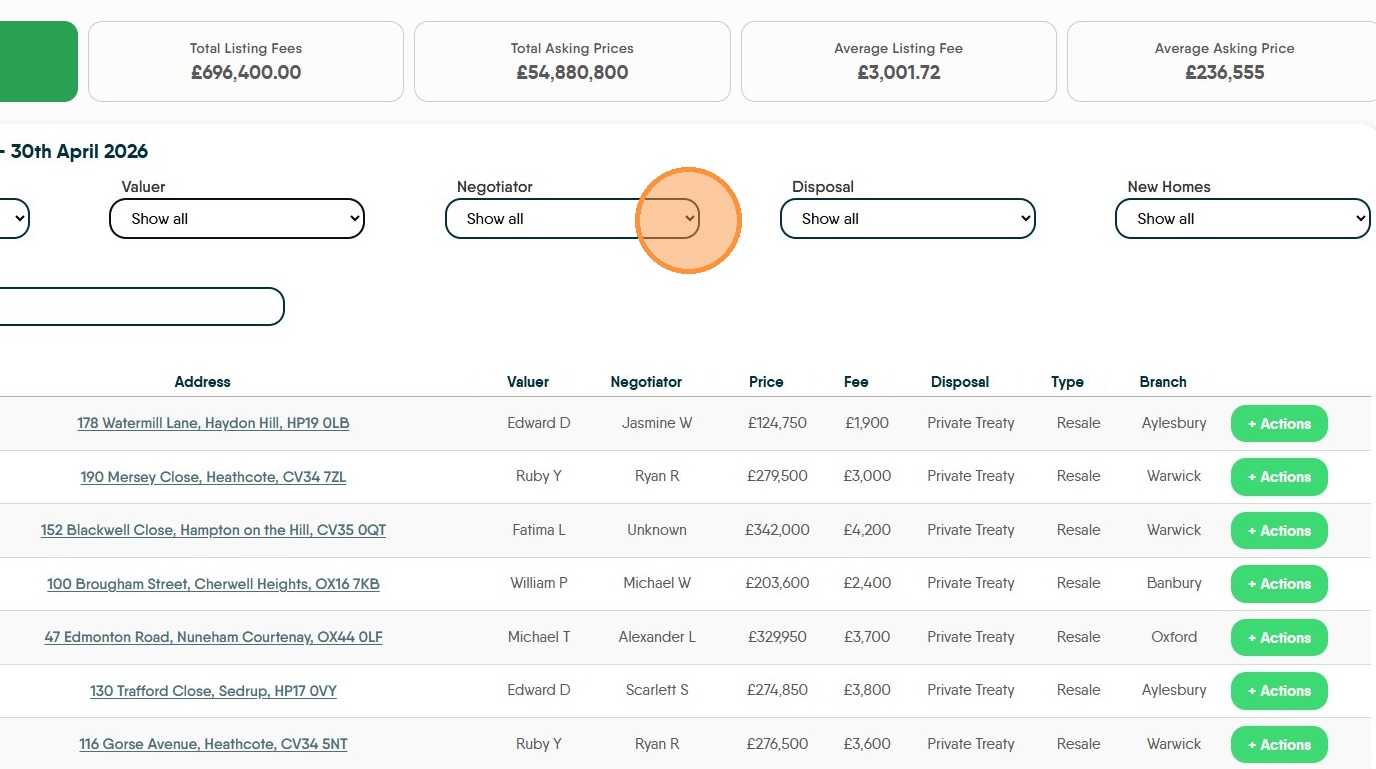
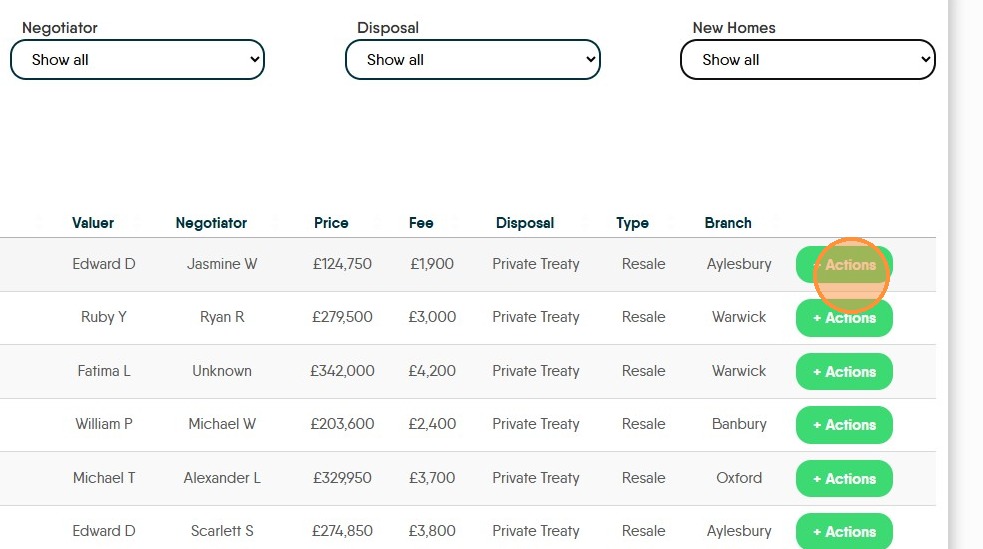
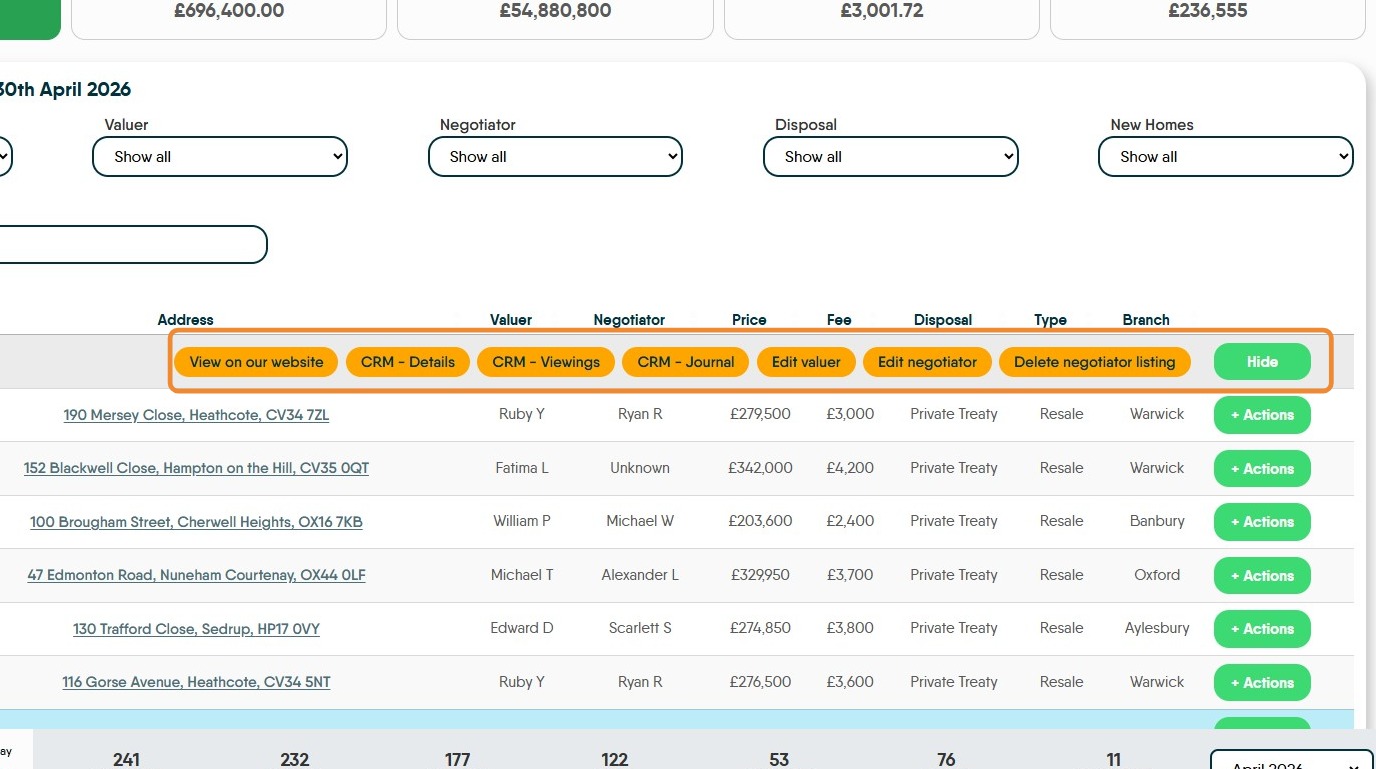
6. Click "+ Actions" next to a listing to see management options.
'Branch Panel' Navigation
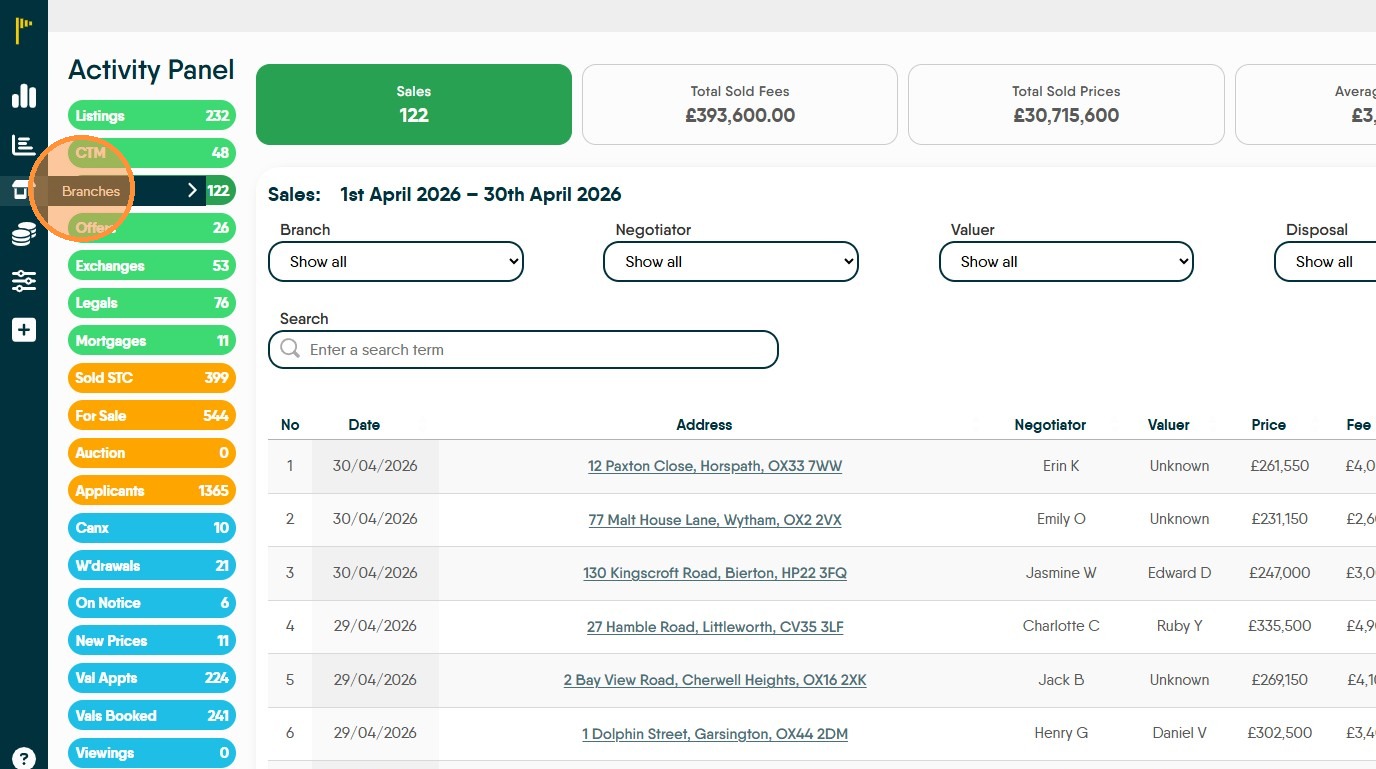
7. Click "Branches"
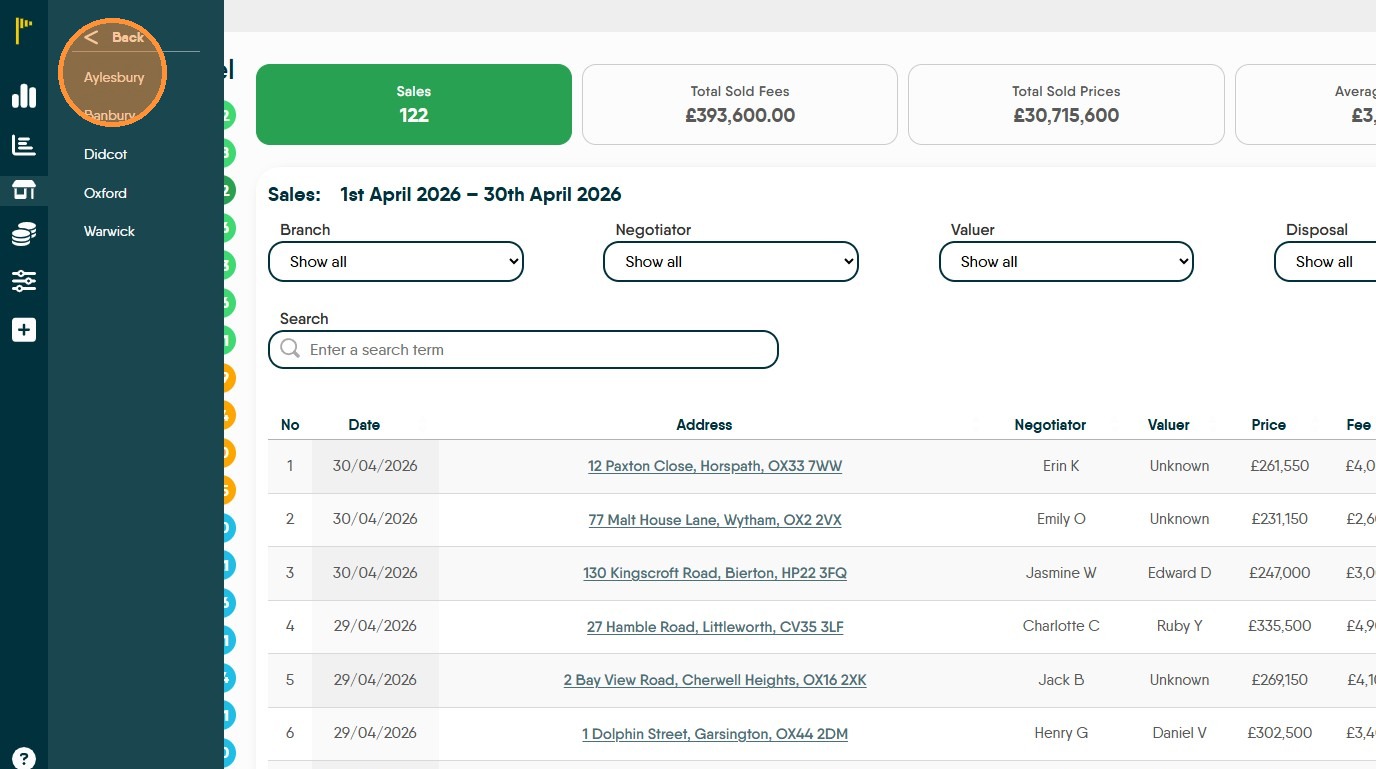
8. Click the branch you want to review e.g. "Aylesbury"
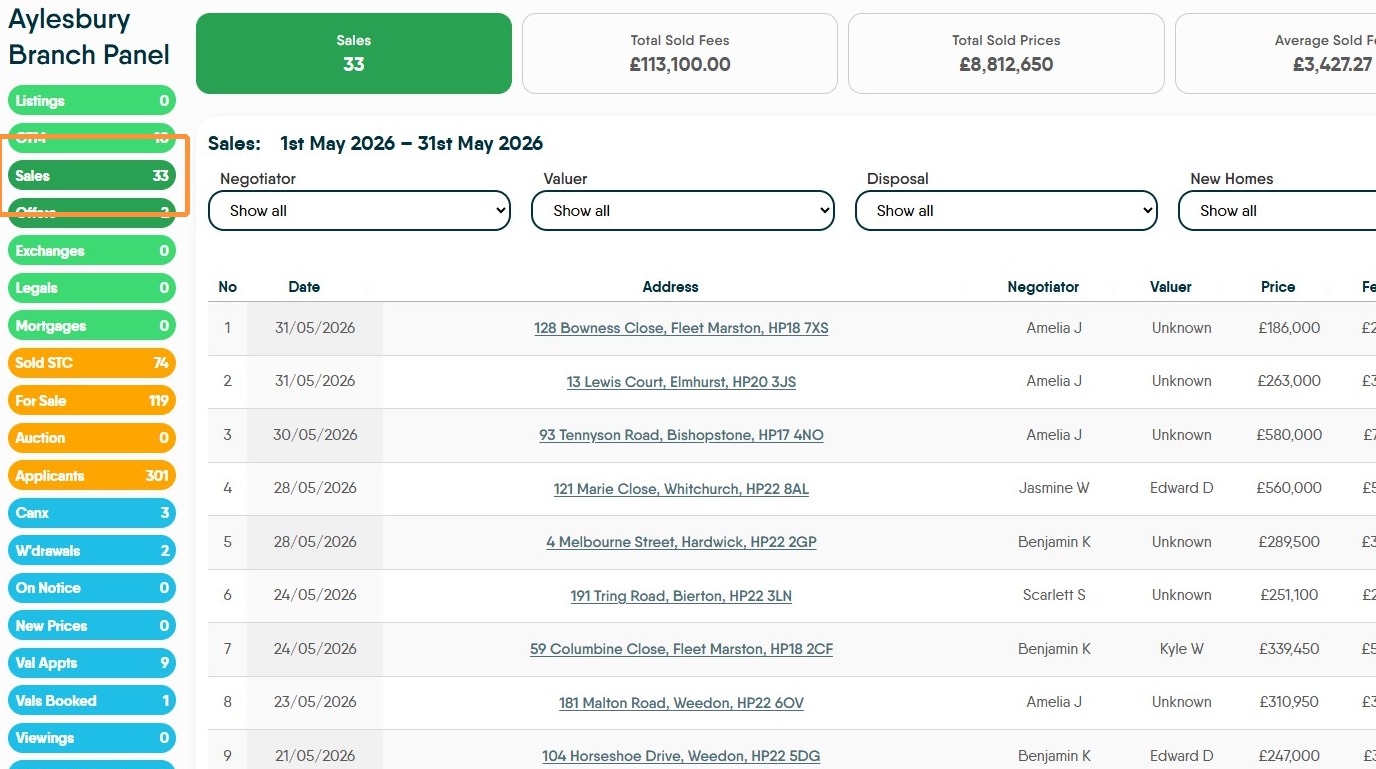
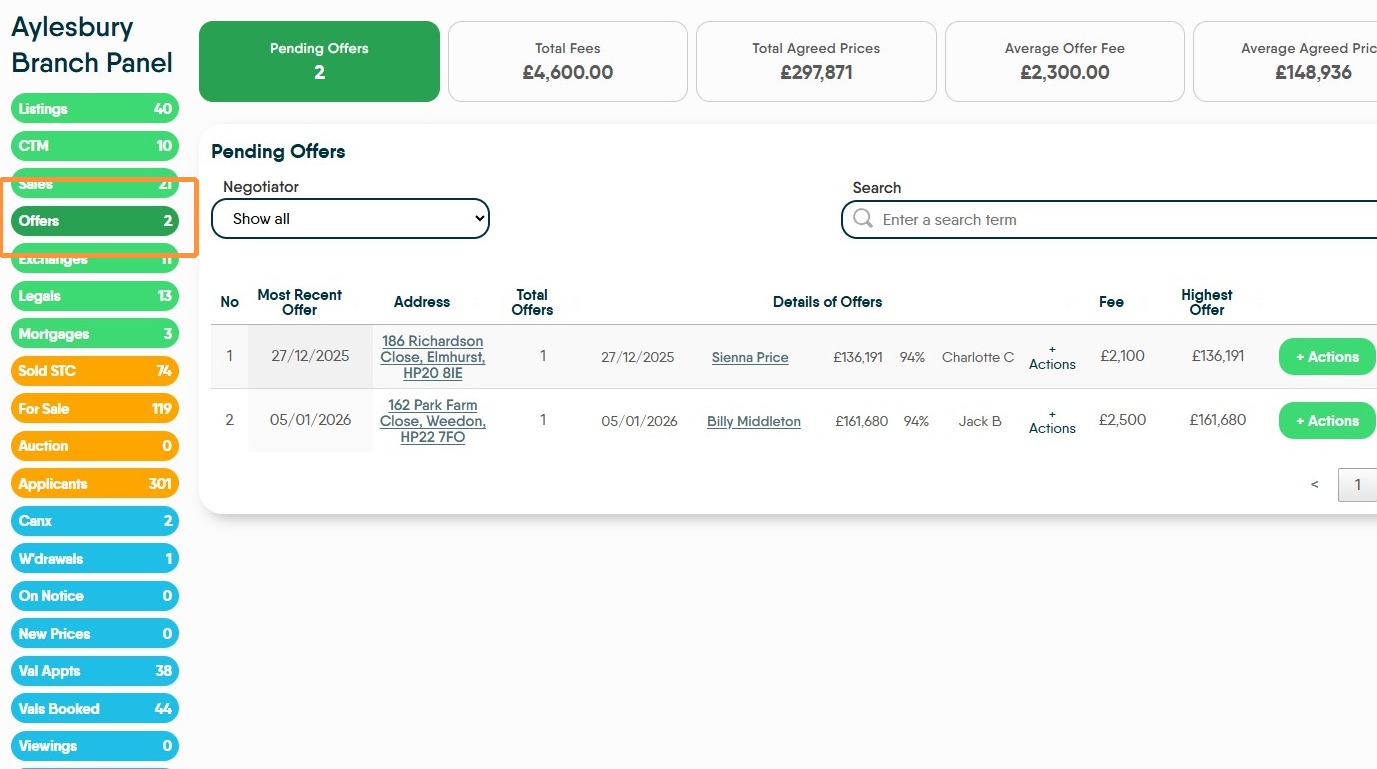
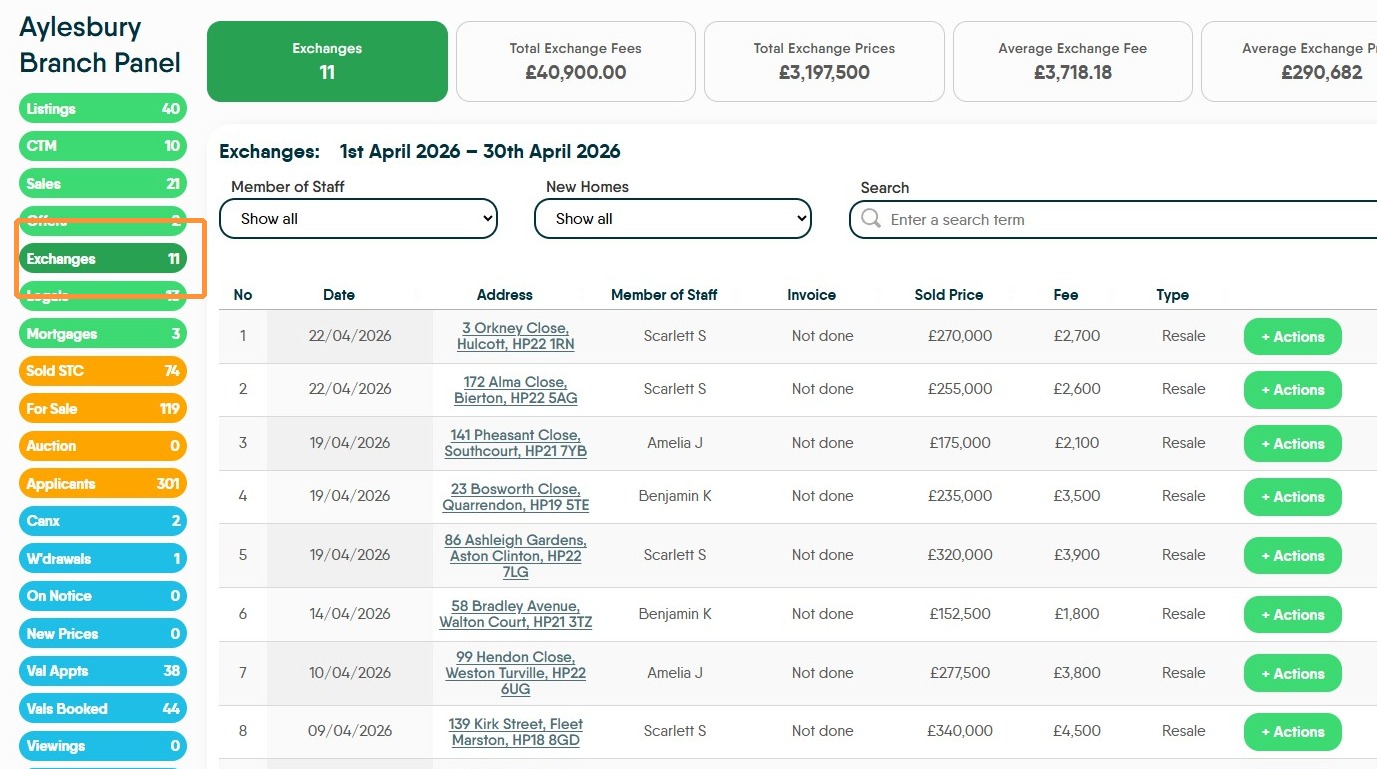
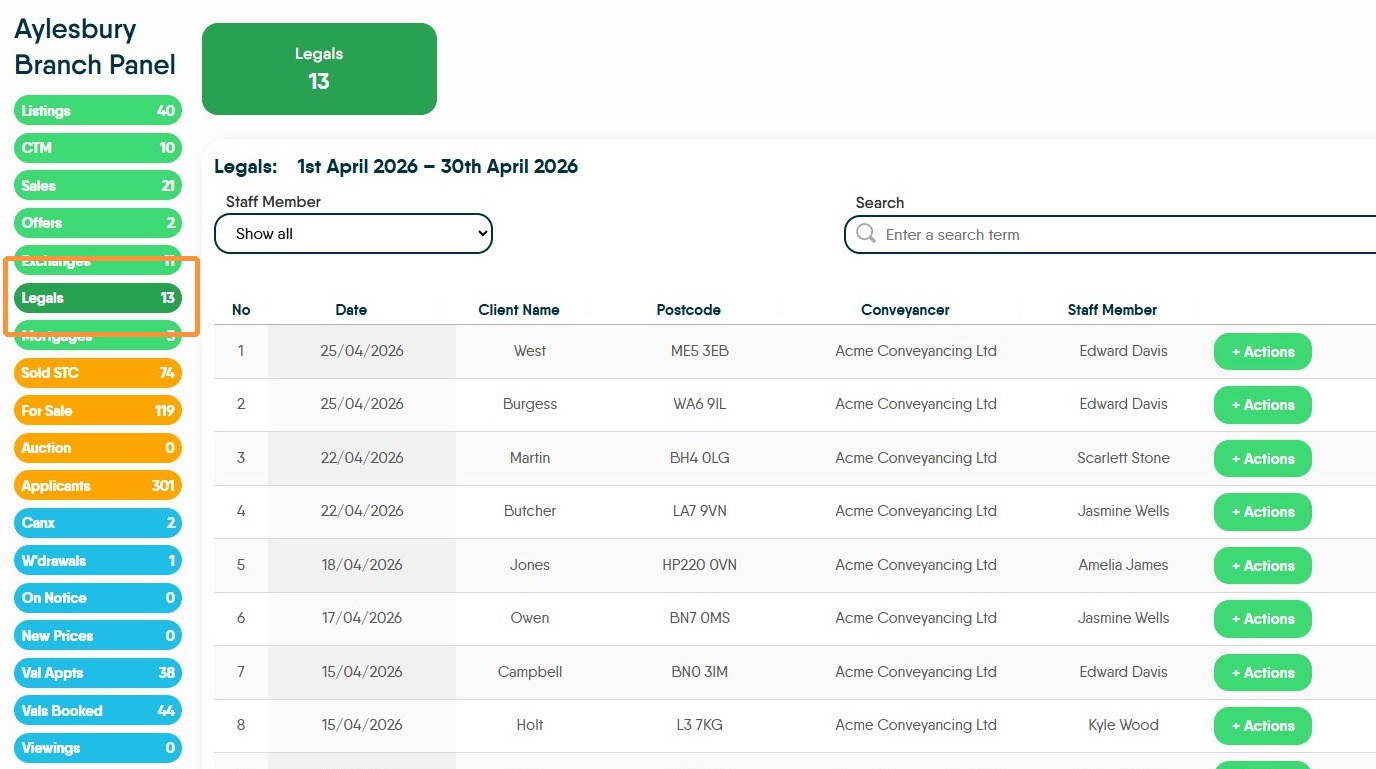
9. This screen shows the data for the selected branch. The data shown is dependent on the option selected on the left side of the screen, in this case 'Listings'. These are the same options that are shown on
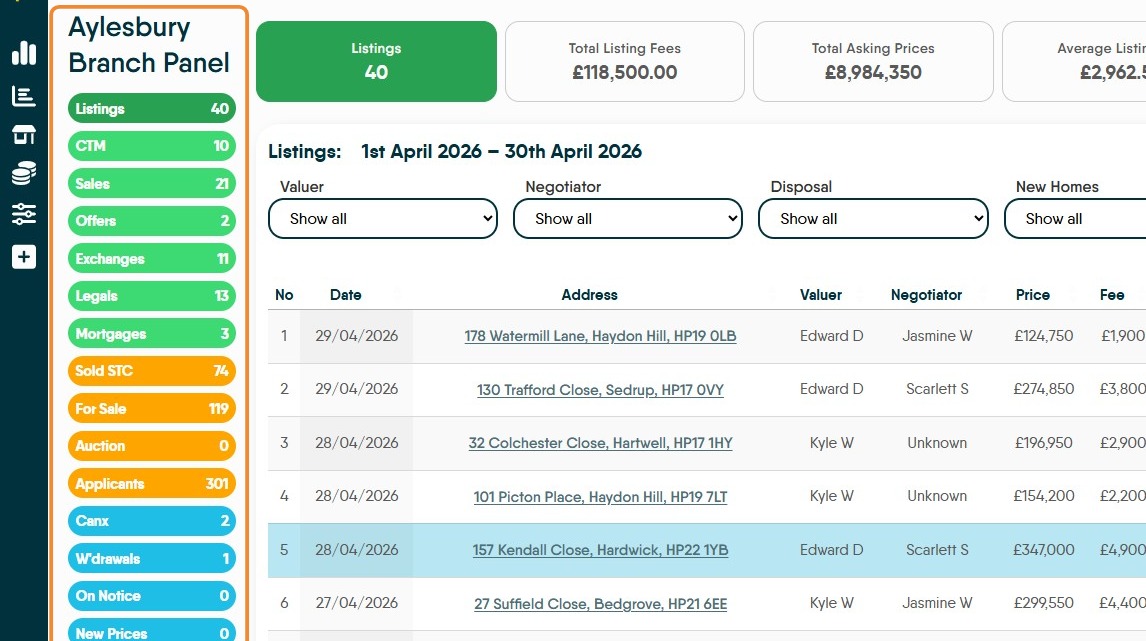
10. For every data set shown, at the top of the screen is the cumulative figures for the listings.
Every screen has a set of search option, these may change due to the data type selected from the left menu.
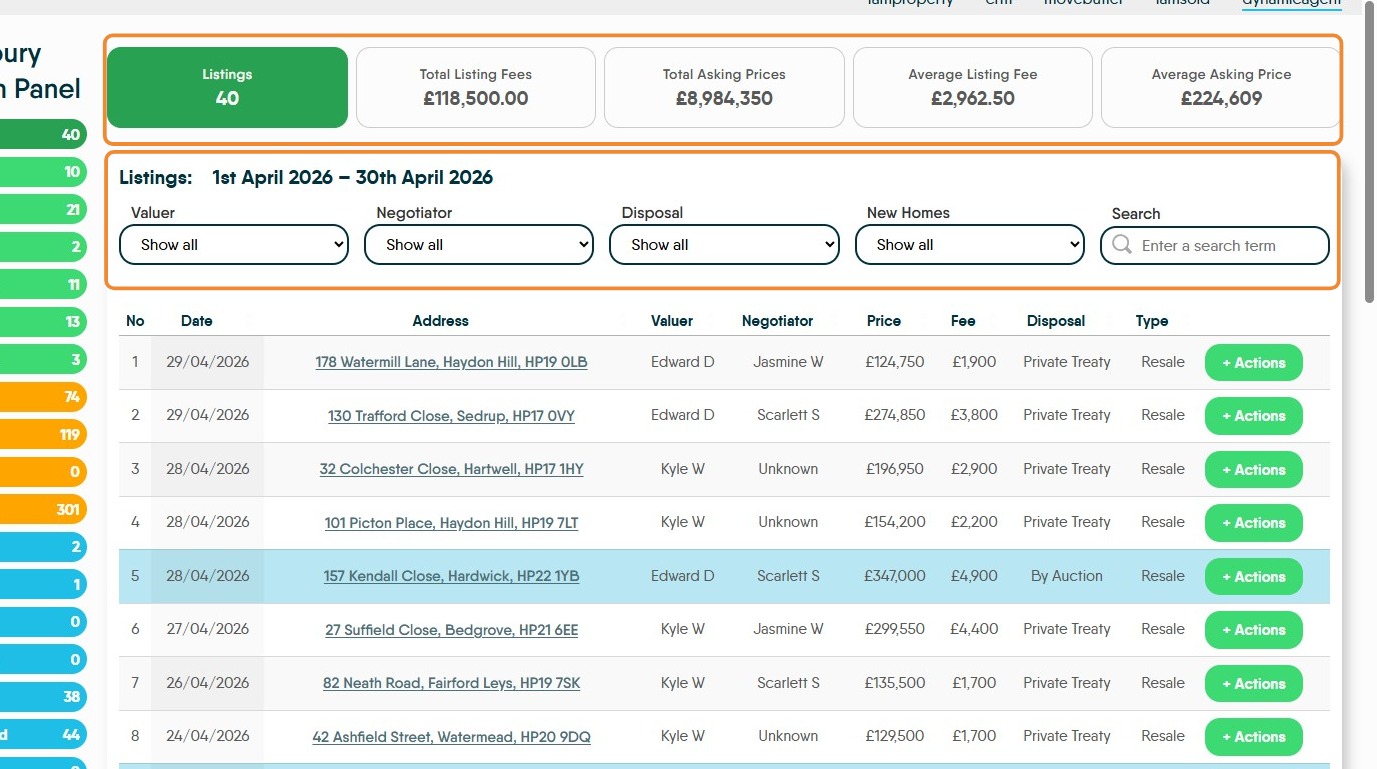
11. Clicking "+ Actions" will show a set of options that will allow you to refer back to the original record in CRM, edit or delete details etc.
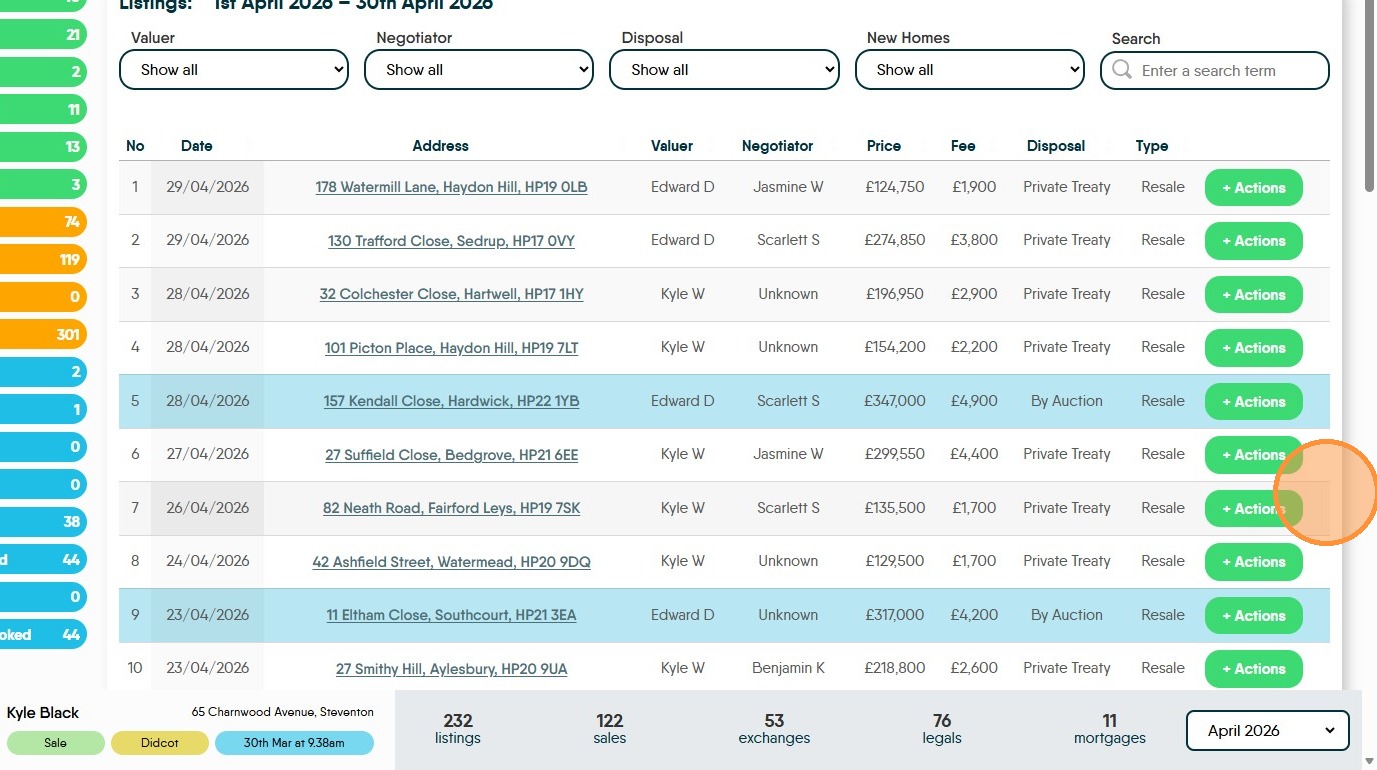
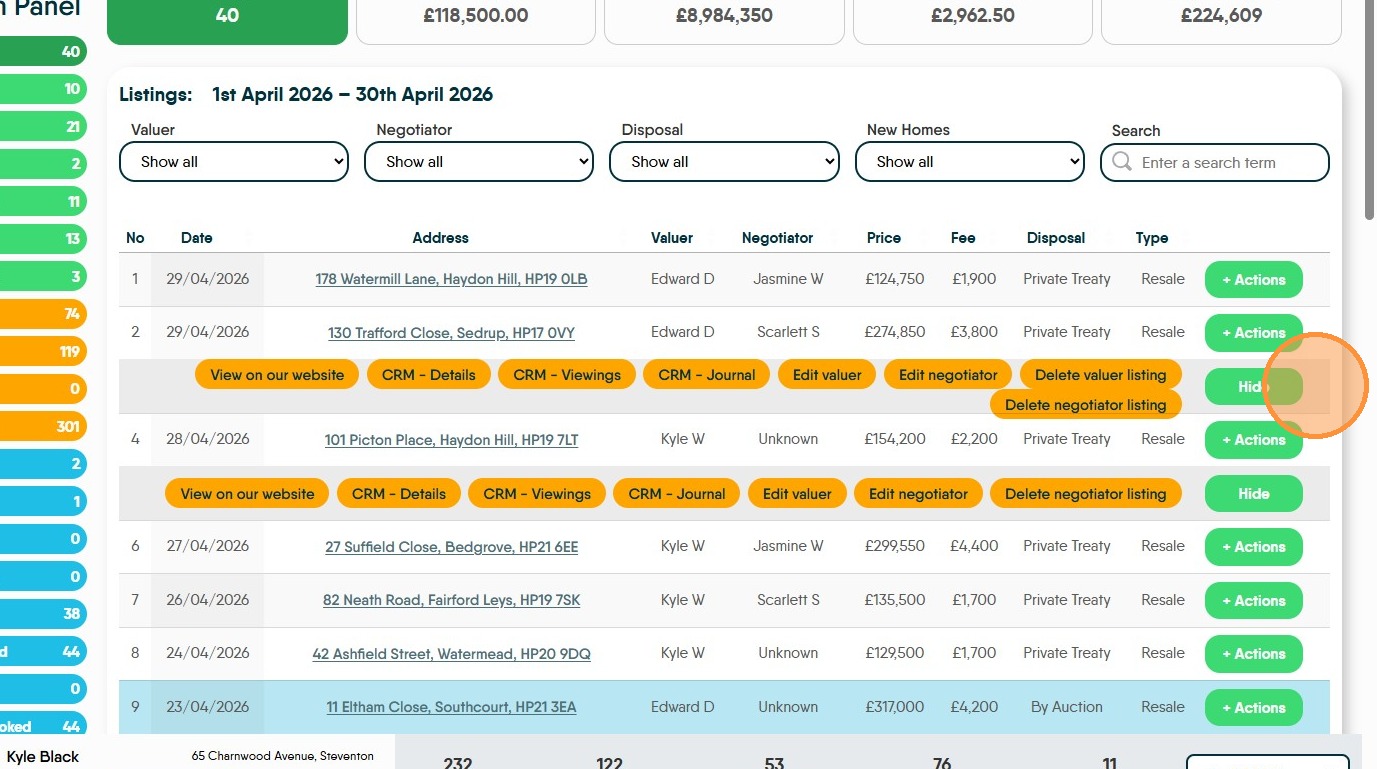
12. In this case, Listings, there are highlighted lines. These are showing the properties that are being listed for Auction.
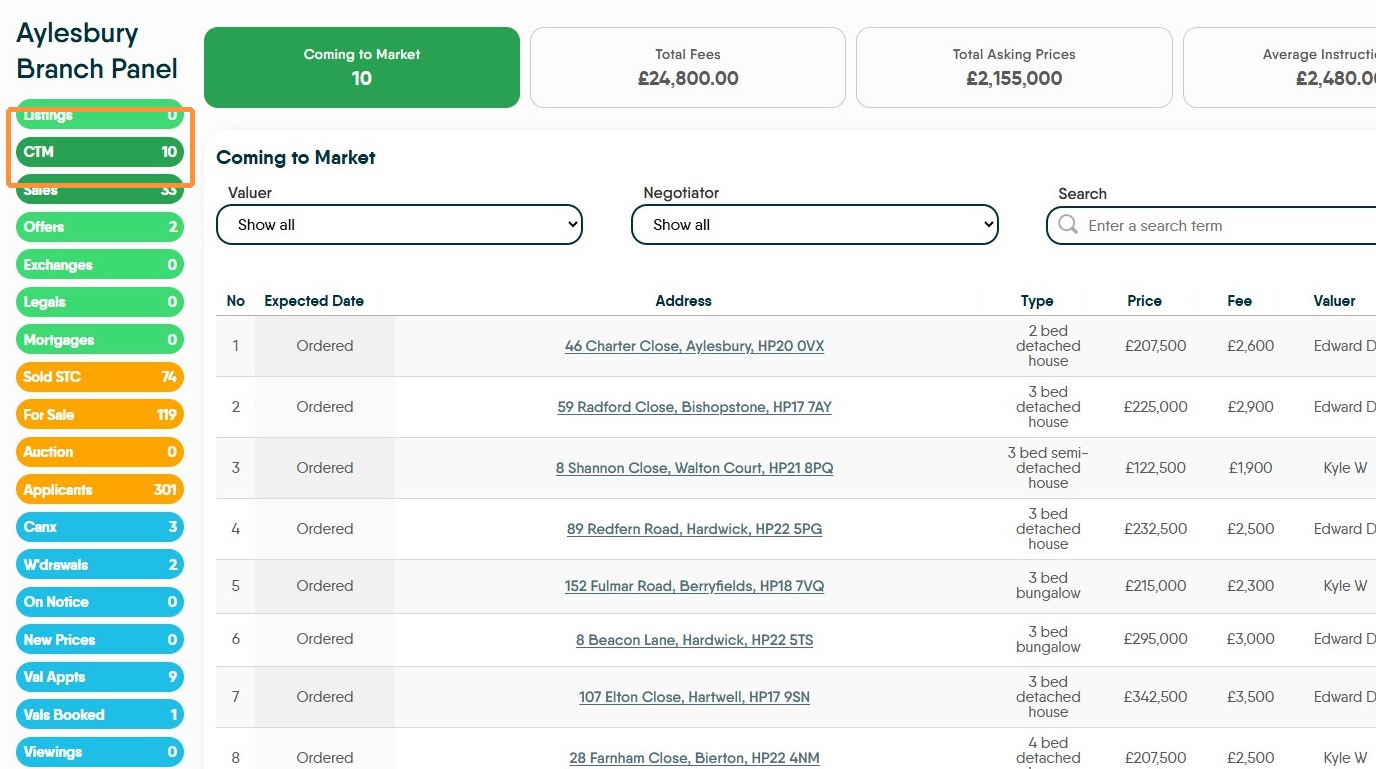
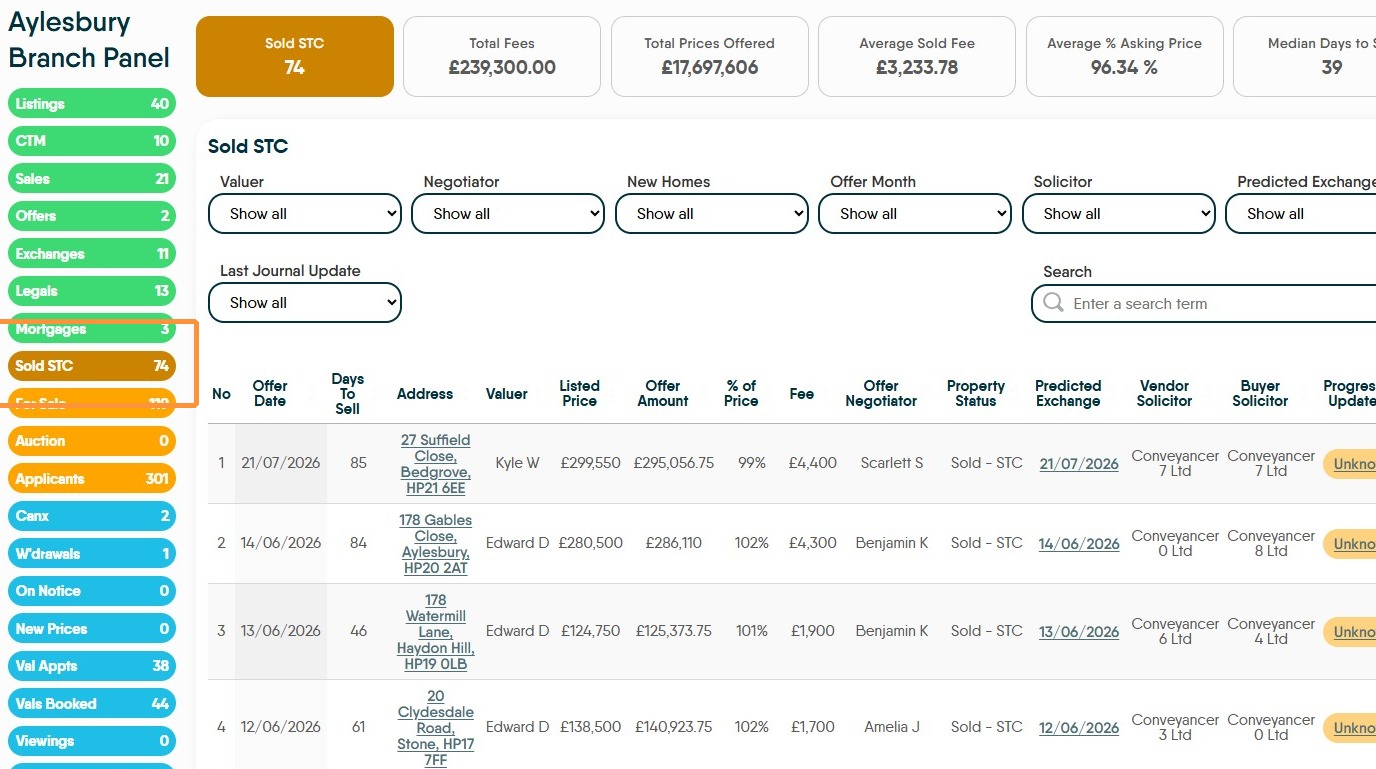
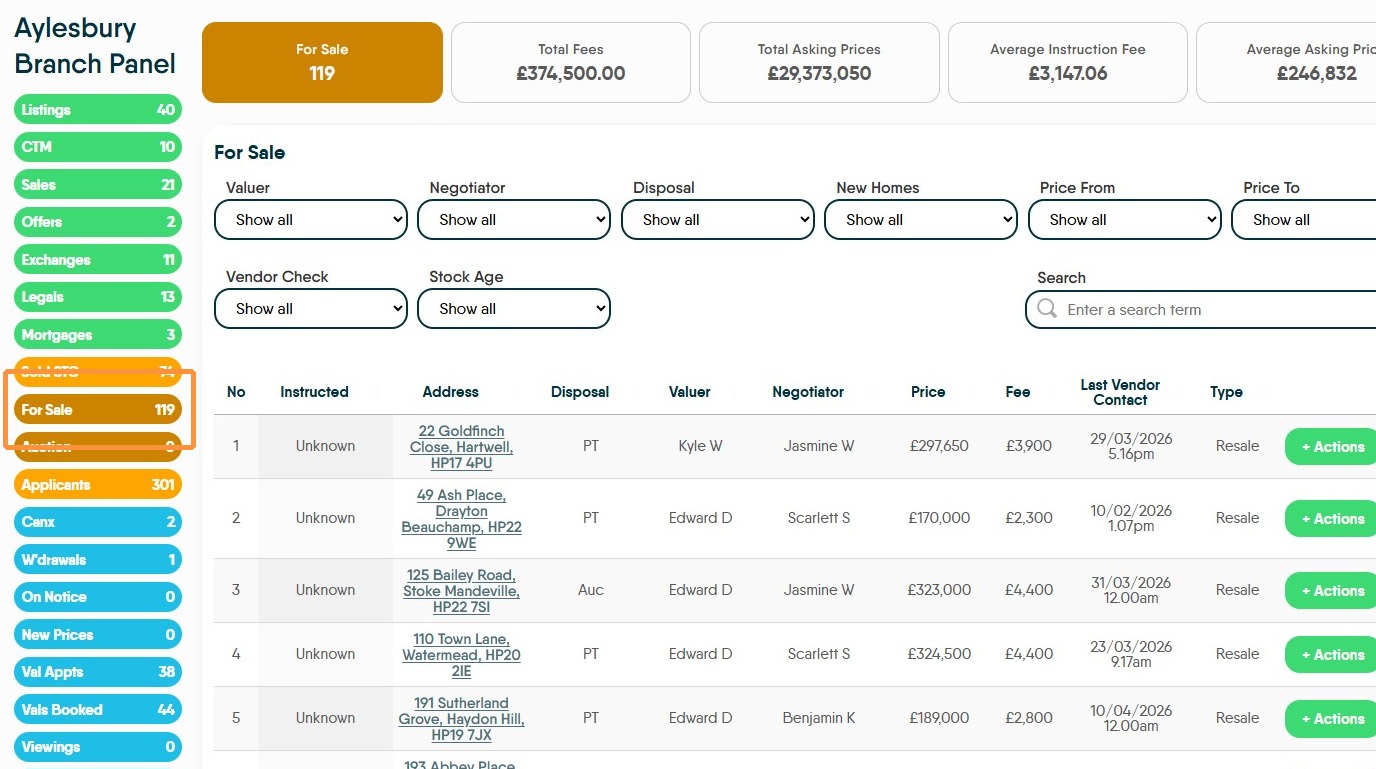
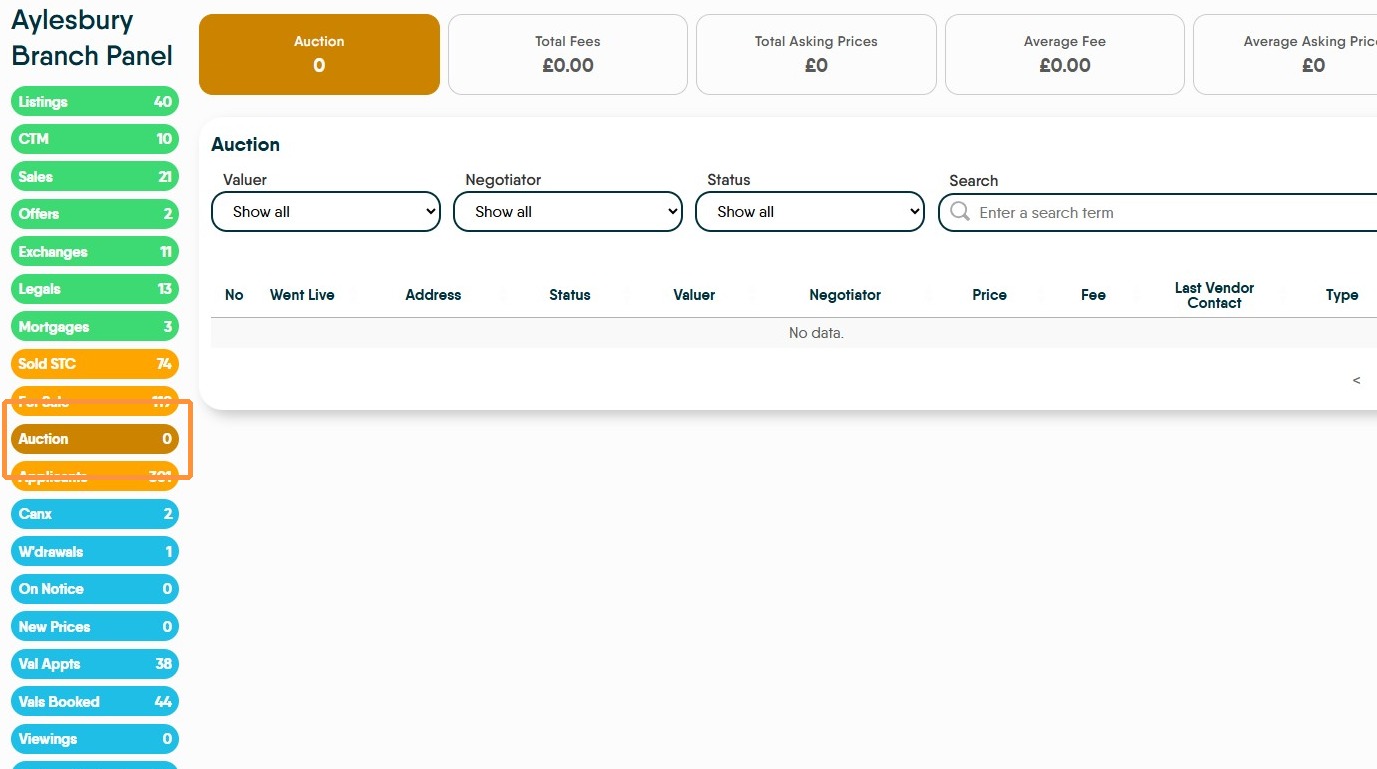
13. The other views available are;
14. Click "CTM"
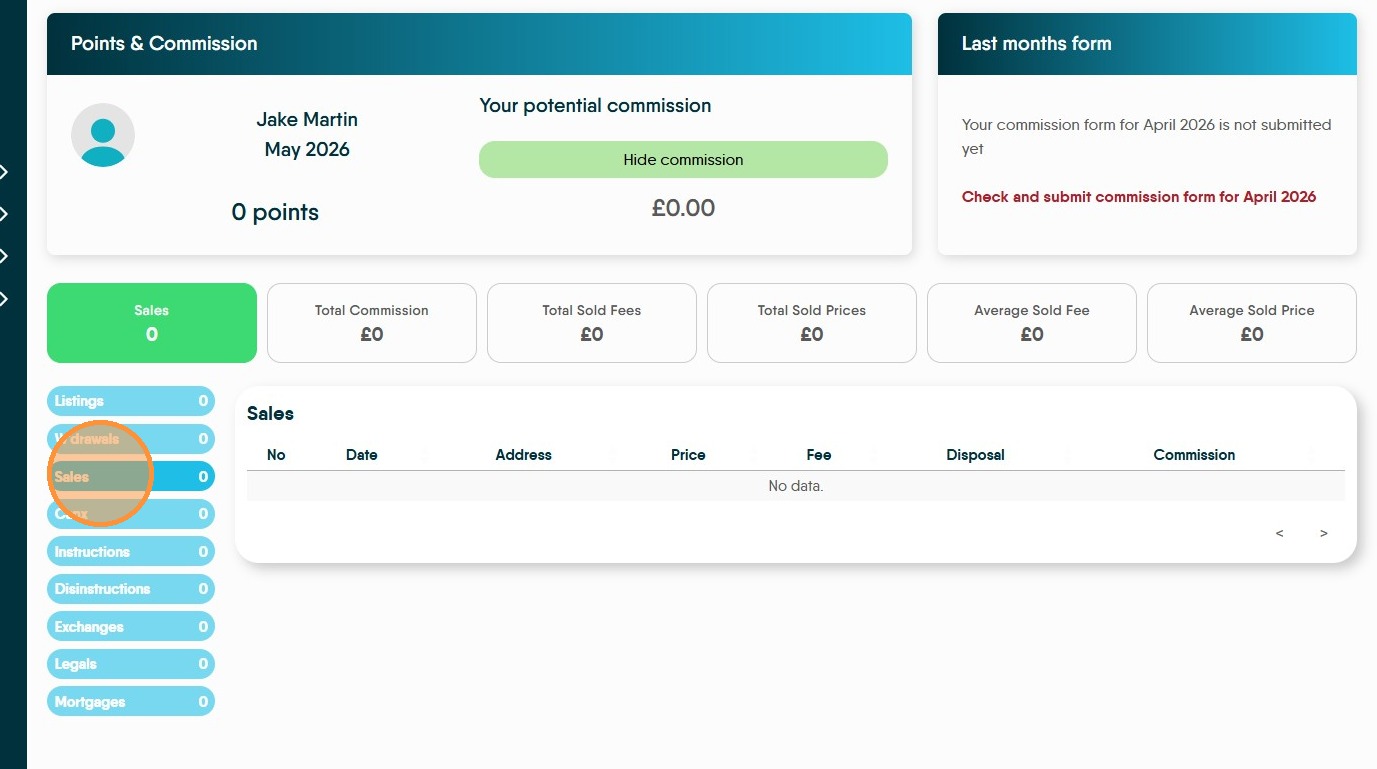
Click "Sales"
Click "Offers"
Click "Exchanges"
Click "Legals"
Click "Mortgages"
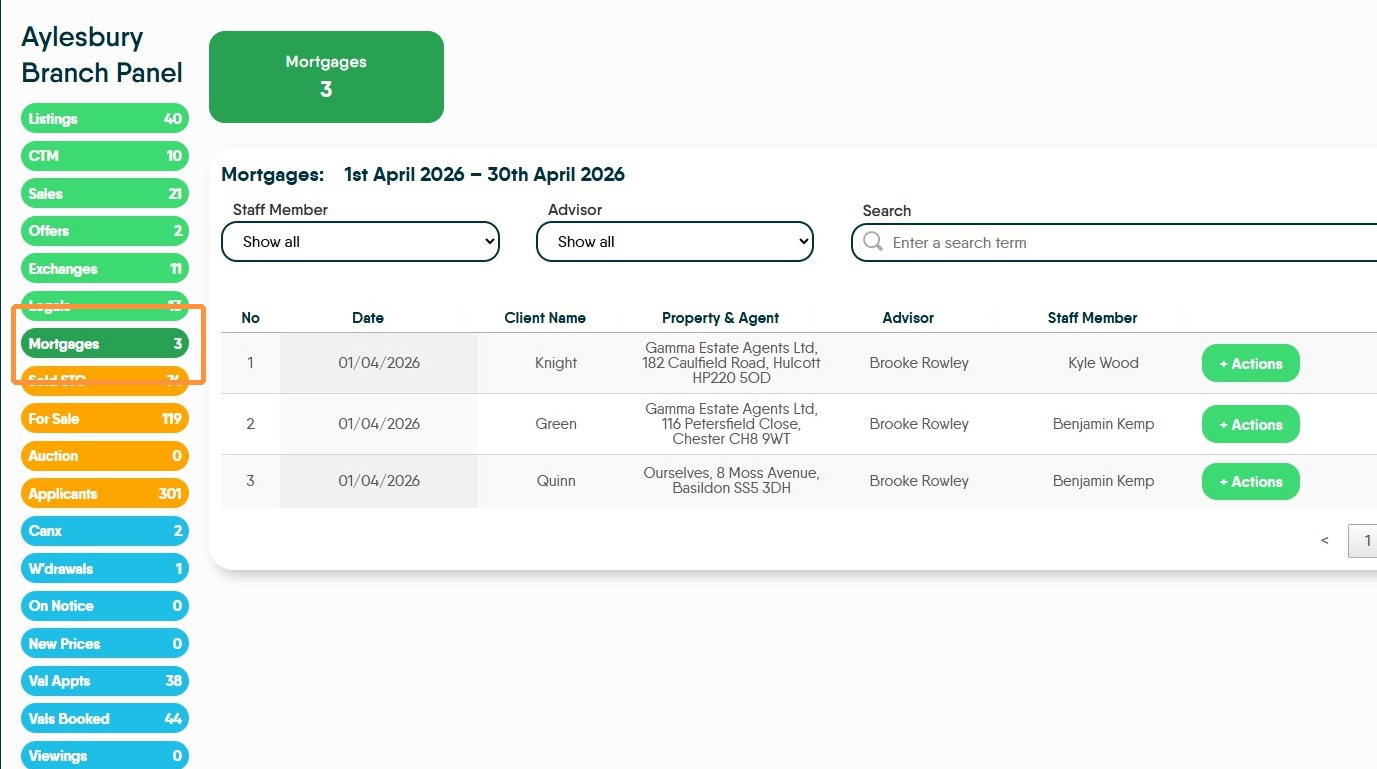
15. Click "Sold STC"
Click "For Sale"
Click "Auction"
Click "Applicants"
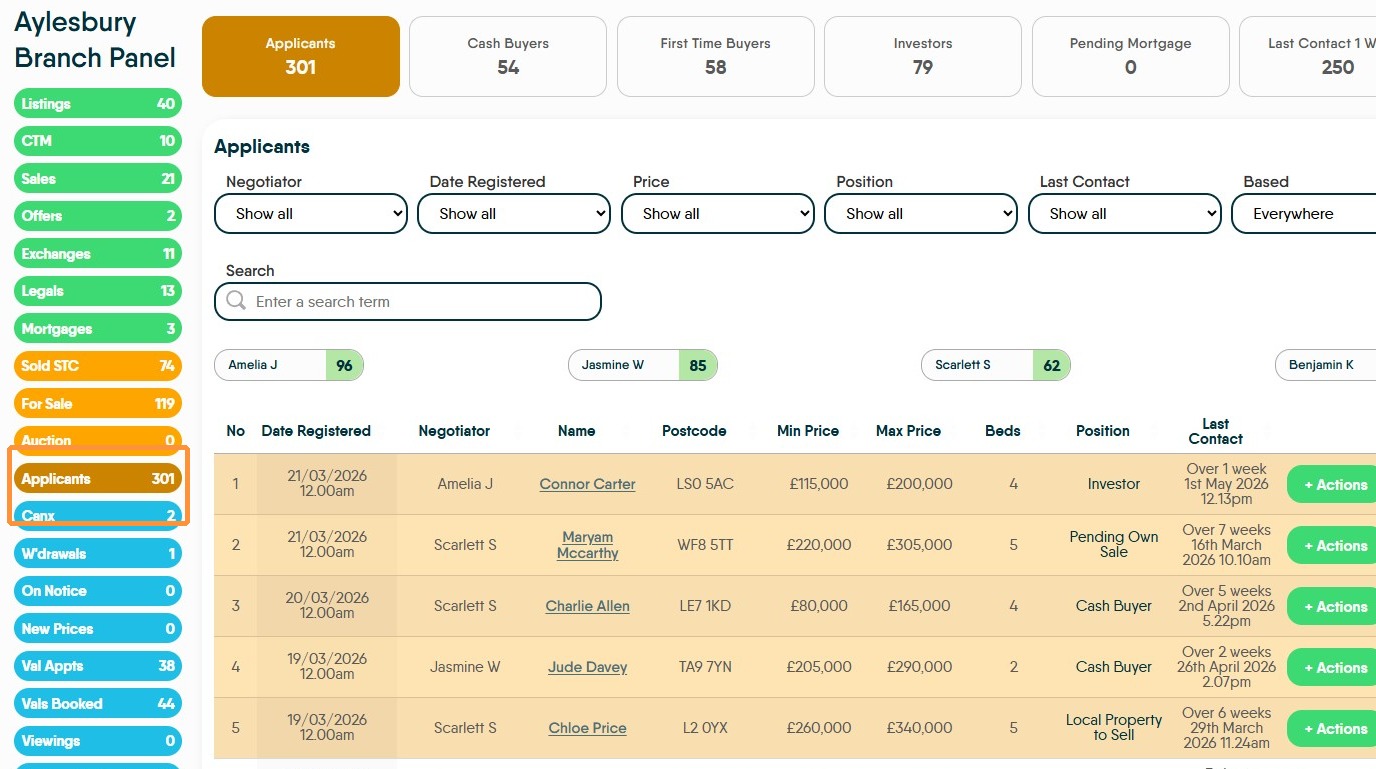
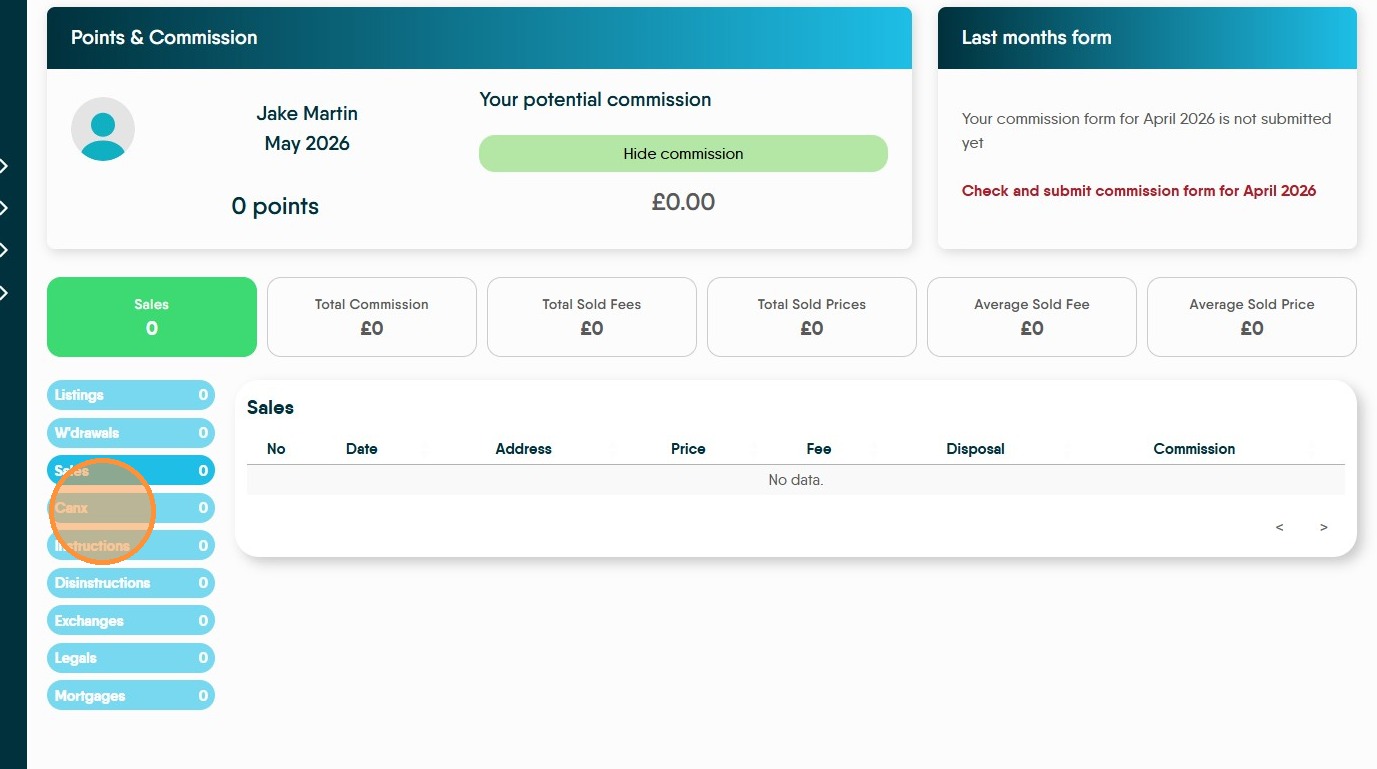
16. Click "Canx"
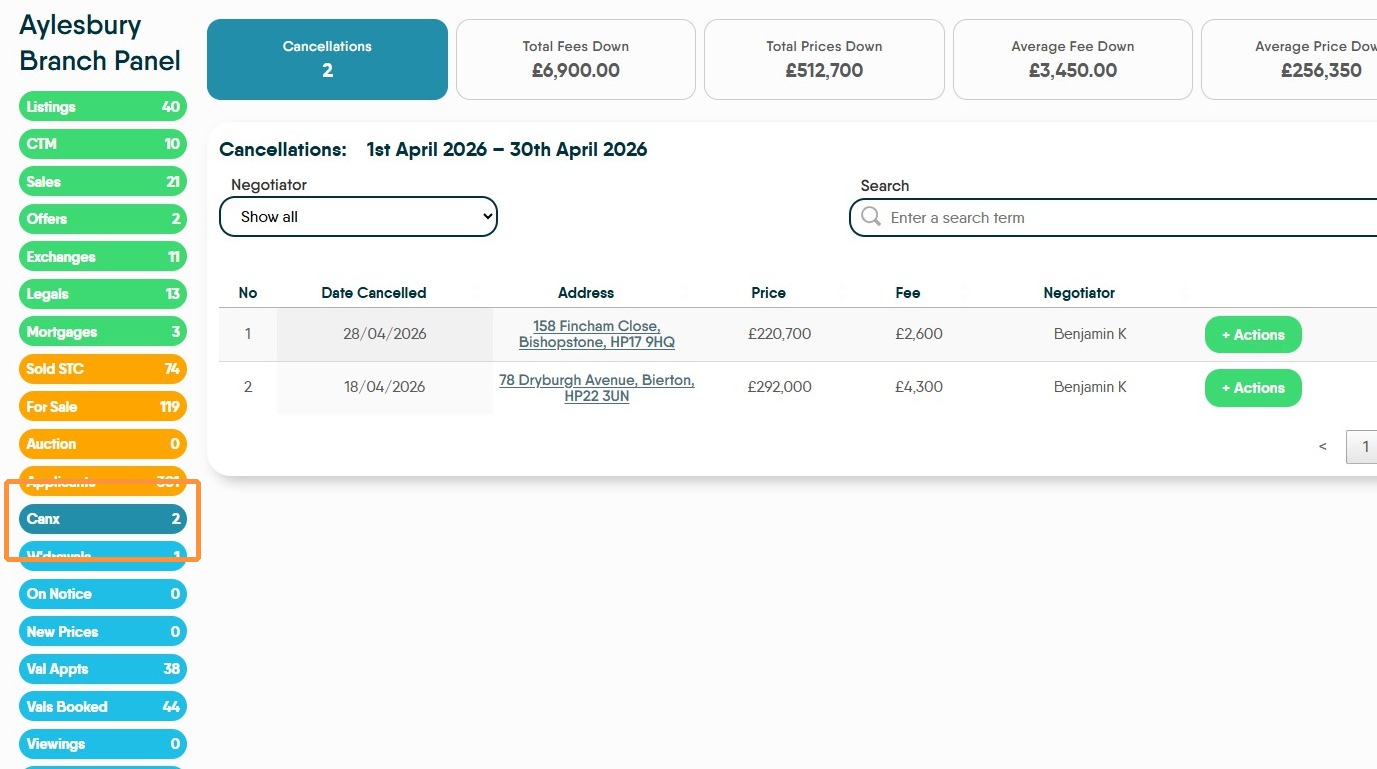
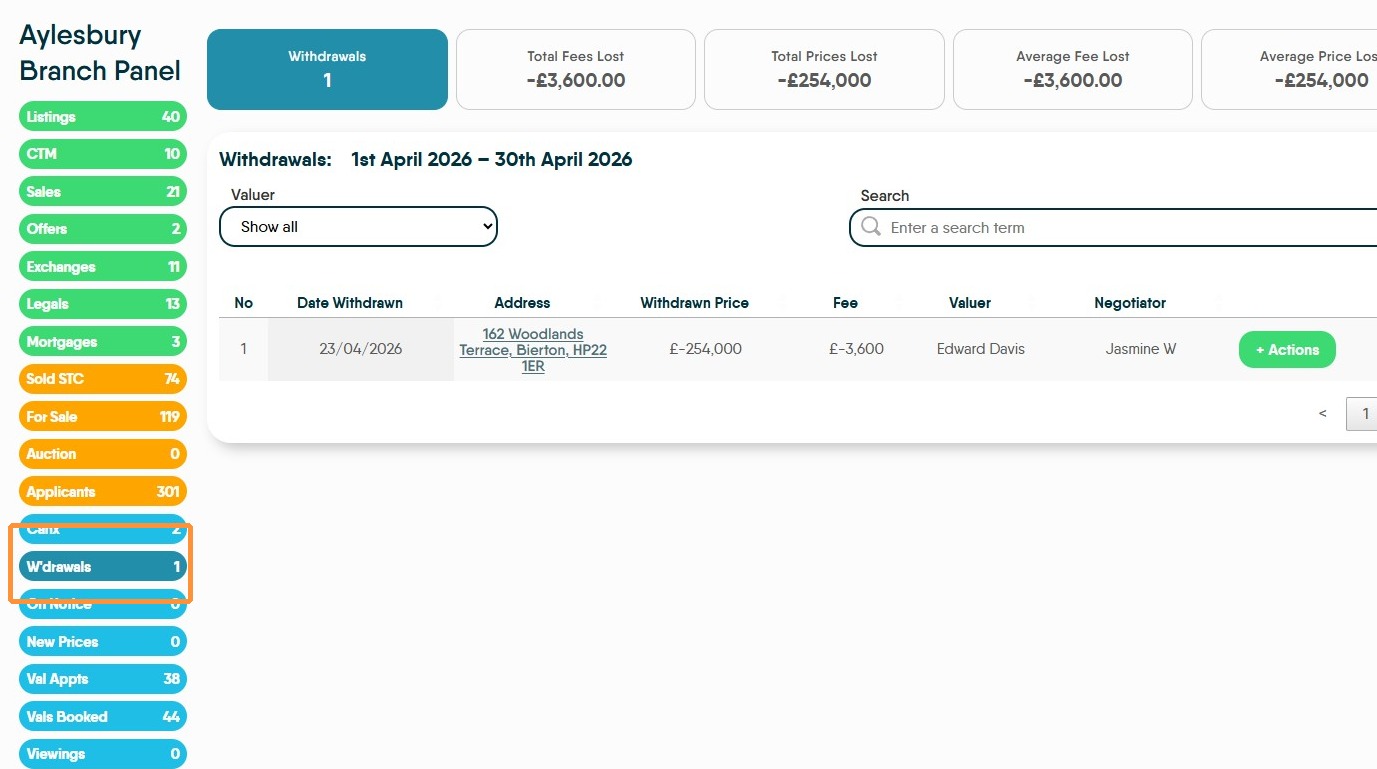
Click "W'drawals"
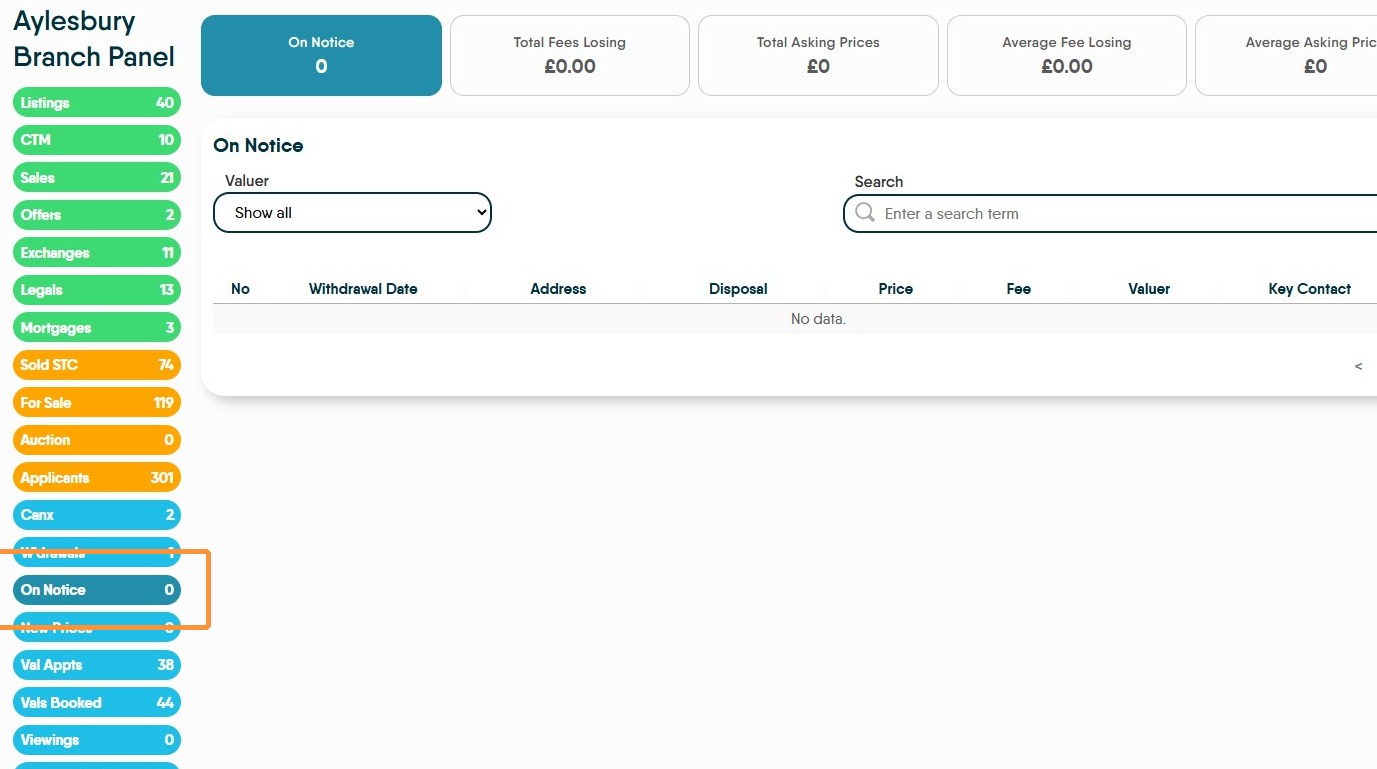
Click "On Notice"
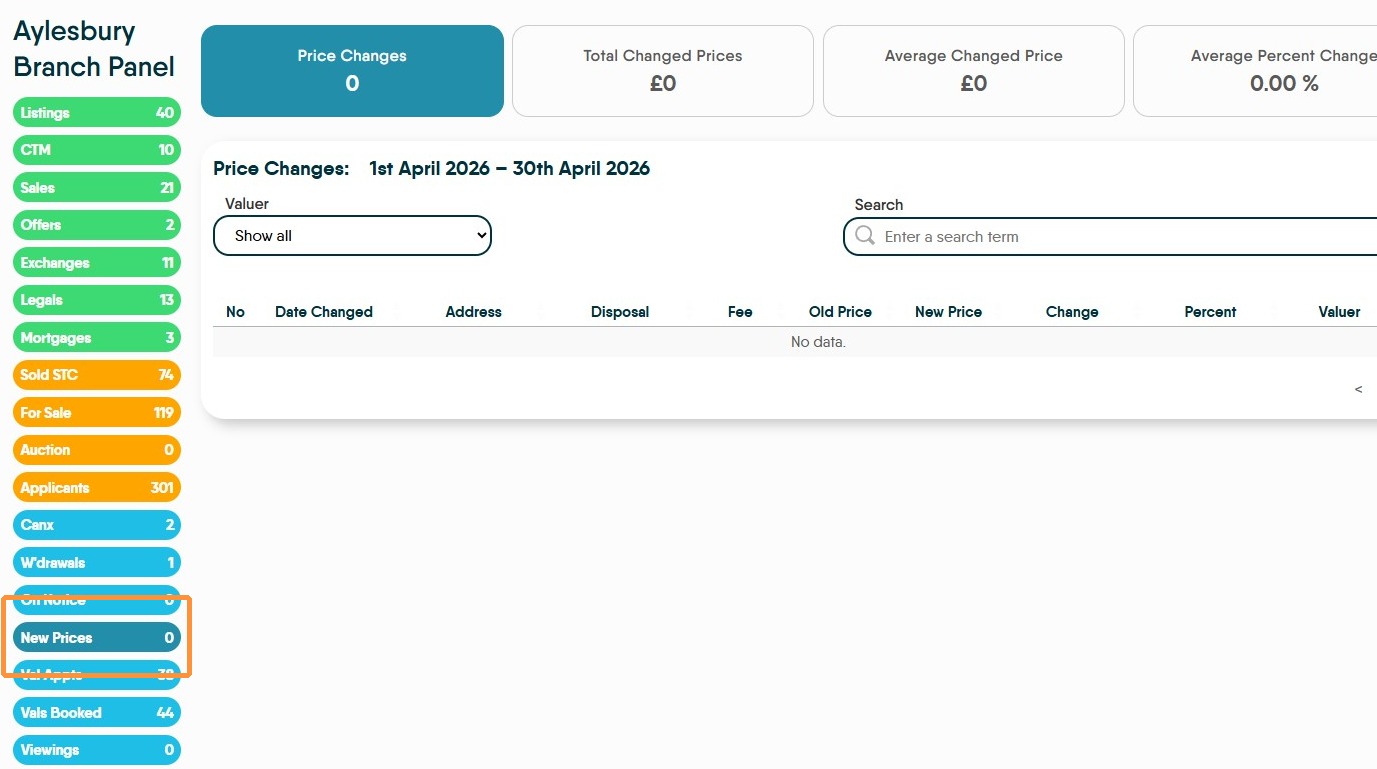
Click "New Prices"
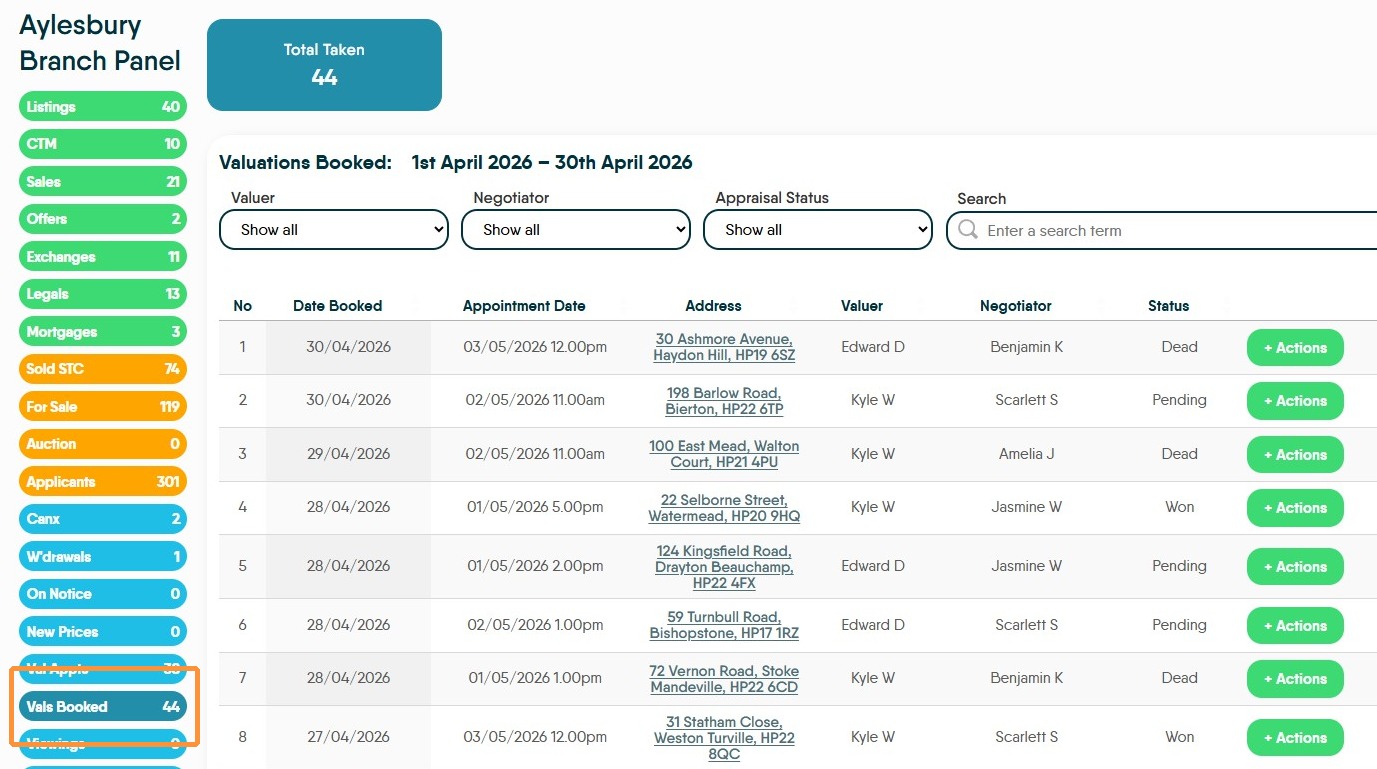
Click "Vals Booked"
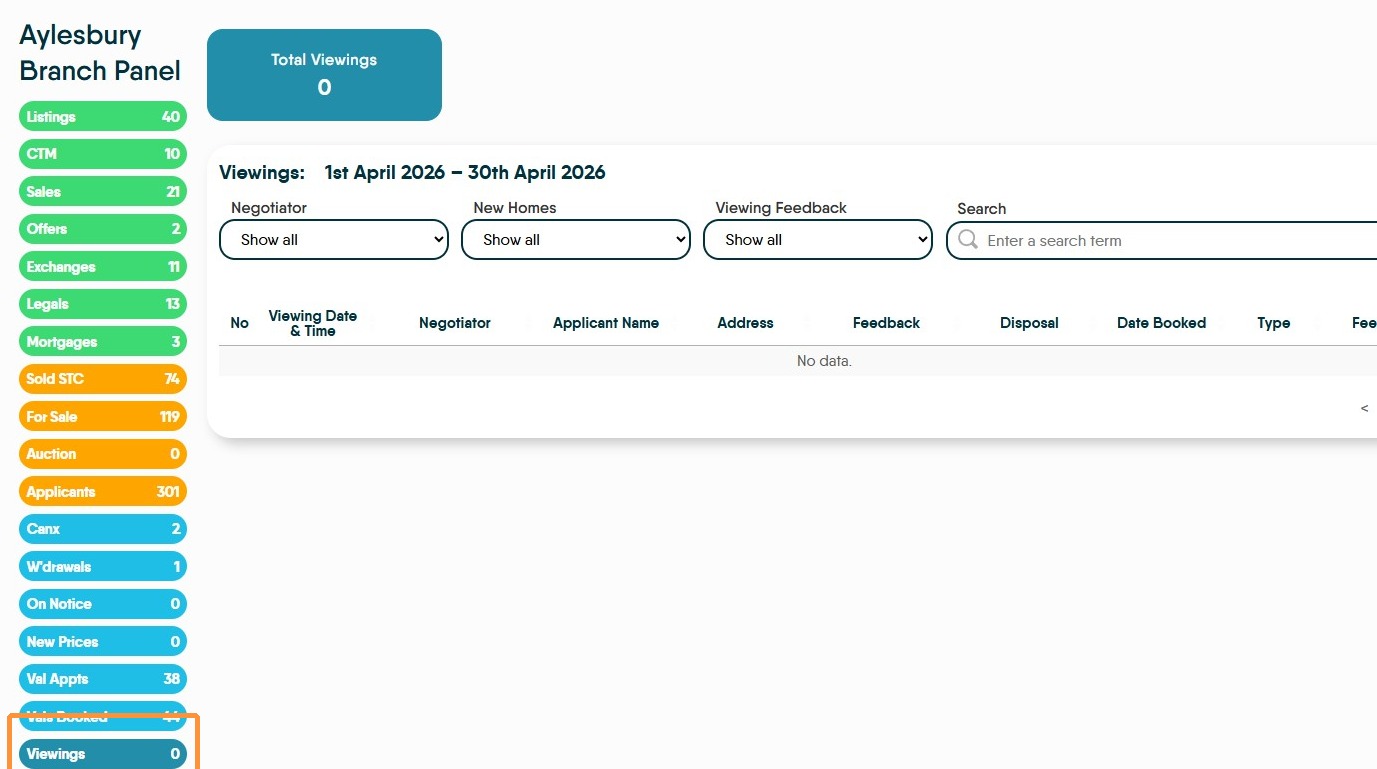
Click "Viewings"
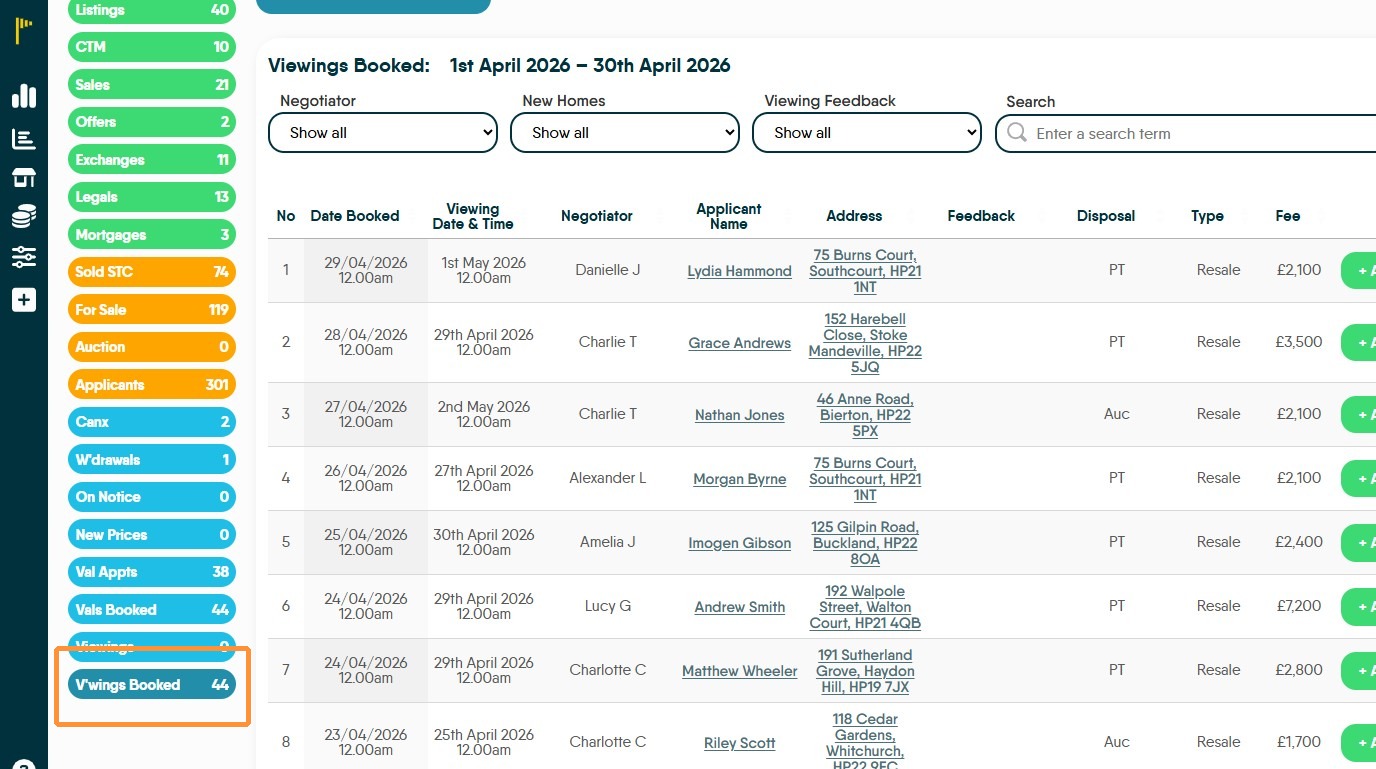
Click "V'wings Booked"
Commission
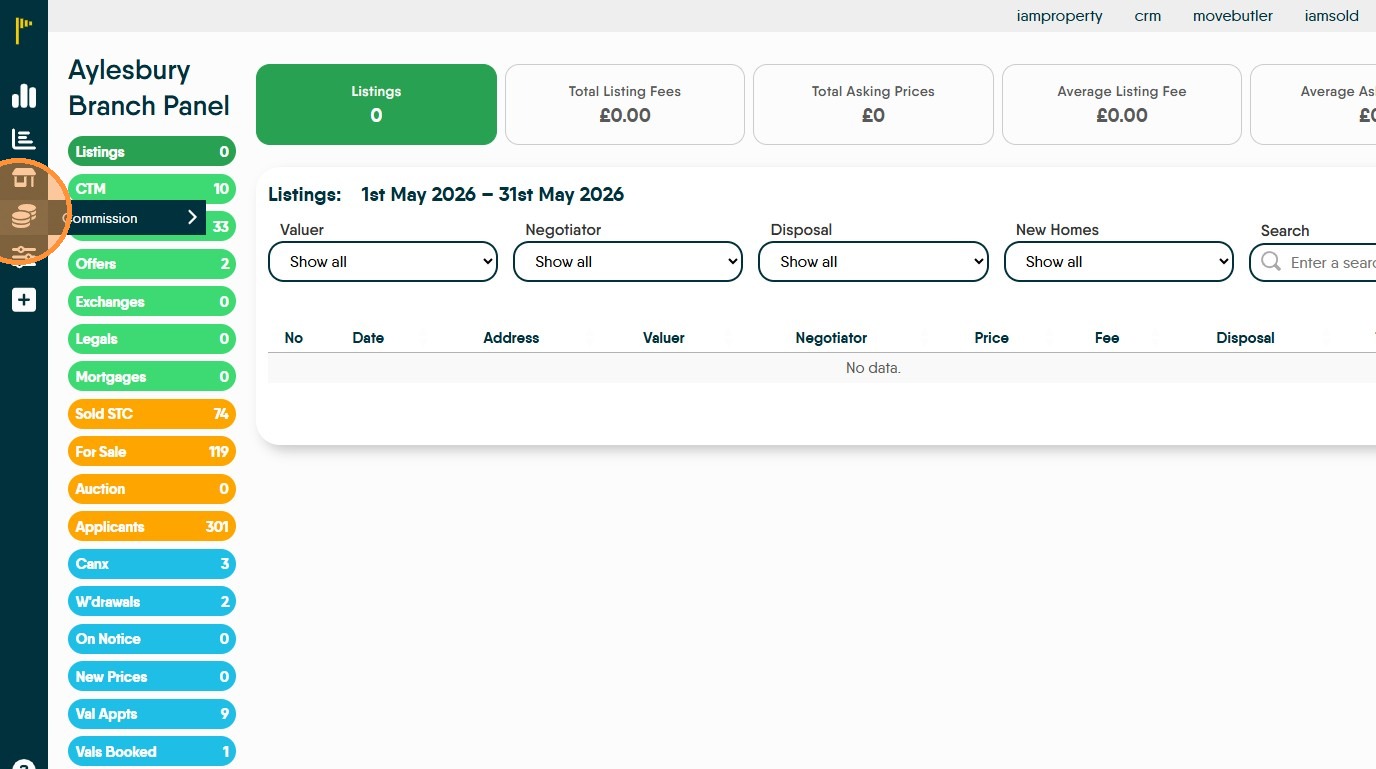
17. Click this icon 'Commission'
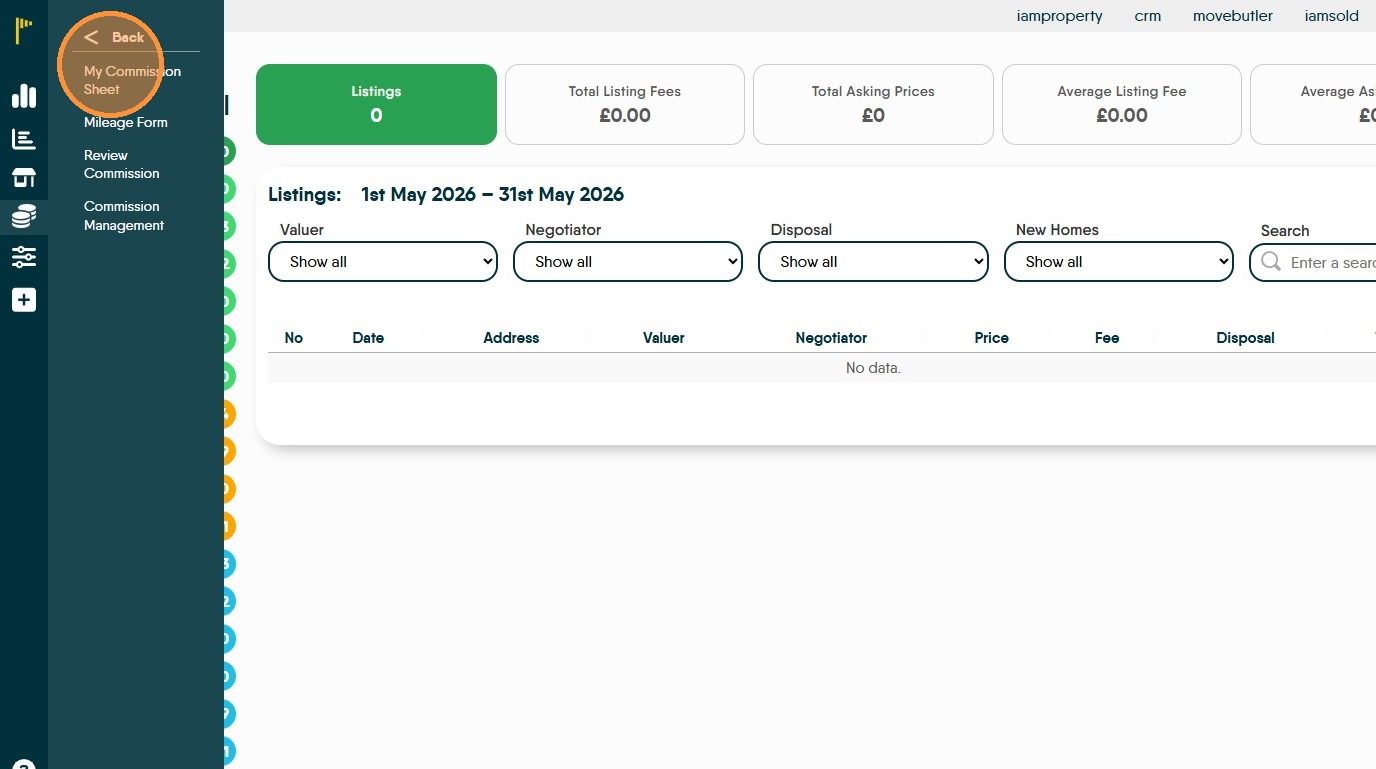
18. Click "My Commission Sheet"
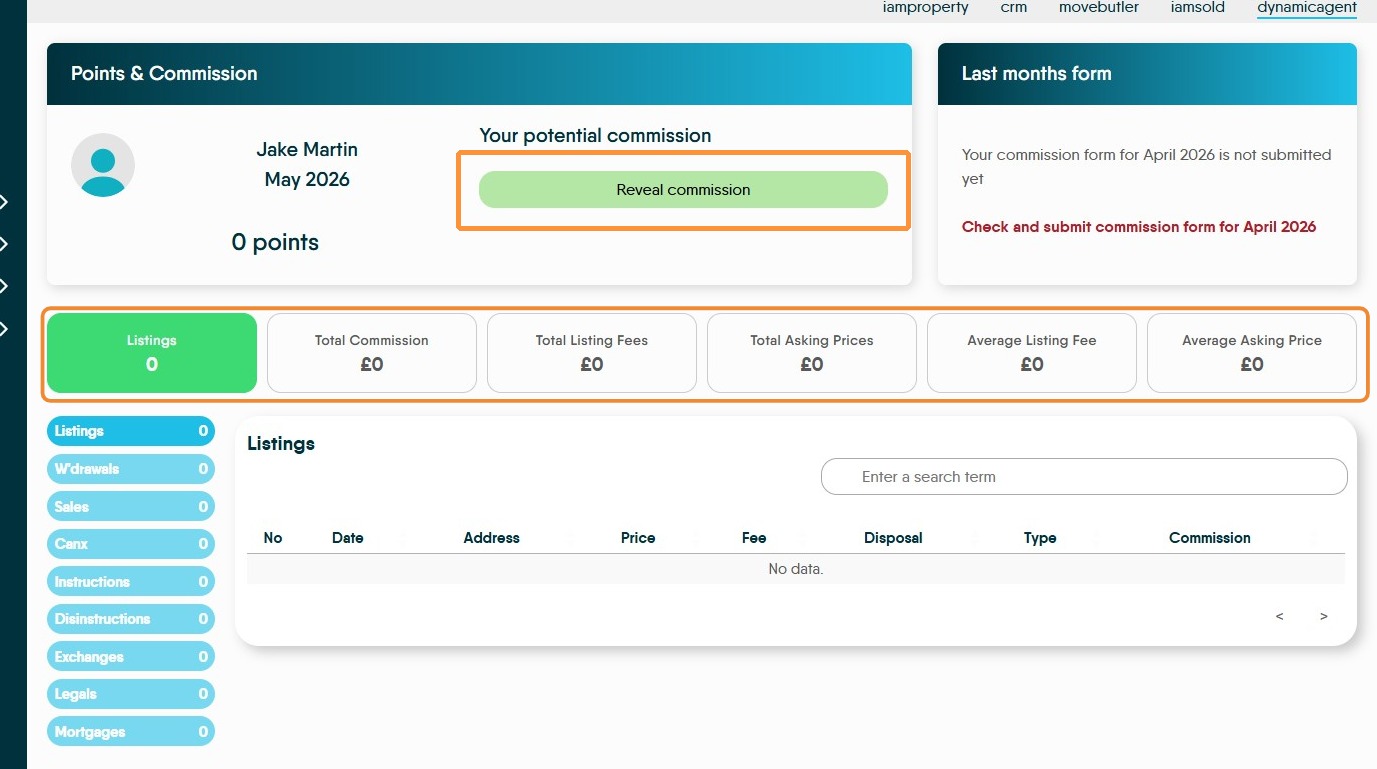
19. Points & Commission. Clicking "Reveal commission" this will show your potential commission. Across the top of the screen will show the commission due based on the selection in the (blue) menu. The 'Points' option is if your company includes a points scheme as an alternate way of earning rewards.
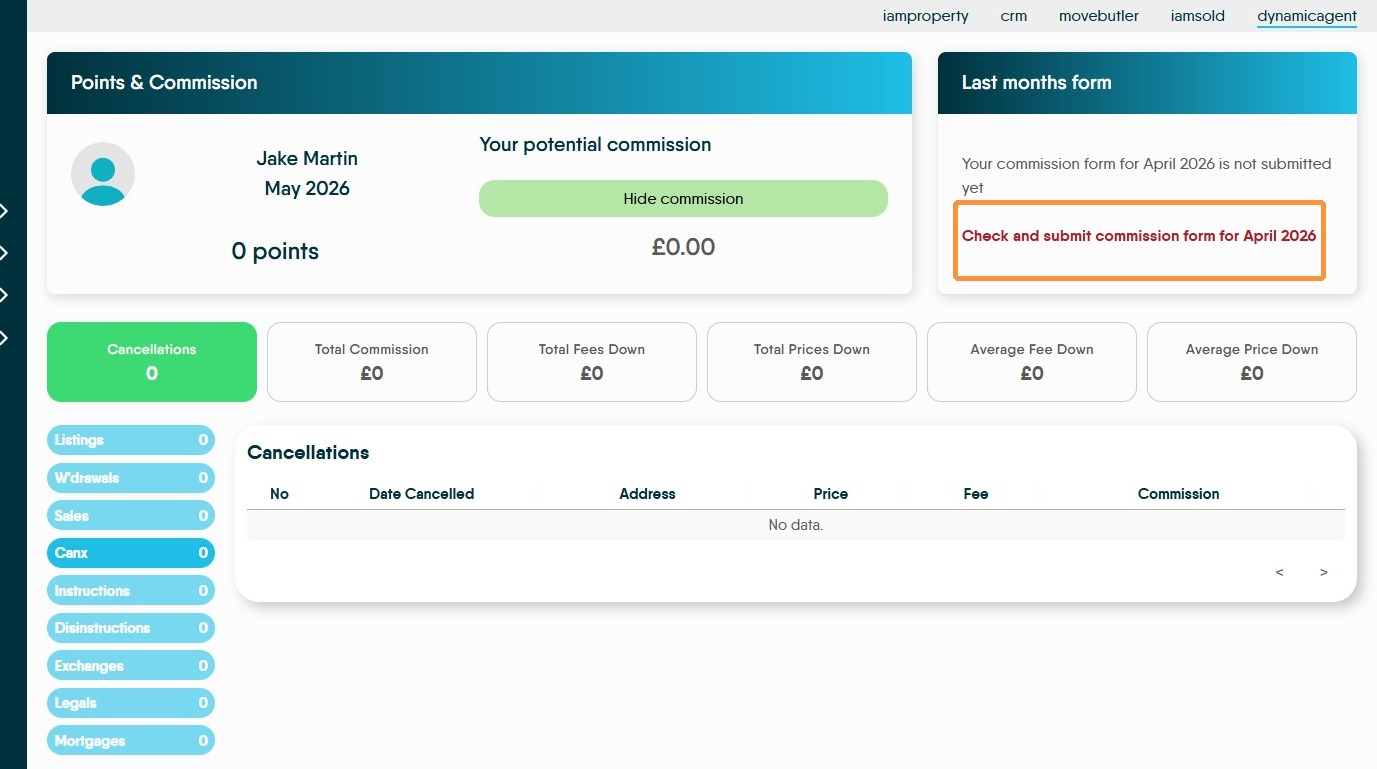
20. Last Months Form. If the previous months commission has not been submitted and notification will show. Click "Check and submit commission form for ....."
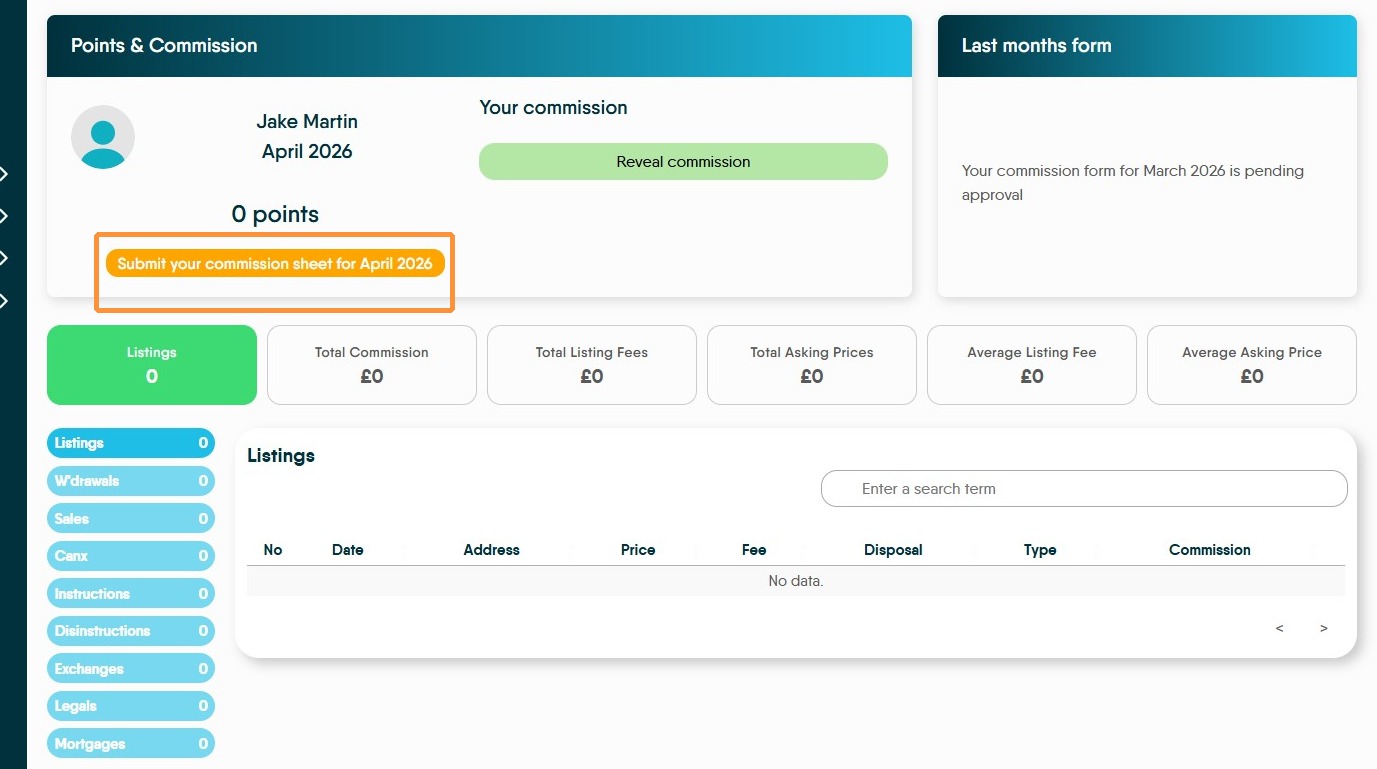
21. To submit your current commission payment. Click "Submit your commission sheet for........"
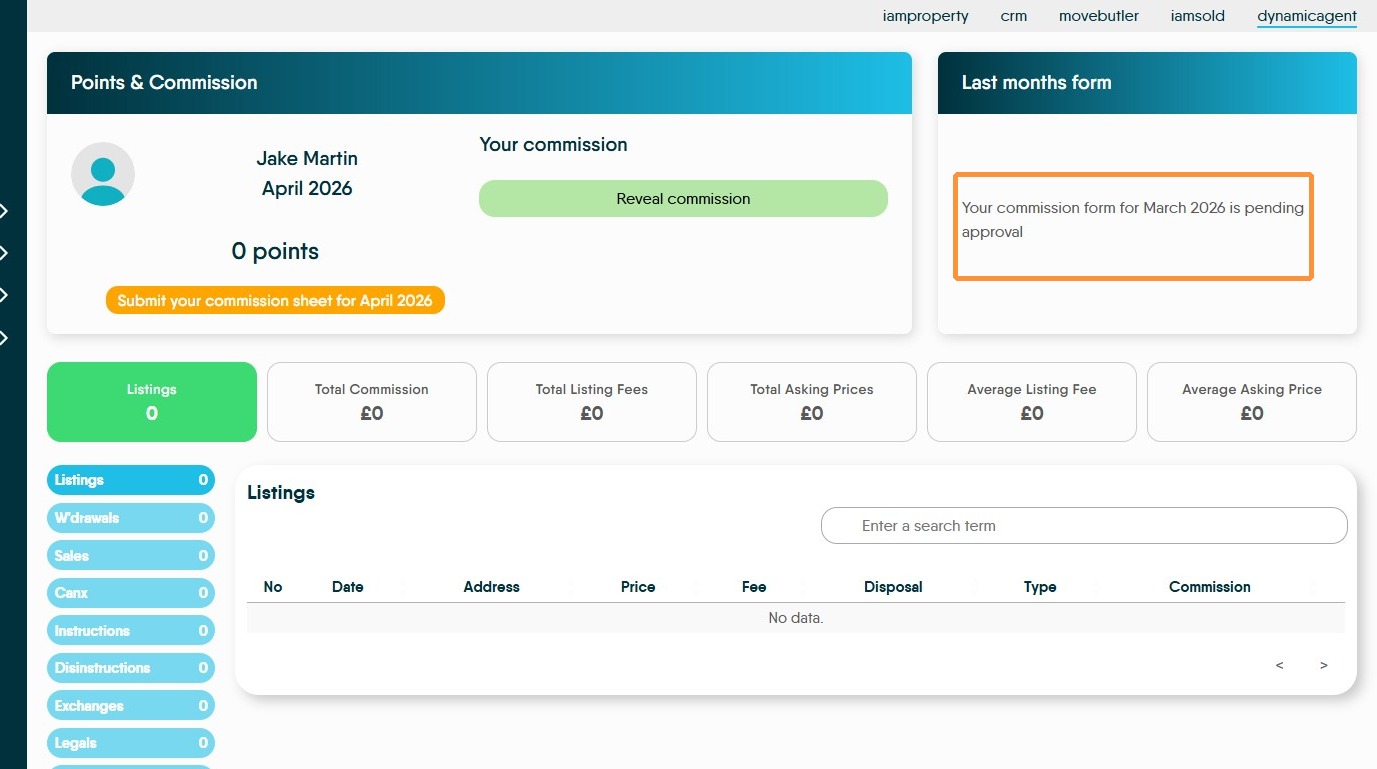
22. Once your commission form has been submitted you will see "Your commission form for ......... is pending approval" in the 'Last months form field'.
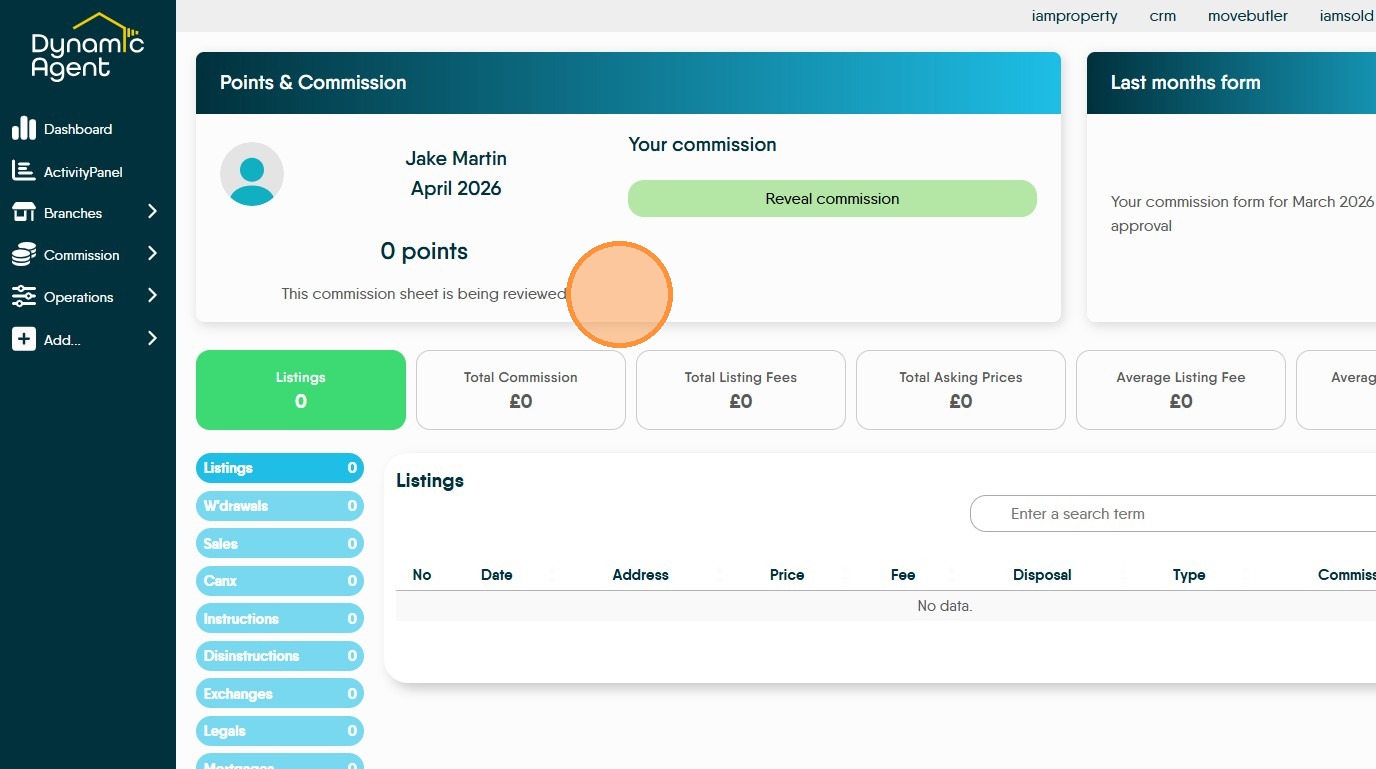
23. Once the form has been submitted this message will show, "This commission sheet is being reviewed"
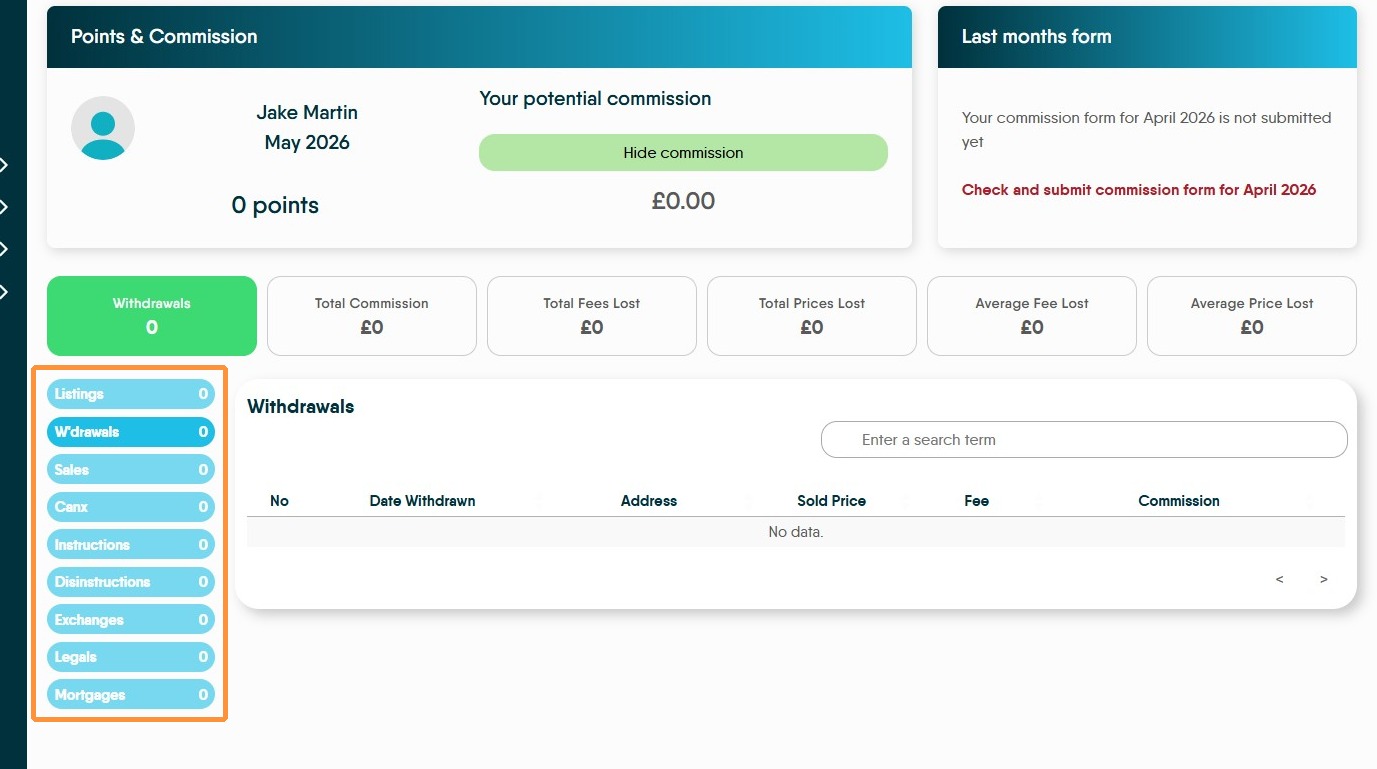
24. Selecting the options in the (blue) menu will show the different commission amounts that are being earned.
W'drawels, Canx, Disinstruction are (depending on company settings) reductions to commission paid.
Mileage Form
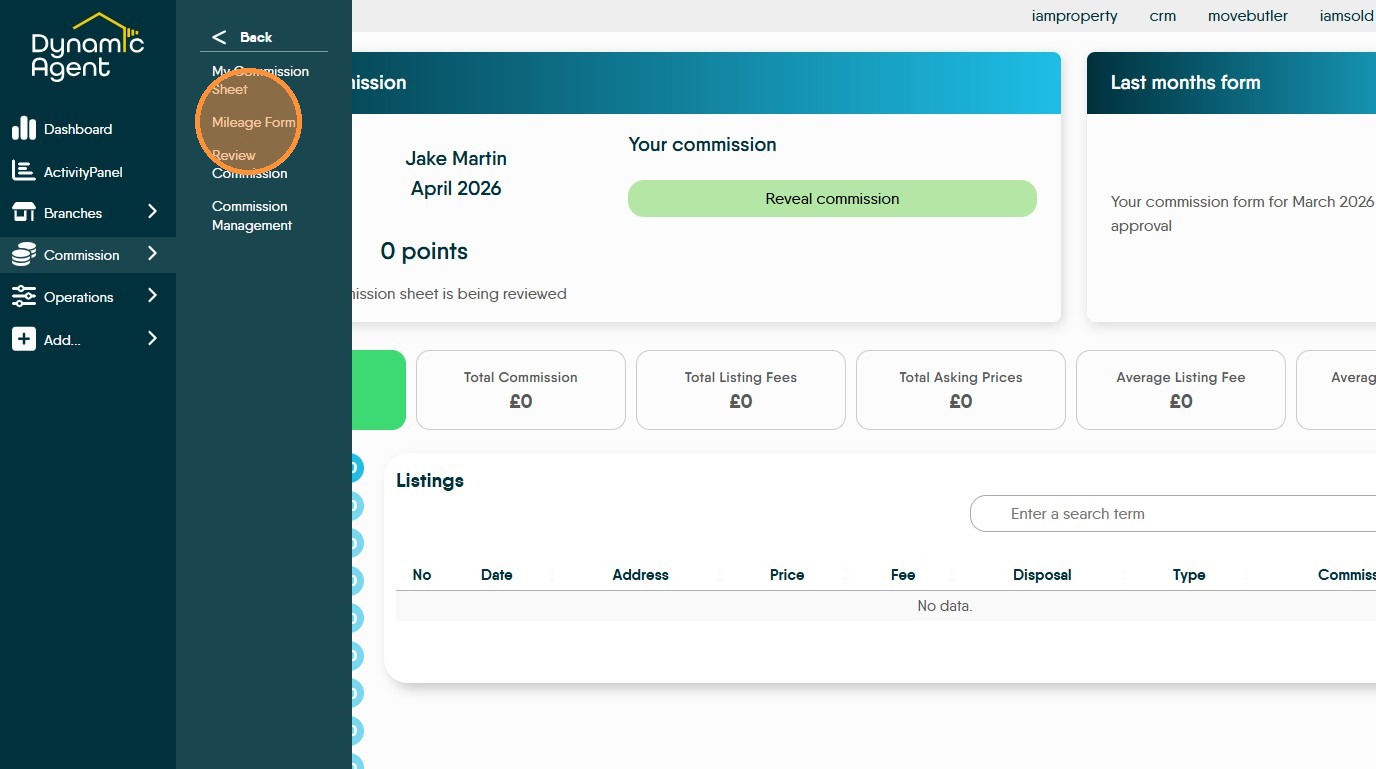
25. Click "Mileage Form"
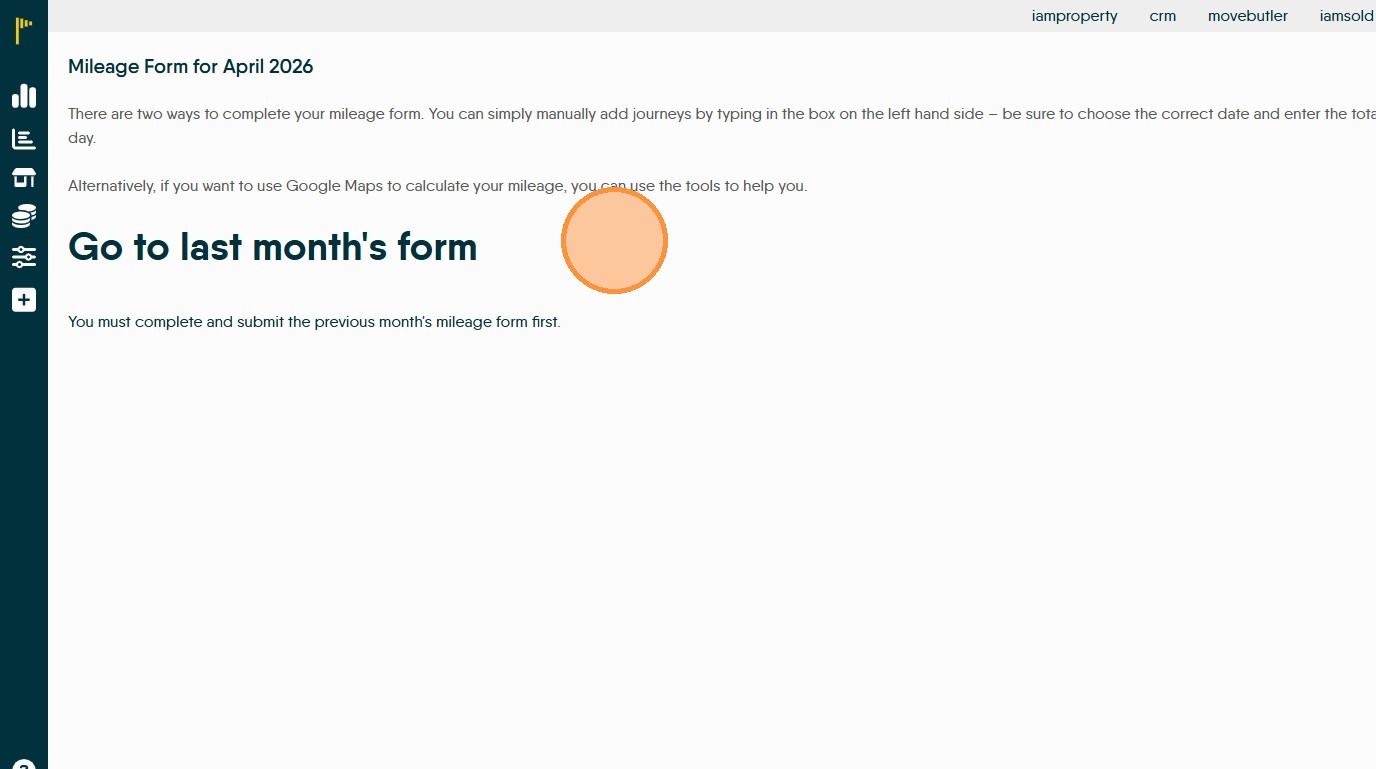
26. This will take you to your mileage form where you can easily enter your mileage. This screen interacts with your CRM calendar and allows trips to be directly added from the calendar making claims.
Reviewing Staff Commission.
27. Click "Review Commission"
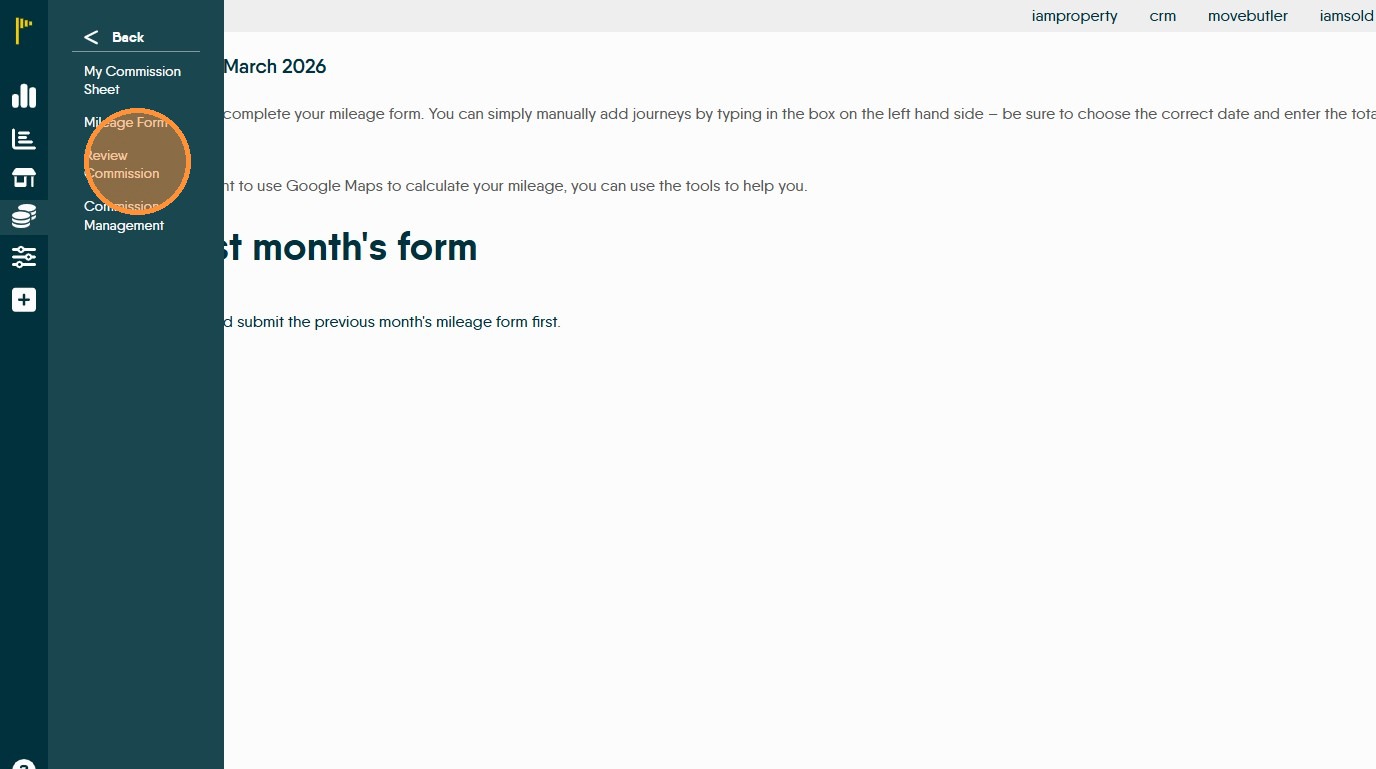
28. This will show a list of all the staff and the status of their commission claims
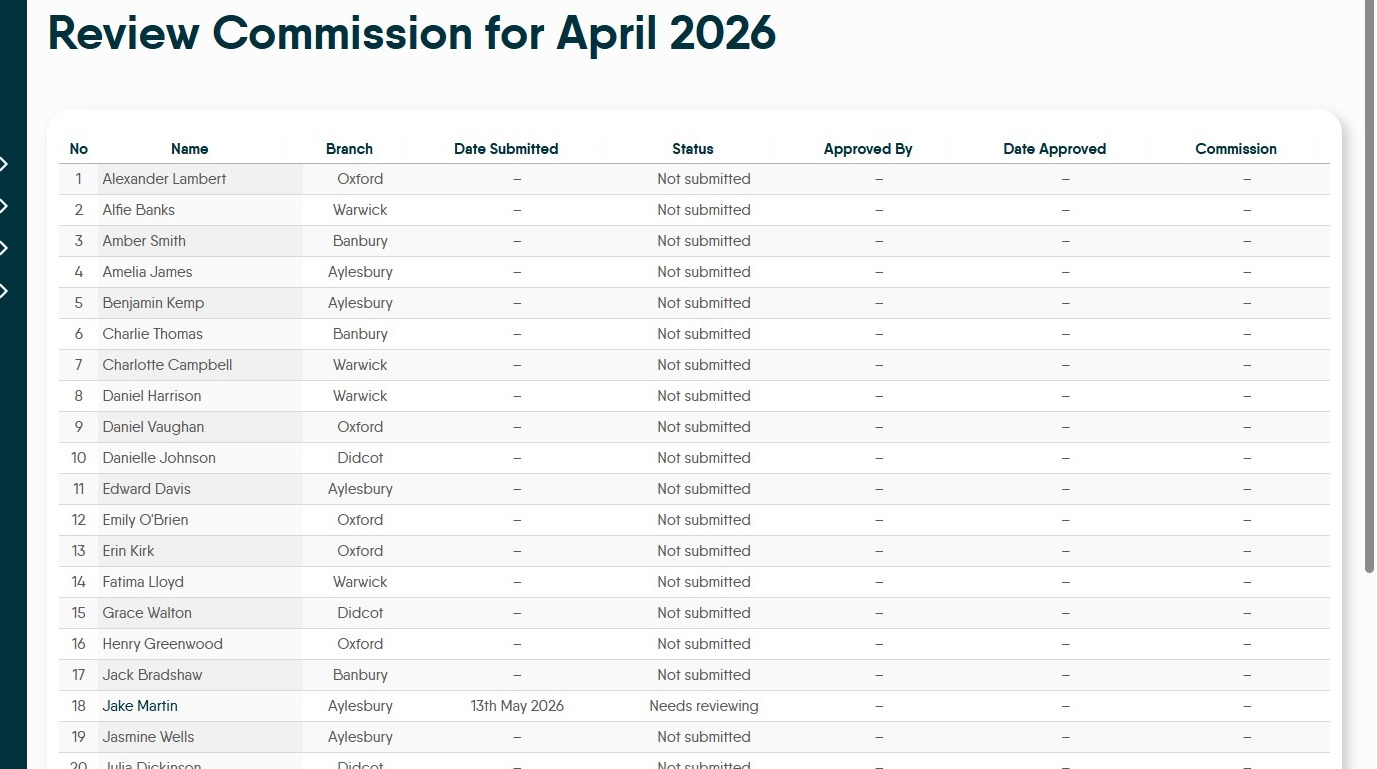
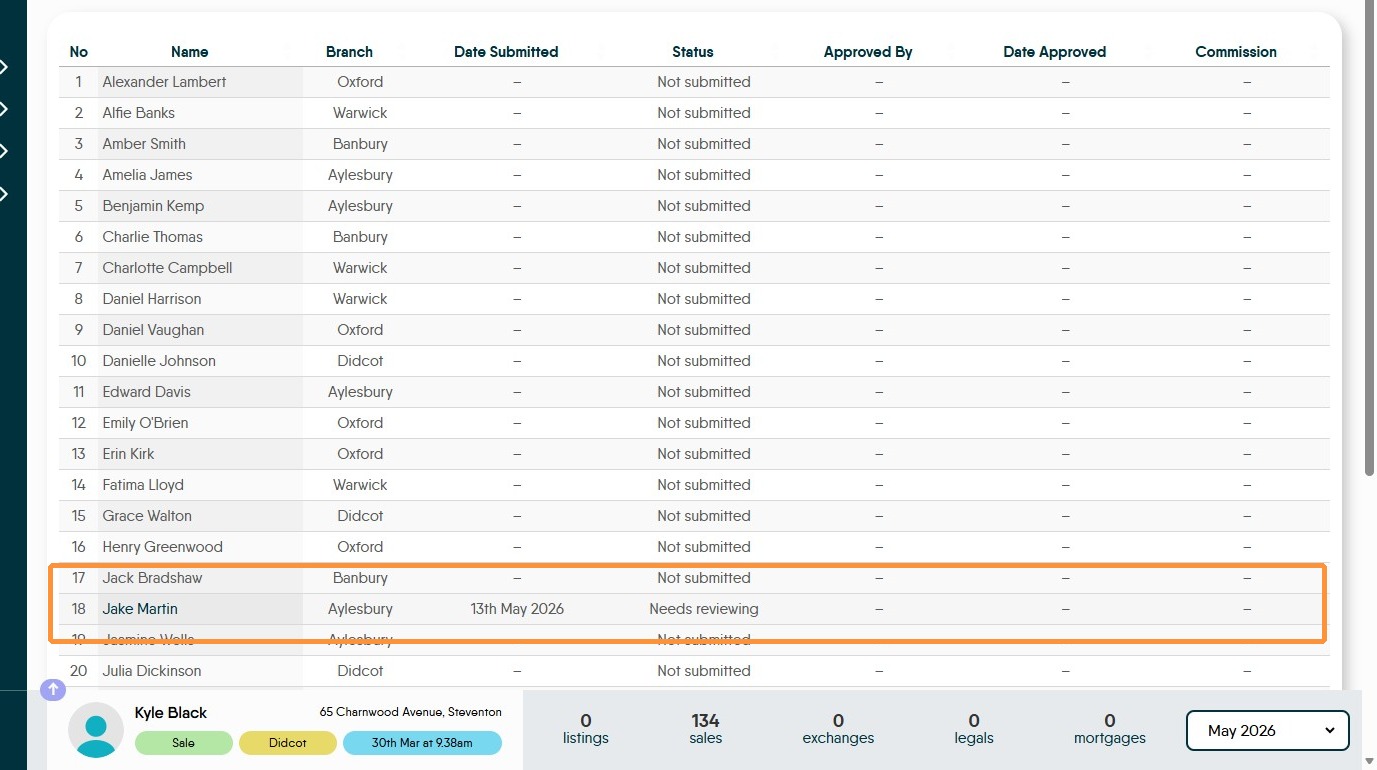
29. Click on the record you want to review.
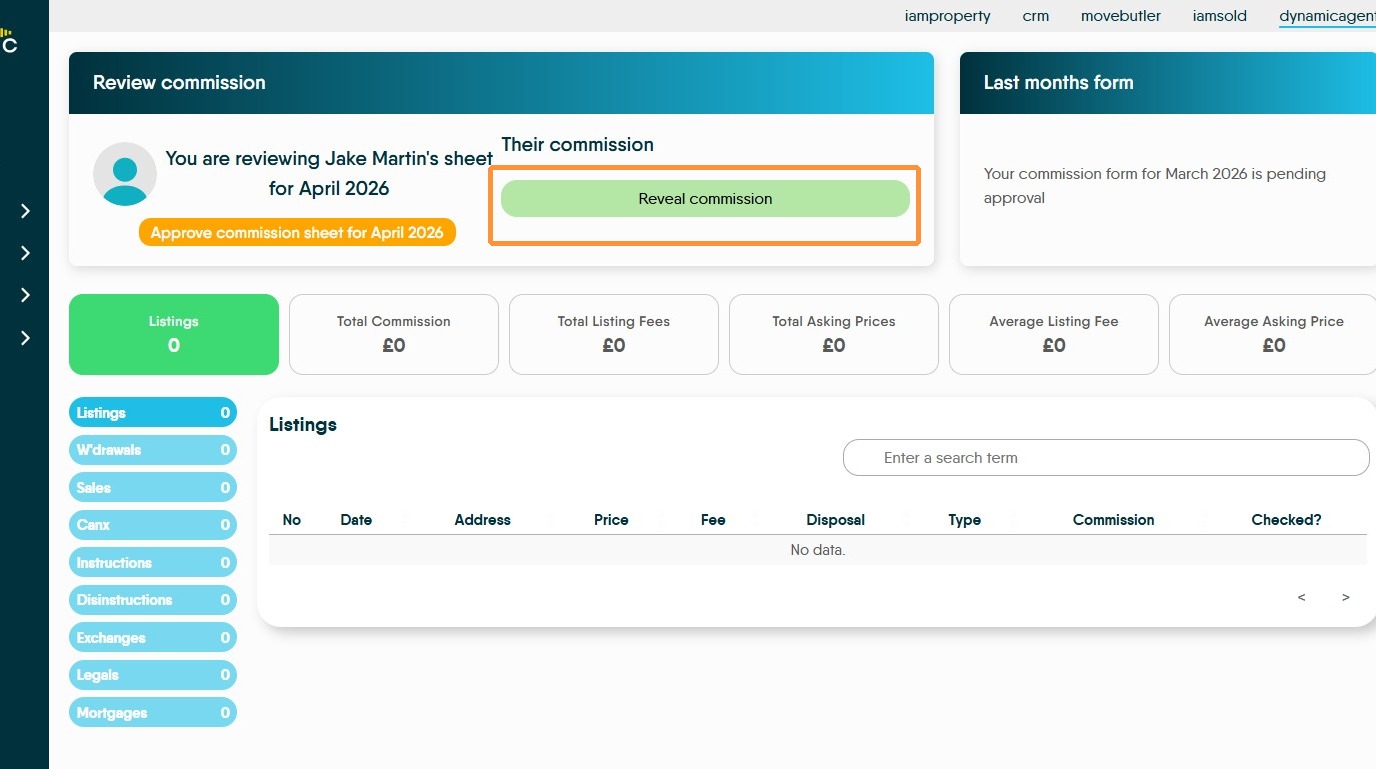
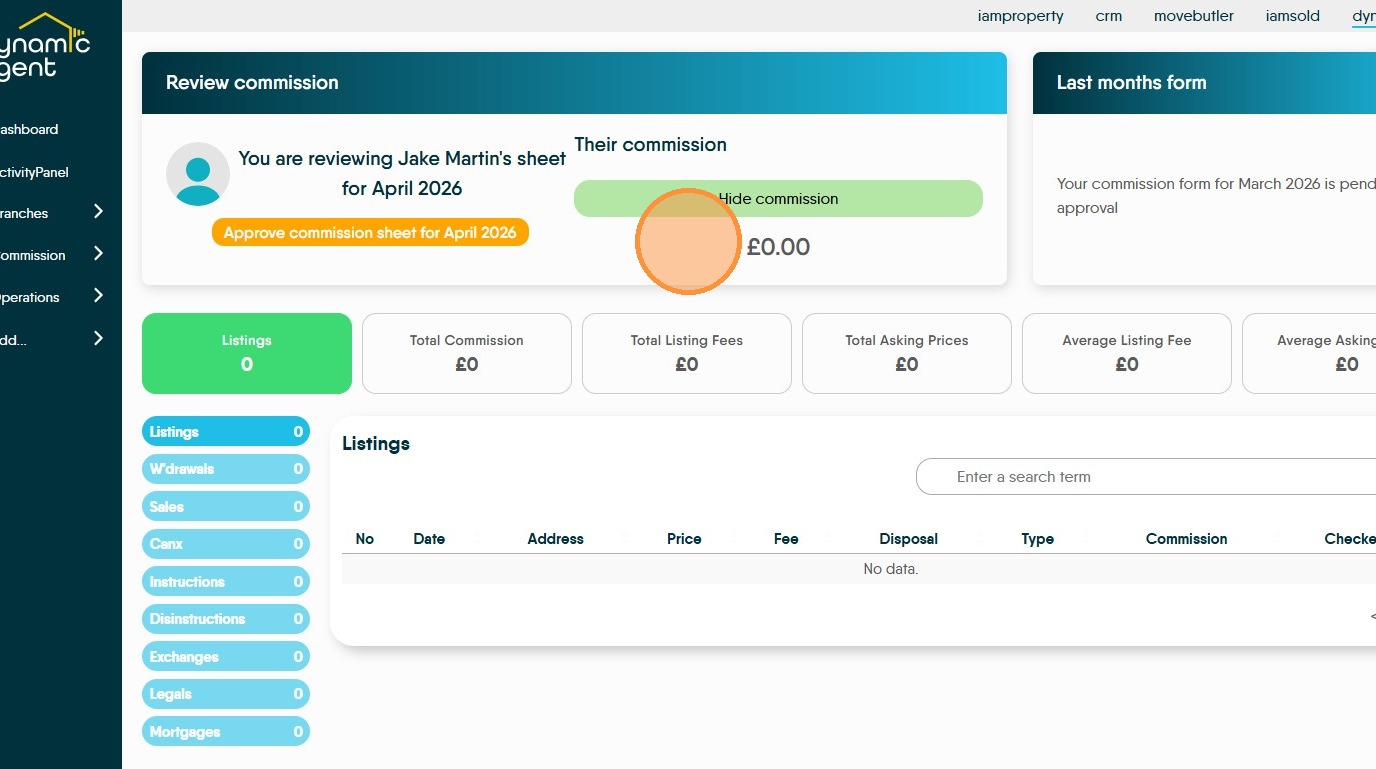
30. This will show all the commission due to the this member of staff. Click "Approve commission sheet for..." to approve the submission
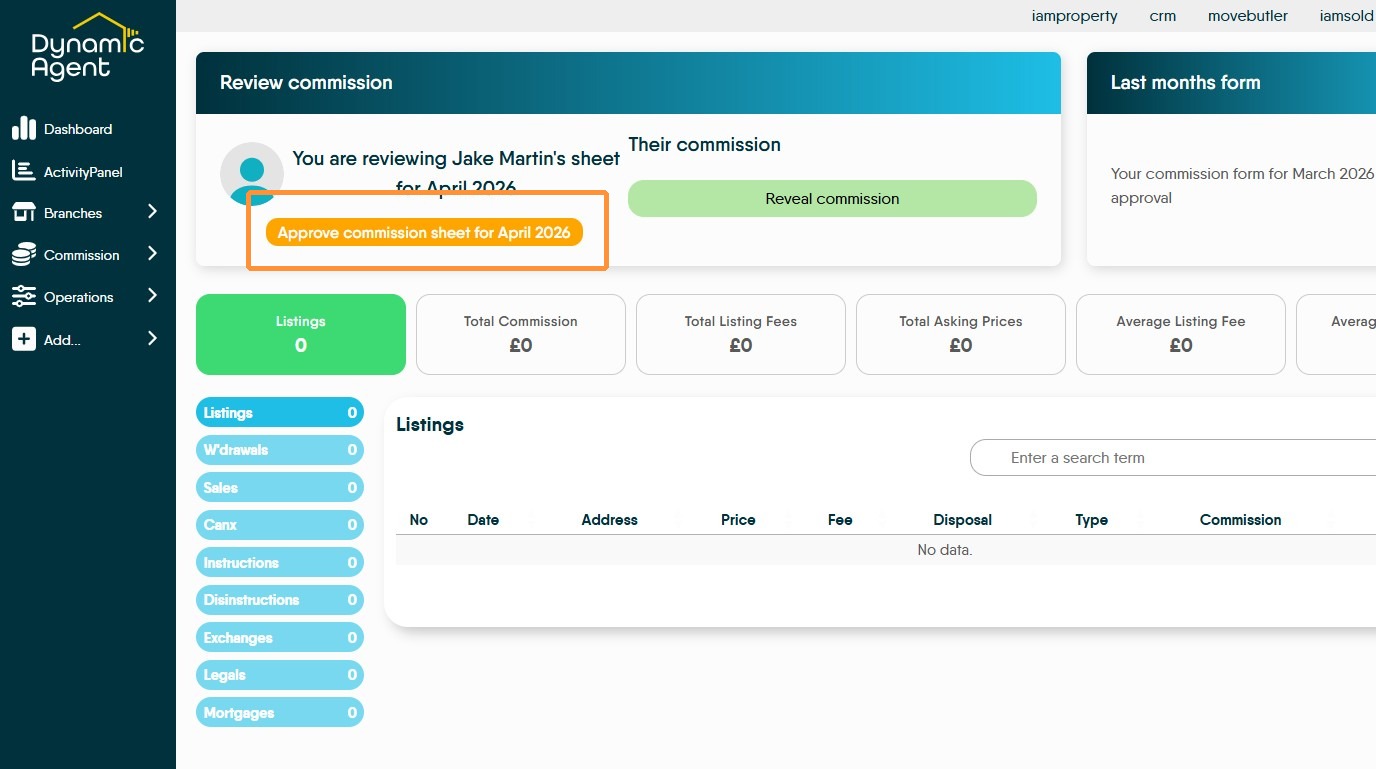
31. Click "Reveal commission" will show the commission due.
Commission Management
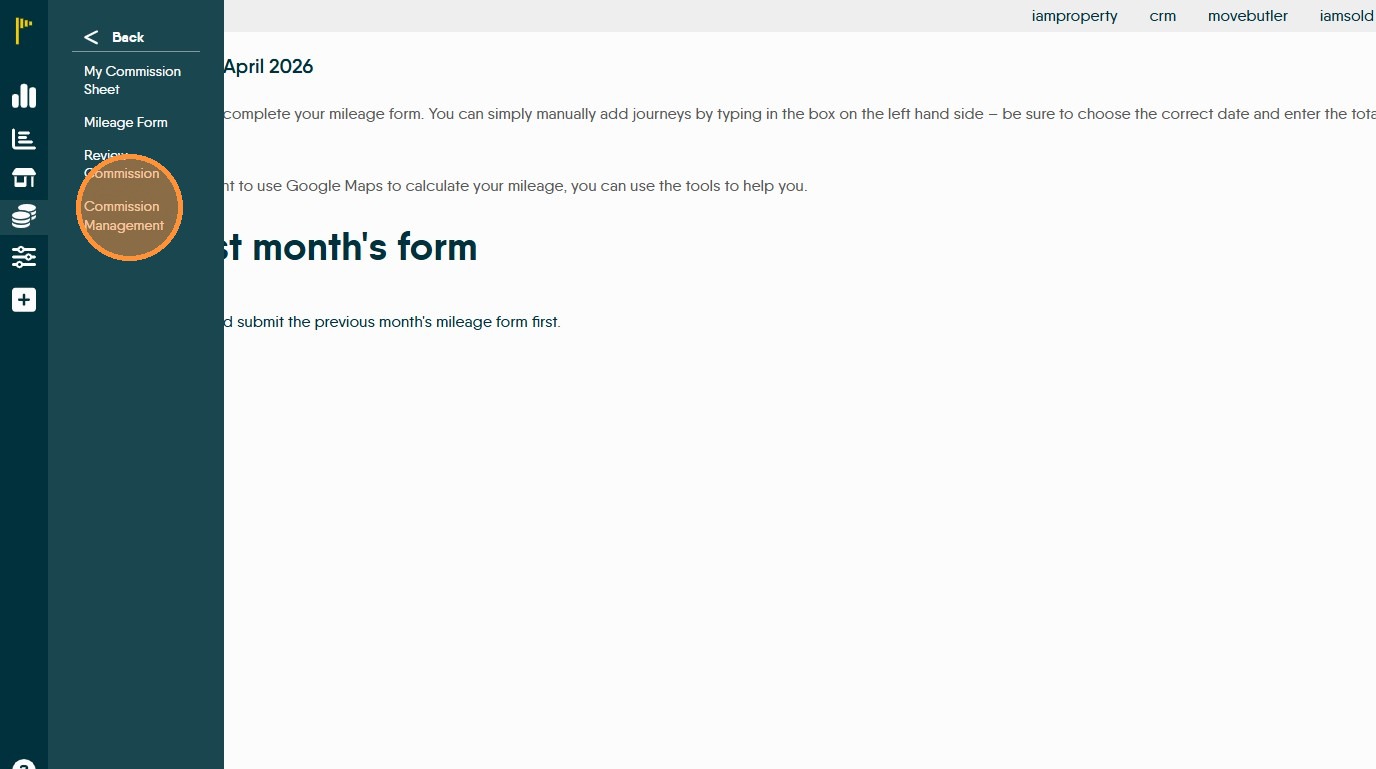
32. Click "Commission Management"
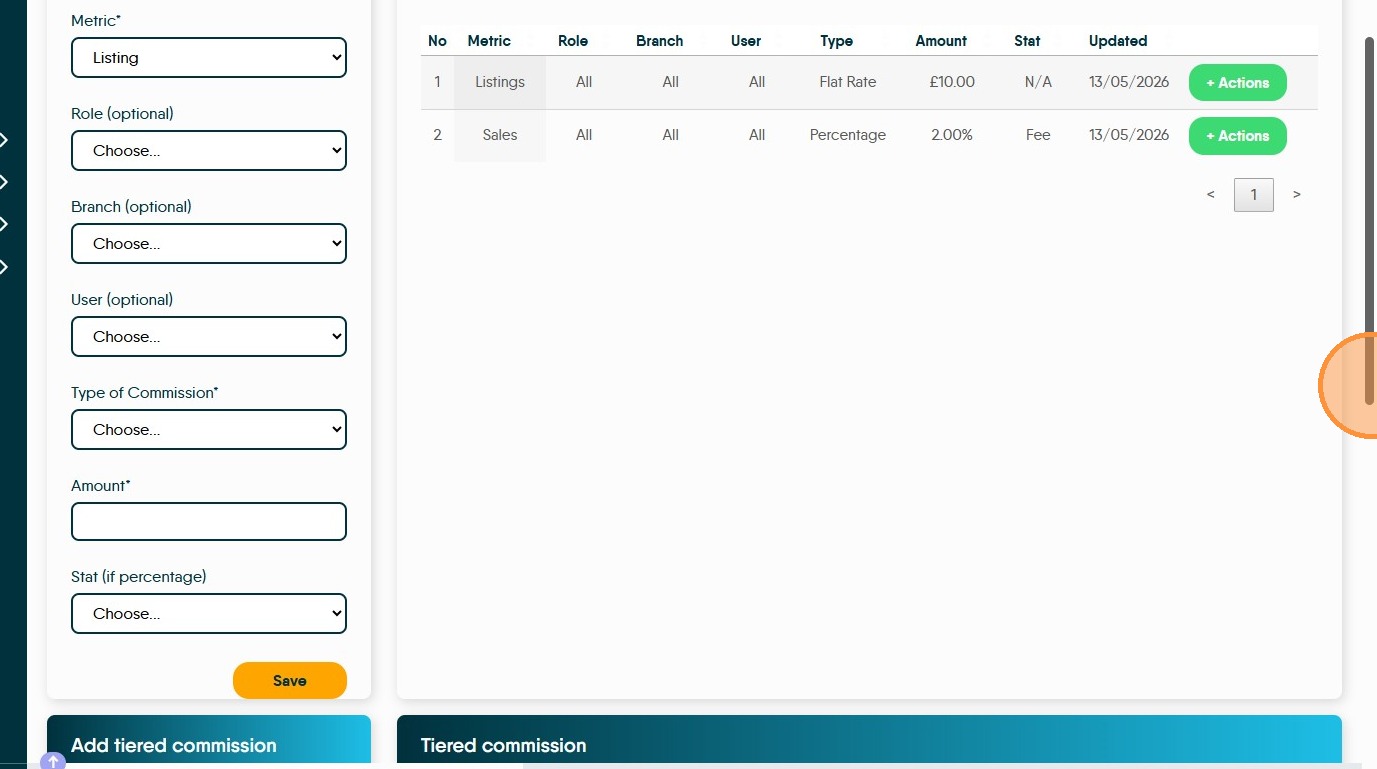
33. This screen will allow you to add new commission amounts to Dynamic Agent.
There are 2 types of commission that can be added 'Core' and 'Tiered' commission
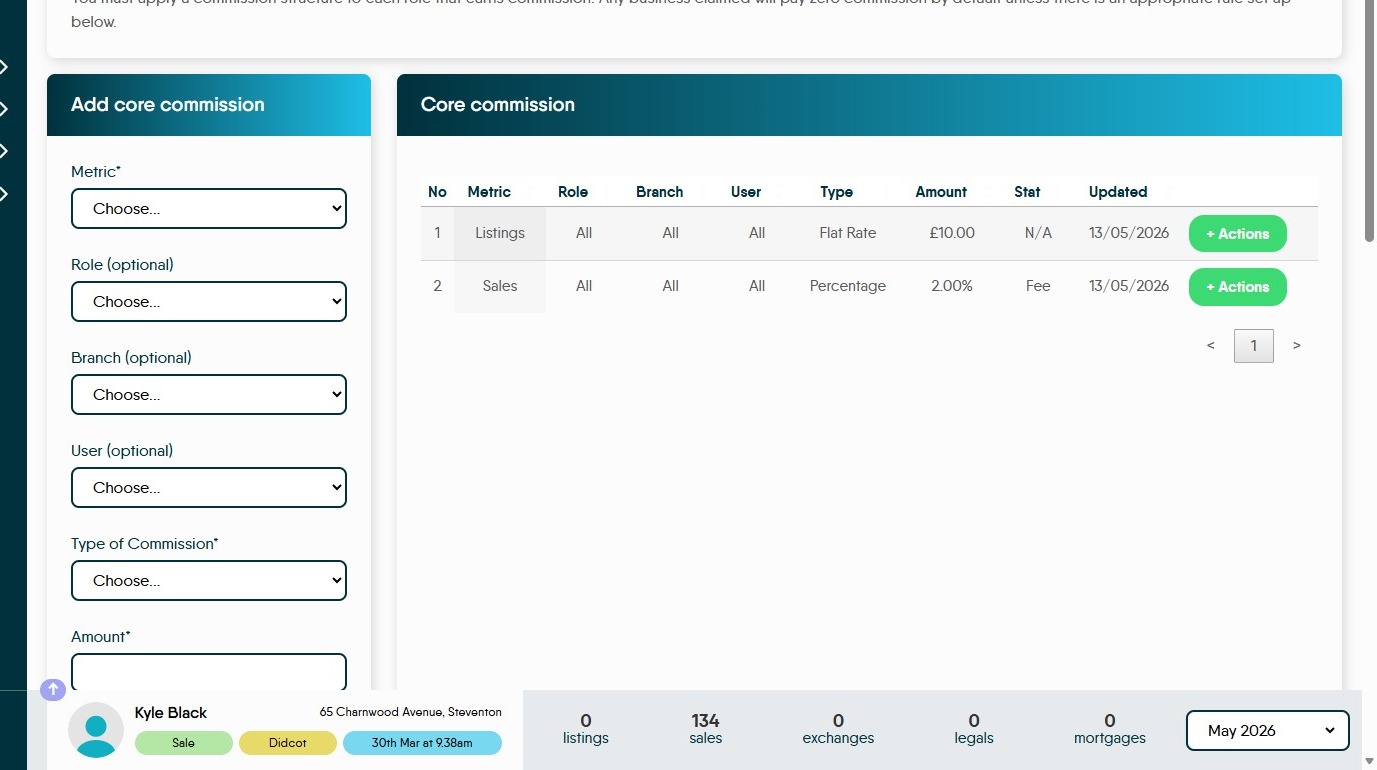
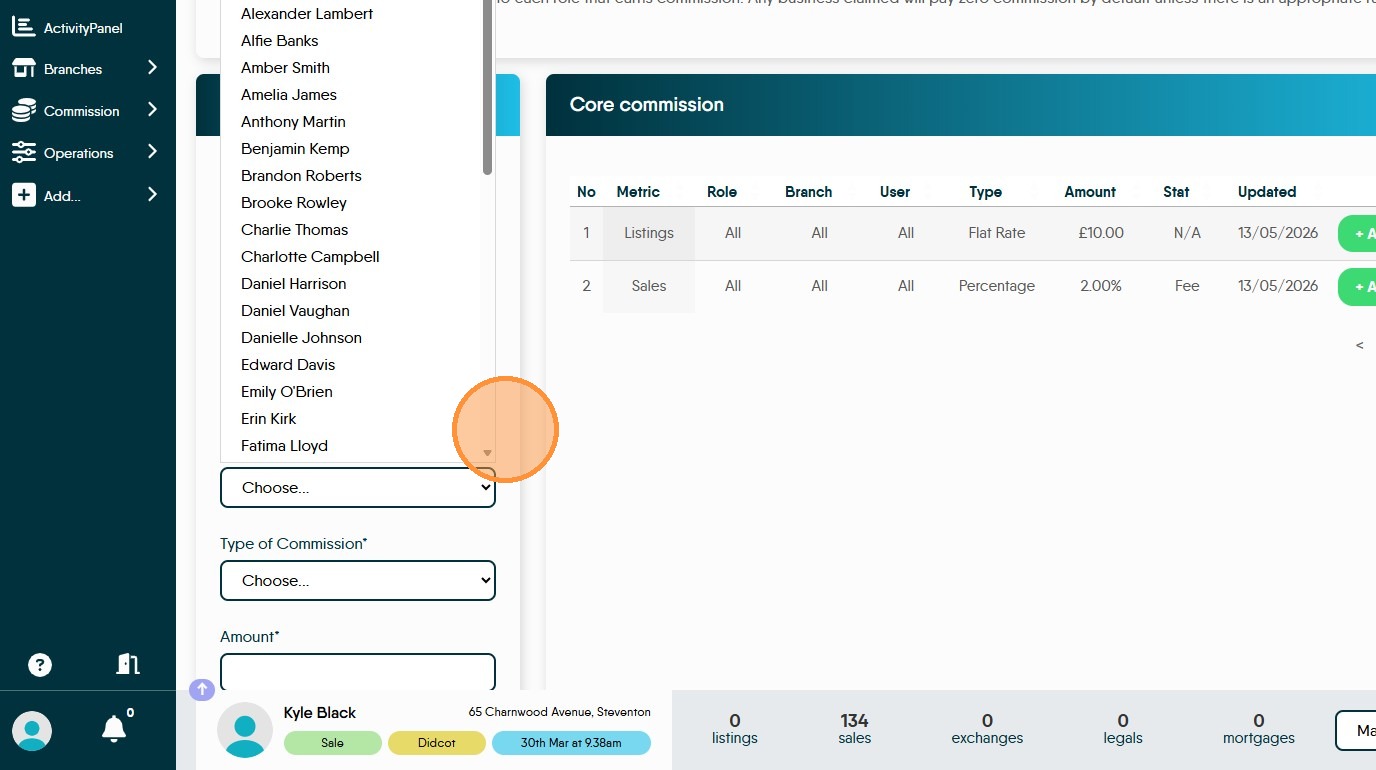
34. Adding 'Core commission'. Click this dropdown to add the metric (the item you are paying commission on) e.g. Listing.
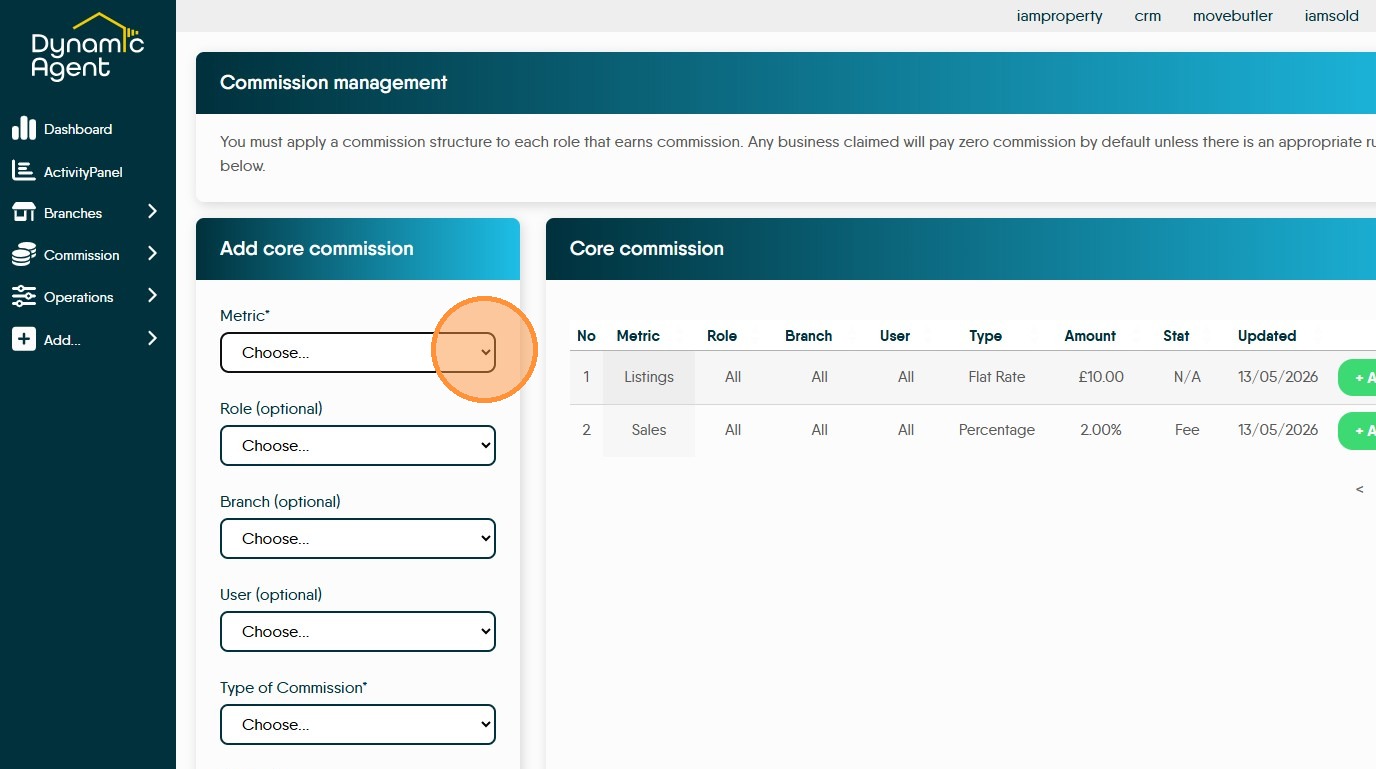
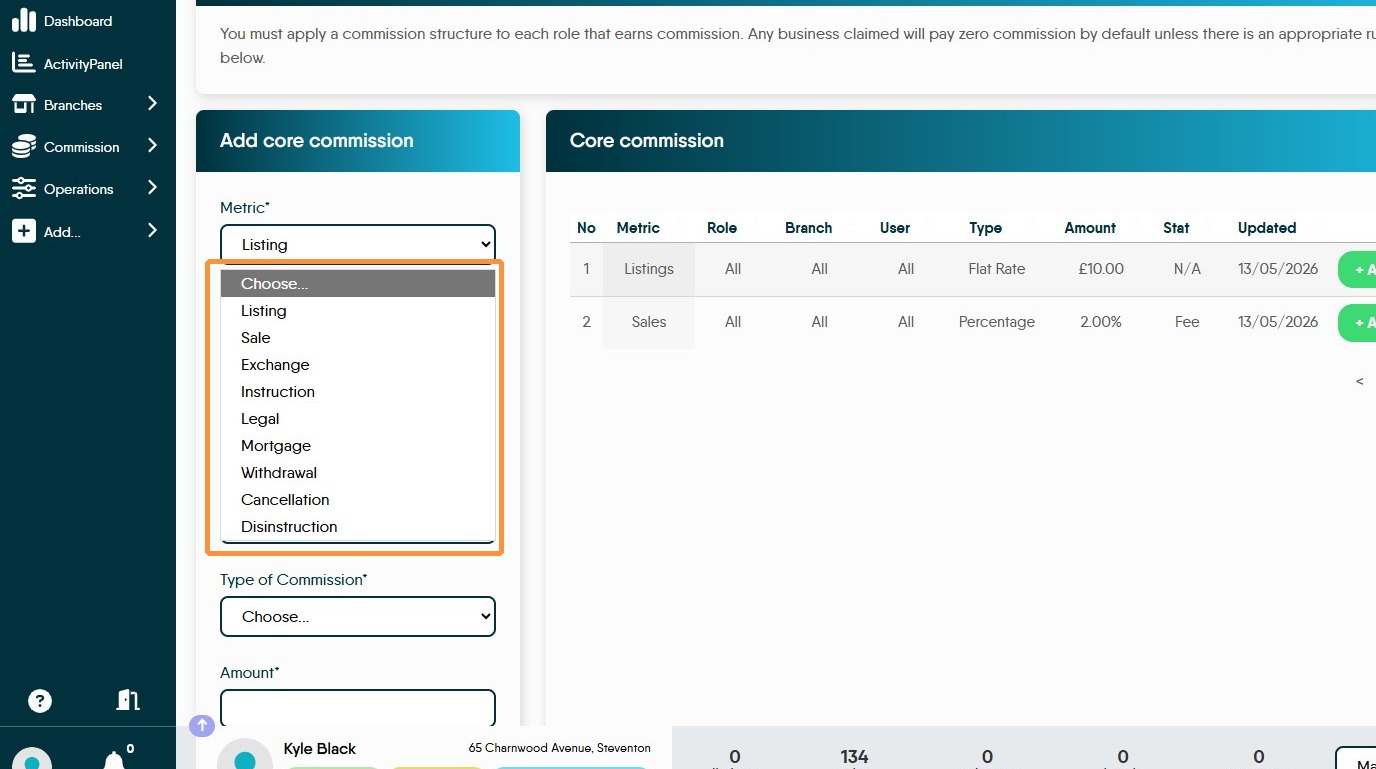
35. Then click on each of the options;
- Role - Optional. Set the role the commission applies to (manager, negotitator etc)
- Branch - Optional. Set the Branch the commission applies to
- User - Optional. Set the User the commission applies to
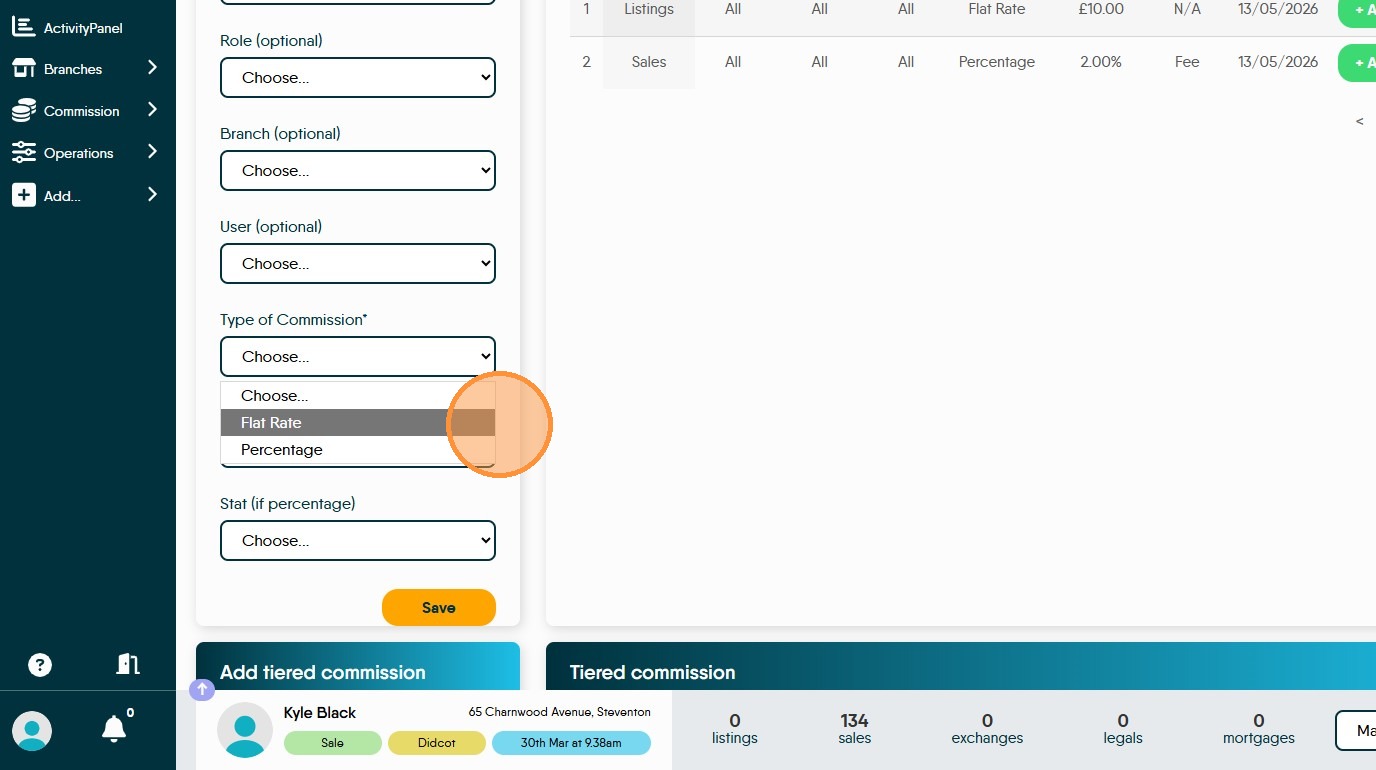
- Type of Commission - Flat Rate (£ value) or percentage
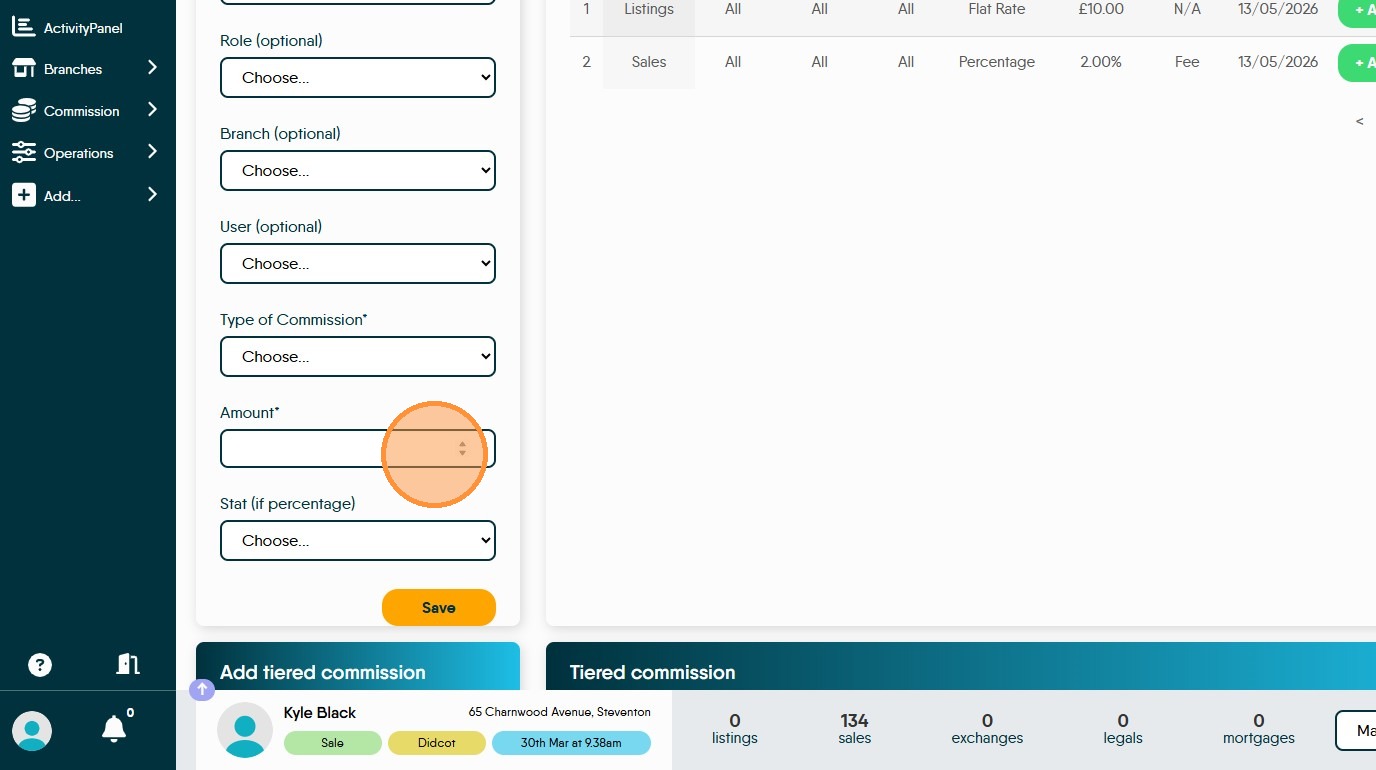
- Amount - amount of £ or percentage to be paid
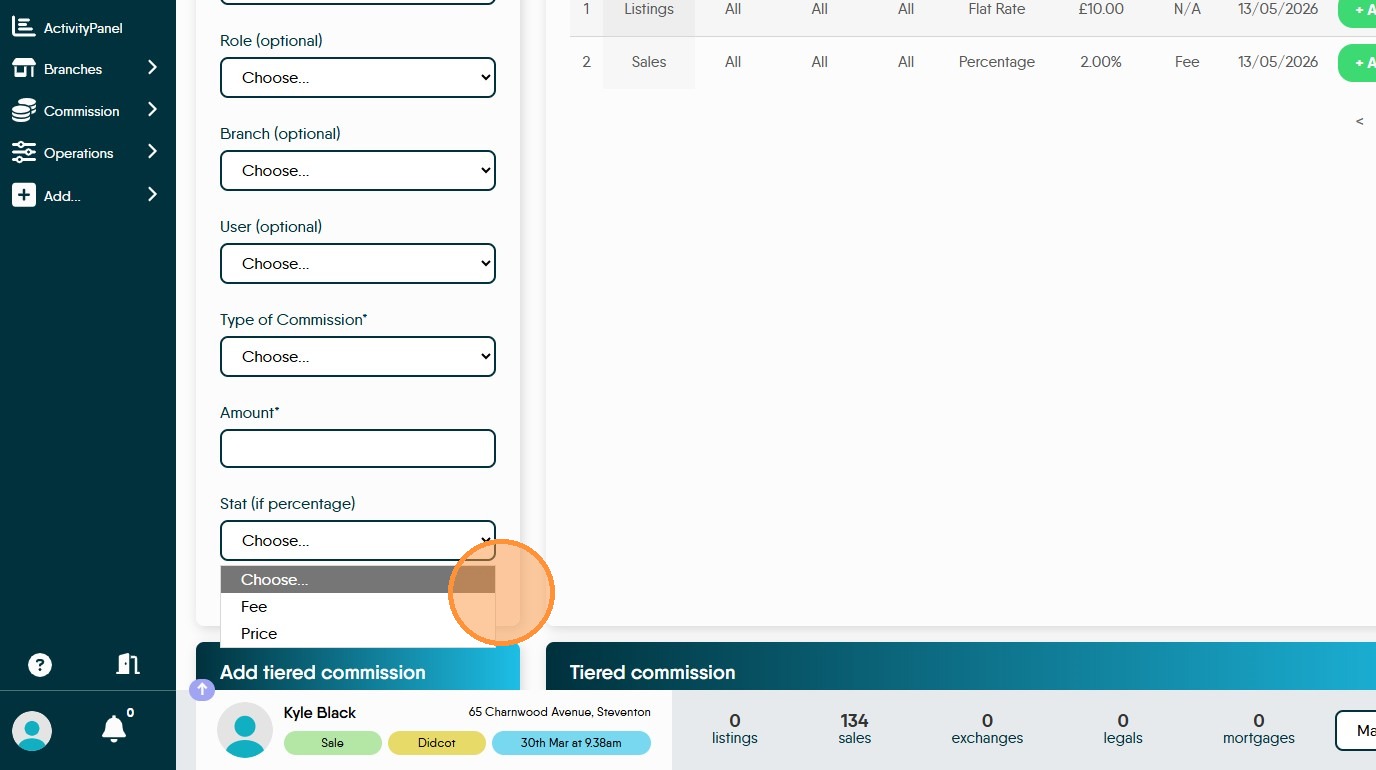
- Stat - Fee or Price, this is what the percentage commission is worked out from.
as an example you can set a commission to apply to all users or just specific users and branches by selecting the options on screen to add the commissions. Once complete save the entry and add the next Metric.
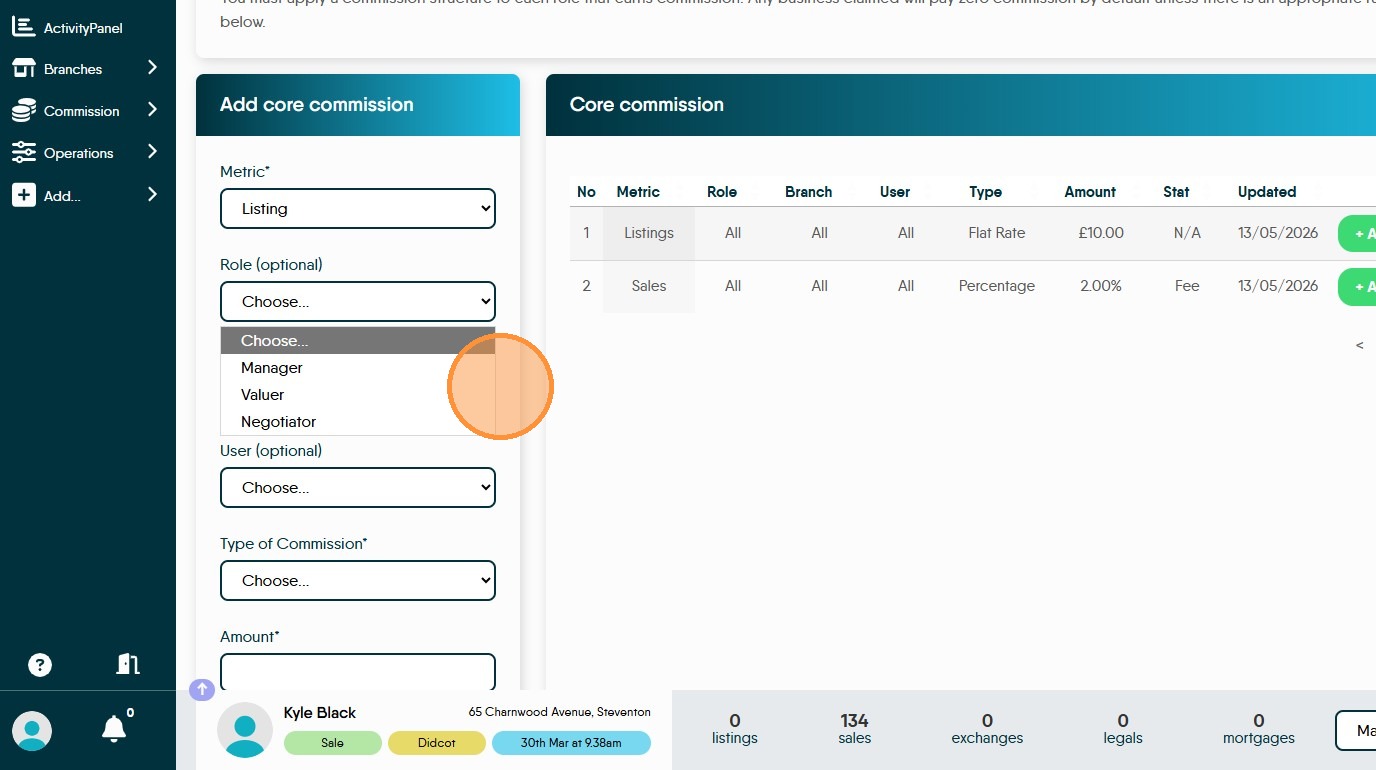
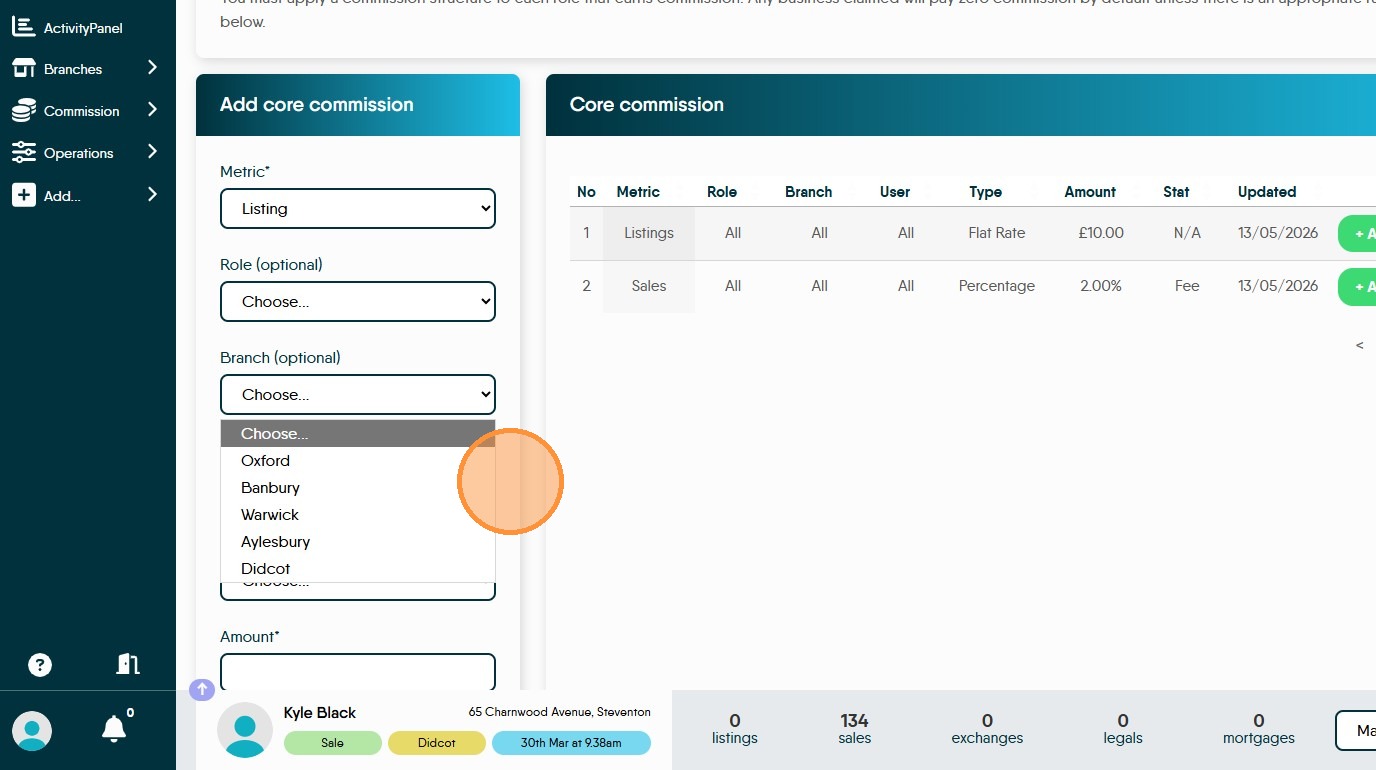
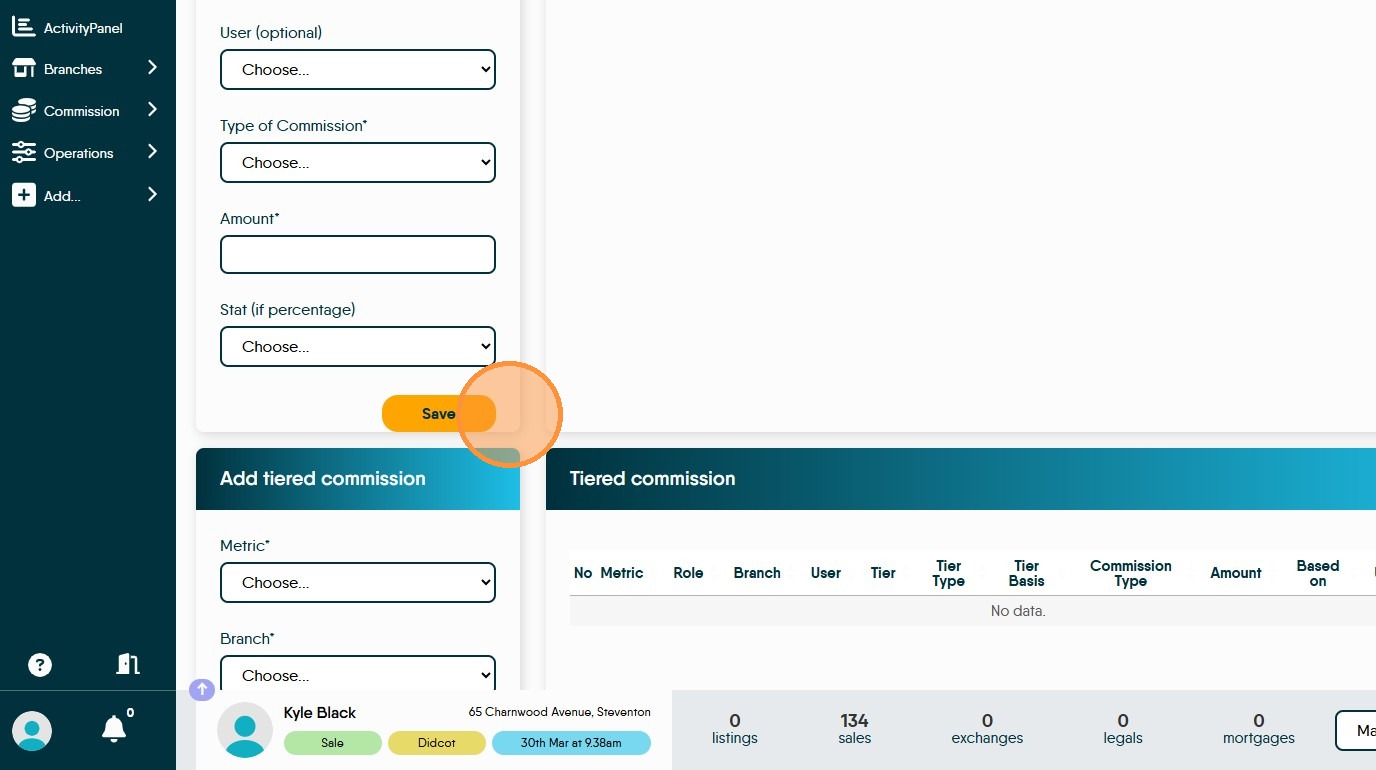
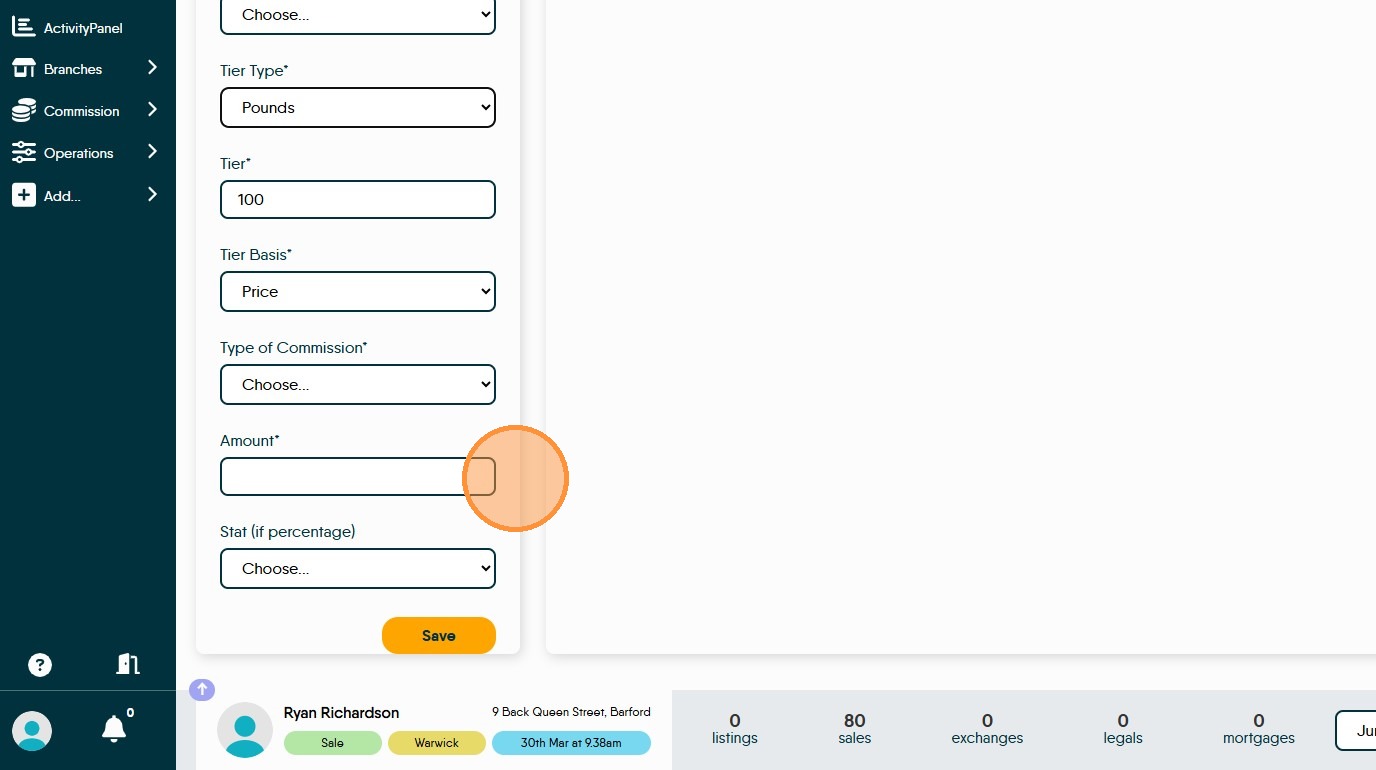
36. There is also to option to add 'Tiered' commission this allows you to add a commission that applies once a set target is achieved by the staff member. Tiered commission is added in a similar way to the normal commission, however there is are option of Tier Type, Tier, Tier Basis
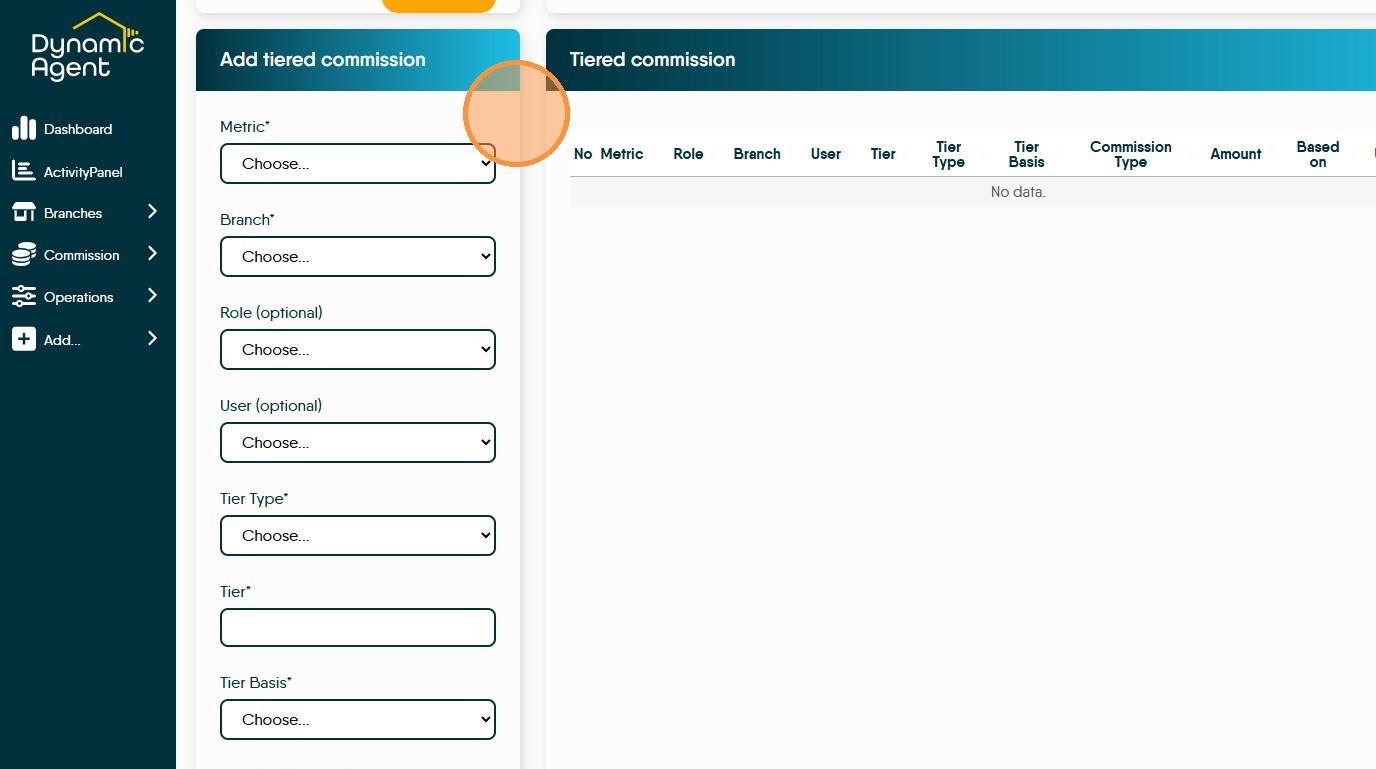
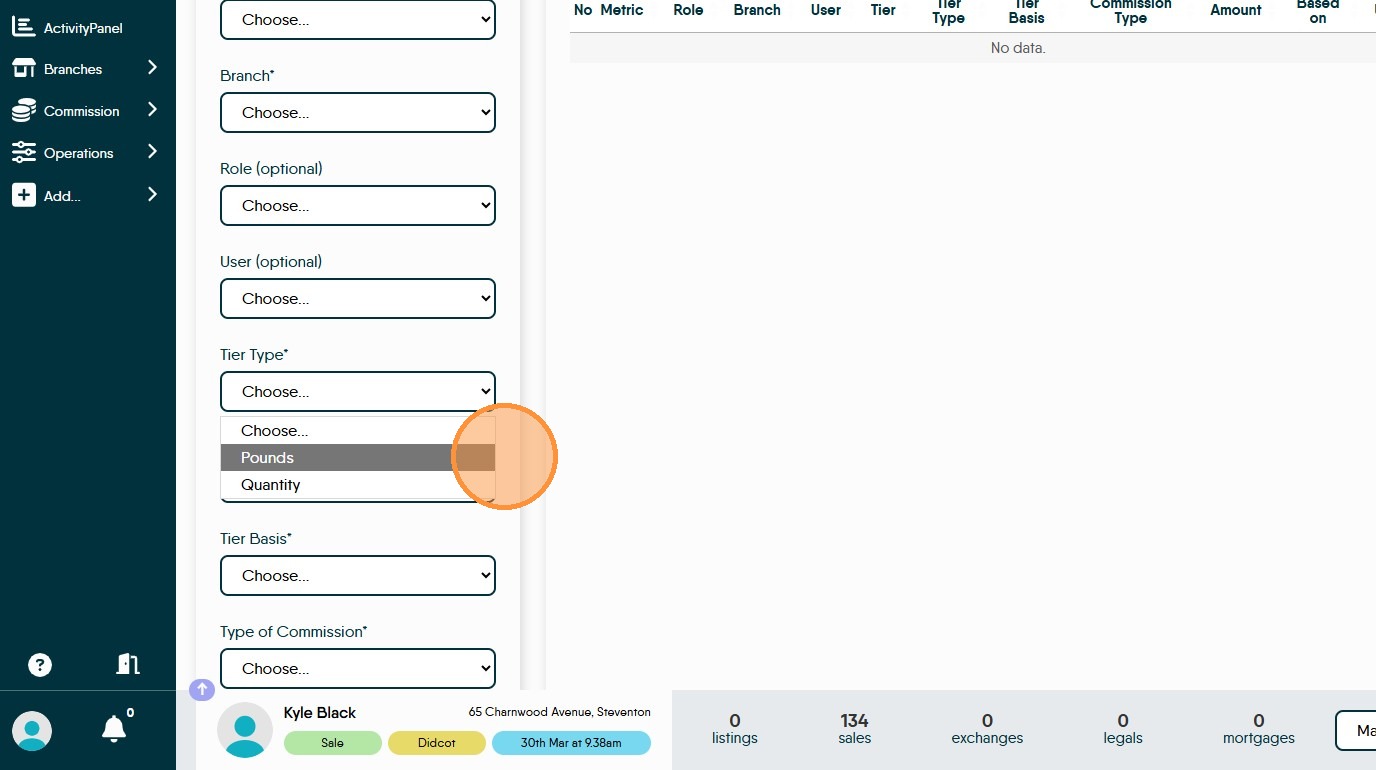
37. "Tier Type" - is it an amount of monetary value or number of items that must be sold before the tier applies. There are option of Pounds (£) or Quantity
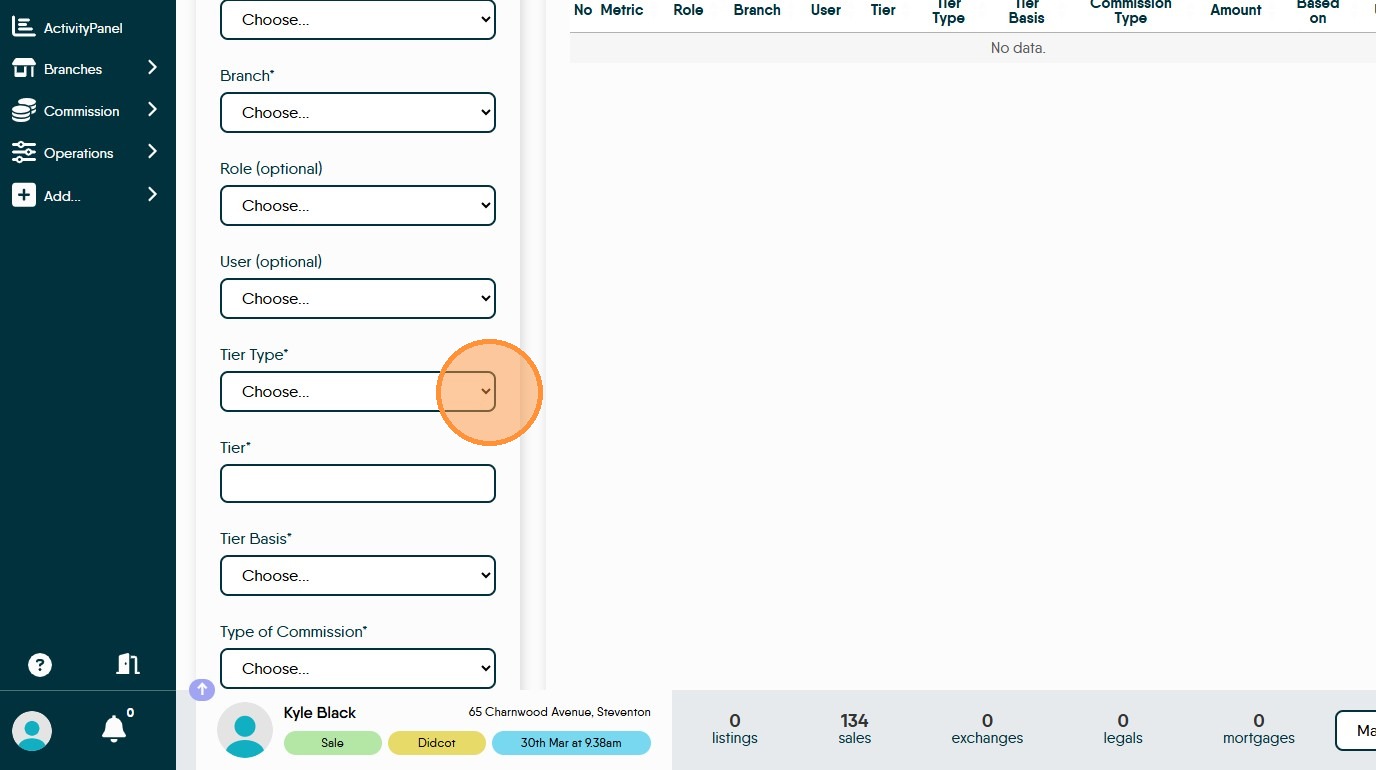
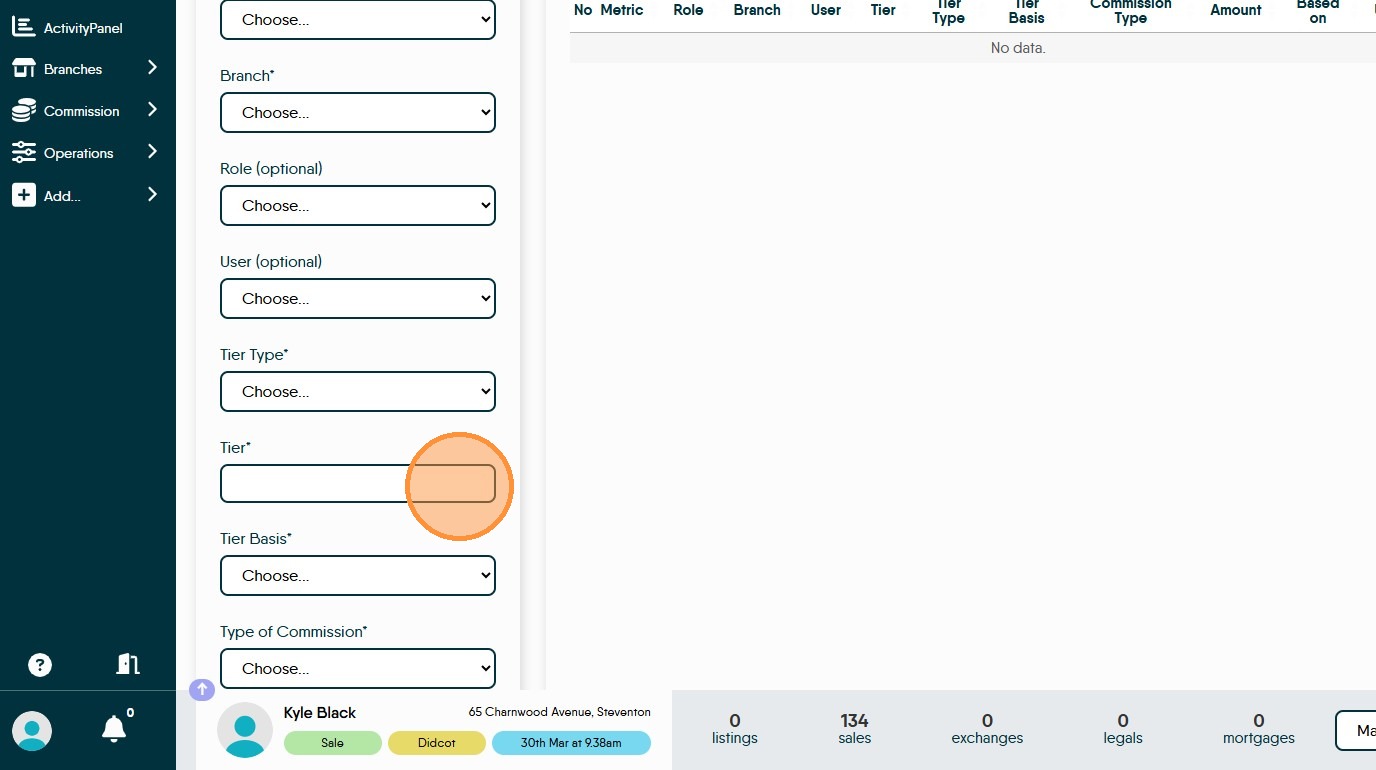
38. Tier is the point that the Variable commission starts from e.g if we use 'pounds' as the tier type and 'Sales' as the Tier Basis, adding 100 to 'Tier' would mean that once £100 is reached the new payment will start
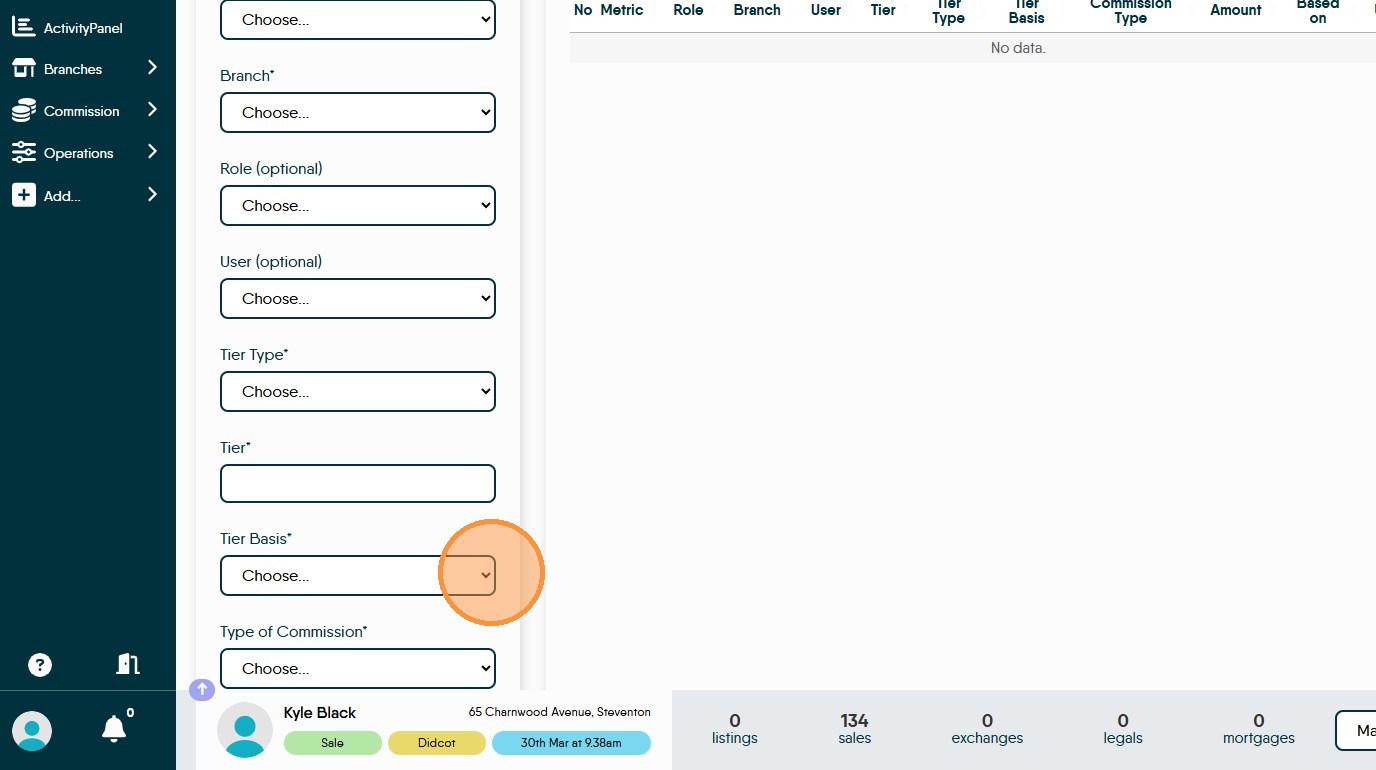
39. Click this dropdown to select what to earn/pay commission on
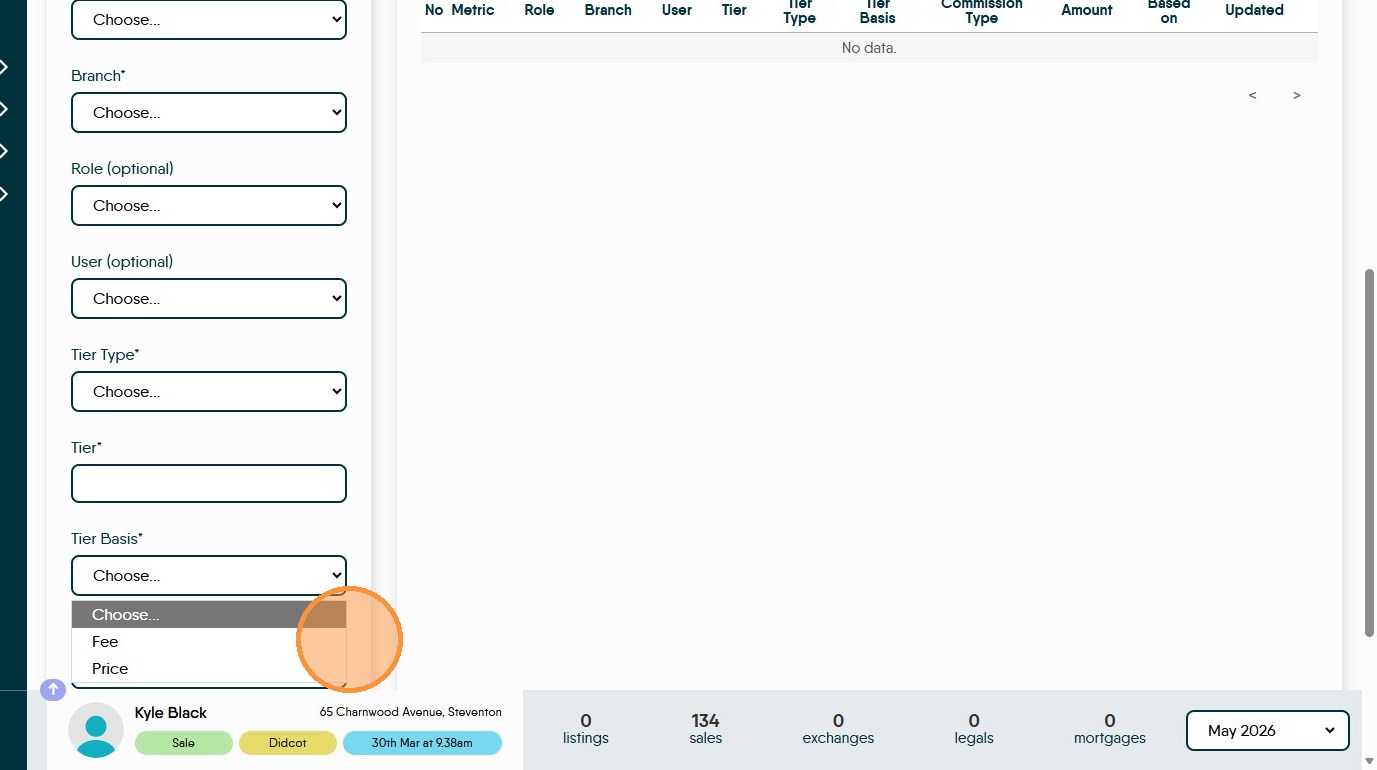
40. Amount is the amount if commission to be paid, if you have selected percentage as the 'Tier Type' then select either Fee or Price from the Stat menu to set whether the commission is a percentage of Fee or Price.
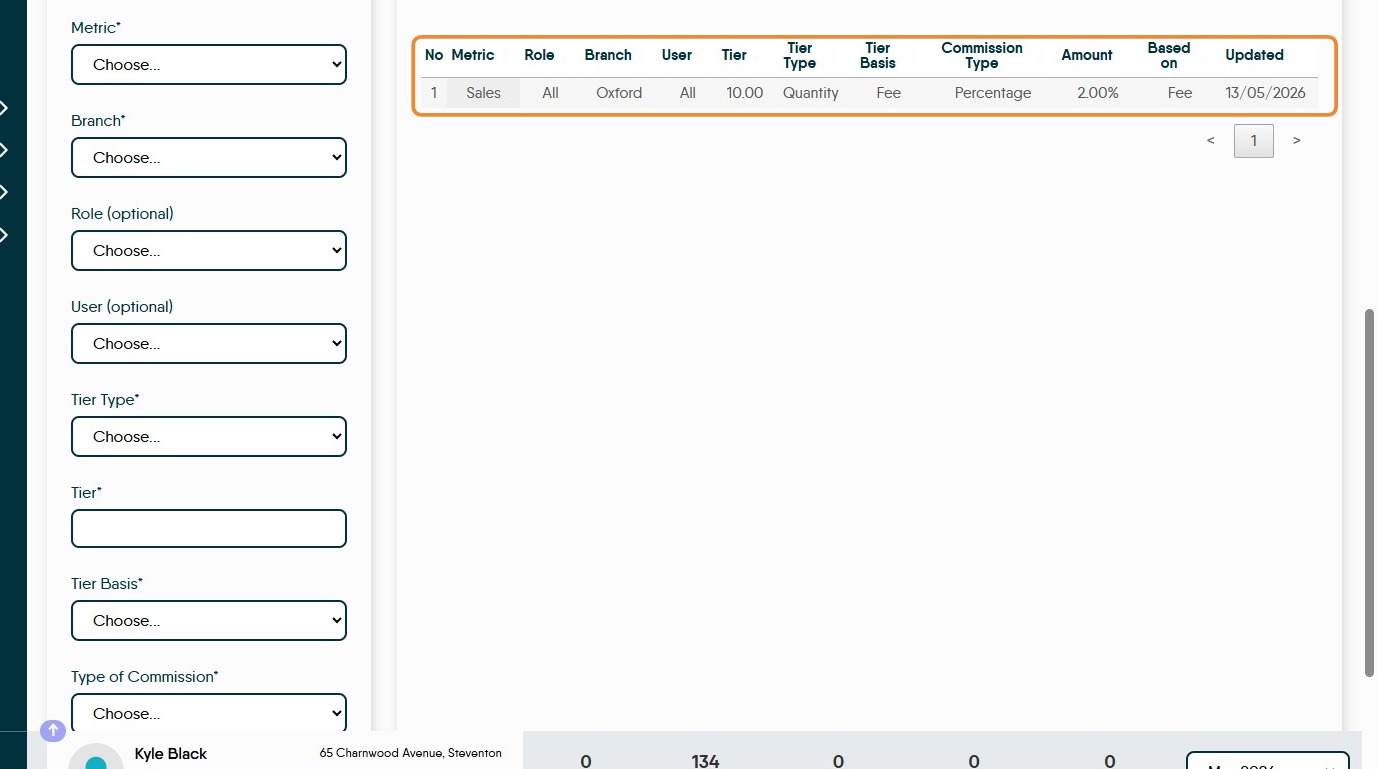
41. The commission once created will show on screen like this.
+ Add
42. Click "Add..." This section allows you to 'Add' transactions to the Dynamic Agent Dashboard.
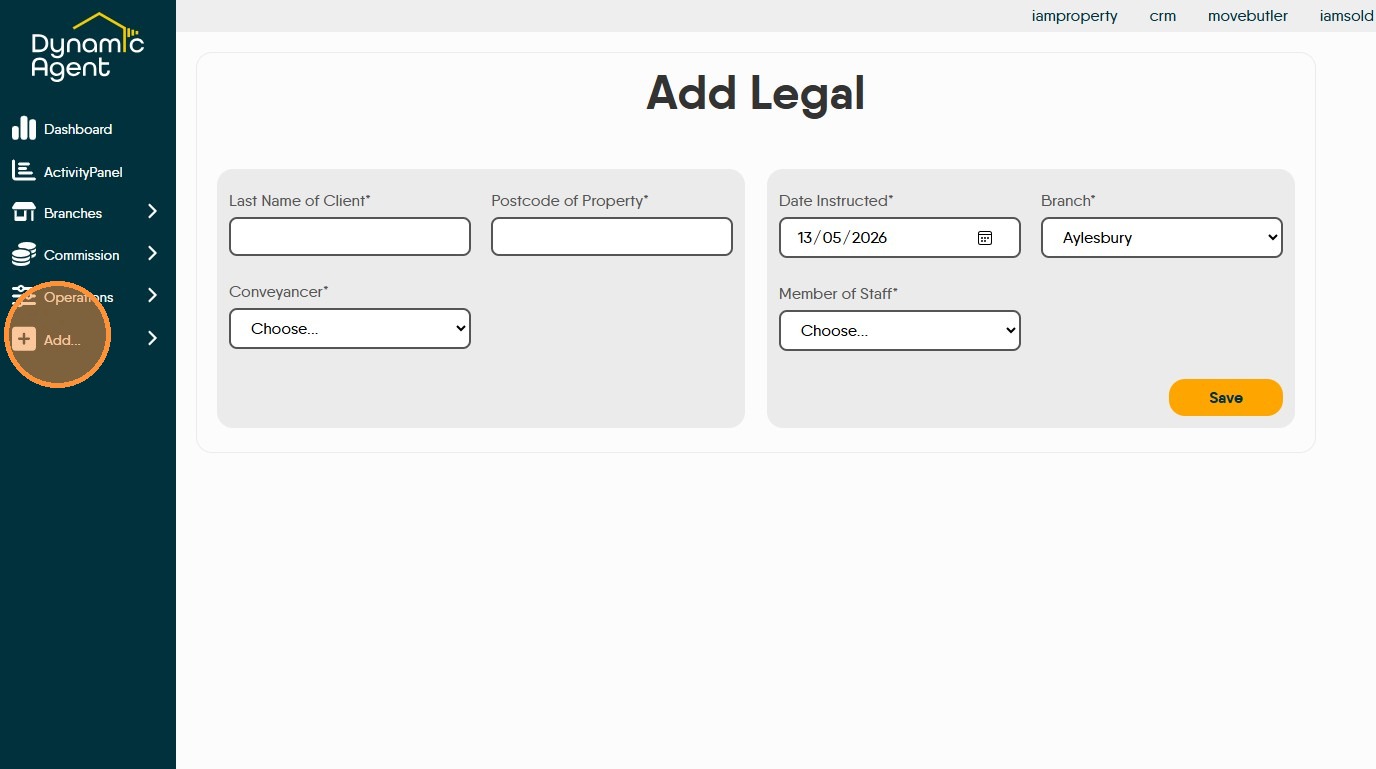
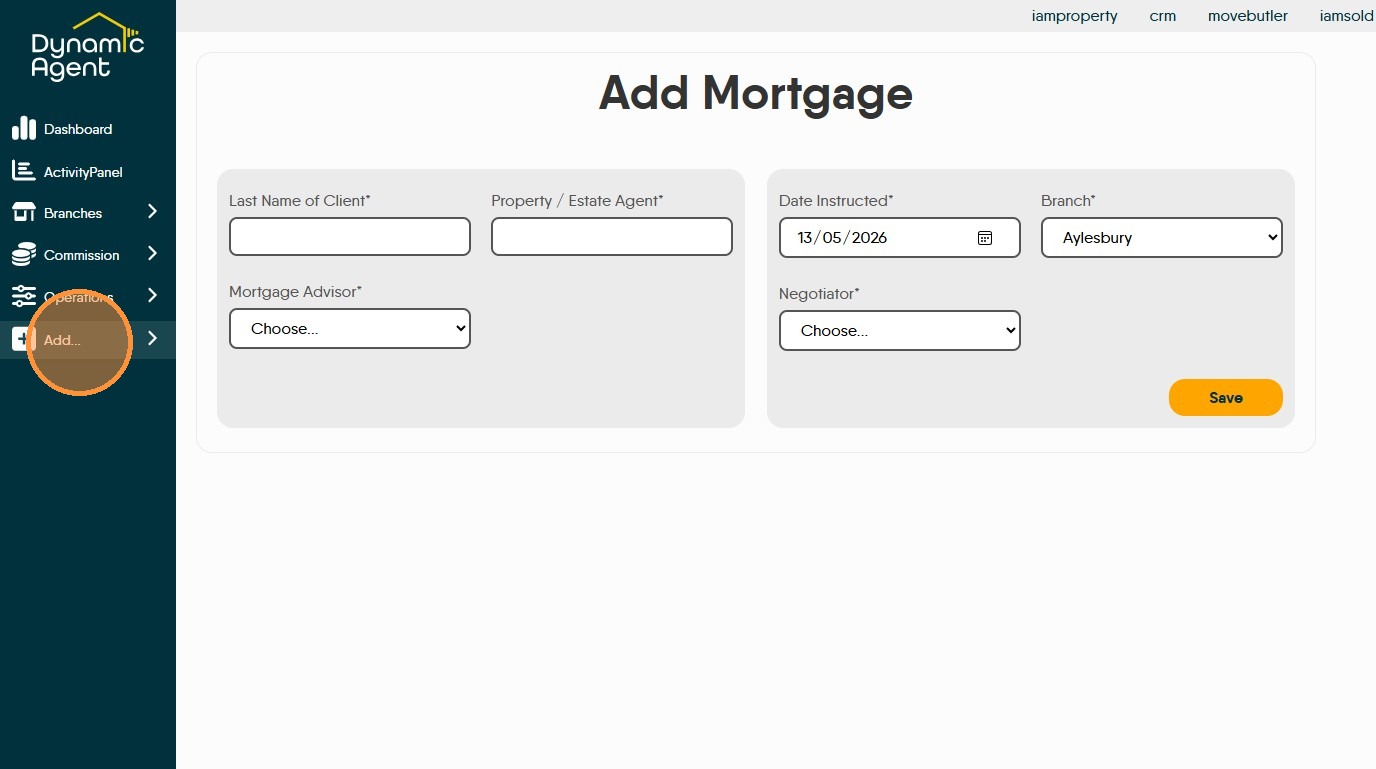
For most users this section will only show 'Mortgage' and 'Legal'
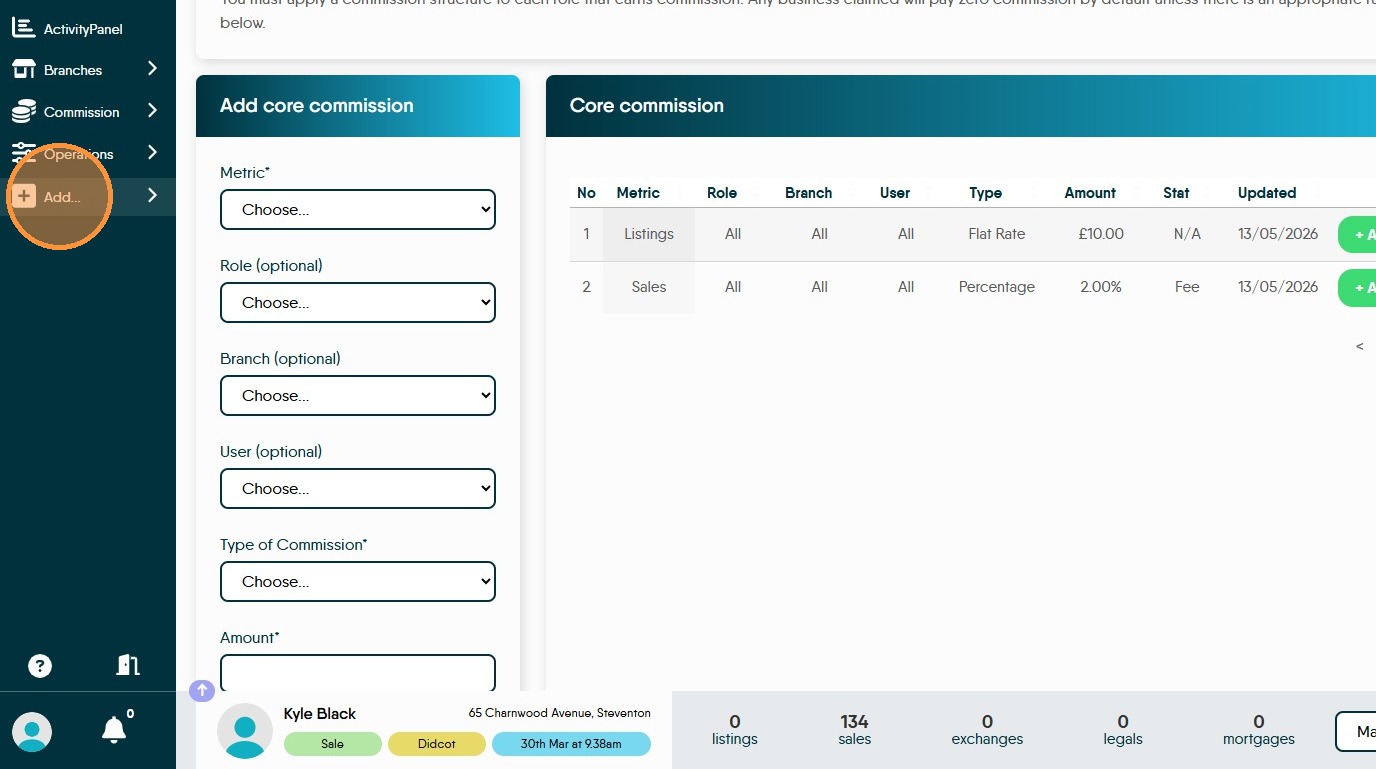
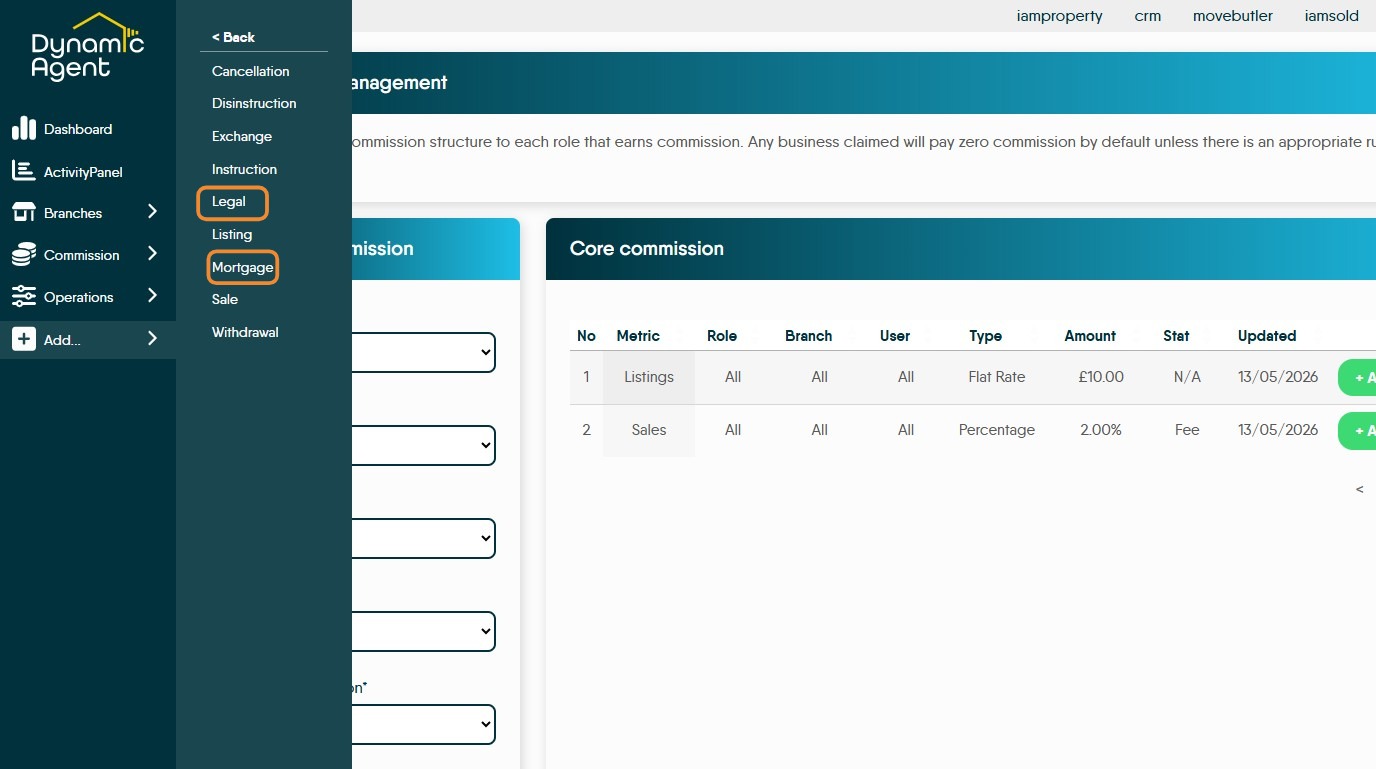
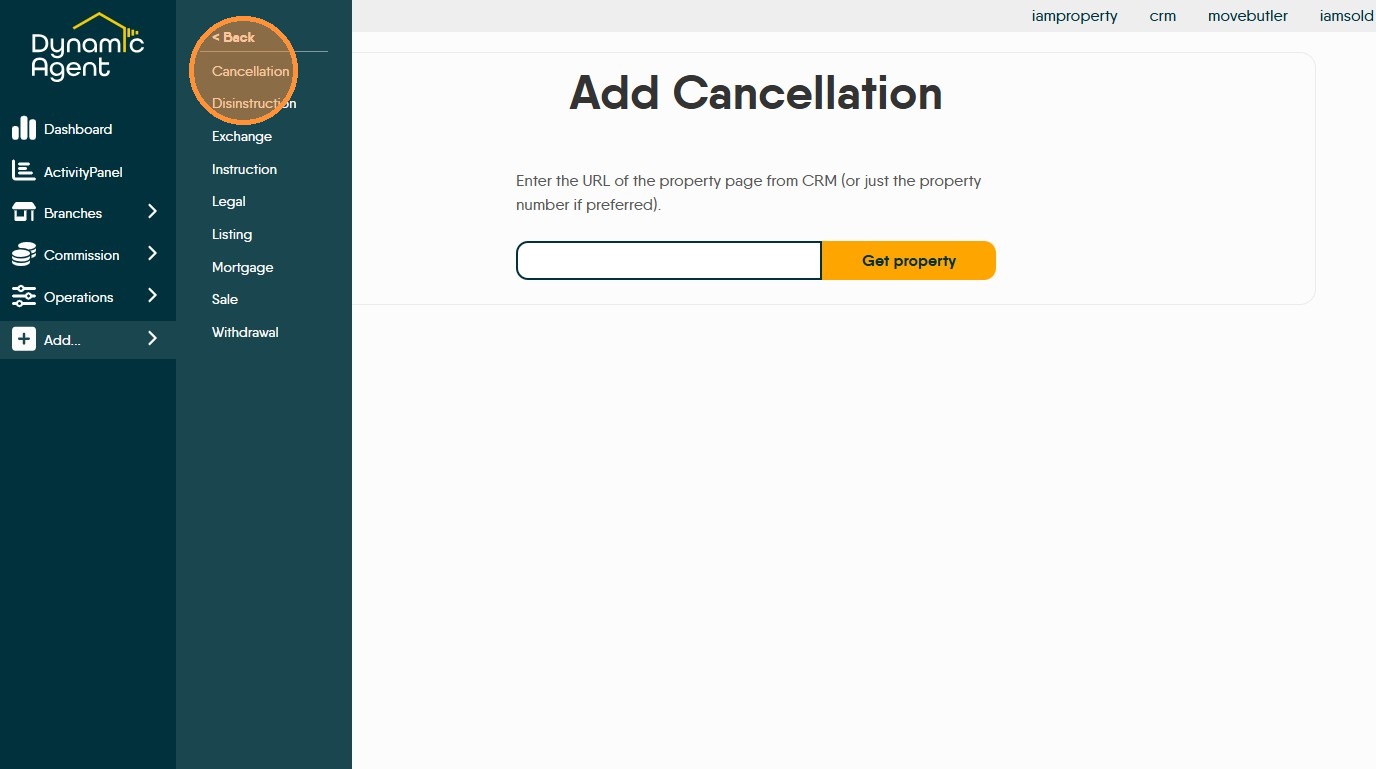
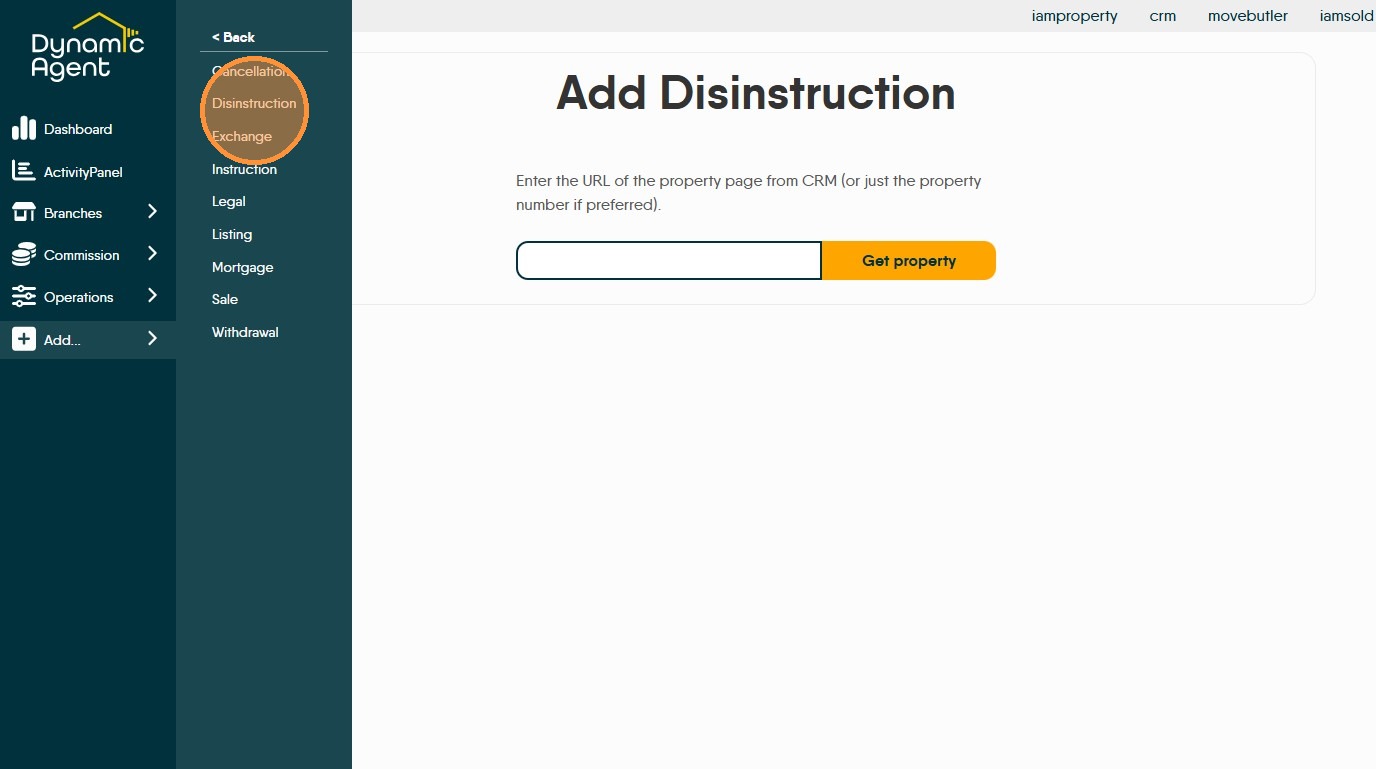
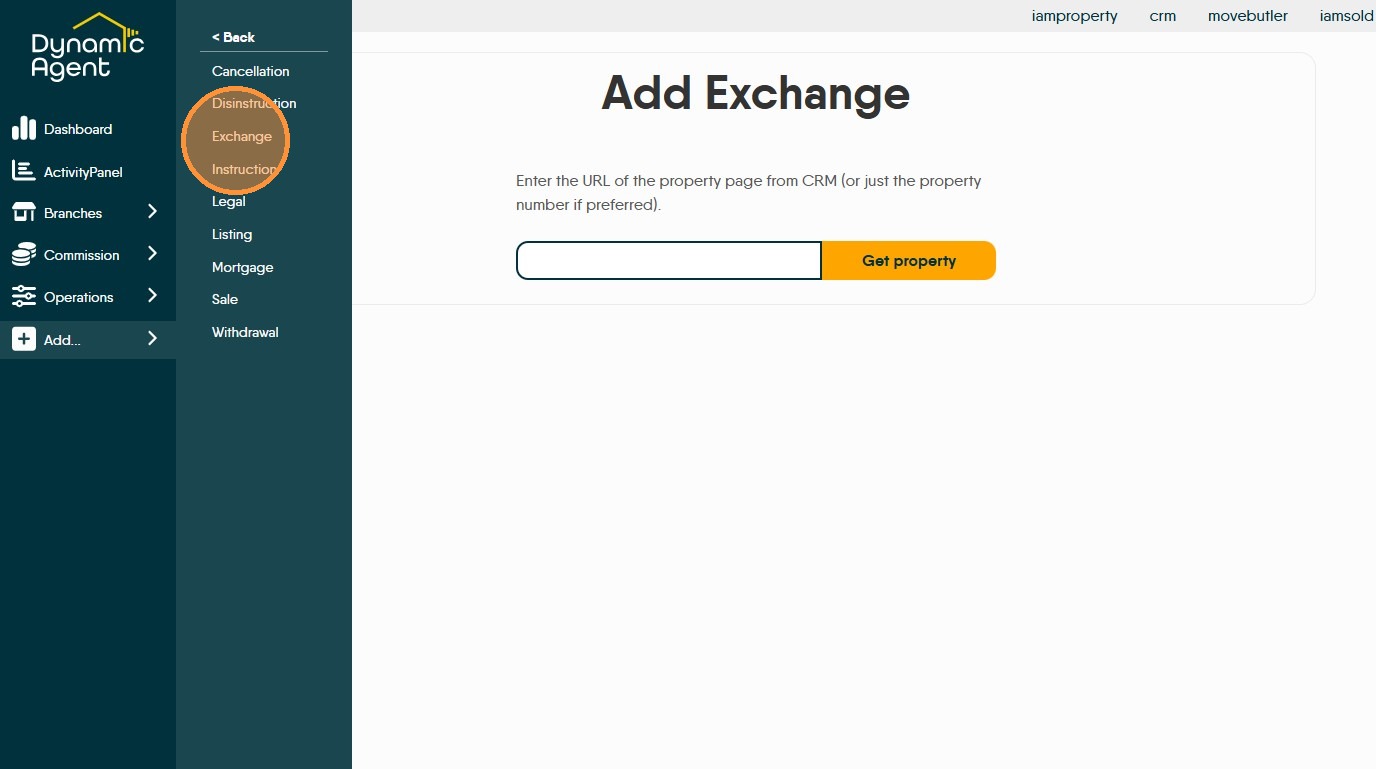
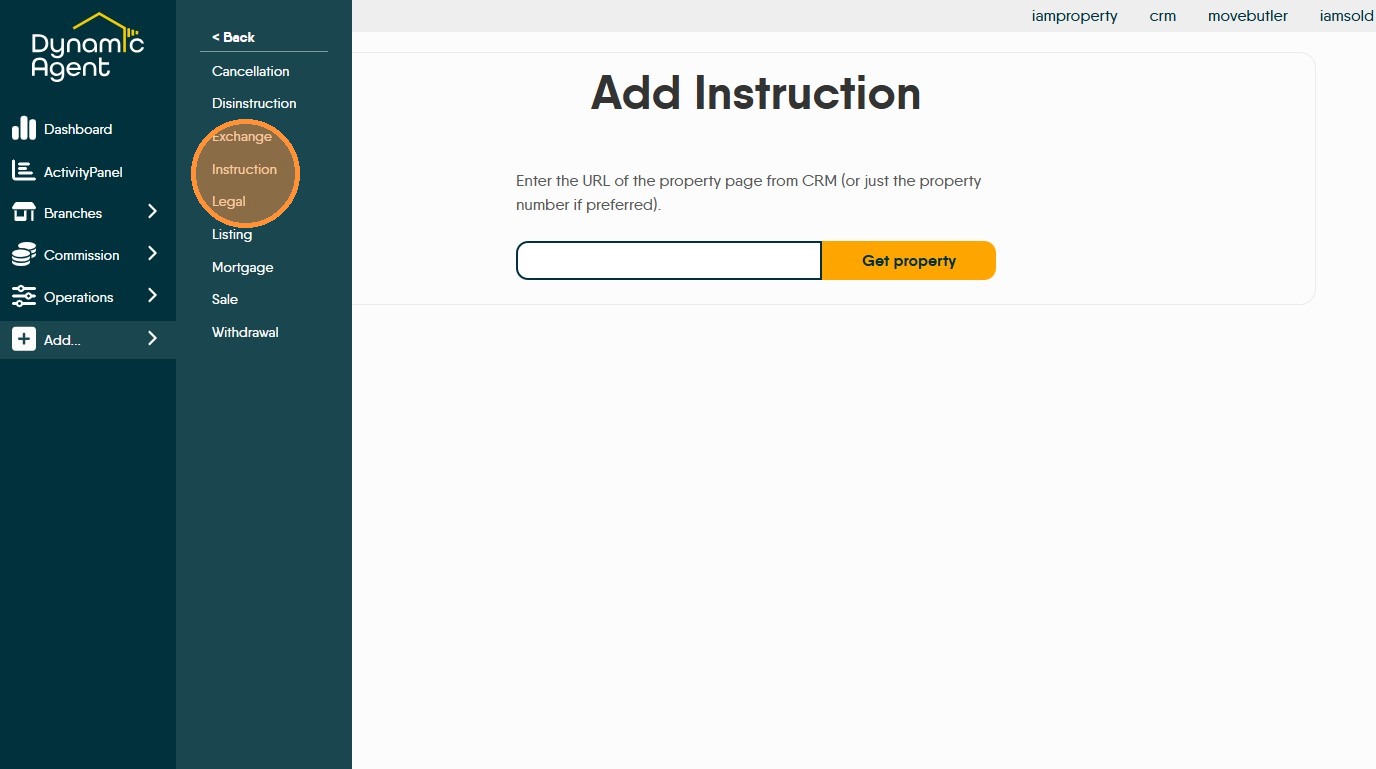
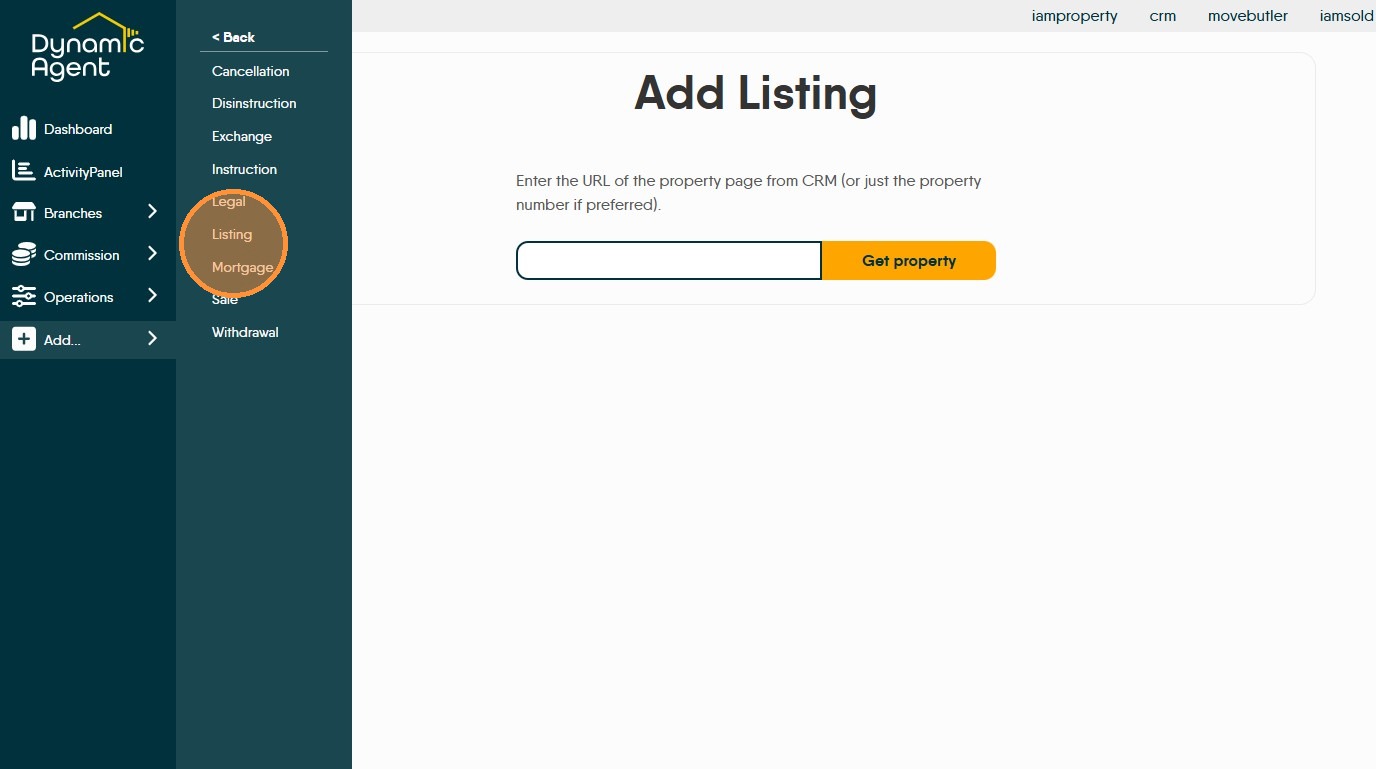
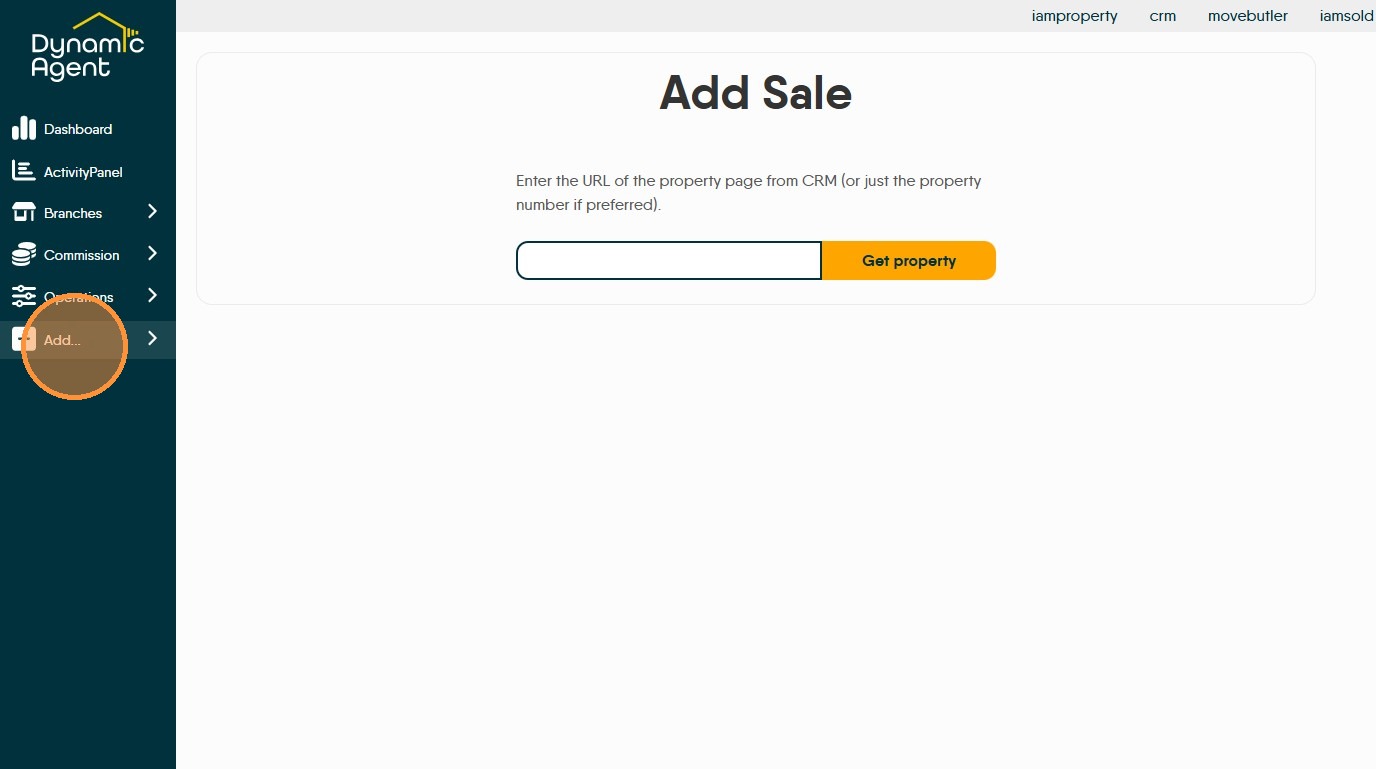
43. The other options are below. With the exception of 'Cancellation', 'Disinstruction' and 'Withdrawal' which will add a negative record (i.e. remove a sale etc from DA) and as such will reduce the connected figures and any connected commission payments, all these options will all add a new (missing) record to the Dynamic Agent screen.
The records are added or removed by copy/paste or typing the CRM URL of the property or the property number into the field on screen.
Add "Cancellation"
Add "Disinstruction"
Add "Exchange"
Add "Instruction"
Click "Add Legal"
Click "Add Listing"
Click "Add Mortgage"
Click "Add Sale"
Click "Withdrawal"