Learn how to navigate your CRM dashboard to identify suitable properties and refer them for auction. This guide walks you through verifying vendor details and finalising the referral submission process to streamline your workflow. There are 2 ways a property is identified as a potential for Auction, from the My Day screen and from the property record.
Tip: Within CRM there are now Auction Triggers that will identify if a property would be suitable for Auction, these triggers give you guidance where the property has been on the market for longer than expected, had no offers etc. This indicators give you the opportunity to speak with the Vendor and discuss the option of Auction, also other options based on viewer feedback etc.
From My Day screen
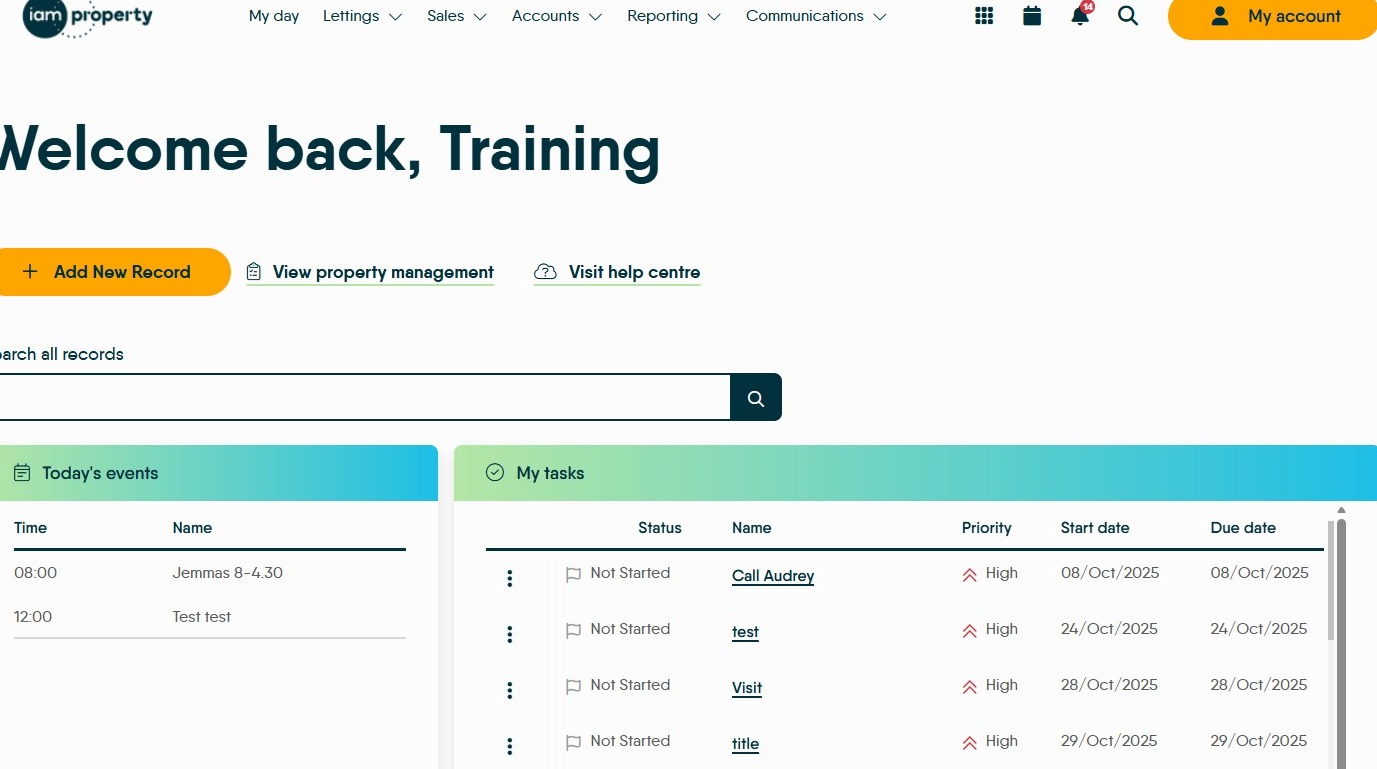
1. Navigate to https://crm.iamproperty.com/MyDay and scroll down the screen.
2. At the bottom of the My Day screen is this "Potentially suitable for auction" section.
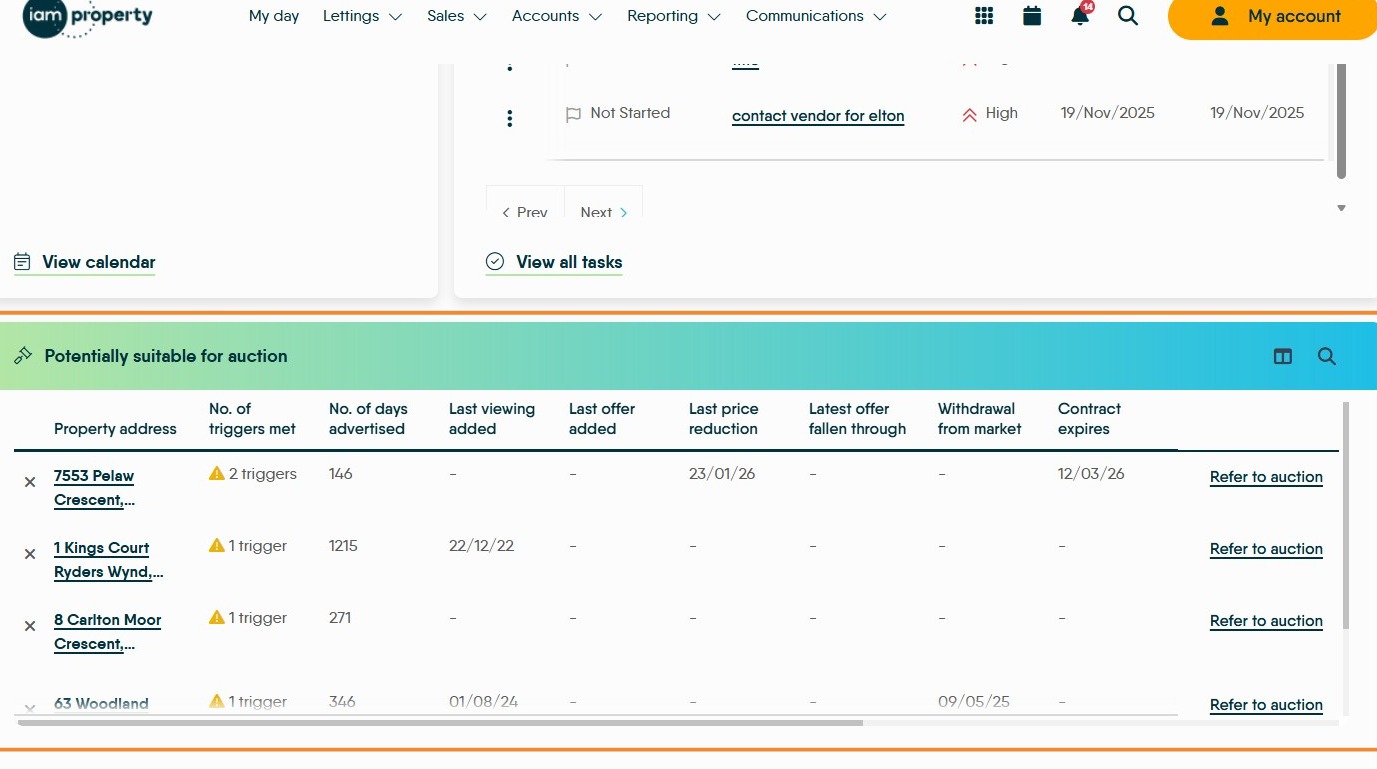
Alert: Alert! Even though the property is 'For Sale' with your agency, it is still a requirement that you contact the Vendor to discuss using Auction, explain the process and for their permission to send the details to the Auction Specialists.
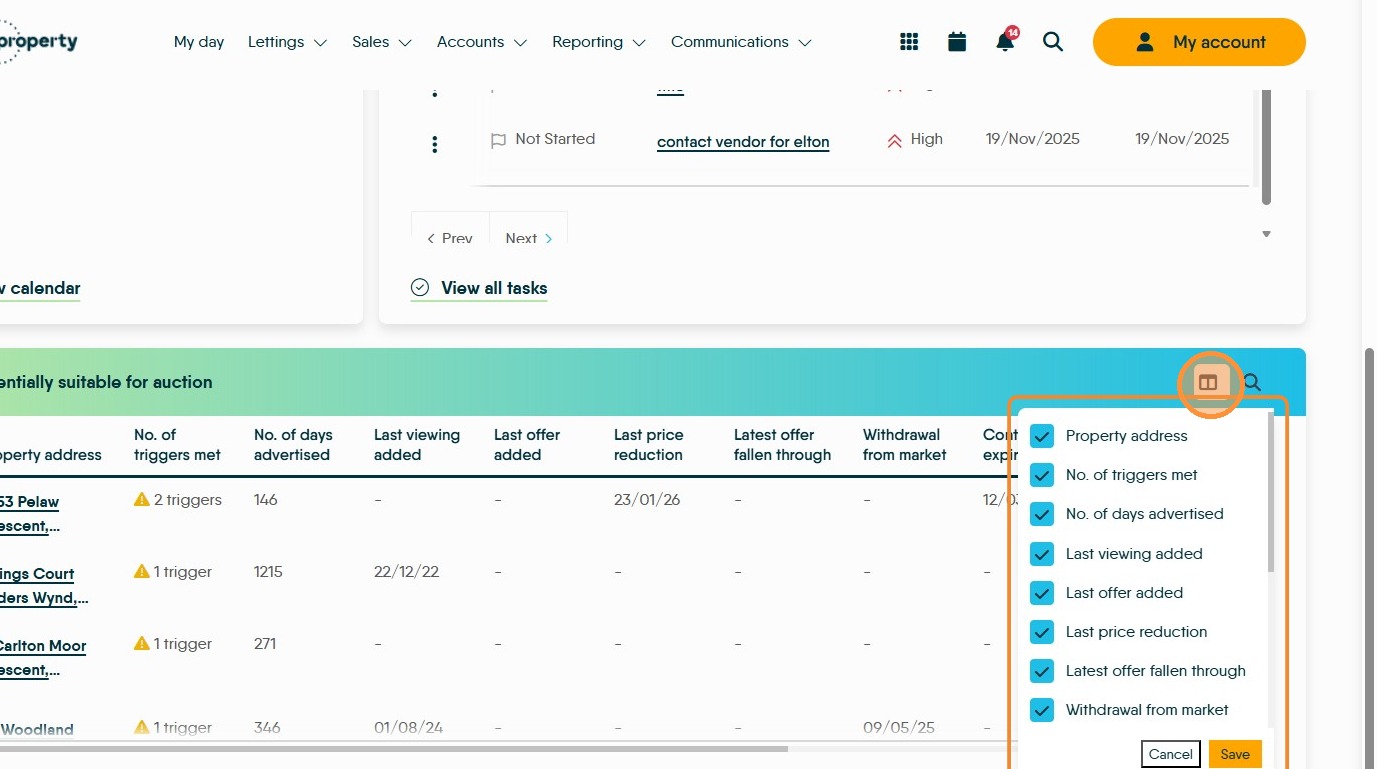
3. To edit the Auction Triggers that are visible on screen, click here. In the menu, select the options you want visible and save.
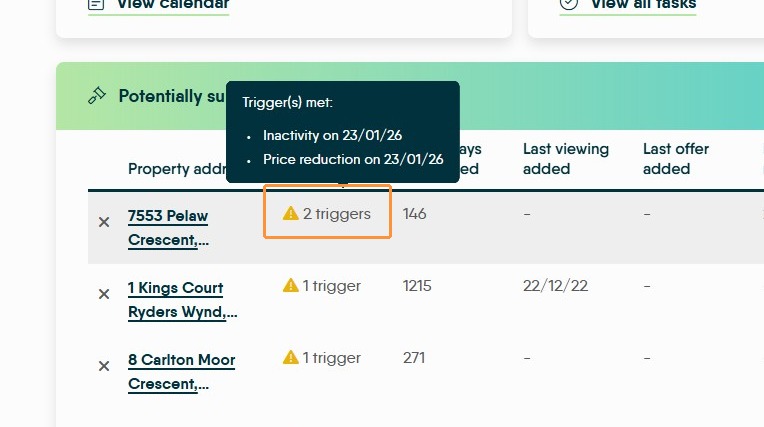
4. The 'No. of Triggers Met' option, when hovered over, shows the individual triggers hit to create the auction suggestion.
5. Scrolling across the screen gives visibility of the Vendor details to enable contact, so a discussion around auction can be had before referring to auction.
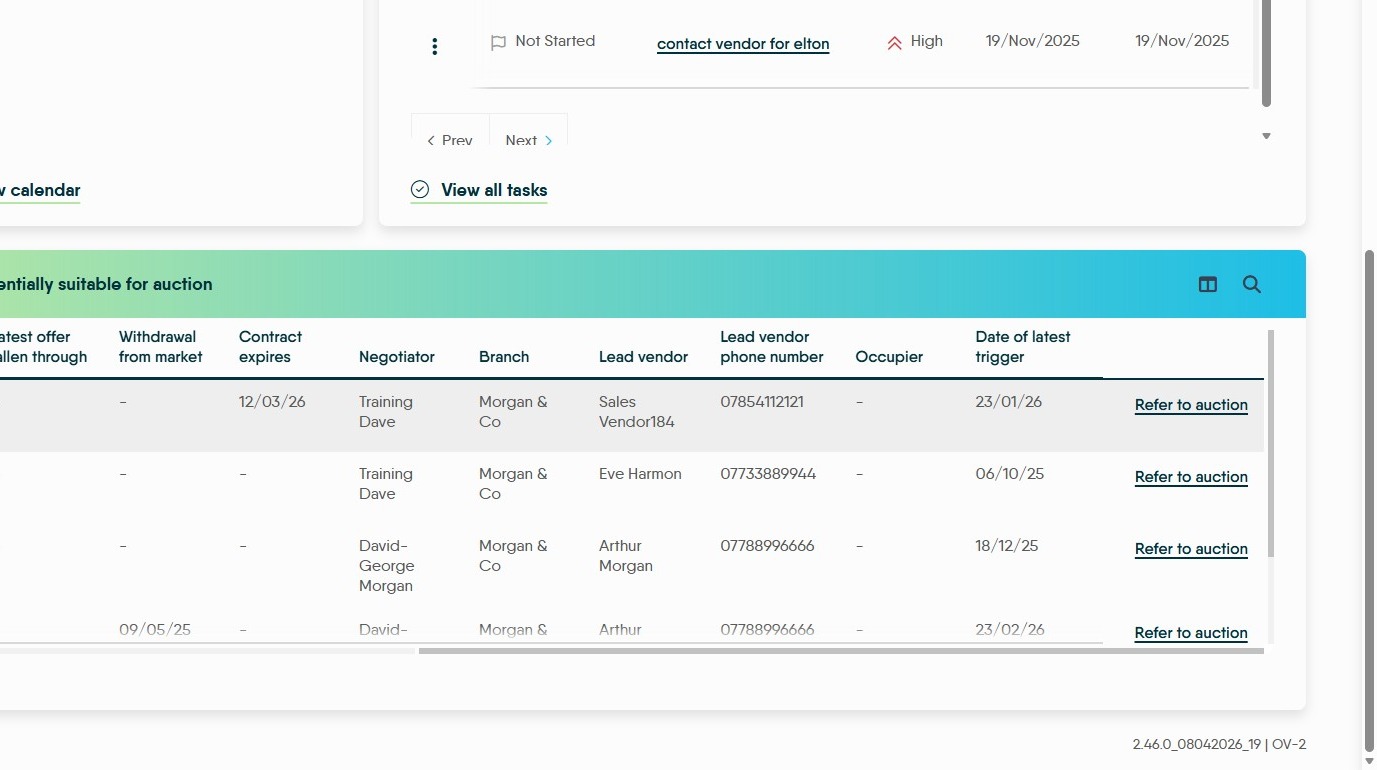
6. Click "Refer to auction" to refer the property to the Auction Specialist team who will handle the process from this point onwards.
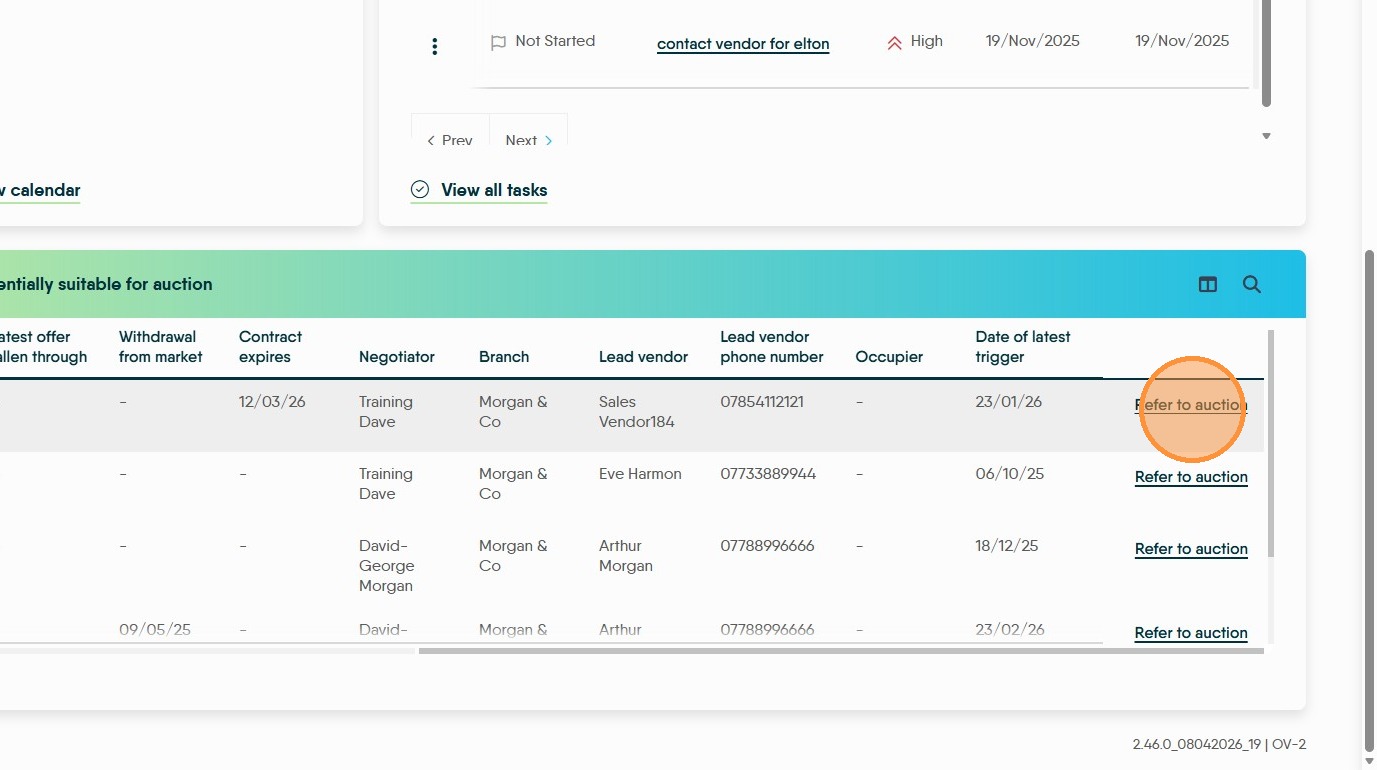
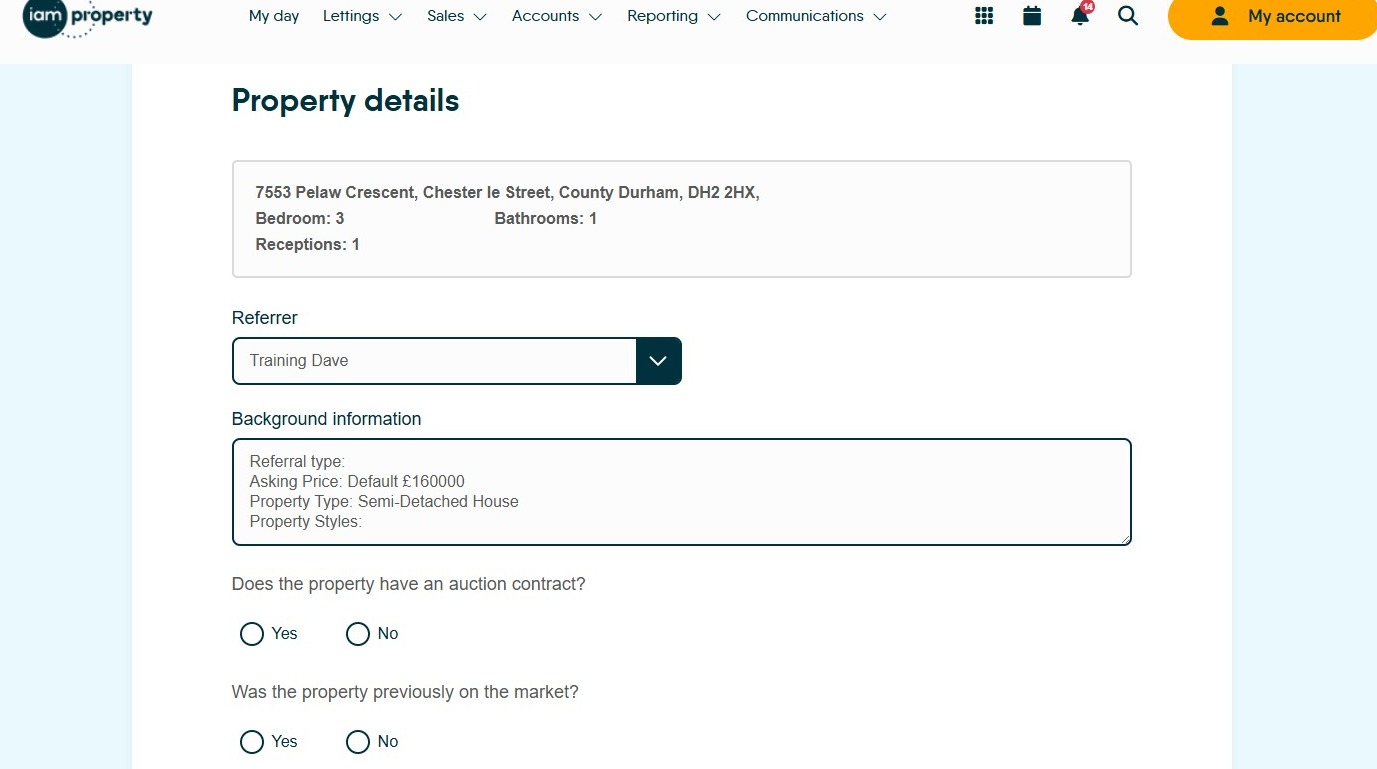
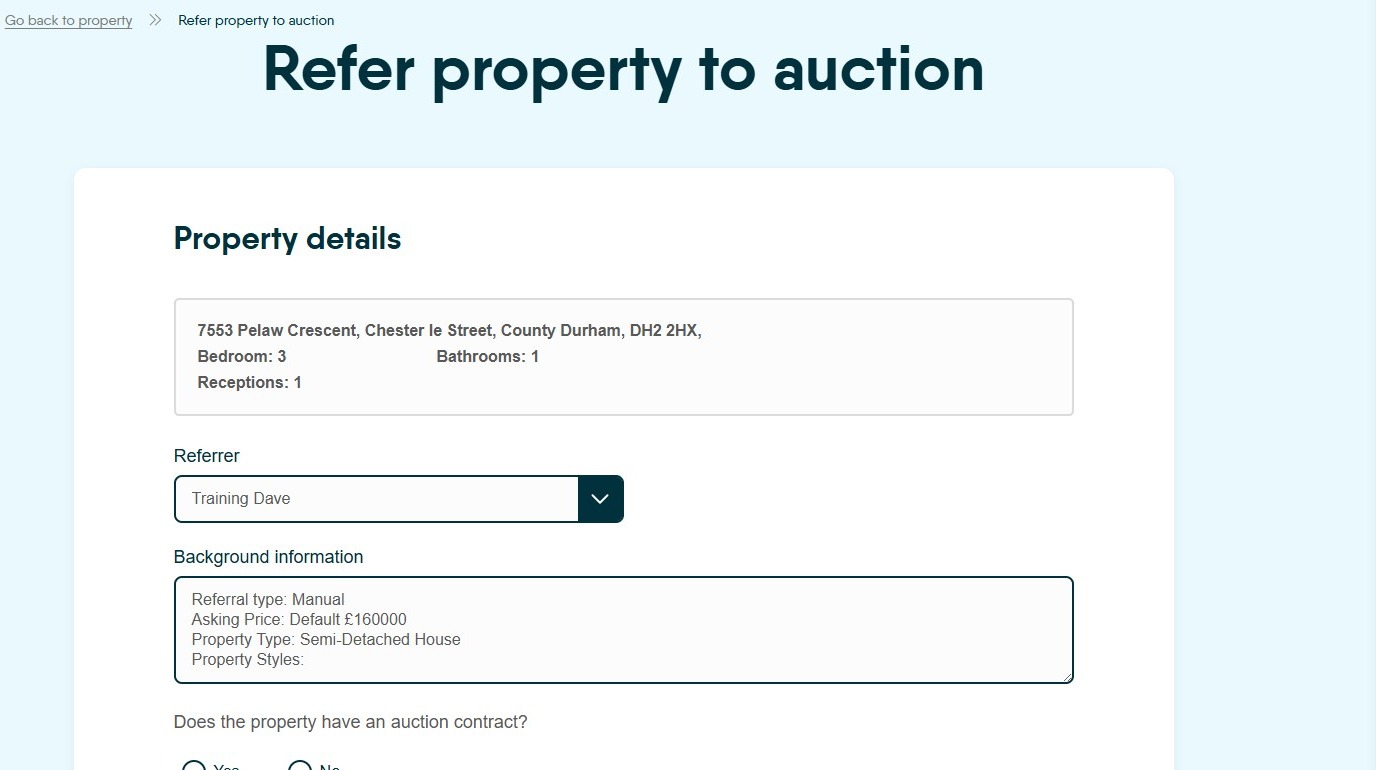
7. Once 'Refer to Auction' is clicked this screen will show all the relevant details for the property, taken from CRM. Additional Information can be added to, or edited from the 'Background Information' field. Complete any spaces that are not completed.
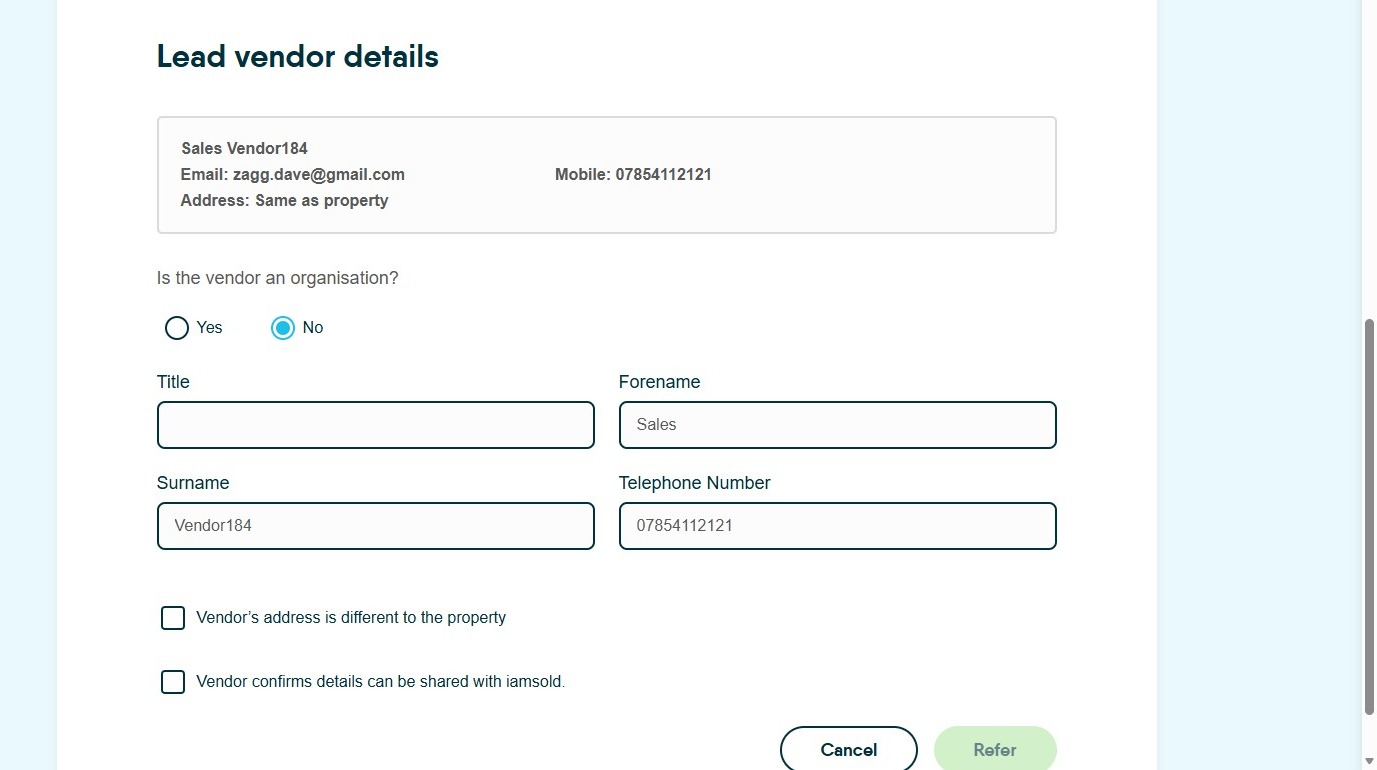
8. Scroll down to "Lead vendor details" and add in any missing information. Once complete the 'Refer' option will be available to click and send the property to the Auction Specialists.
From a Property Record
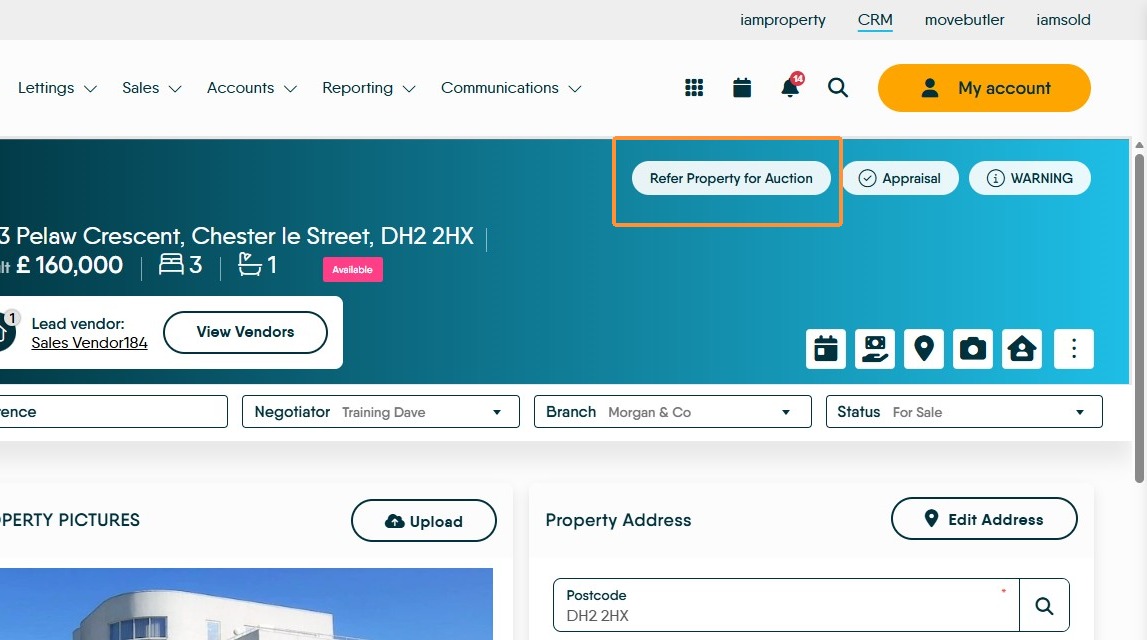
9. Click "Refer Property for Auction" this is shown on all properties not just those that are suggested.
10. The same screen as previously shown will show. Complete the screen and click the 'Refer' option.
Alert: Alert! Once the Property has been accepted for Auction, please make sure you add the Auction notes etc to the properties marketing and re-upload to portals and your website.
Also change any status indicators you use in CRM to show this property is now an auction property.