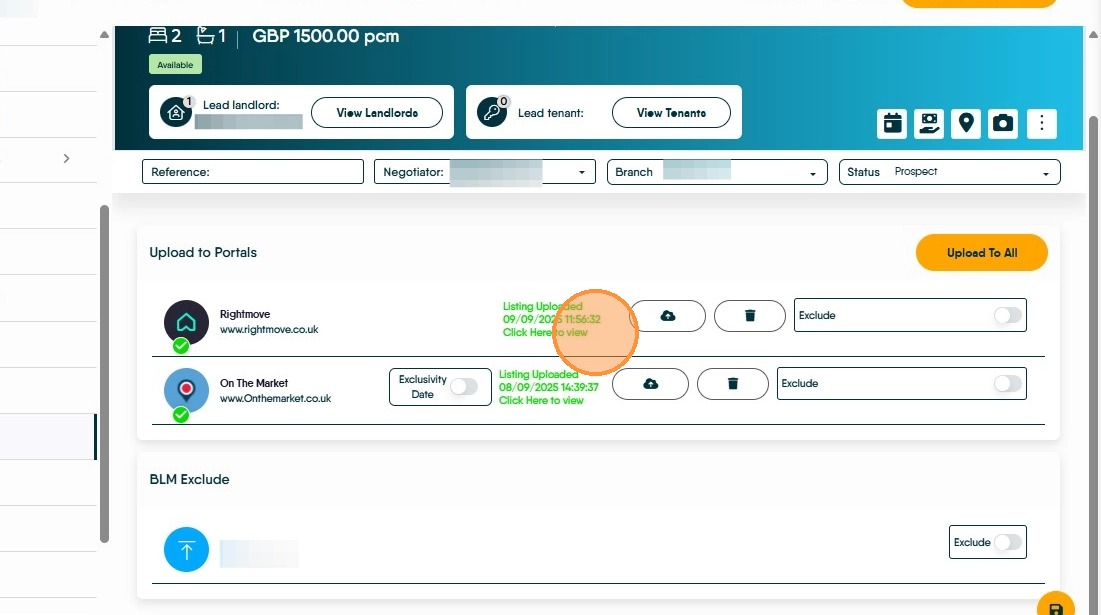
This guide shows how to identify and fix the 'Invalid Element' error when marketing a property. By following the outlined steps, users can ensure their property listings are accurate and compliant, ultimately enhancing visibility and appeal
1. If a property fails to upload, a red cross will display on the portal logo, and an exclamation mark button will appear next to the Upload button.
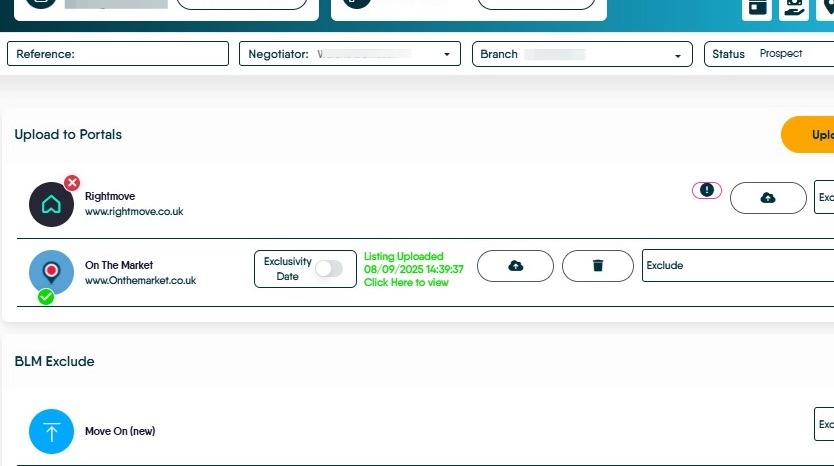
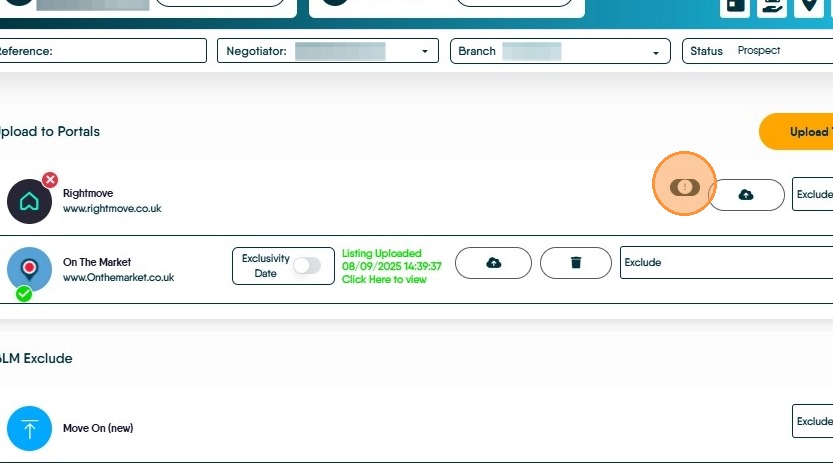
2. Click the exclamation mark button and you'll be shown an error.
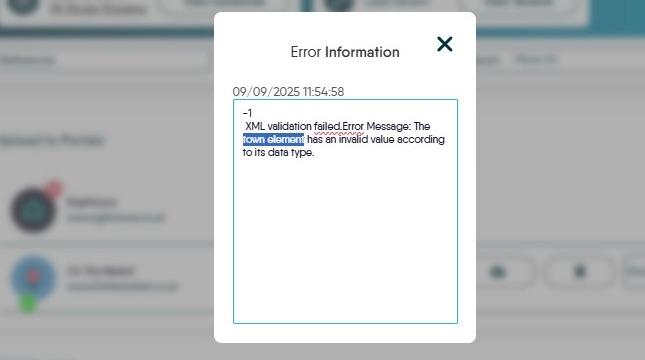
3. The error tells you there is an invalid value in a certain section of the property record. The most common being the Address Line 1, Town, Summary, and Description elements.
4. If you see the Address Line 1 or Town Element error, go to the Property Details Page and click the Edit Address button
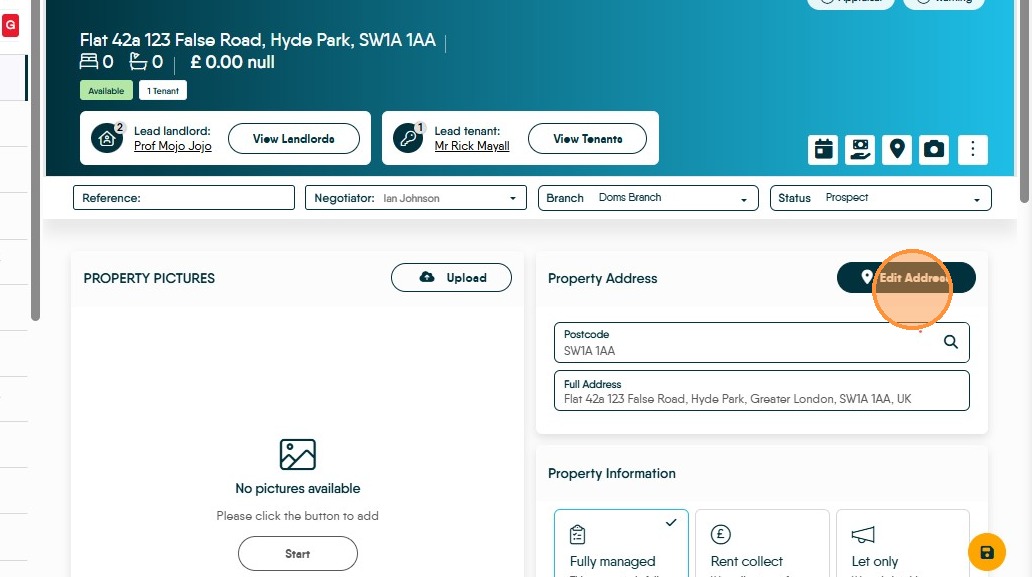
5. This will expand the address and allow it to be edited. Here we can see the Town field is empty, and the property will not upload to portals without it.
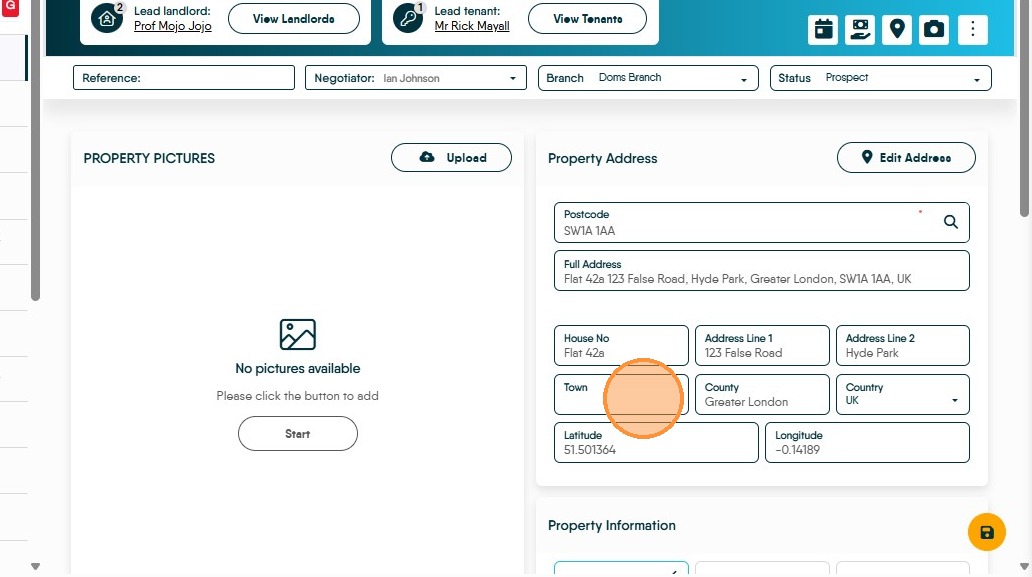
6. Add in the missing element
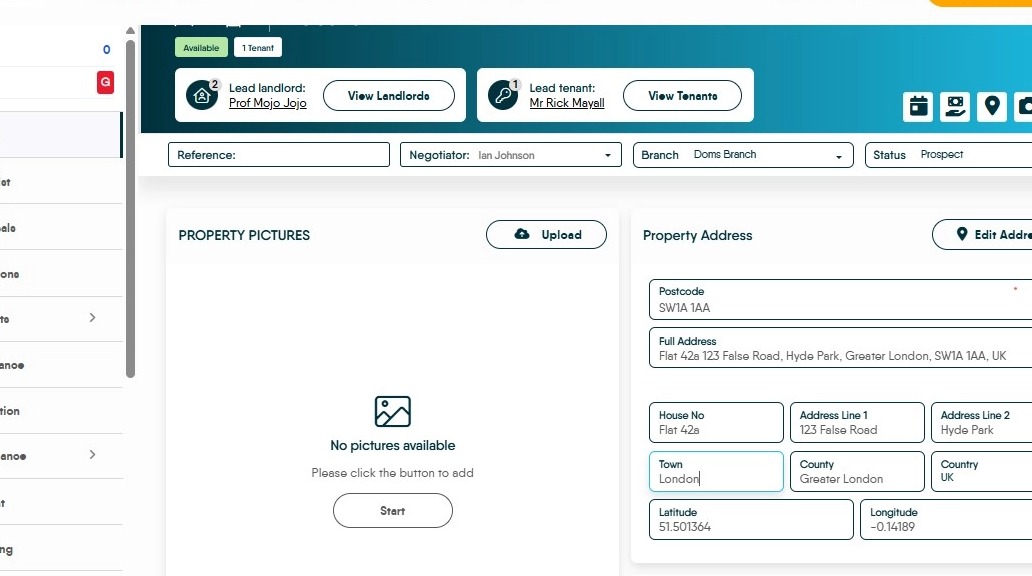
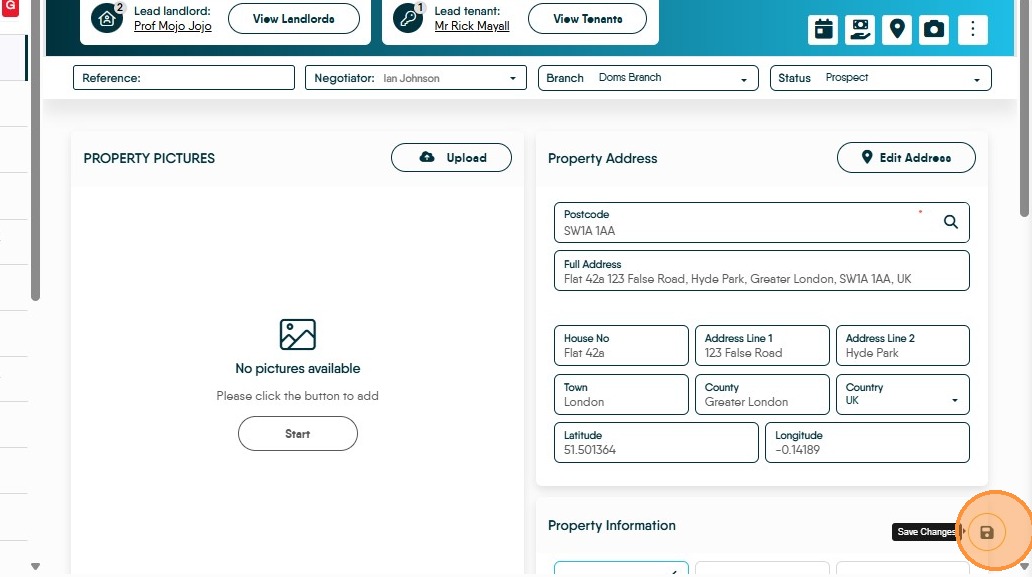
7. Save the address
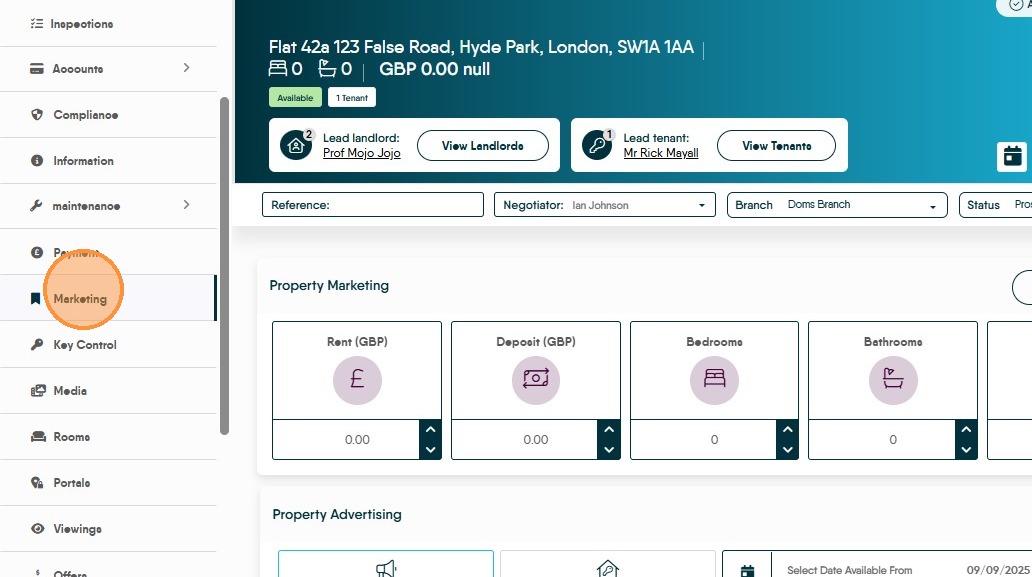
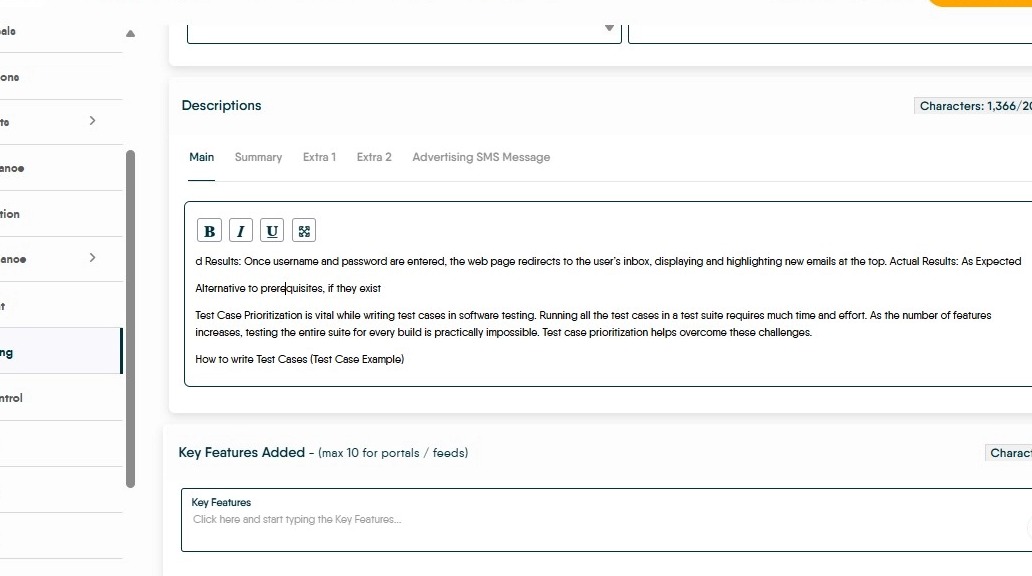
8. If the Invalid Element in the error is the Description or Summary, the likely cause is the text has been copy-pasted from an email or a website and has formatting that cannot be uploaded. Go to the Marketing tab and scroll down to the text boxes.
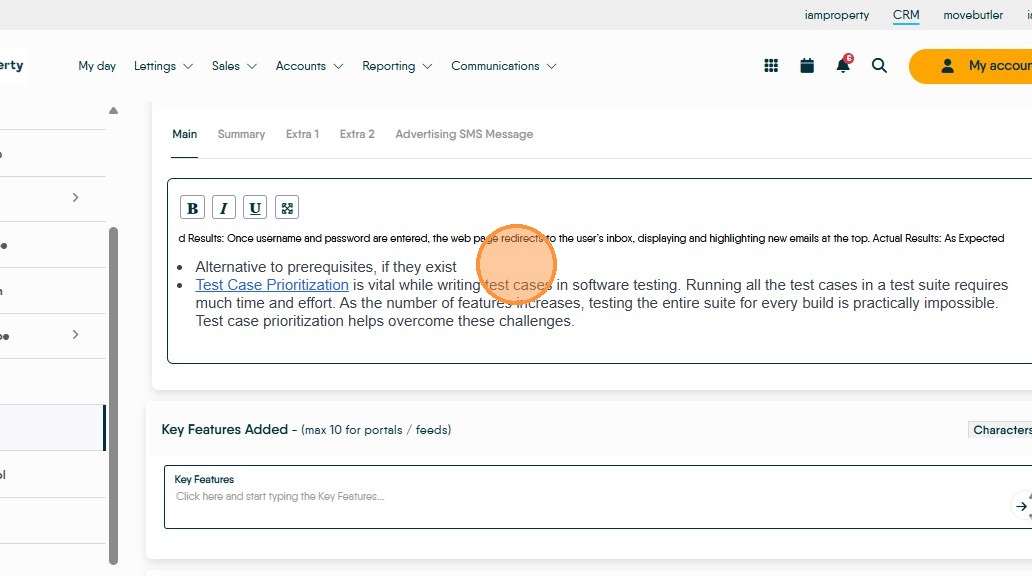
9. There are several clues that the text contains formatting. In this example, you can see different fonts and text sizes are in use, as well as bullet points and a link
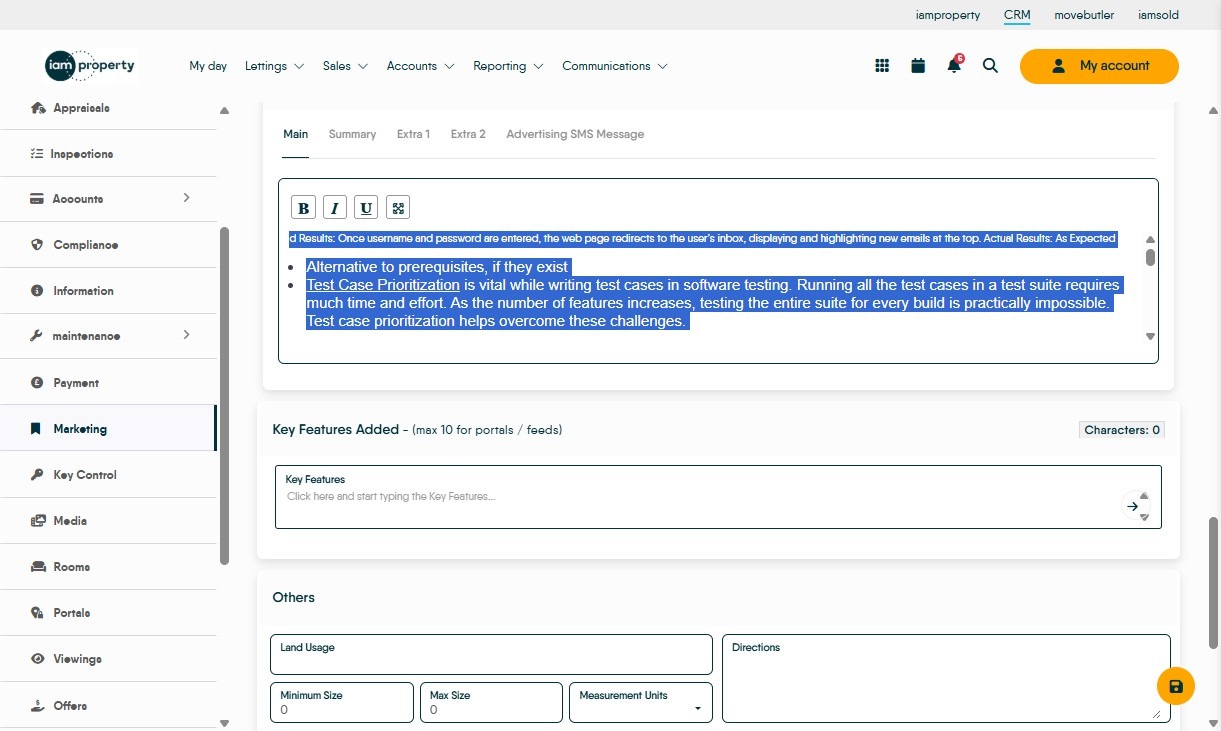
10. Press [[ctrl]] + [[a]]to select all of the text in the box
11. Press [[ctrl]] + [[X]]to cut the text, then Press [[ctrl]] + [[shift]] + [[V]]to paste it back as plain text.
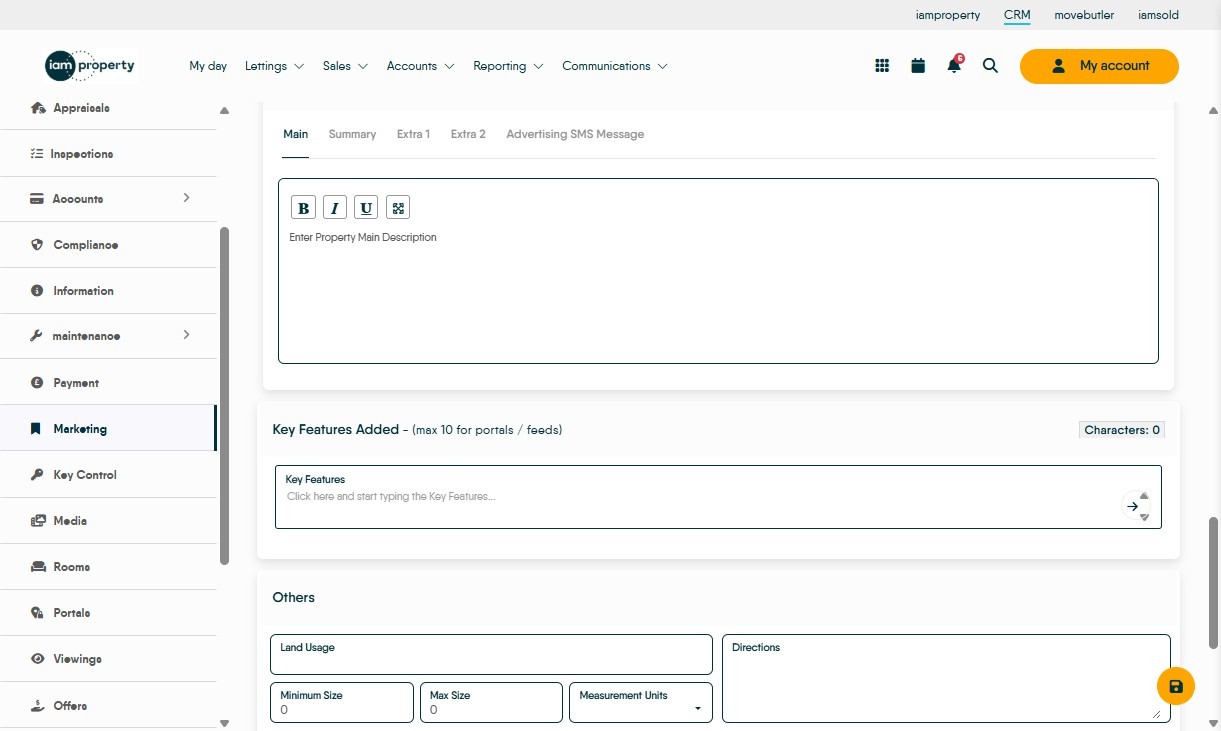
12. You will be able to tell that the text has had the formatting removed as all fonts and sizing will change to the system font.
13. With these changes made, reupload the property to confirm there are no other errors.