This guide provides a step-by-step process for updating applicant details in the CRM, specifically for the 'Buyer Position.' It streamlines the workflow for managing applicant information, ensuring accuracy and efficiency in your sales operations. By following these instructions, users can easily navigate the CRM and make necessary updates, enhancing their ability to serve clients effectively. This resource is essential for anyone involved in property sales and applicant management.
1. Navigate to https://crm.iamproperty.com/MyDay

If you know the name of the Applicant, use the search option to search for and find the record, jump to here to continue. If you want to search all applicants follow the instructions below.
3. Click "Sales"

4. Click "Applicants"

5. Click the "Search in Sales Applicants" field.
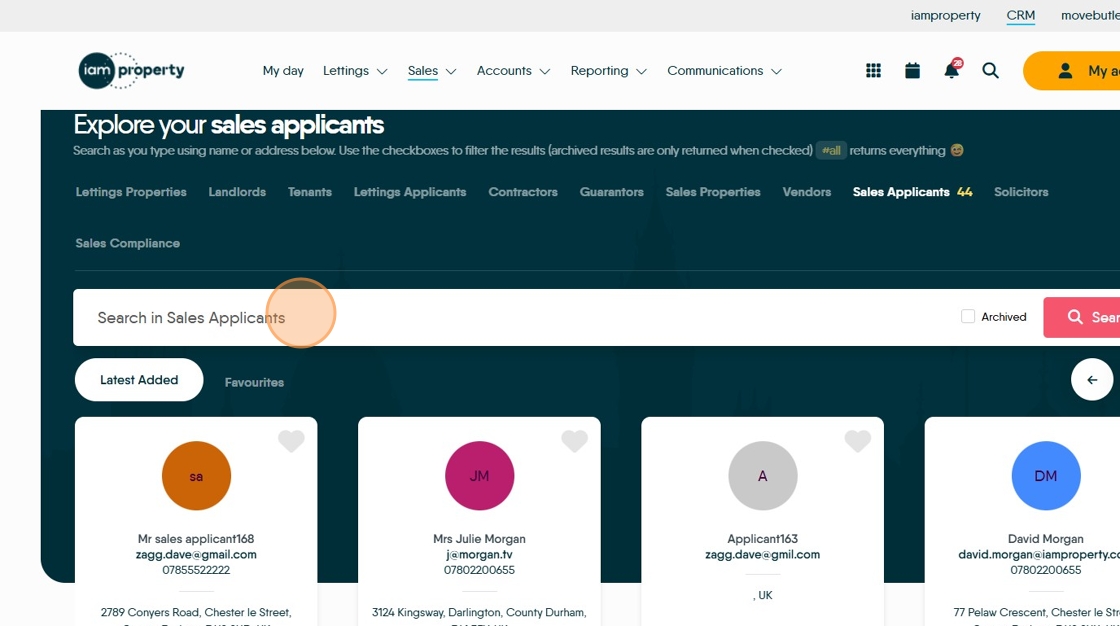
6. Click "#all" to show all records.

7. Click here to select the "list view".

8. To export this list, click the "Export to CSV" option

9. Scroll across the screen. Click "Buyer Position" this will show all the currently set Buyer Positions in one screen. To export click the export icon.
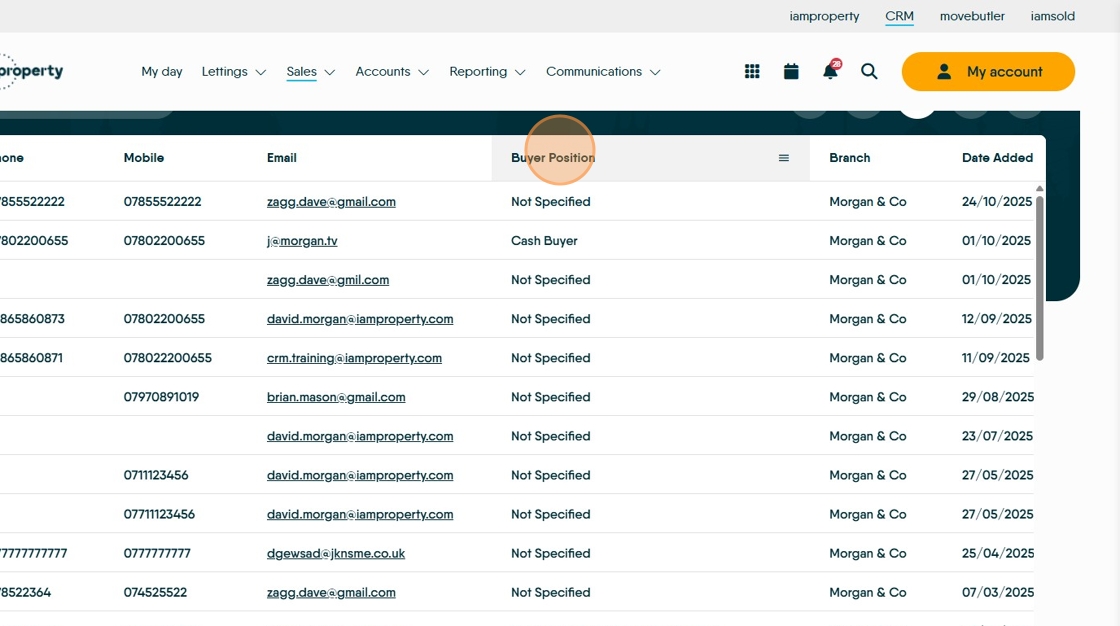
To Update the "Buyer Position"
11. Click "View Applicant"

12. In the applicant screen, scroll down the screen.

13. Select the "Buyer Position" option and from the drop down menu select the appropriate option.

14. Click here to "Save"
